add clips to new
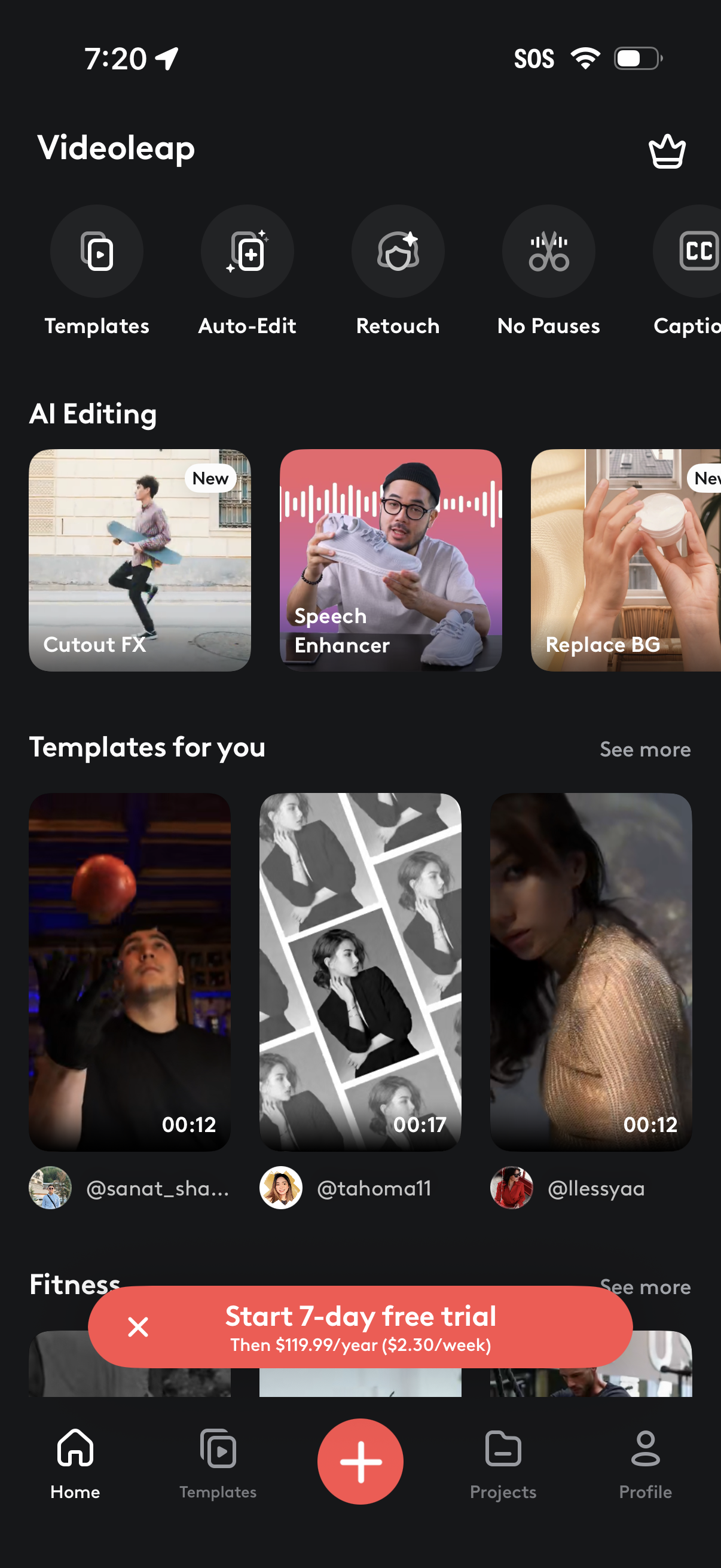
Home screen of a video editing app showcasing quick-access tools like Templates, Auto-Edit, Retouch, No Pauses, and Captions, plus an AI Editing section with features such as Cutout FX, Speech Enhancer, and Replace Background. Includes a scrollable “Templates for you” feed, a prominent “Start 7-day free trial” upsell banner, and bottom navigation with a central create (+) button, Projects, and Profile.
Media import/gallery picker screen showing a grid of recent photos and videos with tabs to switch between Recents and Stock sources. Includes close and settings controls for managing import options and selecting assets to add to a project.
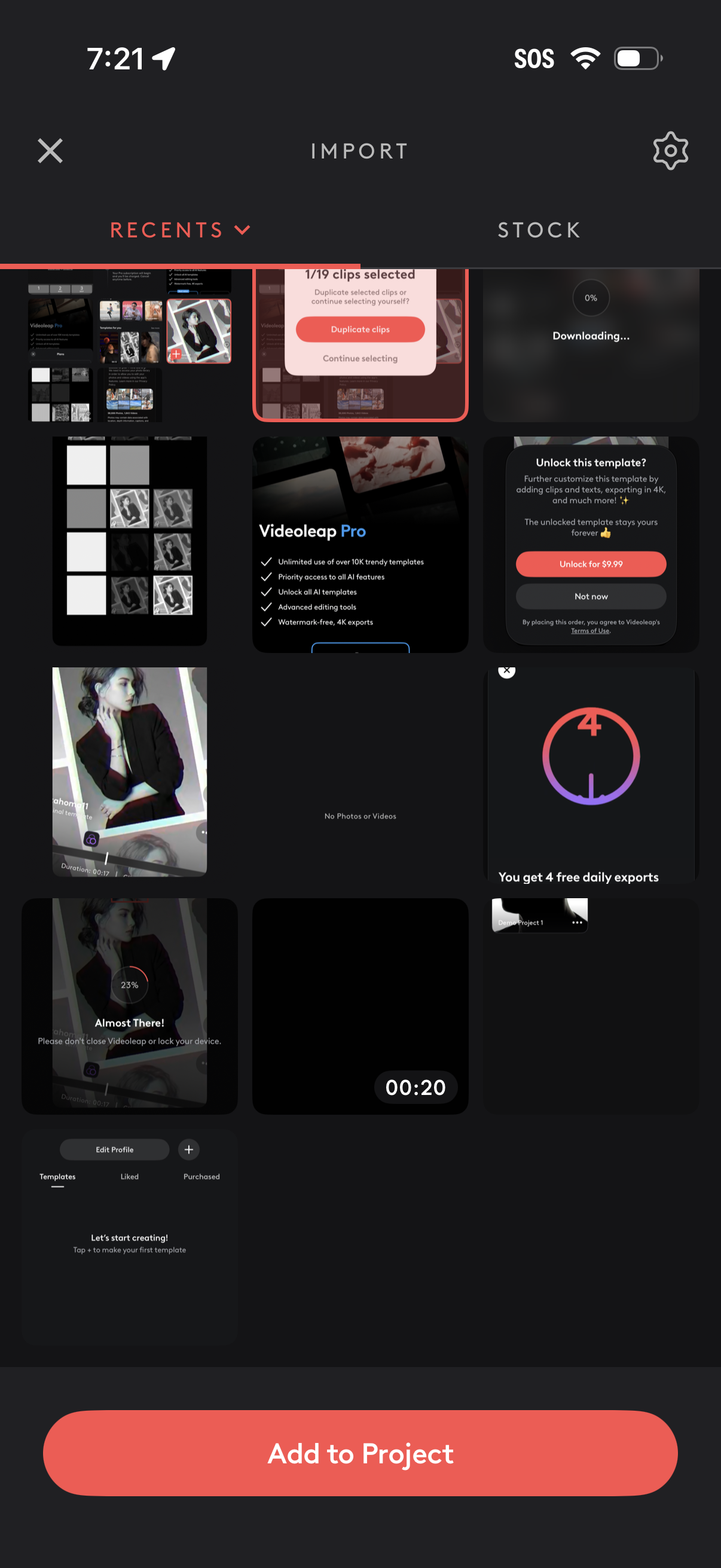
Media import screen in a video editor showing a grid gallery with tabs for Recents and Stock, allowing users to select clips and add them to a project. Includes progress states (downloading/importing), and upsell prompts to unlock templates or upgrade to pro, with a prominent “Add to Project” primary action.
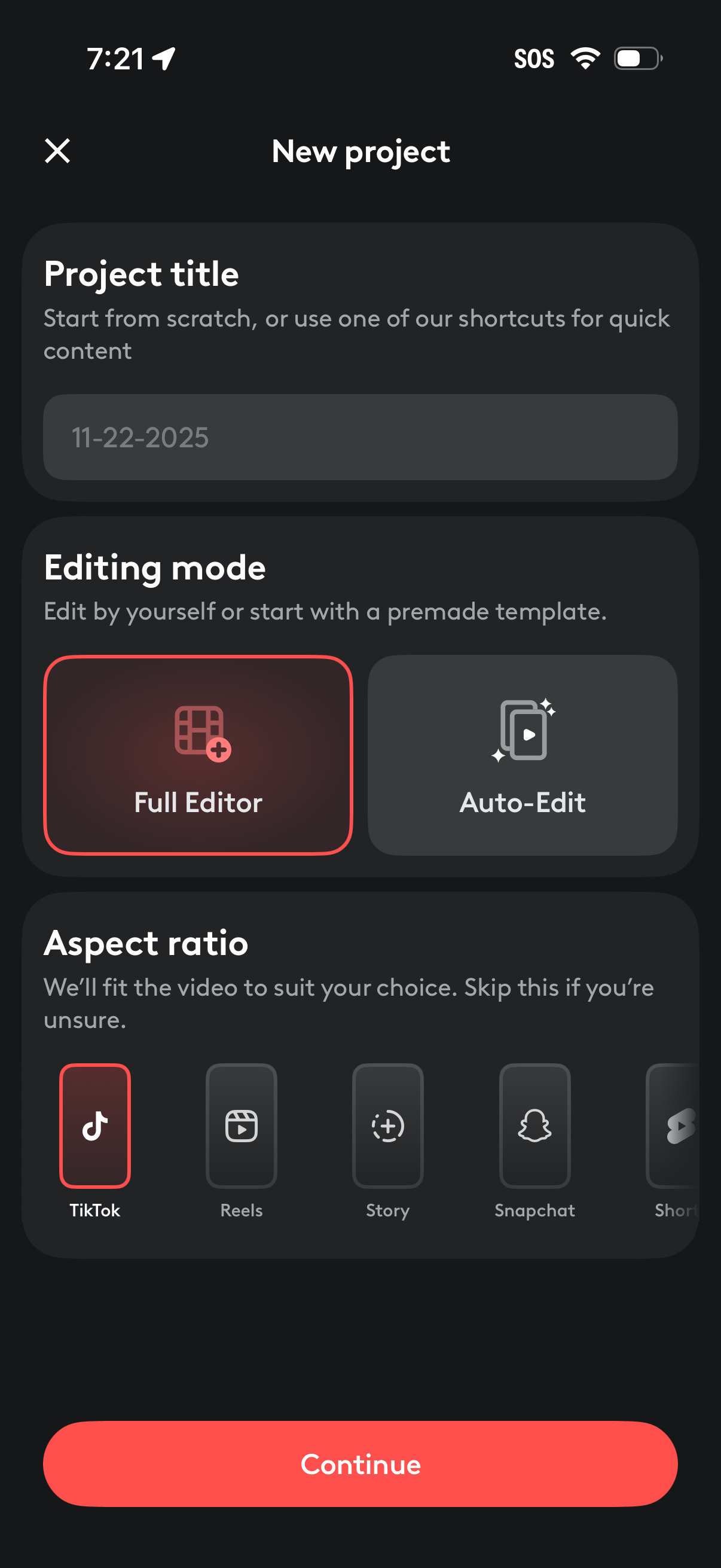
New project setup screen for a video editor where the user enters a project title, chooses an editing mode (Full Editor vs Auto-Edit template), and selects an aspect ratio preset for platforms like TikTok, Reels, Story, and Snapchat, then taps Continue to start.
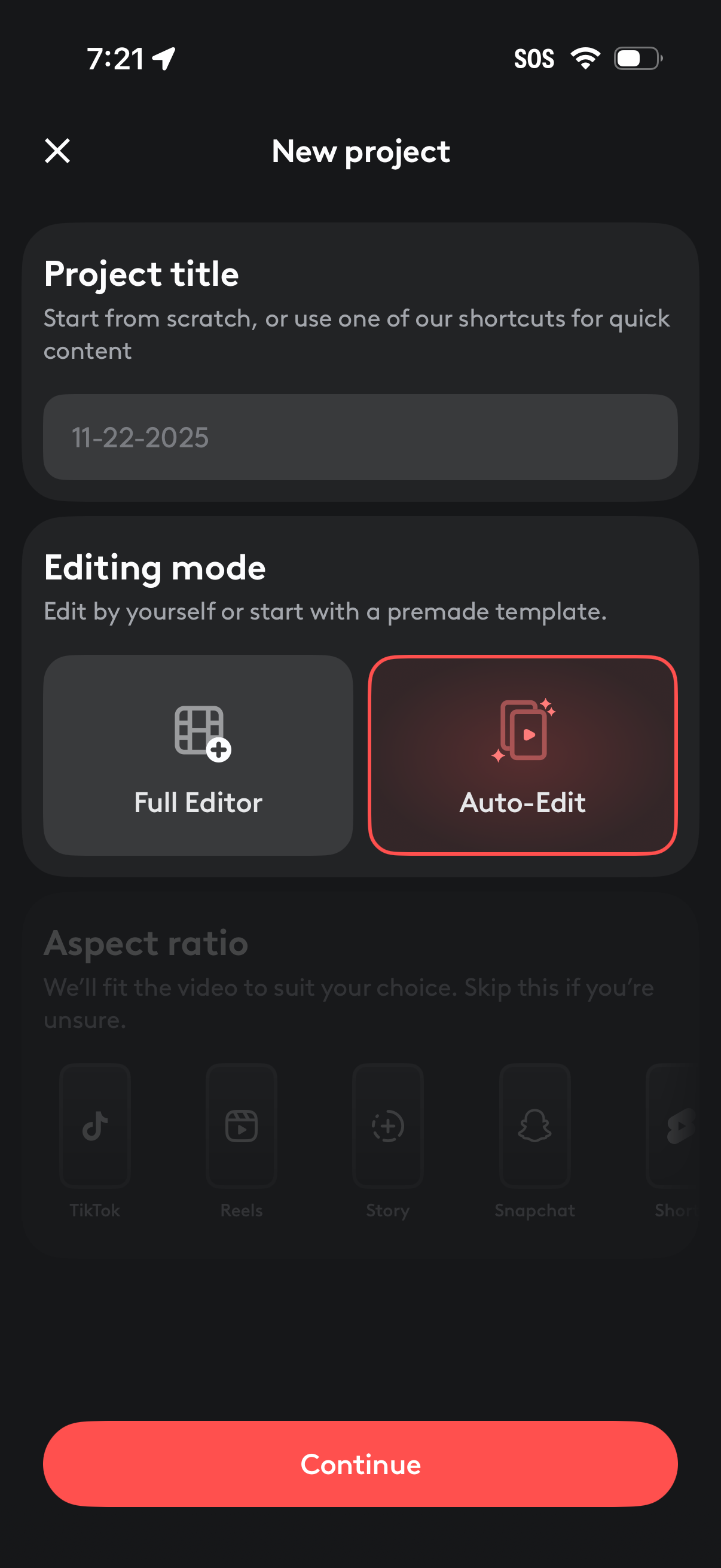
New project creation screen for a video editor where users enter a project title, choose an editing mode (Full Editor or Auto-Edit with a premade template), and proceed by tapping Continue. It also hints at selecting an aspect ratio for different platforms (e.
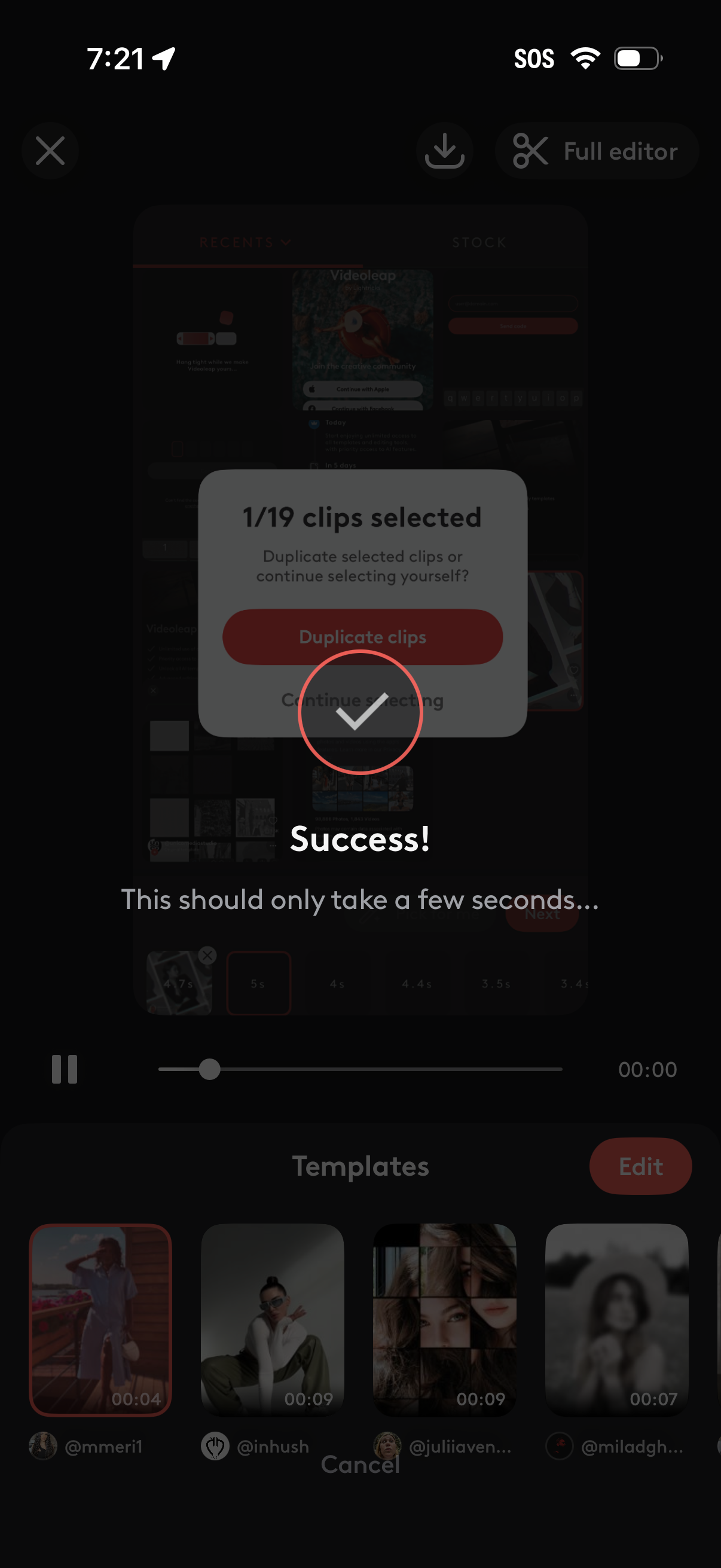
Video editing screen showing a success confirmation after selecting clips, with an in-progress message and a modal offering to duplicate selected clips or continue selecting. Background includes a clip timeline with playback controls and a templates carousel, plus actions like opening the full editor and closing the flow.
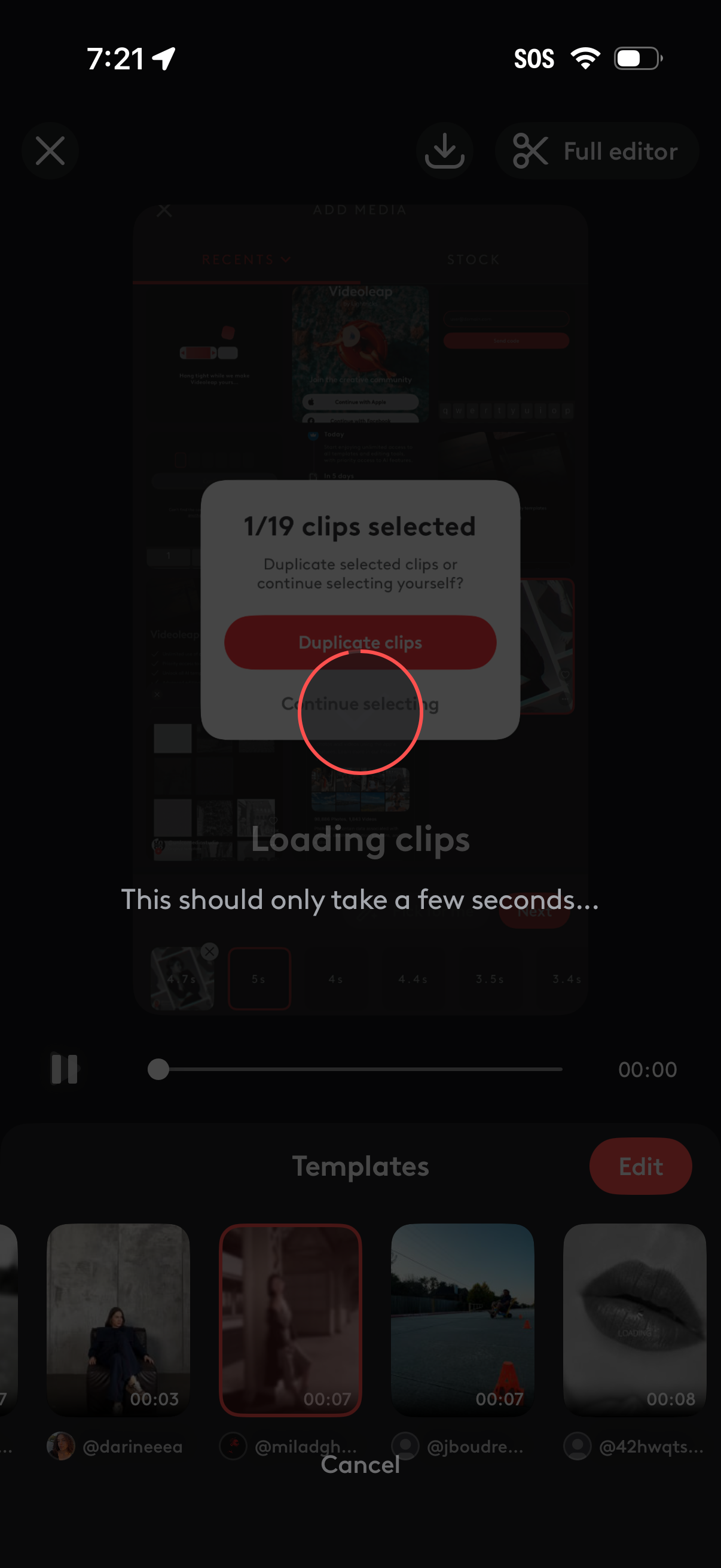
Video editing app clip selection screen showing a loading state while importing multiple clips, with a modal confirming 1/19 clips selected and offering actions to duplicate selected clips or continue selecting. The background includes a timeline/scrubber and a template gallery with an Edit button and option to cancel.
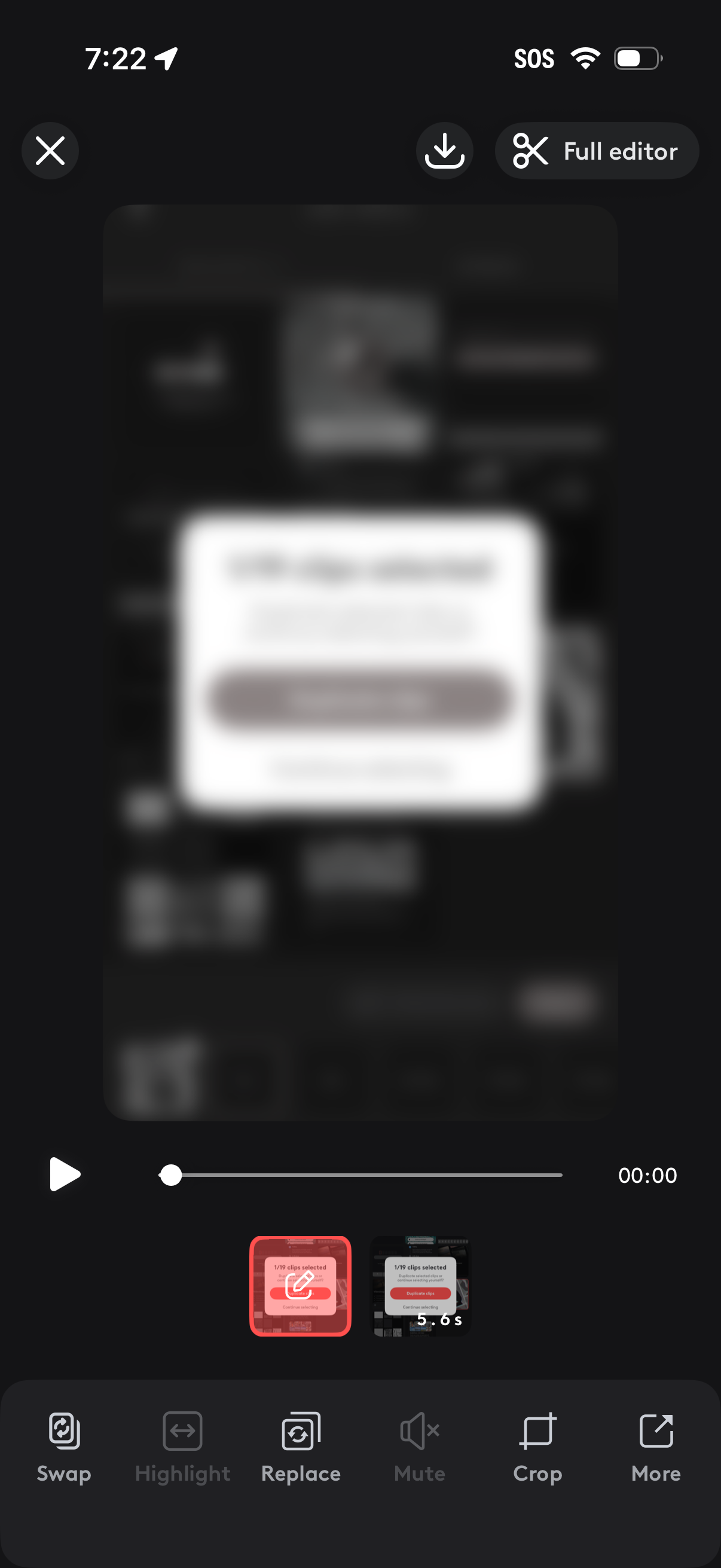
Mobile video editing interface showing a clip preview with playback controls, a timeline of selected clips, and a bottom toolbar for actions like swap, highlight, replace, mute, crop, and more. Top controls include exit, download/export, and an option to open the full editor.
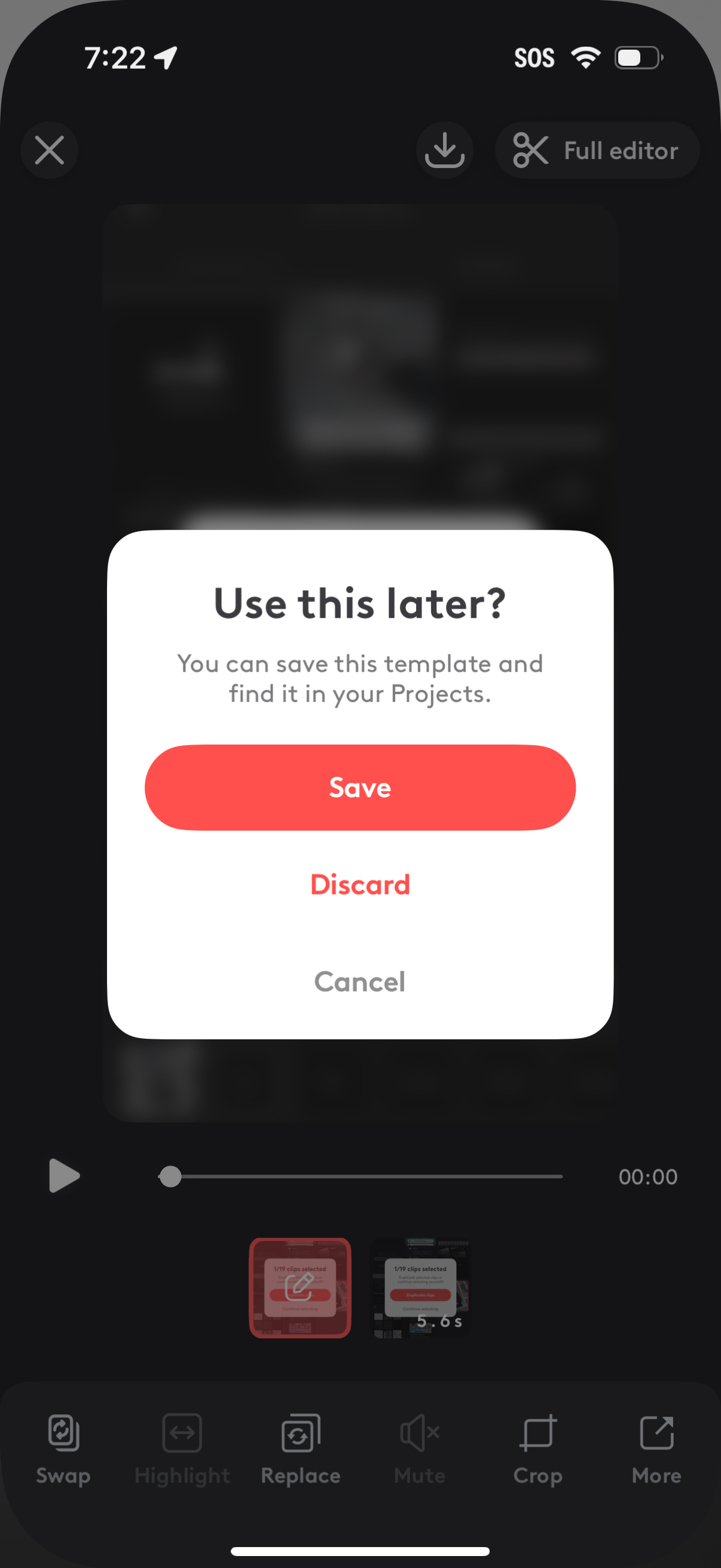
A confirmation modal in a video/template editor asks “Use this later? ” prompting the user to save the current template to Projects, with primary Save action and secondary Discard and Cancel options.