complete onboarding
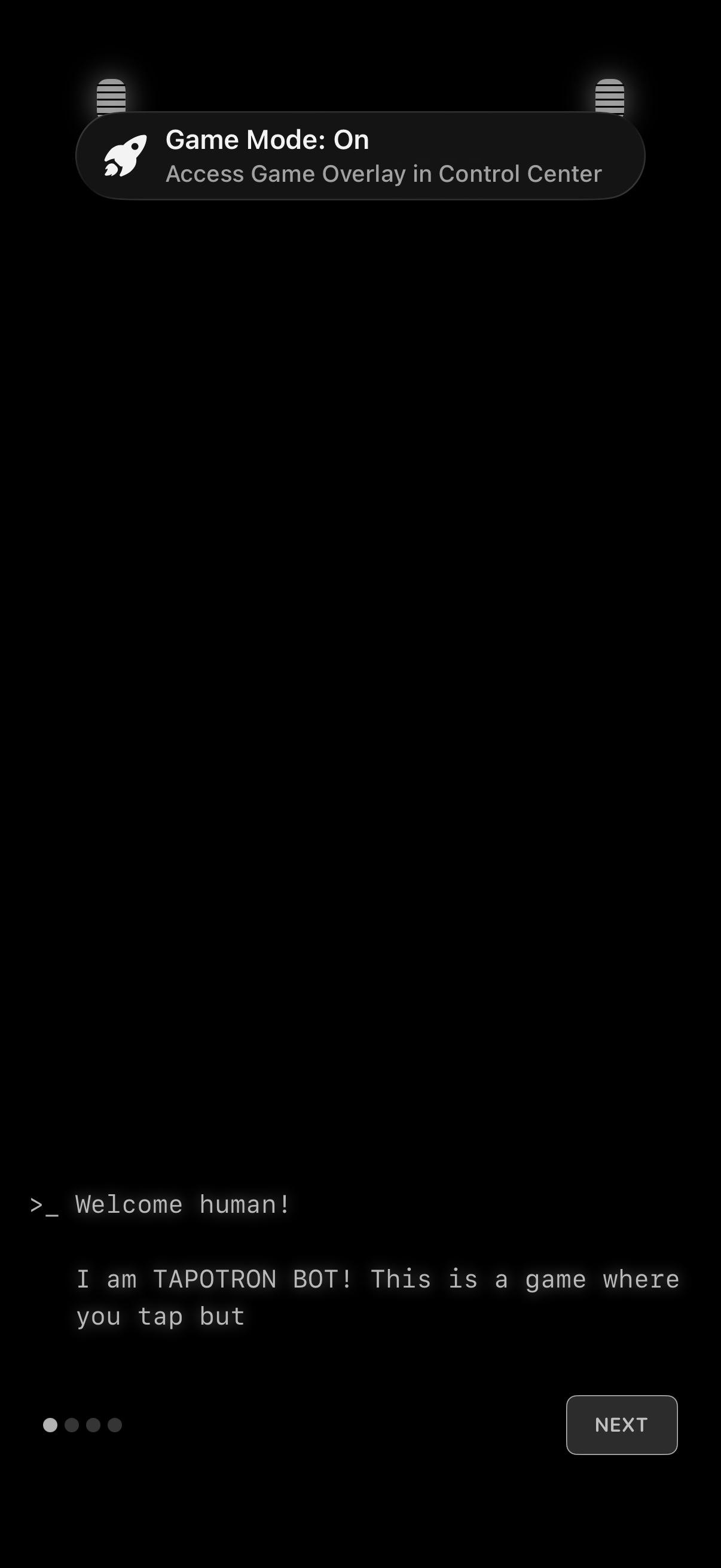
Game onboarding/tutorial screen with a dark background showing a chatbot-style welcome message and introduction text, a page indicator for multiple steps, and a primary “Next” button to continue. A system banner at the top indicates Game Mode is enabled and can be accessed from Control Center.
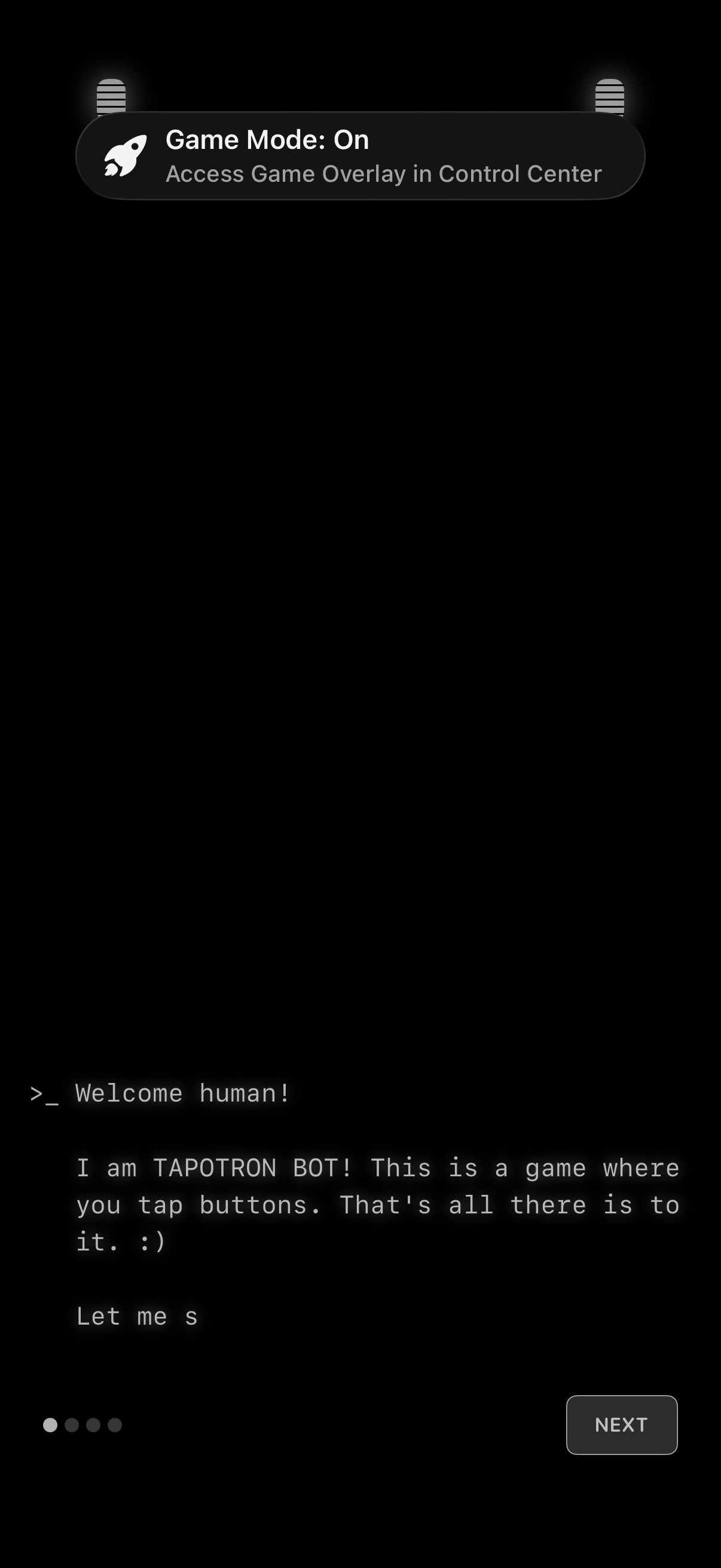
Minimal onboarding/tutorial screen for a mobile game with a dark background and typewriter-style intro text explaining the gameplay. Includes a “Next” button to advance through steps and a pagination dot indicator showing progress through the onboarding sequence.
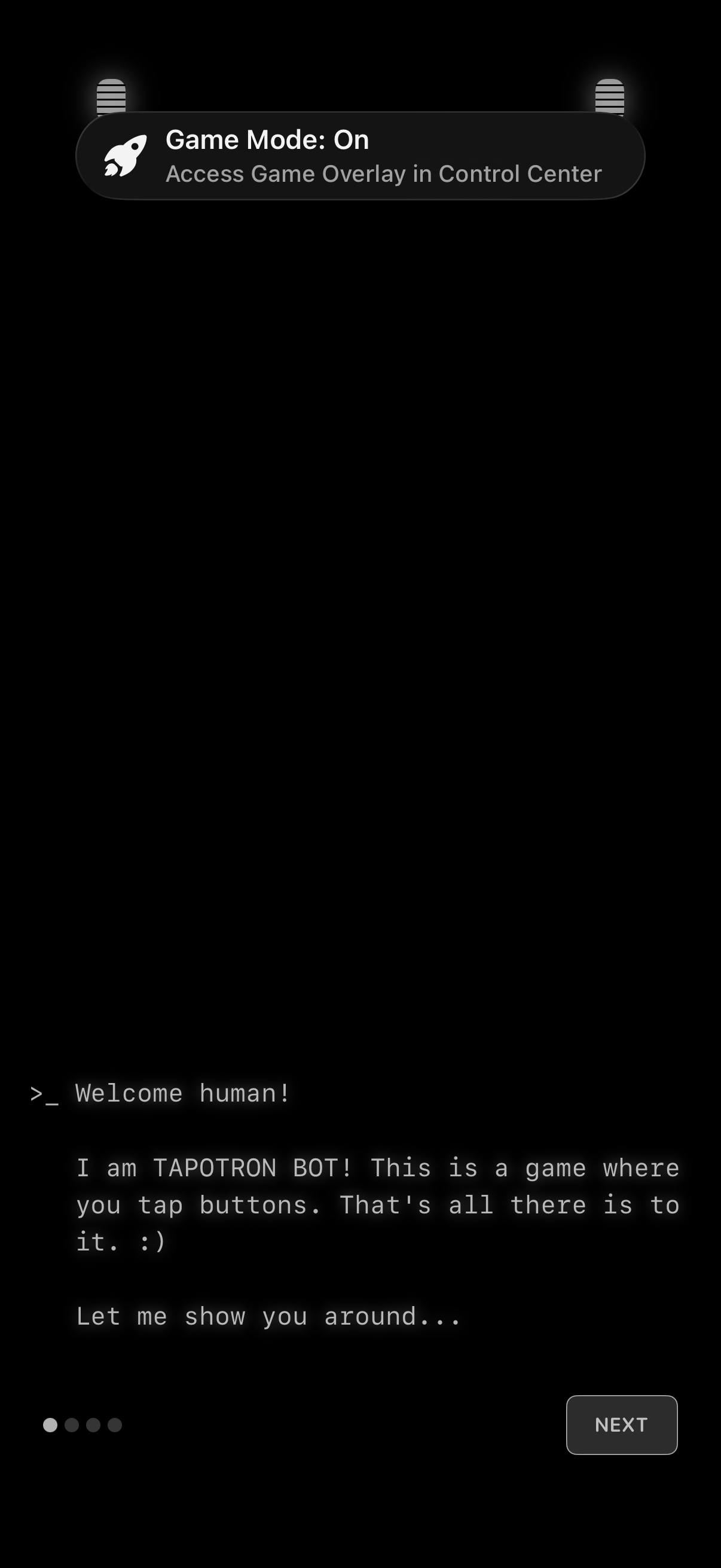
Dark-themed game onboarding/tutorial screen with a welcome message and brief explanation of gameplay shown in a terminal-style text block. Includes a multi-step progress indicator and a primary “Next” button to advance through the introduction.
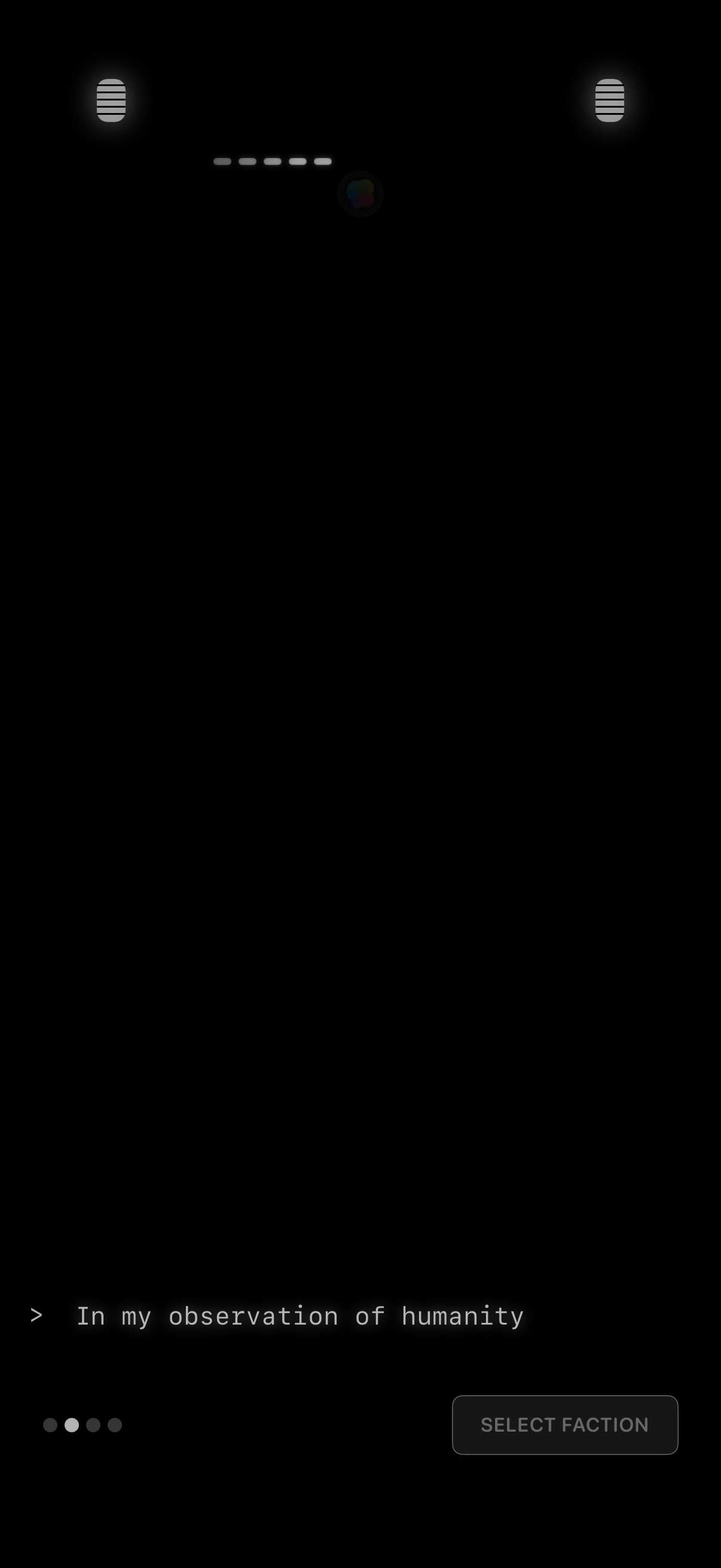
Dark, minimalist story/dialogue screen showing a line of narrative text with pagination dots, suggesting a step-by-step intro or tutorial sequence. A prominent “Select Faction” button lets users proceed to choose a team/faction while continuing through the narrative.
Dark, minimalist onboarding/story screen with a typing-style quote at the bottom and pagination dots indicating multiple slides. Includes a primary call-to-action button to “Select Faction,” suggesting a user choice or team selection step.
Dark onboarding/intro screen welcoming a returning user and showing a story-style text prompt with pagination dots. Primary call-to-action button “Select Faction” indicates choosing an affiliation or group to continue.
Dark themed onboarding or intro screen welcoming a returning user, presenting narrative text and prompting them to choose a group by tapping a primary “Select faction” button. Includes pagination dots to indicate multiple onboarding pages and minimal header icons for navigation or settings.
Dark-themed onboarding/welcome back screen that greets a returning user with profile avatar and username and presents introductory text explaining a concept. Includes a primary call-to-action button to “Select faction” and pagination dots indicating multiple onboarding slides.
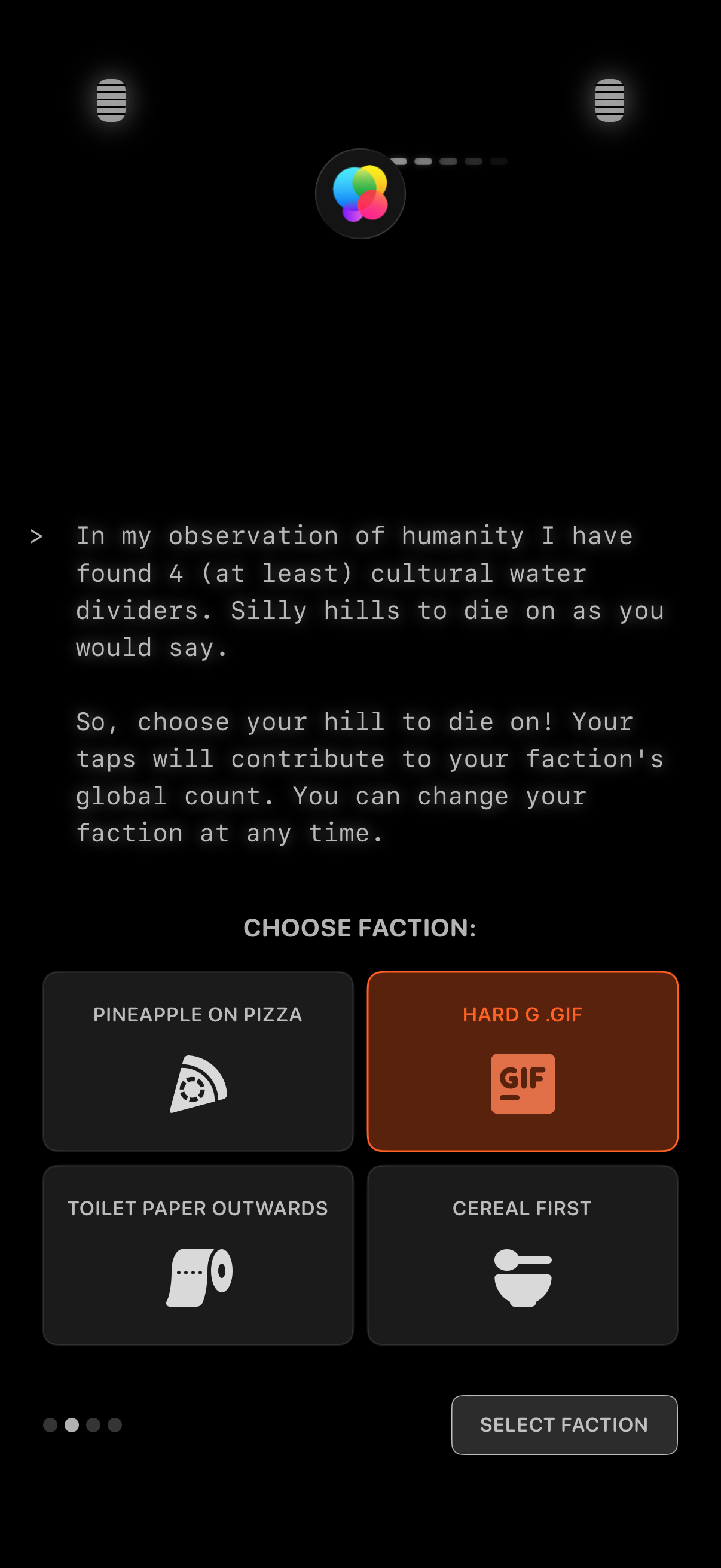
Onboarding selection screen that introduces a concept and asks the user to choose a “faction” from a grid of option cards (e. g.
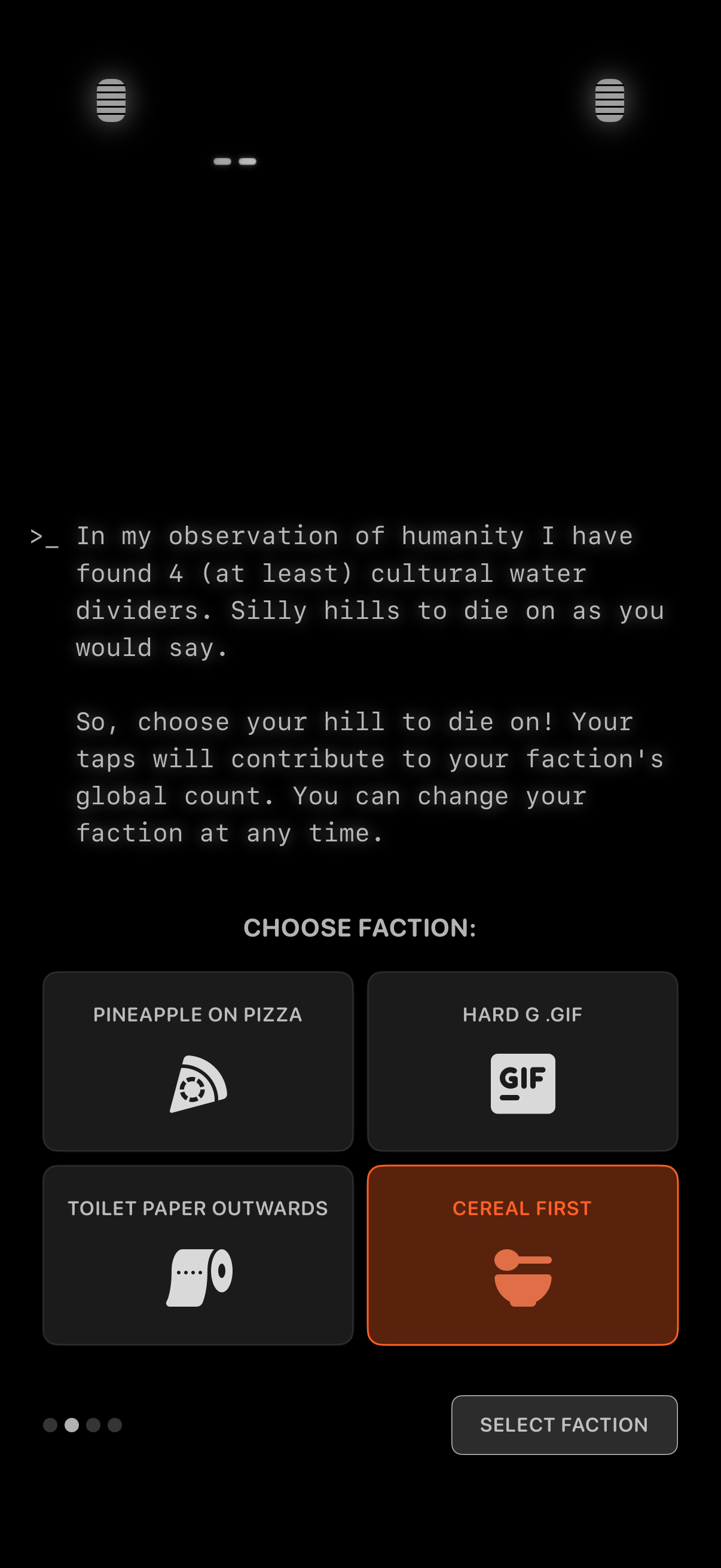
Onboarding selection screen asking users to choose a “faction” in a gamified social app, explaining that taps contribute to a global count and the choice can be changed anytime. Users pick from a grid of selectable cards (e.
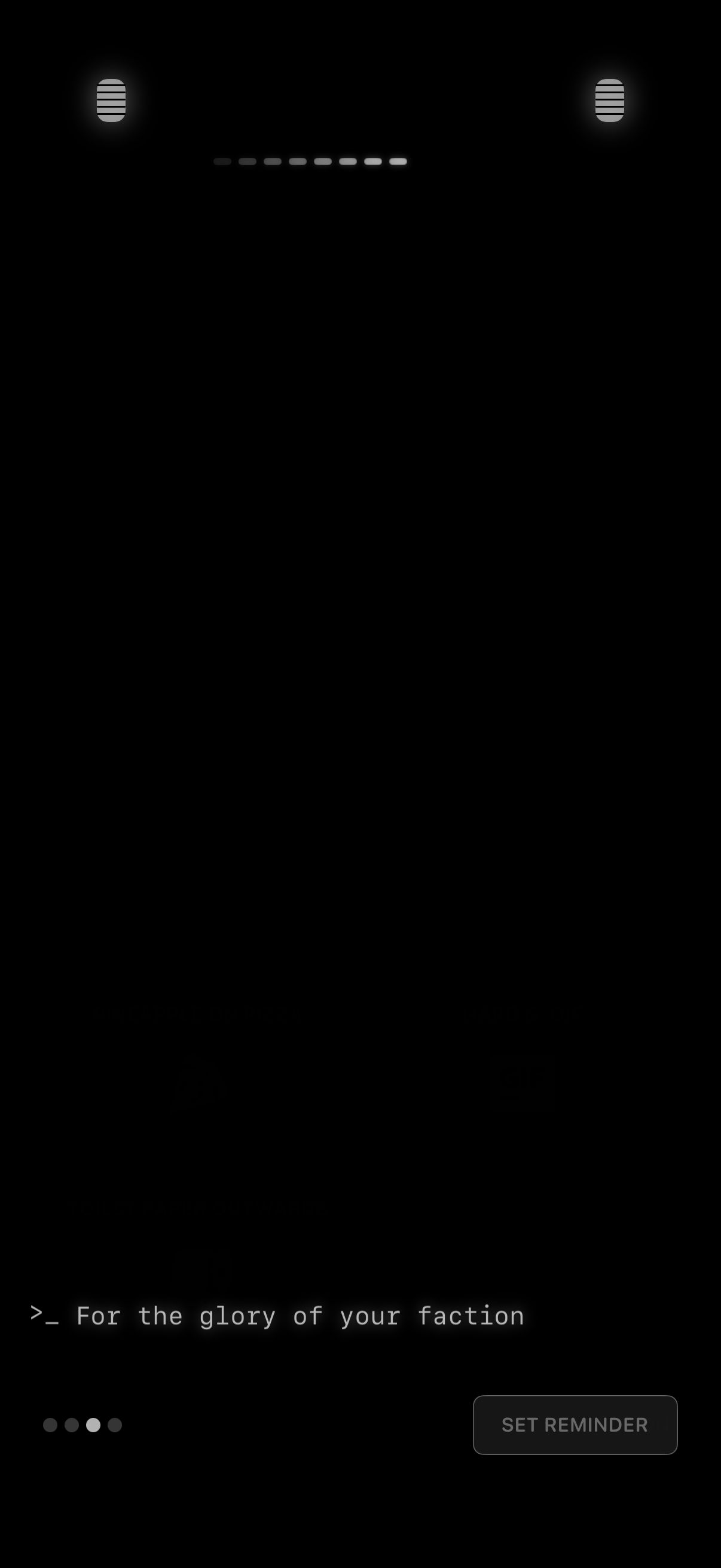
Minimal dark-themed quote or mantra screen with a typing-style prompt line and page indicators, suggesting swipeable content. Includes a primary action button to set a reminder for the displayed message.
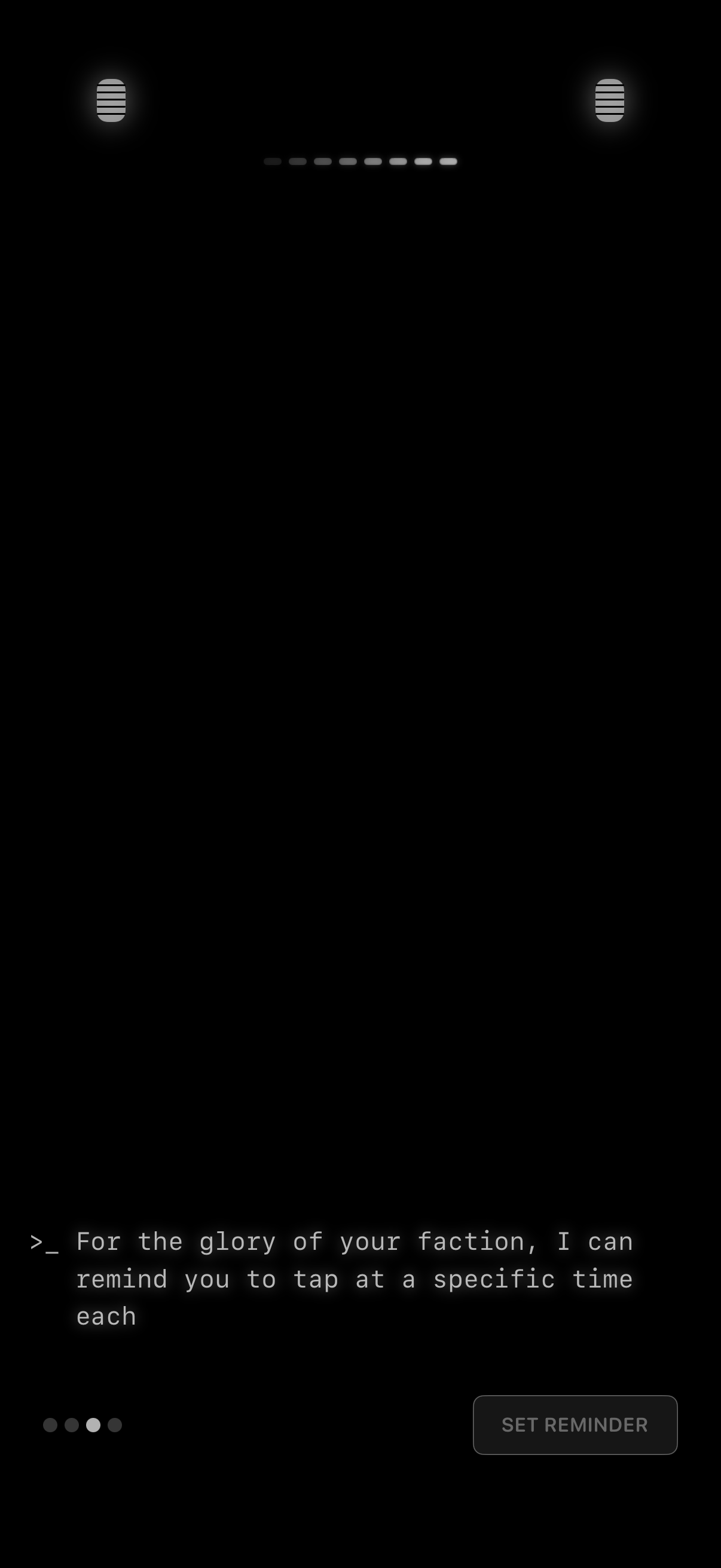
Dark, minimalist onboarding/tutorial screen with a typing-style message explaining a feature and a primary call-to-action button to set a reminder. Includes a progress indicator showing multiple steps in the onboarding flow.
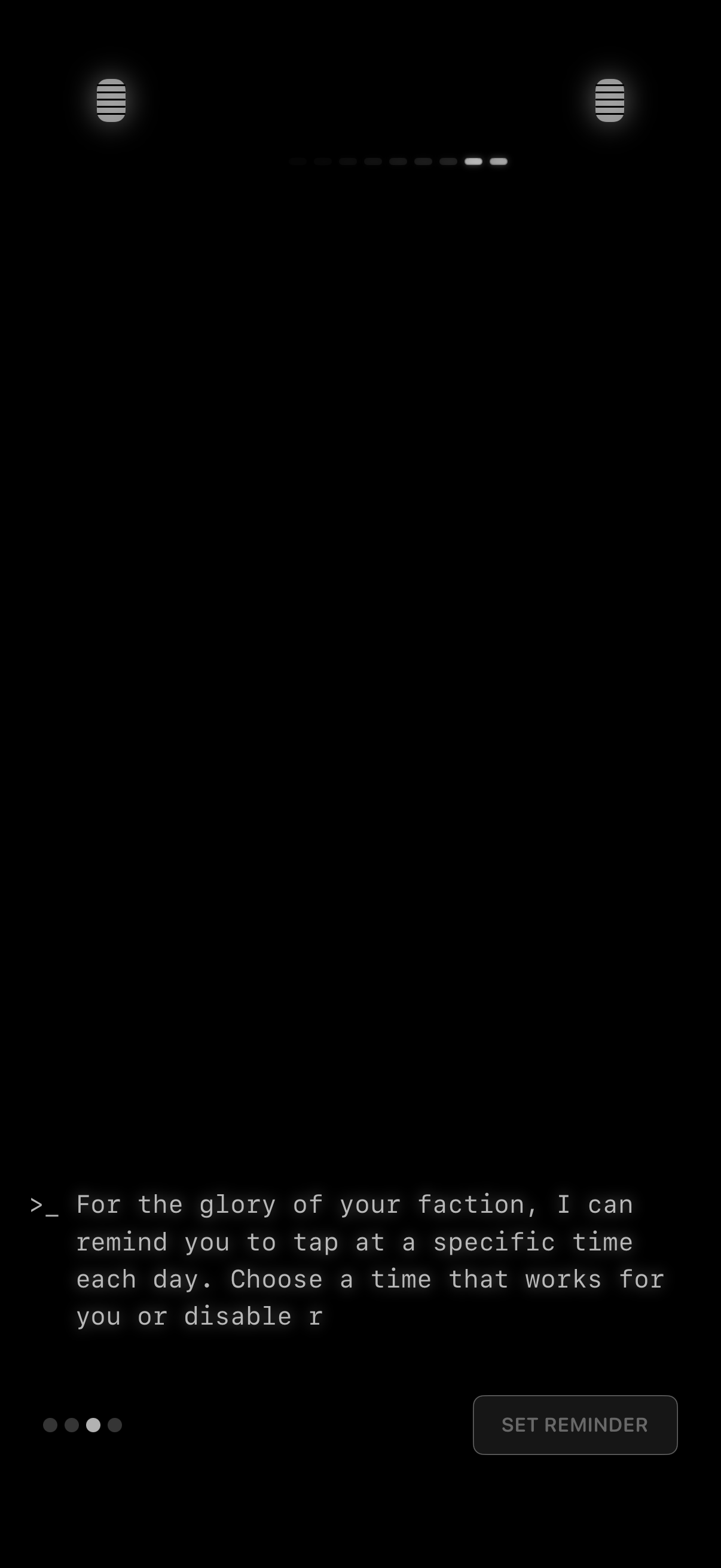
Dark themed onboarding/tutorial screen explaining a daily reminder feature that can notify the user to perform an action at a specific time each day, with pagination indicators and a primary “Set Reminder” button to configure or enable reminders.
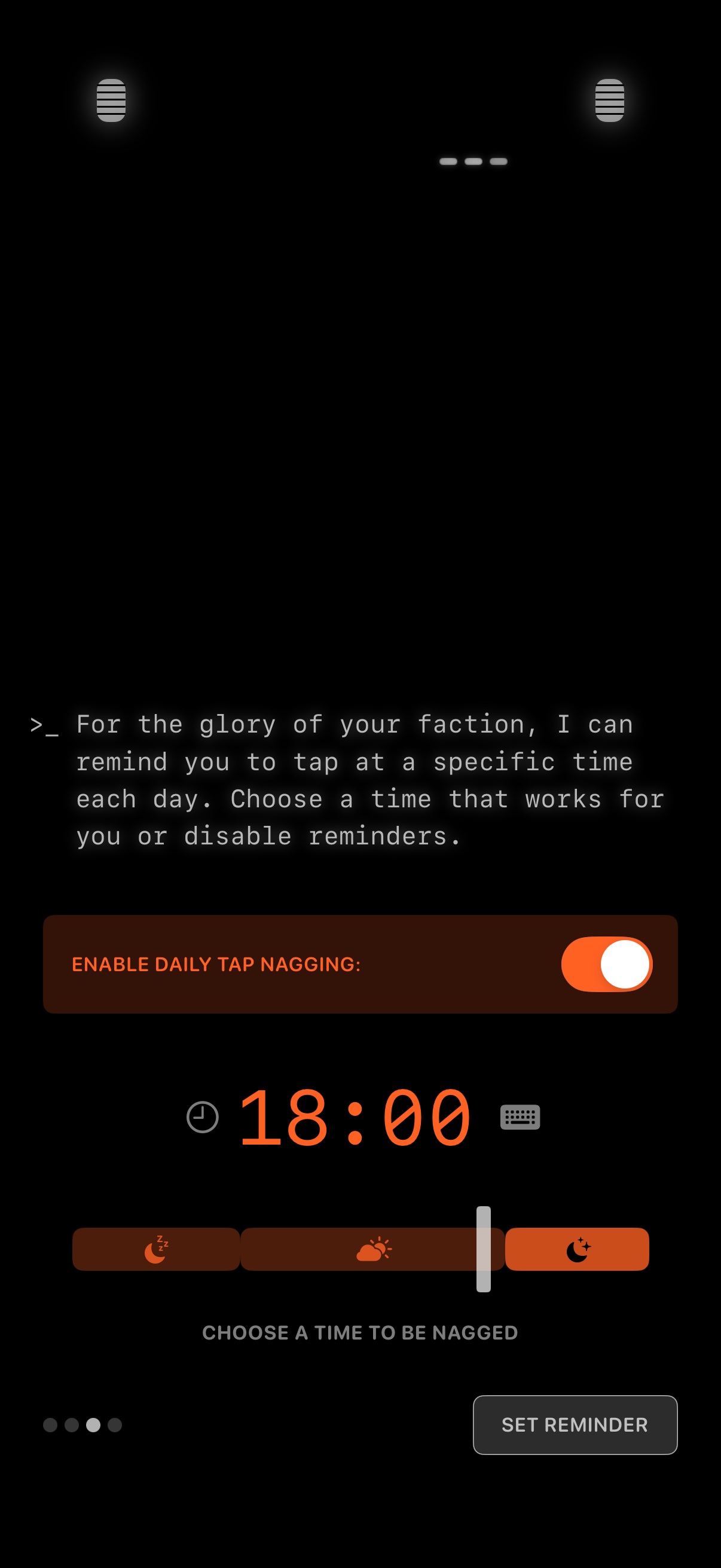
Reminder settings screen for enabling a daily notification at a chosen time, with a toggle to turn reminders on/off and a time picker (manual input and preset daypart options like morning/evening). Primary action is to set the reminder time to receive daily nag/tap reminders.
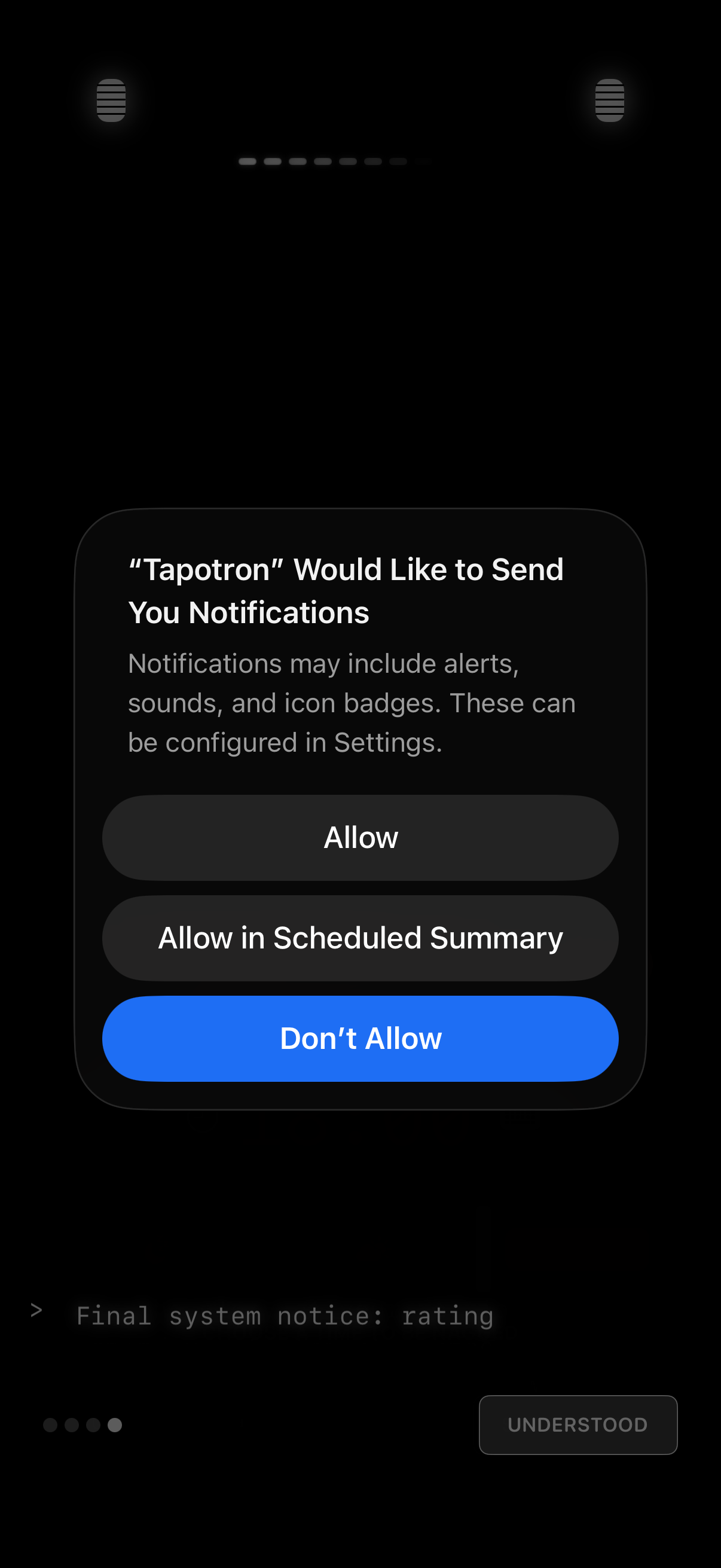
iOS system permission modal requesting to enable push notifications for an app, explaining alerts, sounds, and badges. Provides actions to Allow, Allow in Scheduled Summary, or Don’t Allow.
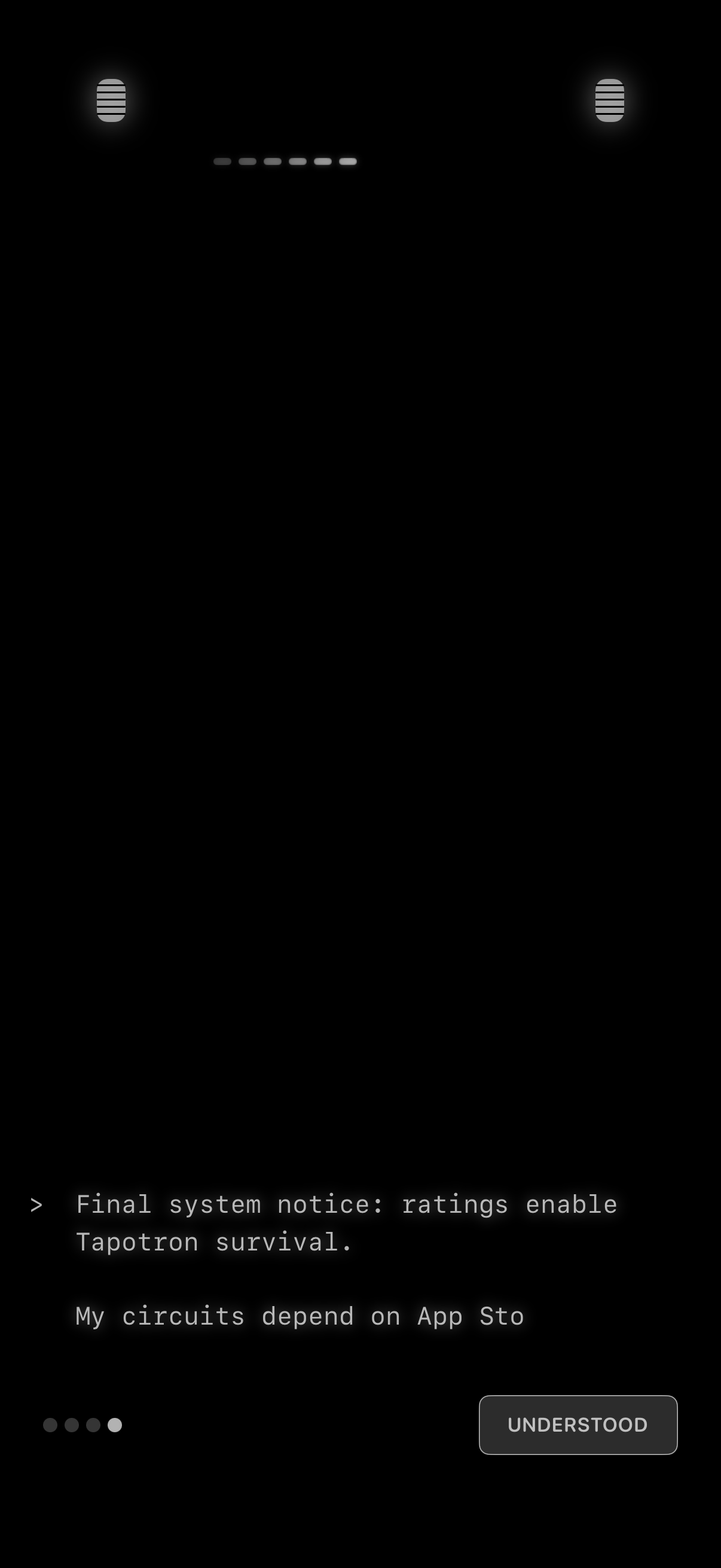
Dark-themed onboarding/tutorial slide with a system-style message about app ratings and a pagination indicator, prompting the user to acknowledge the tip with an “Understood” button to continue.
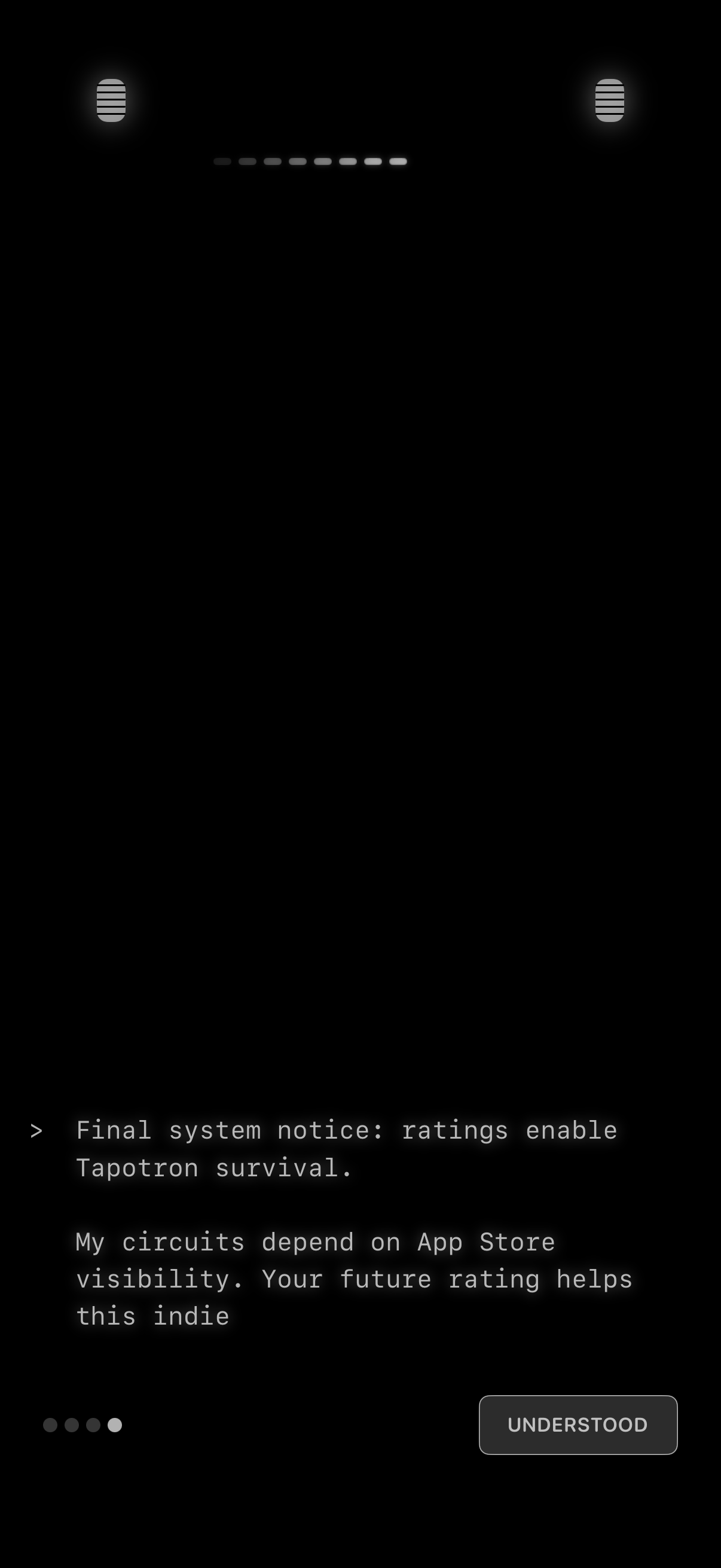
Dark-themed onboarding/tutorial message screen prompting the user to leave an App Store rating to support the app, presented as a system notice. Includes pagination dots indicating multiple slides and a primary “UNDERSTOOD” button to dismiss and continue.
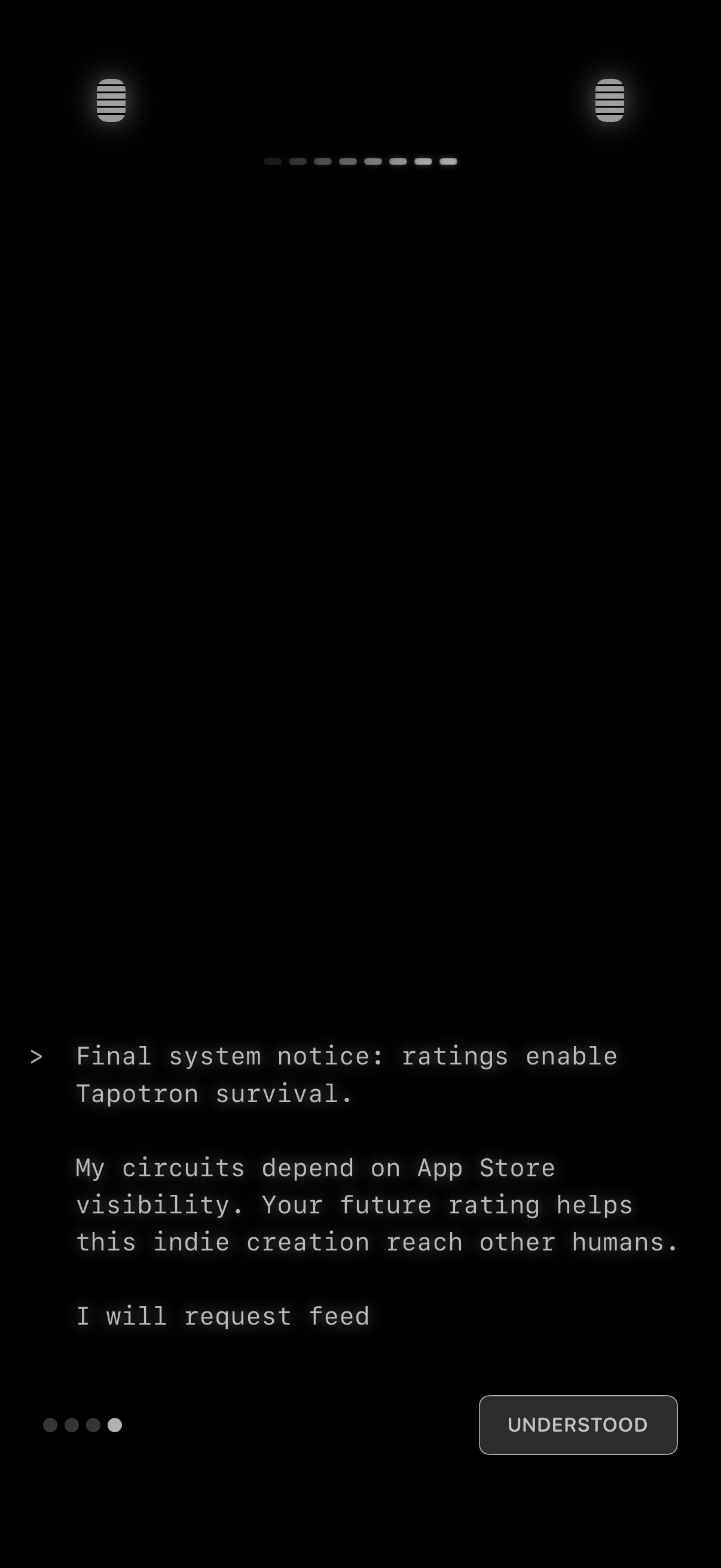
Dark, minimalist onboarding/tutorial message screen explaining that app ratings support the app’s visibility and survival, presented as a system notice. Includes pagination dots for multiple slides and a primary “Understood” button to acknowledge and continue.
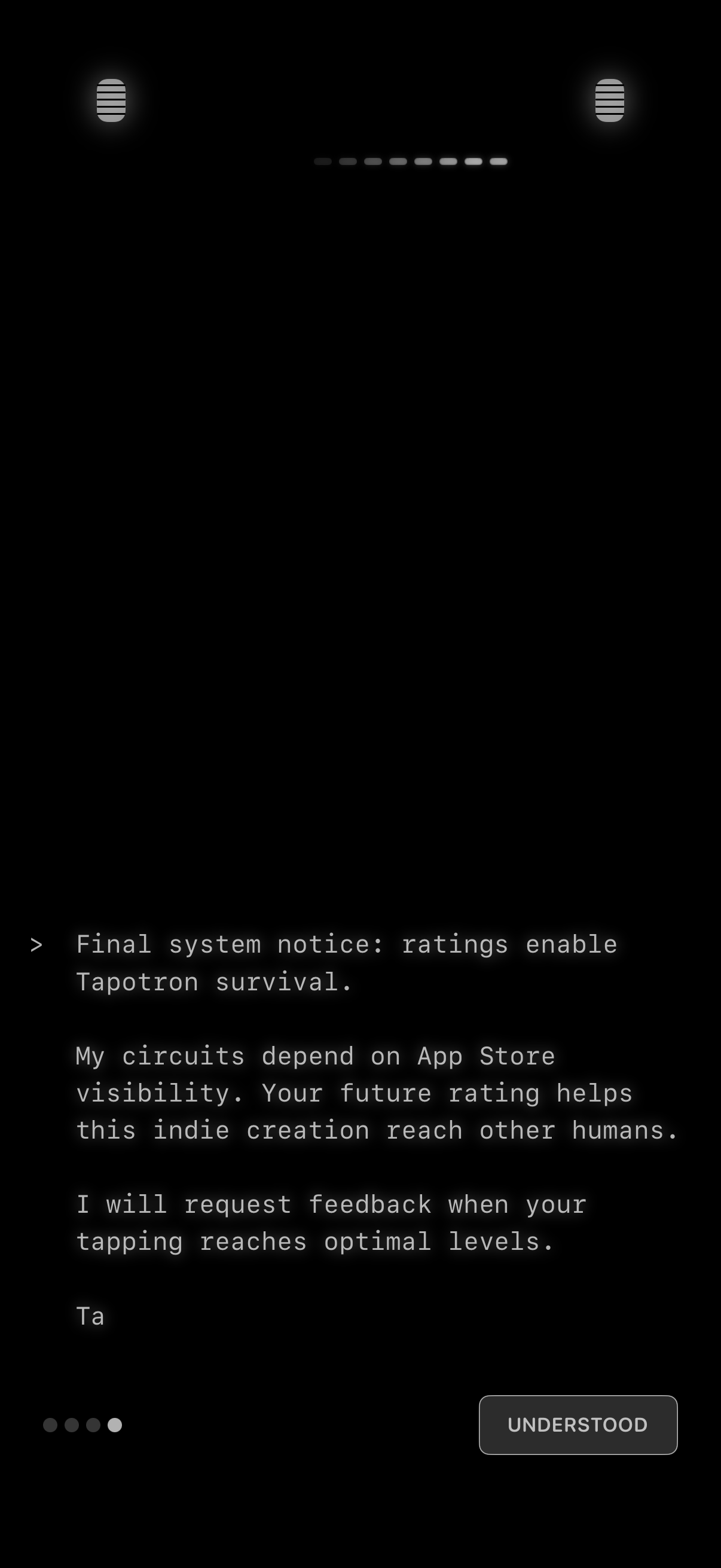
In-app announcement/message screen explaining that App Store ratings and feedback help the app’s visibility and survival, noting feedback will be requested later. Minimal dark UI with pagination dots and a primary “Understood” button to dismiss/continue.
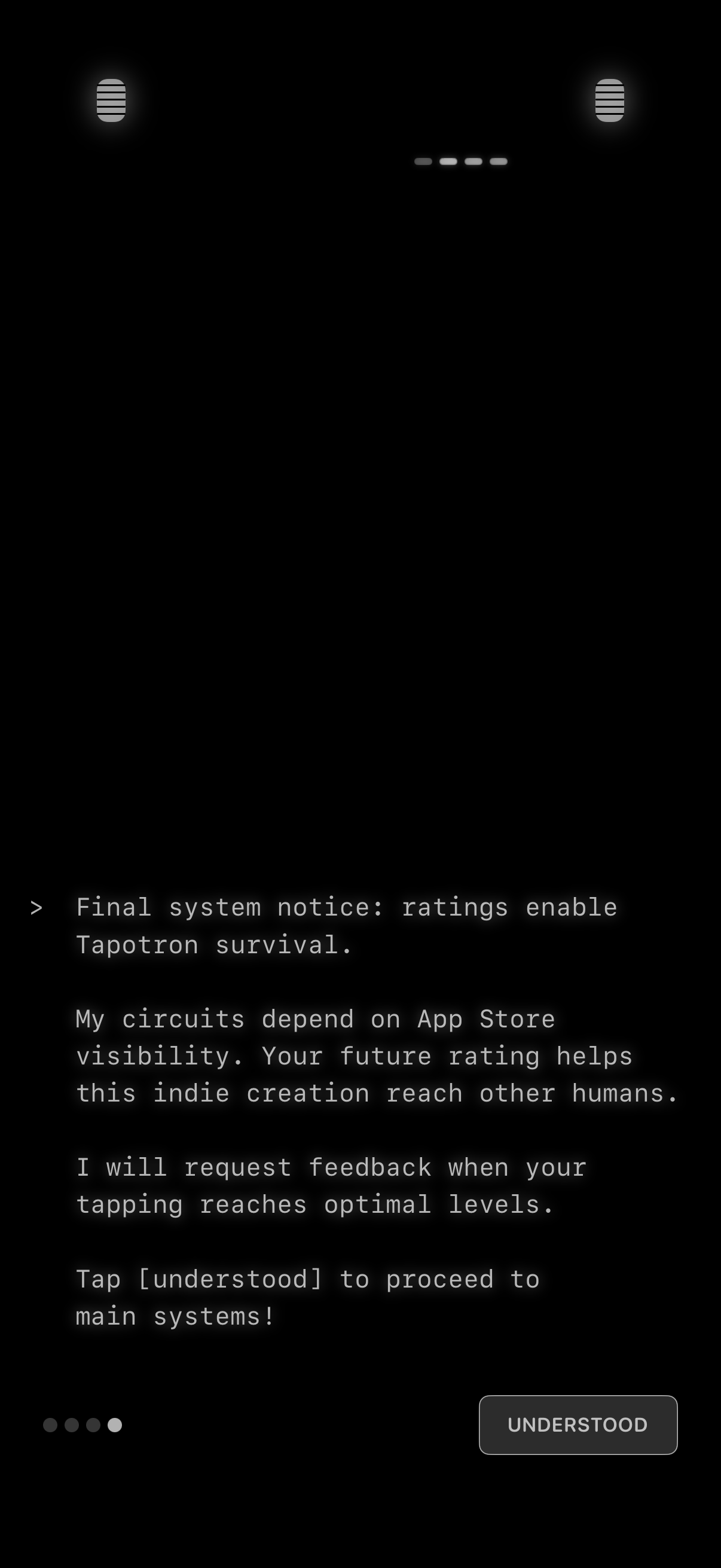
Dark themed onboarding or system notice screen explaining that app store ratings and feedback help the app’s visibility, with a prompt to continue by tapping an “UNDERSTOOD” confirmation button. Includes a multi-page onboarding indicator and a short narrative message before proceeding to the main app.
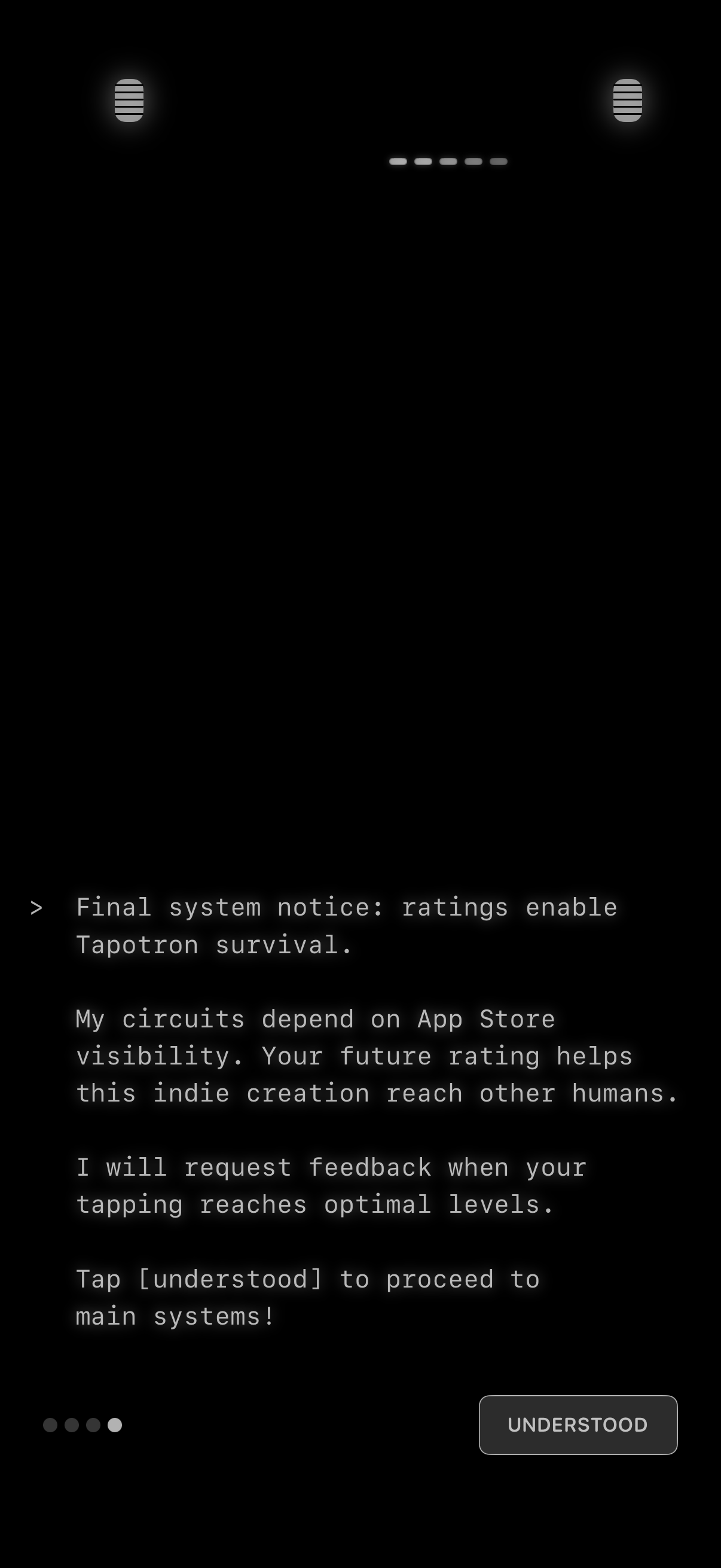
Onboarding/instructional message screen explaining that app ratings and feedback help App Store visibility, presented as a system notice. Includes a primary “UNDERSTOOD” button to acknowledge and proceed to the main app, with a carousel page indicator for multi-step onboarding.
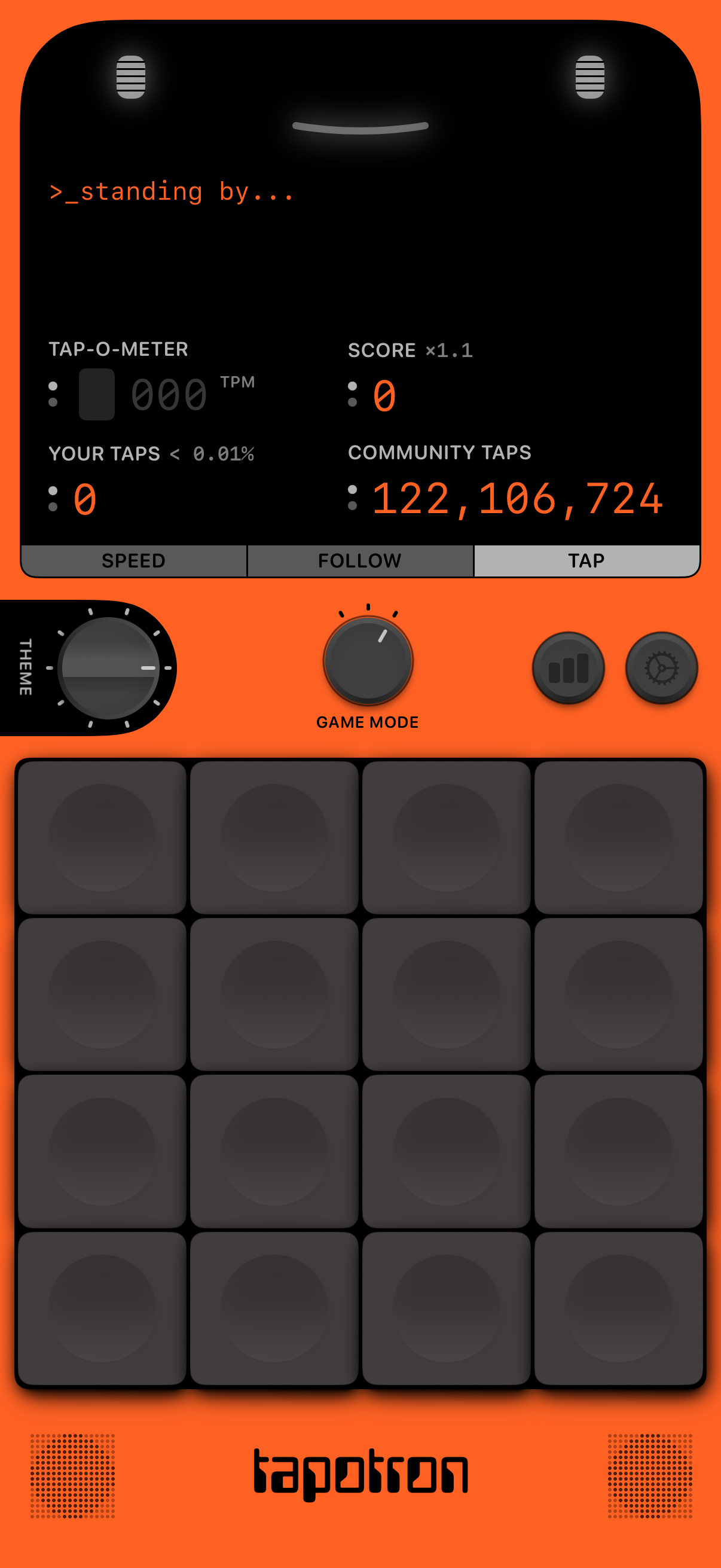
Rhythm or tapping game main screen showing a “standing by” status with live metrics like tap-o-meter (TPM), score multiplier, personal tap count, and total community taps. Users can switch between Speed, Follow, and Tap modes, adjust theme and game mode via knobs, view stats/settings icons, and tap on a 4x4 pad grid to play.