complete onboarding
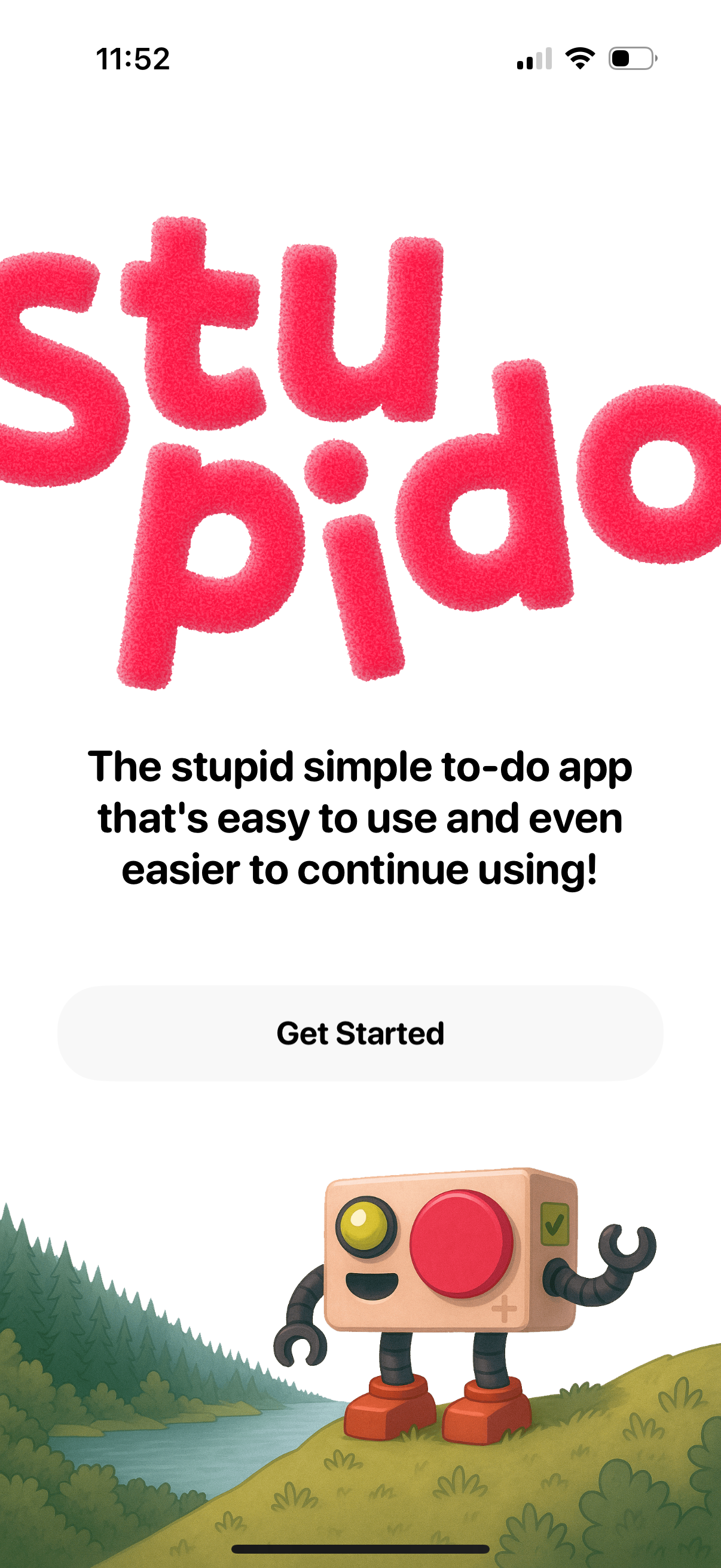
Welcome/onboarding landing screen for a minimalist to-do list app, featuring an intro tagline and illustration with a primary “Get Started” call-to-action to begin setup or create an account.
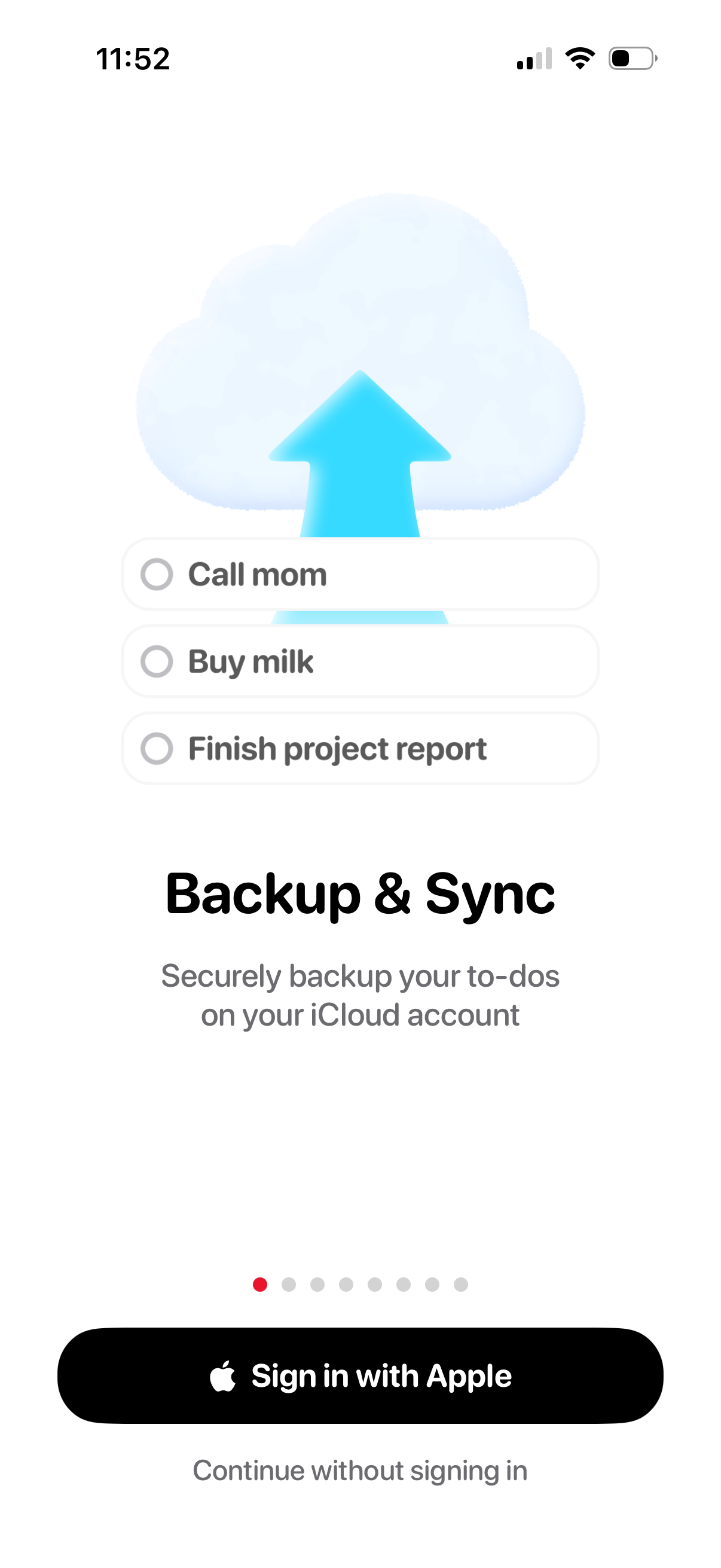
Onboarding slide for a to-do list app promoting “Backup & Sync,” explaining that tasks can be securely backed up to an iCloud account. Primary action is a “Sign in with Apple” button with an option to continue without signing in, plus a page indicator for the onboarding carousel.
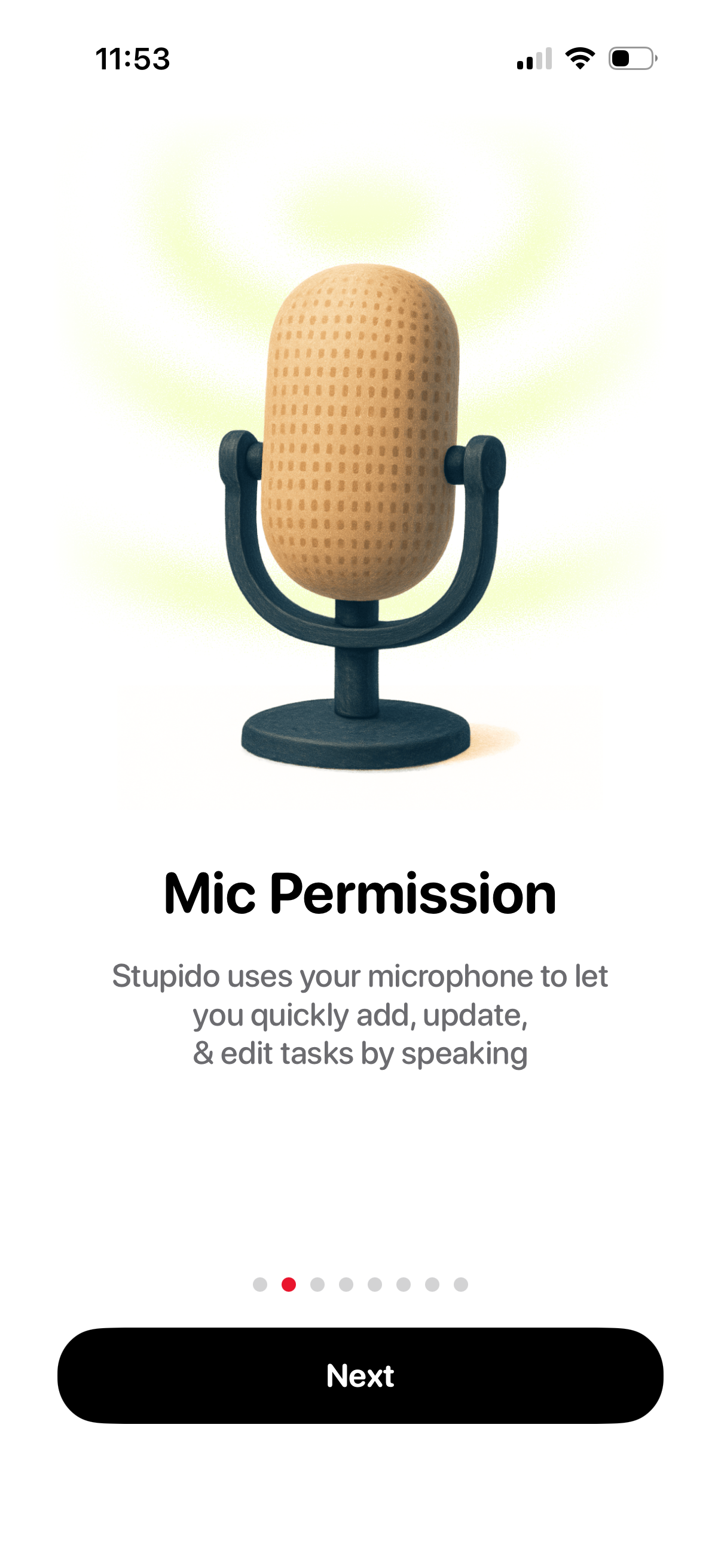
Onboarding permission prompt asking the user to grant microphone access so they can add, update, and edit tasks by speaking. Features a mic illustration, brief explanatory copy, page indicator dots, and a primary “Next” button to proceed.
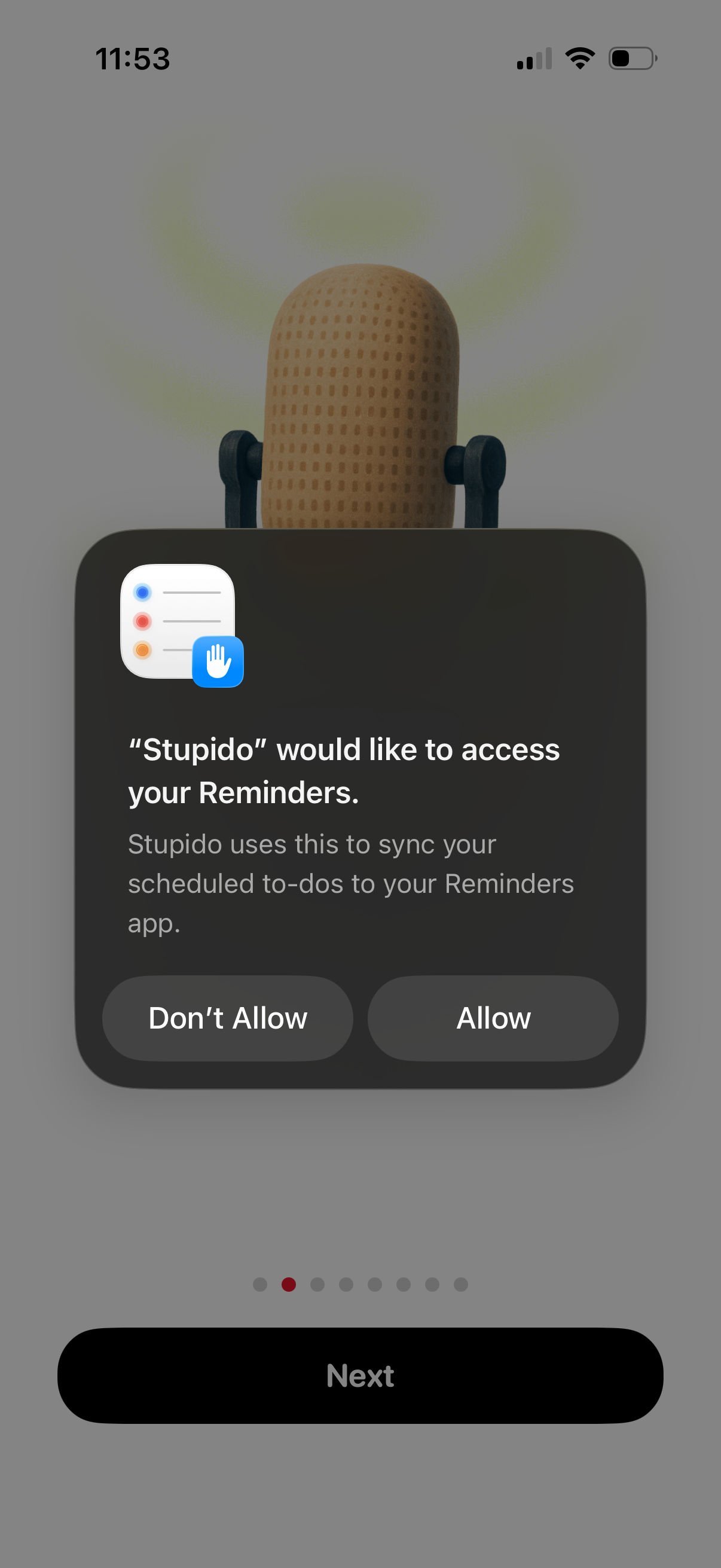
iOS system permission popup requesting access to the user’s Reminders so the app can sync scheduled to-dos, with primary actions to Allow or Don’t Allow. The dialog appears during an onboarding flow with a Next button in the background.
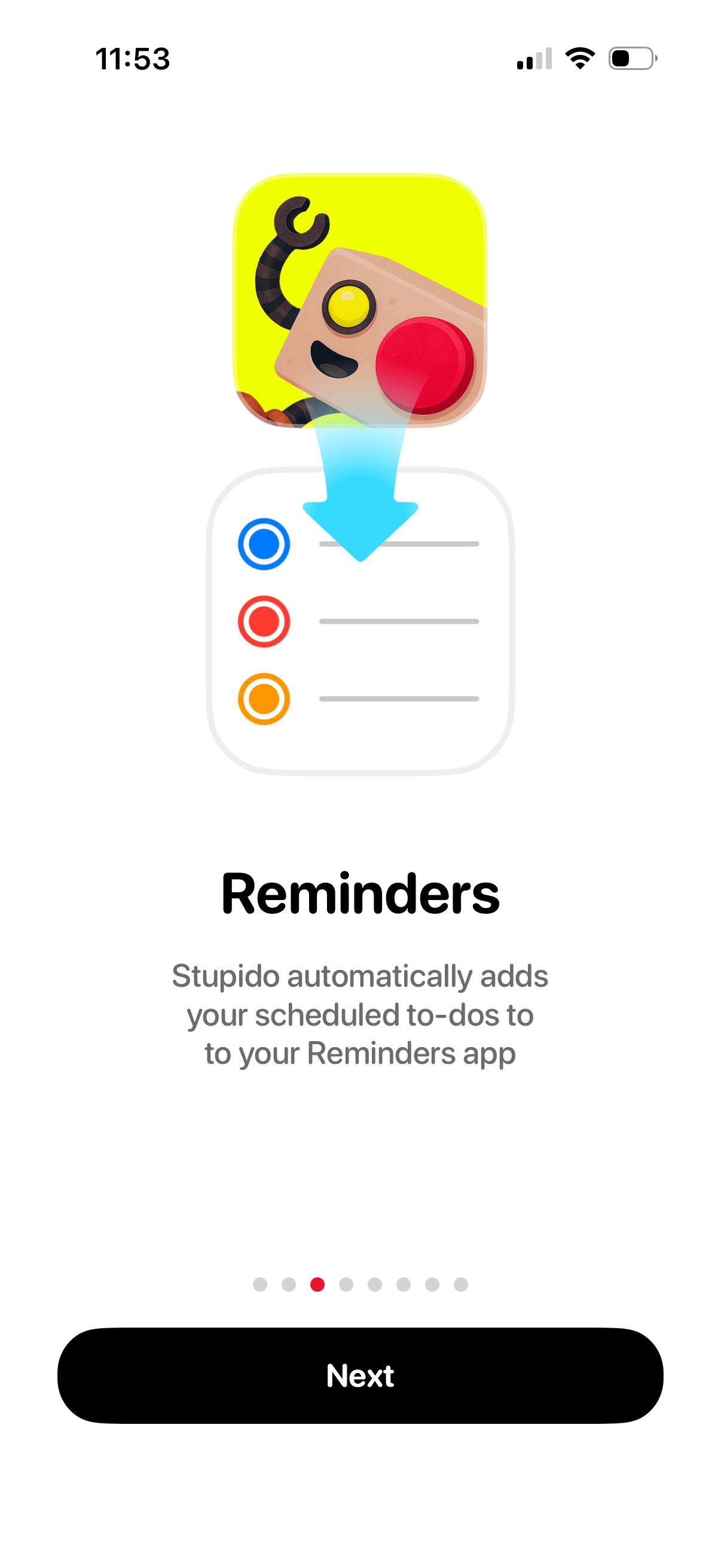
Onboarding feature explainer screen promoting integration with the device Reminders app, stating that scheduled to-dos are automatically added to Reminders. Includes a progress indicator and a primary “Next” button to continue setup.
Onboarding carousel screen introducing “Nudges,” explaining that the app will send morning and evening reminders to update your to-do list. Includes a progress indicator and a primary “Next” button to continue setup.
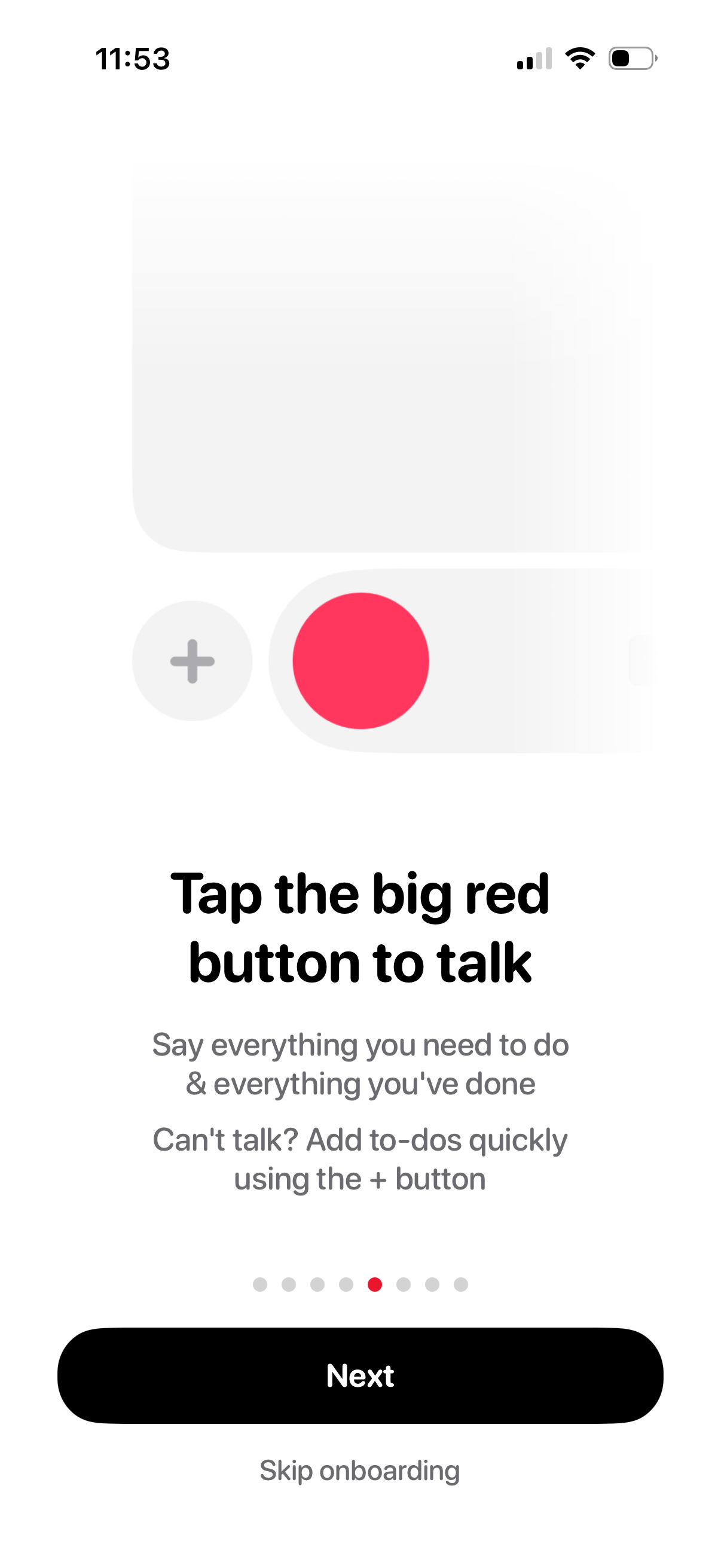
Onboarding instruction screen for a voice-based to‑do app explaining that users can tap a large red button to talk and dictate tasks or completed items, with an alternative + button to quickly add to-dos manually. Includes pagination dots, a primary “Next” button, and a “Skip onboarding” link.
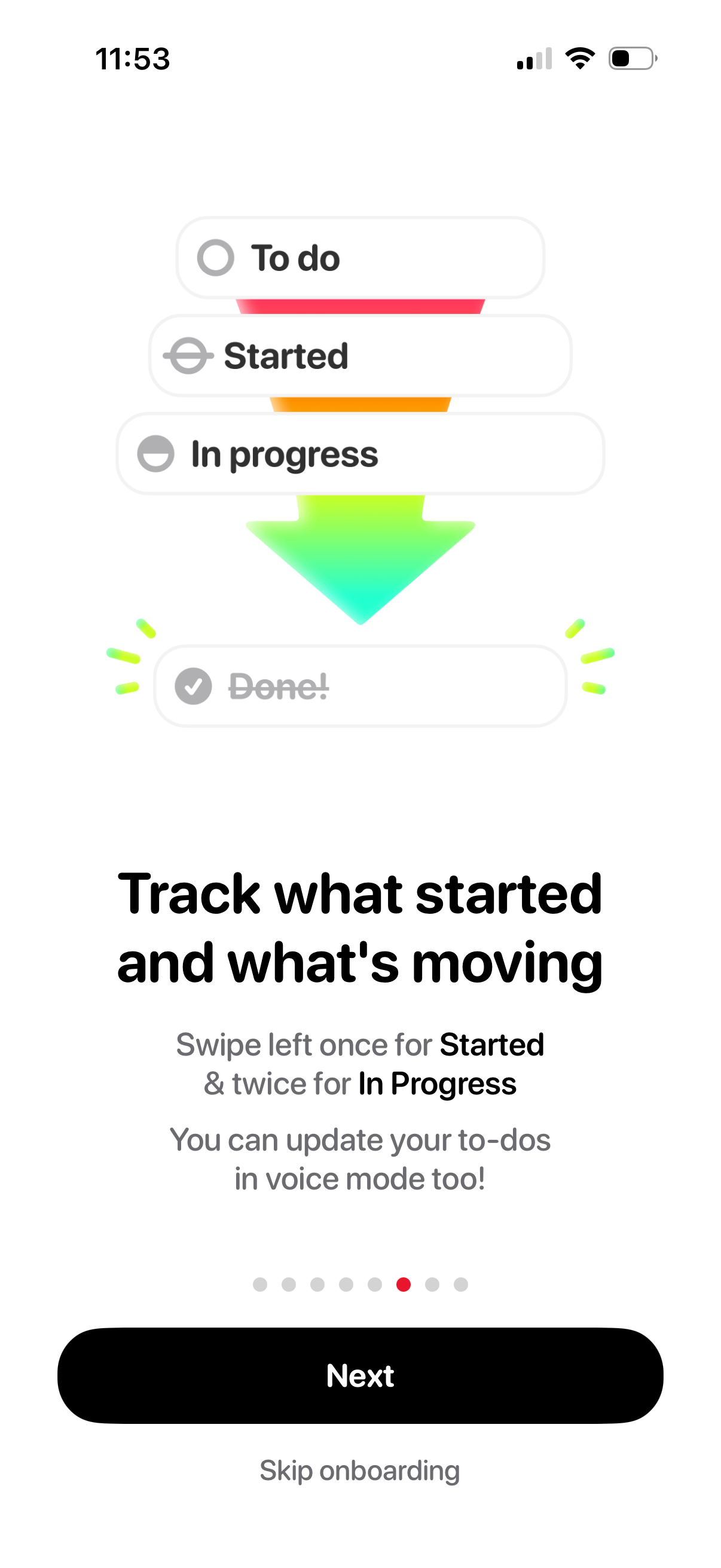
Onboarding tutorial screen for a to-do list app explaining how to track task status changes from To do to Started, In progress, and Done using swipe gestures and voice mode updates. Includes pagination dots with a primary Next button and an option to Skip onboarding.
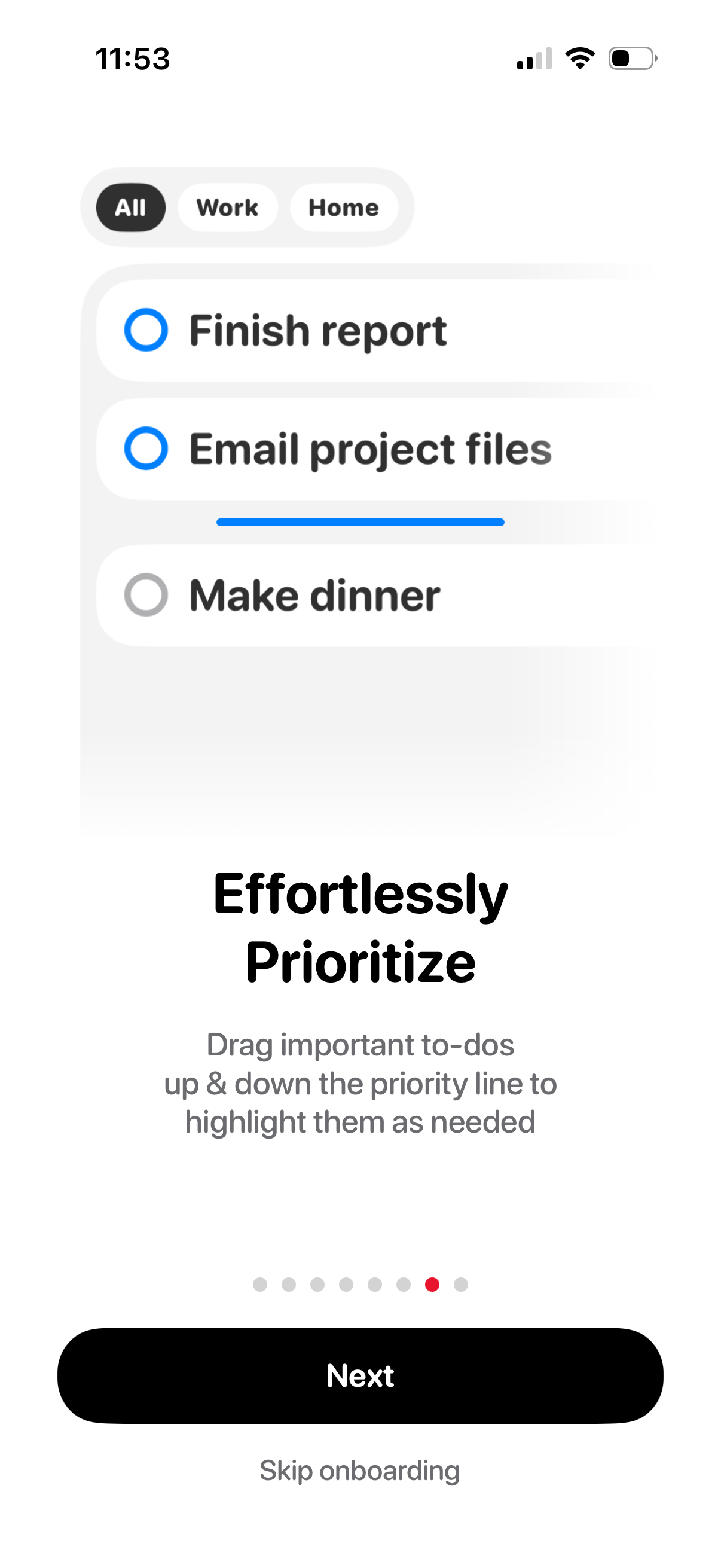
Onboarding screen for a to-do list app showing task categories (All, Work, Home) and a prioritized checklist with a draggable priority line to reorder important tasks. Includes instructional copy about prioritizing, a progress indicator, and actions to continue with Next or Skip onboarding.
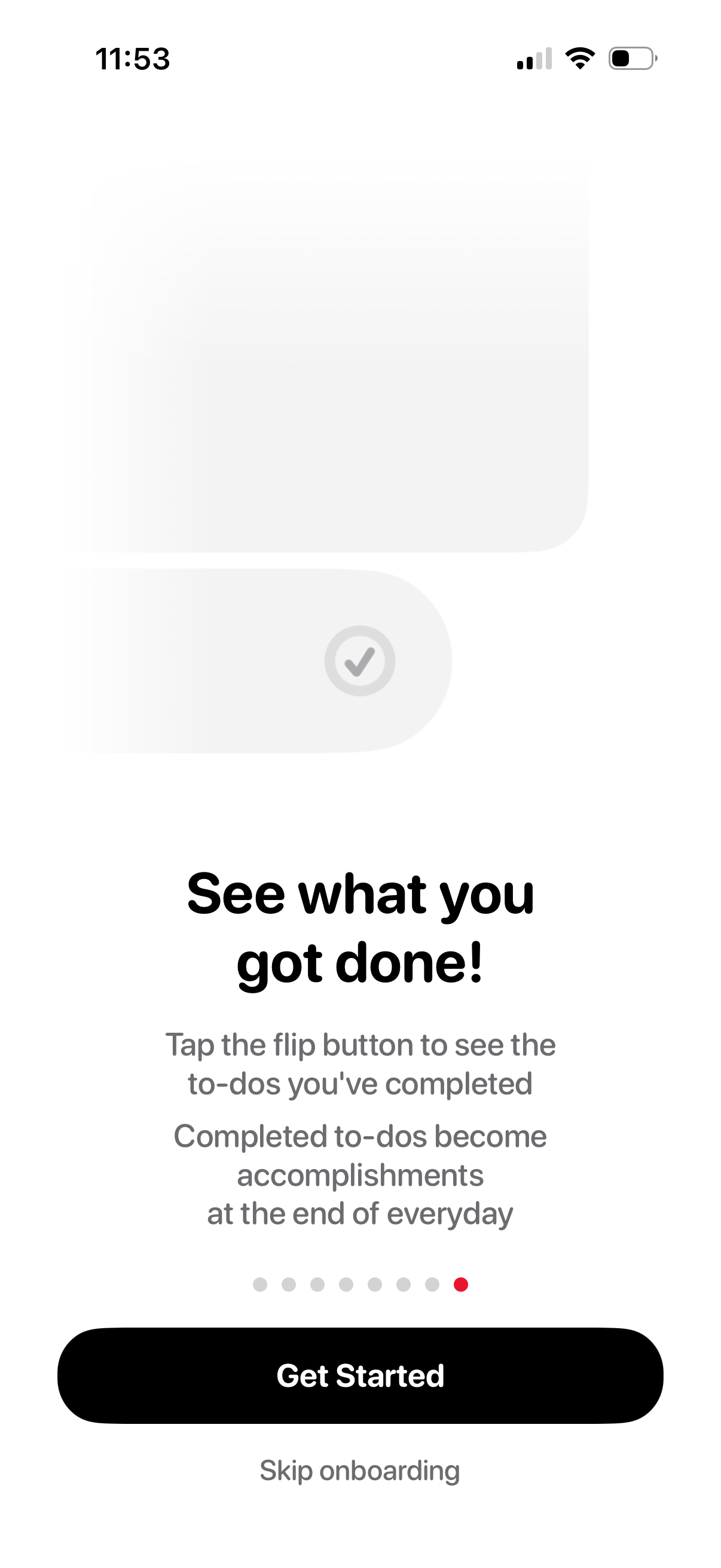
Onboarding tutorial screen for a to‑do list/productivity app explaining how to flip to view completed tasks as daily accomplishments. Includes a page indicator carousel, primary “Get Started” CTA, and a “Skip onboarding” option.
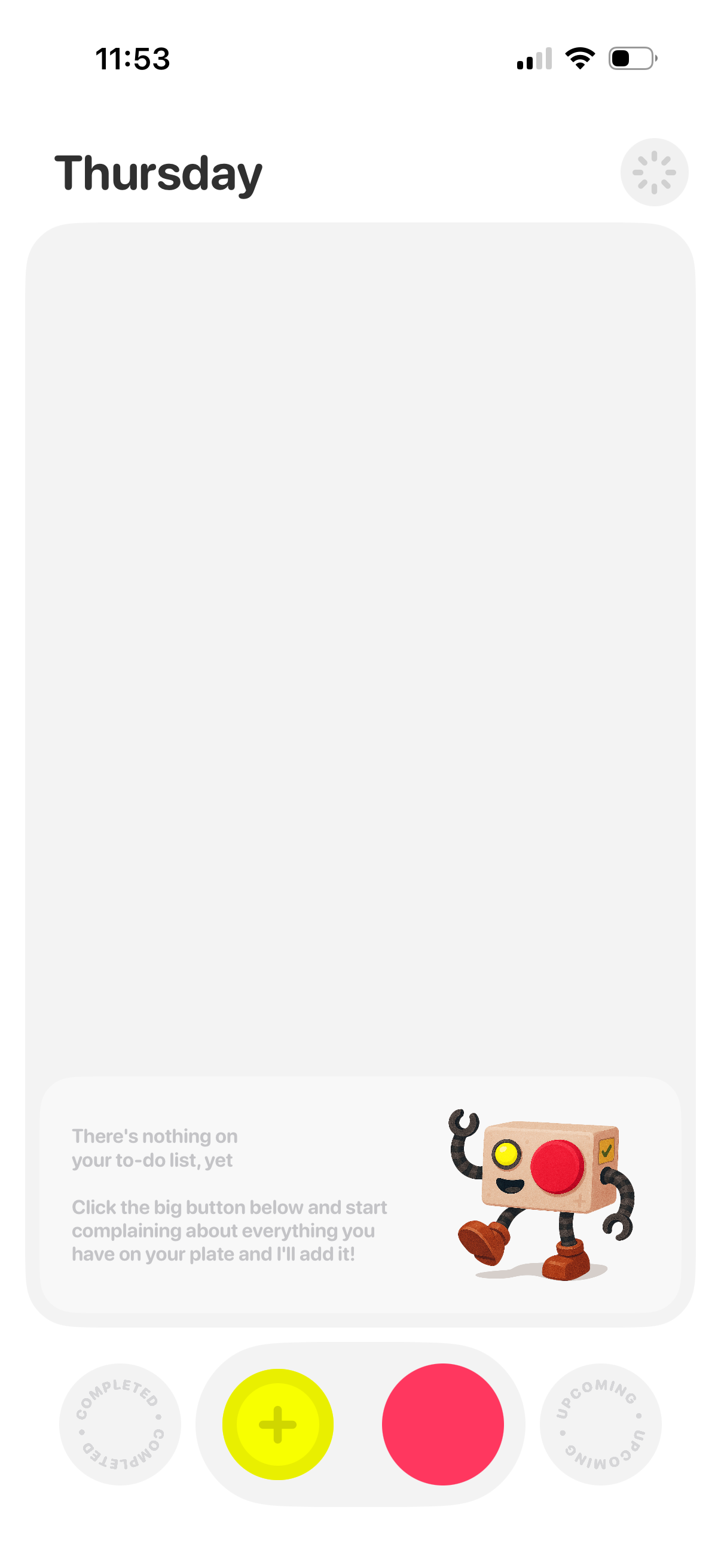
Daily to-do list home screen showing an empty state for the selected day (Thursday) with a prompt indicating no tasks yet. A large bottom action area with a prominent add (+) button enables creating a new task, alongside tabs/filters for viewing completed and upcoming items.