Tap to Pay (iphone)

Payments setup screen for a business app, prompting the user to enable “Tap to Pay” with a prominent Get started call to action. Below, it offers ways to accept a first payment via payment link, one-time charge payment, or email invoices, with a floating plus button to create a new payment and a bottom tab bar for navigation.

Onboarding screen prompting users to set up Tap to Pay on iPhone for accepting contactless payments, showing a sample payment amount and merchant. Highlights required steps like enabling location services and connecting an Apple ID, with a primary CTA to “Enable Tap to Pay” and a close button.

Modal onboarding/consent screen for enabling Tap to Pay on iPhone, explaining that the user can accept contactless credit/debit cards and Apple Pay using only their iPhone and that business info will be shared with Apple. Primary actions include Continue to proceed, a link to privacy details, an option to use a different Apple account, and a close button.

Modal terms and conditions screen for enabling Tap to Pay on iPhone, showing long legal text with links and prompting the user to accept or decline. Primary actions are Disagree or Agree to proceed with platform setup.

Confirmation success screen indicating an external account has been successfully linked, featuring a large checkmark icon and “Account Linked” message after completing an account connection or authorization flow.
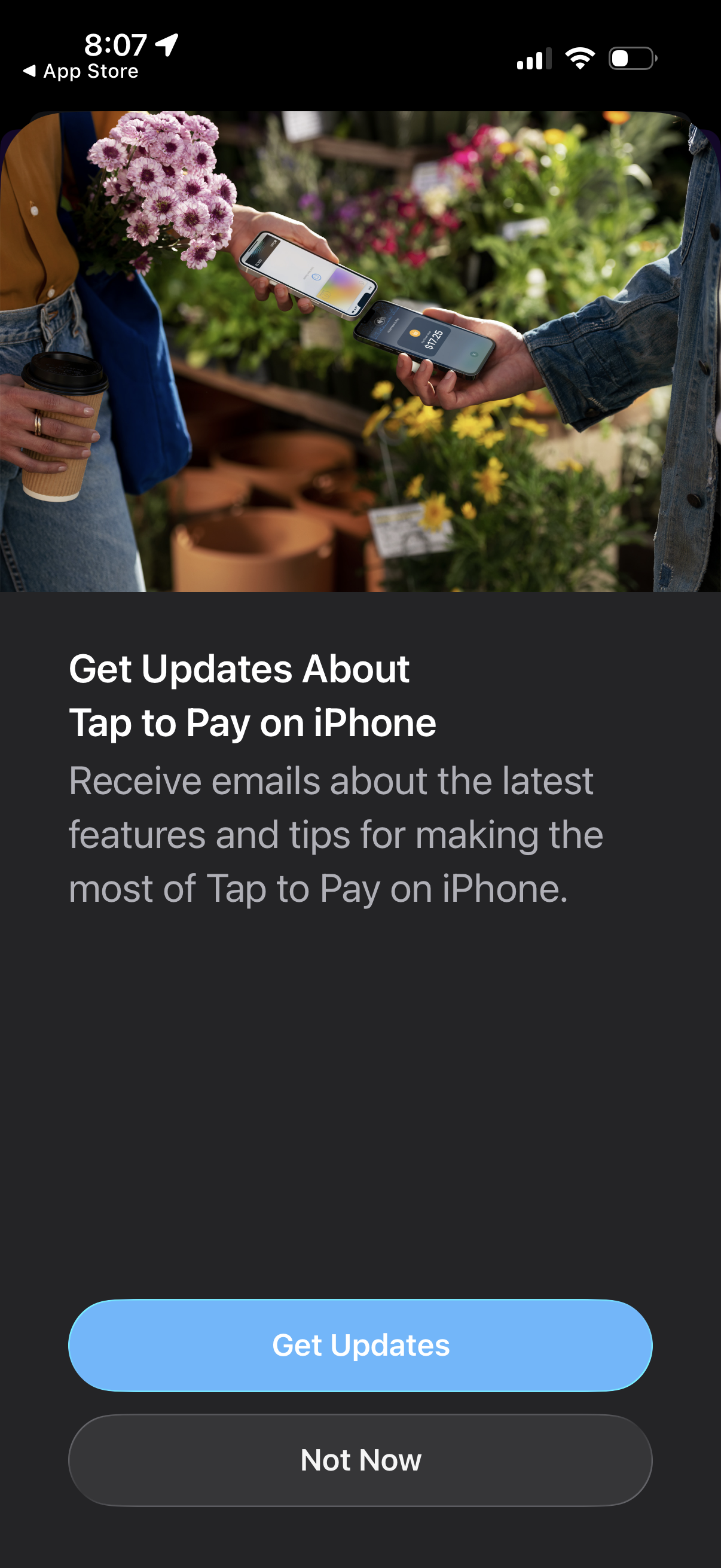
Opt-in marketing prompt asking users to receive email updates about the Tap to Pay on iPhone feature, with explanatory copy and a hero image. Primary actions are a prominent “Get Updates” CTA and a secondary “Not Now” dismissal.
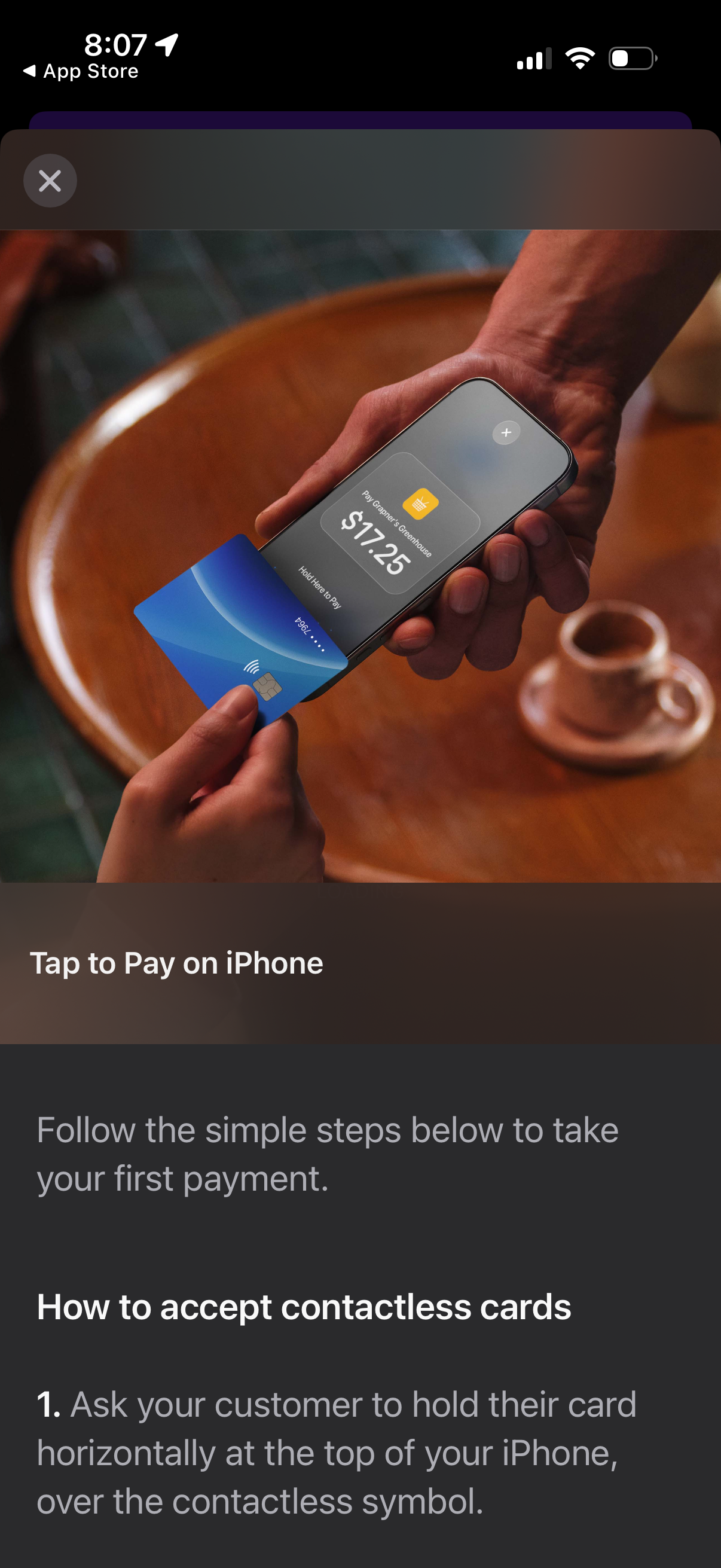
Instructional onboarding screen for Tap to Pay on iPhone that explains how to accept contactless card payments, showing a demo image of a card tapping an iPhone with a payment amount. Includes step-by-step guidance text and a close button to exit the tutorial.
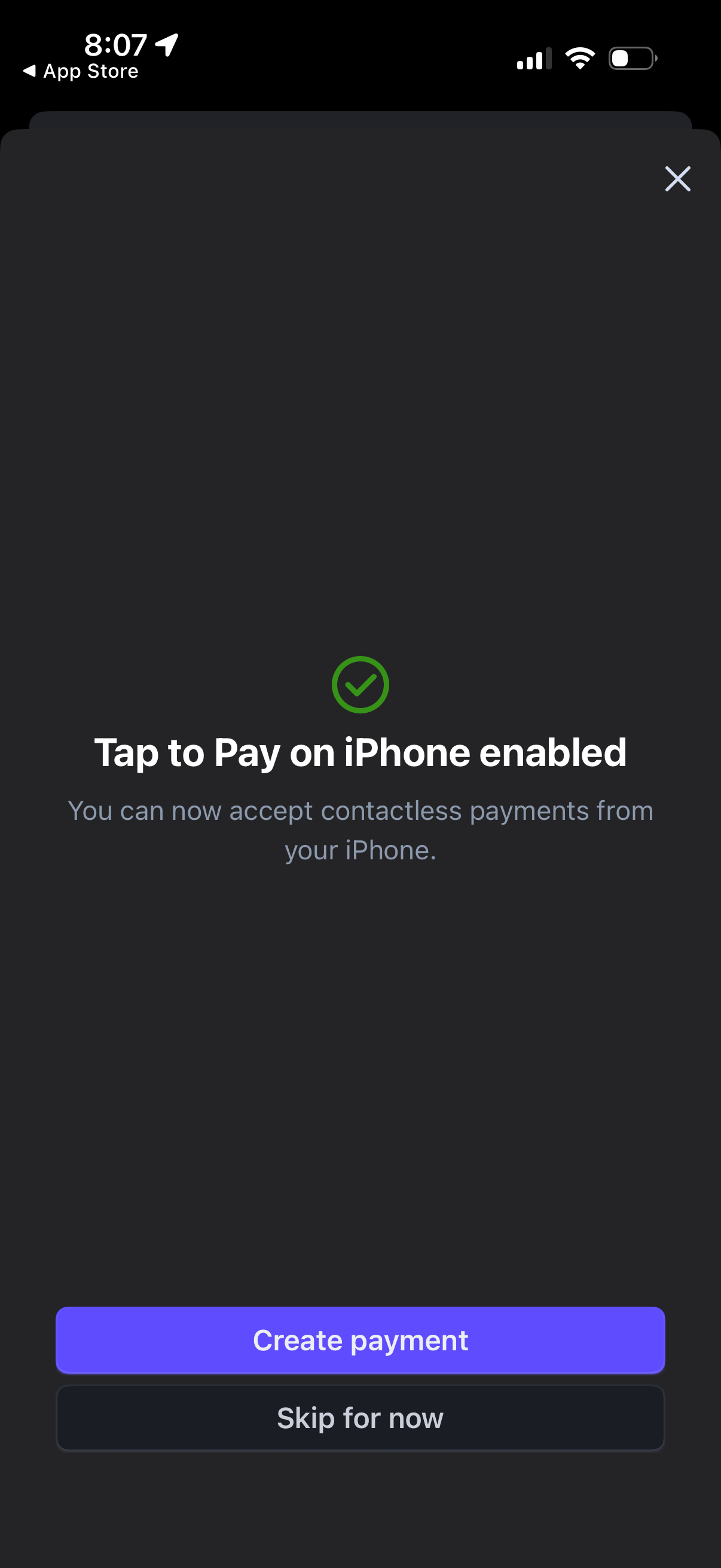
Confirmation modal indicating “Tap to Pay on iPhone” is enabled so the user can accept contactless payments from their phone. Primary action is to create a payment, with secondary options to skip for now or close the modal.