Onboardings
Onboarding or intro carousel screen for a language learning/speaking app highlighting a benefit statement, with a progress indicator, “Tap to continue” prompt to advance, and a “Sign in” link for existing users.

Onboarding/tutorial slide for a language learning app introducing the “Speak” feature with a short motivational message and progress indicator. Includes a “Sign in” link and a “Tap to continue” prompt to advance to the next onboarding screen.
App onboarding or welcome screen for a speaking practice/voice coaching product, featuring a brief value proposition tagline about turning science into real speaking practice. Includes a prominent “Sign in” link for returning users.

Language selection onboarding screen for a language-learning app asking “What language do you want to learn? ” with a list of selectable language options and a “Continue” button, including an unavailable option that offers a “Join Waitlist” action.

Onboarding language selection screen asking “What is your native language? ” with a scrollable list of language options (e.
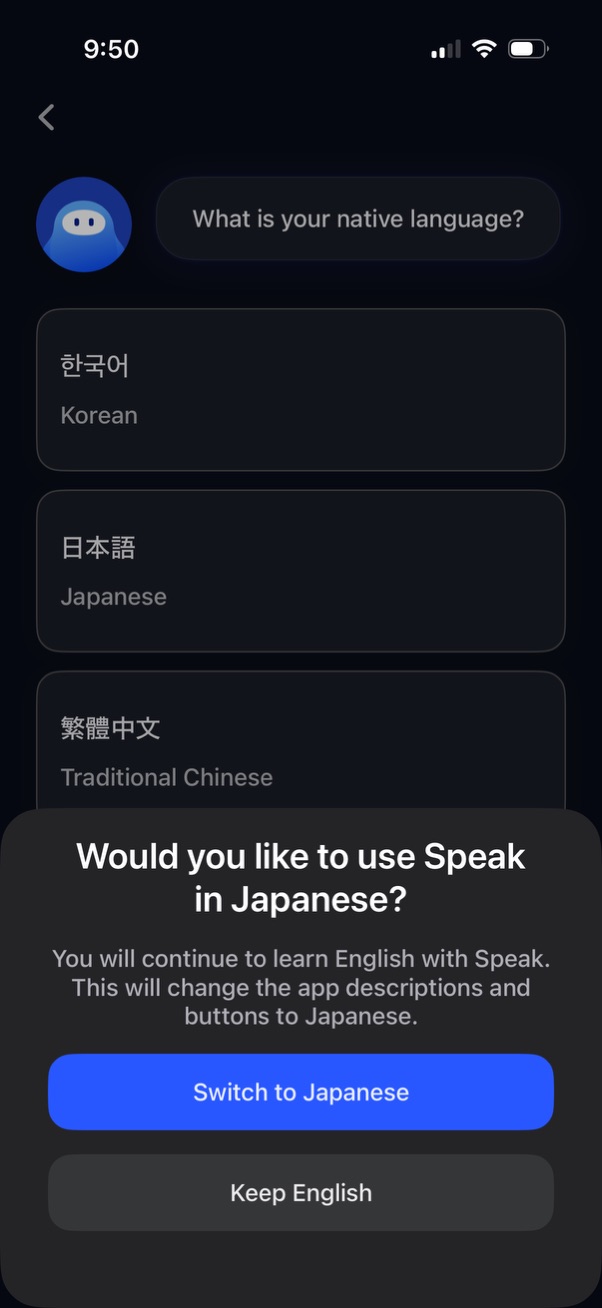
Language selection screen asking for the user’s native language with a list of options (e. g.
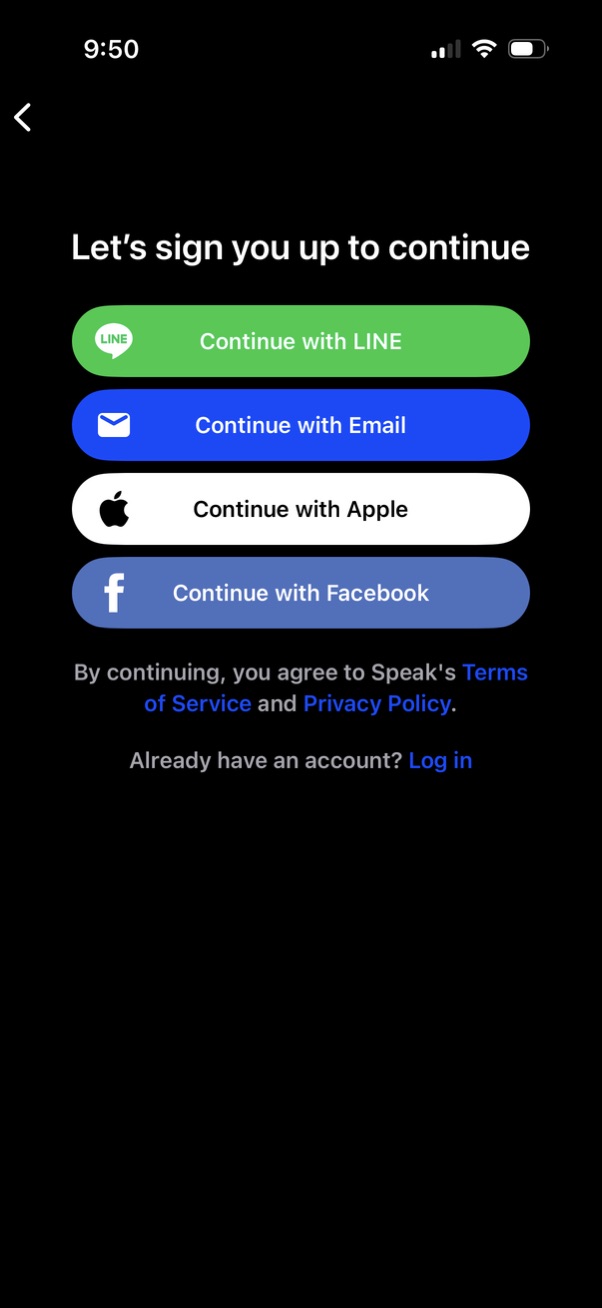
Sign-up/login continuation screen offering multiple authentication methods with large buttons for Continue with LINE, Email, Apple, or Facebook. Includes consent text linking to Terms of Service and Privacy Policy, plus a “Log in” link for existing users.
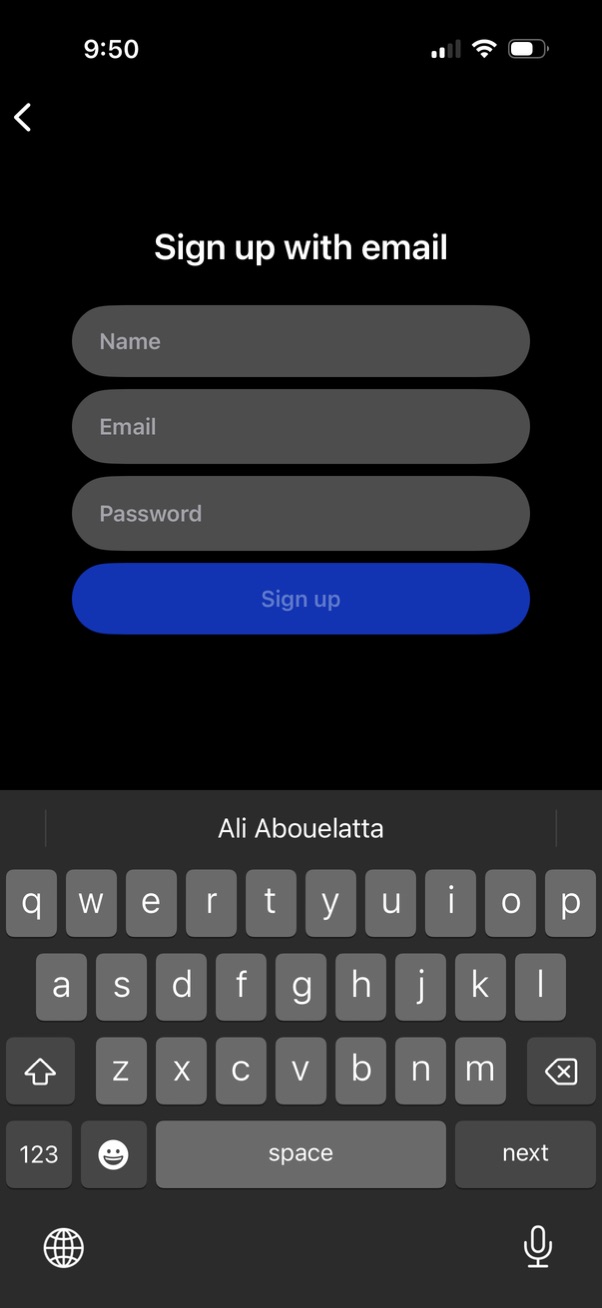
Email sign-up screen with a back button, showing form fields for name, email, and password and a primary “Sign up” call-to-action button. The on-screen keyboard is visible for text entry during account registration.
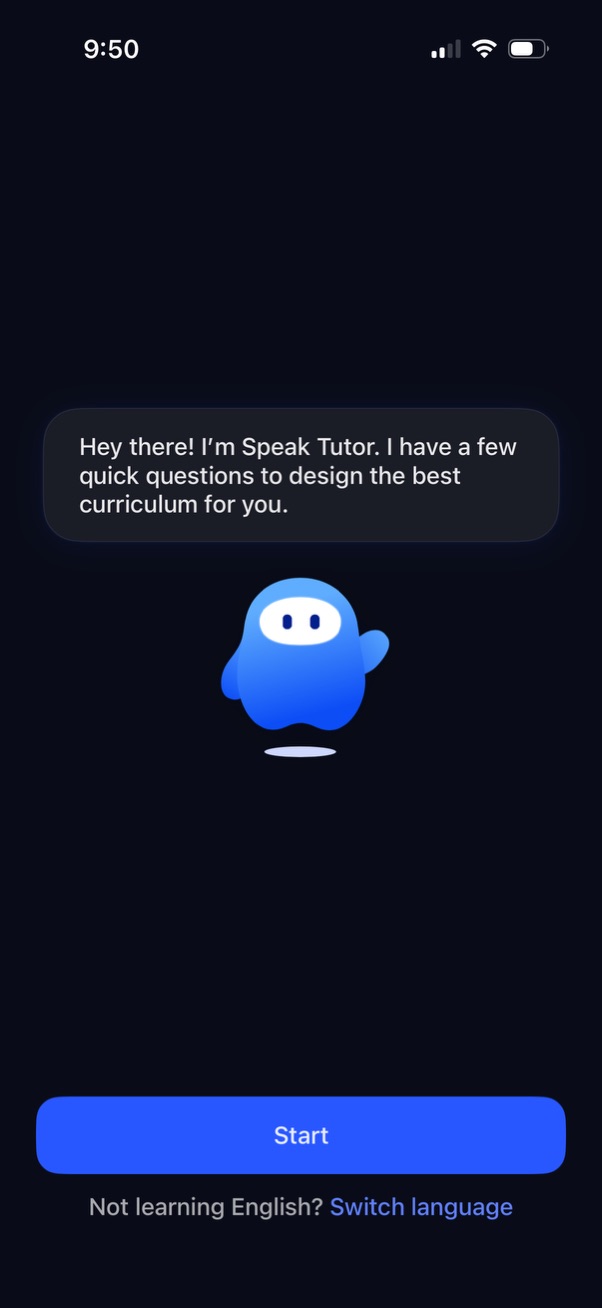
Onboarding intro screen for a language-learning or speaking tutor app where an assistant explains it will ask a few questions to personalize the curriculum. Primary action is a “Start” button, with an option to switch language for non-English learners.

Onboarding survey screen asking “How did you hear about Speak? ” with a multi-select list of acquisition sources (e.

Voice-based language learning onboarding screen where a chatbot asks “What’s motivating you to learn English? ” and prompts the user to reply by speaking via a large microphone button.

Chat-style onboarding screen for a language learning app where a bot asks “What’s motivating you to learn English? ” and the user can type a reply or switch to voice input, with a progress indicator and close button.
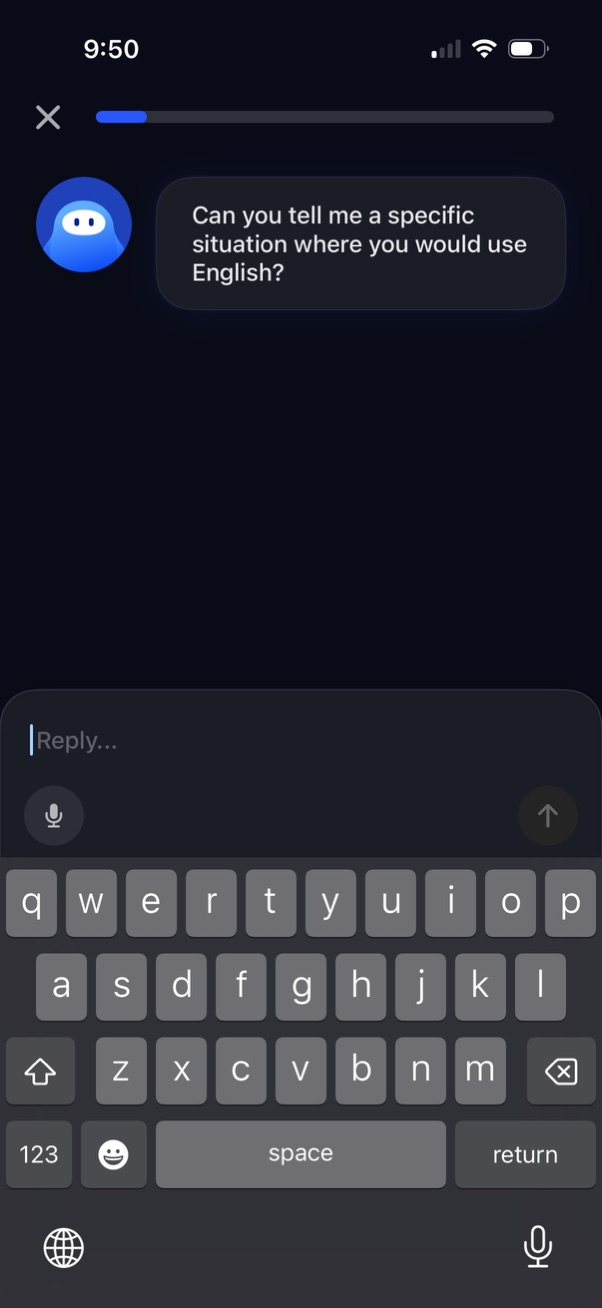
Chat-based language learning prompt screen where an AI tutor asks the user to describe a situation they would use English, with a text reply field, microphone voice input option, and send button, plus a top progress indicator and close control.

Chat-style language learning prompt screen where a bot asks an open-ended question (“What do you want to do in the street using English? ”) and the user can type a reply in a message field or use voice input, with a send button and a progress indicator at the top.

Dark-mode AI chat onboarding screen asking a language-learning prompt (“Who do you want to talk to in the street using English? ”) with a progress indicator and close button.
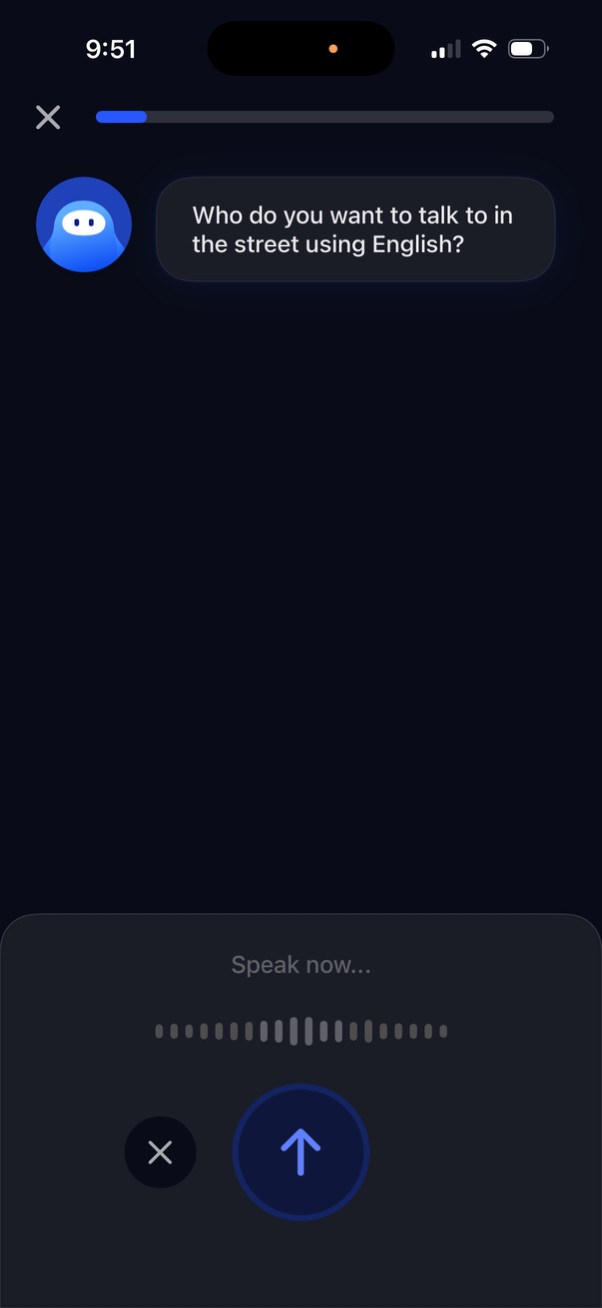
Voice-based AI conversation screen prompting the user to choose a roleplay scenario for practicing English speaking (e. g.

Dark-mode onboarding or setup screen with a top progress indicator and a close (X) button to exit. The main area shows selectable circular options for starting with an assistant/chatbot (speech bubble icon) or an overflow “more” option (ellipsis).
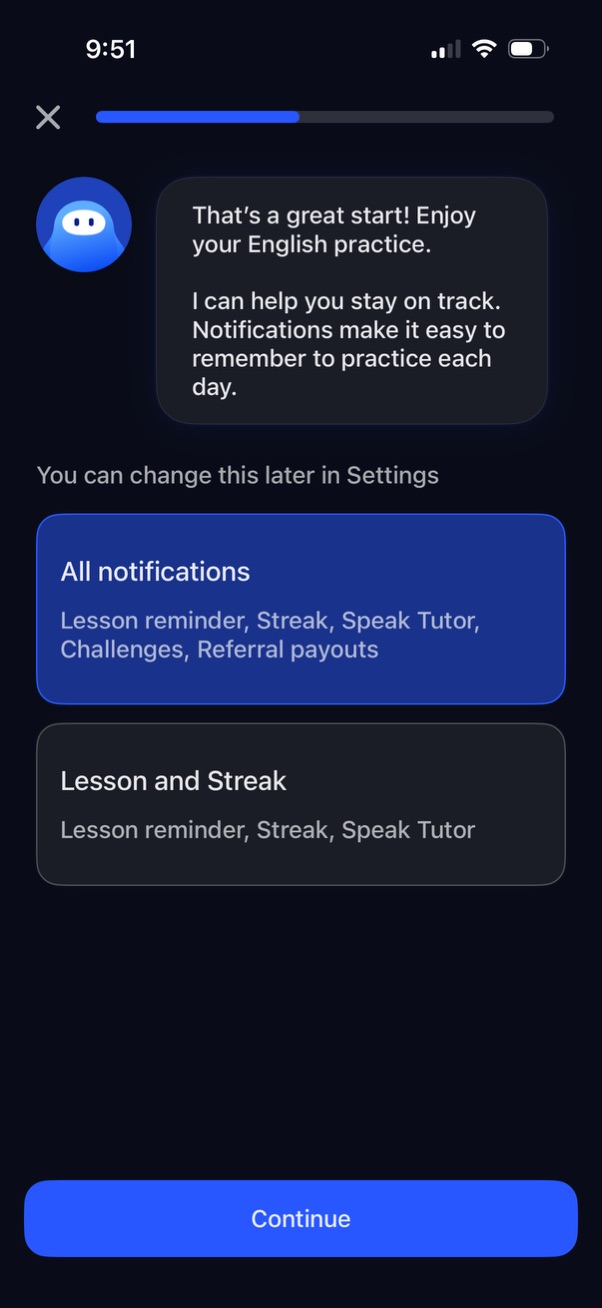
Onboarding screen prompting users to enable app notifications to stay on track with daily language practice, with a progress indicator and option to dismiss. Users choose a notification bundle (e.
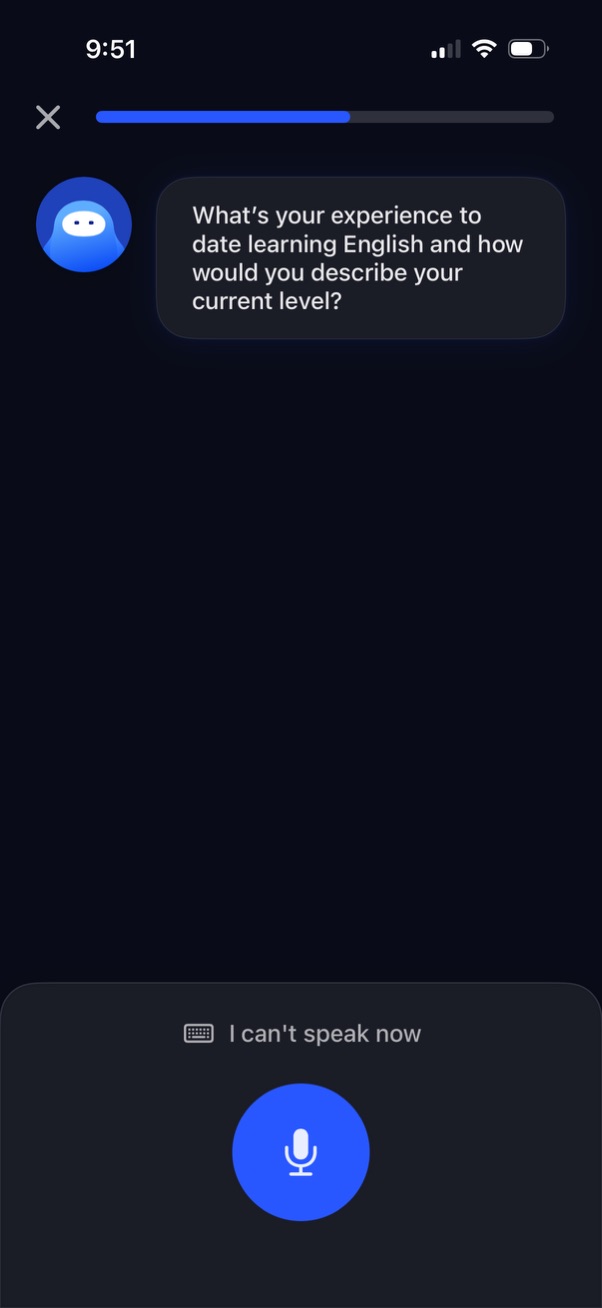
Voice-based onboarding screen for an English learning app where an AI tutor asks the user to describe their past experience and current proficiency level. Includes a progress bar, close button, large microphone button to start speaking, and an “I can’t speak now” option to switch to text.
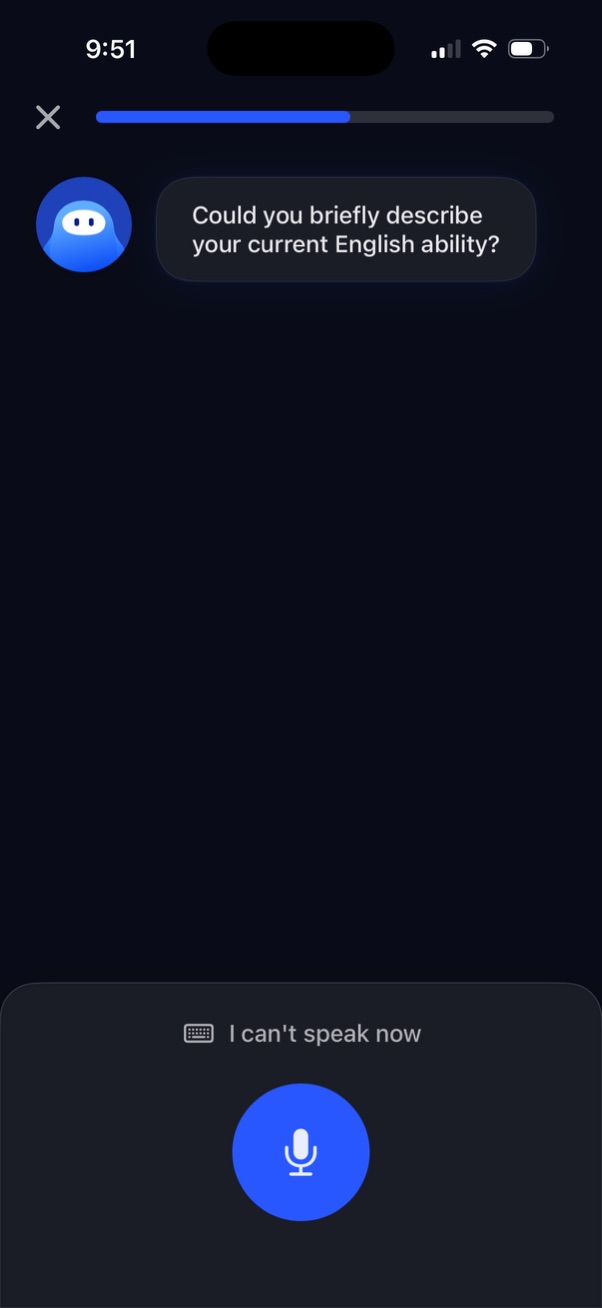
Voice-based onboarding screen for an English learning or speaking practice app where a chatbot asks the user to describe their current English ability. The interface features a prominent microphone button to record an answer, an “I can’t speak now” text option, and a progress bar with a close button to exit the setup flow.

Language learning onboarding results screen showing a chatbot message summarizing the user’s assessed English level and highlighting personalized lessons, immersive roleplays, and real-time feedback. Includes a progress indicator at the top, a close icon, and a primary “Continue” button to proceed.

Voice-based chat screen for an English learning tutor where the assistant asks a prompt about fluency challenges and the user can respond by speaking. Includes a “Speak now” microphone input with audio level indicator, send/continue button, progress bar, and close controls.

Voice-based chat screen for an AI English tutor asking the user what area of English (speaking or grammar) they find challenging, with a “Speak now” prompt and waveform indicating live audio recording. Users can cancel, submit the recording, and view progress via a top progress bar.
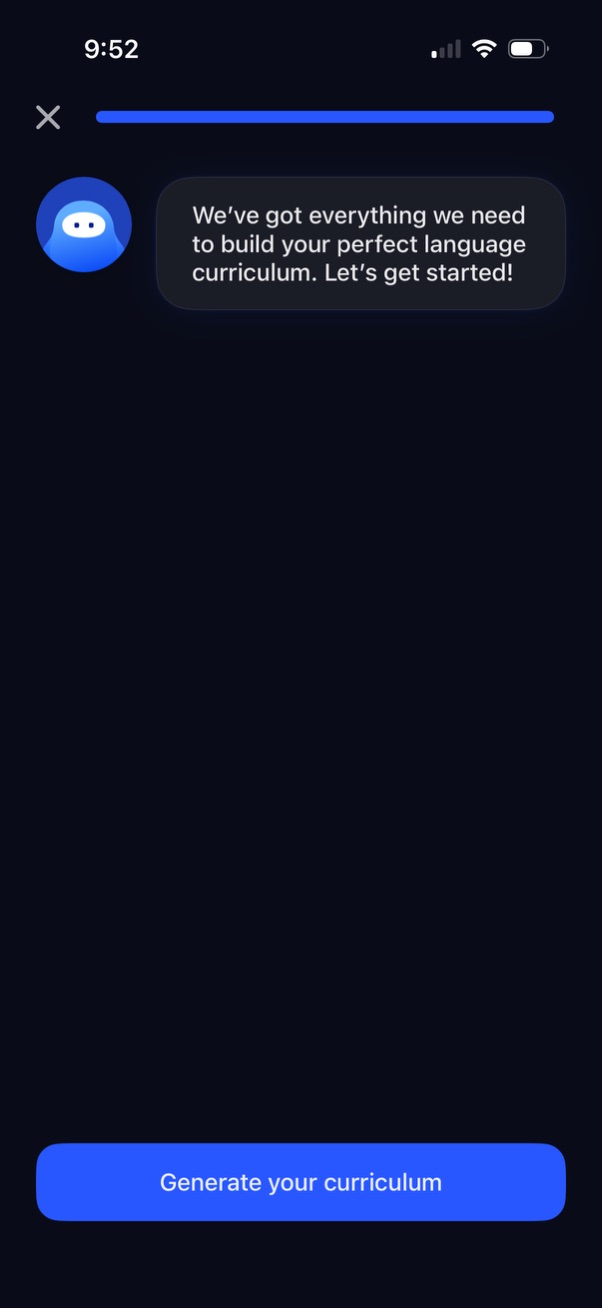
Language learning onboarding completion screen with a chatbot message confirming setup is ready to build a personalized language curriculum, showing a progress bar and close icon. Primary CTA button at the bottom lets users generate their curriculum to start the learning plan.
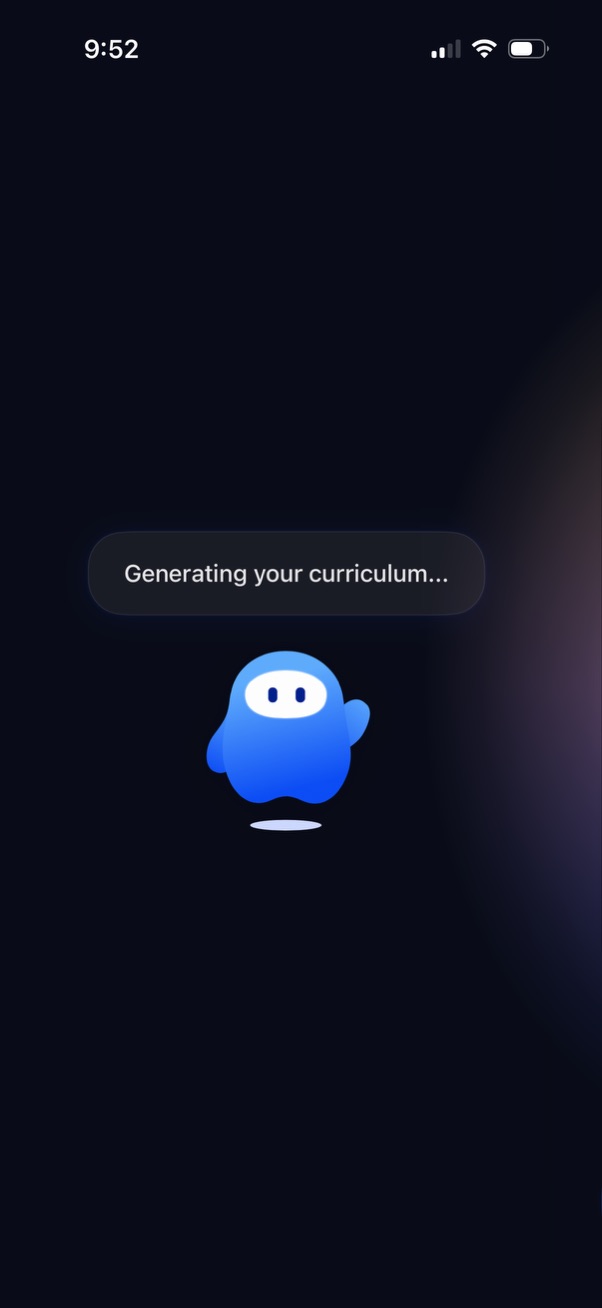
Full-screen loading state showing an AI assistant generating a personalized curriculum, with a message “Generating your curriculum…” and a centered mascot/animation indicating progress while content is being created.

Personalized onboarding results screen for a language-learning app summarizing what the app learned about the user’s study habits and goals (e. g.
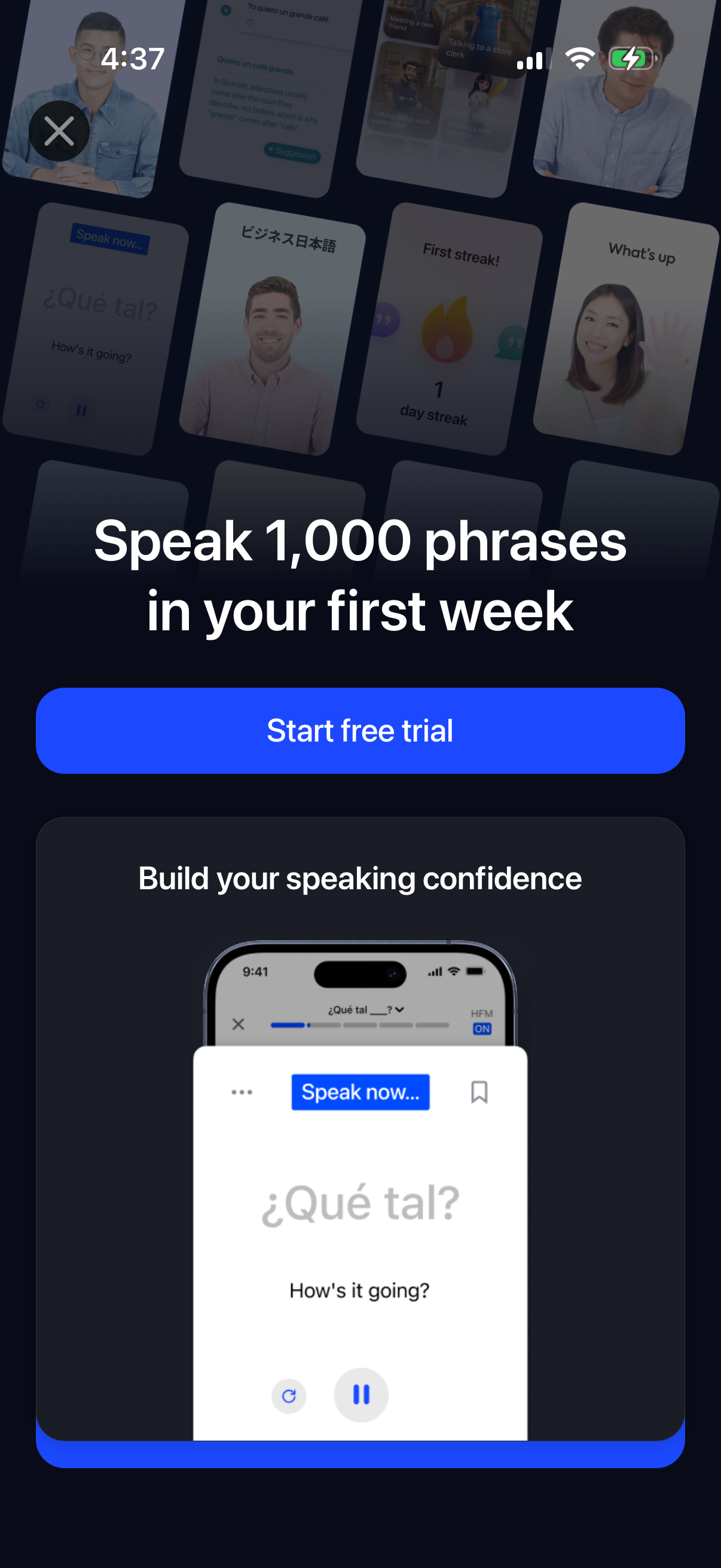

Onboarding screen for a language learning conversation app inviting users to start their first speaking lesson with sample dialogue cards and tutor avatars. Primary CTA button “Let’s begin” with a secondary “Skip for now” option.