Onboarding

Login screen offering social sign-in options with “Continue with Google” and “Continue with Apple,” along with primary actions to log in or sign up. An OAuth permission modal appears asking to allow the app to use a Google account to sign in, with Cancel and Continue buttons.

Google “Sign in with Google” account chooser screen for continuing to a third-party app (Snapchat), showing a list of saved Google accounts with avatars, email addresses, and signed-out status. Users can tap an account to authenticate or choose “Use another account” to add a different login.

Account creation signup step asking for the user’s birthday, using a date picker (month/day/year) and a primary “Agree and Continue” button. Includes consent text with links to Terms of Service and Privacy Policy and a back navigation arrow.
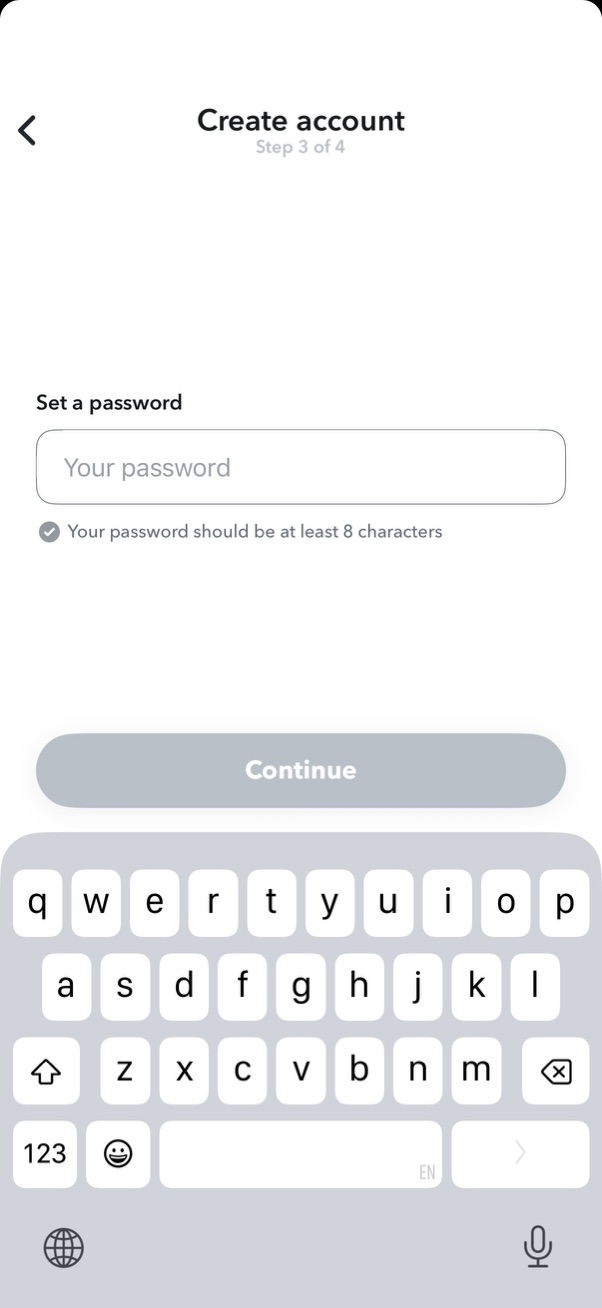
Account creation flow screen (step 3 of 4) prompting the user to set a password with a single password input field and inline requirement validation (minimum 8 characters). Includes a back arrow and a primary Continue button to proceed to the next step.
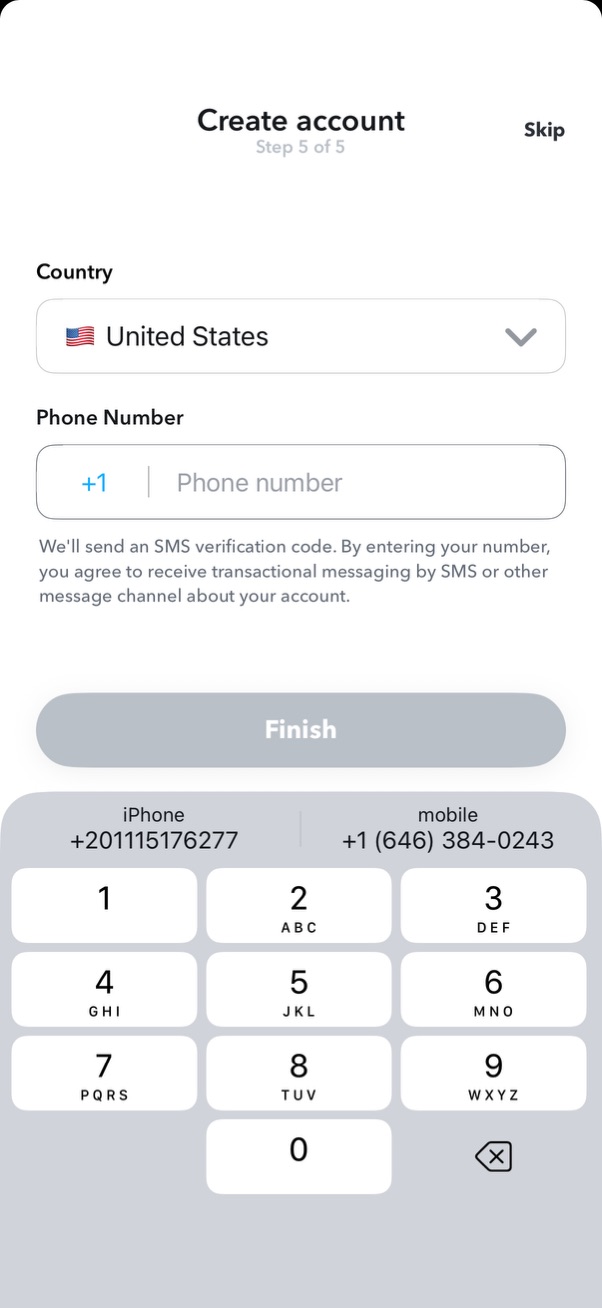
Final step of a multi-step account creation flow prompting the user to select their country from a dropdown and enter a phone number for SMS verification, with explanatory consent text. Includes primary “Finish” CTA and a “Skip” option.

Phone number verification screen prompting the user to enter a multi-digit SMS code sent to their number, with separate OTP input boxes. Includes a resend-code countdown timer, a disabled/enabled Submit button, and a numeric keypad for code entry.

Invite contacts screen for finding friends, featuring a search bar and a scrollable list of phone contacts with avatars and selectable checkmarks to choose multiple people. Users can skip the step or tap a primary button to send SMS-based invites for the selected contacts.

Onboarding screen prompting users to create a Bitmoji avatar using the camera, with illustrated avatars as a preview. Primary action is a prominent “Continue” button and an optional “Skip” link.
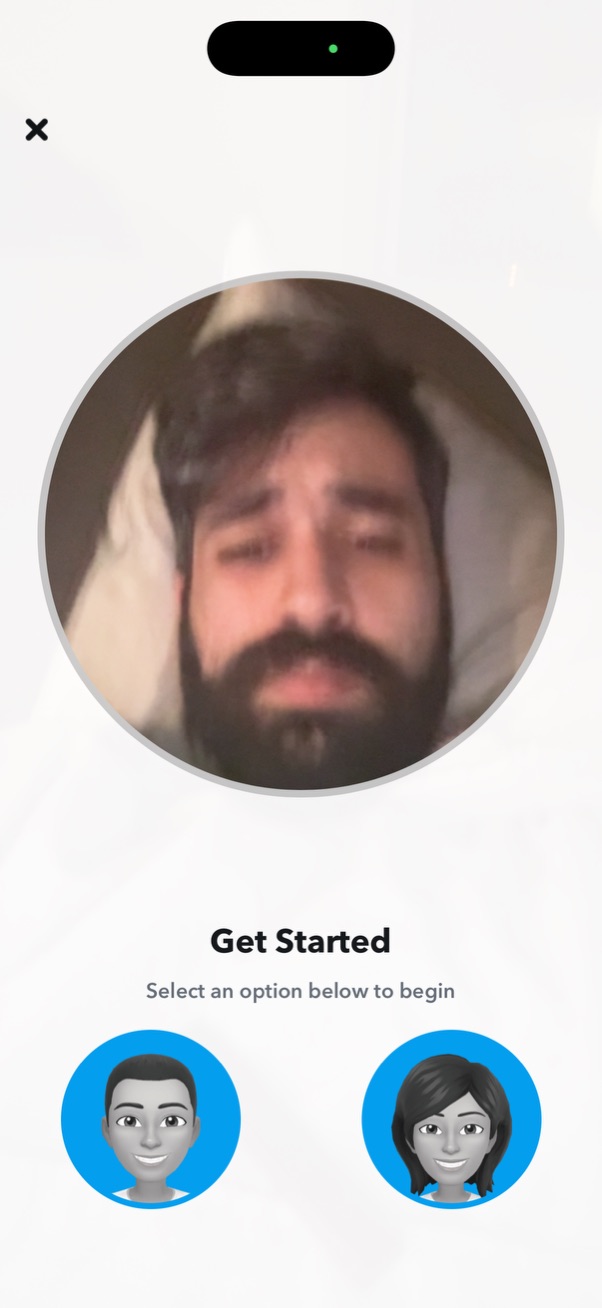
Onboarding “Get Started” screen featuring a large circular live camera preview/selfie at the top and a prompt to select an option below to begin. Two avatar-style profile options are presented as primary actions (e.

Confirmation screen after creating an avatar, showing the finished character with options to make edits. Primary actions let the user choose an outfit or finish by tapping Done.

Account creation onboarding screen (step 2 of 4) showing the auto-generated username with an option to change/edit it and a note that it can be updated later in settings, plus a primary Continue button to proceed.

Add Friends selection screen showing a scrollable list of suggested contacts with avatars, usernames, and online status indicators, each with a circular checkbox to select people to add. A sticky bottom “Continue” button advances after choosing one or more friends.
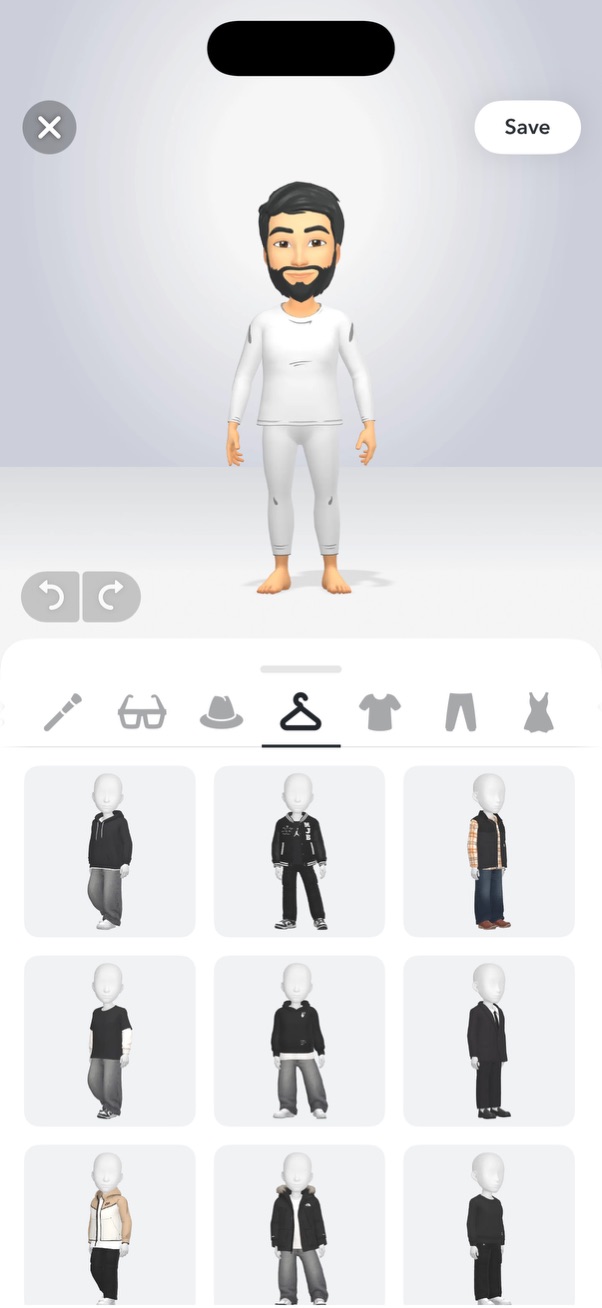
Avatar customization screen for editing a 3D character’s outfit, with a clothing category selector and a grid of preset looks to choose from. Includes undo/redo controls plus close and Save actions to discard or apply changes.
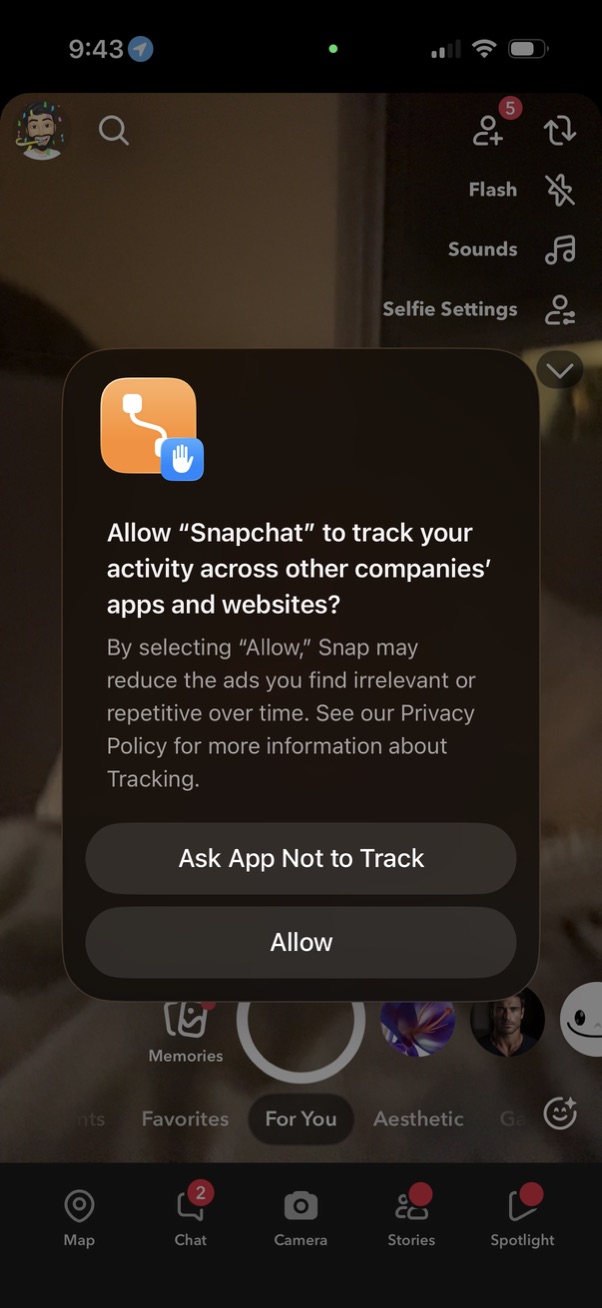
iOS App Tracking Transparency permission modal asking whether to allow Snapchat to track activity across other companies’ apps and websites for ad personalization. Provides primary actions to “Ask App Not to Track” or “Allow” over the Snapchat camera screen.