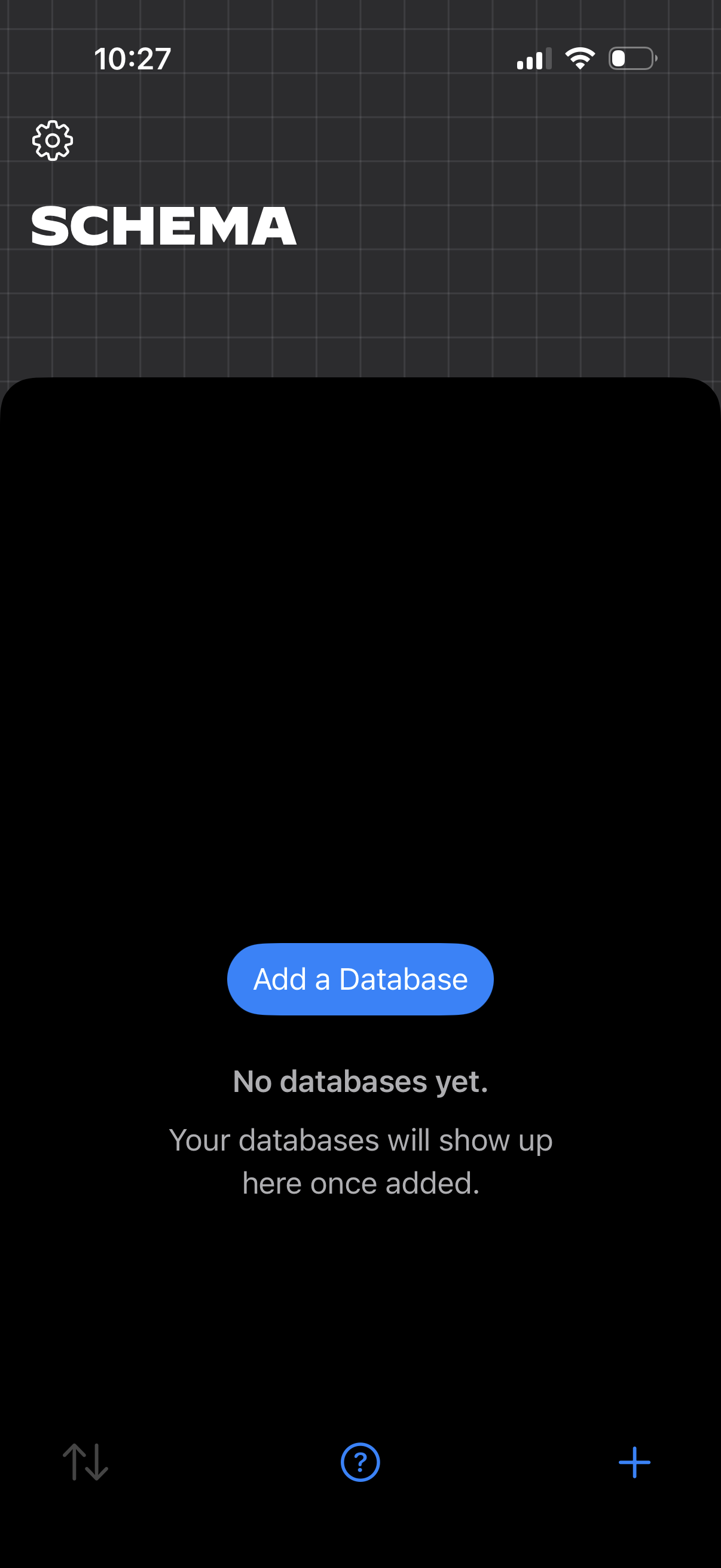
Empty-state database management screen for a “Schema” section, showing messaging that no databases exist yet and a primary CTA to “Add a Database. ” Includes a settings icon and bottom controls like sort, help, and a plus button to create new items.
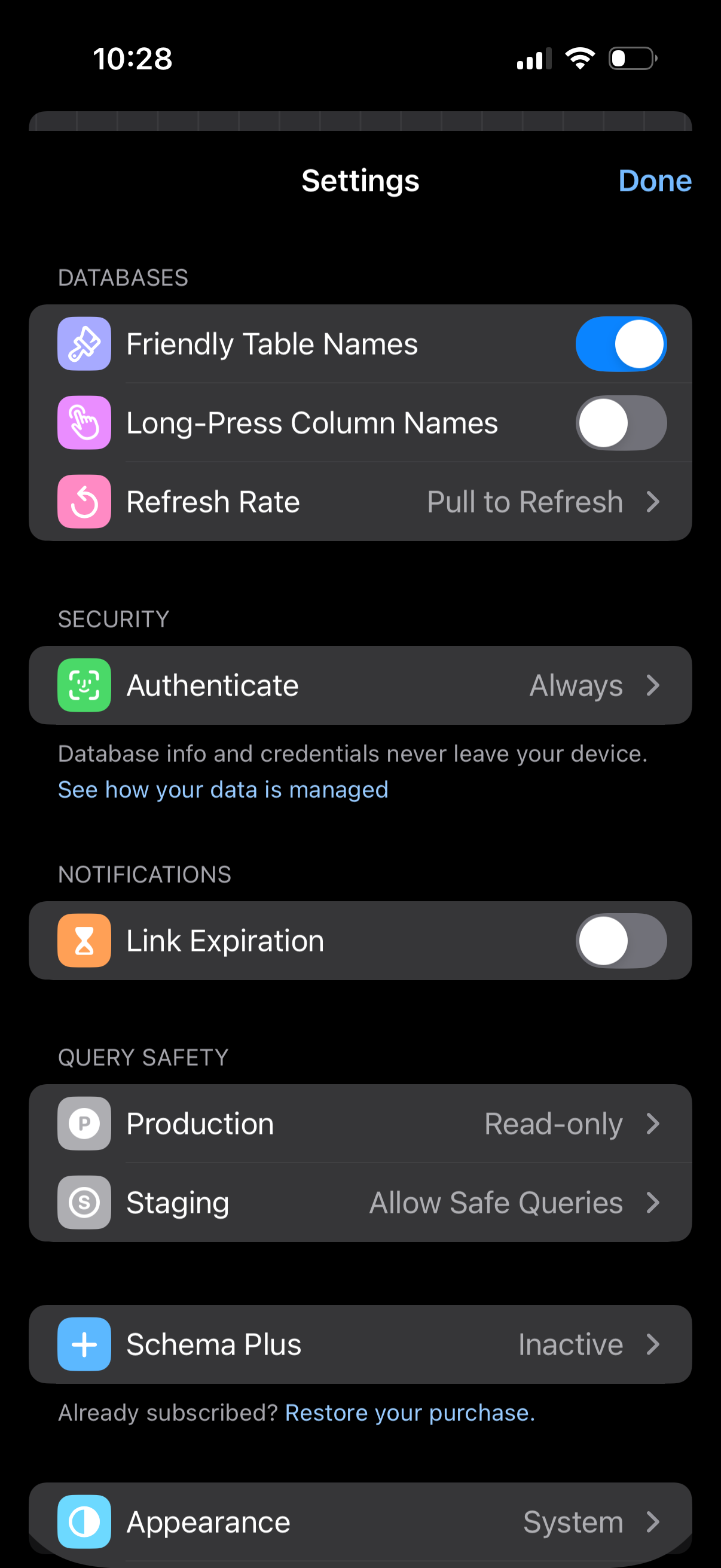
Mobile app settings screen for a database/query tool with sections for database display options (friendly table names, long-press column names) and refresh rate, plus security authentication settings. Includes notification toggle for link expiration, query safety controls for production and staging modes (read-only/safe queries), a subscription/manage purchase item, and an appearance theme selector with a Done button.
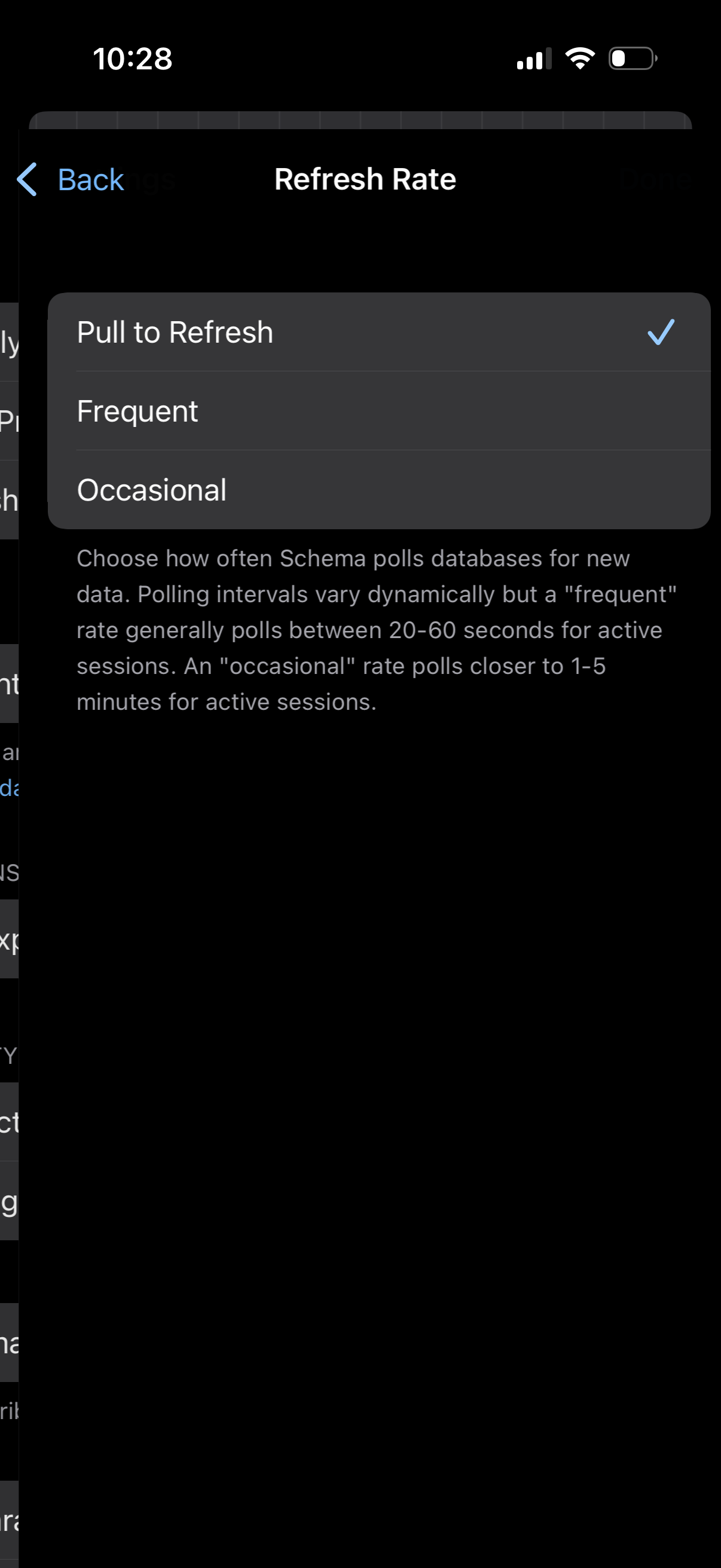
Settings screen for choosing the app’s data refresh rate, letting users select between Pull to Refresh, Frequent, or Occasional polling with a checkmark indicating the current option. Includes explanatory text about how often background polling occurs and a back navigation control.
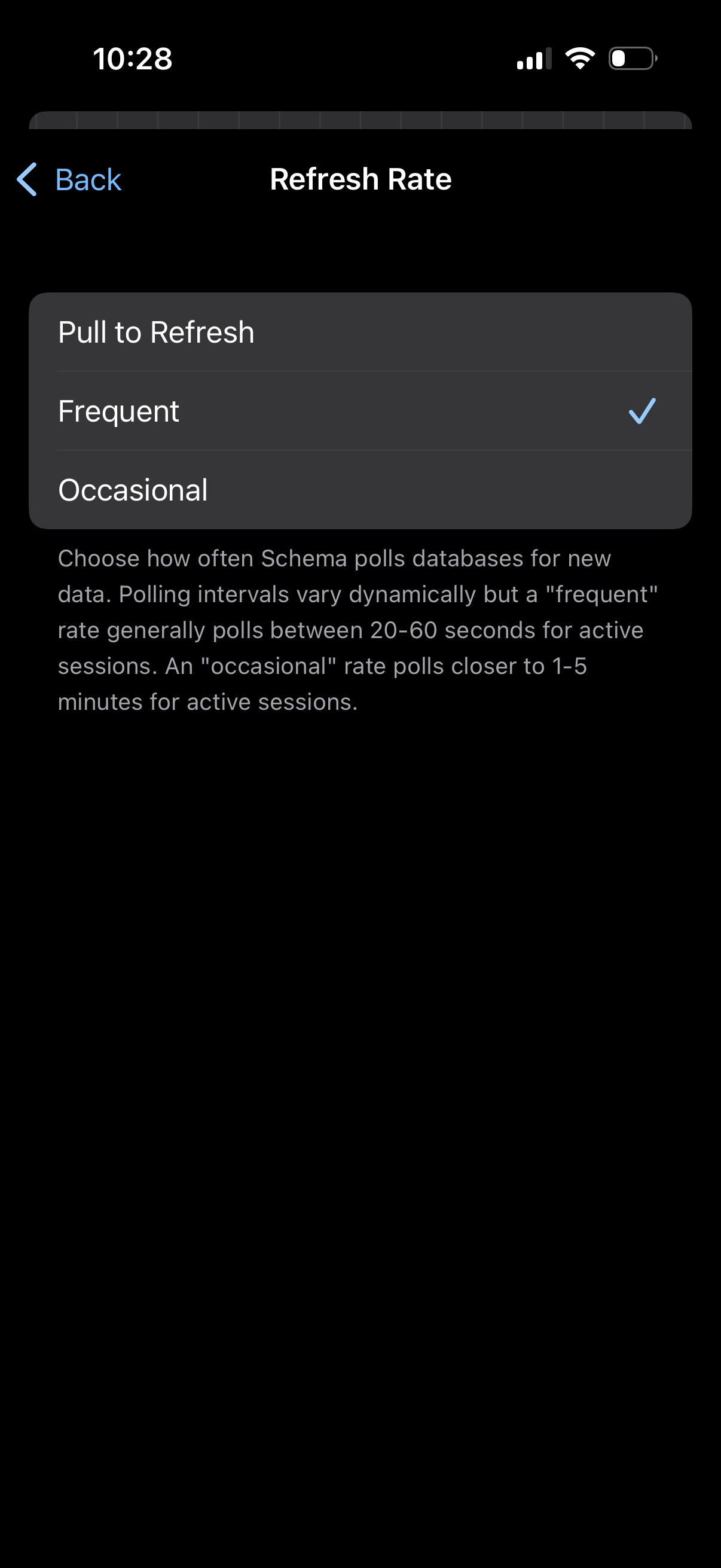
Settings screen for configuring data refresh rate, showing a radio-style list to choose Pull to Refresh, Frequent (selected), or Occasional polling. Includes explanatory text about how often the app polls for new data and a back navigation control.
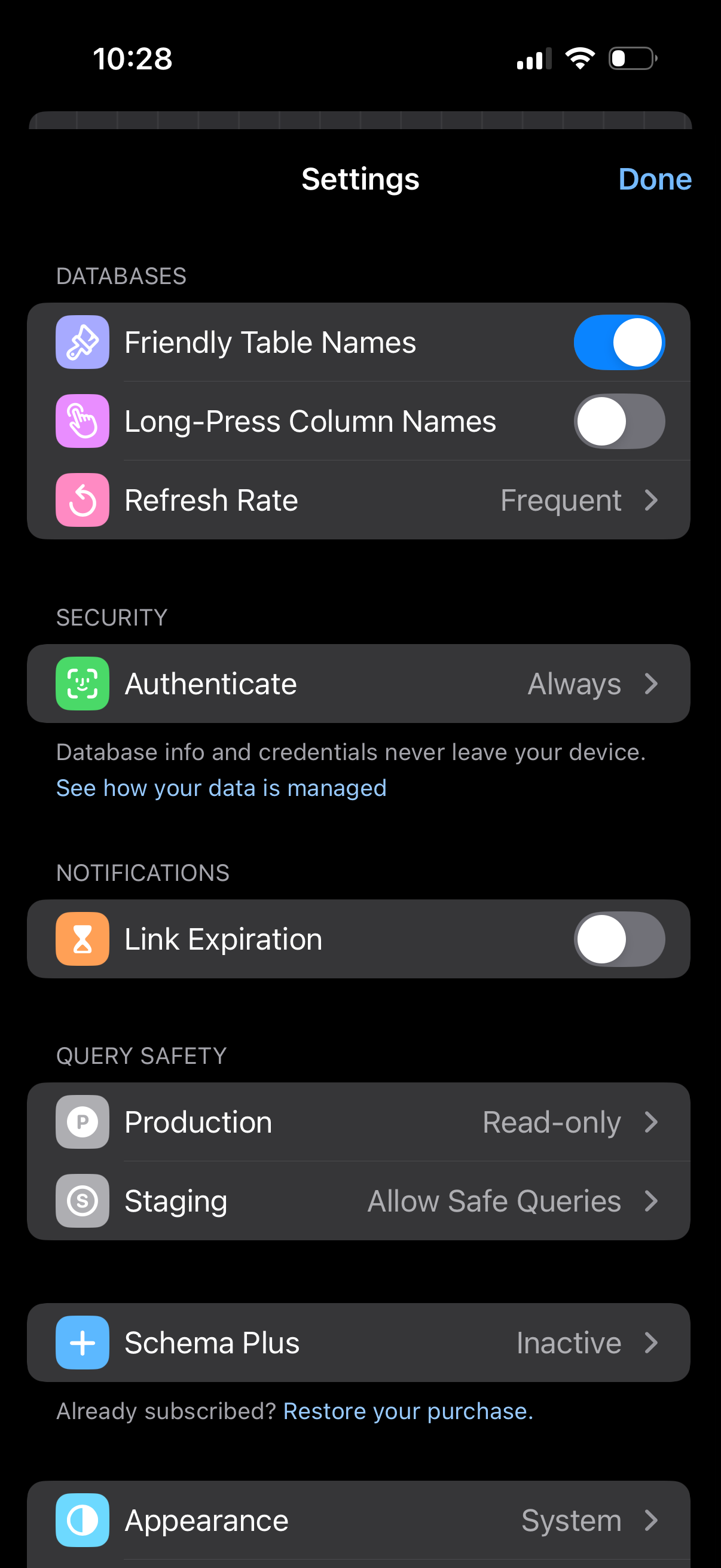
Settings screen for a database management app with sections for Databases, Security, Notifications, and Query Safety. Includes toggles and drill-down rows to enable friendly table names, long-press column names, set refresh rate, configure authentication, link expiration alerts, and set production/staging query permissions (read-only or safe queries), plus subscription status and appearance options with a Done button.