Onboarding

Onboarding or intro screen for a health/medication app featuring a bold statement prompt and pill icon on a dark background. A single primary call-to-action button labeled “Next” advances to the next onboarding step.

Wellness app onboarding screen listing the benefits of a program (improved cognitive skills, focus, empathy, reduced anxiety/depression, better health) in a centered scrollable layout. A prominent bottom “Next” button advances to the next onboarding step.

Dark-themed onboarding/education screen for a sleep or wellness app featuring an illustration, a headline about sleep science, and supporting copy. A prominent “Next” button at the bottom advances to the next onboarding slide.
Onboarding intro screen for a sleep and energy wellness app explaining that it tailors solutions to the user’s biology, lifestyle, and needs and will uncover unique sleep/energy patterns. Includes a prominent “Next” button to continue the onboarding flow.

Onboarding intro screen for a sleep tracking or sleep coaching app prompting the user to create a personalized sleep profile. The screen explains that user input will be used to tailor tools and guidance before starting the setup flow.

Onboarding/value proposition screen for a sleep tracking app highlighting credibility (“over 1. 7 billion nights of sleep tracked”) and showing a preview of the dashboard with sleep debt, energy potential, and last night’s sleep stats.

Onboarding profile setup screen asking “How did you hear about [app]? ” with a single-select radio list of acquisition sources (App Store search, social ads, blog, podcast, friend, etc.
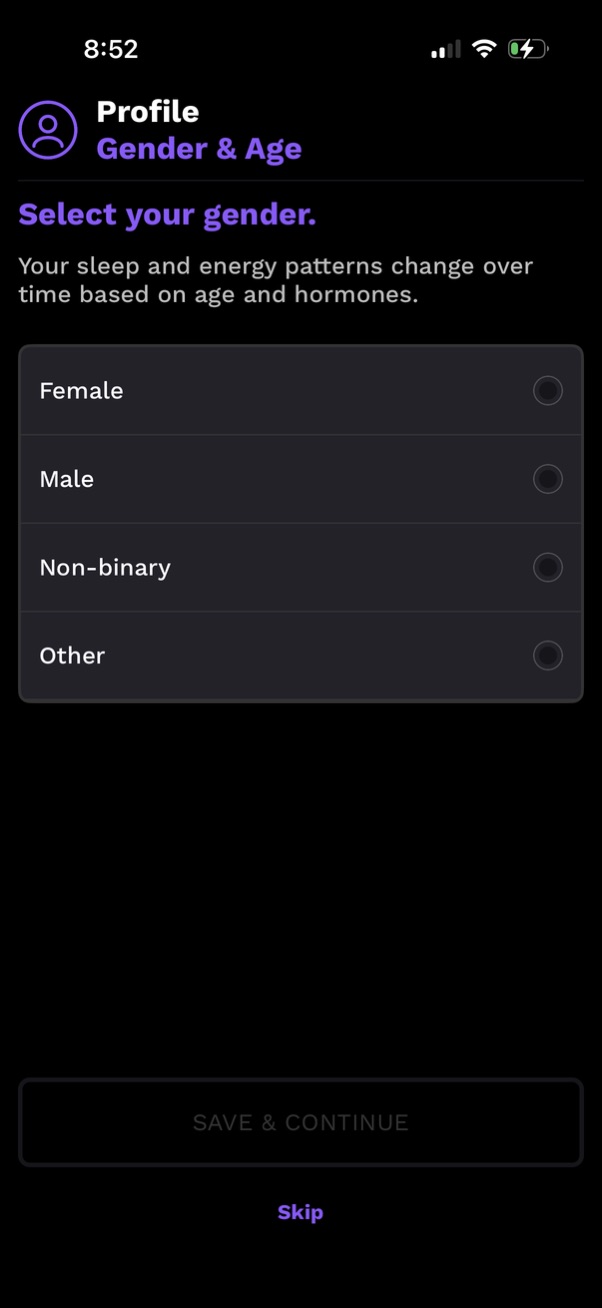
Profile settings screen for selecting gender and age context, prompting the user to choose a gender option (Female, Male, Non-binary, Other) via radio buttons. Includes primary action to Save & Continue and a Skip link for bypassing the step.

Profile setup screen asking the user to select their age range for personalized sleep guidance, using a single-select list of age brackets with radio buttons. Includes actions to save and continue (disabled until selection) or skip the step.

Onboarding goals selection screen in a sleep and wellness app where users choose multiple personal goals (e. g.
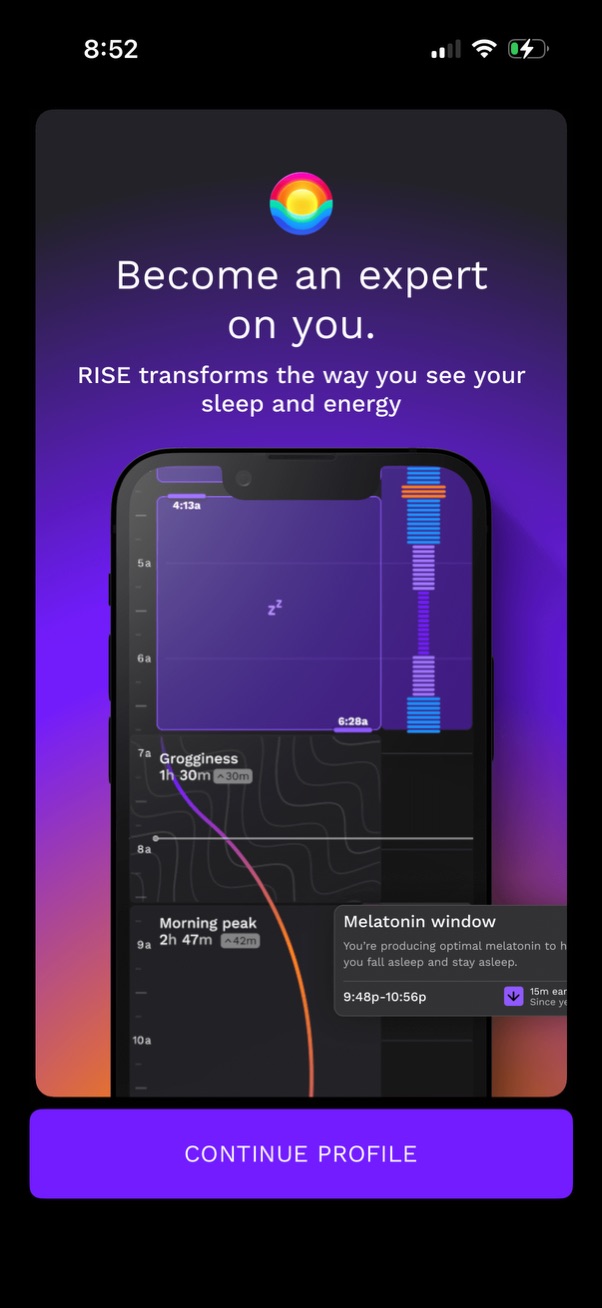
Onboarding marketing screen for a sleep and energy tracking app, introducing insights like grogginess, morning peak, and melatonin window with an illustrative chart preview. Primary call to action button at the bottom lets users continue setting up their profile.
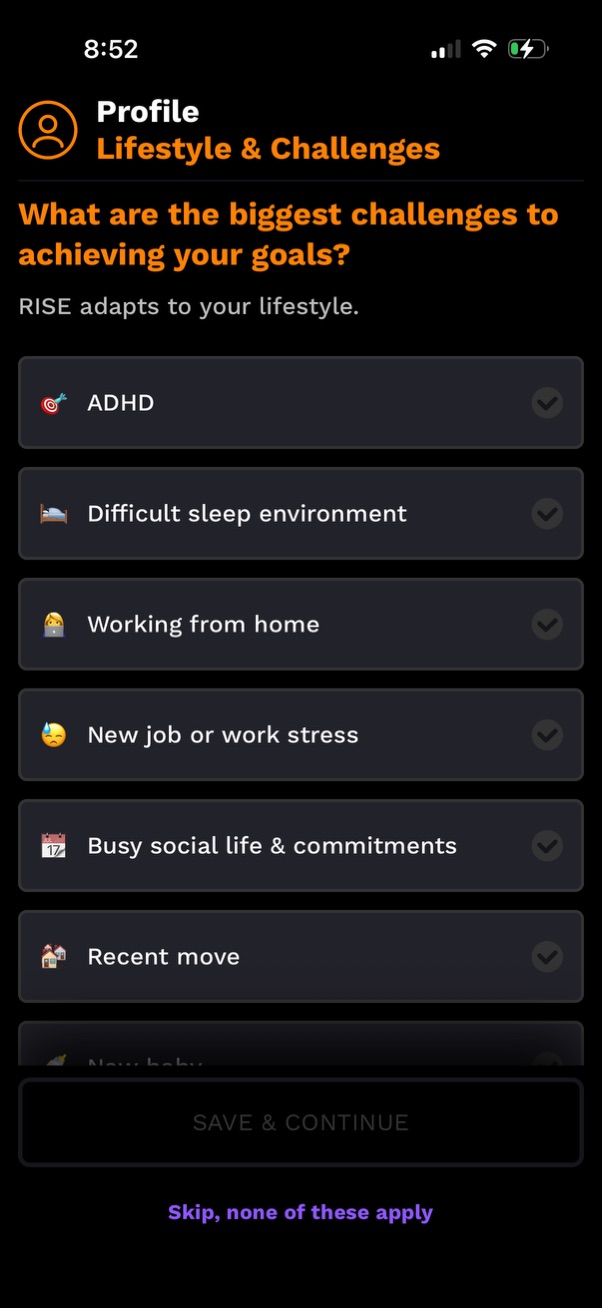
Profile setup screen for a goal or habit coaching app asking users to select their biggest lifestyle challenges to achieving goals, with a multi-select checklist of options like ADHD, sleep environment, working from home, work stress, social commitments, and moving. Includes a primary “Save & Continue” action and a “Skip, none of these apply” option.
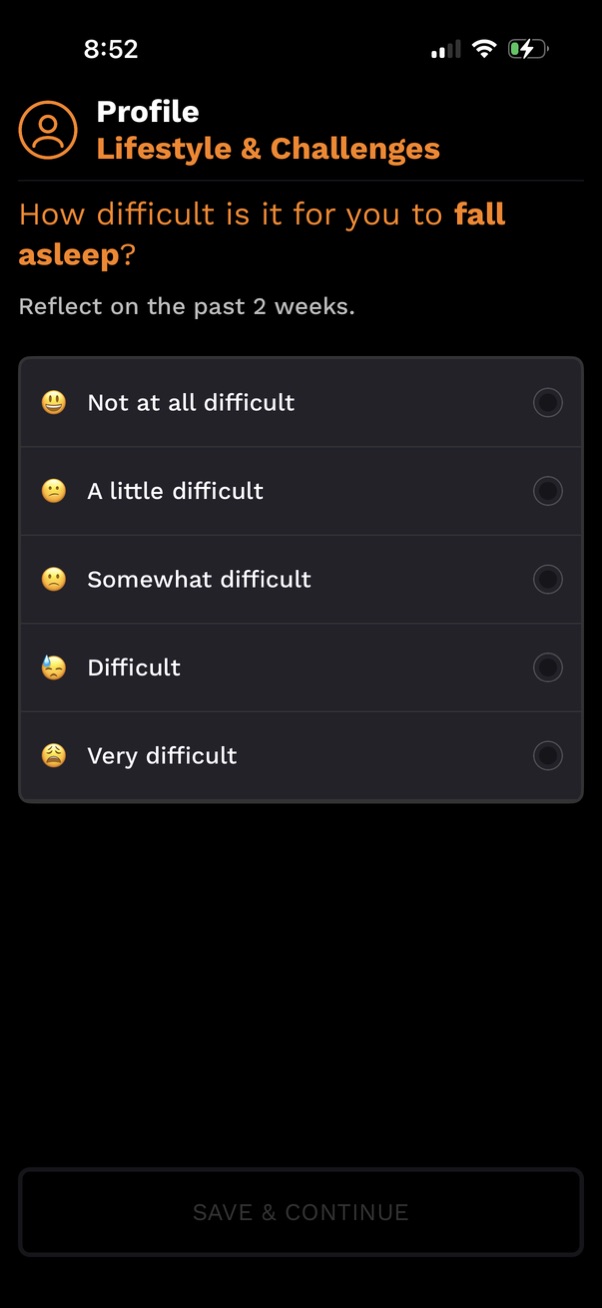
Profile “Lifestyle & Challenges” questionnaire screen asking how difficult it is to fall asleep over the past two weeks. Users select one of five single-choice options (not at all to very difficult) via radio buttons and proceed with a disabled “Save & Continue” button.

Sleep health questionnaire screen in a profile “Lifestyle & Challenges” section asking how difficult it is to stay asleep over the past two weeks. Users select one of five radio-button options from “Not at all difficult” to “Very difficult,” then proceed via a “Save & Continue” button.

Profile “Lifestyle & Challenges” survey screen asking the user to rate their issue with waking up too early over the past 2 weeks. Provides a single-select severity scale (None, Mild, Moderate, Severe, Very severe) with radio buttons and a disabled “Save & Continue” action.

Profile questionnaire screen in a sleep/health app asking whether sleep interferes with daily functioning (fatigue, focus, mood) with emoji-labeled single-select radio options from “Not at all” to “Very much interfering. ” Includes a disabled “Save & Continue” button for progressing after selecting an answer.

Profile “Lifestyle & Challenges” questionnaire screen asking how satisfied the user is with their sleep pattern over the last two weeks. Presents a single-choice list of satisfaction levels (very satisfied to very dissatisfied) with radio buttons and a disabled “Save & Continue” button at the bottom.

Profile questionnaire screen for a sleep/health app asking how noticeable the user’s sleep problems are to others, with a single-select multiple-choice list (not at all noticeable to very much noticeable) using radio buttons and emojis. Includes a disabled “Save & Continue” button for progressing after selecting an option.
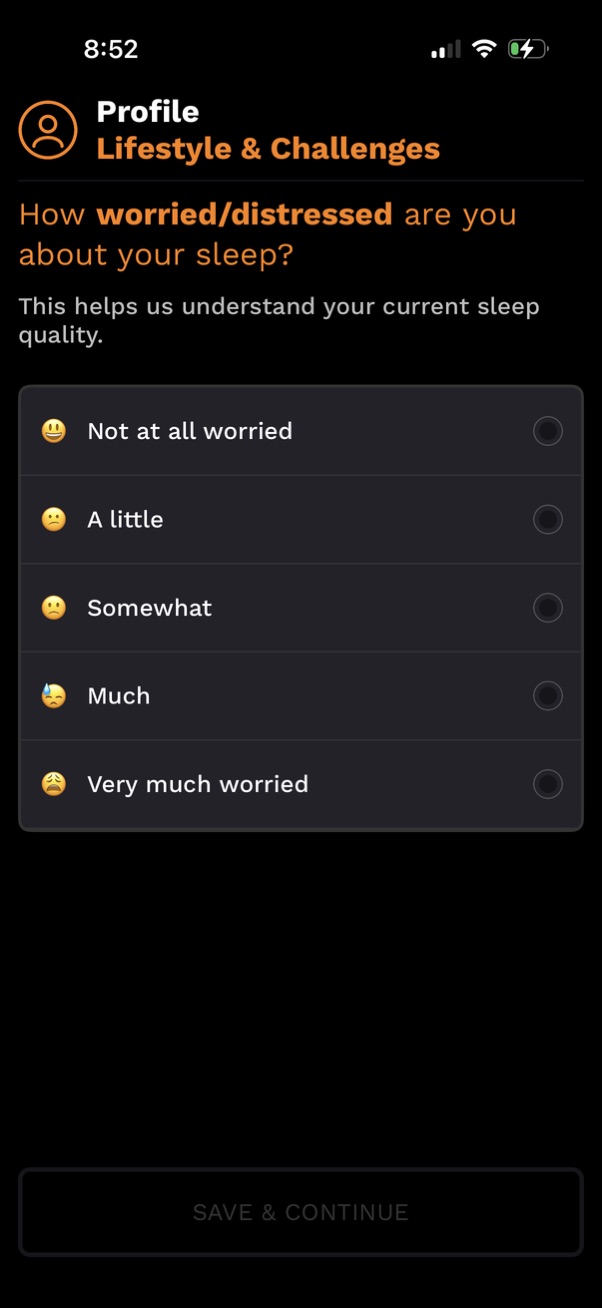
Profile onboarding questionnaire screen in a sleep/health app asking how worried or distressed the user is about their sleep to assess sleep quality. Users choose one option from a single-select list with emoji ratings from “Not at all worried” to “Very much worried,” with a Save & Continue button to proceed.
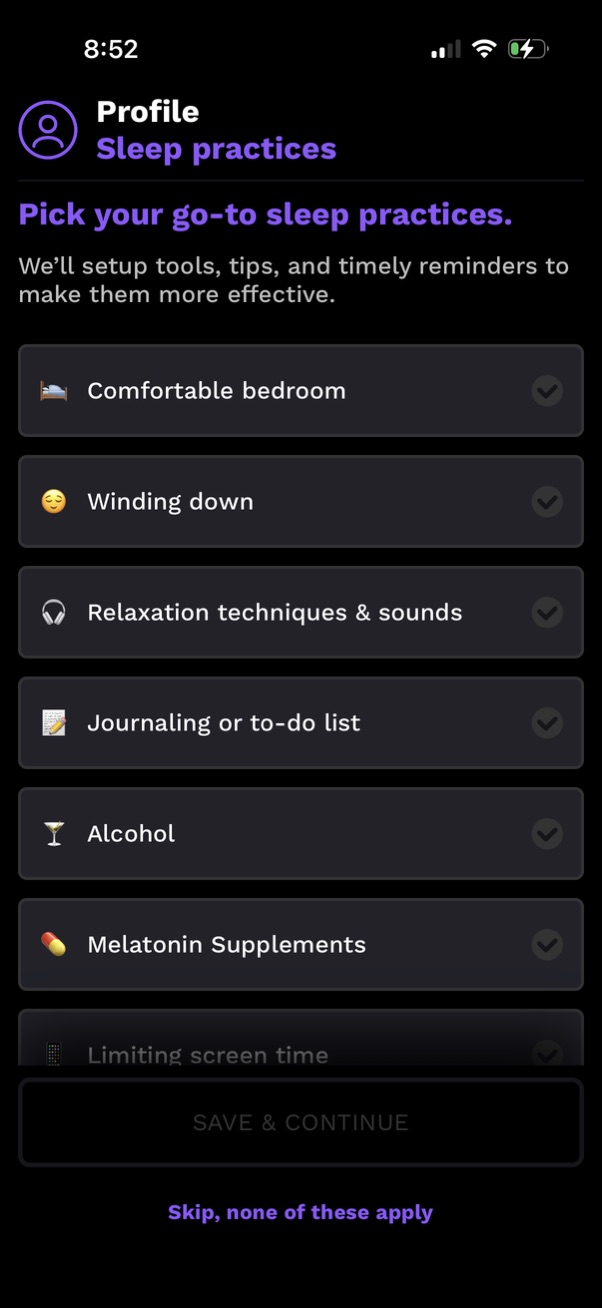
Profile setup screen for a sleep app that asks users to select their go-to sleep practices from a checklist (e. g.

Profile setup/preferences screen asking users which strategies they use to boost energy, offering a multi-select checklist of options like caffeine, planners/time management, diet, exercise, fresh air/sunshine, and power naps. Includes primary action to save and continue plus a skip option if none apply, suggesting personalized tools, tips, and reminders based on selections.

Profile insurance setup screen asking whether the user has health insurance, explaining potential benefits, and offering a single-select list of providers (e. g.

Profile insurance eligibility screen prompting the user to confirm their state via a dropdown selector to check if their provider offers free access to sleep guidance. Primary actions include “Save & Continue” to submit the selected state or “Skip” to bypass.
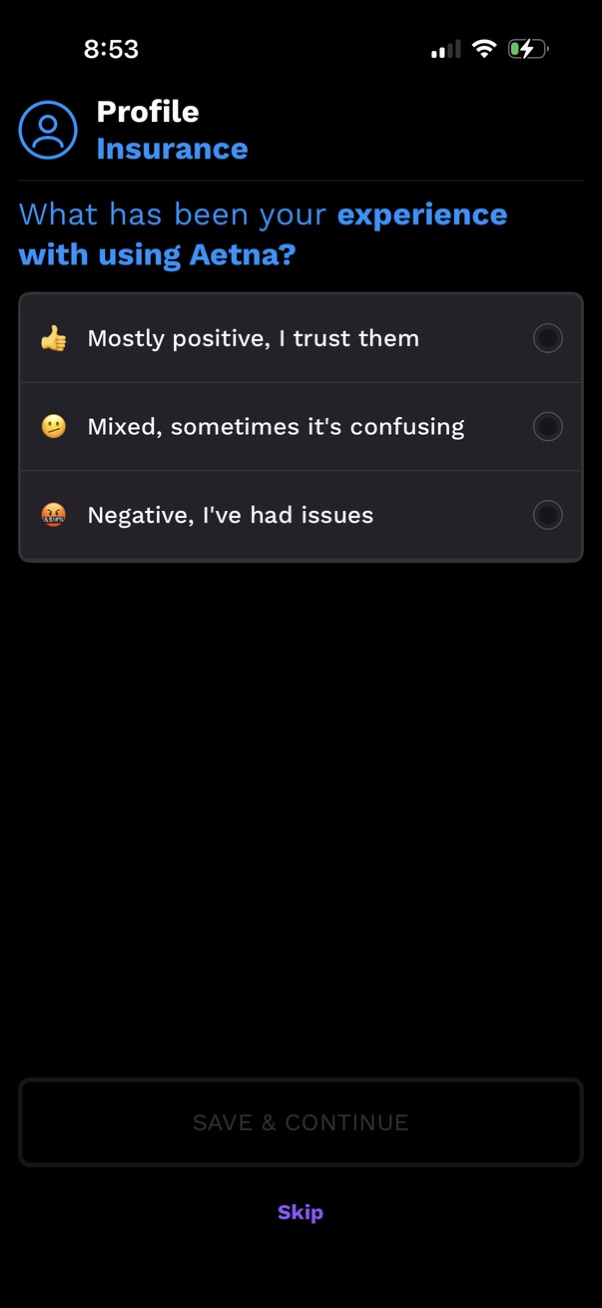
Profile insurance onboarding survey screen asking the user to rate their experience with an insurance provider, with single-select radio options for mostly positive, mixed/confusing, or negative. Includes a disabled “Save & Continue” button that activates after selection and a “Skip” link to bypass the question.

Profile settings screen asking whether the user is open to expert guidance to improve sleep quality, presented as a single-select list with radio buttons. Options include one-on-one guidance, chat as needed, or declining guidance, with a Save & Continue action at the bottom.

Onboarding feature highlight screen for a sleep and energy coaching app promoting perfectly timed prompts and notifications that guide users toward better sleep. Includes a “Continue profile” primary CTA and a preview of personalized recommendations like activity summary, avoid blue light, relaxation session, and melatonin window.

Profile onboarding questionnaire in the “Lifestyle & Challenges” section asking “Have you been told you snore? ” with Yes/No selection buttons, plus actions to Save & Continue or Skip.

Profile onboarding questionnaire screen under “Lifestyle & Challenges” asking health/sleep habit questions (snoring, waking with dry mouth) with Yes/No selection buttons for each. Includes a disabled “Save & Continue” button and a “Skip” option at the bottom.
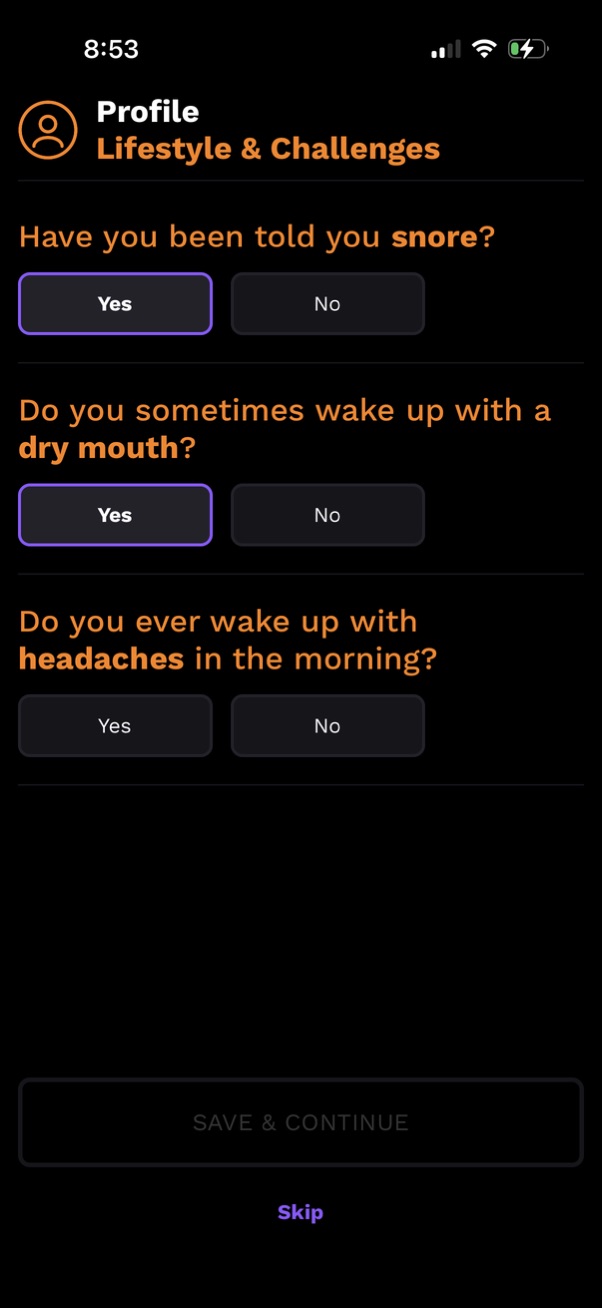
Profile “Lifestyle & Challenges” questionnaire screen collecting sleep-related symptoms with multiple yes/no toggle buttons for snoring, waking with dry mouth, and morning headaches. Includes a disabled “Save & Continue” primary action and a “Skip” option to bypass the survey step.
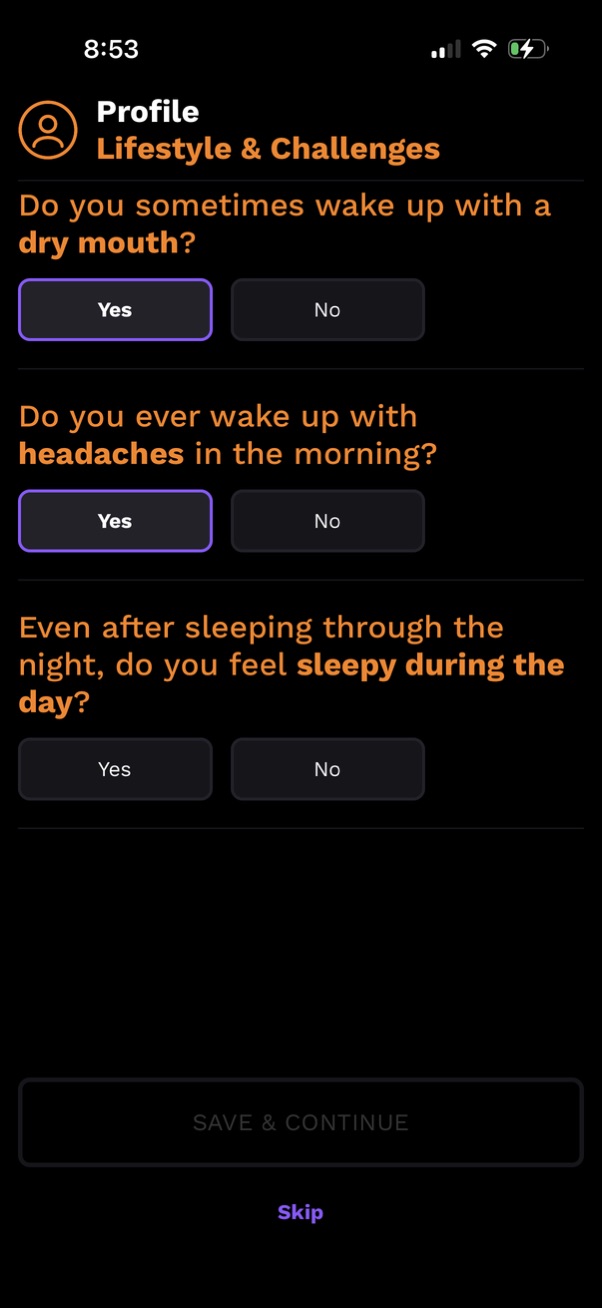
Profile onboarding questionnaire screen for a health/sleep app under “Lifestyle & Challenges,” asking symptom questions (dry mouth, morning headaches, daytime sleepiness) with Yes/No selection buttons. Includes a disabled “Save & Continue” primary action and a “Skip” option at the bottom.
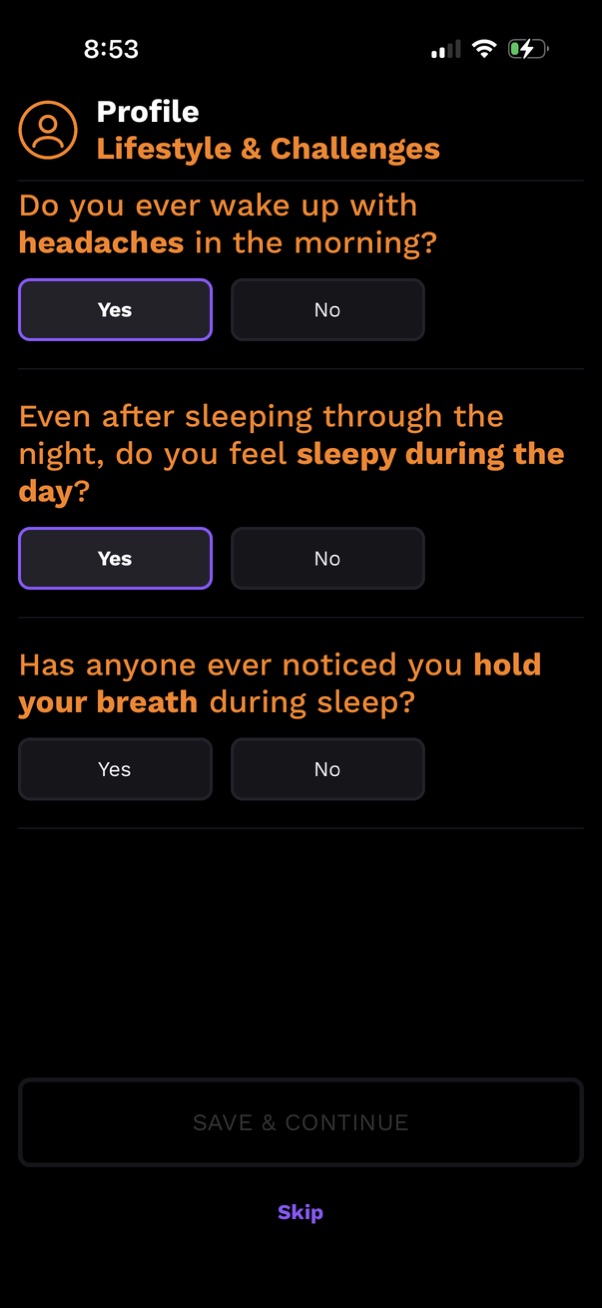
Profile “Lifestyle & Challenges” questionnaire screen collecting sleep and health symptoms with multiple yes/no questions (morning headaches, daytime sleepiness, holding breath during sleep). Users select answers via toggle buttons and can tap Save & Continue or Skip to proceed.
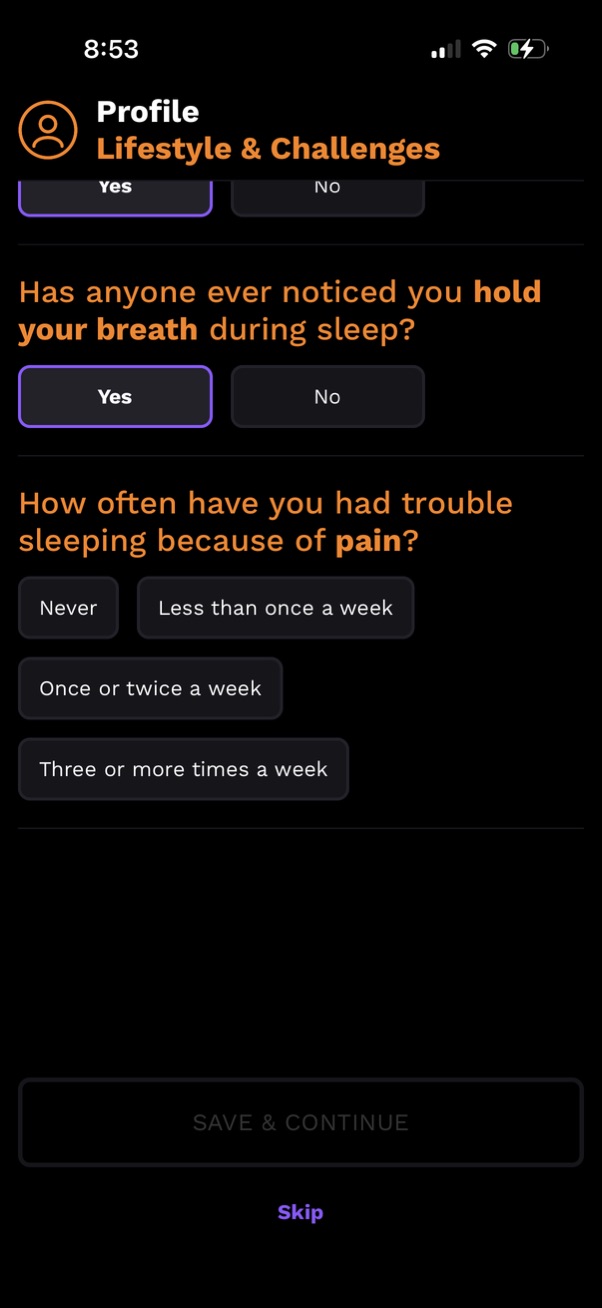
Profile “Lifestyle & Challenges” questionnaire screen for sleep and health assessment, asking yes/no if the user holds their breath during sleep and how often pain causes trouble sleeping with frequency options. Includes a primary “Save & Continue” action and a “Skip” link to bypass the step.
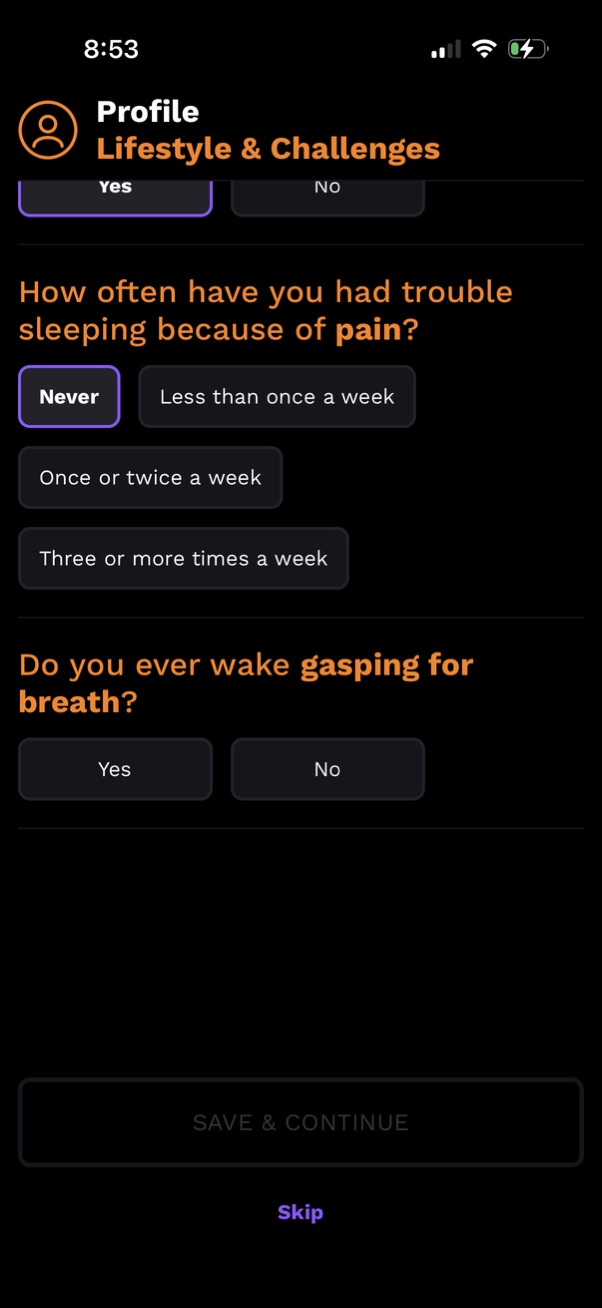
Health profile questionnaire screen under “Lifestyle & Challenges” collecting sleep and breathing symptoms, asking how often pain disrupts sleep with multiple frequency options and whether the user wakes up gasping for breath with Yes/No buttons. Includes a Save & Continue primary action and a Skip link.

Profile onboarding screen for lifestyle and health challenges, using multiple-choice frequency chips and yes/no questions to assess symptoms like waking up gasping for breath and having high blood pressure. Includes actions to Save & Continue or Skip.

Profile setup screen for a health/fitness app collecting lifestyle metrics by asking the user to select their height (feet/inches) and weight (pounds) to estimate BMI. Uses picker-style inputs with a primary “Save & Continue” button and an optional “Skip” action.

Onboarding or upsell screen for a sleep and energy tracking app introducing personalized insights from existing data. Includes a primary CTA button “Discover my patterns” and a secondary “Learn more” link to proceed or get additional details.
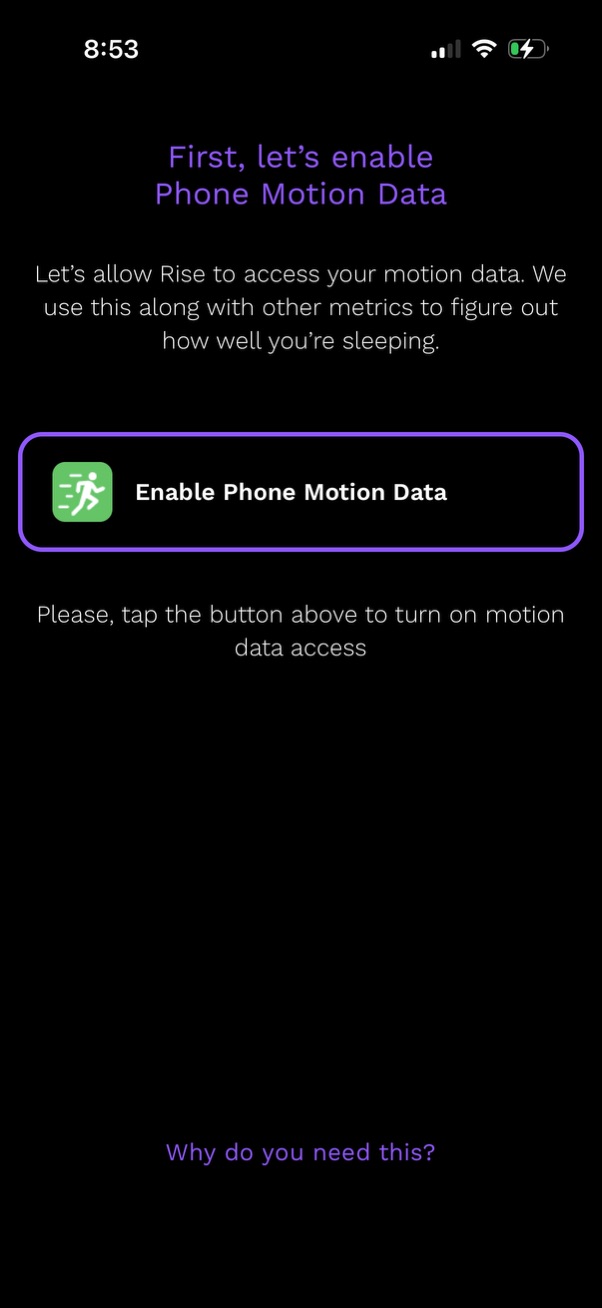
Onboarding permission screen prompting the user to enable Phone Motion Data so the app can access motion sensor data to help track and analyze sleep quality. Includes a primary CTA button to enable motion data access and a secondary “Why do you need this?

Sleep tracking app onboarding screen prompting the user to enable Phone Motion Data, showing an iOS Motion & Fitness permission dialog for “Rise Sleep” with Allow and Don’t Allow actions. The screen explains that motion data is used to detect sleep and offers a “Why do you need this?

Onboarding permission screen prompting users to connect Apple Health to import existing health and sleep data, with preview visuals of sleep analytics and smartwatch insights. Includes a primary CTA button to “View & Allow All” health data access permissions.
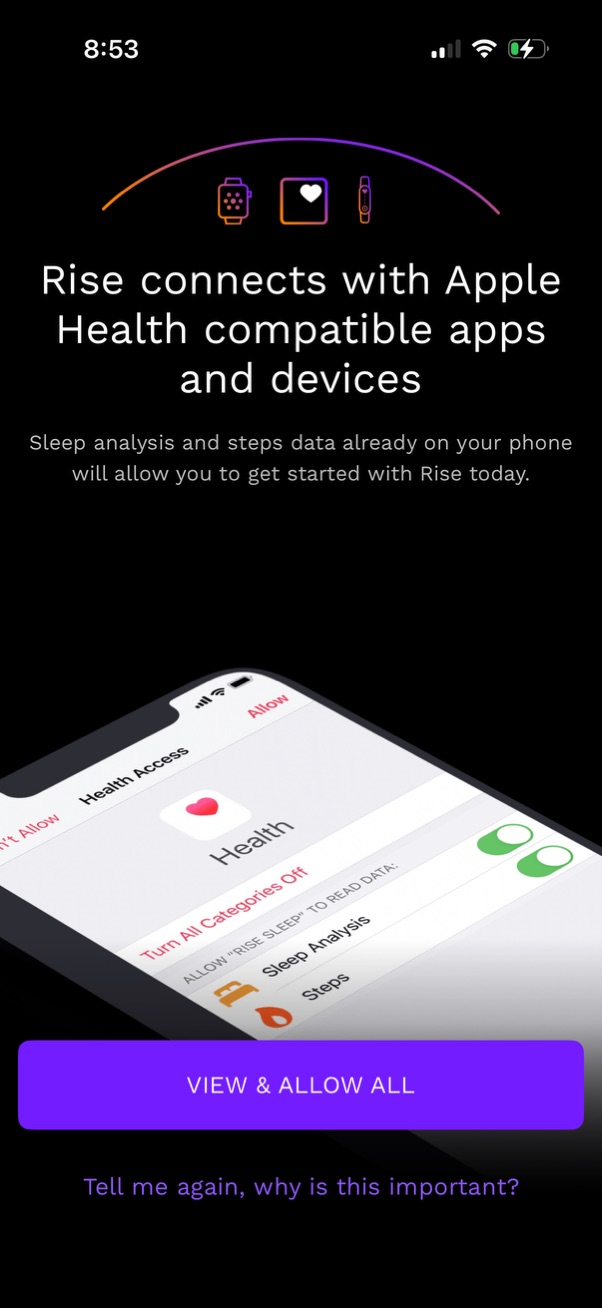
Onboarding permission screen prompting the user to connect the app with Apple Health–compatible apps and devices to import sleep analysis and step data. Primary CTA is “View & Allow All” to grant Health access, with a secondary link explaining why the permission is important.
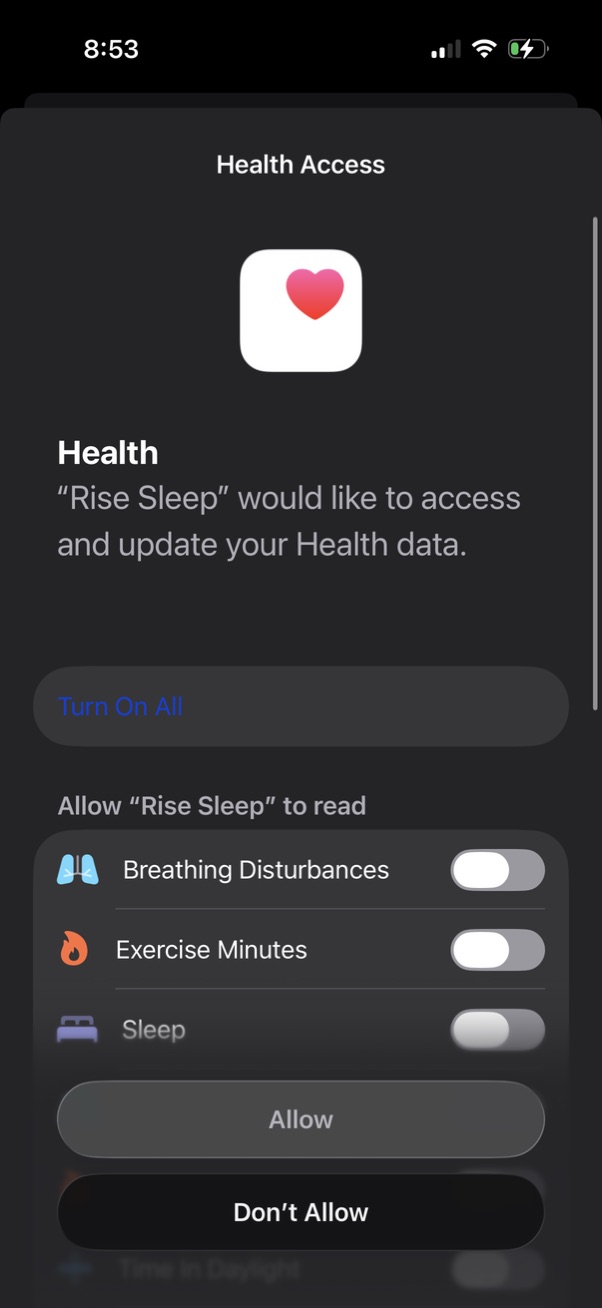
iOS Health Access permission screen asking to allow a sleep app to access and update Apple Health data, with toggles to grant read access to specific metrics (e. g.

iOS App Tracking Transparency permission modal asking whether to allow a sleep app to track activity across other apps and websites to improve data accuracy and personalize recommendations. Provides primary actions to “Allow” tracking or “Ask App Not to Track.

Onboarding permission prompt explaining the need for reminders and push notifications to support habit-building (sleep improvement), noting notification frequency can be adjusted later in settings. Primary call to action is a large “Enable Notifications” button to request notification access.
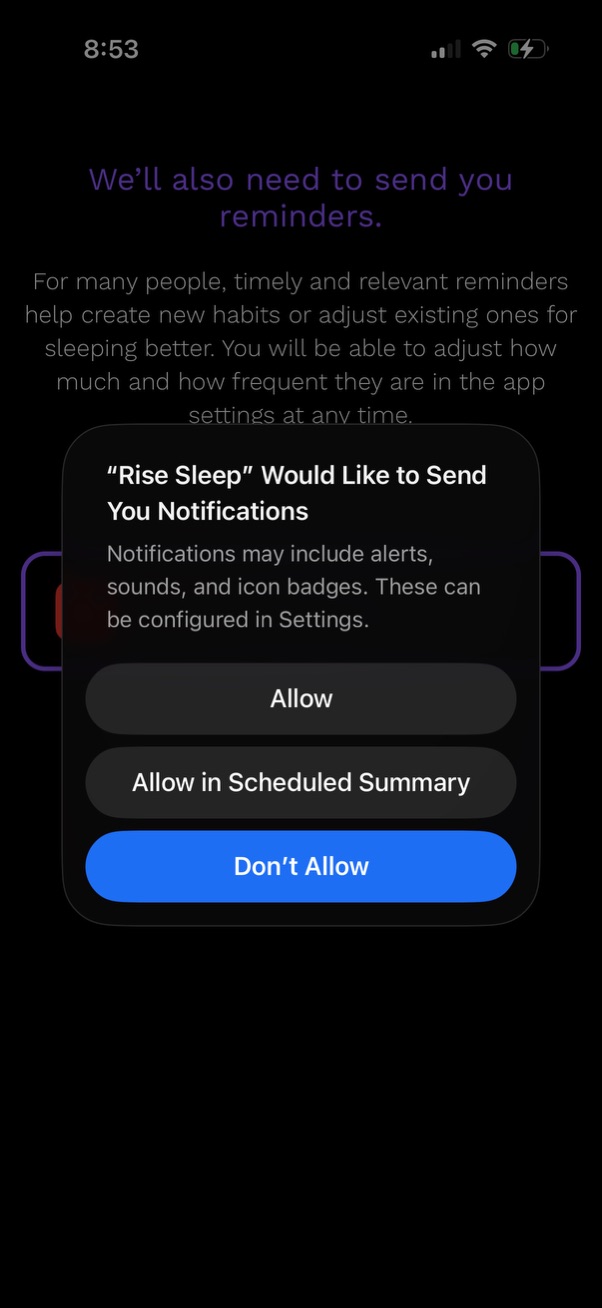
Onboarding screen for a sleep or habit app requesting permission to send reminders via push notifications. An iOS system prompt overlays the page with actions to Allow, Allow in Scheduled Summary, or Don’t Allow notifications.
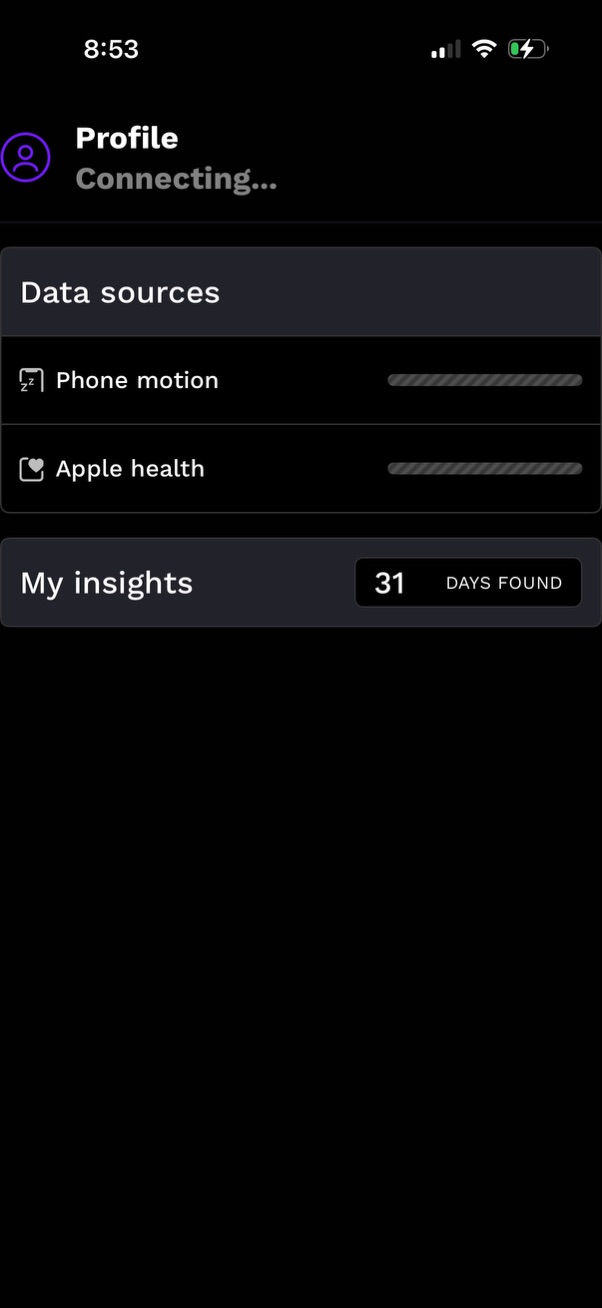
Profile screen showing a connecting status and data source integrations for a health/fitness app, listing Phone motion and Apple Health with sync/progress indicators. Includes a “My insights” section summarizing available data with a badge for number of days found.
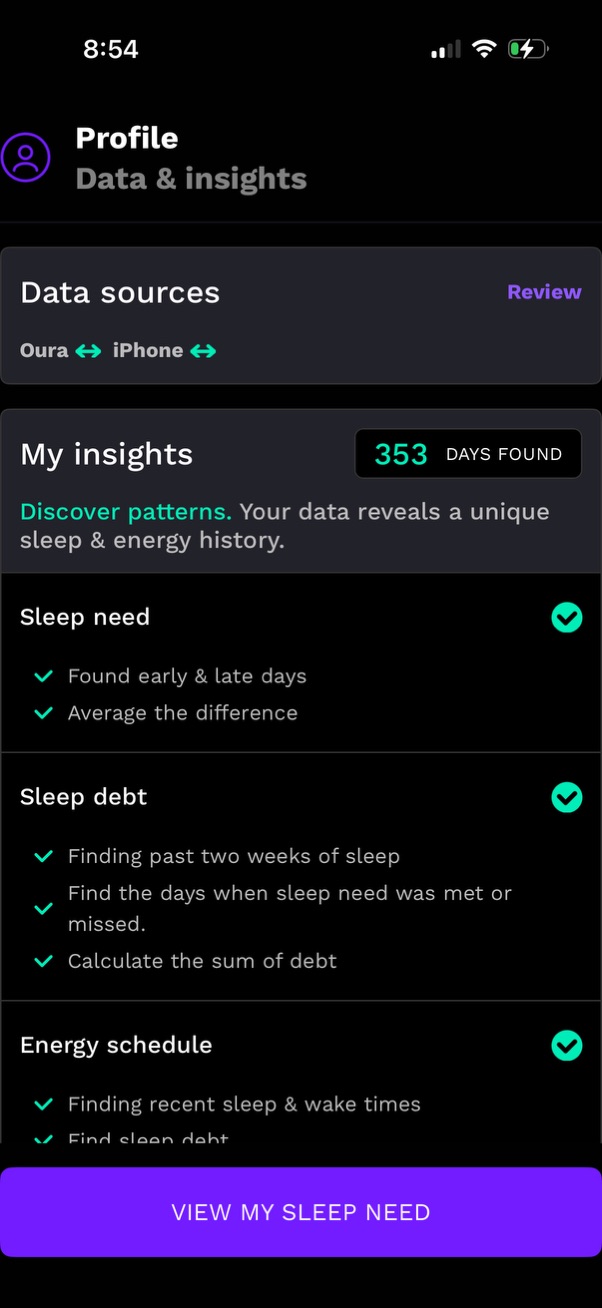
Profile “Data & insights” screen for a sleep tracking app showing connected data sources (e. g.
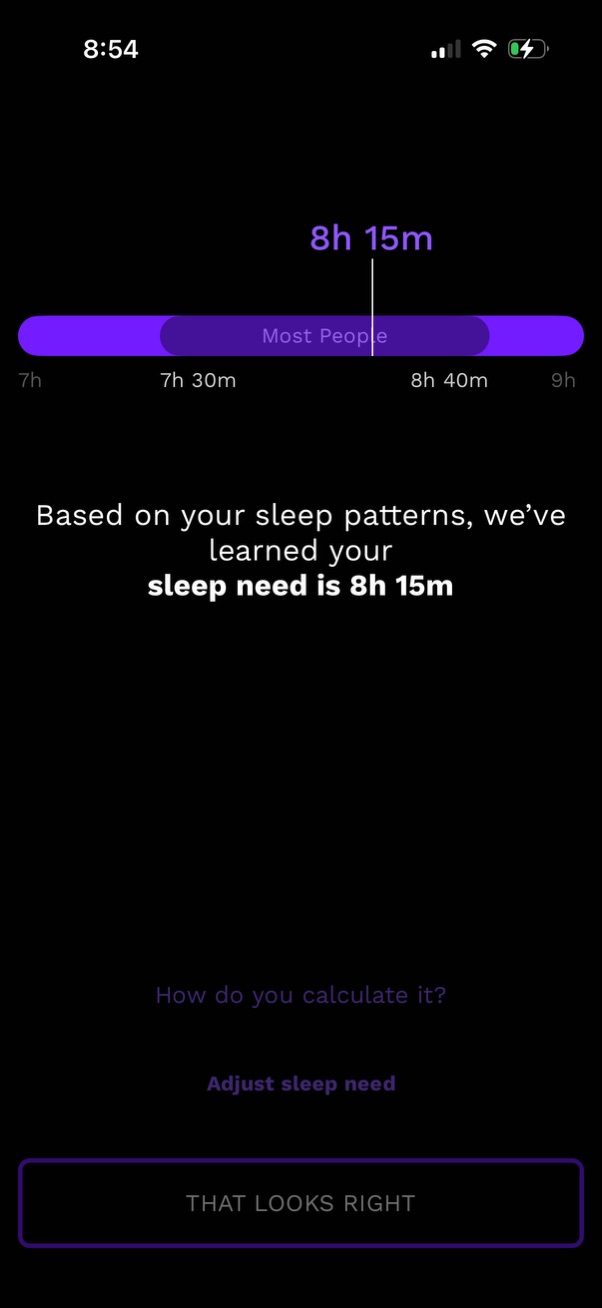
Sleep tracking insights screen showing a calculated personal “sleep need” (e. g.
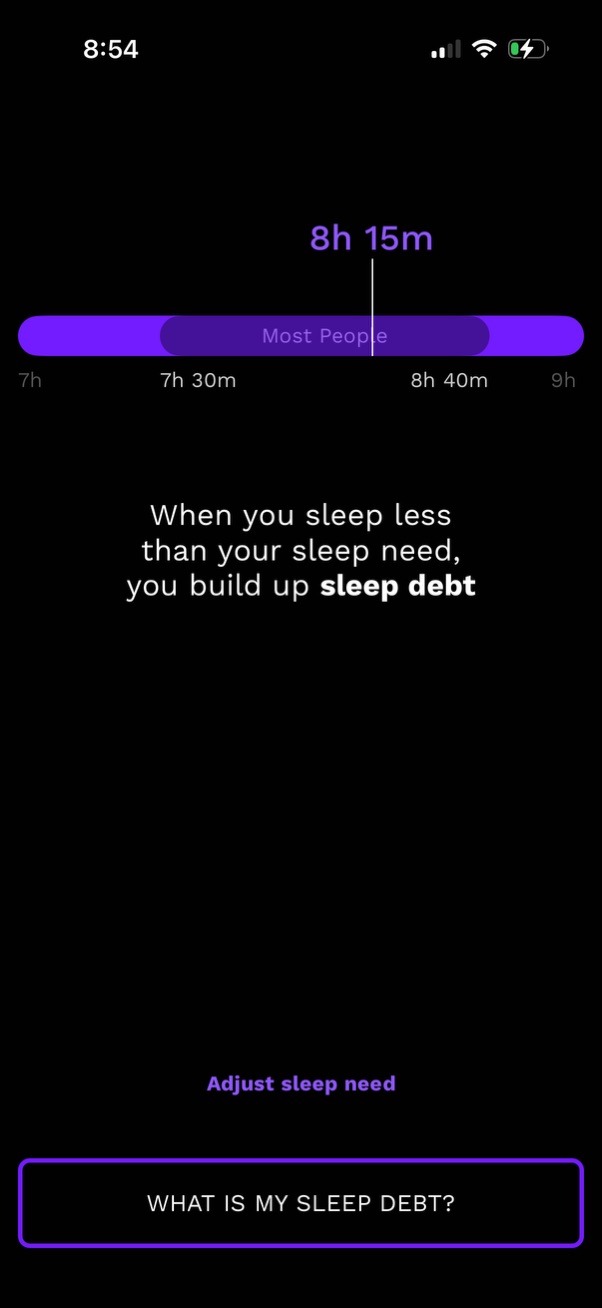
Sleep tracking education screen explaining that sleeping less than your sleep need creates “sleep debt,” with a slider showing recommended sleep duration versus most people and the current selection. Users can adjust their sleep need and tap a CTA button to learn what sleep debt is.
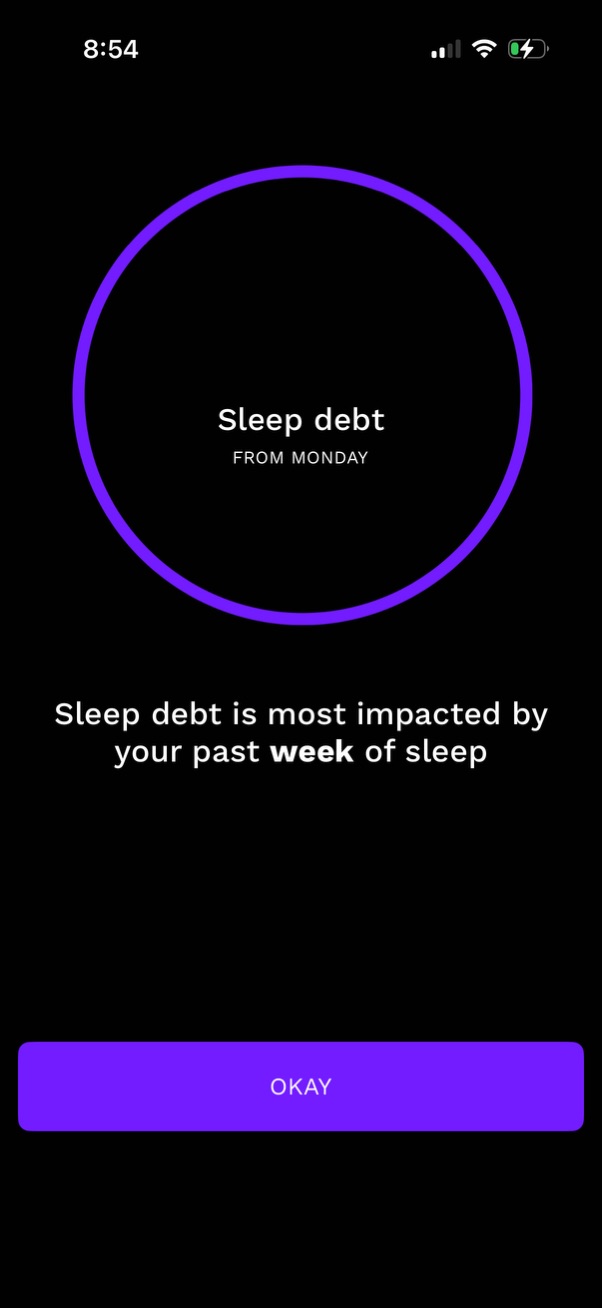
Educational sleep tracking info screen explaining “Sleep debt” calculated from Monday, with a brief note that it’s most impacted by the past week of sleep. Includes a single primary action button (“Okay”) to dismiss and continue.
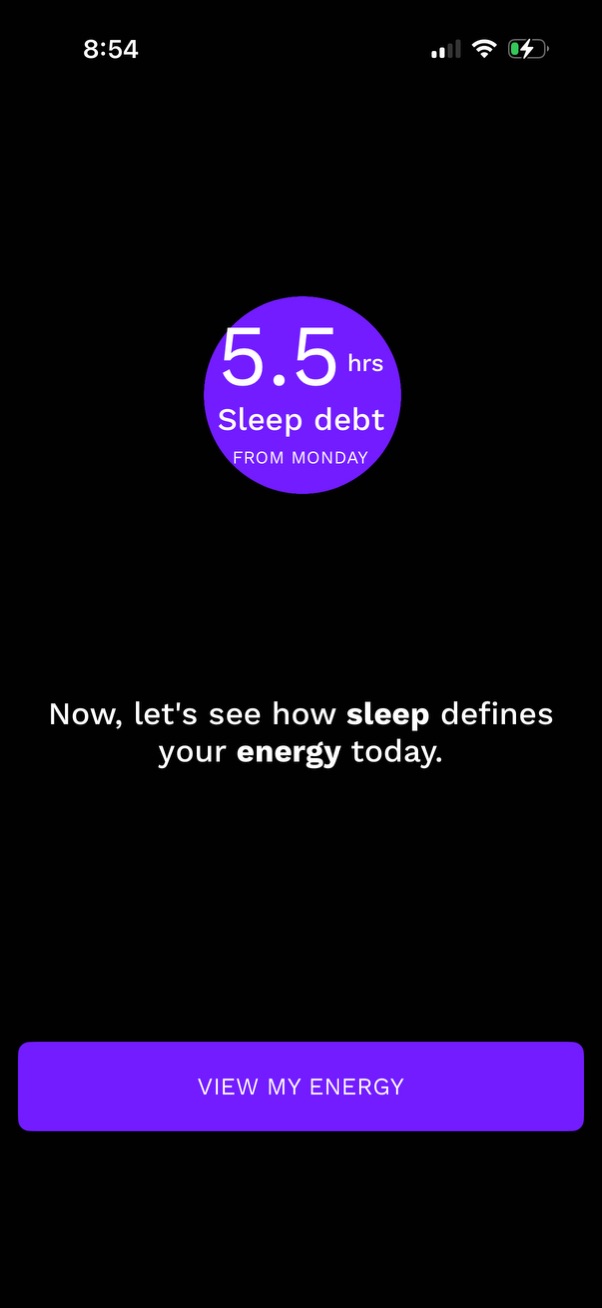
Sleep tracking insight screen highlighting the user’s current sleep debt in hours since a specific day. Includes a primary call-to-action button to view today’s energy score based on sleep.

Onboarding/education screen in a sleep tracking app explaining the Energy metric by showing a “Sleep debt” summary (hours owed since a specific day) and how it predicts daily performance. Includes a prominent “Continue” button to proceed to the next step.

Health and sleep tracking dashboard showing an Energy section with current sleep debt in hours since a specific day, plus a quick indicator for debt since yesterday. A tappable card for “Energy Potential” prompts users to access predictions for the best times to be productive and sleep.

A daily energy schedule screen displaying a timeline by hour (evening through early morning) with a message introducing the user’s energy plan for today. The view resembles a calendar-style agenda for tracking or planning energy levels across time blocks.

Onboarding/marketing screen for a sleep and energy forecasting app explaining that sleep data can predict daily energy levels, with a “Learn the science” link for more info. A prominent primary CTA button (“See the future”) advances the setup/intro flow.

An energy or productivity forecast screen showing a daily timeline chart with a highlighted “energy peak” time window and guidance on when mind and body perform best. Includes a “Learn the science” link and a primary call-to-action button to “Optimize your day.

Sleep and energy insight screen showing a timeline chart and highlighting an “energy dip” time range for today with explanatory text about sleep affecting energy peaks and dips. Includes a “Learn the science” link and a primary CTA button to “Sleep easier tonight.
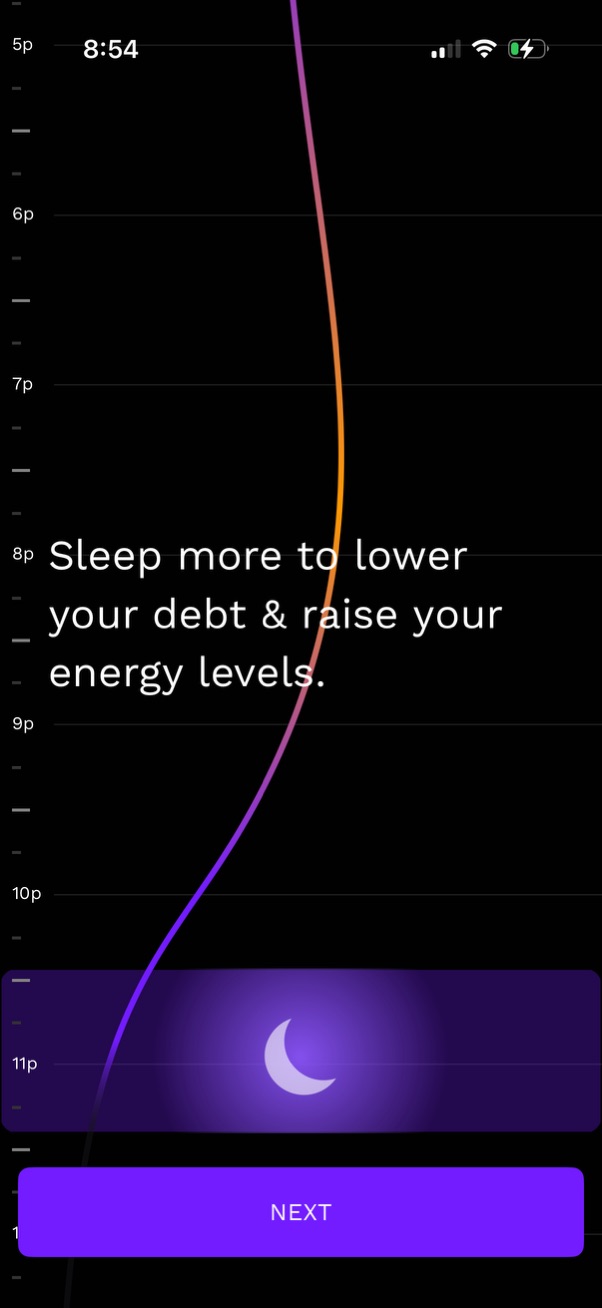
Sleep coaching onboarding screen showing a bedtime timeline graph with a recommended sleep window highlighted and a moon icon, encouraging users to sleep more to reduce sleep debt and boost energy. Includes a primary “Next” button to continue the onboarding flow.

Sleep coaching onboarding screen that highlights a personalized ideal bedtime window for tonight and explains how the app helps you fall asleep and stay asleep, with a “Learn the science” link. A prominent “Start today” call-to-action begins the program.

A sleep and circadian schedule onboarding screen shows a recommended bedtime window on a time graph with a prominent “Start today” call-to-action and a link to learn the science. An iOS modal pop-up prompts the user to leave an App Store review with Yes/No options.
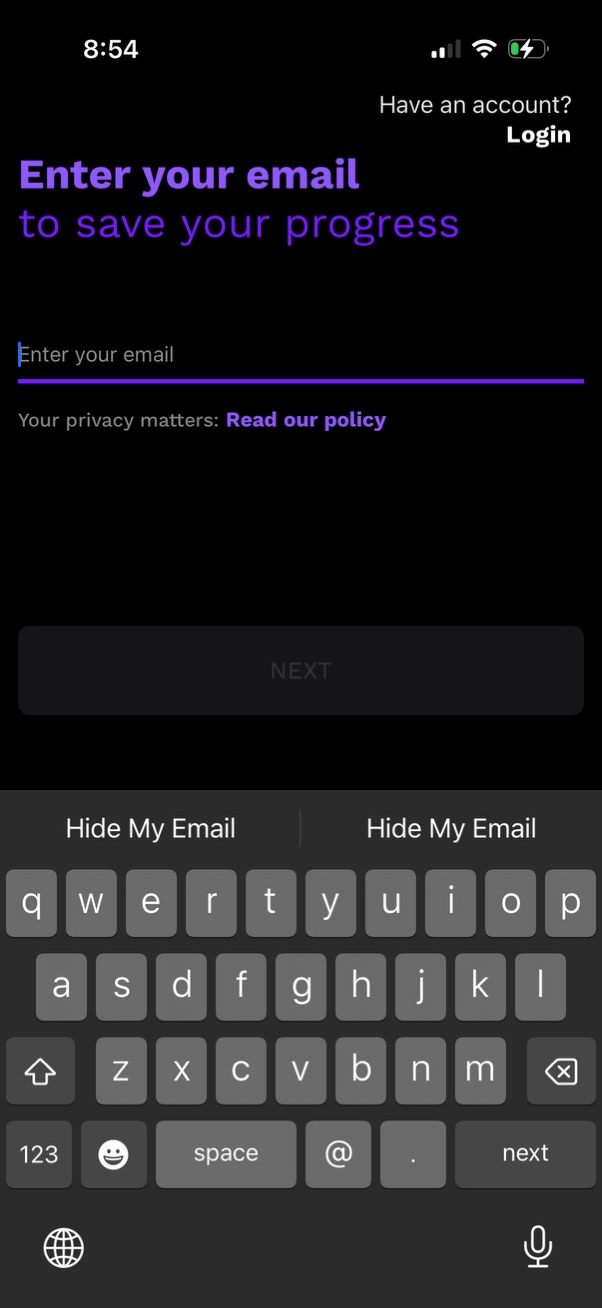
Email capture sign-up screen prompting the user to enter their email to save progress, with a single email input field and a disabled “Next” button until valid entry. Includes a “Have an account?