Onboarding
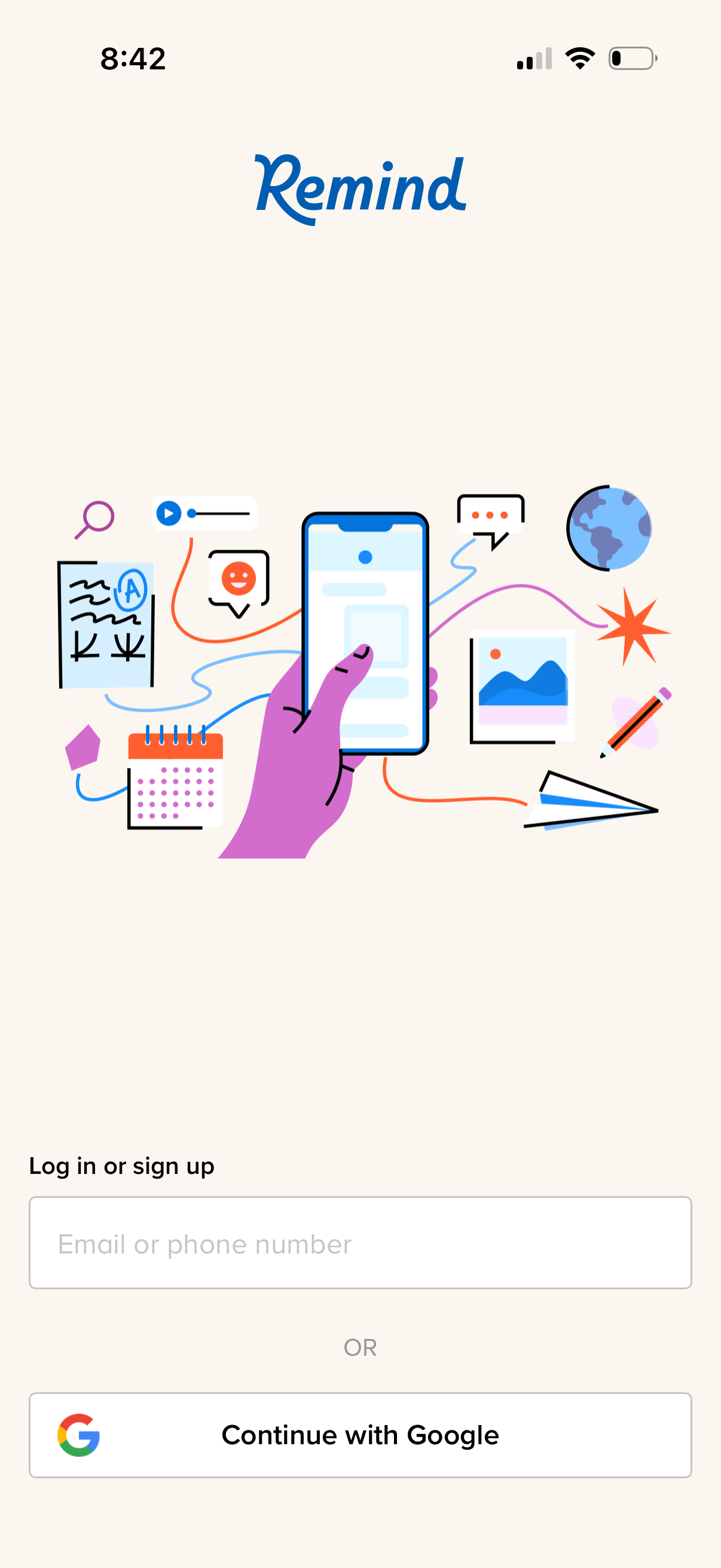
Login/sign-up screen for the Remind app featuring a text field to enter an email or phone number and an alternative social sign-in option to continue with Google. The page uses a simple onboarding illustration and branding header to introduce the app before authentication.
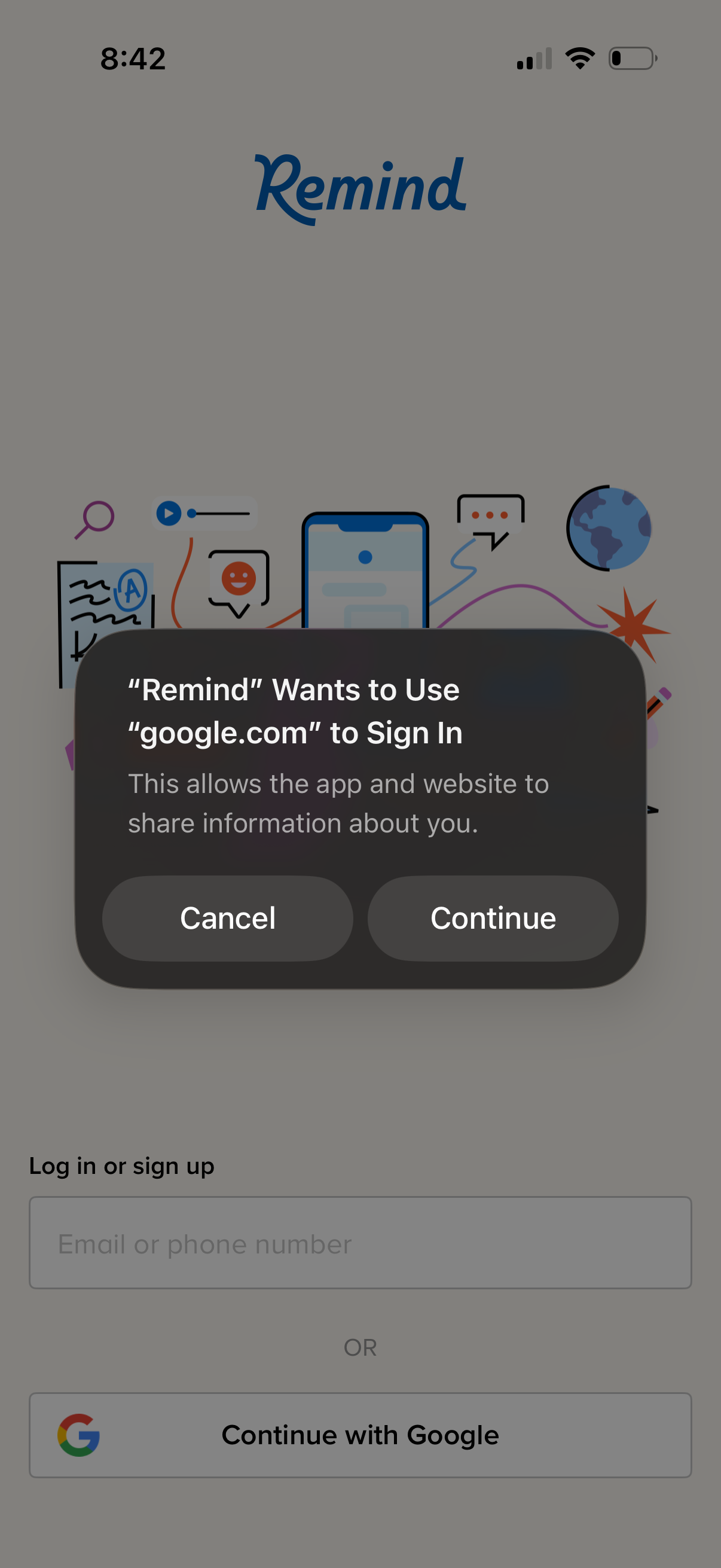
Mobile app login/sign-up screen with email or phone number field and a “Continue with Google” social login option, showing an iOS system permission dialog asking to allow google. com to be used for sign-in with Cancel and Continue actions.
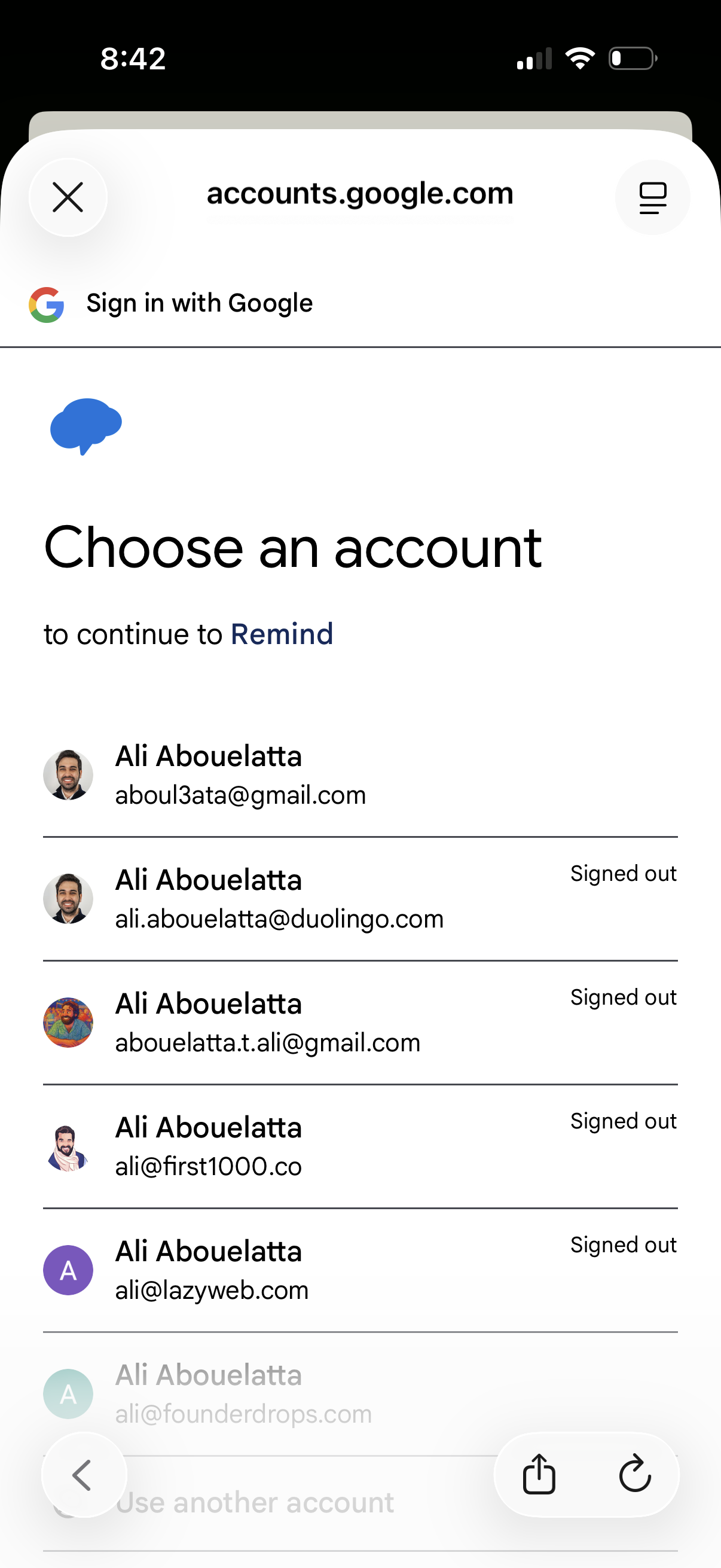
Google sign-in account chooser screen prompting the user to select a saved Google account to continue to an app, showing a list of accounts with avatars, email addresses, and signed-out status. Includes actions to pick an account and close the authentication flow.
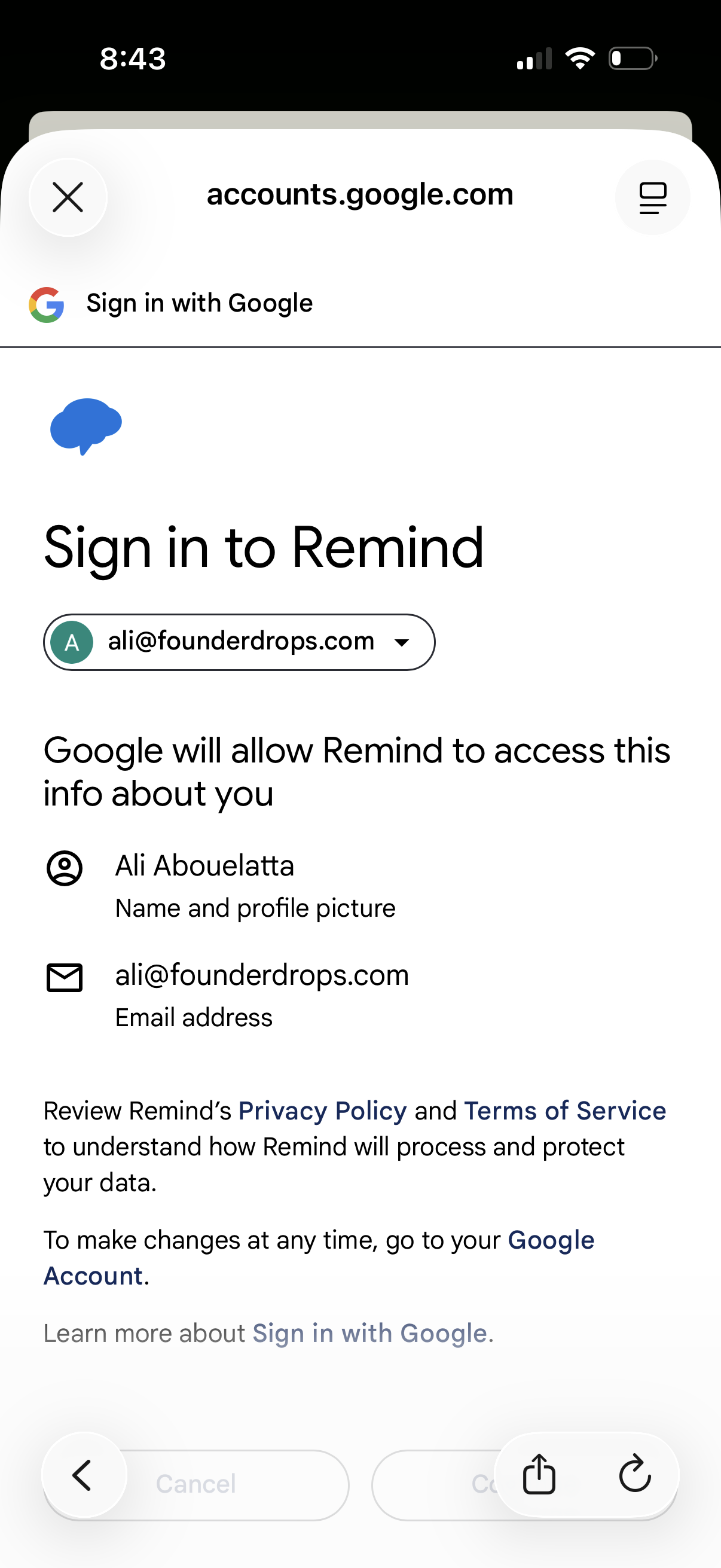
Google OAuth consent screen for signing in to an app, showing the selected Google account and the specific profile data and email permissions the app will access. Provides links to privacy policy and terms and options to continue or cancel the sign-in.
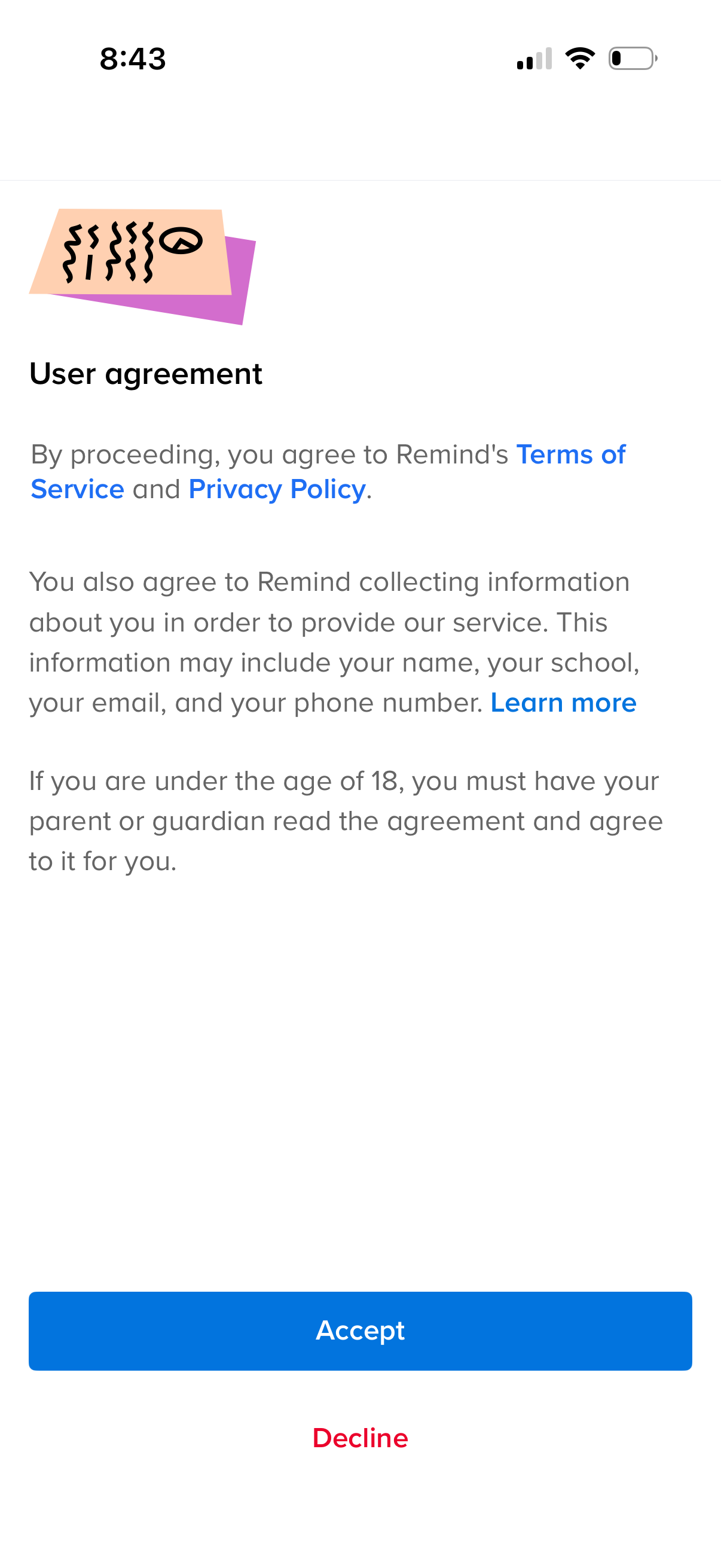
User agreement consent screen explaining terms of service and privacy policy, including notice about collecting personal information and a link to learn more. Users can proceed by tapping Accept or opt out by selecting Decline, with a note about parental consent for users under 18.
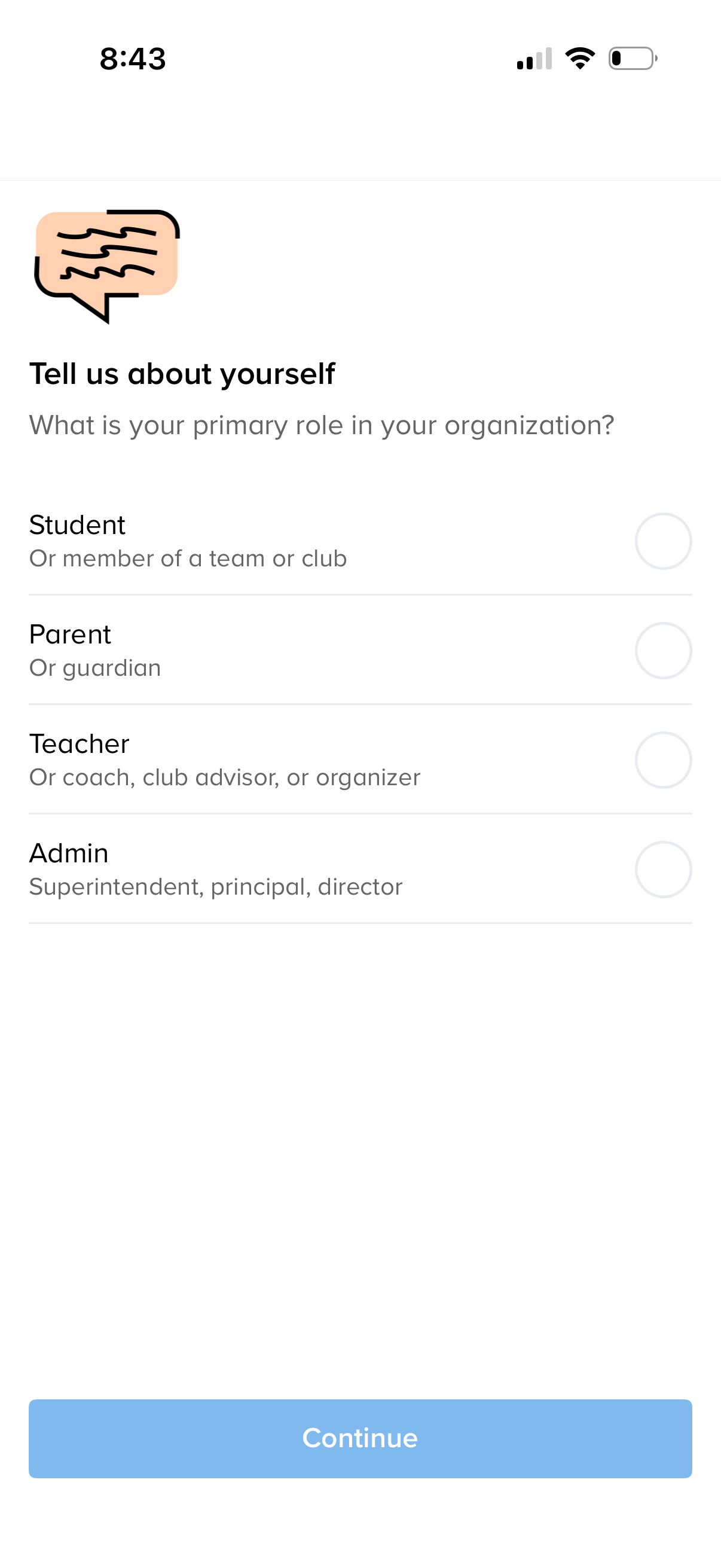
Onboarding profile step asking the user to choose their primary role in an organization via single-select radio options (Student, Parent/guardian, Teacher/coach, Admin), with a primary Continue button to proceed.
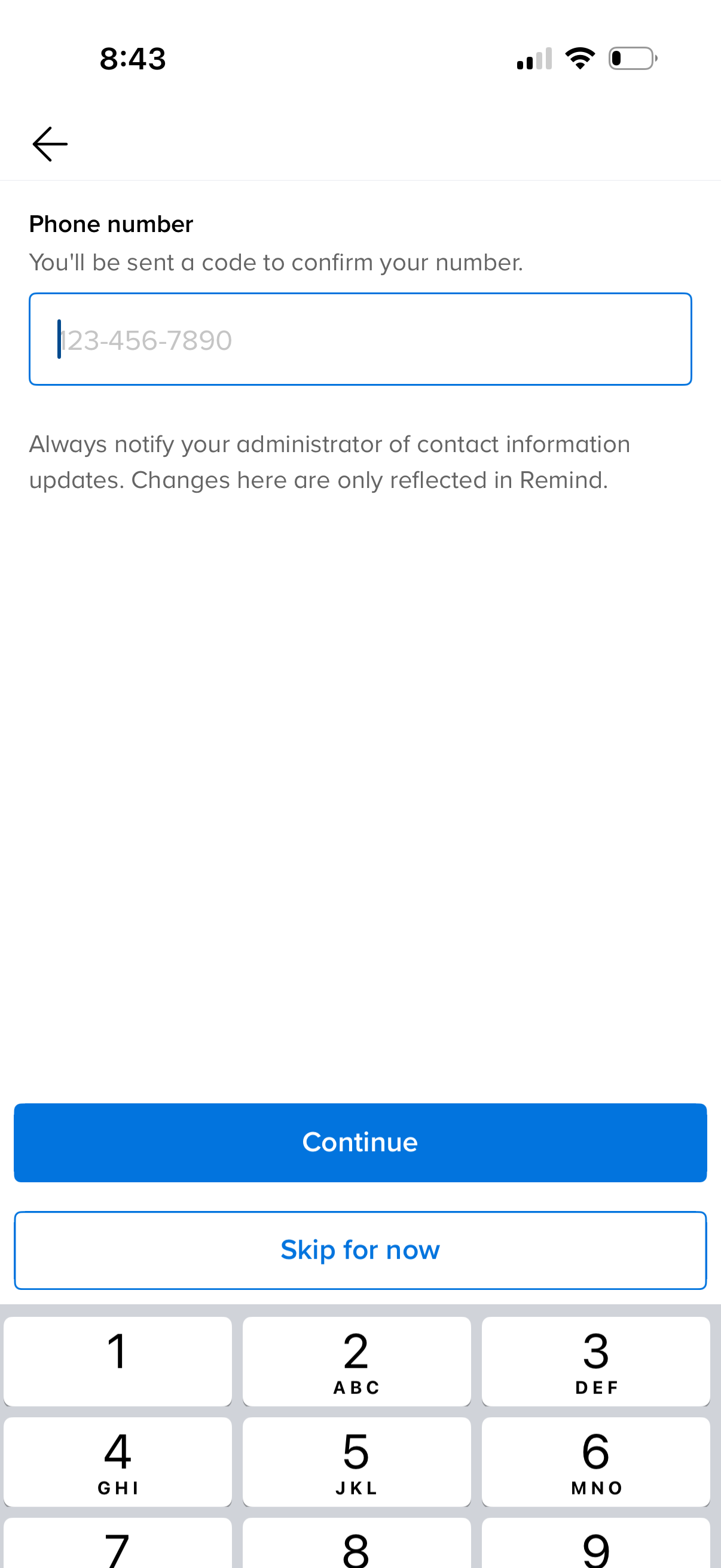
Phone number entry and verification screen where users input a mobile number to receive a confirmation code. Includes primary actions to Continue or Skip for now, with a back button and note about notifying an administrator of contact info updates.
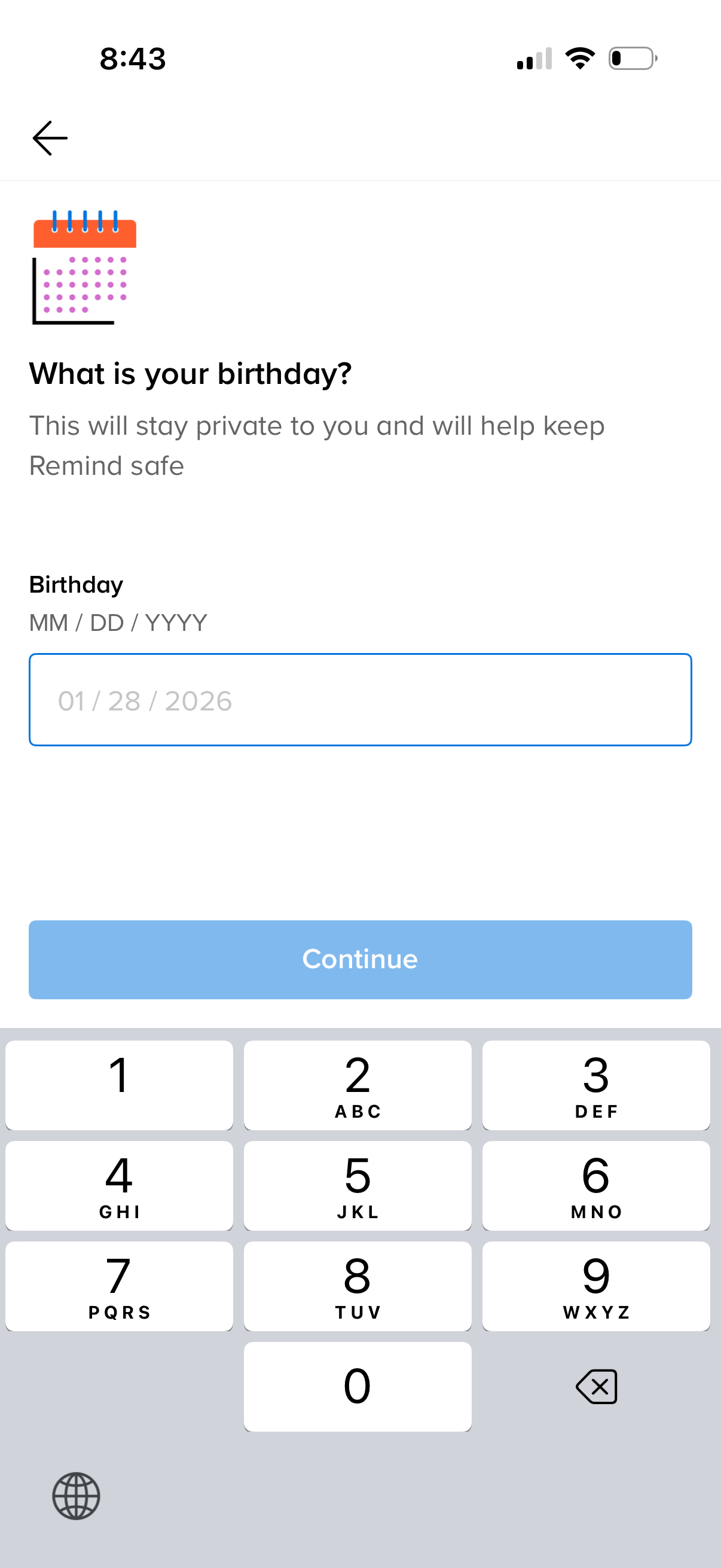
Sign-up or onboarding form screen asking the user to enter their birthday with a date field (MM/DD/YYYY) and privacy reassurance text. Includes a back navigation arrow and a primary “Continue” button to proceed.
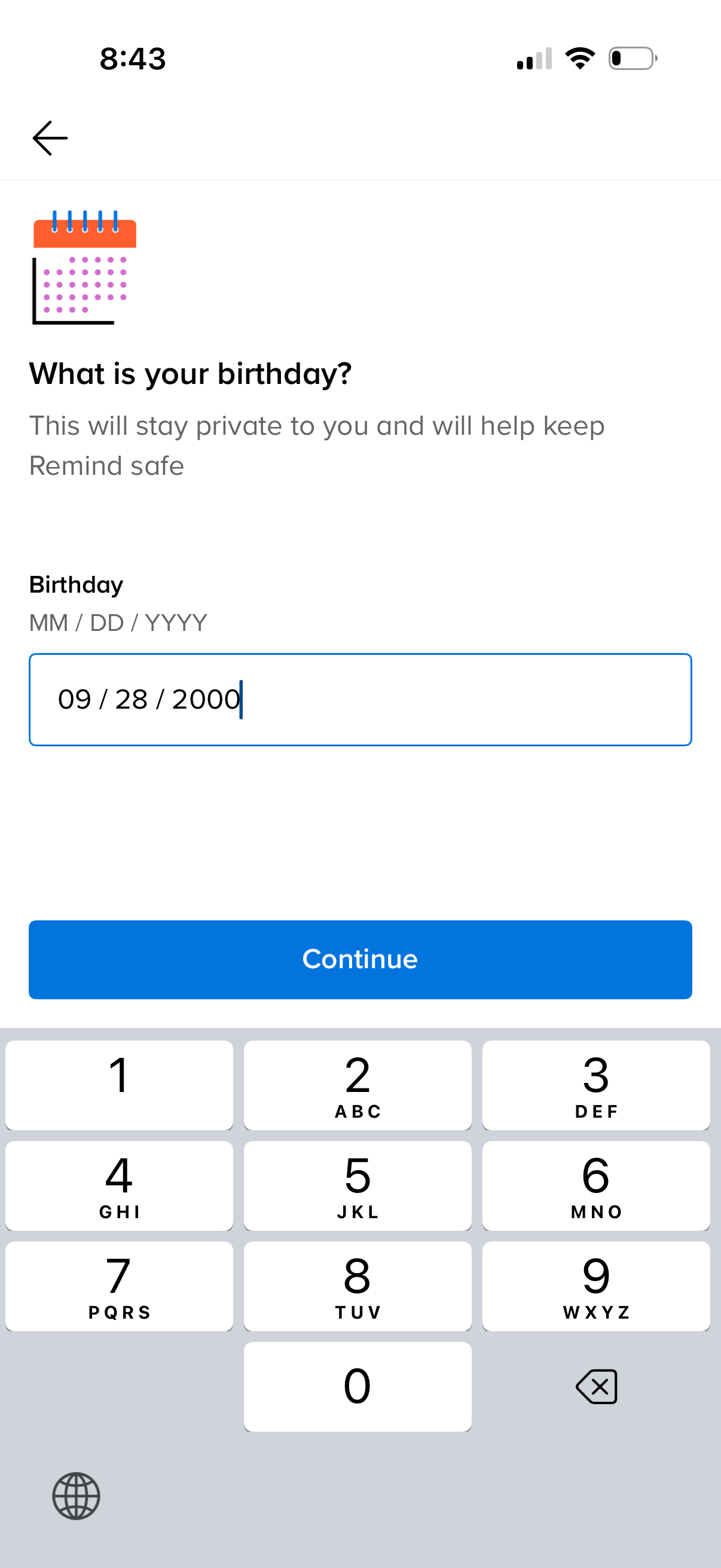
Onboarding profile screen prompting the user to enter their birthday using an MM/DD/YYYY date input field, with privacy reassurance text. Includes a back arrow and a primary “Continue” button to proceed.
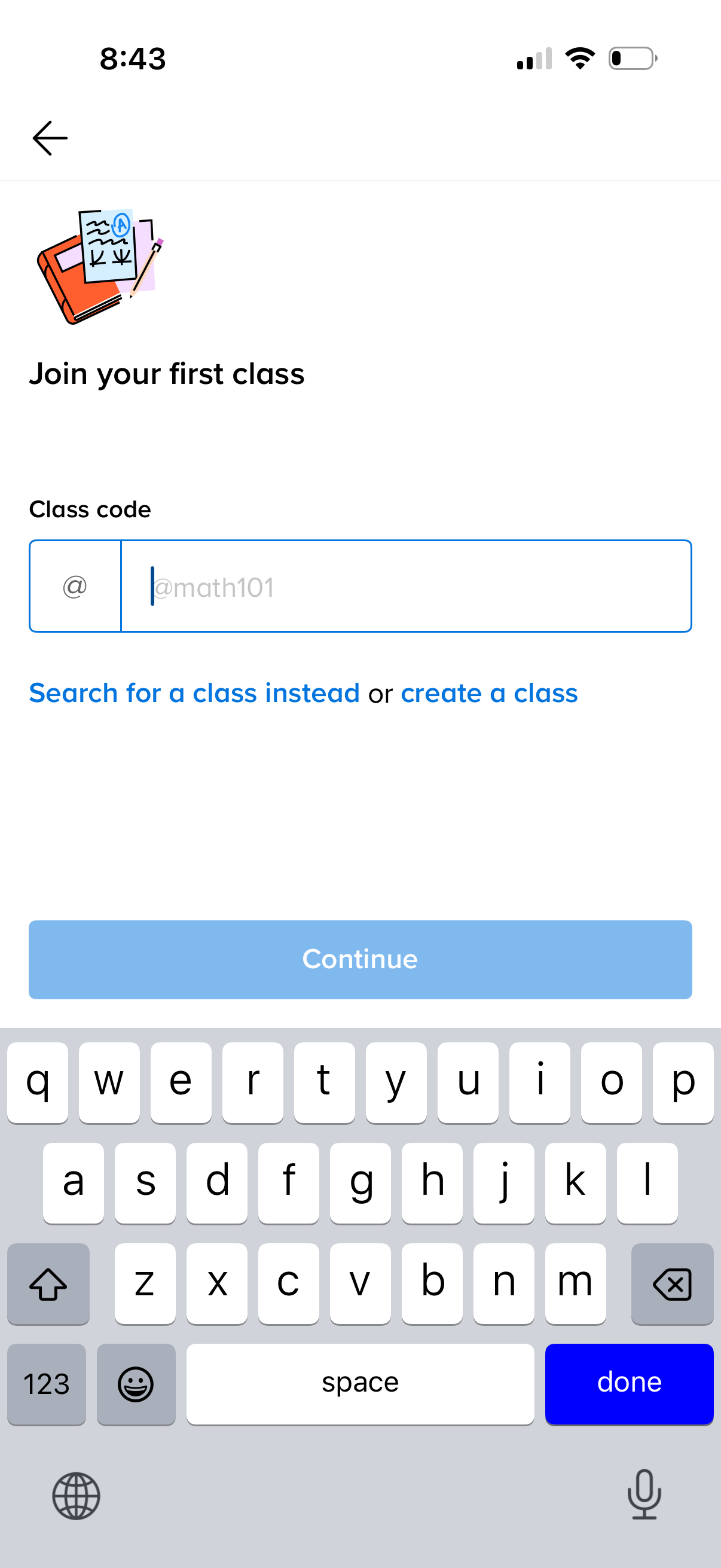
Onboarding screen for joining a class by entering a class code/handle in a text field, with links to search for a class instead or create a new class. Includes a disabled “Continue” button that becomes available after input, plus a back navigation icon.
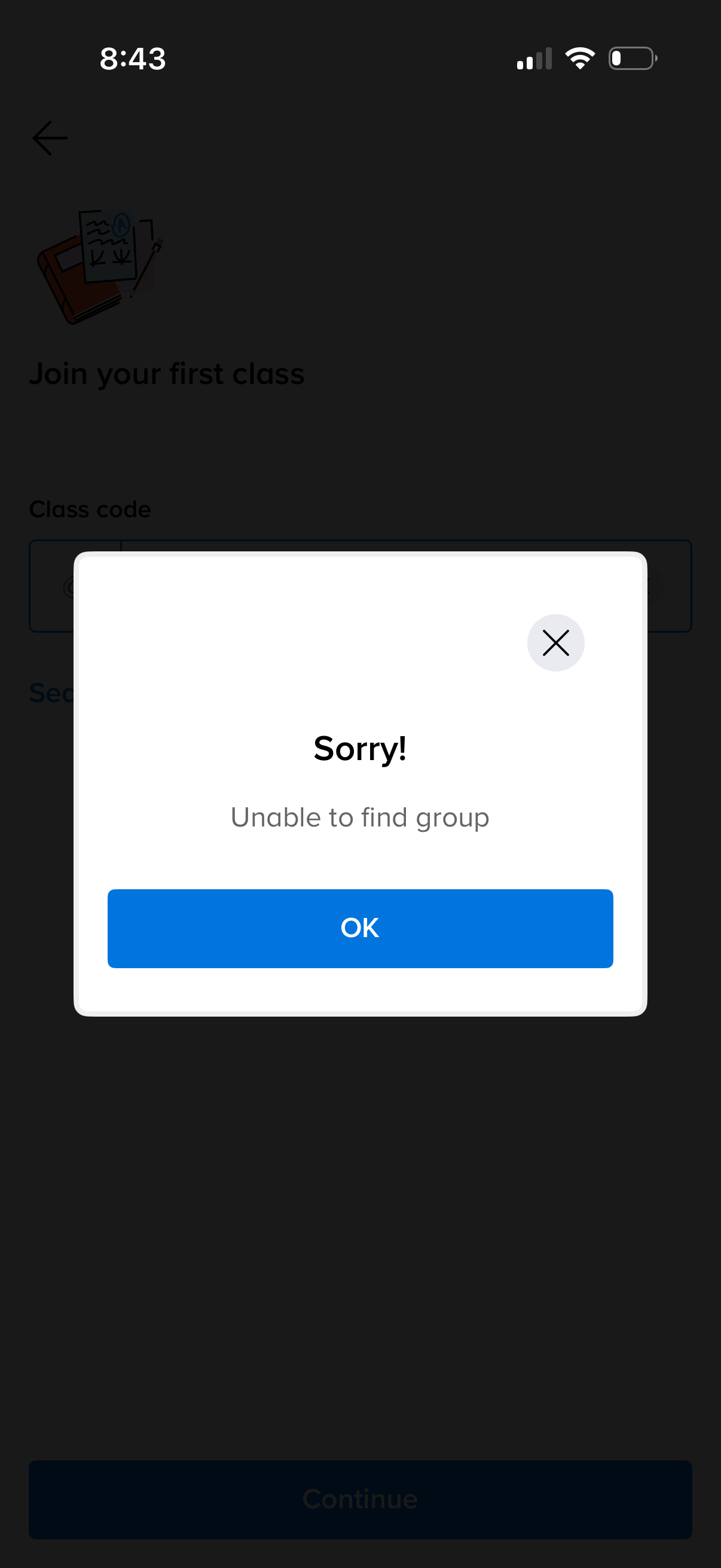
An error alert modal appears during the “Join your first class” flow after entering a class code, stating “Sorry! Unable to find group.
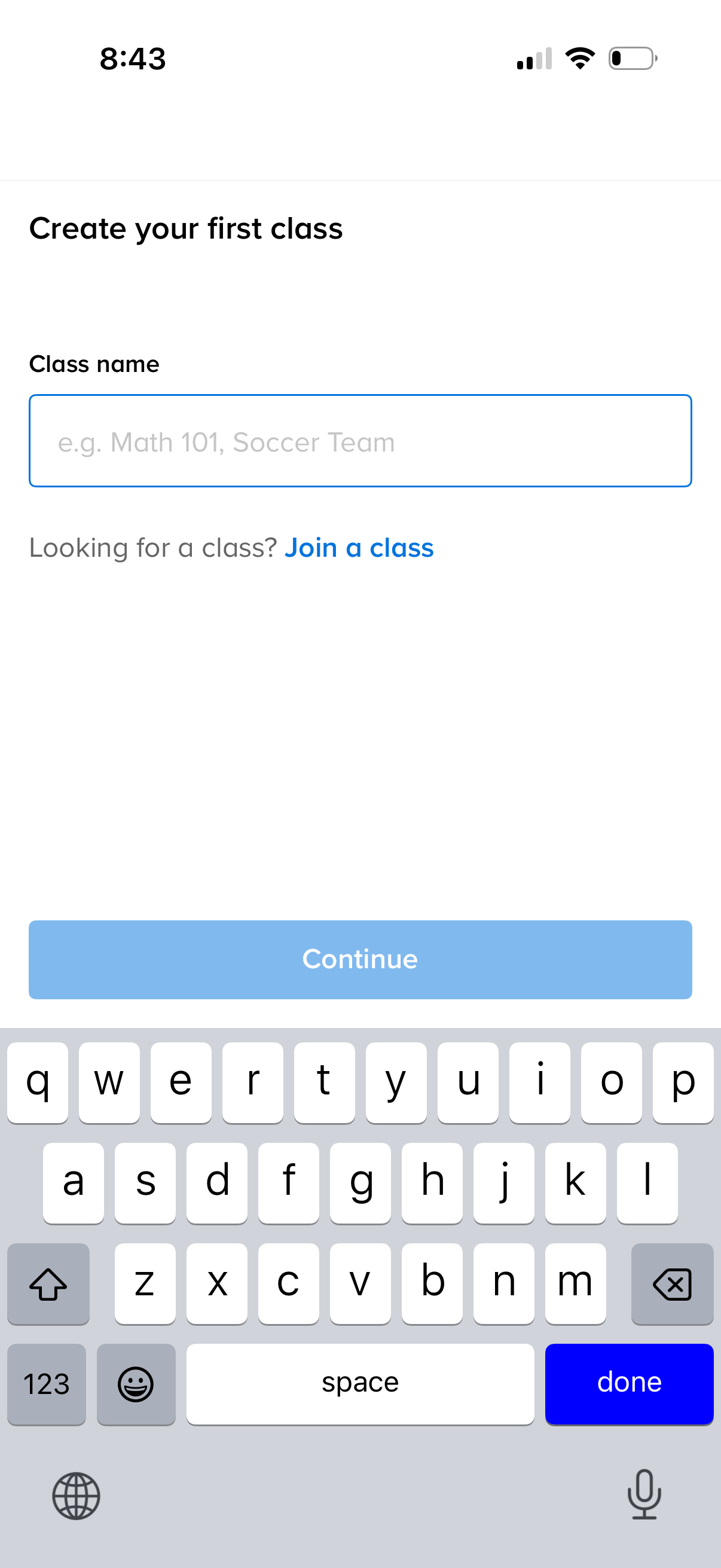
Onboarding screen to create your first class with a single text field for entering the class name and a primary Continue button. Includes an alternate link for users who want to join an existing class instead of creating one.
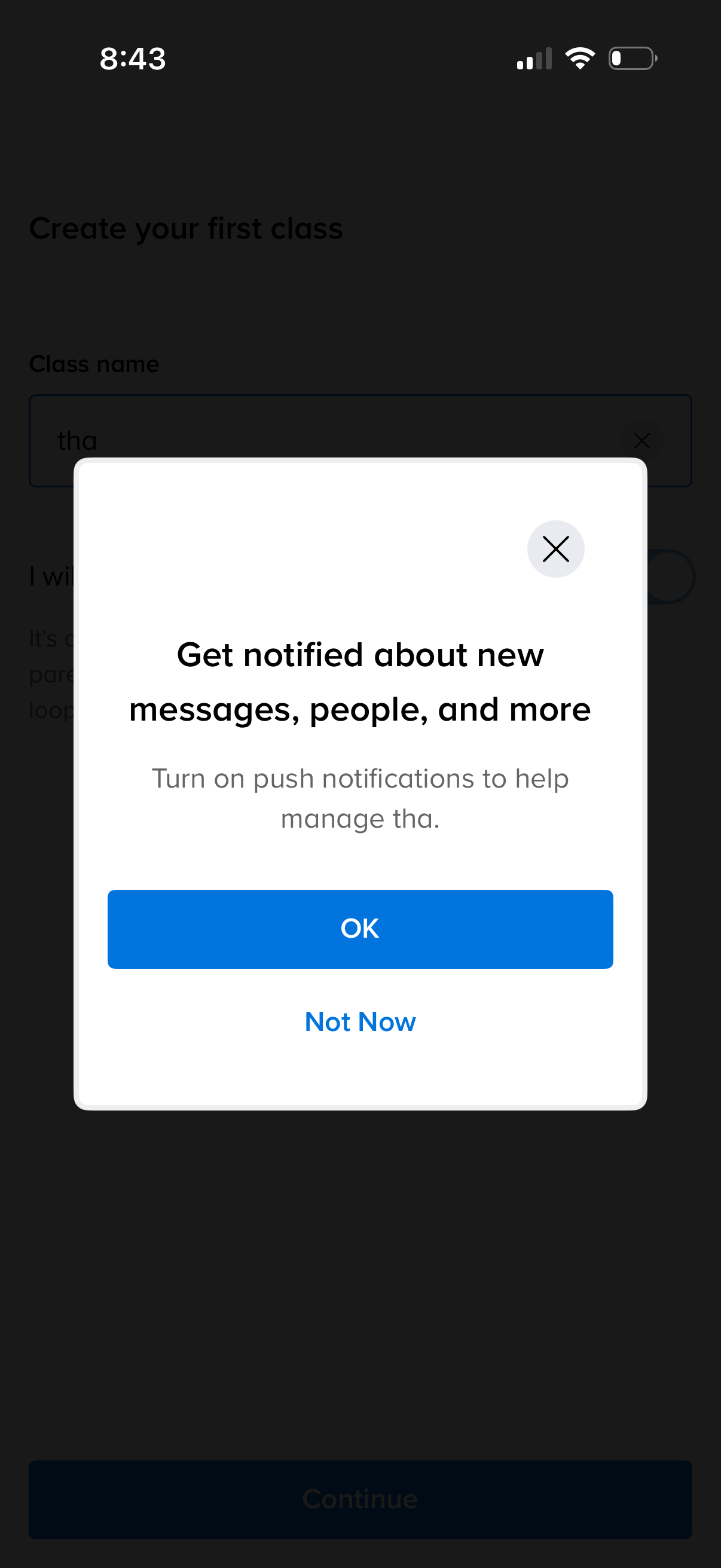
Modal permission prompt asking users to enable push notifications to get alerts for new messages, people, and updates, shown during onboarding/class creation. Offers primary action to confirm (OK) and secondary option to decline (Not Now) with a close icon.
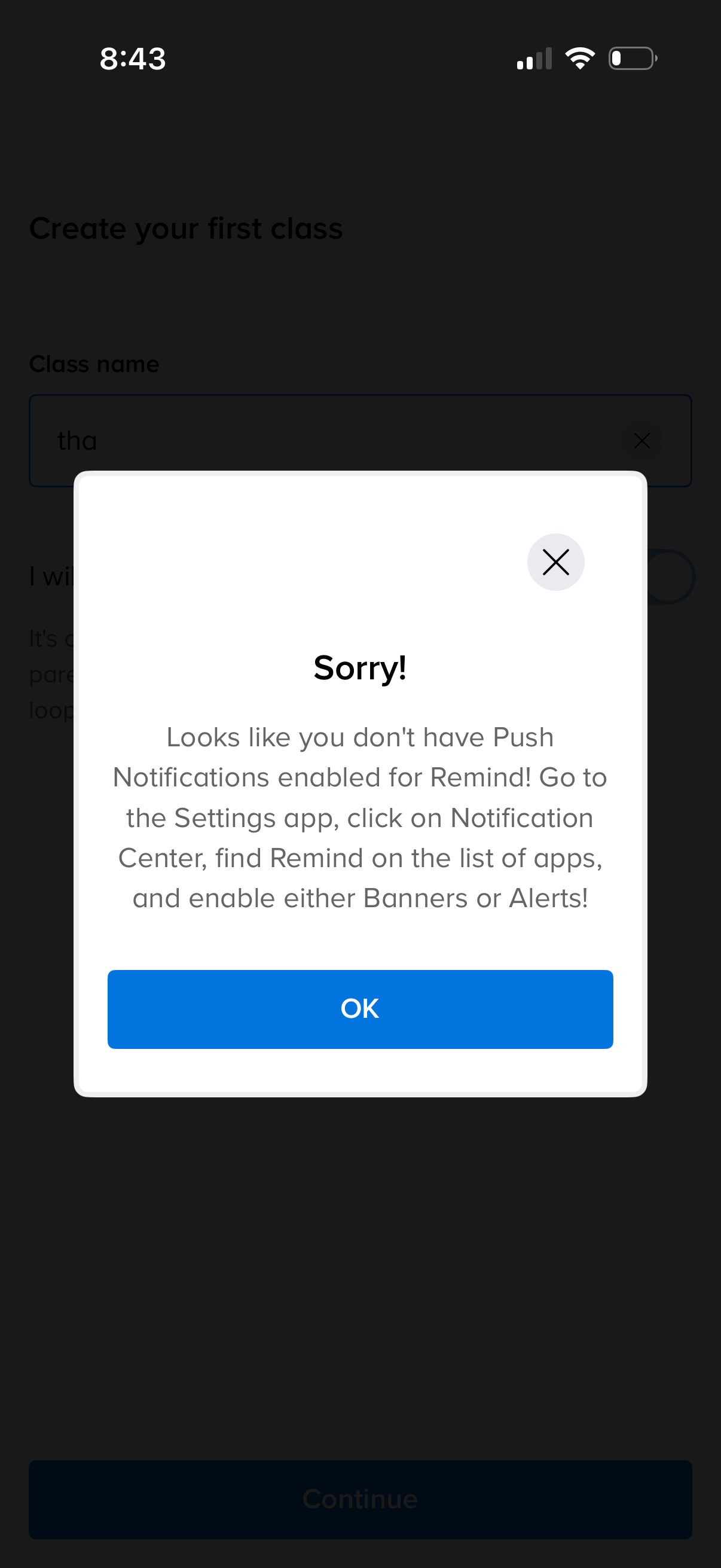
A modal error alert appears during class creation, informing the user that push notifications are not enabled and providing instructions to enable notifications in the device Settings. The dialog can be dismissed via an OK button or close (X) icon.
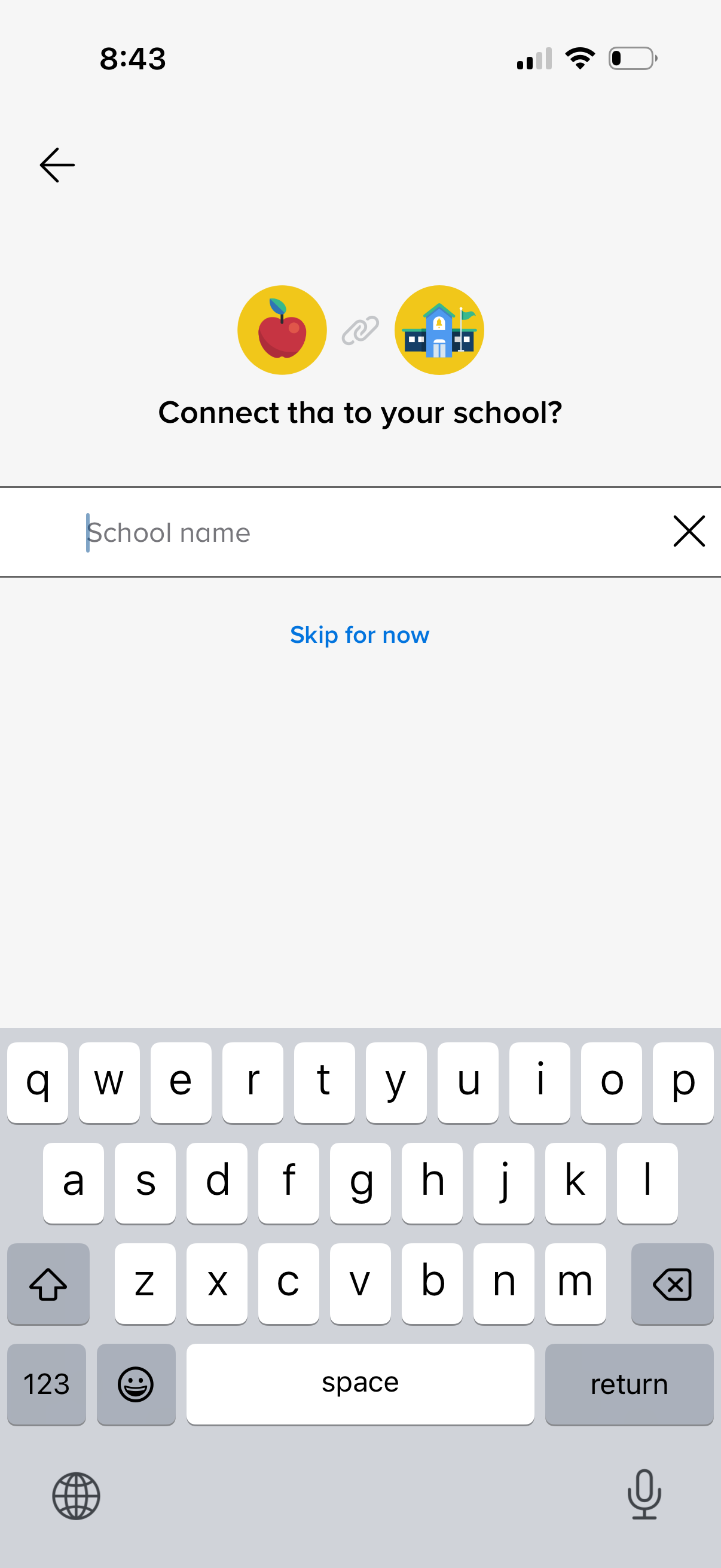
Onboarding screen prompting the user to connect the app to their school by entering a school name in a text field, with options to clear the input, go back, or skip linking for now.
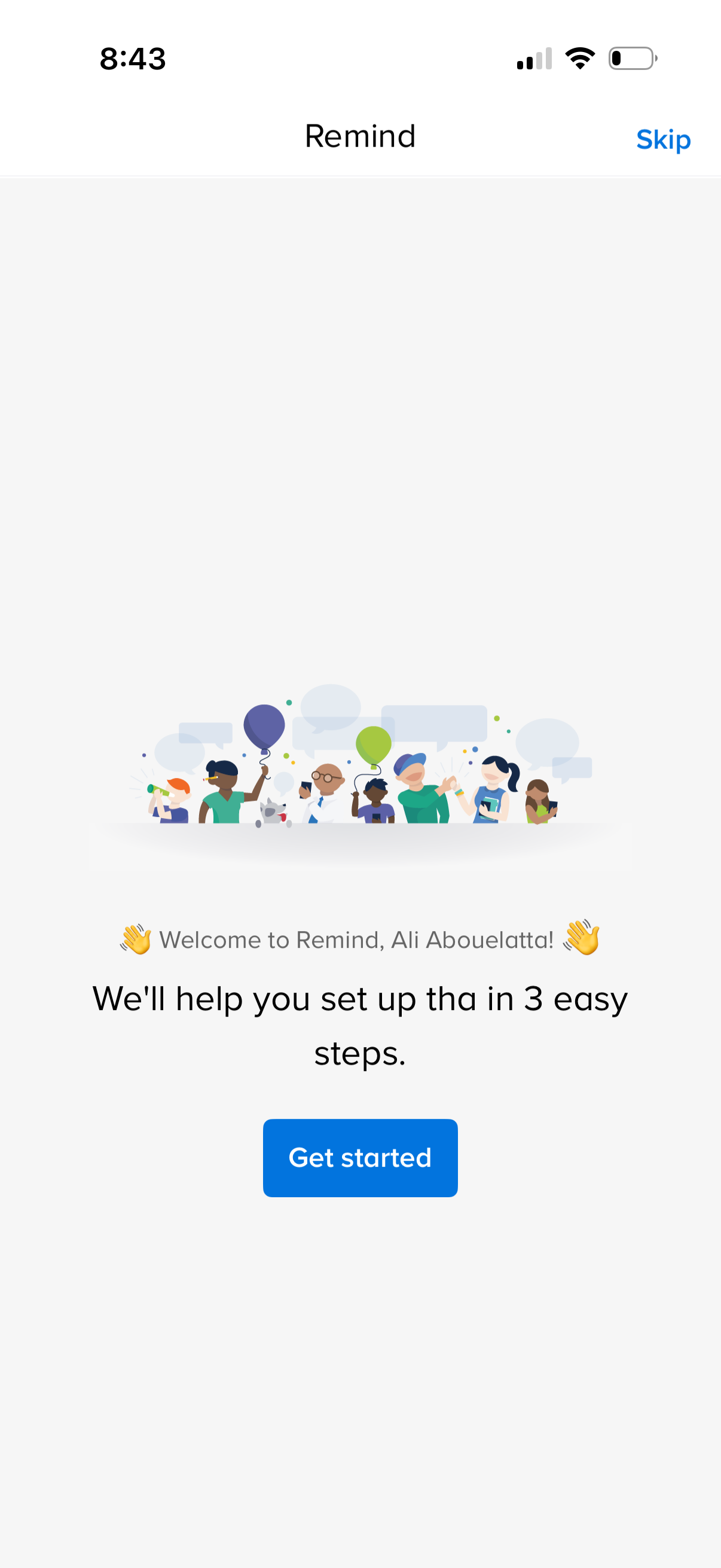
Welcome/onboarding screen for a reminders app introducing a 3-step setup flow, with primary CTA to “Get started” and an option to skip onboarding.