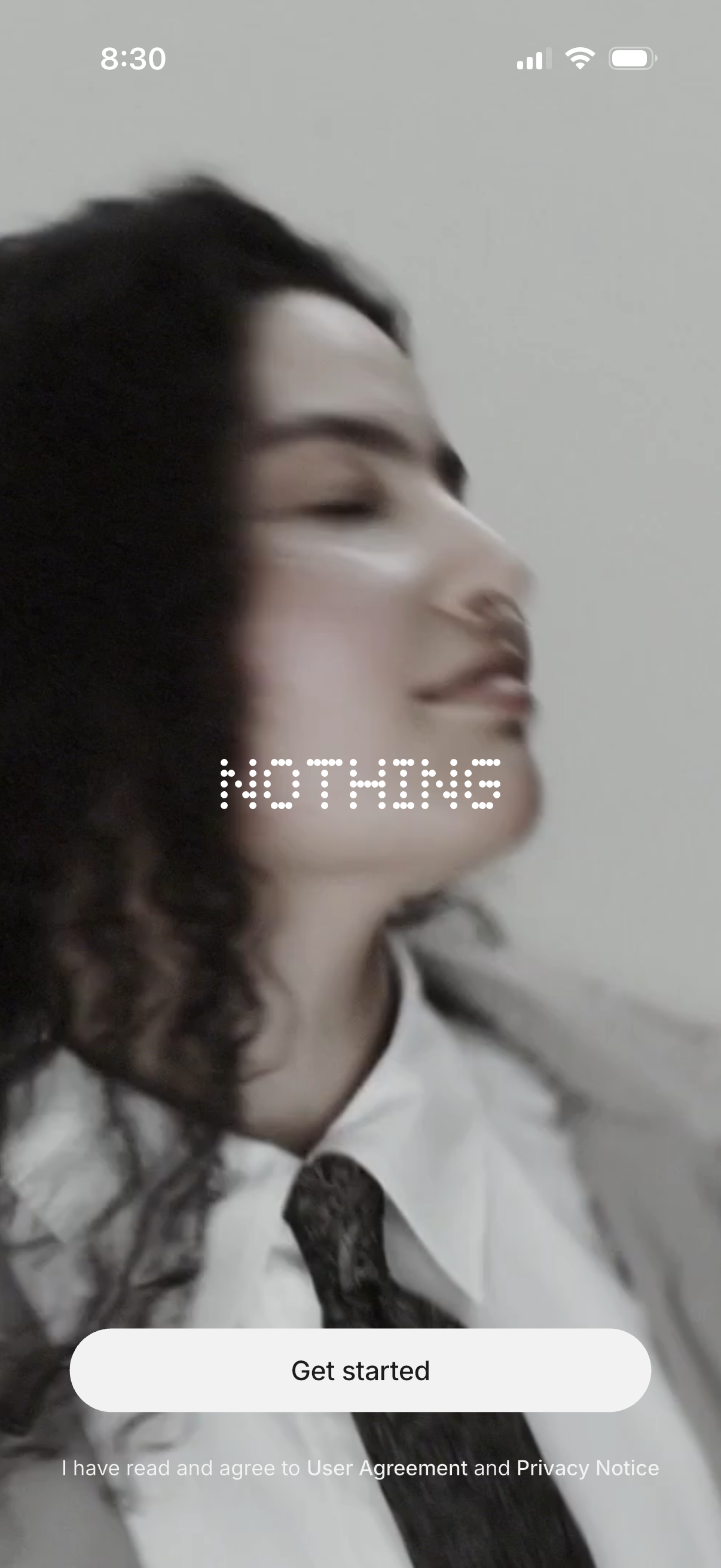
A full-screen onboarding welcome screen with a branded background image and a prominent “Get started” call-to-action button to begin setup or sign up. Includes a consent statement indicating the user agrees to the User Agreement and Privacy Notice.

Minimal splash/loading screen on a black background featuring two centered overlapping circles (red and white) as a simple app logo while the app initializes.
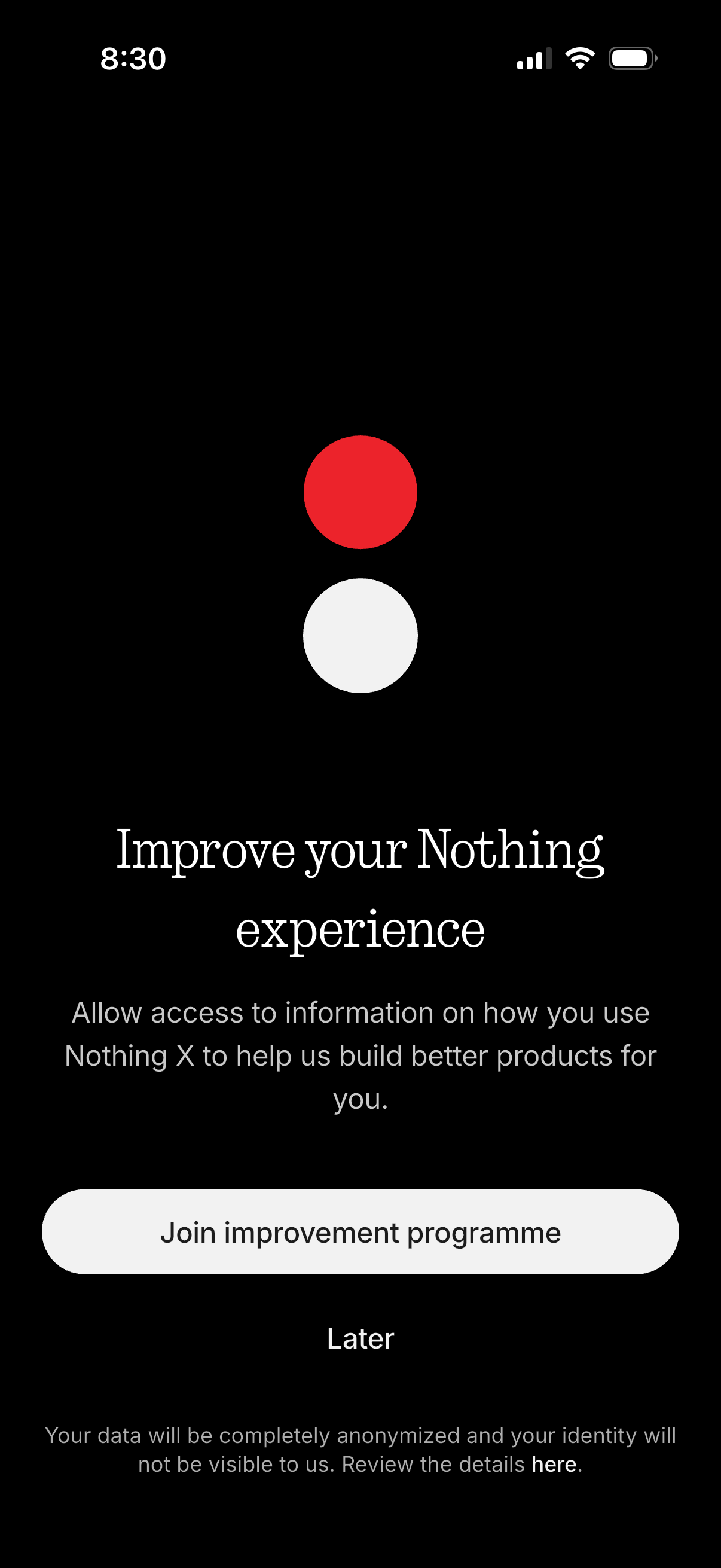
Opt-in consent screen asking users to join an app improvement/analytics program by allowing access to usage information to help build better products. Provides primary CTA to “Join improvement programme,” a secondary “Later” option to skip, and an anonymization/privacy details link.
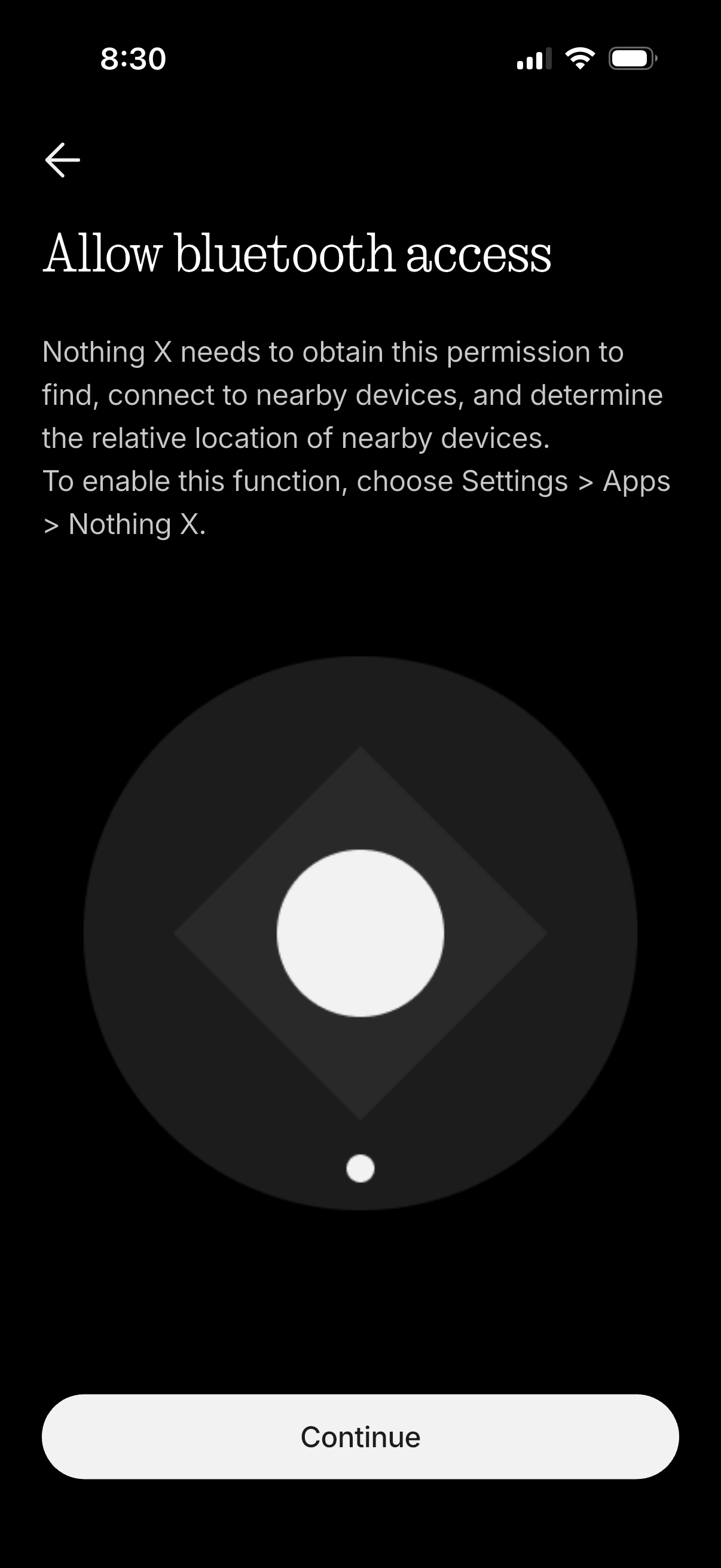
Permission onboarding screen prompting the user to allow Bluetooth access so the app can find and connect to nearby devices and determine relative location. Includes explanatory text, a back arrow, and a primary “Continue” button to proceed to enable the permission in system settings.
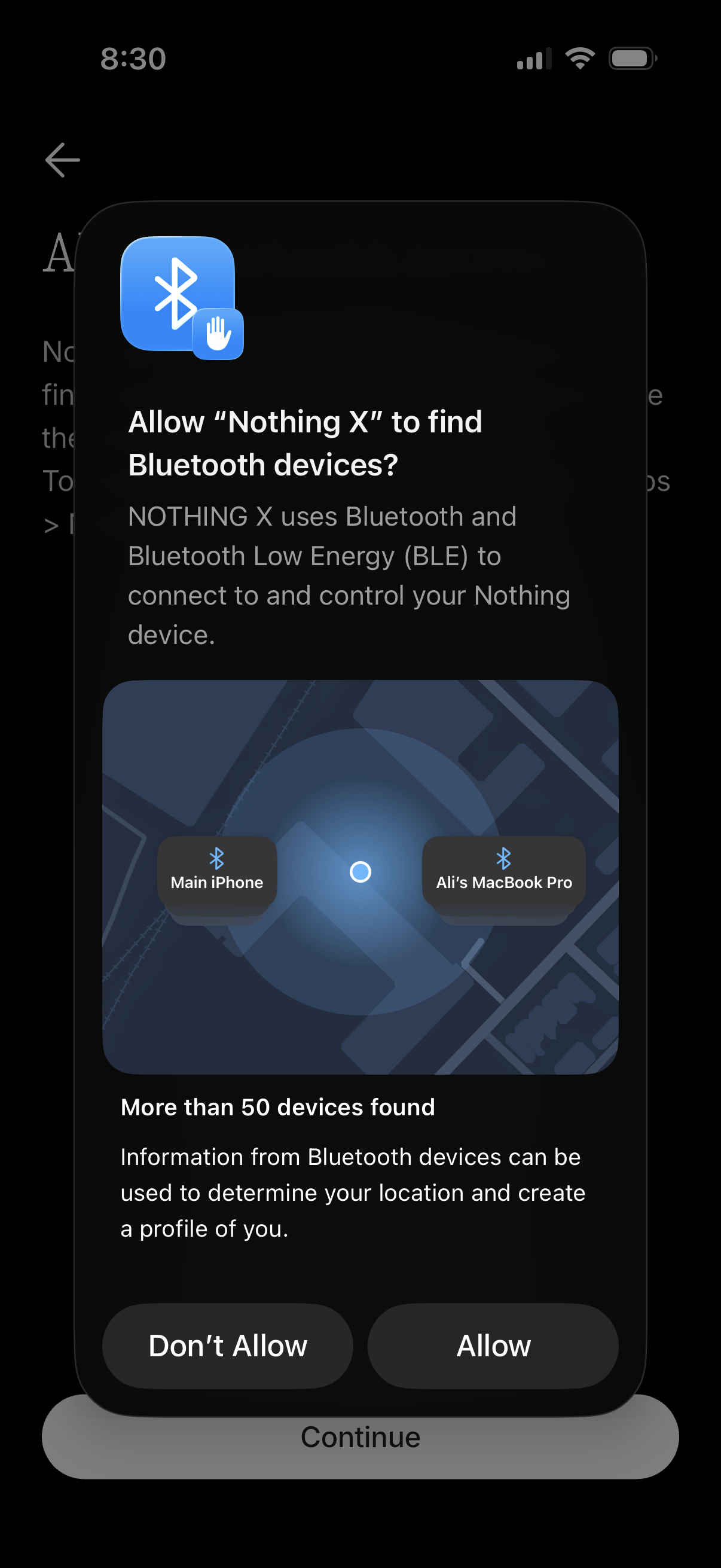
iOS system permission prompt requesting Bluetooth access so the app can find nearby BLE devices for connecting and controlling hardware, including a privacy note about many devices found and potential location profiling. Provides primary actions to Allow or Don’t Allow Bluetooth scanning.

Device pairing setup screen showing a “Scanning…” state while searching for nearby Bluetooth devices, with guidance to put the device in pairing mode. Includes an option to skip scanning if the user doesn’t have a device yet, plus quick-access icons for scanning help/settings and info.
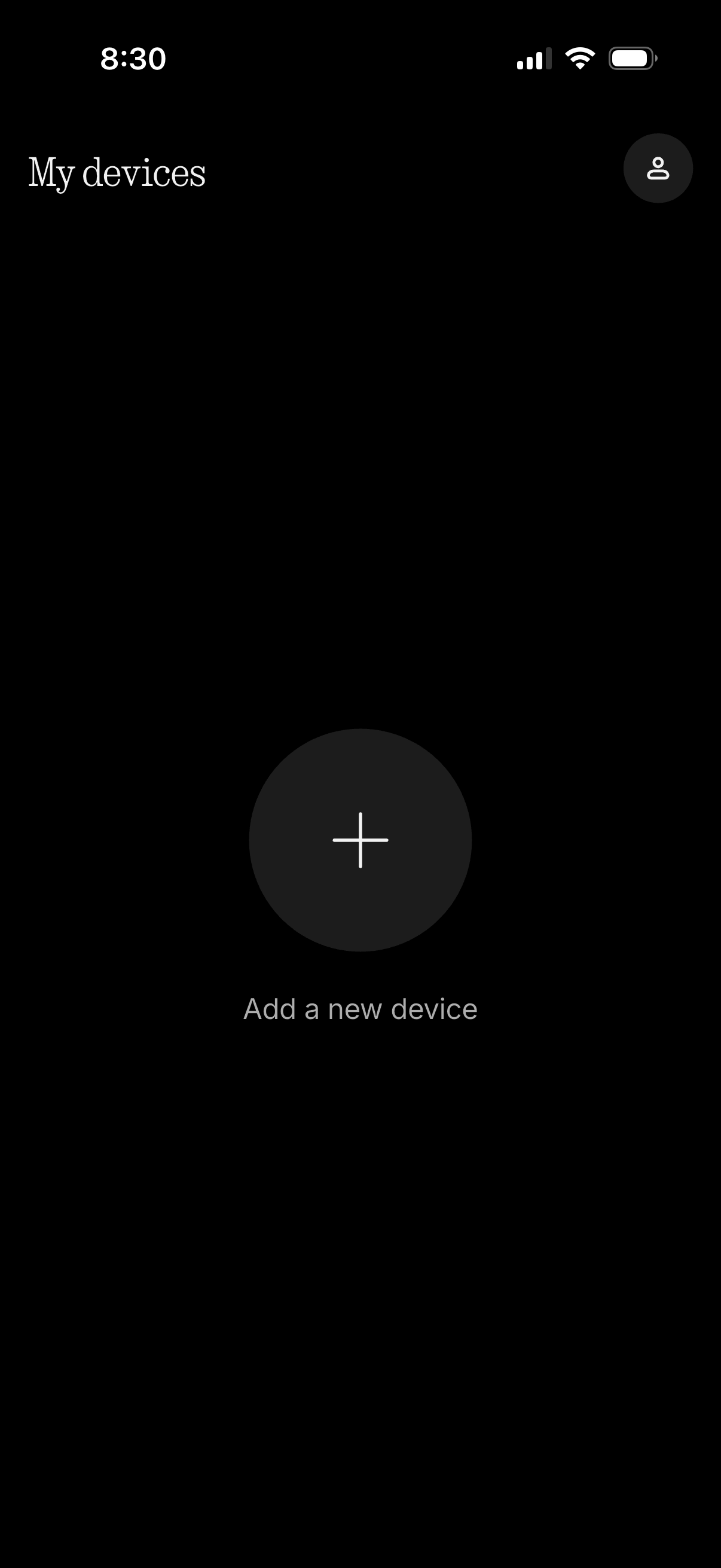
Device management screen titled “My devices” showing an empty state with a prominent plus button to add a new device. Includes a profile/account icon for accessing user settings or account details.