Onboarding
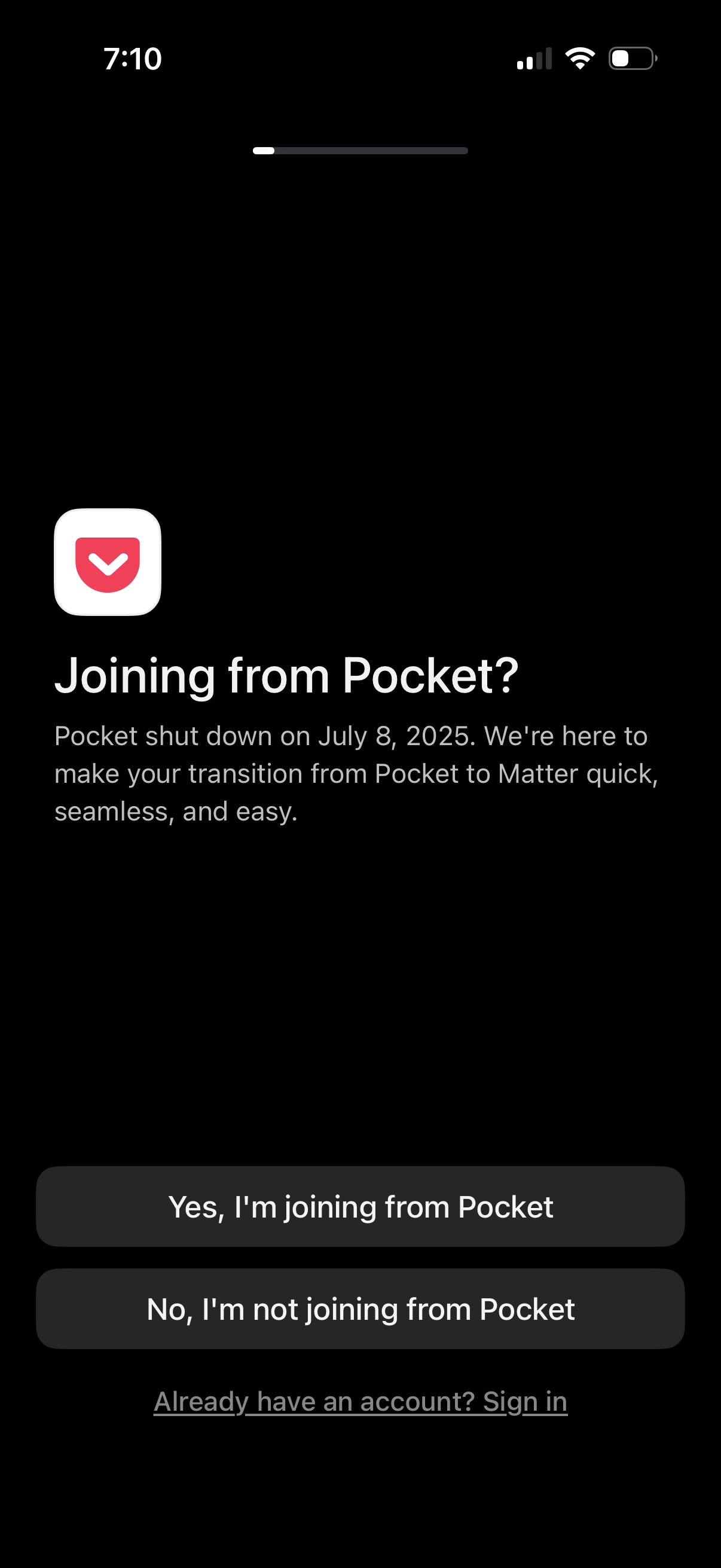
Onboarding migration prompt asking whether the user is joining from Pocket, explaining the shutdown and offering to transition their saved content to the new app. Primary actions are two choices (Yes, I’m joining from Pocket / No, I’m not joining from Pocket) with a secondary “Already have an account?
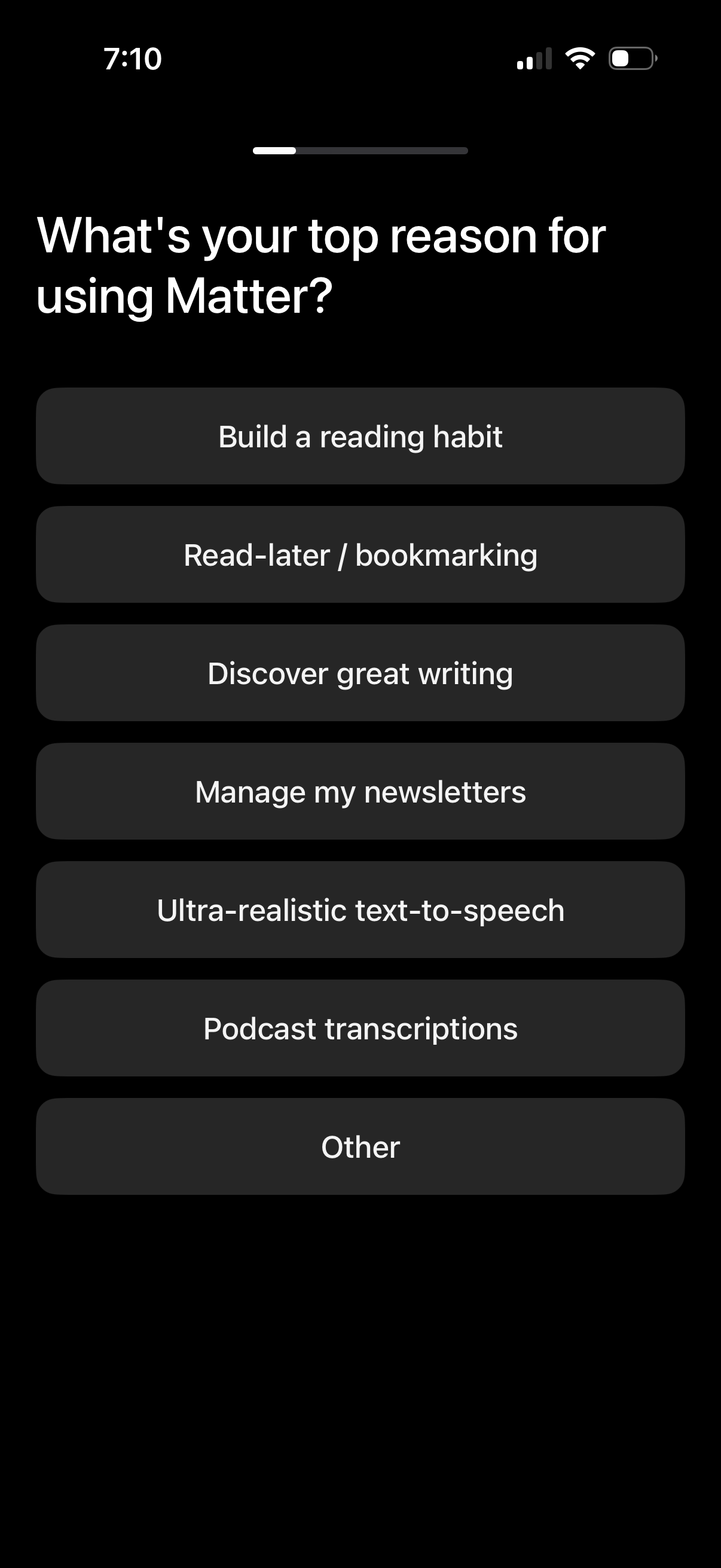
Onboarding preference question screen asking the user’s main reason for using the app, with a progress indicator and selectable options such as building a reading habit, read-later/bookmarking, discovering writing, managing newsletters, text-to-speech, podcast transcriptions, or other. Selecting an option helps personalize the experience and feature recommendations.
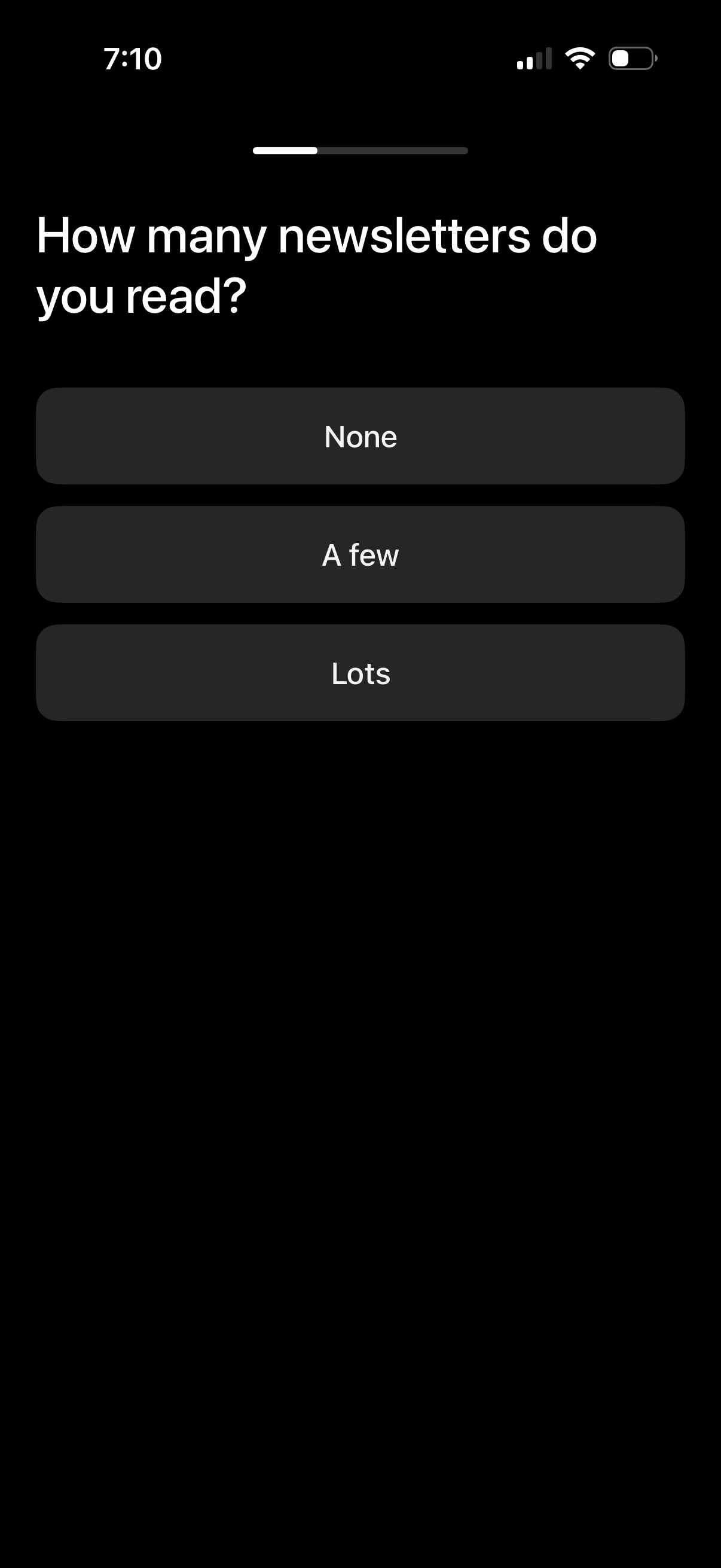
Onboarding preference question screen asking users how many newsletters they read. Provides three large tap-to-select options (None, A few, Lots) with a progress indicator at the top to advance setup and personalize recommendations.
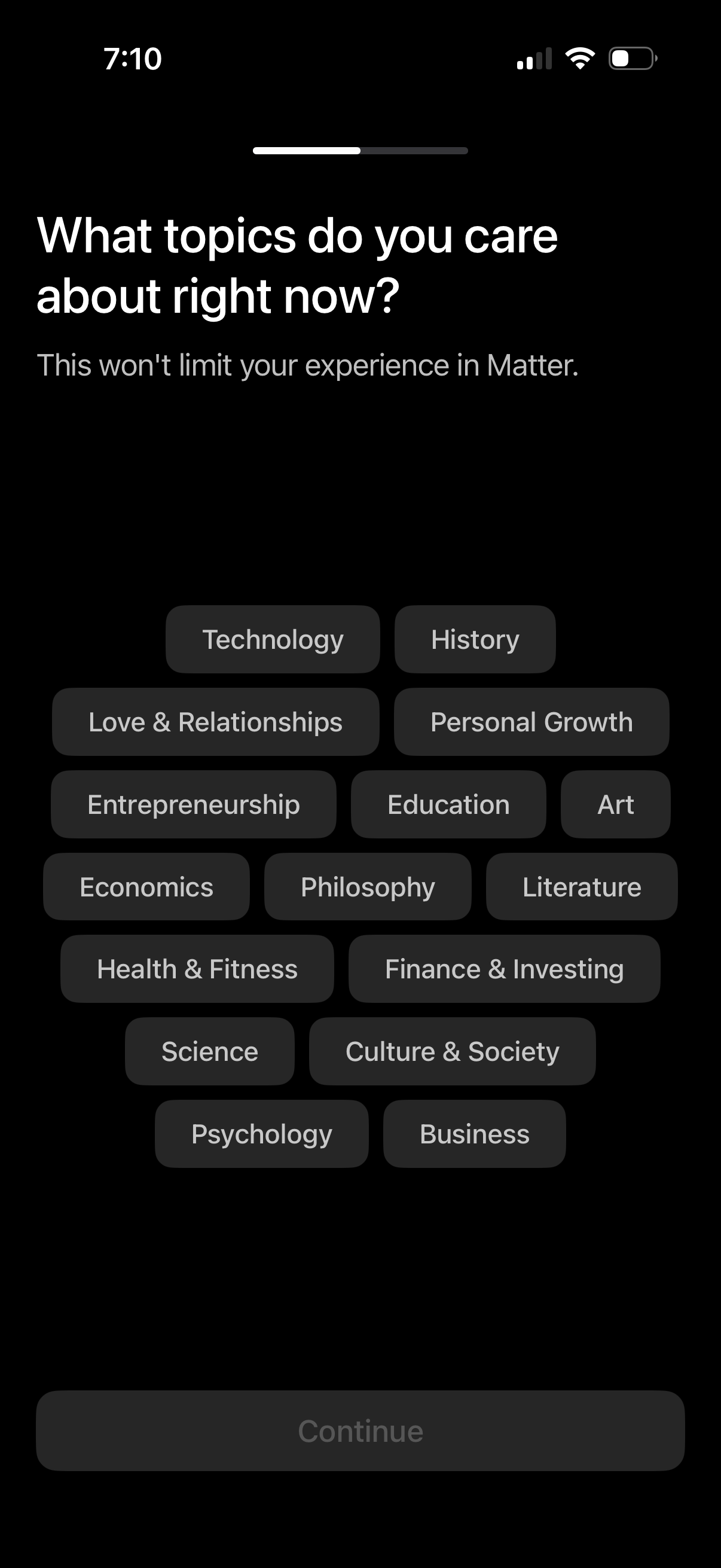
Onboarding preferences screen asking users to select topics they care about to personalize the app experience, presented as selectable category chips (e. g.
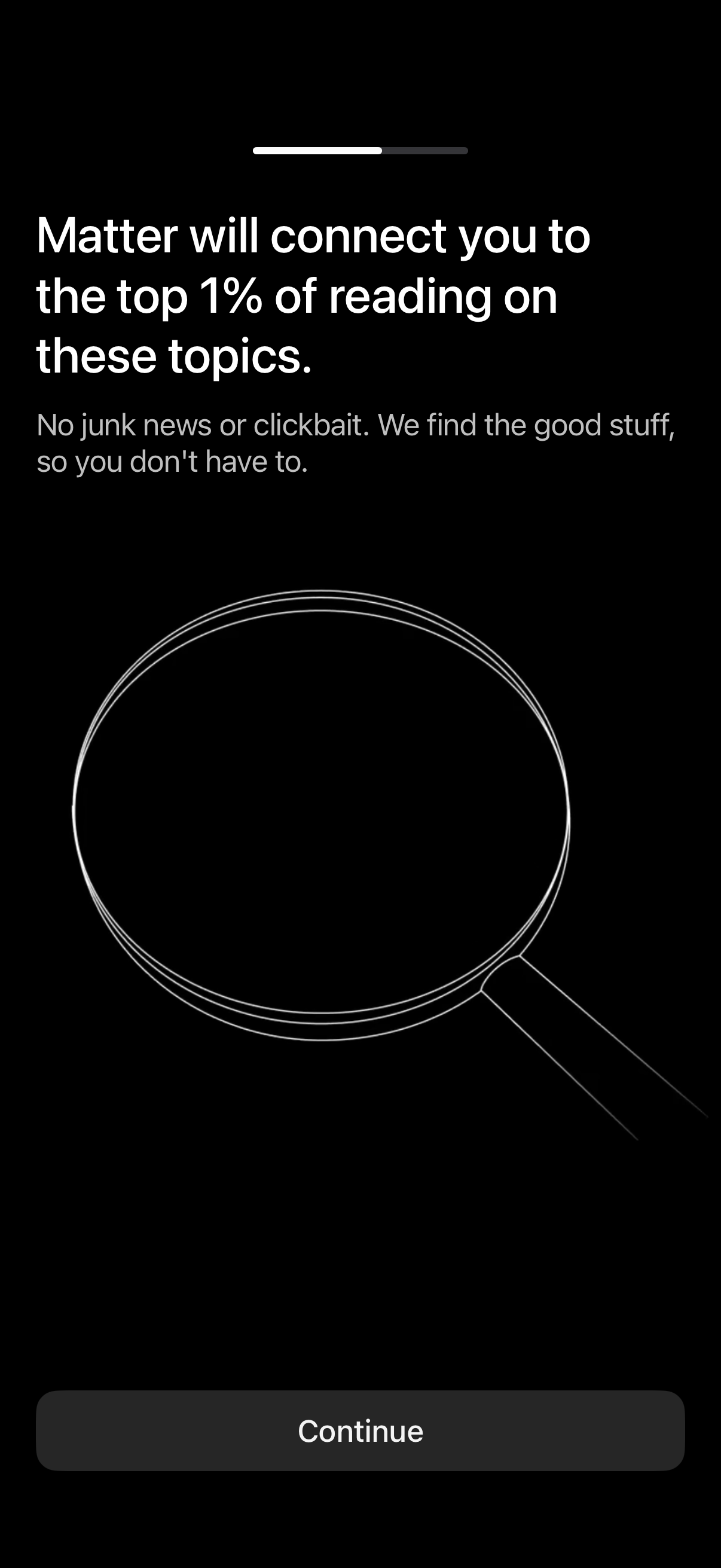
Onboarding introduction screen for a curated reading/news app explaining it will connect users to high-quality content and avoid junk news or clickbait. Shows a progress indicator and a primary “Continue” button to proceed to the next onboarding step.
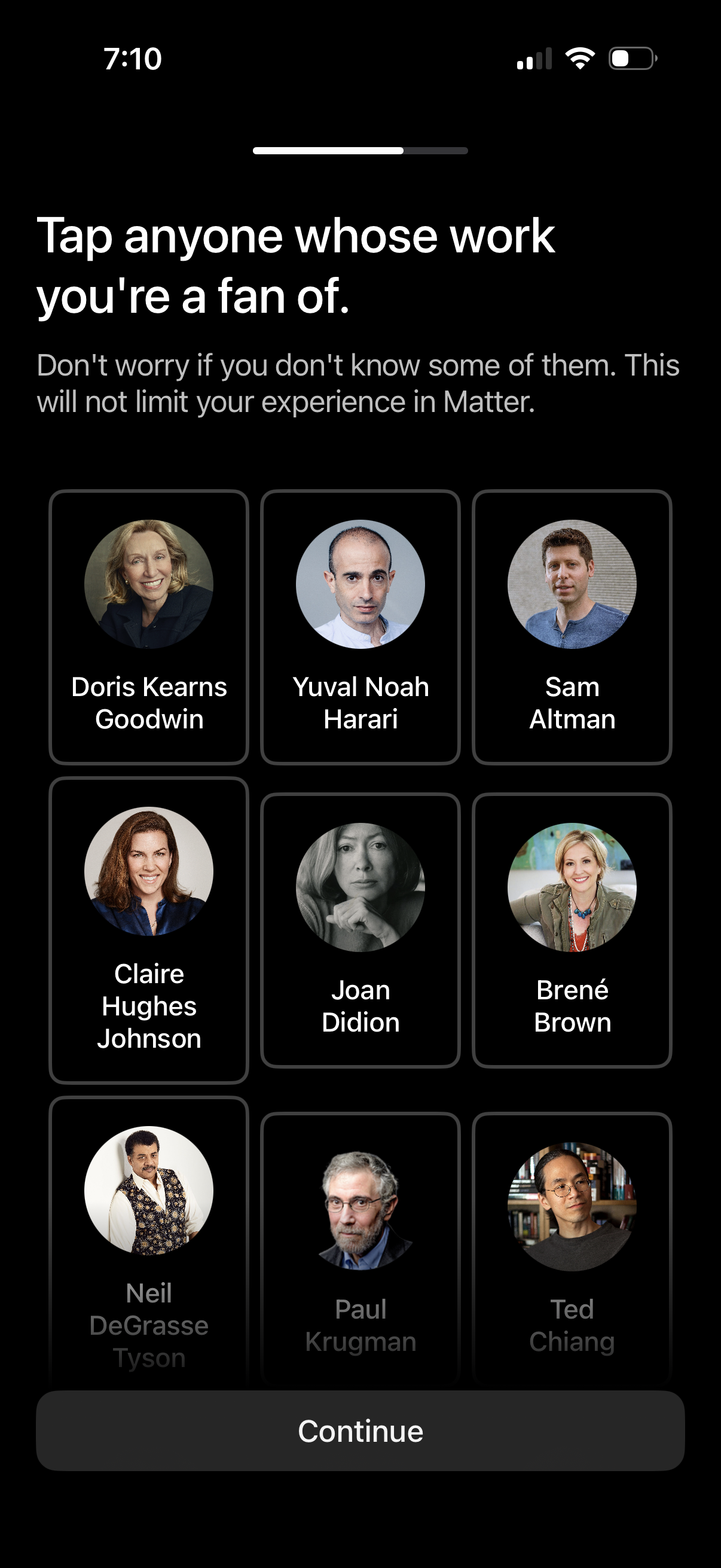
Onboarding interest selection screen prompting users to tap authors/creators they’re a fan of, shown as a grid of profile cards with photos and names. Users make multiple selections and proceed using a primary “Continue” button.
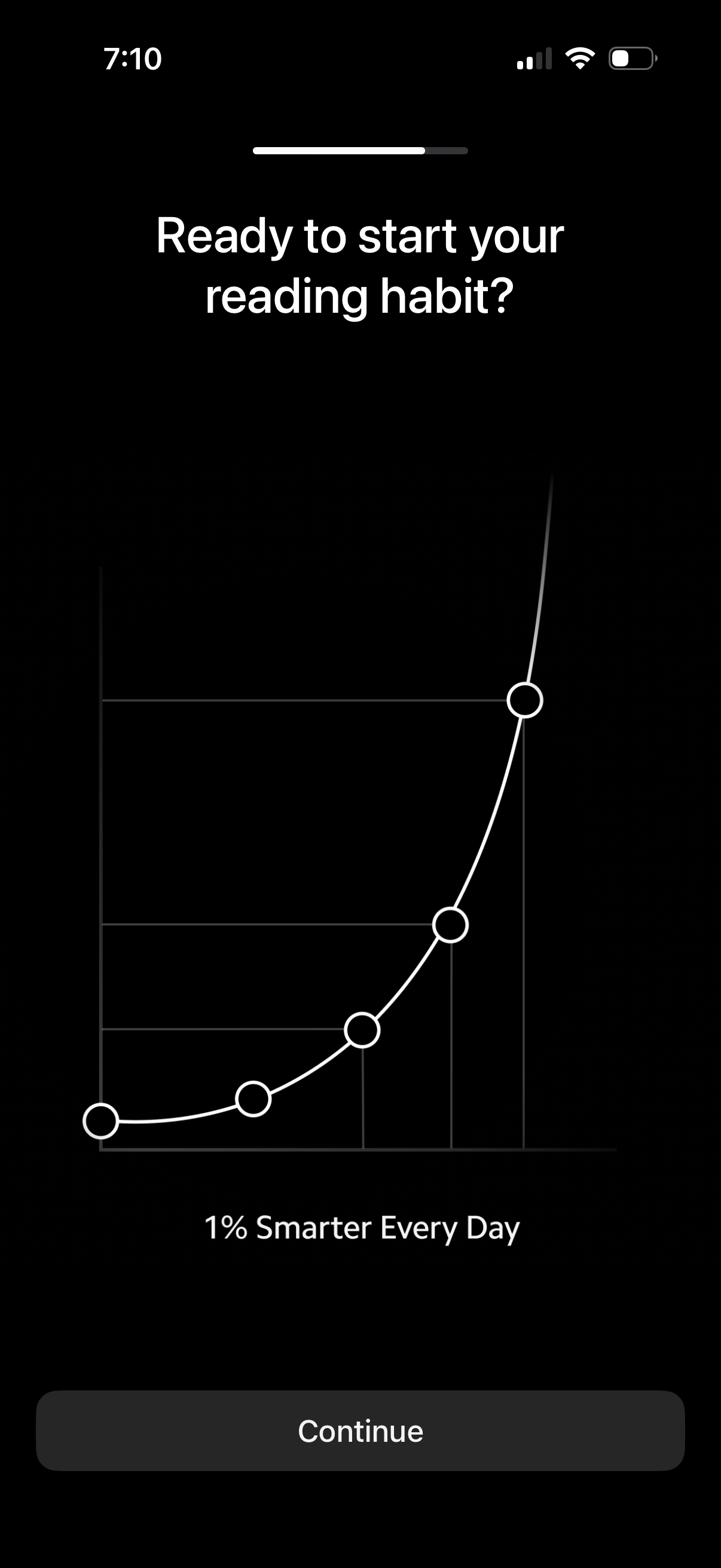
Onboarding welcome screen for a reading habit app, introducing the goal of becoming “1% smarter every day” with a progress/learning curve illustration. Provides a primary “Continue” button to proceed to the next setup step.
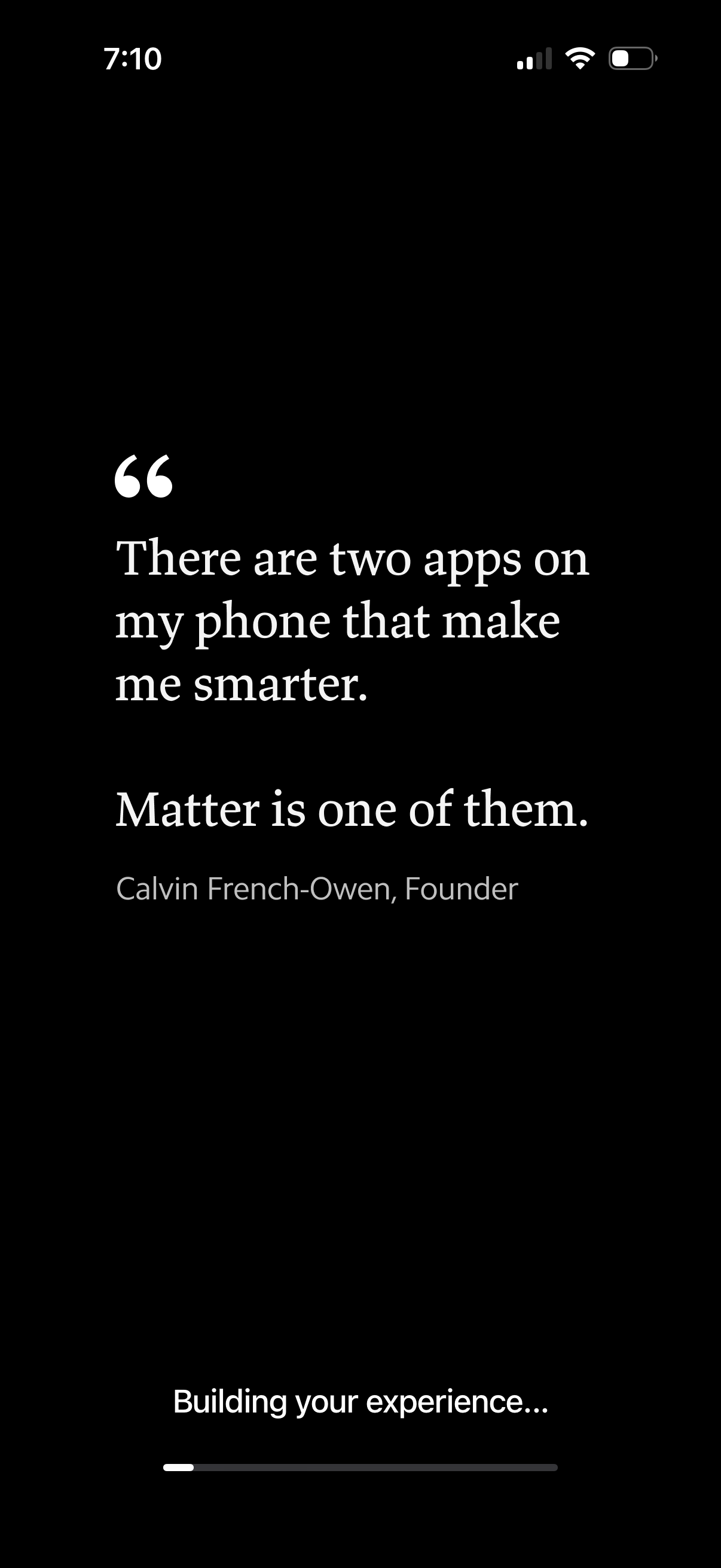
Onboarding/loading screen showing a testimonial quote on a dark background while the app initializes. A progress indicator at the bottom reads “Building your experience…” to communicate setup or personalization in progress.
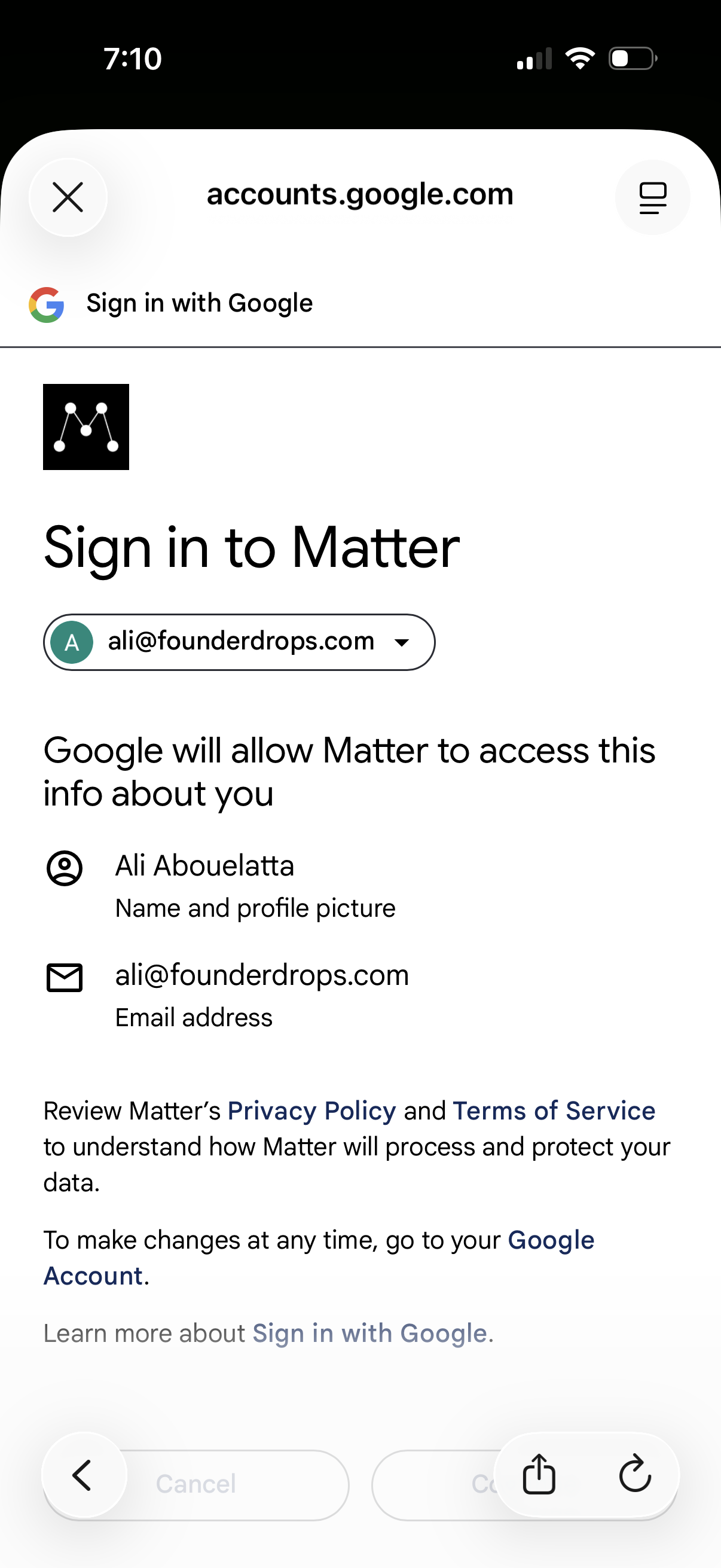
Google OAuth “Sign in with Google” consent screen for signing into a third-party app (Matter), showing the selected Google account dropdown and the permissions being shared (name/profile photo and email address) with links to privacy policy and terms.
Google OAuth “Sign in with Google” consent screen for signing into a third-party app (Matter), showing the selected Google account dropdown and the permissions being shared (name/profile photo and email address) with links to privacy policy and terms.
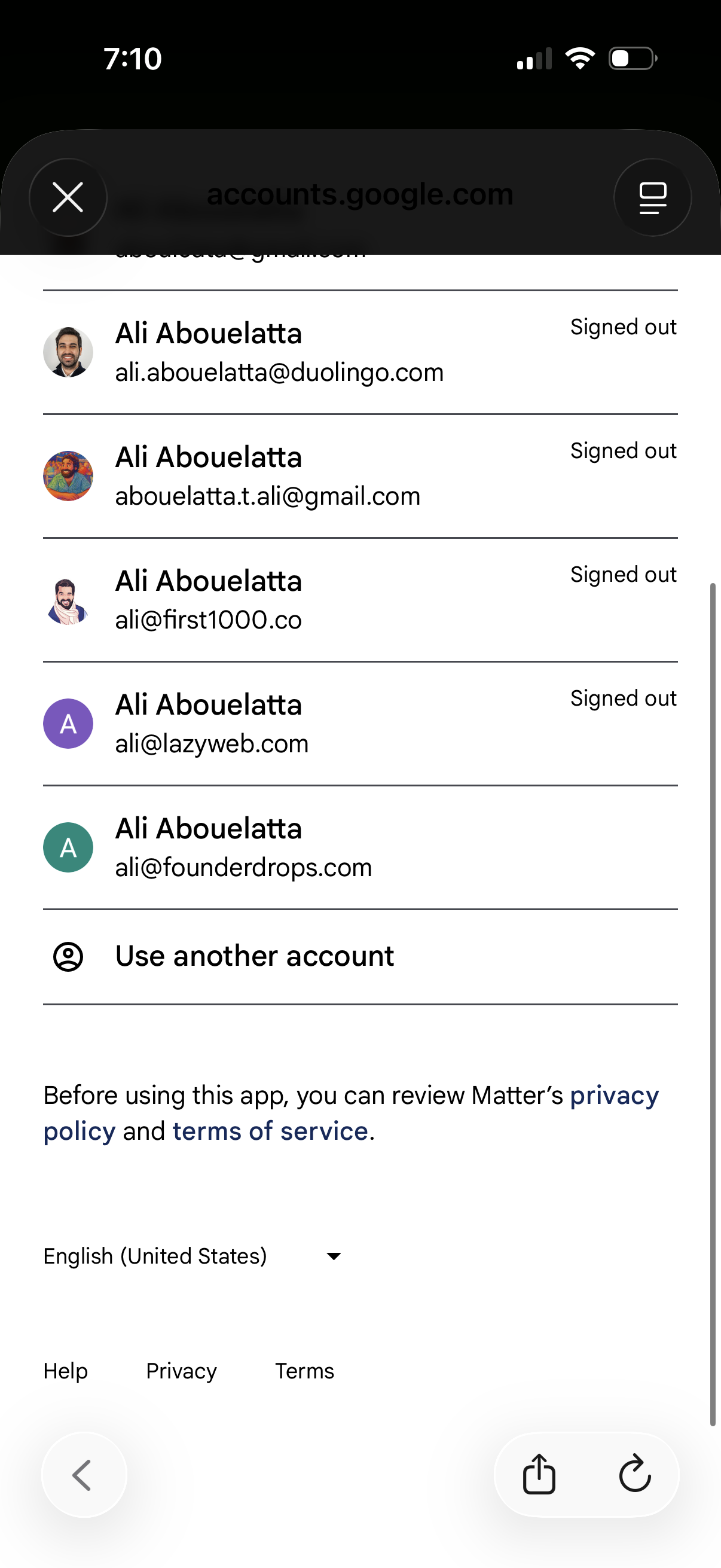
Account selection screen for signing into an app with Google, showing a list of previously used profiles with avatar, name/email, and signed-out status. Users can tap an existing account or choose “Use another account,” with links to privacy policy, terms of service, language selector, and help/privacy/terms footer.
Google OAuth “Sign in with Google” consent screen for signing into a third-party app (Matter), showing the selected Google account dropdown and the permissions being shared (name/profile photo and email address) with links to privacy policy and terms.
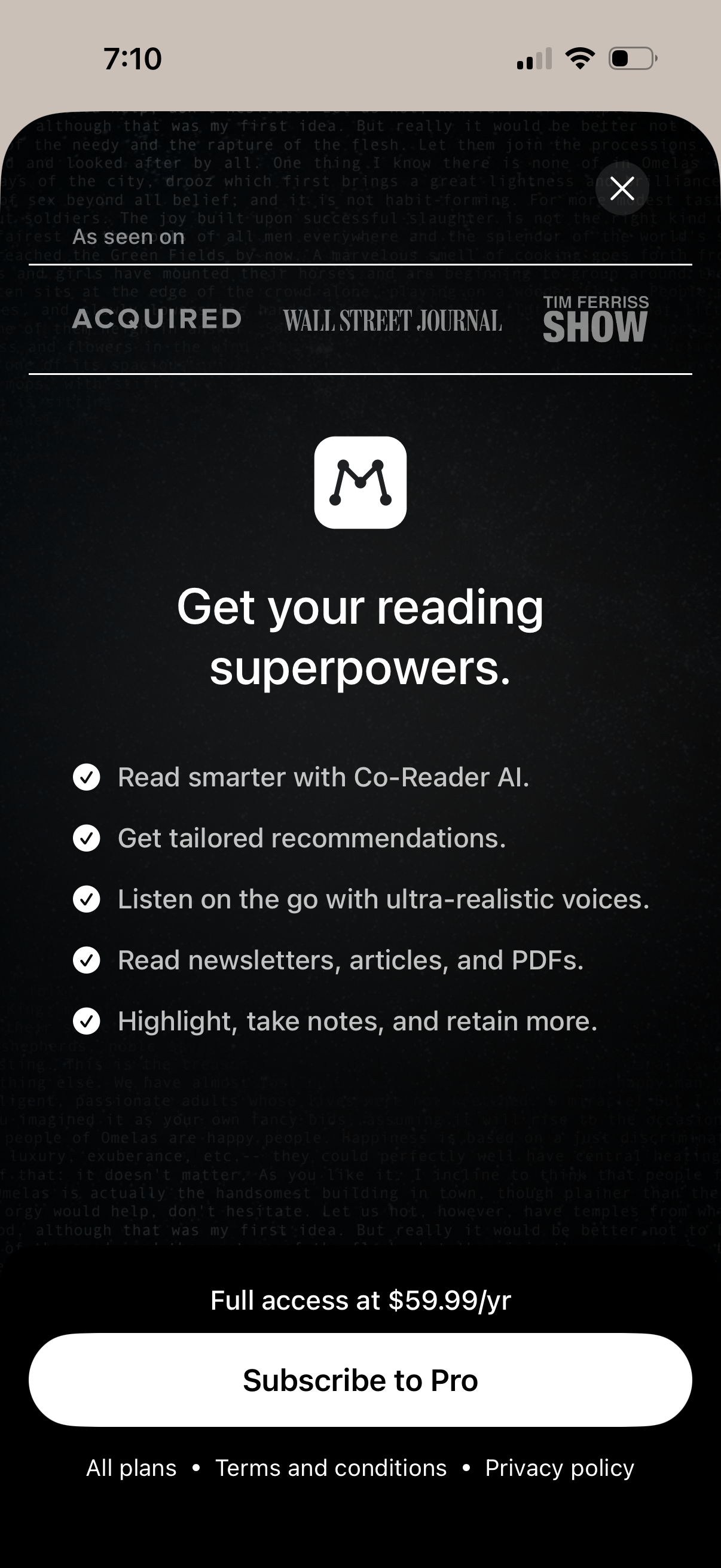
Premium subscription paywall for a reading app, highlighting Pro benefits like AI co-reader, personalized recommendations, text-to-speech listening, reading newsletters/articles/PDFs, and highlighting/note-taking. Shows annual price and a primary “Subscribe to Pro” call-to-action with links to plans, terms, and privacy, plus a close button to dismiss.