Sign In
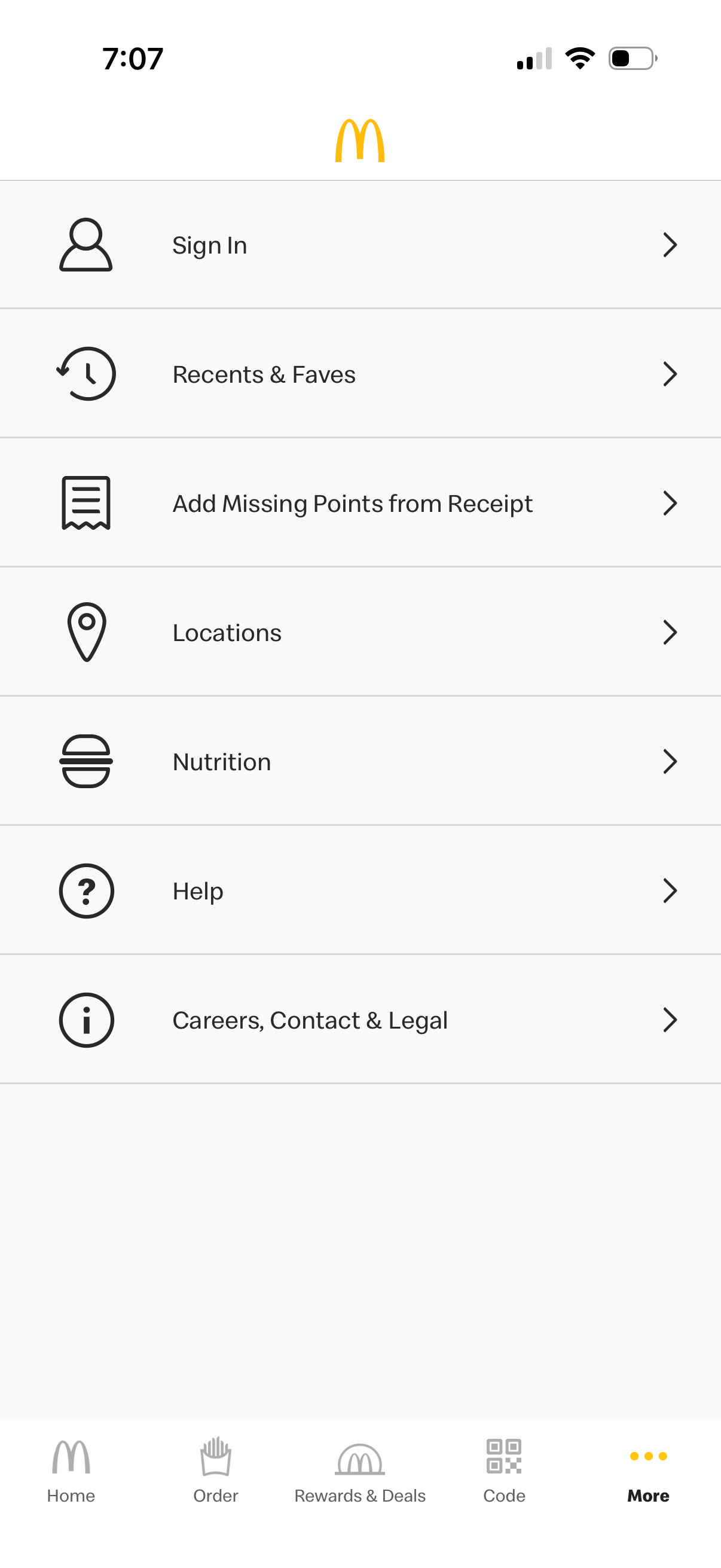
More/menu screen for a fast-food ordering app showing a list of account and support options: sign in, view recents and favorites, add missing loyalty points from a receipt, find restaurant locations, view nutrition information, access help, and careers/contact/legal pages. Includes a bottom navigation bar for Home, Order, Rewards & Deals, Code/QR, and More.
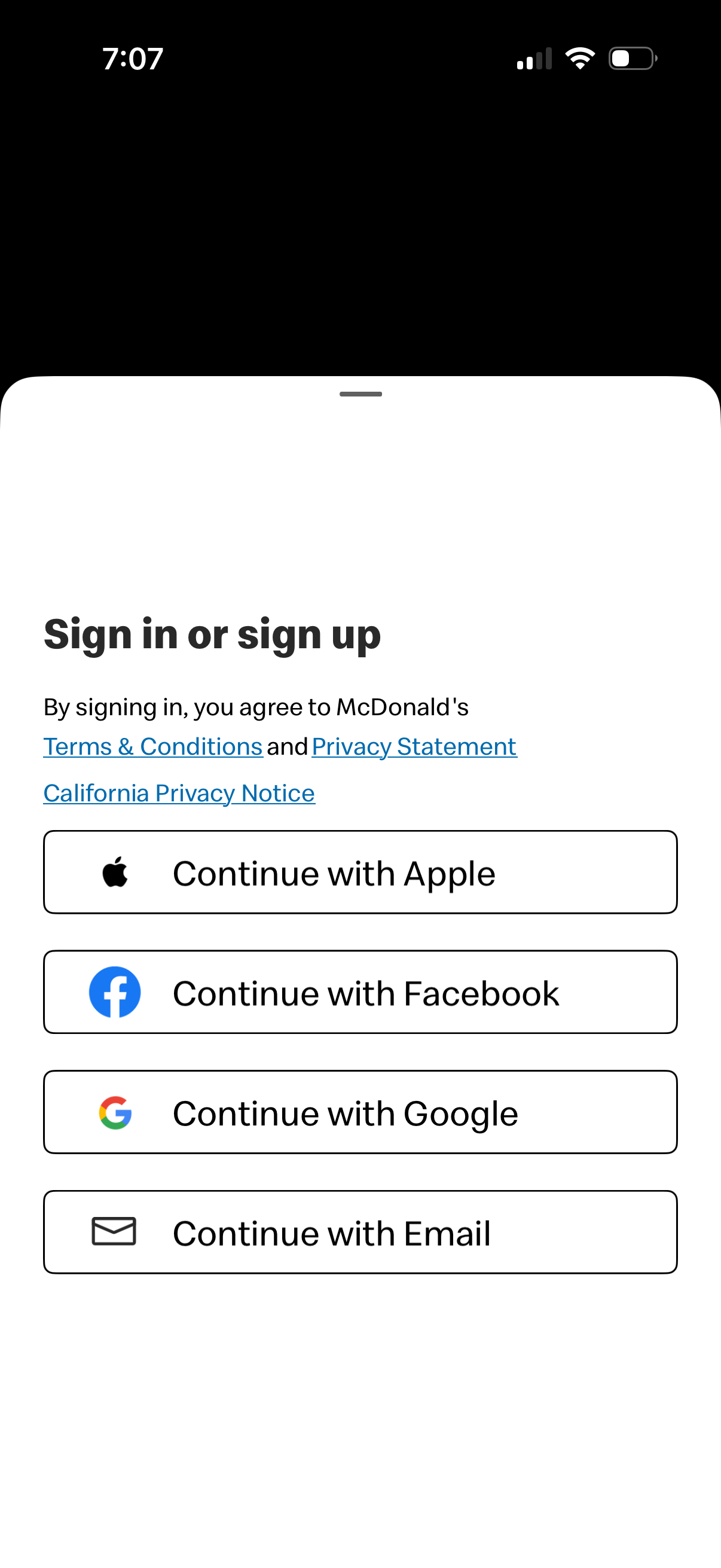
Authentication modal prompting users to sign in or sign up, with links to terms, privacy statement, and privacy notice. Offers social login and account creation options via Continue with Apple, Facebook, Google, or Email.
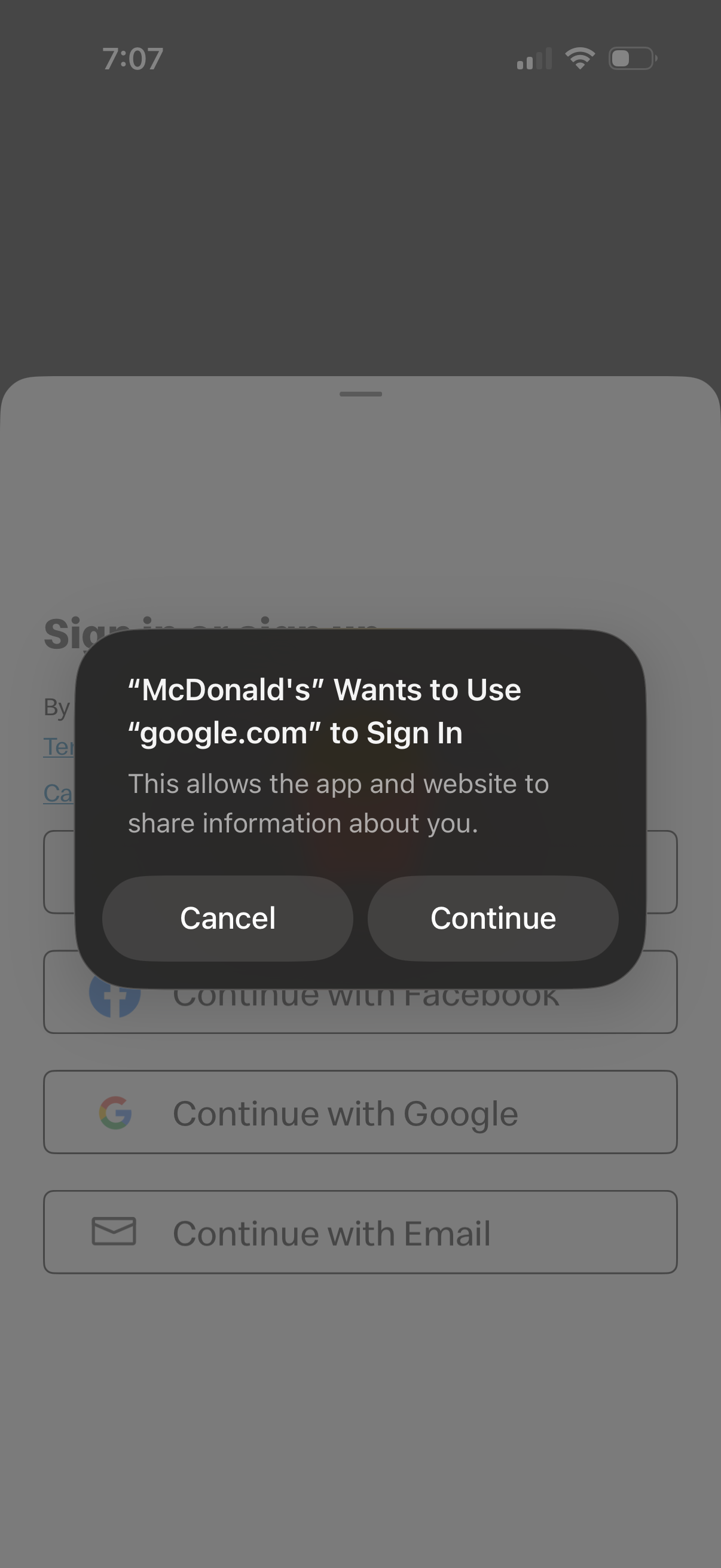
A native iOS authentication consent modal asks to allow the app to use a web domain (google. com) to sign in and share information, with primary actions to Cancel or Continue.
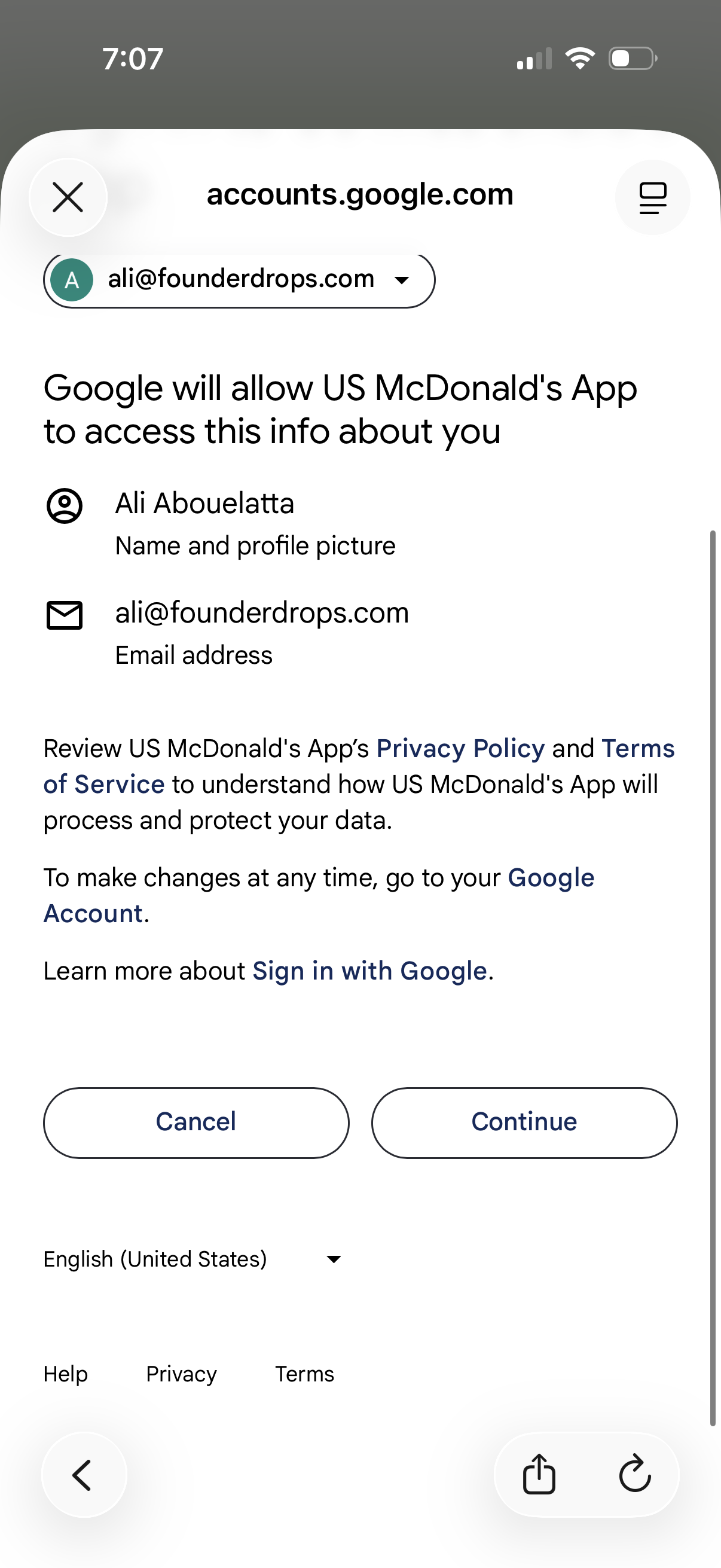
Google OAuth consent screen in a mobile web view showing what profile data an app will access (name/profile photo and email) with links to privacy policy and terms. Primary actions are to cancel or continue to proceed with “Sign in with Google” for third-party app authentication.
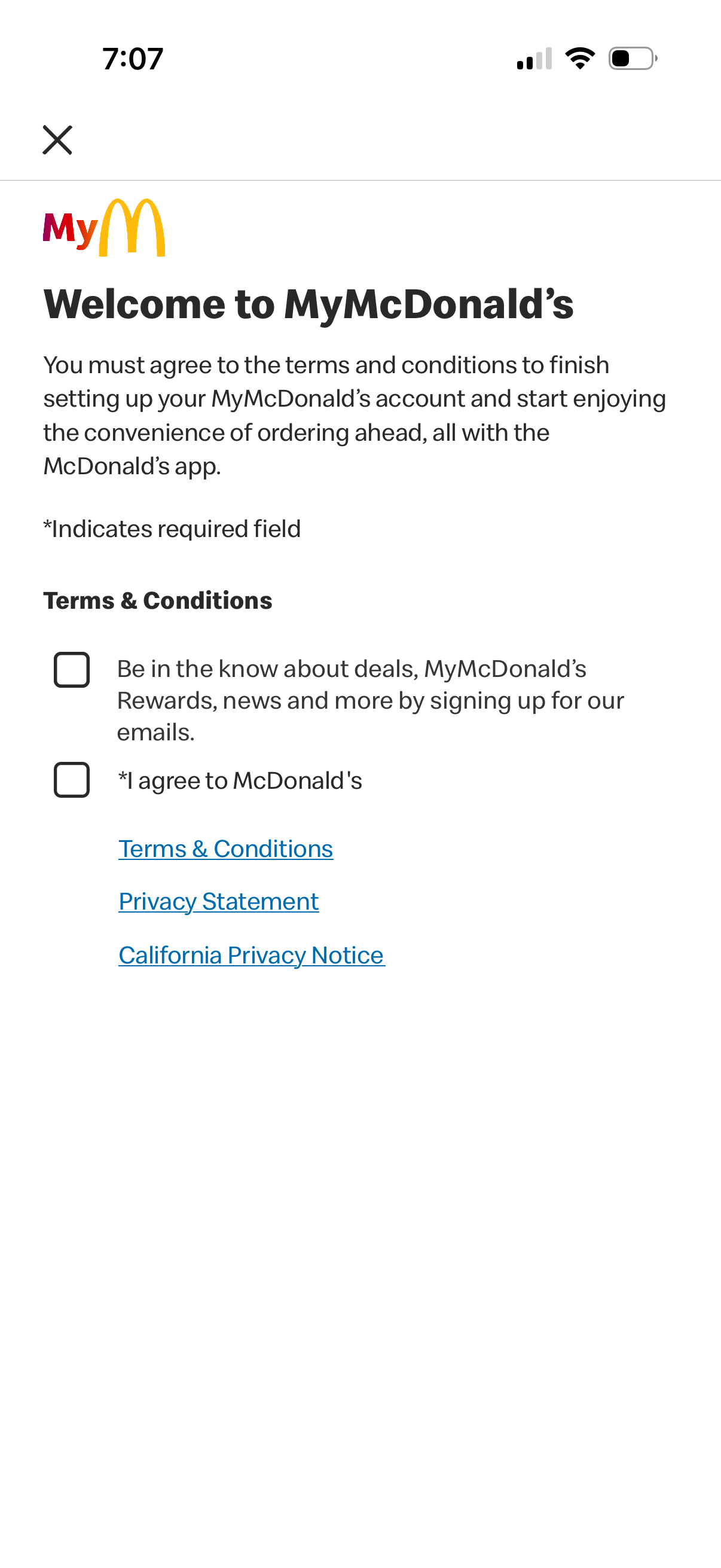
Account setup welcome screen prompting users to accept terms and conditions to finish creating a MyMcDonald’s account and enable ordering ahead. Includes checkboxes for optional email marketing signup and required agreement consent, plus links to Terms & Conditions, Privacy Statement, and California Privacy Notice with a close button.
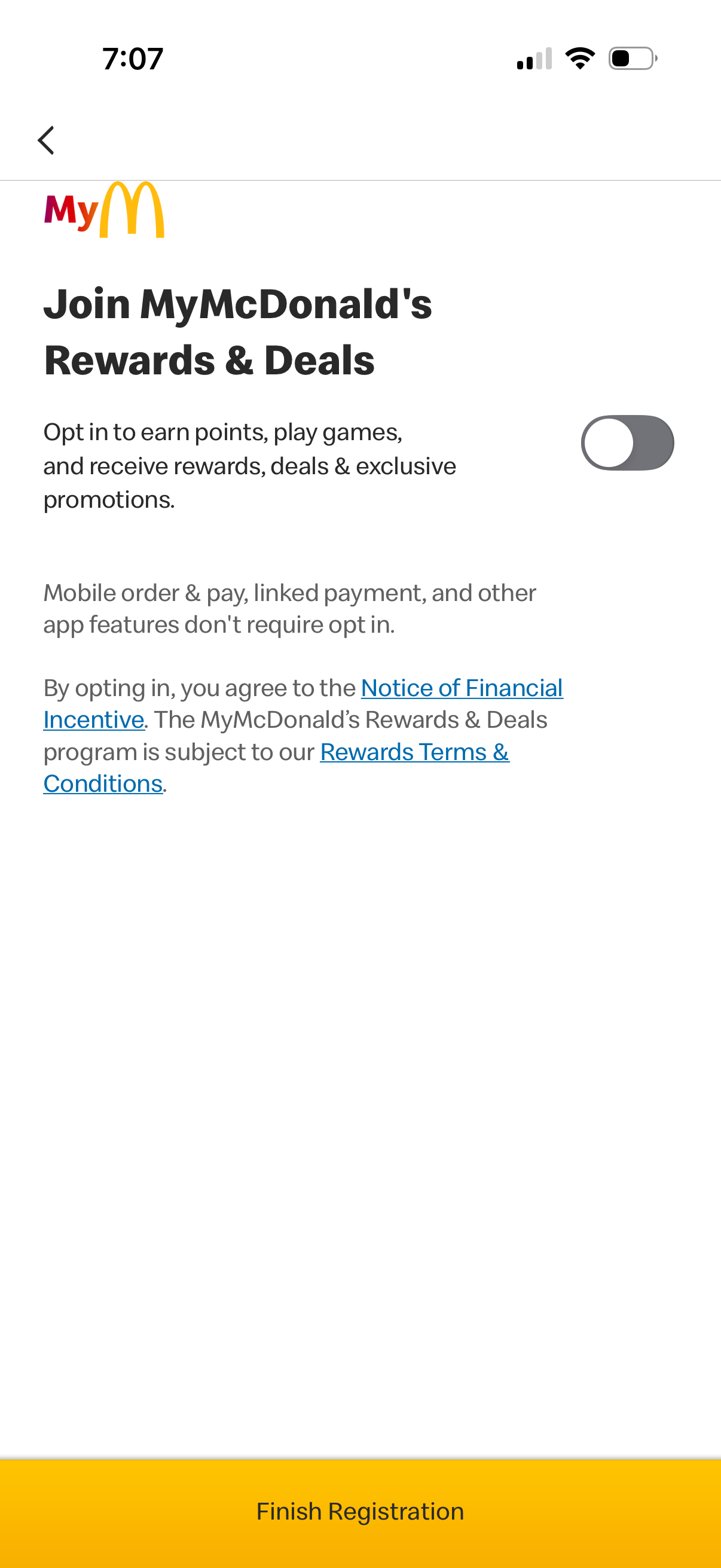
Loyalty program opt-in screen prompting users to join Rewards & Deals to earn points, play games, and receive exclusive promotions, with a toggle to enable participation. Includes legal links to incentive notice and rewards terms, plus a primary “Finish Registration” call-to-action to complete signup.
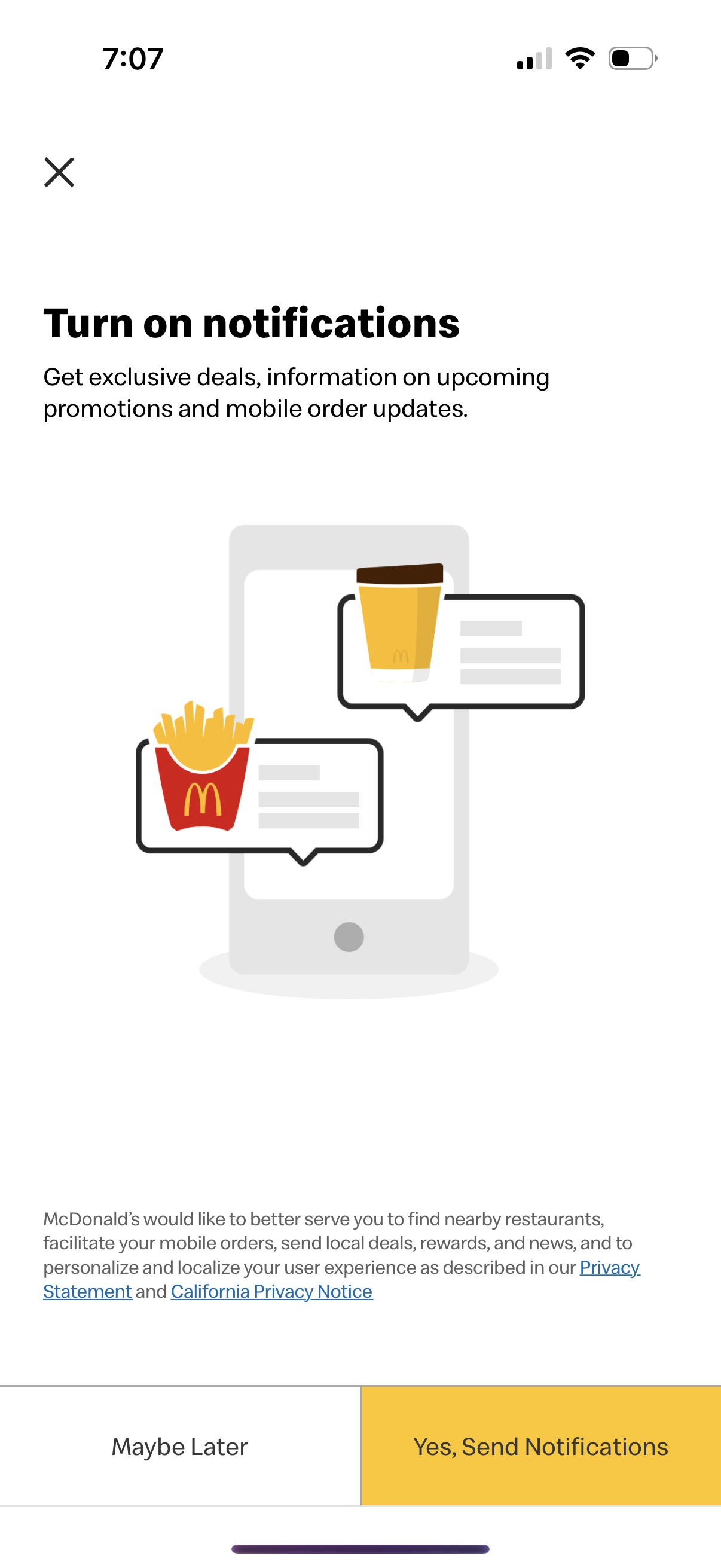
Notification permission prompt encouraging users to turn on push notifications to receive exclusive deals, promotions, and mobile order updates. Provides primary CTA to enable notifications, a secondary “Maybe Later” option, and a close icon with brief privacy/legal links.
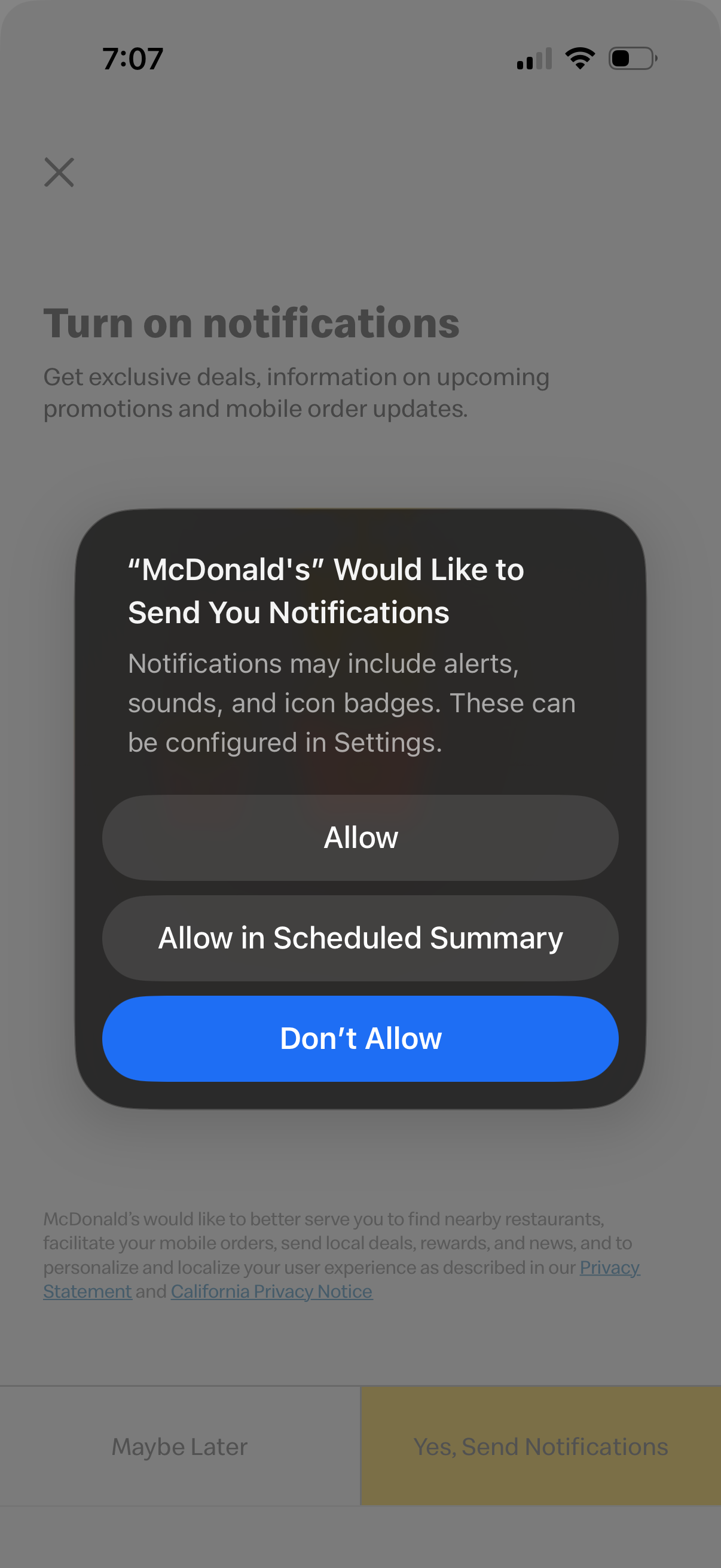
iOS push notification permission prompt asking to allow an app to send notifications, with actions to Allow, Allow in Scheduled Summary, or Don’t Allow. The underlying onboarding screen encourages turning on notifications for deals, promotions, and order updates with options to confirm or choose “Maybe later.
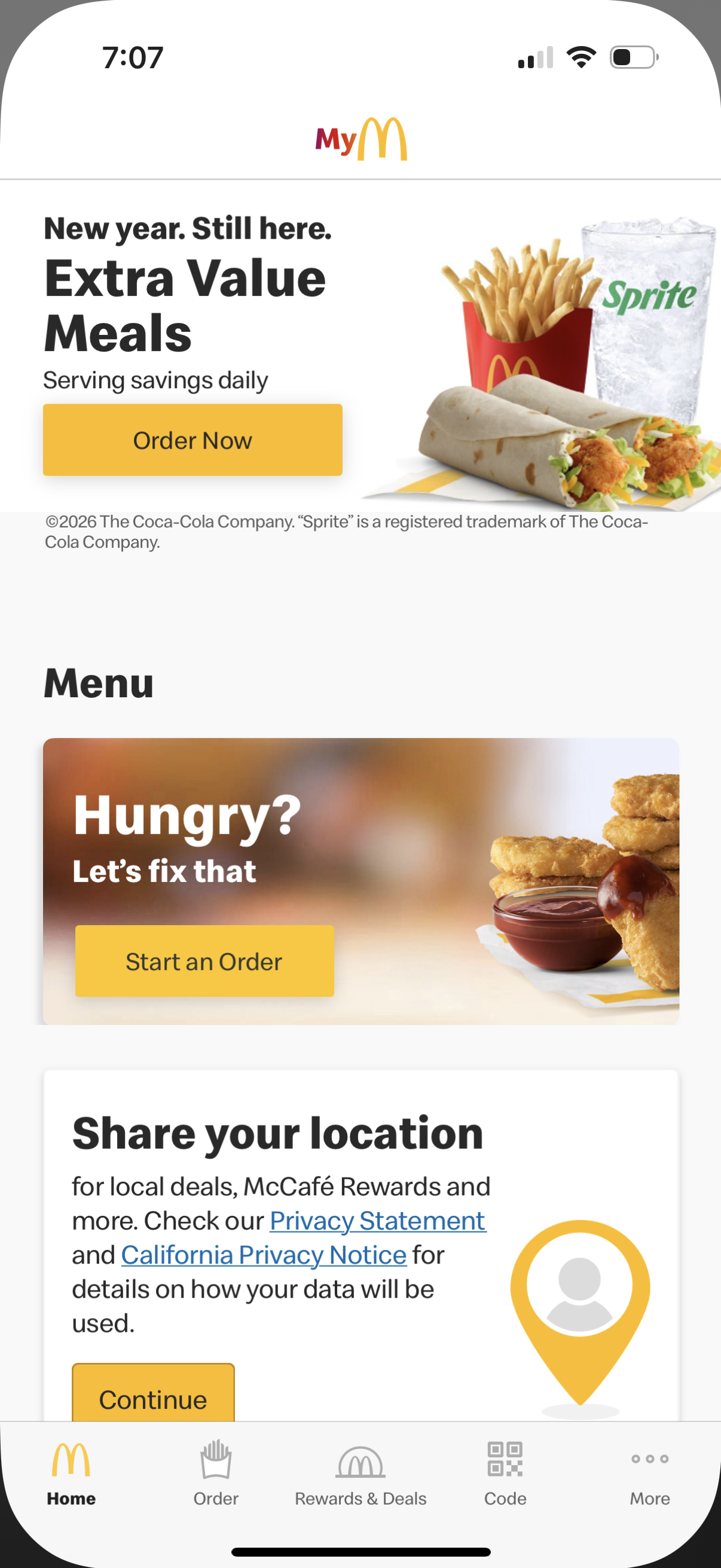
Home screen of a fast food ordering app showing promotional banners for value meals and a “Start an Order” call-to-action to browse the menu and place an order. The page also includes a location-sharing prompt for local deals and rewards, with bottom navigation tabs for Home, Order, Rewards & Deals, Code/QR, and More.