Onboarding
Onboarding welcome screen for a weight loss and fitness tracking app showing the app logo with icons for goals, food logging, barcode scanning, measurements, workouts, and progress charts. Primary calls to action at the bottom let users create an account or sign in.
iOS App Tracking Transparency permission popup asking whether to allow the app to track activity across other companies’ apps and websites for personalized ads. Provides two actions: “Ask App Not to Track” or “Allow,” with a back navigation option behind the modal.

Onboarding welcome screen for a nutrition or weight-loss app that introduces a personalized plan setup flow, showing a step list for Weight Goal, Calorie Budget, Calorie Schedule, Nutrition Strategy, and Intermittent Fasting. Includes a back navigation option and a prominent “Continue” button to proceed.

Onboarding goal selection screen asking “What’s your primary goal? ” with multiple choice buttons such as lose weight, improve overall health, gain control over eating habits, build better long-term habits, and feel more confident in my body, plus a back navigation option.
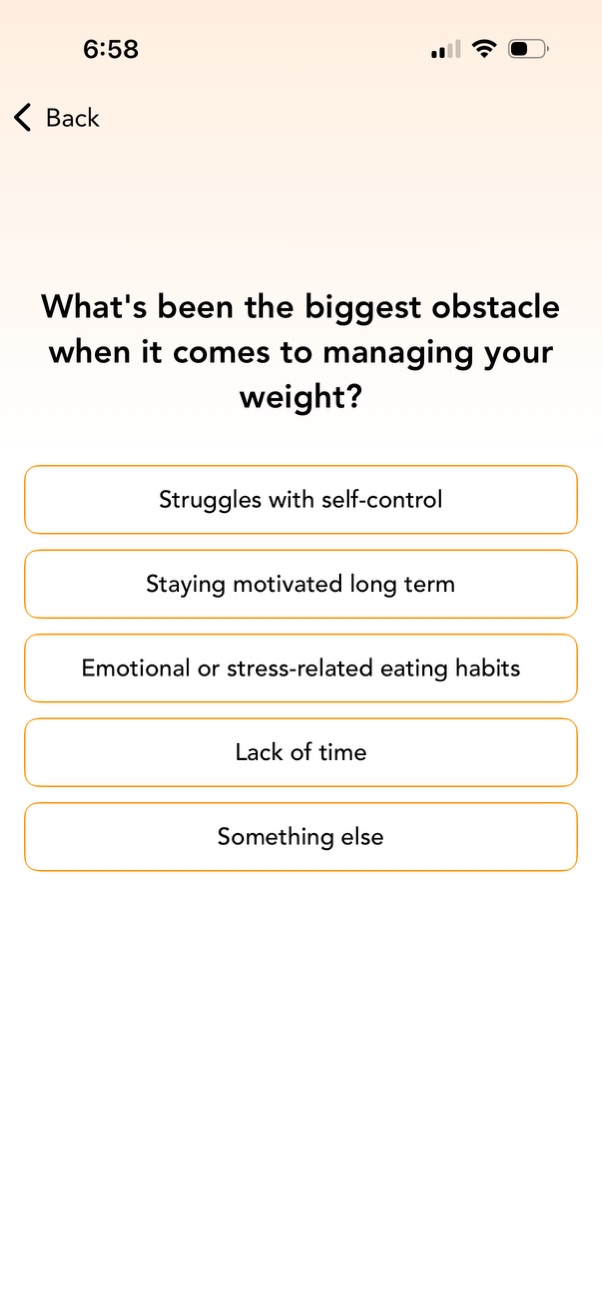
Onboarding survey screen for a weight management app asking users to choose their biggest obstacle in managing weight. Provides multiple-choice buttons such as self-control, staying motivated long term, emotional/stress eating, lack of time, or “something else,” with a back navigation option.

A self-assessment survey screen asking how confident the user is in achieving their goals, likely part of onboarding or coaching setup. Users select one of four multiple-choice confidence levels, with a back navigation option.
A survey or onboarding confirmation screen that thanks the user for sharing their thoughts and explains the app will use their challenges and mindset to build a personalized plan. Includes a back navigation link and a prominent “Continue” button to proceed to the next step.
Onboarding screen for a weight loss/fitness tracking app prompting the user to set a weight goal, with a back navigation option and a primary “Continue” button to proceed. It includes motivational social proof text about total community weight loss.
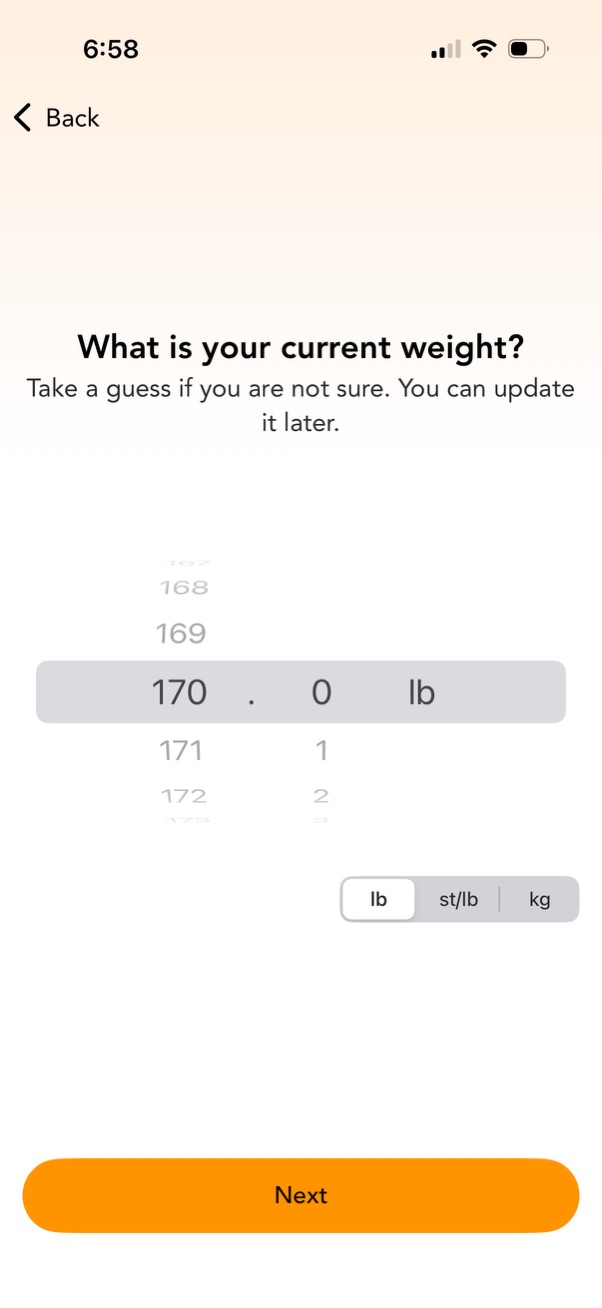
Onboarding form screen asking the user to enter their current weight using a scroll wheel picker with decimal selection and unit toggle (lb, st/lb, kg). Includes back navigation and a primary “Next” button to continue.

Onboarding screen in a weight loss or fitness app prompting the user to set a goal weight, explaining short-term vs long-term targets and that goals can be adjusted. Includes a back navigation option and a primary “Continue” button to proceed.

Onboarding screen for a fitness or weight-loss app asking the user to set a goal weight using a scrolling number picker with decimal and unit selector (lb, st/lb, kg), with Back navigation and a primary Next button to continue.
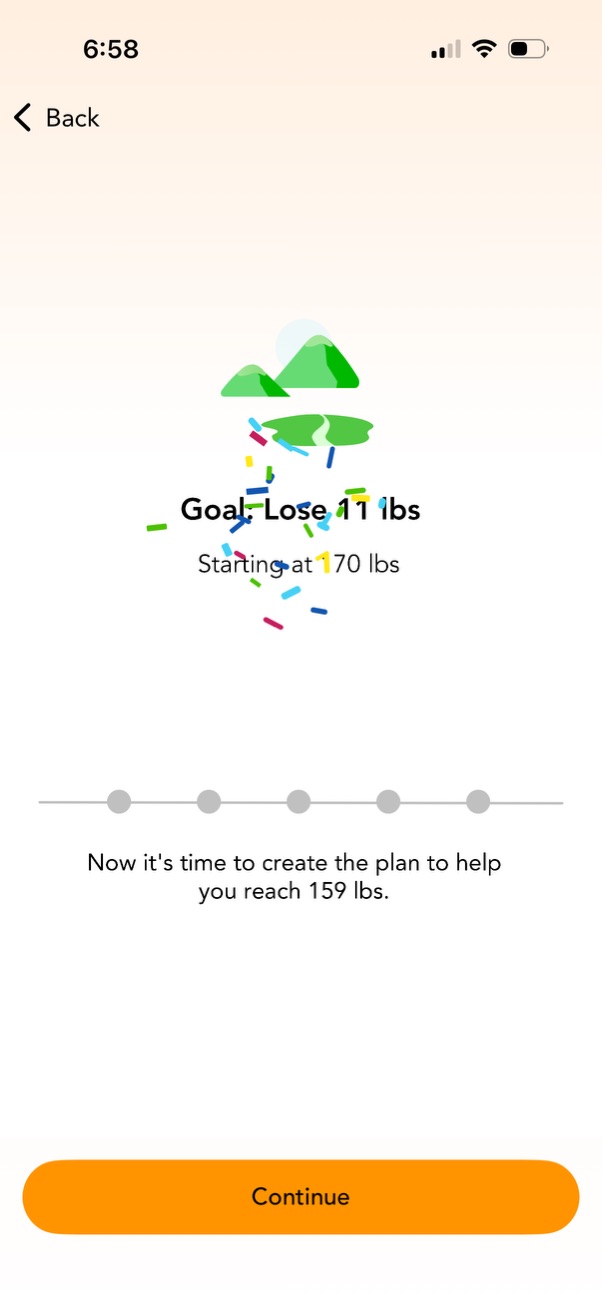
Weight loss goal confirmation screen in an onboarding flow showing the selected target (lose 11 lbs) and starting weight, with a brief message about creating a plan to reach the goal. Includes progress dots, a back navigation option, and a primary “Continue” button to proceed.

Onboarding step in a nutrition or weight loss app introducing the user’s calorie budget as a key part of their program. Includes a back navigation option and a primary “Continue” button to proceed to the calorie budget setup.

Onboarding question screen in a calorie tracking/health app asking “Have you counted calories before? ” with two primary choice buttons (Yes/No) and a back navigation option to personalize the user’s experience.

Onboarding survey screen in a nutrition/fitness app asking “How did you last count calories? ” with multiple-choice buttons (using an app, on a website, by taking notes, or another way) and a back navigation option.

Onboarding survey screen asking “Which app did you use? ” to identify a previously used weight loss or calorie tracking app.

Onboarding comparison screen for a weight-loss calorie tracking app explaining how it differs from a competitor, highlighting privacy/security, a large food database with offline access, and proven success statistics. Users can go back or tap a prominent “Continue” button to proceed.
Onboarding prompt in a calorie counting or nutrition app asking if the user wants a quick refresher on how calorie counting works, with a back navigation and two primary options to proceed: “Yes, please! ” or “No, thanks.

Onboarding education screen for a weight loss/calorie tracking app explaining that weight loss is based on calories in vs calories out and that the app will create a personalized calorie budget to track food. Includes a back navigation option and a primary “Continue” button to proceed.
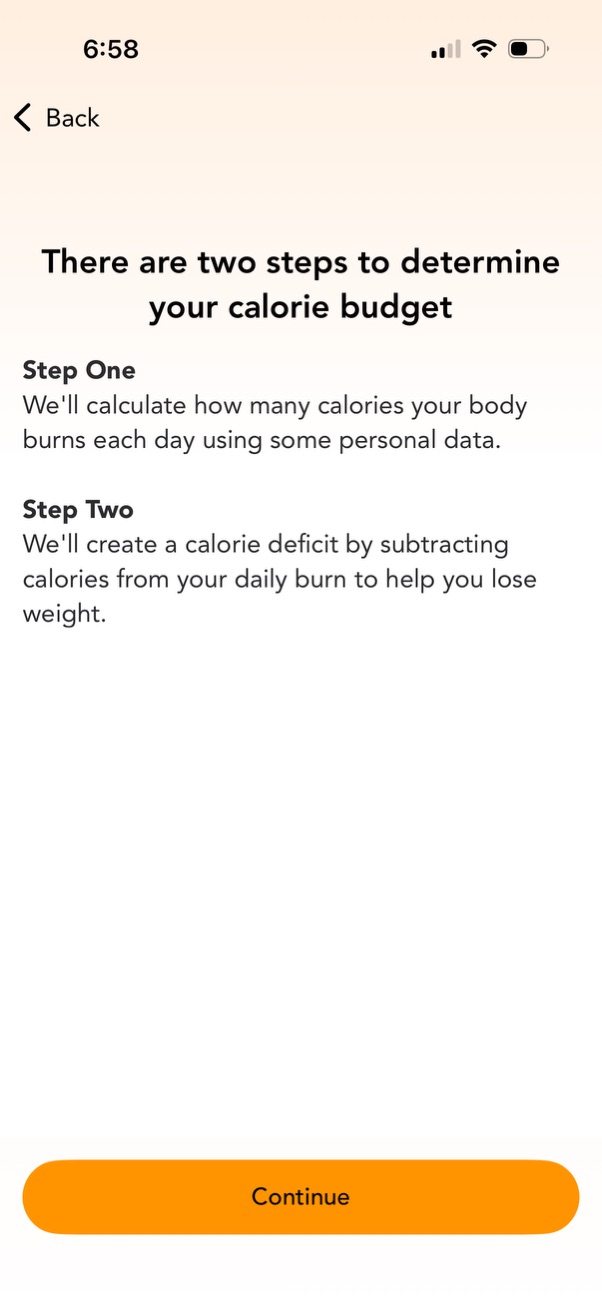
Onboarding explainer screen in a weight loss/calorie tracking app describing the two-step process to determine a user’s calorie budget by calculating daily calorie burn from personal data and creating a deficit for weight loss. Includes a back navigation option and a primary “Continue” button to proceed.

Onboarding step introduction screen for a health or calorie tracking app explaining that the user will provide birthday, height, and gender to estimate daily calories burned. Includes a back navigation link and a primary “Continue” button to proceed to the data entry flow.

Onboarding form screen prompting the user to enter their date of birth using an iOS-style wheel date picker (month, day, year). Includes a back navigation link and a prominent “Next” button to continue.

Onboarding profile setup screen asking the user to enter their height using a scroll wheel picker for feet and inches, with a unit toggle between ft/in and cm. Includes back navigation and a prominent Next button to continue.

Onboarding profile setup screen prompting the user to select their gender, offering large selectable buttons for Female, Male, Non-Binary, or Prefer Not To Say. Includes a back navigation option to return to the previous step.

Onboarding confirmation screen in a weight loss calorie tracking app stating that daily calorie burn has been calculated and prompting the user to choose how many calories to subtract to set a calorie budget. Includes a back navigation and a prominent “Continue” button to proceed to the next setup step.
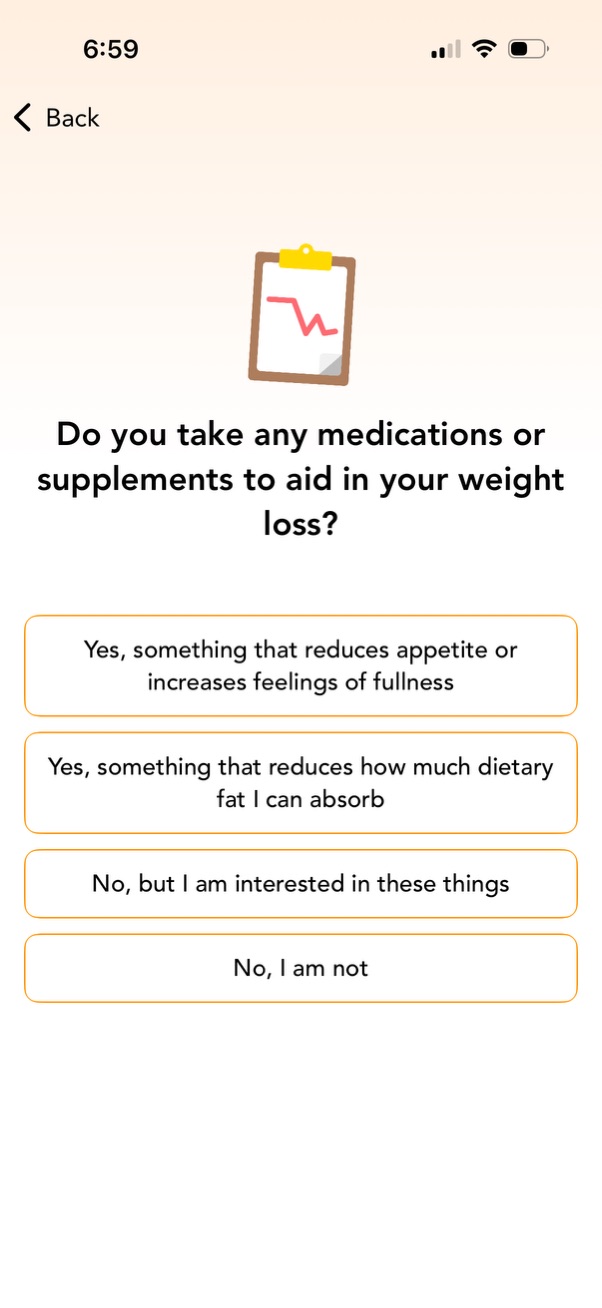
A health/weight loss onboarding questionnaire screen asking whether the user takes any medications or supplements to aid weight loss. Provides multiple-choice options for appetite suppressants, fat absorption reducers, interested but not taking, or not interested, with a back navigation control.
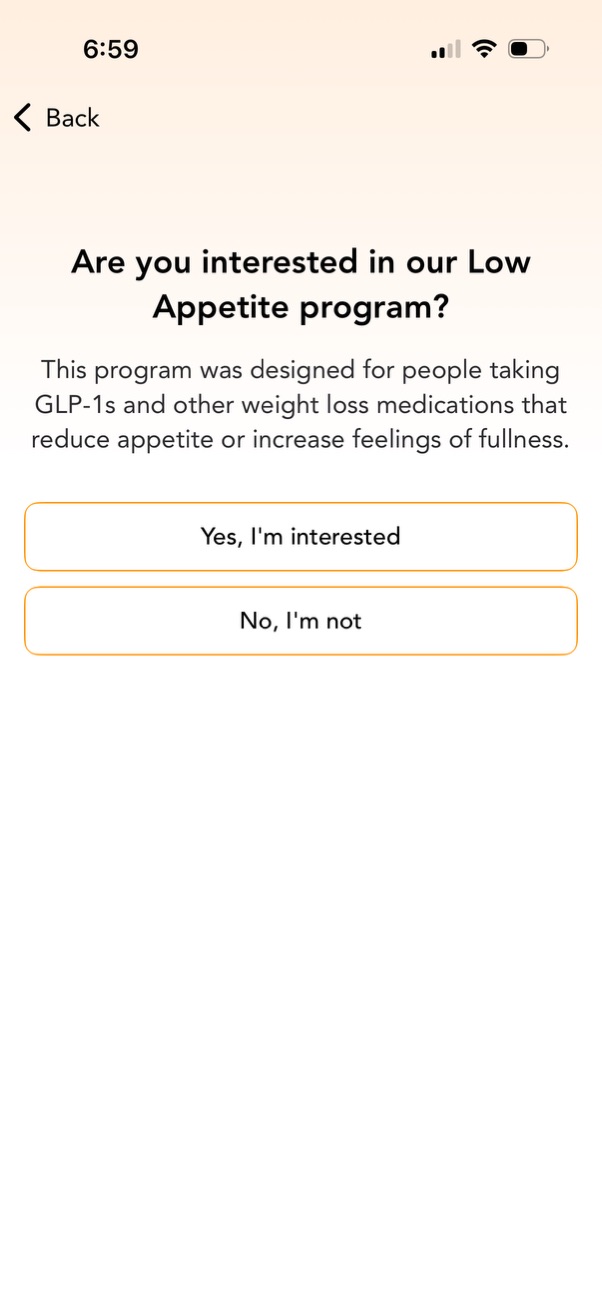
Onboarding opt-in screen asking if the user is interested in a Low Appetite program designed for people taking GLP-1 and other weight loss medications that reduce appetite or increase fullness. Provides two primary actions to confirm or decline interest (“Yes, I’m interested” or “No, I’m not”) with a back navigation option.
Medical disclaimer confirmation screen stating the content is not medical advice and encouraging users to consult a doctor about appropriate lifestyle behaviors. Provides navigation with a Back link and a primary “Continue” button to proceed.
Onboarding screen in a weight loss/calorie tracking app introducing the next step to determine the user’s calorie budget and choose a recommended weight loss plan for lower appetites. Includes a back navigation option and a prominent “Continue” button to proceed.

Weight loss plan selection screen showing a recommended plan card (“Steady”) with details like daily calorie target, expected weekly weight loss, and estimated weeks to reach goal. Users can choose the plan by tapping a prominent Select button, with adjacent cards indicating alternative plan options.

A fitness or weight-loss onboarding screen that confirms the user’s personalized daily calorie budget (e. g.

Onboarding question screen in a weight loss and calorie tracking app asking whether the user plans to exercise while losing weight. Provides two large CTA buttons to select “Yes, most likely” or “No, probably not,” with a back navigation option.

Onboarding survey screen asking users to select what best describes their exercise plans. Provides multiple-choice buttons to start exercising, increase exercise, maintain the same amount, or indicate they’re not sure yet, with a back navigation option.
Educational confirmation screen in a weight loss or fitness onboarding flow explaining the benefits of exercise and recommending strength training, with guidance about calorie budgeting and consulting a doctor. Includes a back navigation option and a primary “Continue” button to proceed building the program.

Onboarding confirmation screen for a weight loss or calorie tracking app showing the user’s daily calorie budget and target rate of weight loss, indicating the budget is locked in and prompting to further personalize the program. Includes a progress indicator, back navigation, and a primary “Continue” button to proceed.

Onboarding screen in a nutrition/weight loss app explaining the “calorie schedule” feature for banking calories across days, asking if it’s right for the user. Provides primary actions to skip the feature (recommended) or add a calorie schedule to their plan.

Onboarding explainer screen for a nutrition/weight loss app asking whether a calorie schedule feature is right for the user, describing “banking” calories by eating less on some days. Provides primary actions to skip the feature (recommended) or add a calorie schedule, with a back navigation option.
Confirmation screen in a calorie tracking or diet plan onboarding flow that sets a fixed daily calorie goal (e. g.

Onboarding step in a health or fitness app introducing the nutrition section, explaining that it will learn the user’s priorities to create a personalized strategy. The screen includes a back button and a prominent “Continue” CTA to proceed to the next onboarding question.
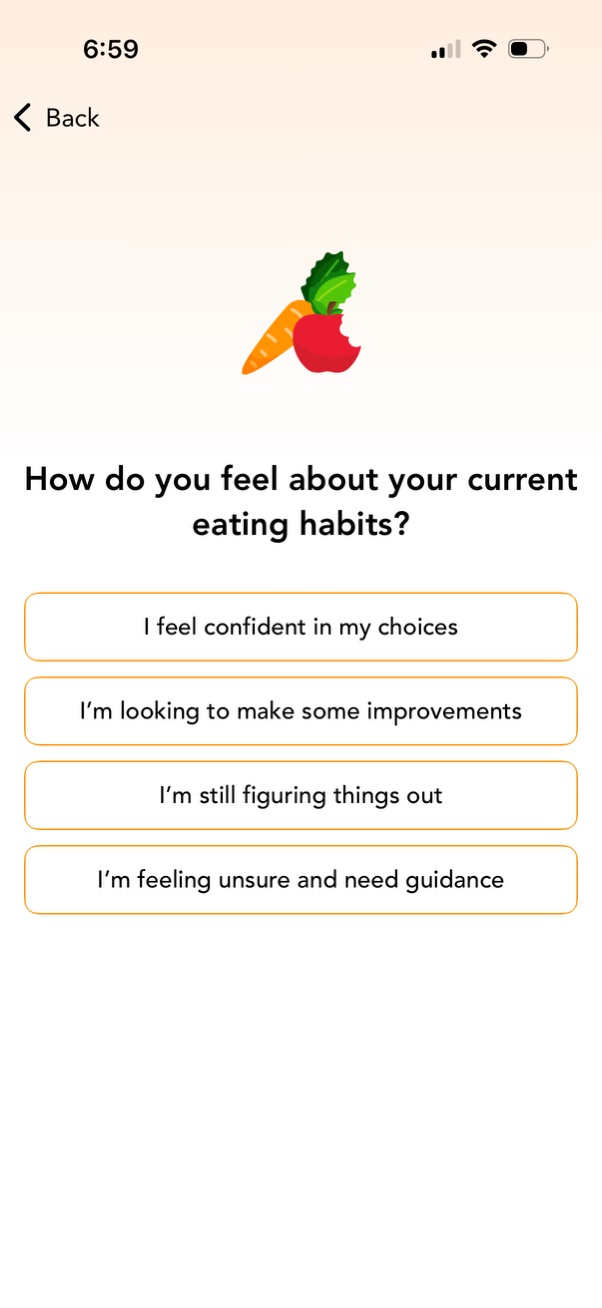
Onboarding survey screen for a nutrition or healthy eating app asking how the user feels about their current eating habits. Provides multiple choice buttons to select confidence level or need for improvement/guidance, with a back navigation option.
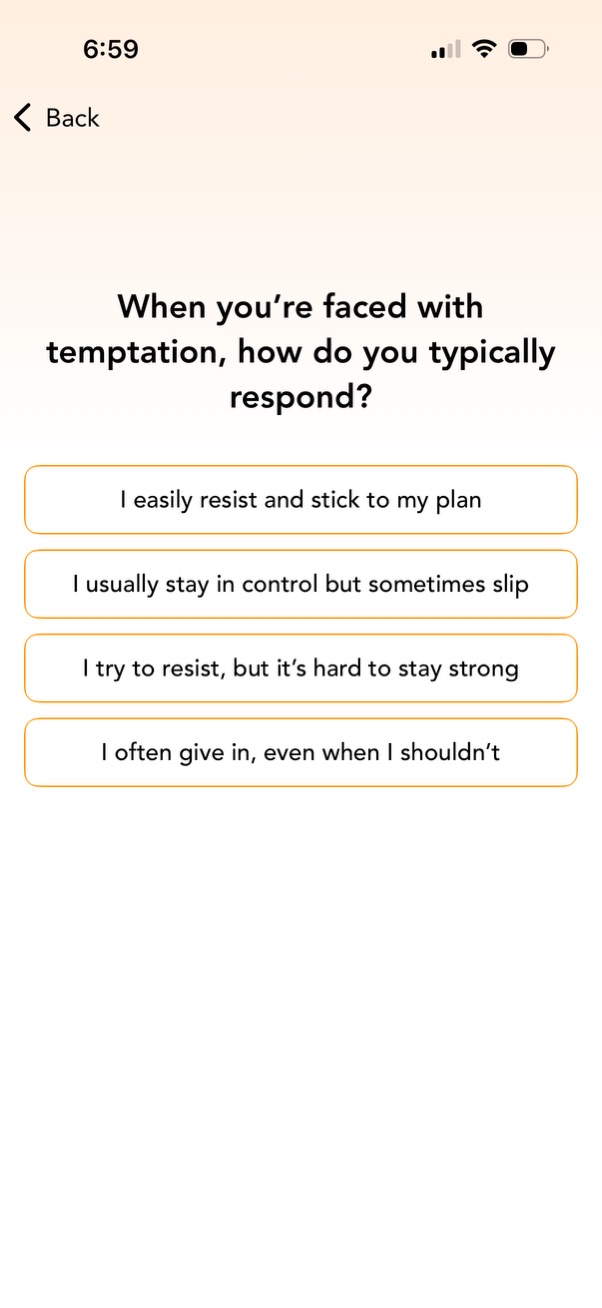
An onboarding assessment question screen for a wellness or habit app asking how the user responds to temptation. Users select one of four multiple-choice answers presented as large tappable buttons, with a back navigation option.

Onboarding preference question screen for a nutrition/food app asking “What’s most important to you when it comes to food? ” Users select one option from multiple large buttons such as enjoyment, nutritious meals, convenience, affordability, or balancing diet with health goals, with a back navigation control.
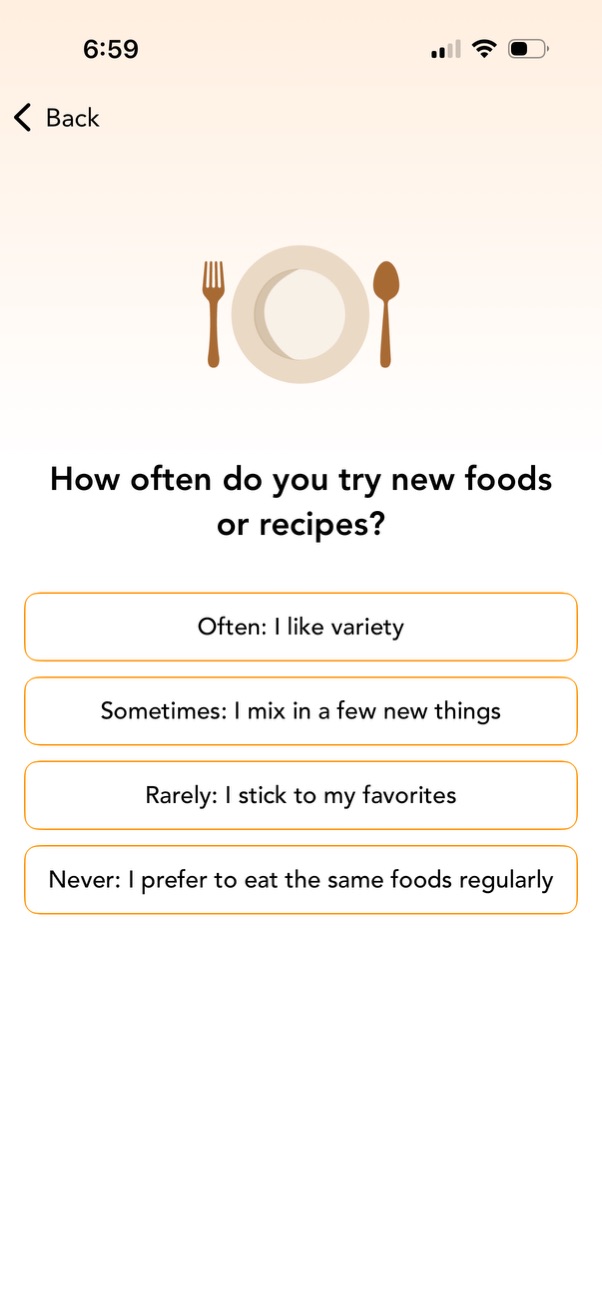
Onboarding survey screen for a food or meal-planning app asking “How often do you try new foods or recipes? ” with multiple-choice selection buttons (often, sometimes, rarely, never) to personalize recommendations, plus a back navigation control.
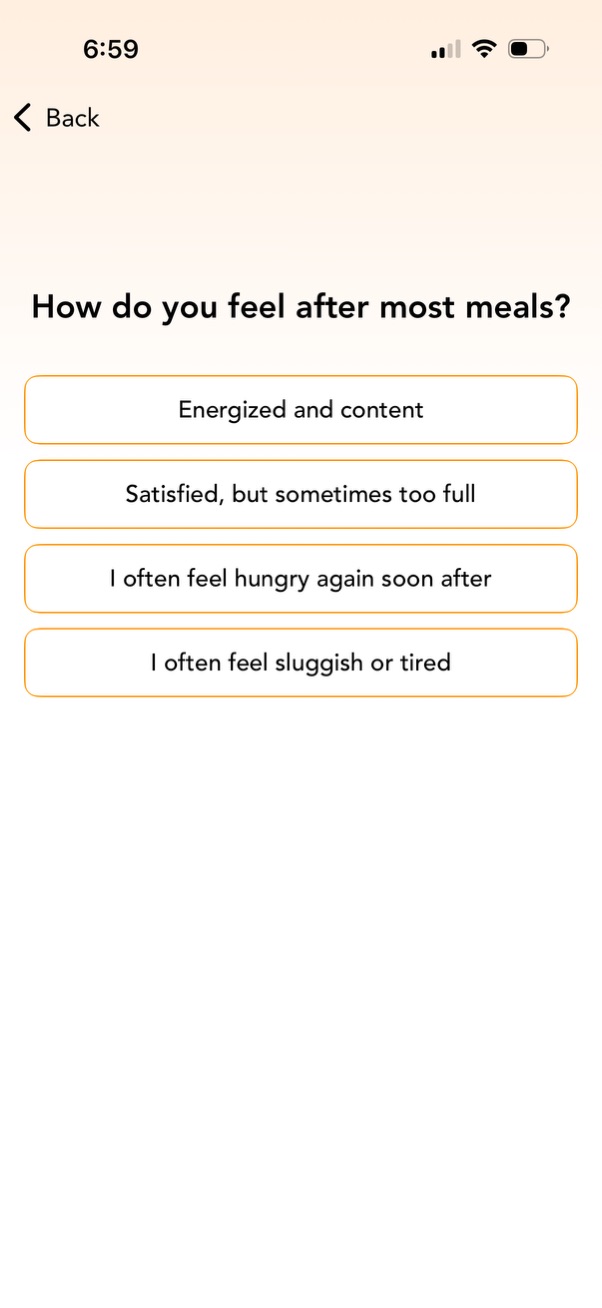
Onboarding survey question screen for a nutrition or wellness app asking “How do you feel after most meals? ” Users select one of several multiple-choice options (energized, too full, hungry soon after, sluggish/tired) with a back navigation control.

Onboarding prompt asking whether the user wants to track nutrition as part of a low appetite nutrition strategy, with an explanation of benefits. Provides two primary actions: opt in to nutrition tracking (recommended) or choose to focus only on calorie tracking.

Nutrition strategy detail screen for a “Low Appetite” plan, explaining who the strategy is for (e. g.

Minimal blank step screen in a mobile flow with a back navigation link in the top left and a prominent bottom “Continue” primary button to proceed to the next step.

Confirmation screen in a nutrition or diet-planning app showing that a “Low Appetite Strategy” has been applied, with celebratory confetti and a progress step indicator. Includes a primary “Continue” button to proceed and a back navigation option.

Educational onboarding screen in a health or nutrition app explaining intermittent fasting with guidance and caveats, offering a choice to skip fasting (recommended) or add/set up a fasting schedule, with a back navigation option.
Confirmation screen in a health or diet onboarding flow indicating the user will continue without enabling intermittent fasting, with a note that it can be added later. Includes a back navigation option and a primary “Continue” button to proceed.
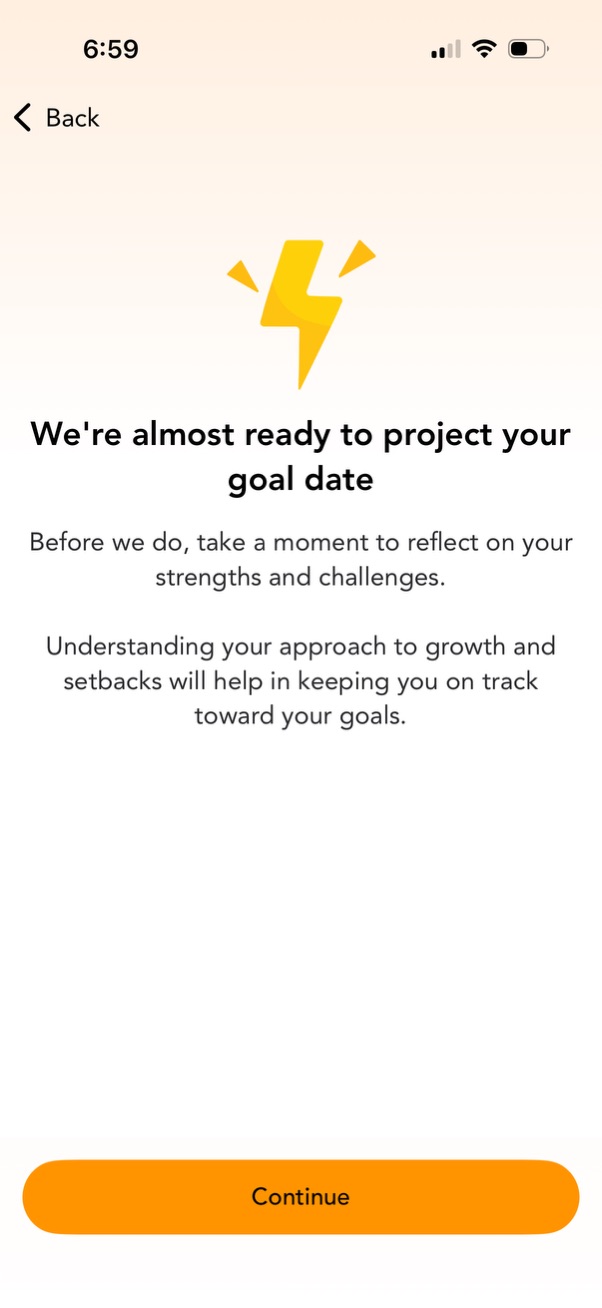
Onboarding coaching screen that prepares to project a user’s goal completion date by prompting reflection on strengths, challenges, growth, and setbacks. Includes a back navigation link and a primary “Continue” button to proceed.

A self-assessment onboarding survey screen asking “How do you view challenges? ” with multiple-choice response buttons to select a mindset or attitude toward difficulty.

Questionnaire survey screen asking “How do you handle unexpected changes? ” with multiple-choice answer buttons for self-assessment.

A self-assessment questionnaire screen asking how confident the user is in making the right decisions for themselves, with multiple-choice answer buttons ranging from fully trusting choices to frequently second-guessing. Includes a back navigation option to return to the previous step.
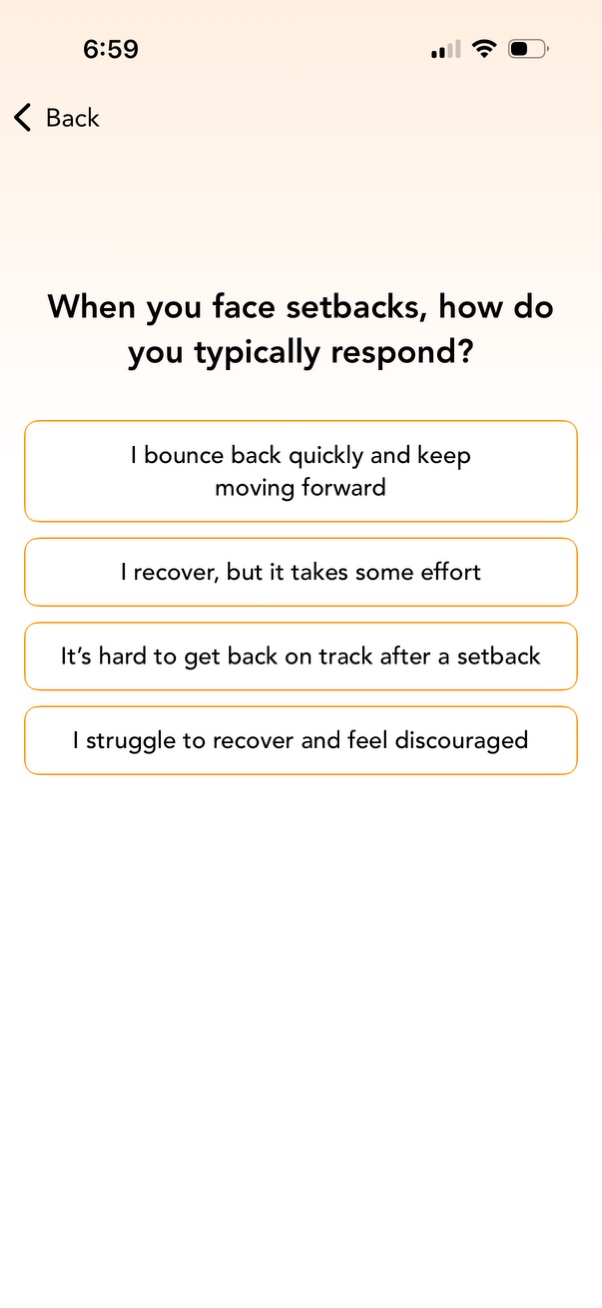
Self-assessment survey question screen asking “When you face setbacks, how do you typically respond? ” with four selectable multiple-choice options describing resilience levels.
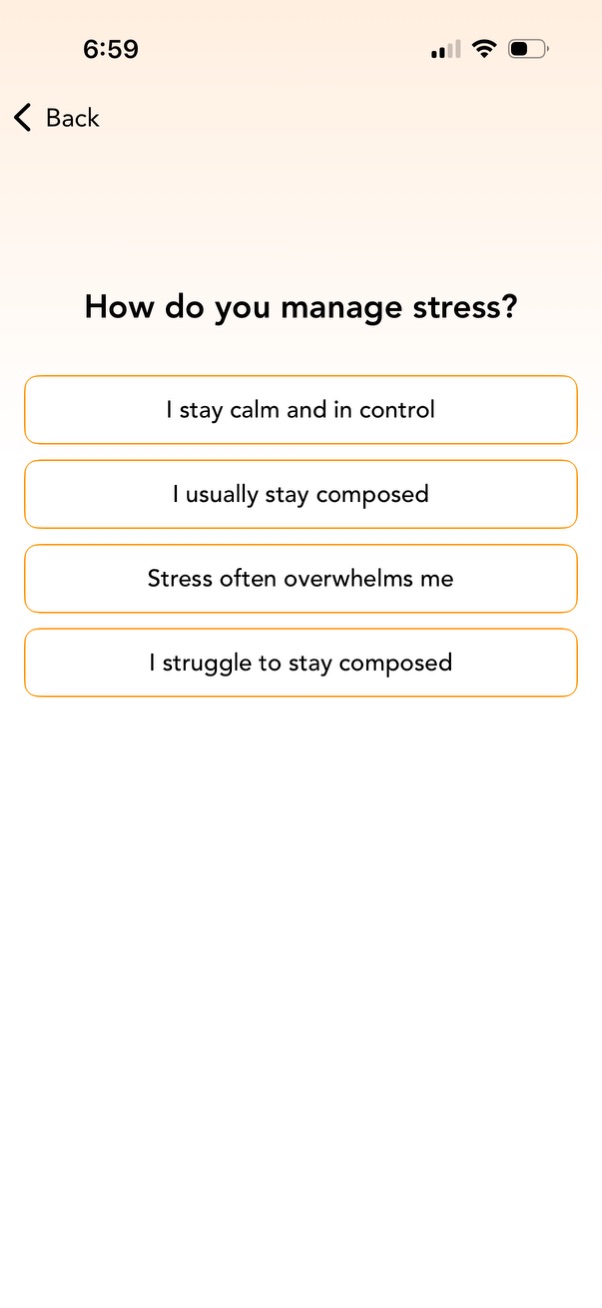
Mental health onboarding questionnaire screen asking “How do you manage stress? ” with multiple-choice button options ranging from staying calm and composed to feeling overwhelmed or struggling, plus a back navigation action.

Self-assessment questionnaire screen asking “How do you handle difficult situations? ” with multiple-choice response buttons ranging from handling well to feeling overwhelmed.

Onboarding confirmation screen in a weight loss/fitness app informing the user the app will project their goal date and calculate when they’re expected to reach their goal weight based on prior answers. Includes a back navigation option and a prominent “Continue” button to proceed.

Loading/progress screen indicating “Generating Your Custom Plan…” with a back navigation option. Displays social proof with an app store rating badge showing 4.
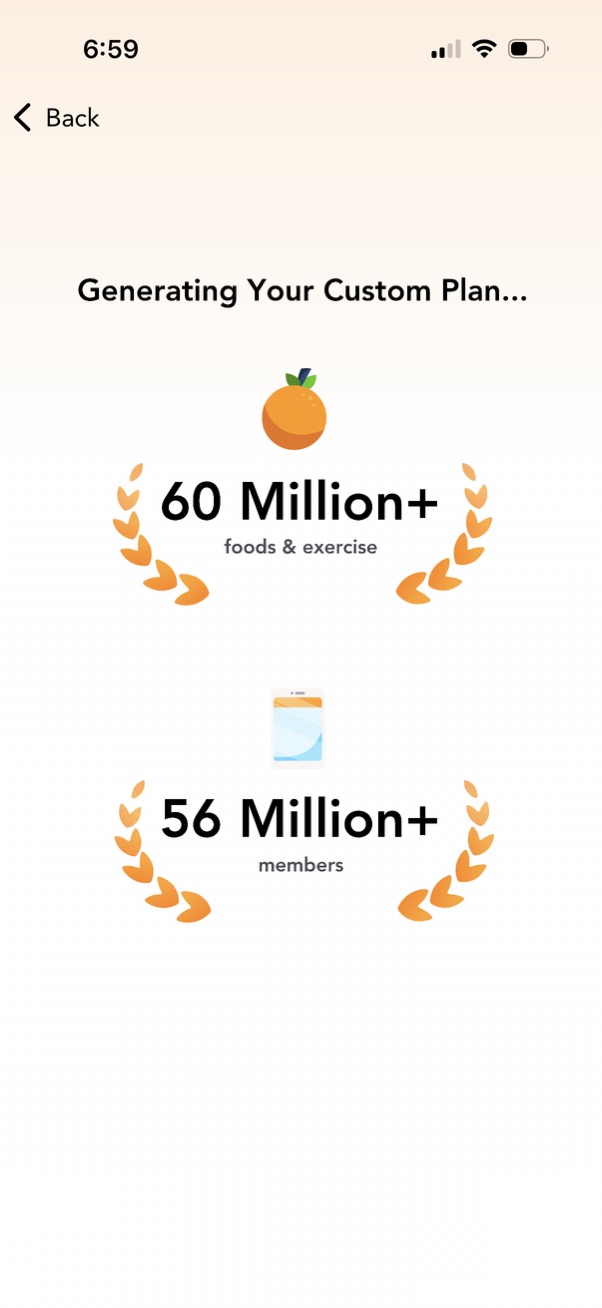
Loading screen for a fitness/nutrition app that is generating a personalized custom plan, showing a progress-style message and credibility stats (e. g.

Loading/progress screen indicating “Generating Your Custom Plan…” while the app creates a personalized plan. Minimal UI with only a back navigation option to exit the generation process.

Weight loss plan summary screen showing a projected target weight and timeline with a small progress chart, plus key settings like goal, daily calorie budget, calorie schedule, appetite strategy macros, and intermittent fasting status. Includes a primary call-to-action button to save the personalized program.
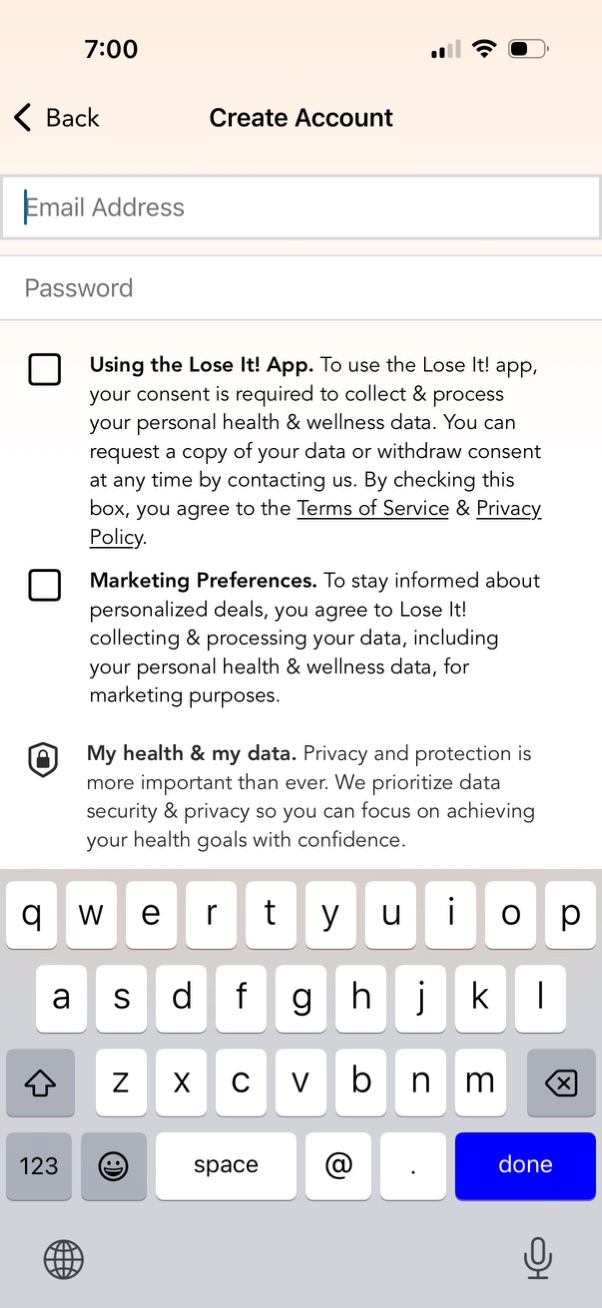
Create account sign-up screen with fields for email address and password, followed by required consent and optional marketing preference checkboxes. Includes links to Terms of Service and Privacy Policy and a privacy assurance section about health and wellness data collection and security.
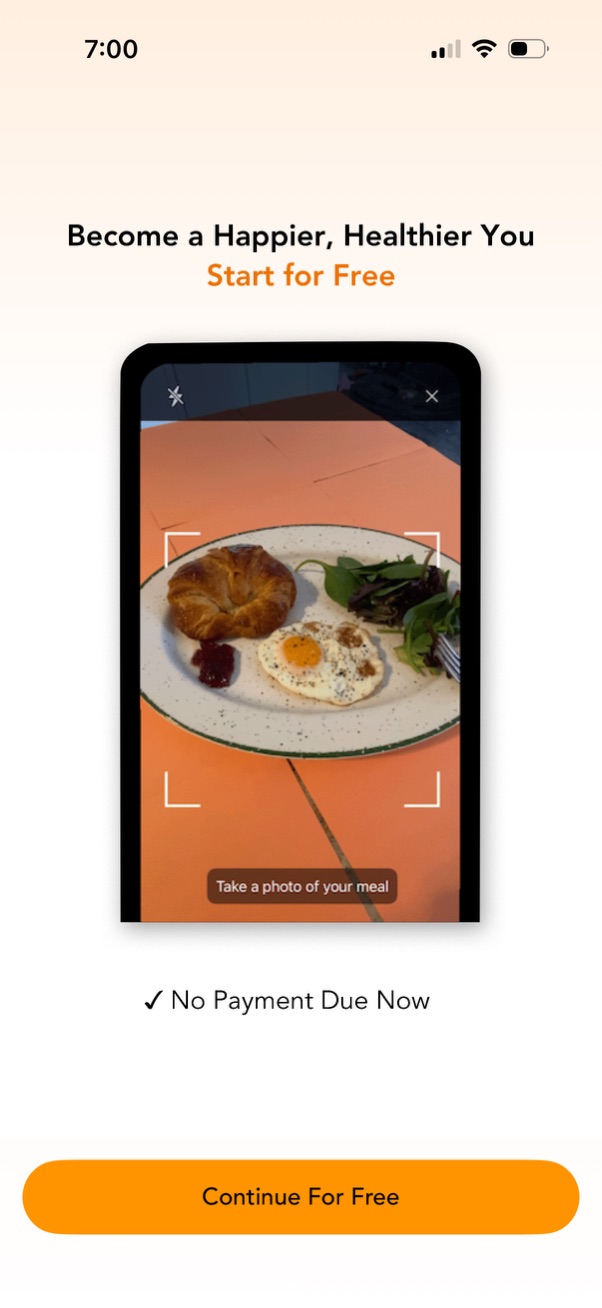
Onboarding/paywall-style screen for a health or nutrition app promoting “Start for Free,” featuring a preview of a meal photo scanning/logging camera (“Take a photo of your meal”). Highlights “No payment due now” and offers a primary CTA button to “Continue for Free” to start the free trial.

Free trial subscription confirmation screen that reassures users they’ll receive a reminder before the trial ends and that no payment is due now. Includes a back navigation and a prominent “Continue For Free” call-to-action to start the trial.

Subscription onboarding screen explaining how a 7-day free trial works with a timeline of milestones (program created, premium access today, reminder near end, trial ends and subscription starts). Shows ratings/social proof, states no payment due now and the post-trial annual price, with primary CTA to Start Free Trial plus option to subscribe via App Store and close/dismiss.

Subscription downgrade confirmation screen prompting the user to switch to a Basic plan because their program includes premium features, showing a list of locked premium items. Provides primary CTA to upgrade to Premium and secondary CTA to continue with the Basic plan.

Opt-in prompt for a weight loss/calorie tracking app encouraging users to enable push notifications, highlighting benefits like improved results and maintaining a logging streak. The screen presents a primary “Turn on notifications” CTA with a secondary “No thanks” option and a sample reminder notification preview.

iOS push notification permission prompt for an app, asking to allow notifications with options to Allow, Allow in Scheduled Summary, or Don’t Allow. The underlying screen encourages turning on notifications with a primary “Turn on notifications” CTA and a “No thanks” link.
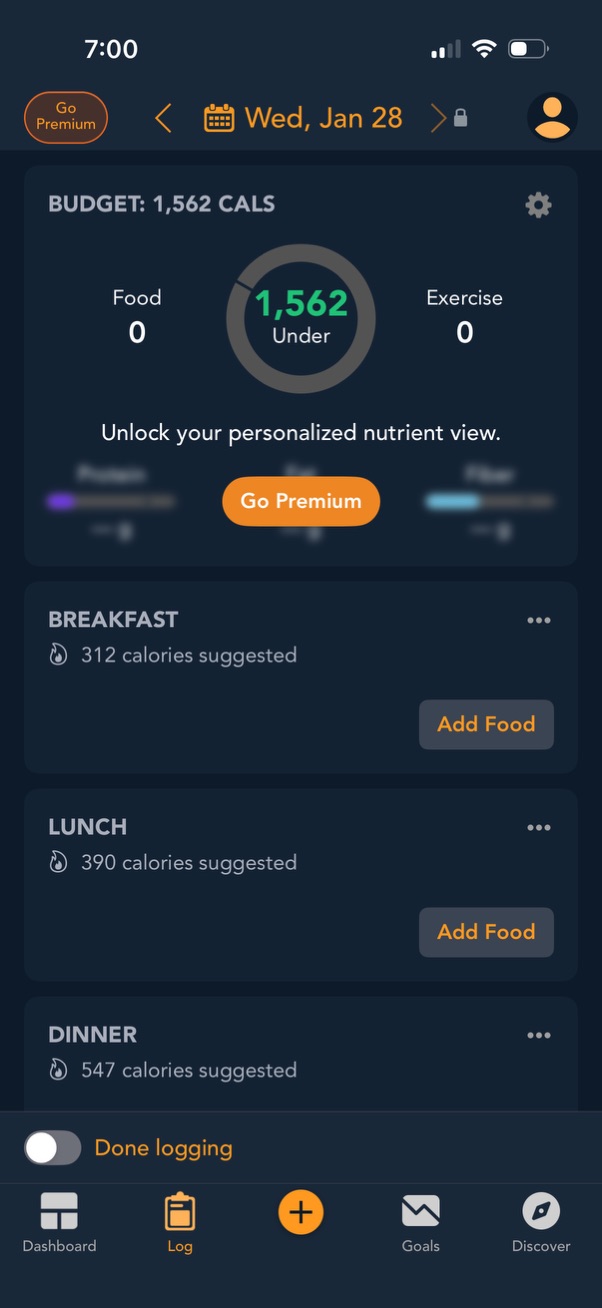
Daily food logging screen in a calorie tracker showing the day’s calorie budget with a circular progress indicator and summary of food vs exercise calories. Includes meal sections (breakfast, lunch, dinner) with suggested calories and “Add Food” actions, plus navigation to dashboard, log, goals, and discover and a “Done logging” toggle.