Onboarding

App launch splash screen with a dark background displaying the centered app logo/wordmark, shown while the app loads before onboarding or the home screen.

Meditation/sleep app onboarding or promo splash screen highlighting “15‑min relaxing bedtime journeys” to help users wind down for sleep. Minimal starry night background with centered headline emphasizing short guided bedtime sessions.

Sleep or wellness app onboarding splash screen with a starry night background and motivational tagline “to fall in love with sleep again,” serving as an intro/branding slide before setup or sign-in.
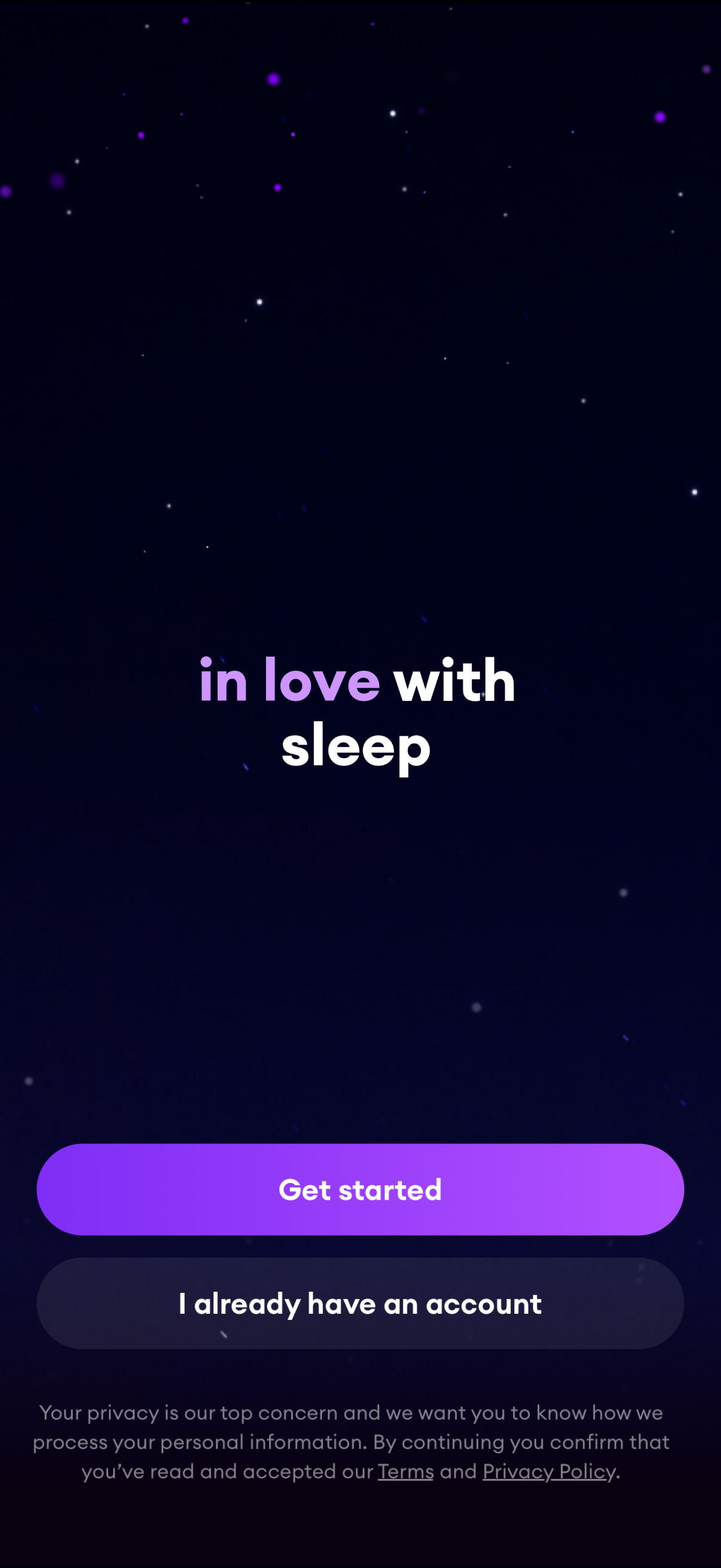
Sleep app welcome/onboarding screen with a headline and two primary actions: a “Get started” button for new users and an “I already have an account” button for returning users to sign in. Includes privacy and terms acknowledgment links at the bottom.
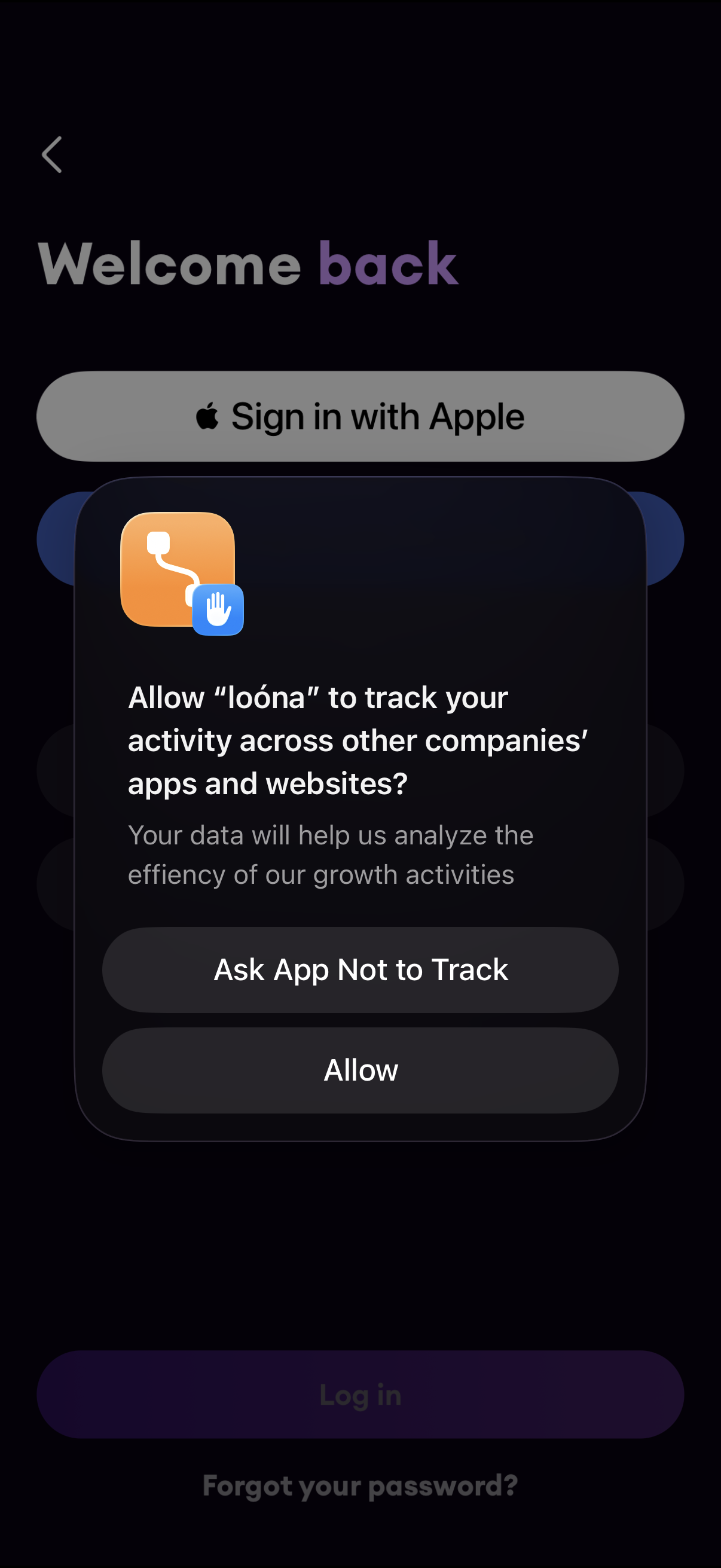
Login screen with a “Welcome back” header and a prominent Sign in with Apple button, with options to log in and recover a forgotten password. An iOS App Tracking Transparency permission modal overlays the page asking to allow tracking across other apps and websites, offering “Ask App Not to Track” or “Allow” actions.
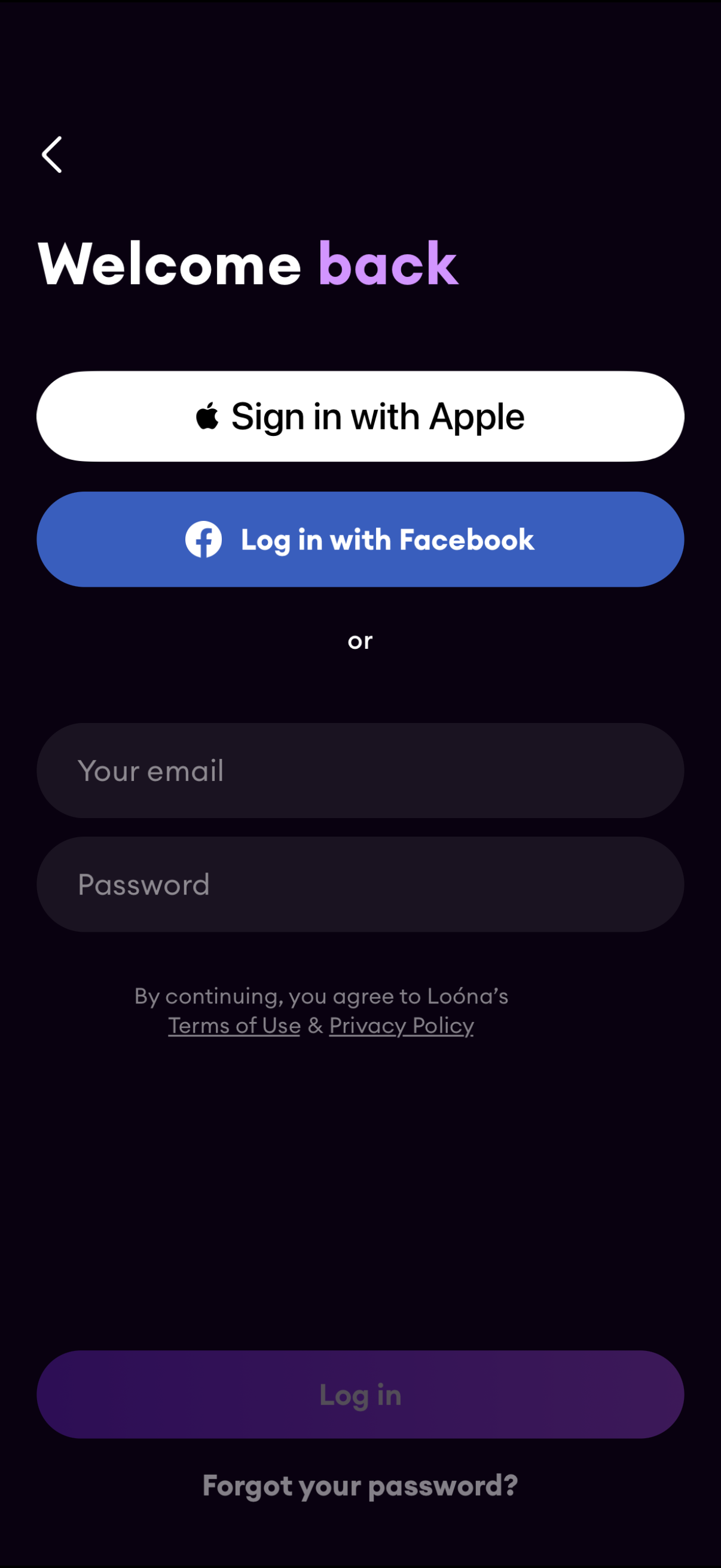
Login screen with “Welcome back” header offering social sign-in buttons for Apple and Facebook or email/password fields to log in. Includes a primary Log in button, a “Forgot your password?
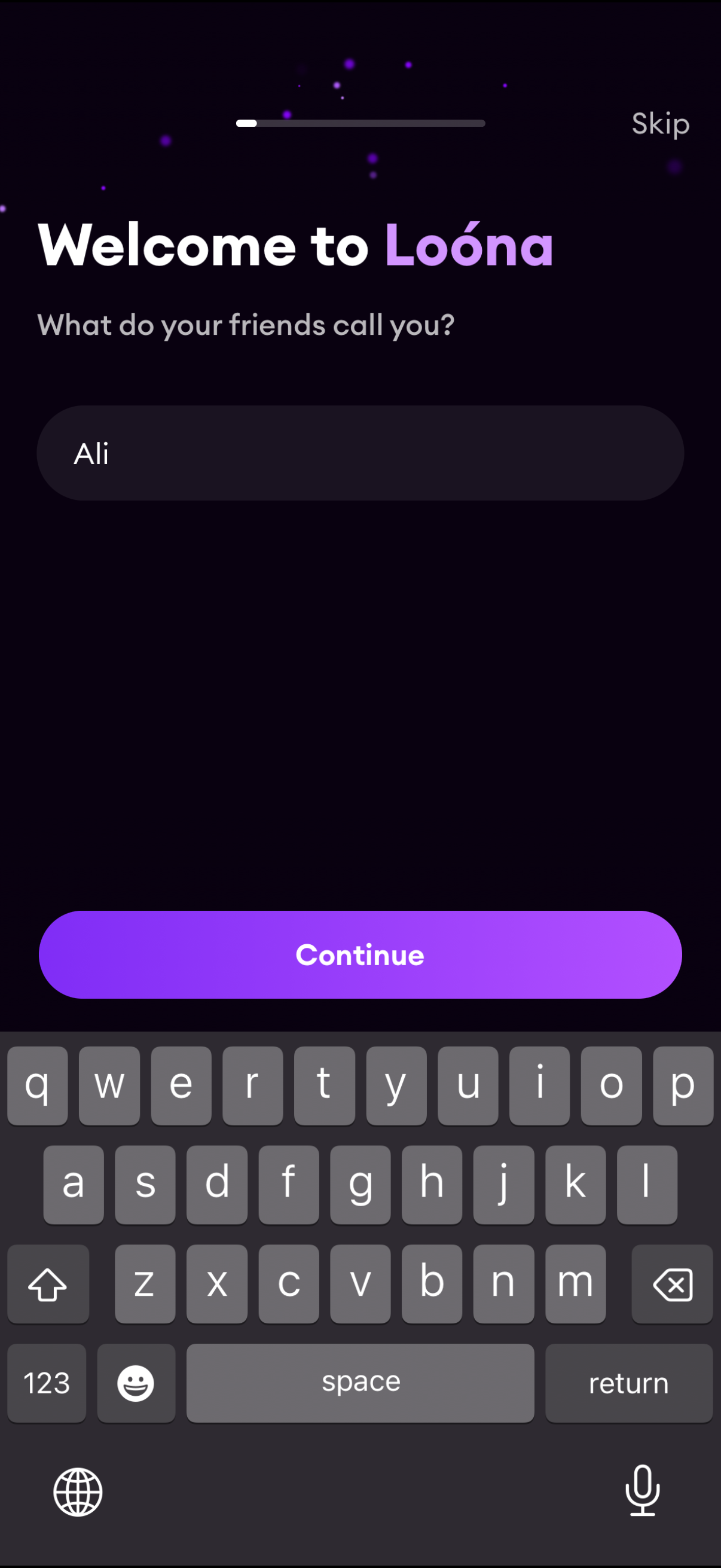
Onboarding welcome screen that asks the user to enter their preferred name/nickname in a text field as part of account setup. Includes a progress indicator, a Skip option, and a primary Continue button to proceed to the next onboarding step.
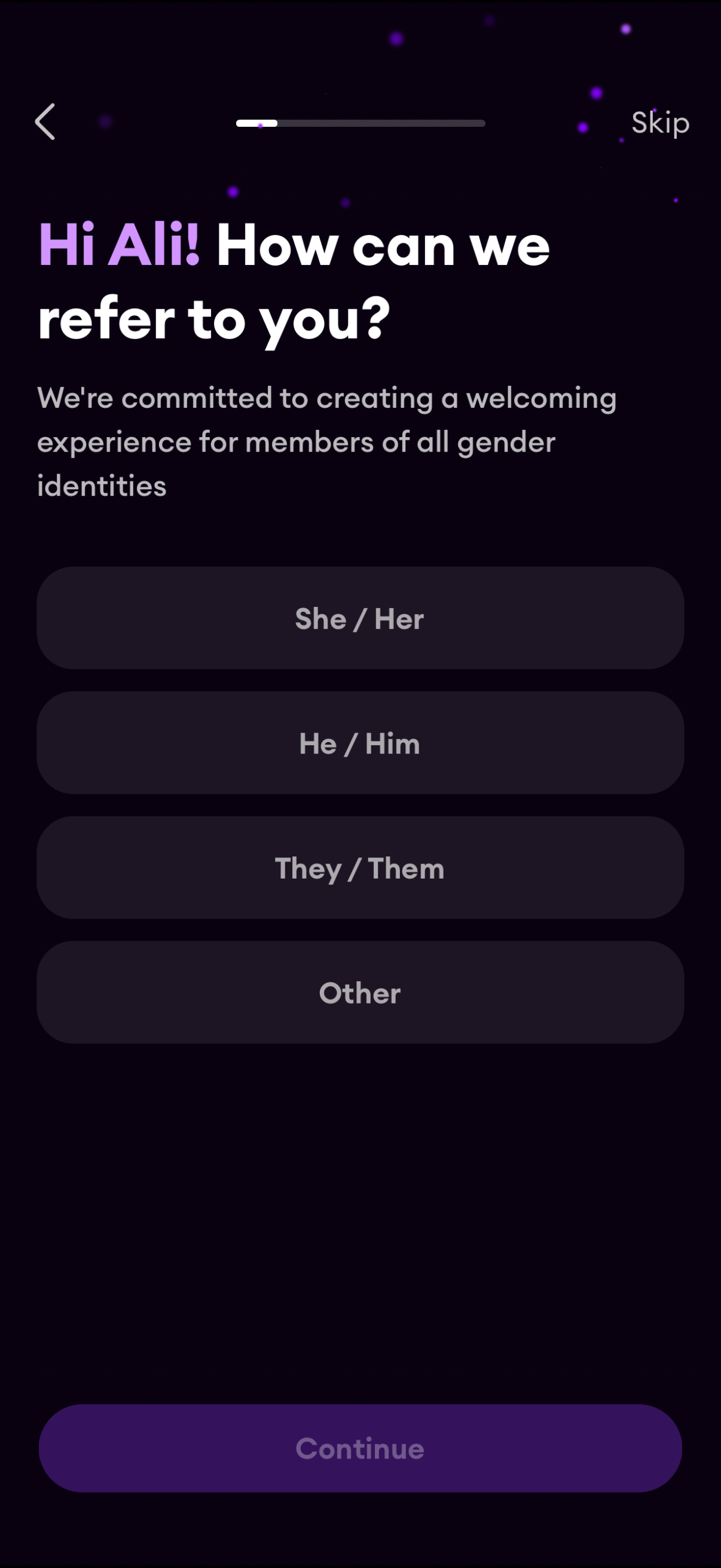
Onboarding profile setup screen asking the user to choose preferred pronouns/how to be referred to, with selectable options (She/Her, He/Him, They/Them, Other). Includes a progress indicator, back and skip controls, and a primary Continue button to proceed.
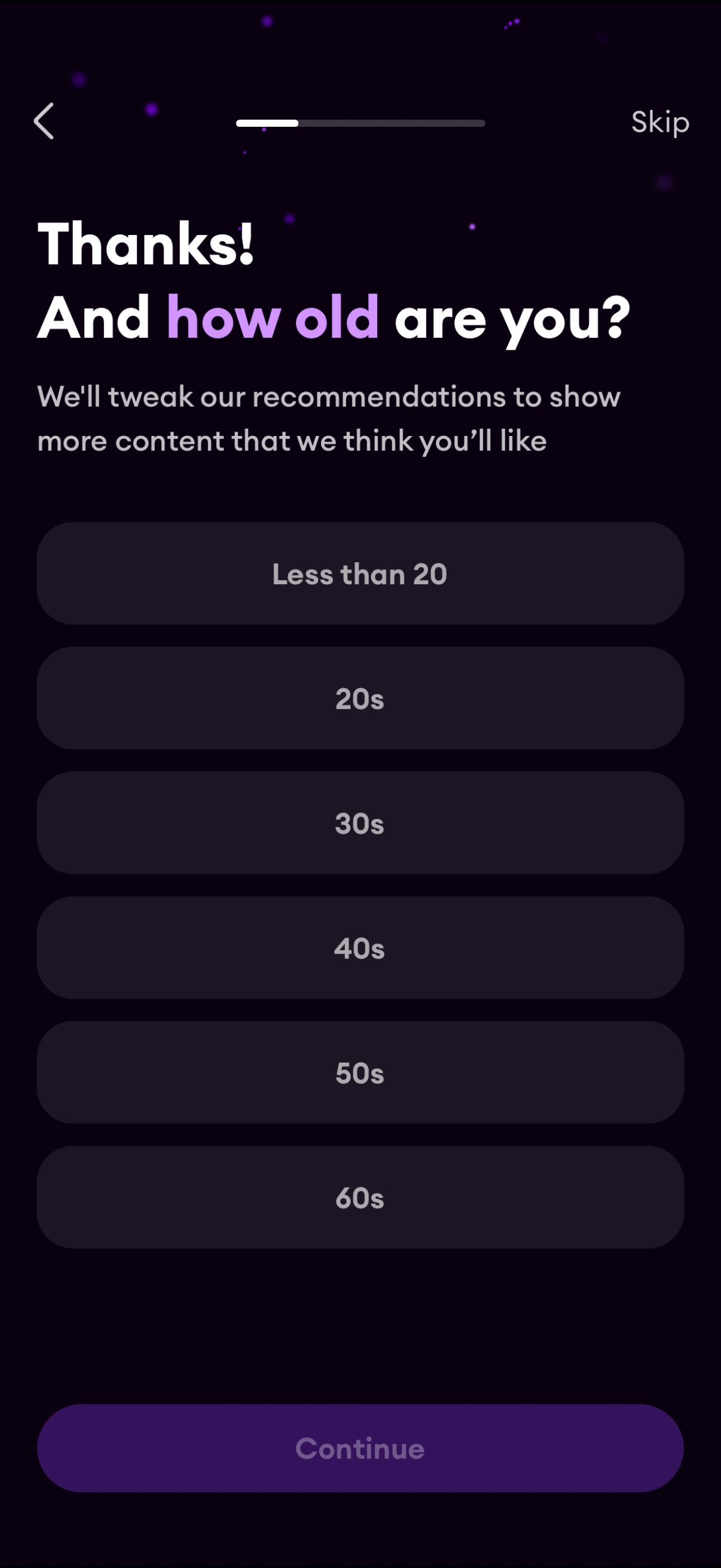
Onboarding demographics step asking the user to select their age range to personalize content recommendations. Provides large selectable options (less than 20, 20s, 30s, 40s, 50s, 60s) with a progress indicator, back and skip controls, and a Continue button.
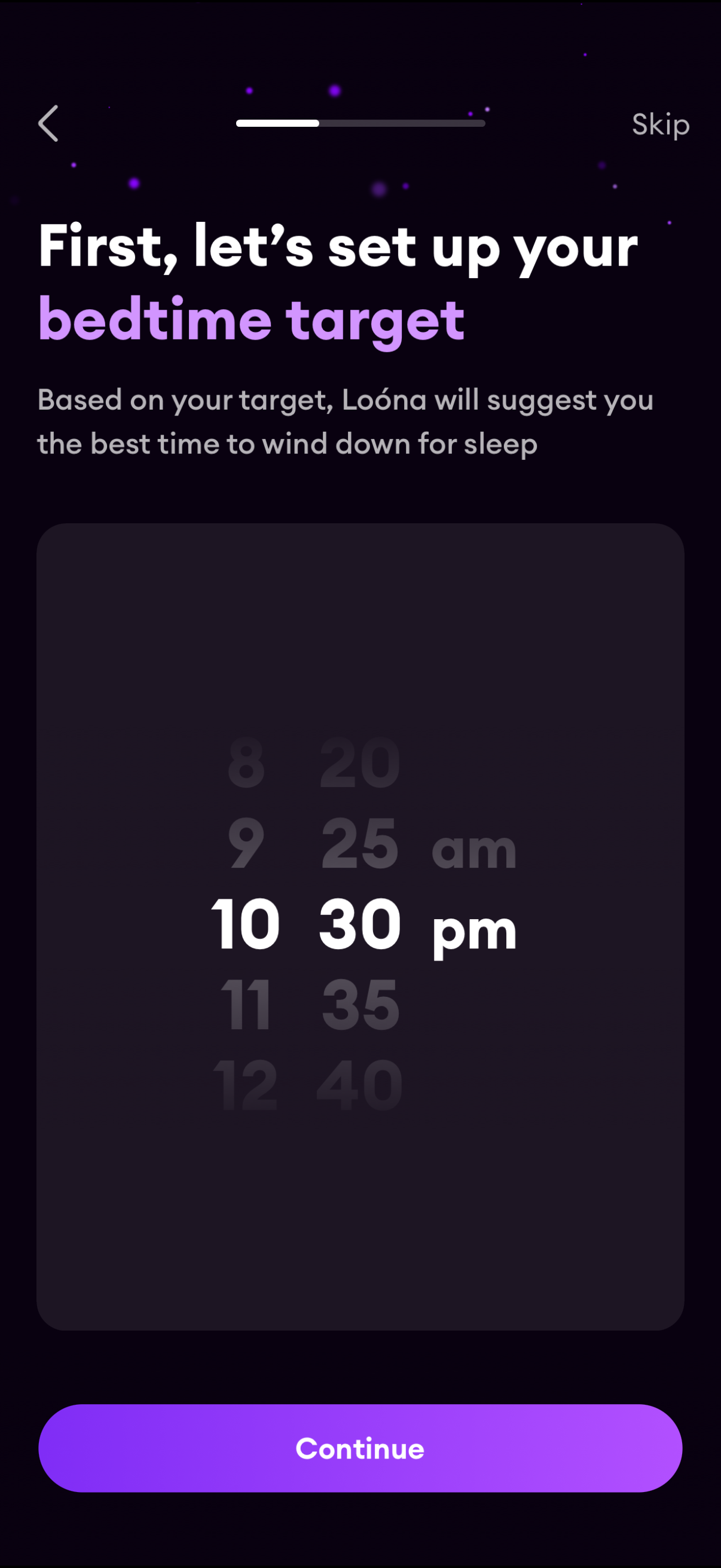
Onboarding setup screen for a sleep/meditation app prompting the user to set a bedtime target, with a wheel-style time picker and explanation that the app will suggest a wind-down time. Includes back navigation, a Skip option, progress indicator, and a primary Continue button to proceed.
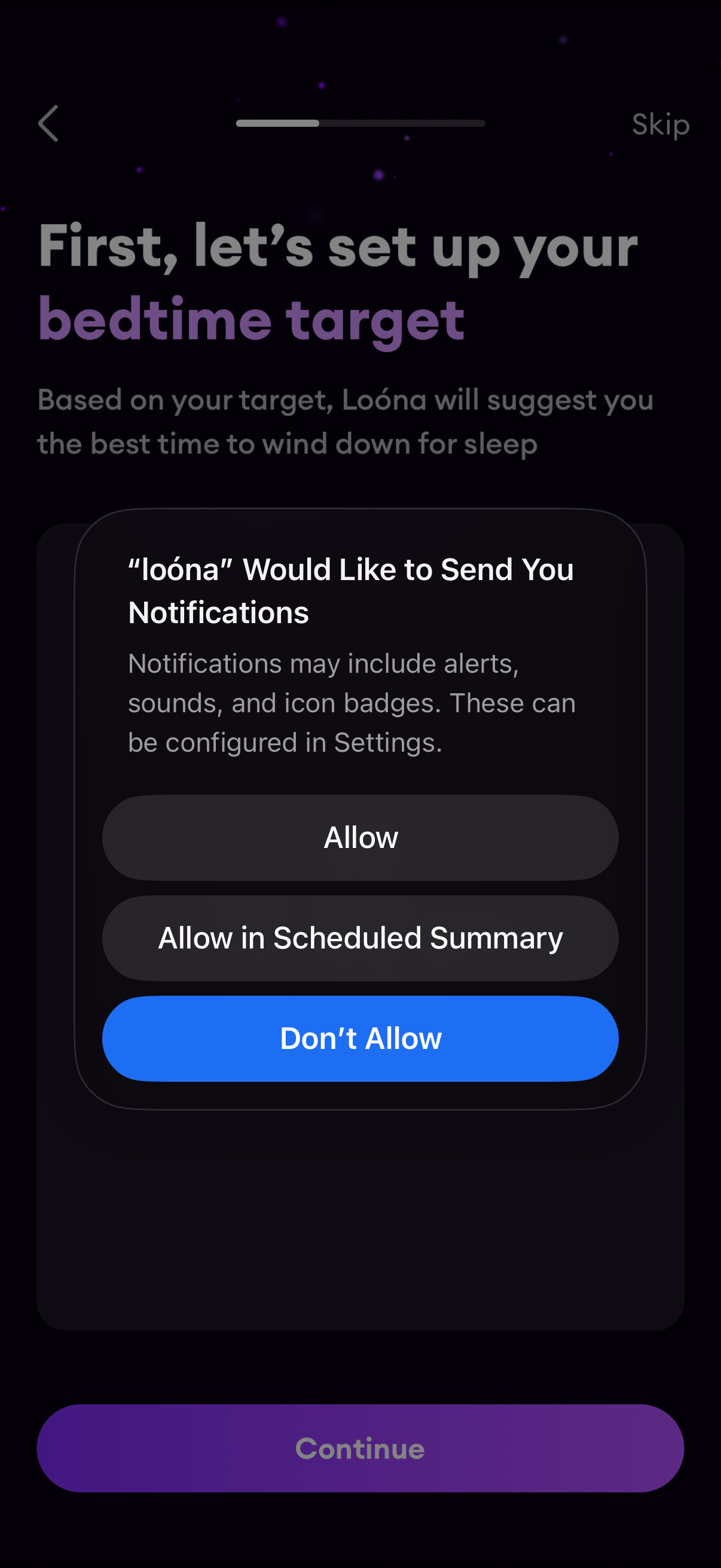
Sleep app onboarding screen for setting a bedtime target, with a progress indicator and option to skip, overlaid by an iOS system prompt requesting permission to send notifications (Allow, Allow in Scheduled Summary, Don’t Allow) and a Continue button to proceed.
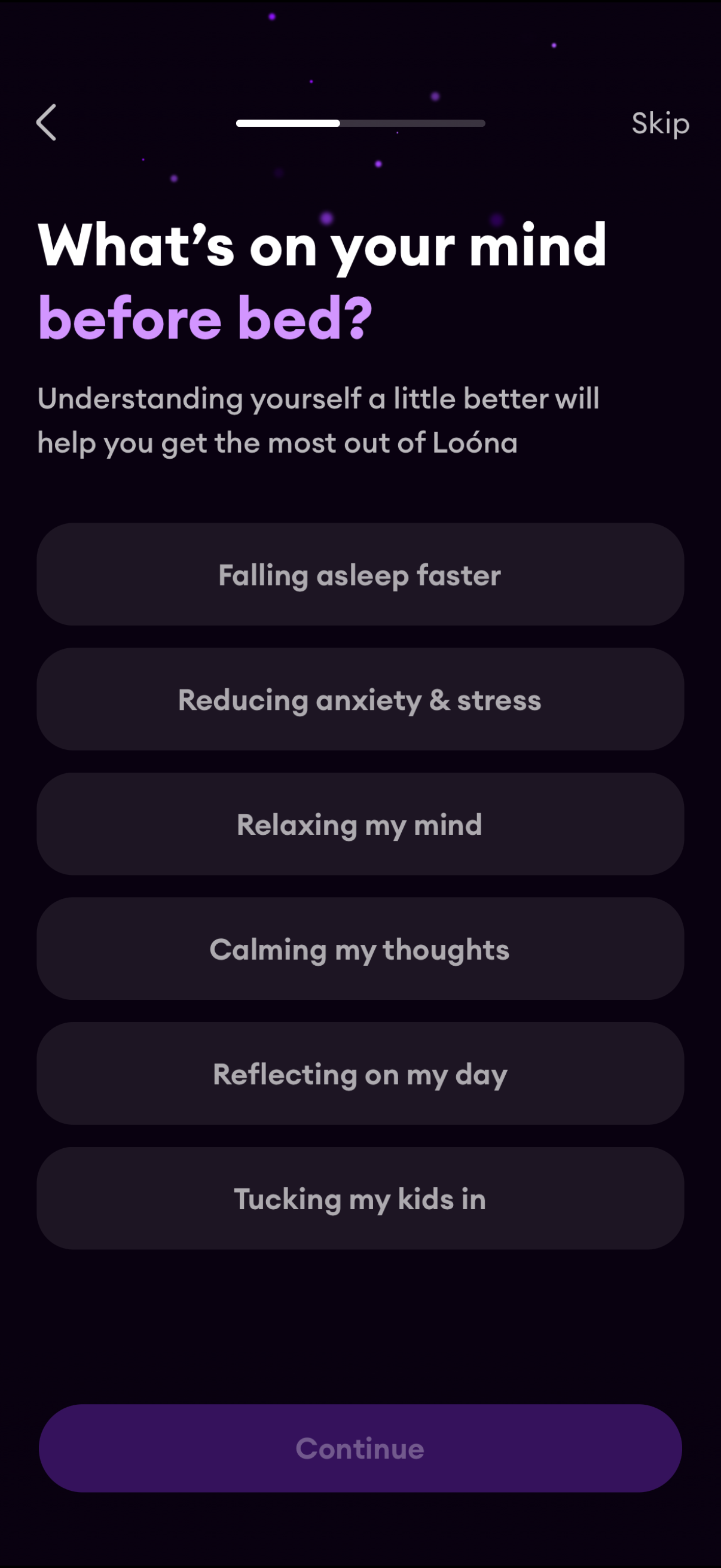
Onboarding preferences screen for a sleep/relaxation app asking “What’s on your mind before bed? ” and prompting the user to choose a bedtime goal such as falling asleep faster, reducing anxiety/stress, relaxing, calming thoughts, reflecting on the day, or tucking in kids.
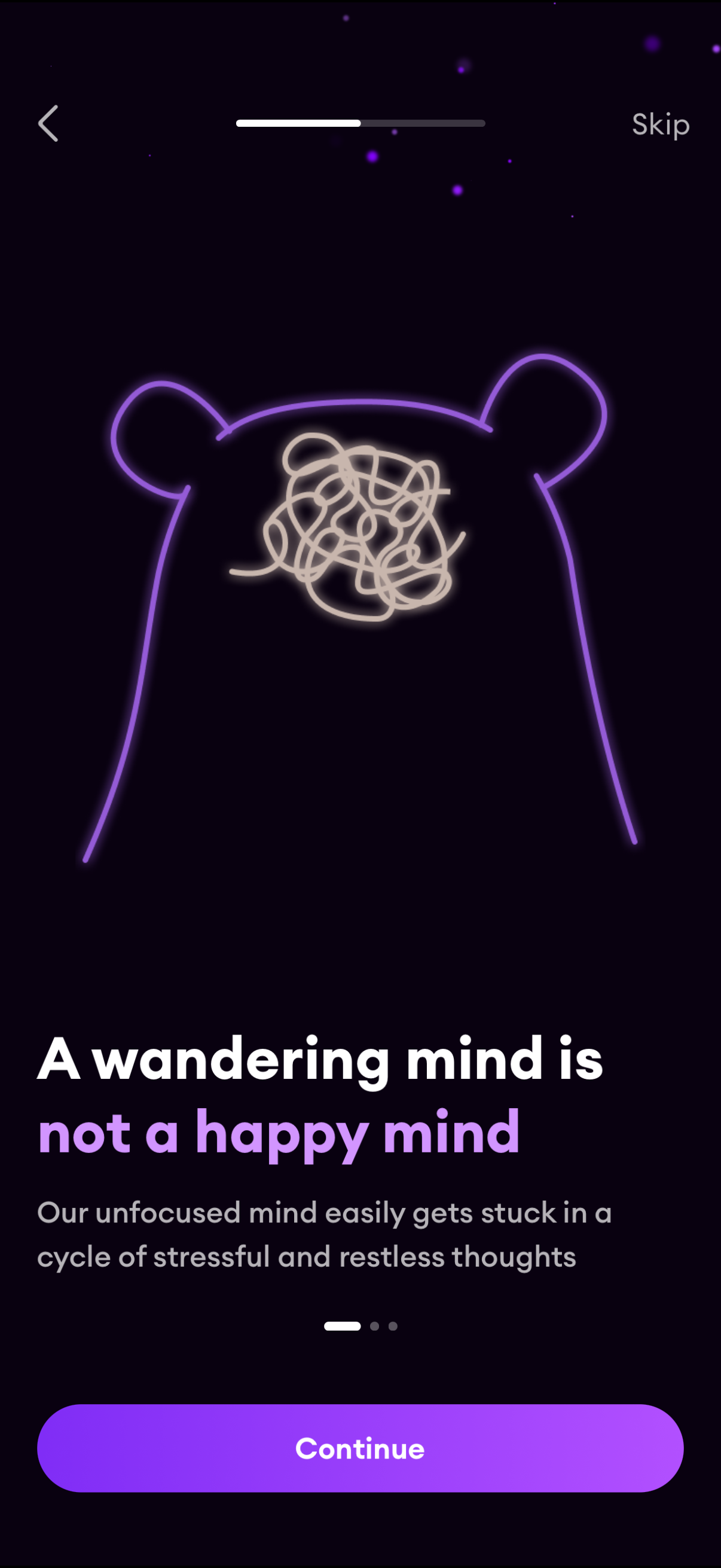
Mindfulness/mental wellness onboarding education screen with an illustration and message about an unfocused wandering mind causing stress, showing a progress indicator and pagination dots. Primary action is a “Continue” button with options to go back or skip the onboarding step.
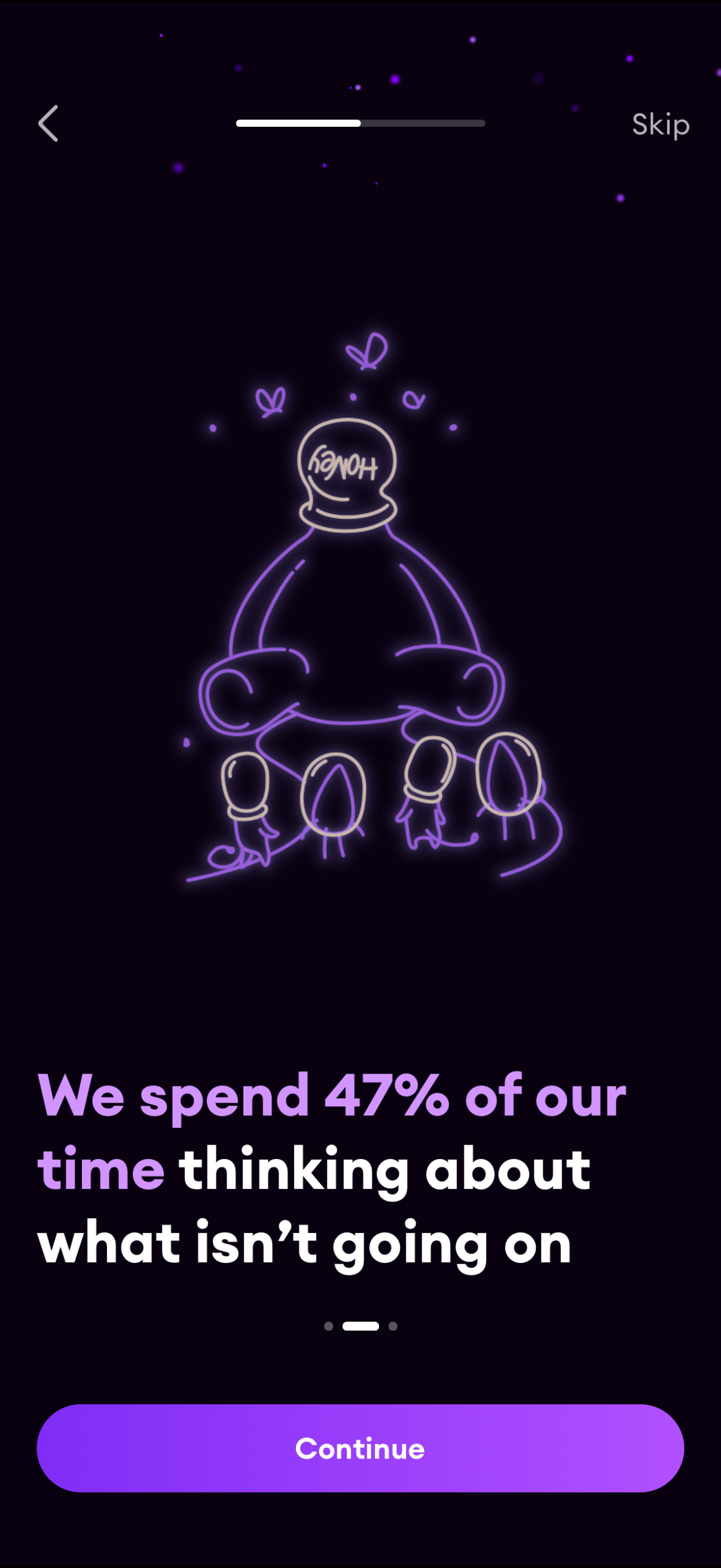
Onboarding/intro carousel screen with an illustrated graphic and educational message, showing a progress indicator, back arrow, and a Skip option. Primary CTA is a large “Continue” button to advance to the next onboarding step.
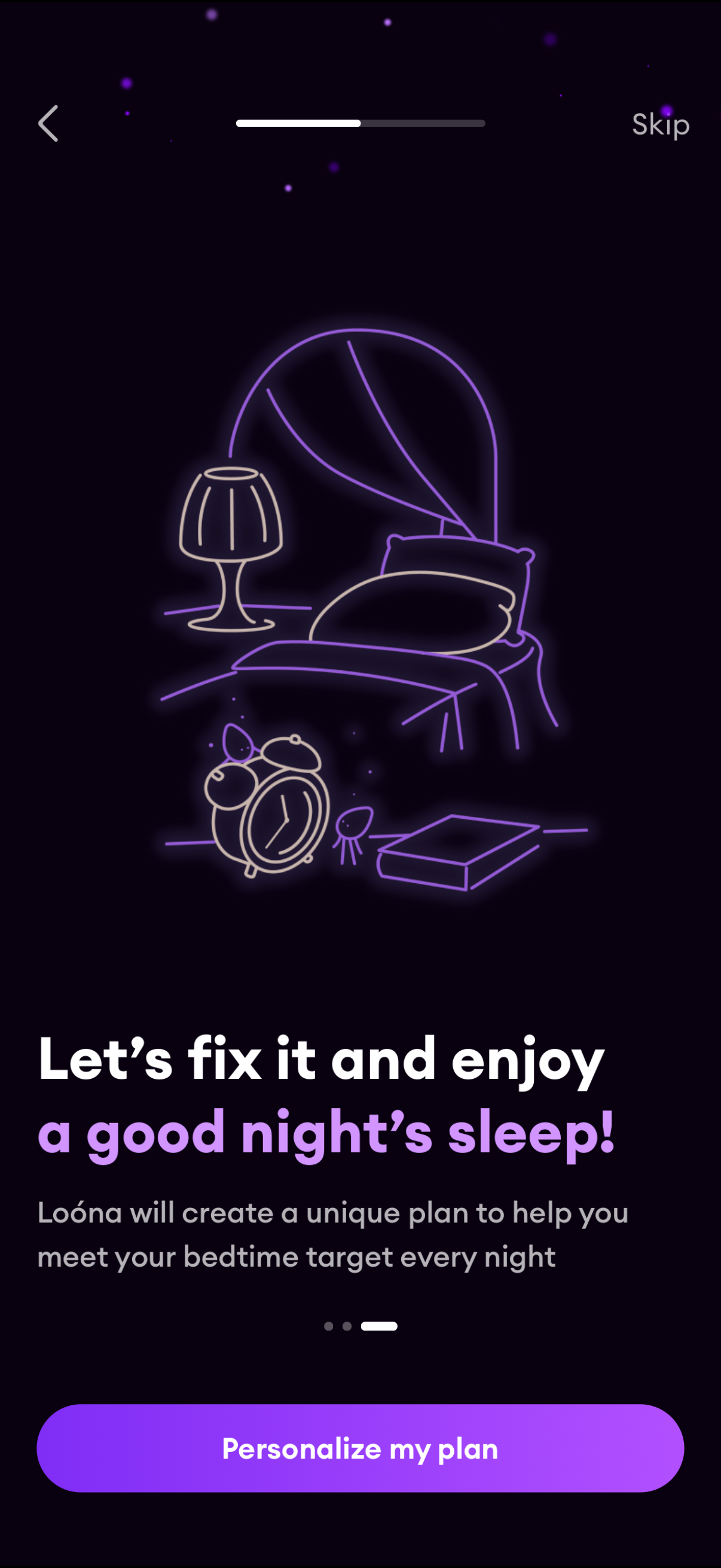
Sleep and bedtime onboarding screen introducing a personalized plan to improve nightly sleep and meet a bedtime target, with illustrated bedroom visuals. Includes back navigation, a skip option, progress indicator, and a primary CTA button to “Personalize my plan.
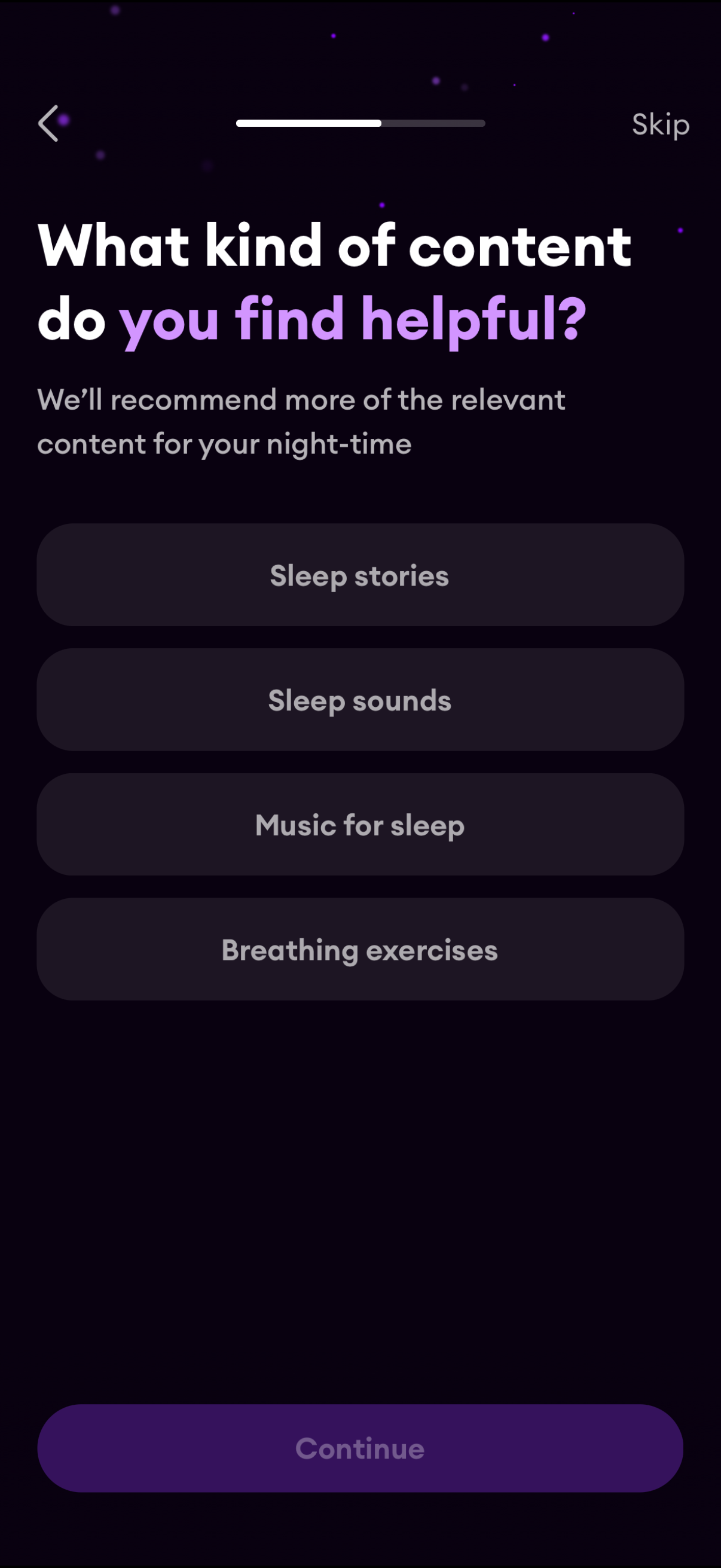
Onboarding preference screen for a sleep or meditation app asking what nighttime content the user finds helpful to personalize recommendations. Users can select options like sleep stories, sleep sounds, music for sleep, or breathing exercises, with back and skip controls and a disabled Continue button until a choice is made.
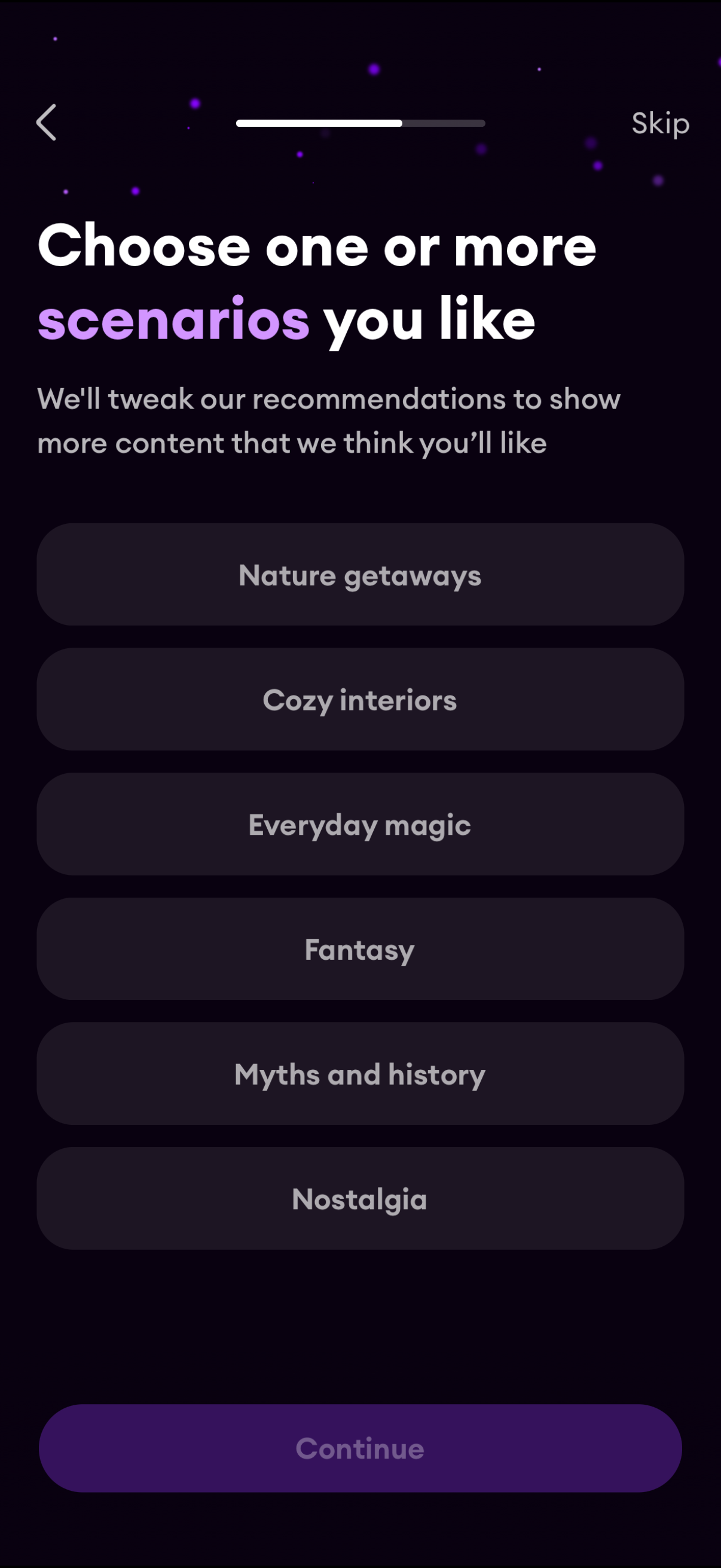
Onboarding preference selection screen asking users to choose one or more content scenarios to personalize recommendations, with selectable category chips (e. g.
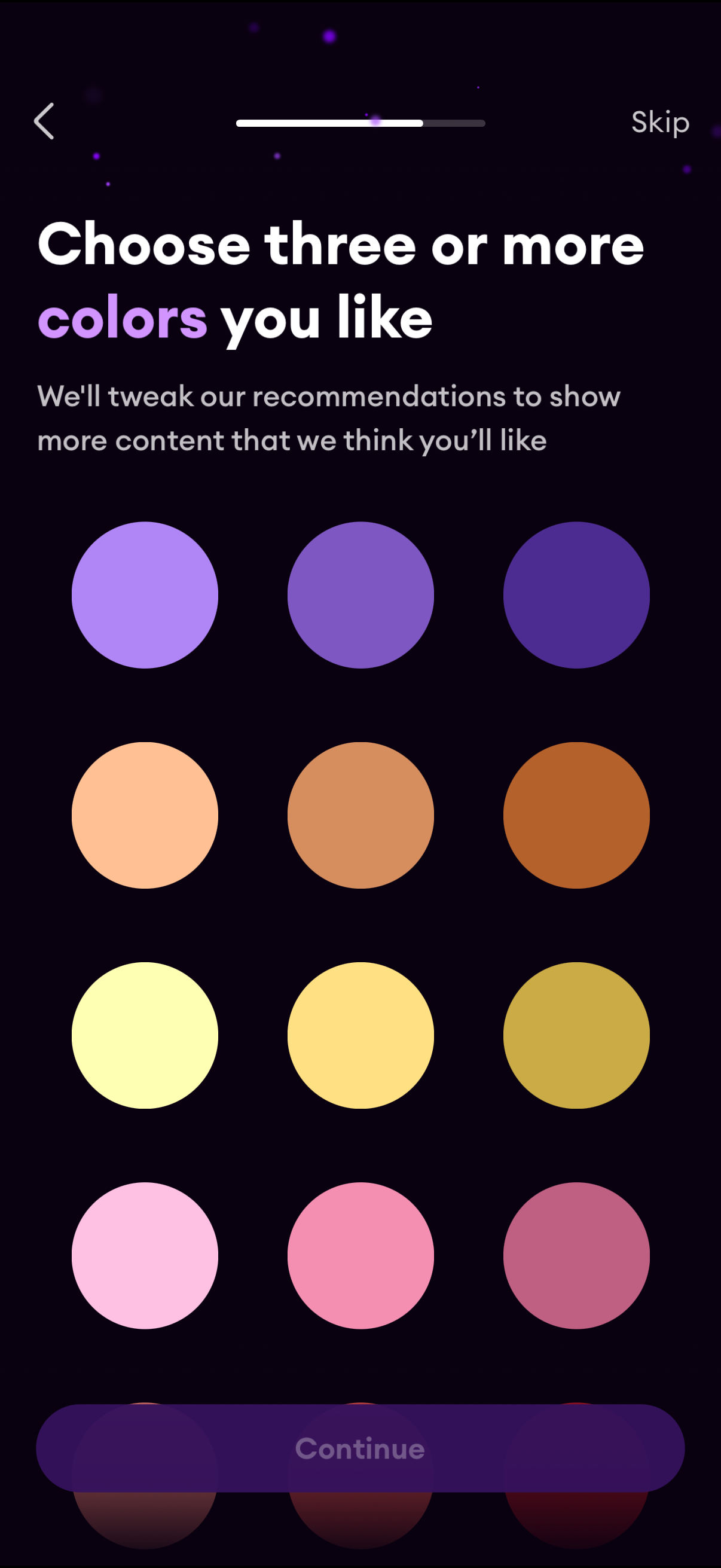
Onboarding personalization screen asking users to choose three or more favorite colors from a grid of color swatches to tailor content recommendations. Includes back navigation, a skip option, progress indicator, and a disabled/active Continue button to proceed.
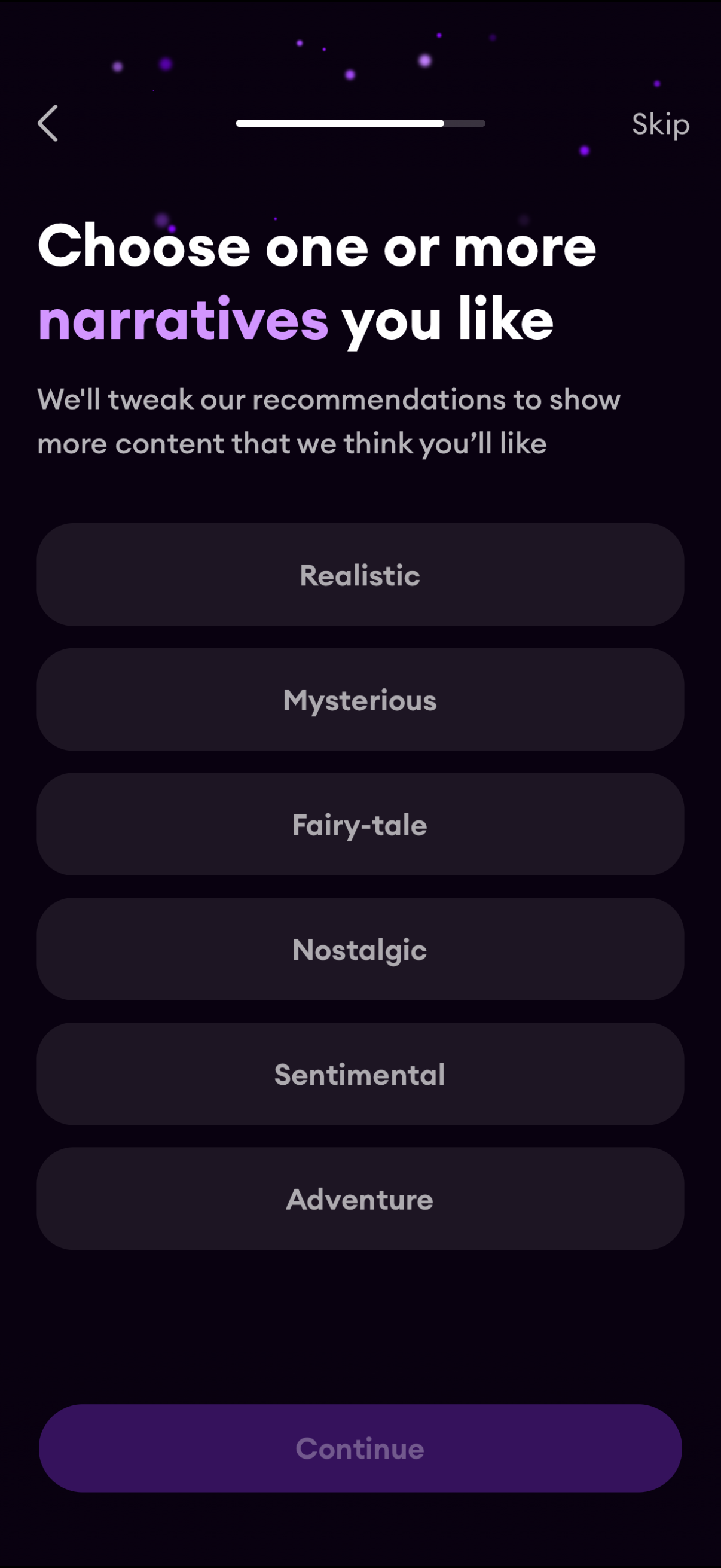
Onboarding preference selection screen asking the user to choose one or more story narratives they like to personalize content recommendations, with selectable genre chips (e. g.
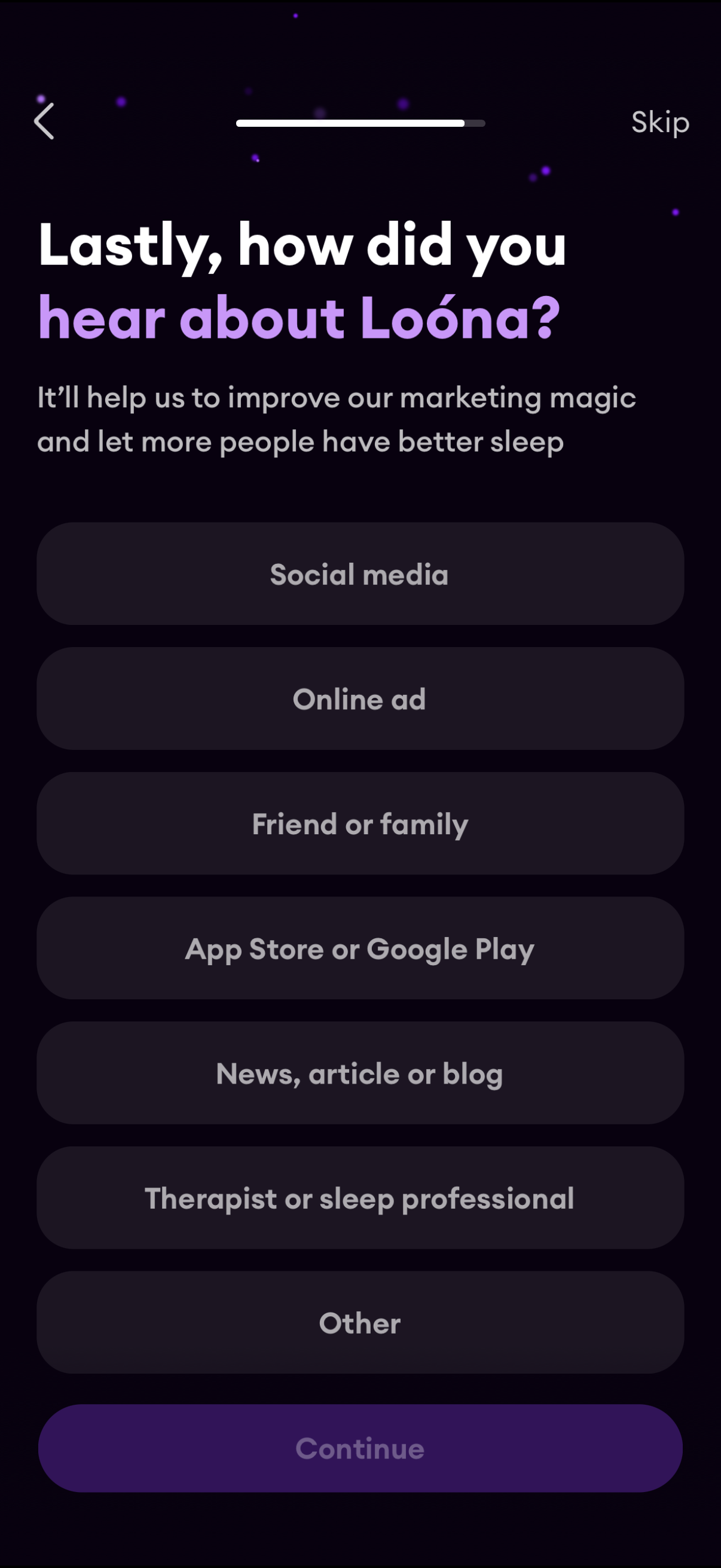
Onboarding survey screen asking users how they heard about the app to measure acquisition channels, with multiple-choice options like social media, online ads, referrals, app store, articles, or other. Includes back navigation, a progress indicator, a Skip link, and a Continue button to proceed.
Onboarding personalization/loading screen for a sleep or meditation app showing setup steps with progress bars for choosing a color palette, visual setting, sleep sounds, and narrative preference. The screen also includes social proof with a “Trusted by” user count and a 5-star testimonial card.
Onboarding personalization loading screen for a sleep/meditation app showing progress bars and checkmarks for configuring color palette, visual settings, sleep sounds, and narrative preferences with a percentage indicator. Includes social proof with “trusted by” user count and a star-rated testimonial card while setup completes.
Onboarding completion screen confirming setup is ready, showing a checklist/progress of personalization options like color palette, visual setting, sleep sounds, and narrative preference with checkmarks. A primary call-to-action button lets the user start the experience.
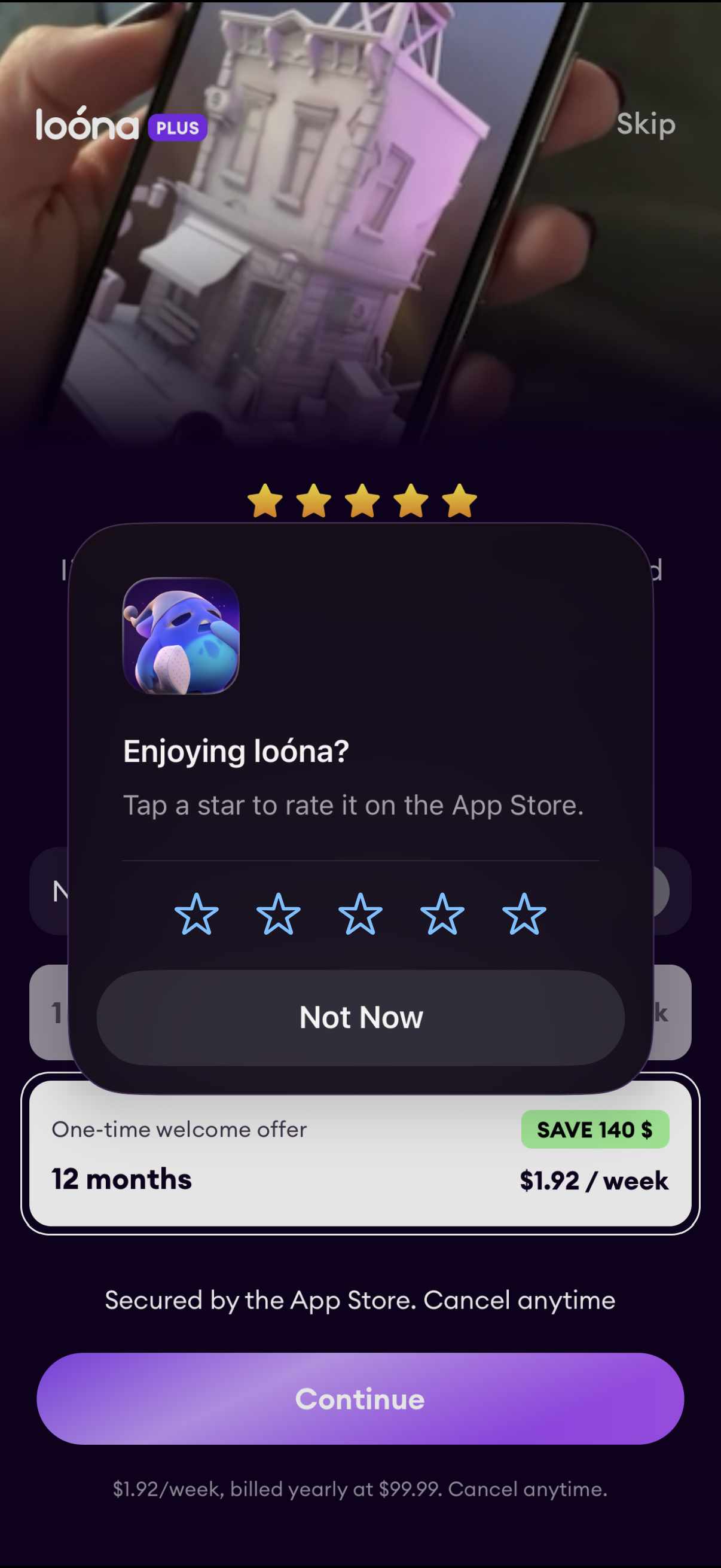
Subscription paywall screen for a premium app showing a one-time welcome offer with annual pricing, savings badge, and a primary “Continue” purchase button with App Store security/cancel messaging and a “Skip” option. An in-app rating prompt modal overlays the paywall asking users to rate the app with star selection and a “Not Now” button.
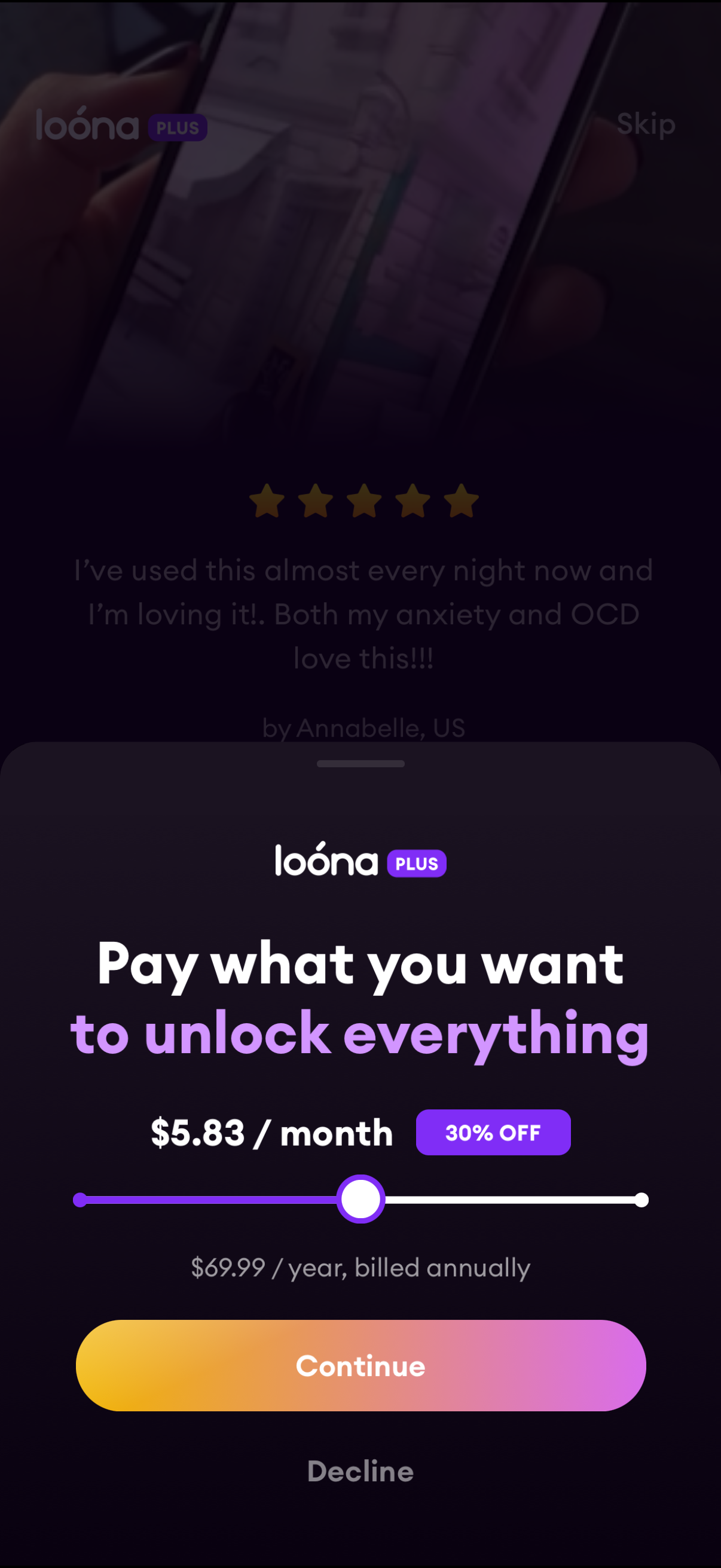
Subscription paywall screen offering a “pay what you want” monthly price slider to unlock all premium content, showing the discounted price per month with annual billing details and a 30% off badge. Primary actions include Continue to subscribe, Decline, and a Skip option, with a star-rated testimonial in the background.