Signup
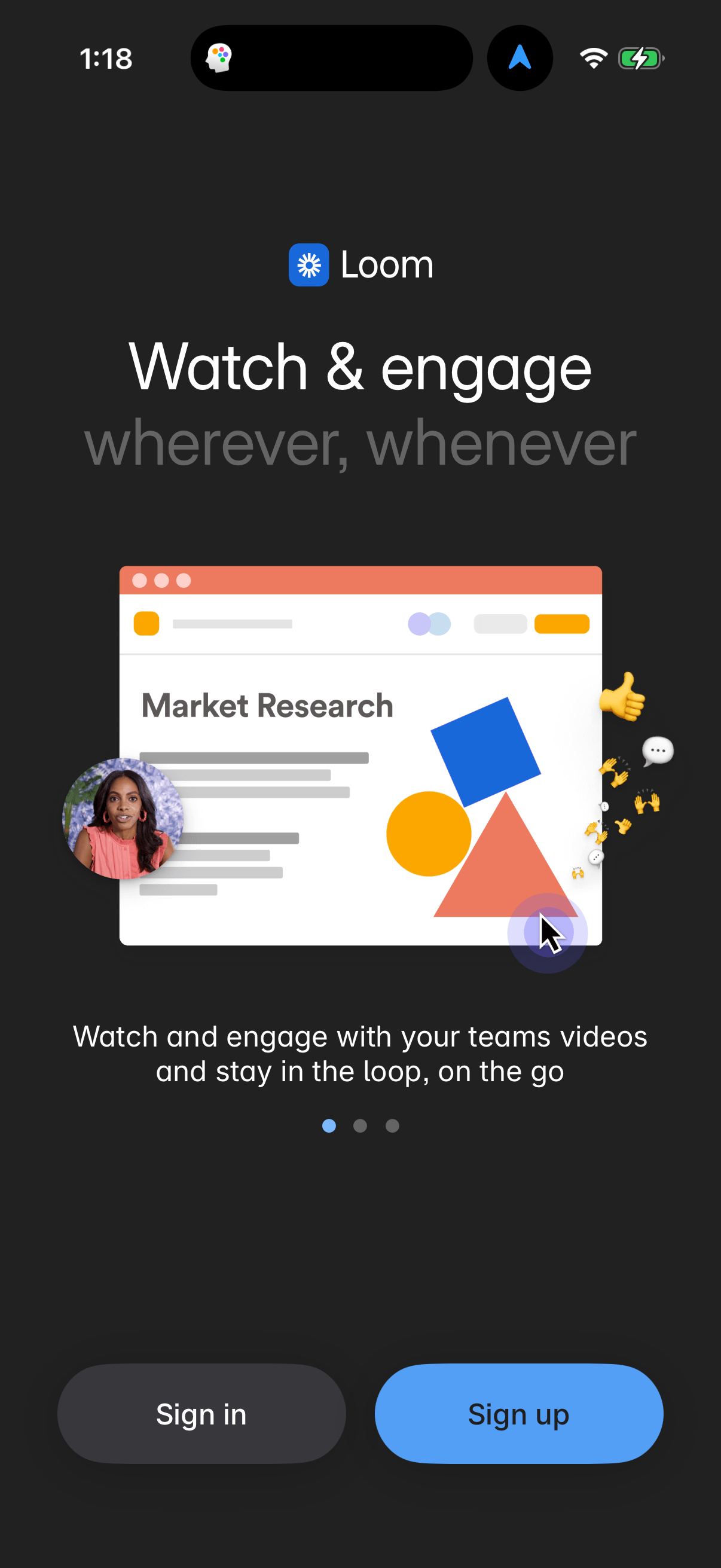
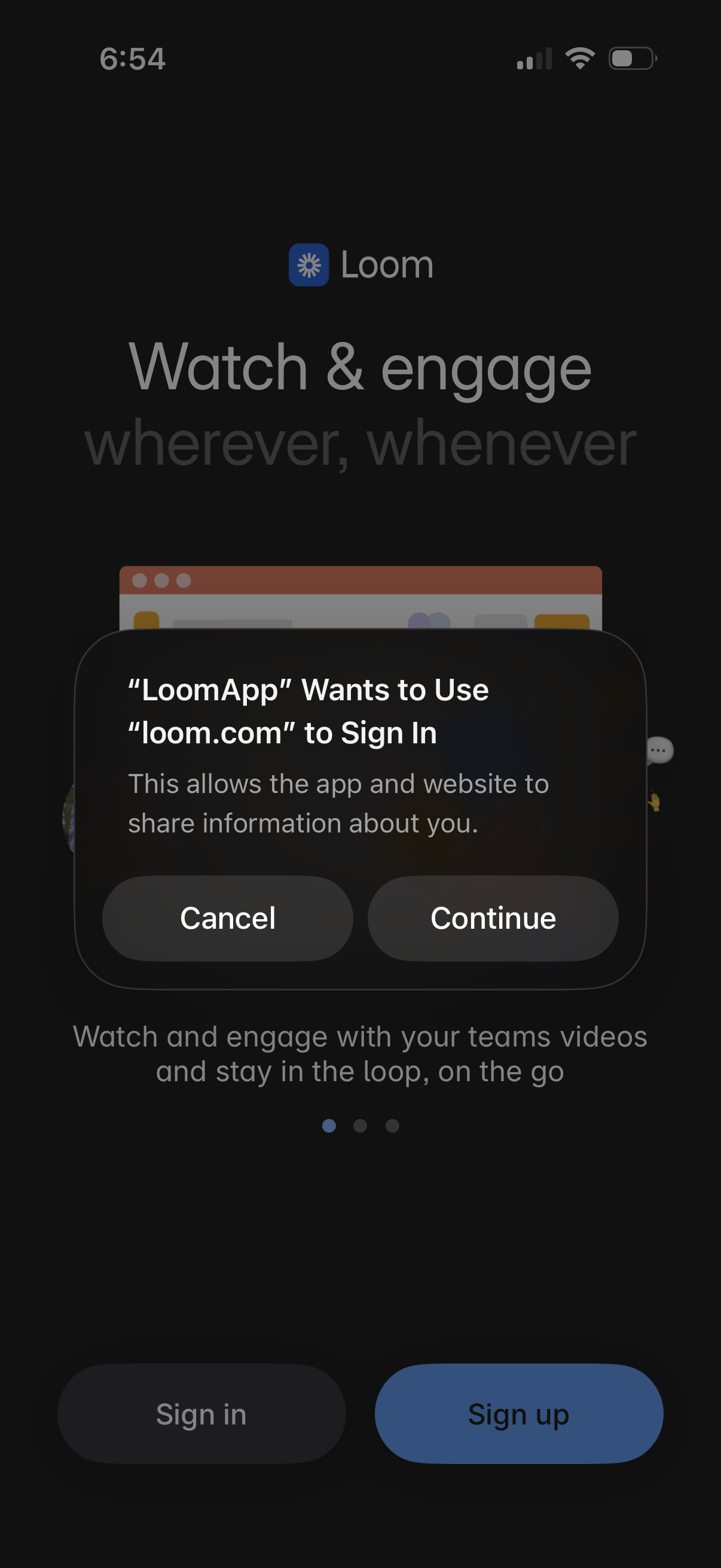
Mobile app onboarding/login screen for Loom prompting users to watch and engage with team videos, with primary actions to Sign up or Sign in. An iOS web authentication dialog overlays the screen asking permission for the app to use loom.
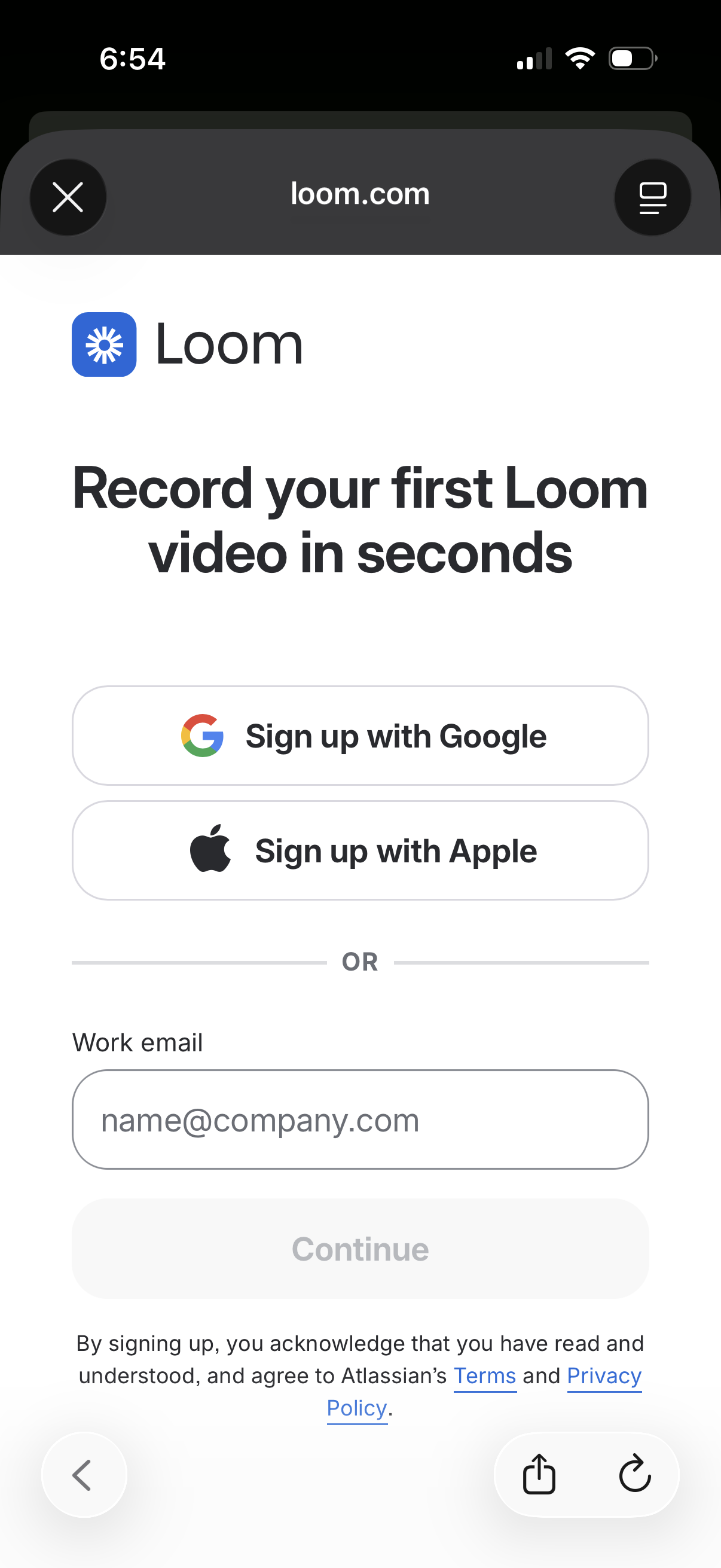
Mobile web sign-up screen for Loom prompting users to “Record your first Loom video in seconds,” offering account creation via Google or Apple, or by entering a work email to continue. Includes close navigation and links to terms and privacy policy.
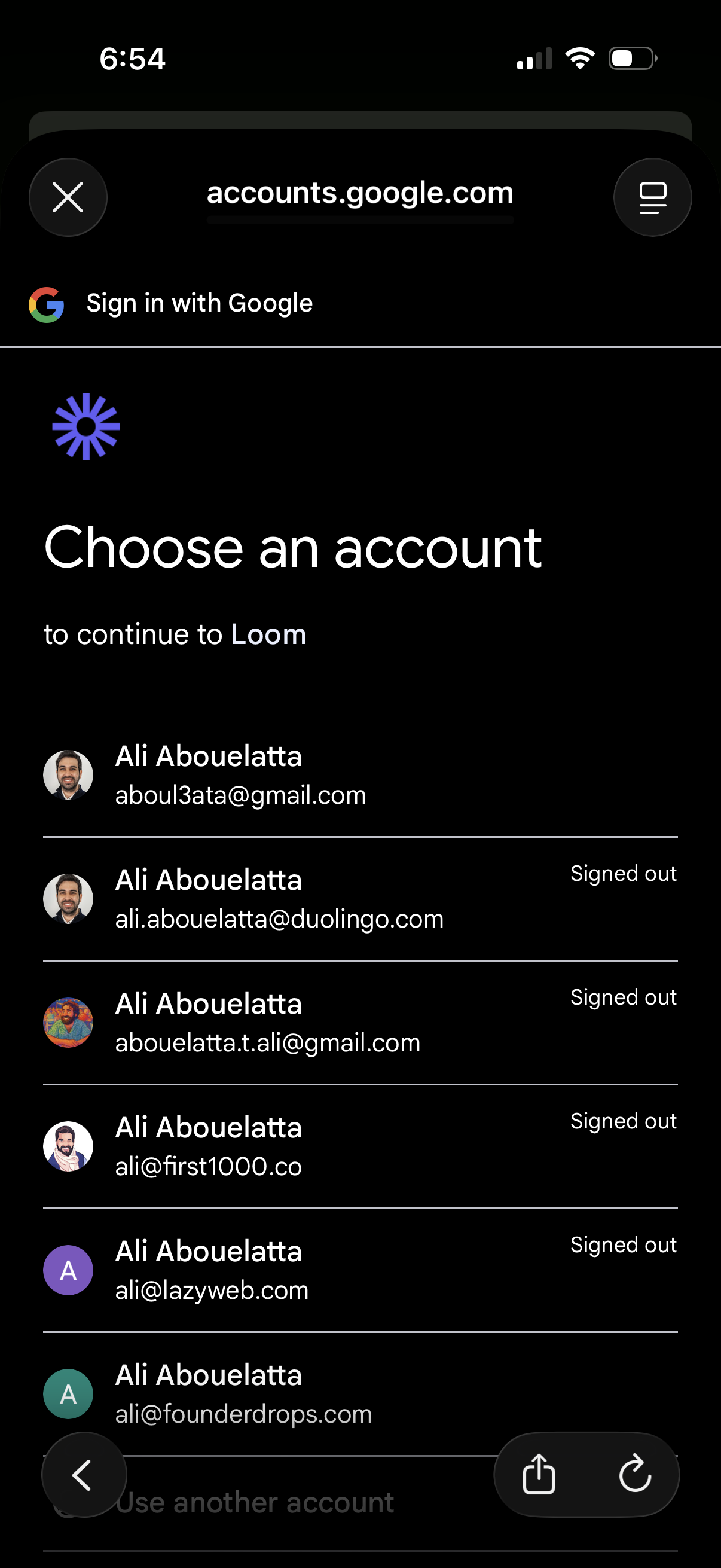
Google OAuth “Sign in with Google” account chooser screen prompting the user to select an existing Google account to continue to a third-party app. Shows a list of saved accounts with avatars, email addresses, signed-out status indicators, and an option to use another account.
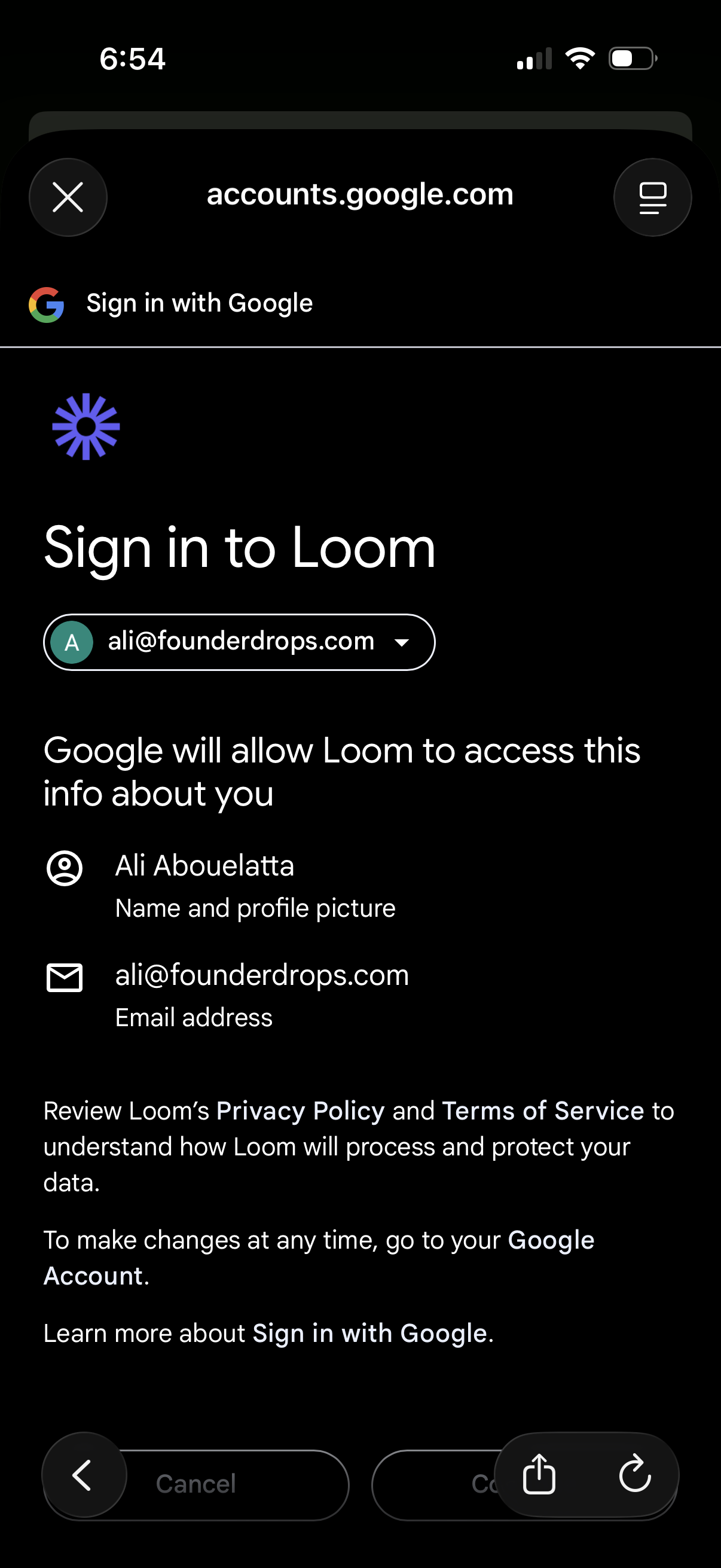
OAuth “Sign in with Google” consent screen for signing in to Loom, showing the selected Google account dropdown and the list of permissions/data Loom will access (profile name/photo and email). Includes links to privacy policy and terms plus actions to continue or cancel.
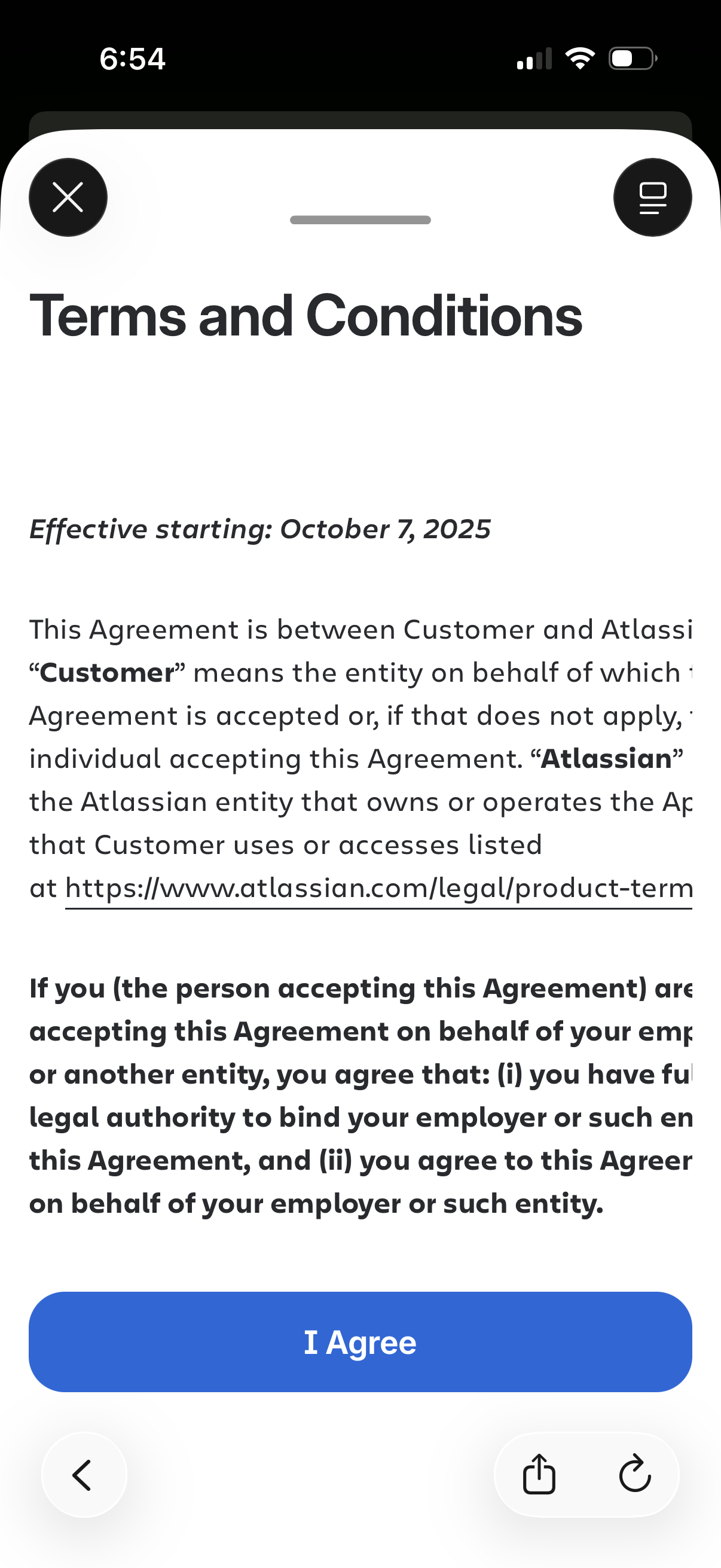
Terms and Conditions agreement screen showing the effective date and scrollable legal text with a link to the full policy. Primary action is an “I Agree” button to accept, with options to close/dismiss the modal and access additional page controls.
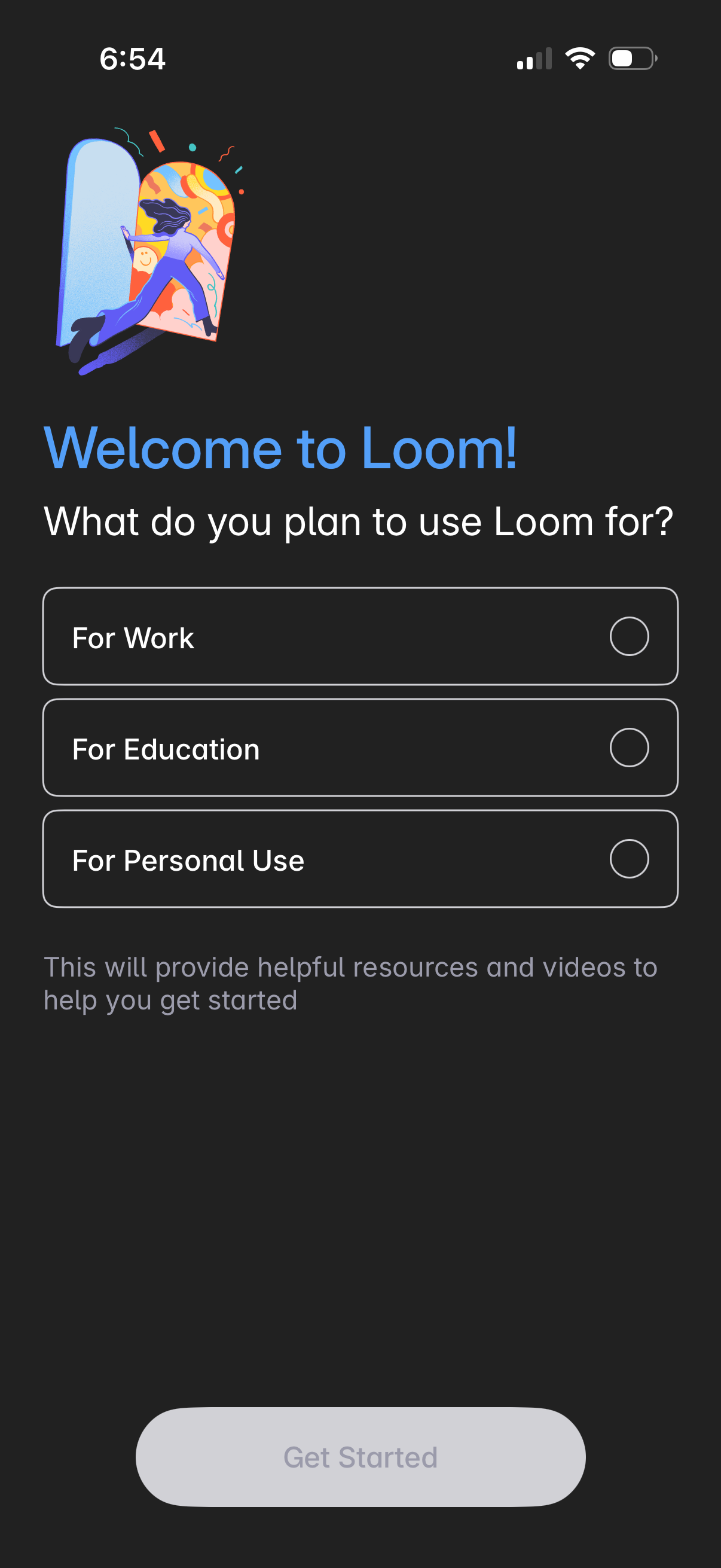
Onboarding welcome screen asking the user what they plan to use the app for, with single-select radio options for Work, Education, or Personal Use to personalize recommended resources. A disabled “Get Started” button at the bottom becomes available after making a selection.
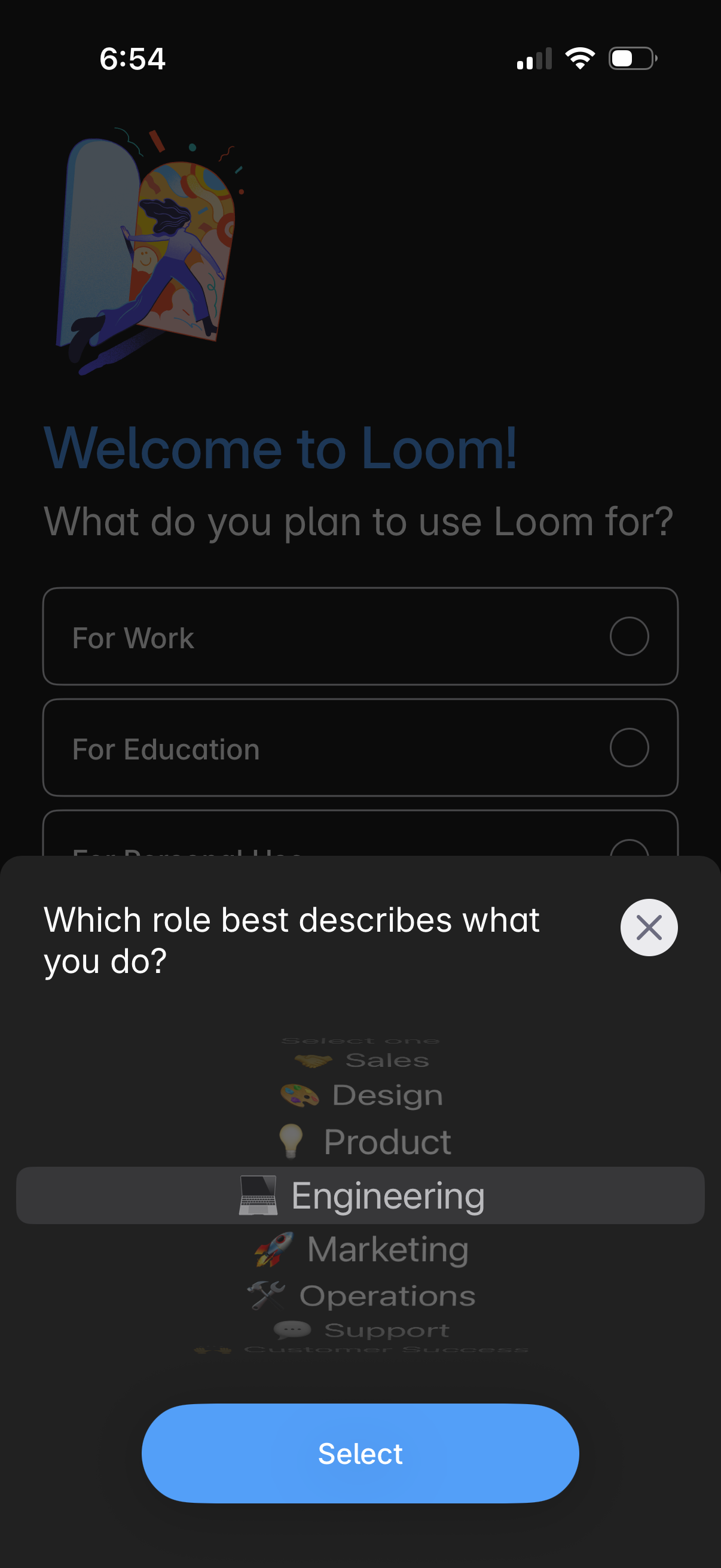
Onboarding welcome screen asking what you plan to use the app for (e. g.
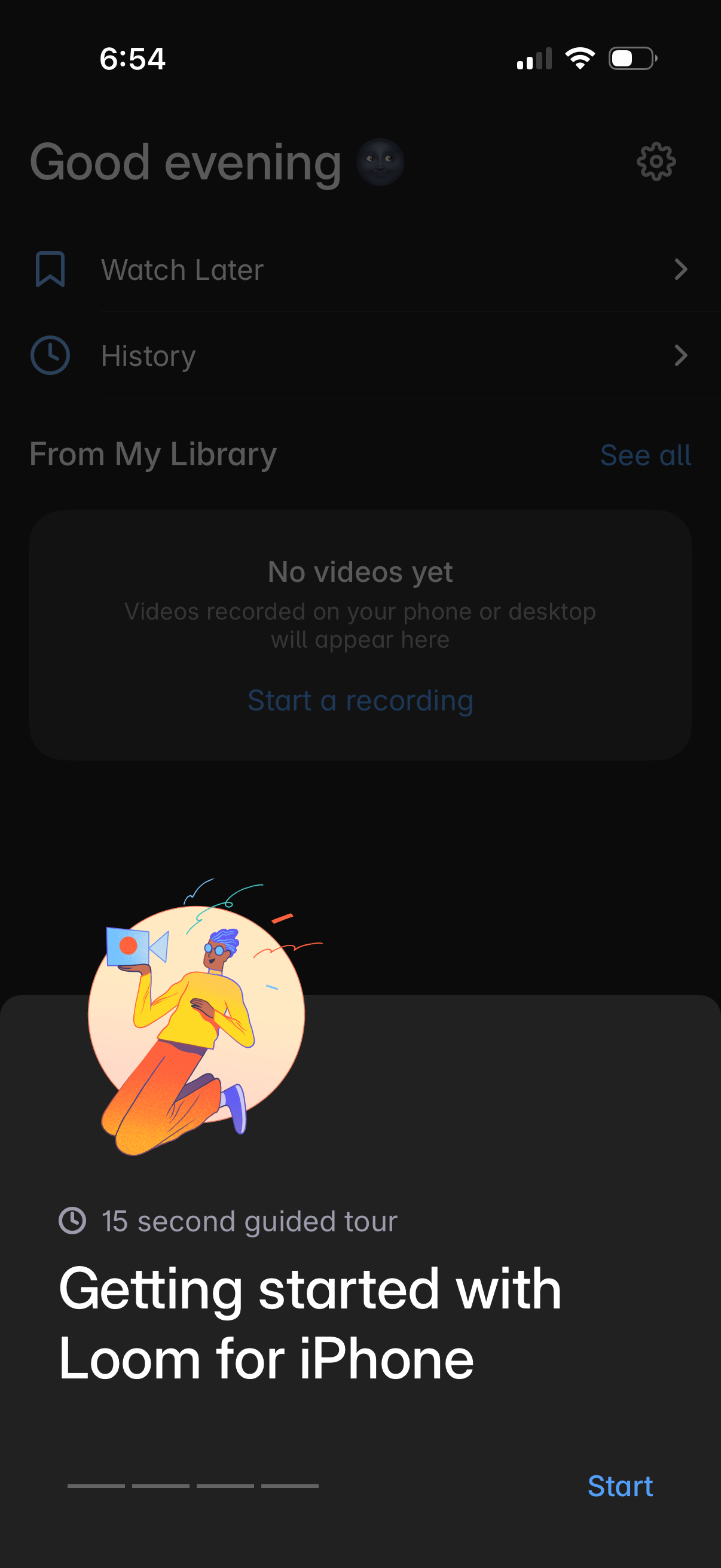
Home dashboard of a screen recording app showing shortcuts to Watch Later and History, a “From My Library” section with an empty state prompting the user to start a recording, and a settings icon. A bottom onboarding card offers a short guided tour (“Getting started”) with a Start button.