Create Issue
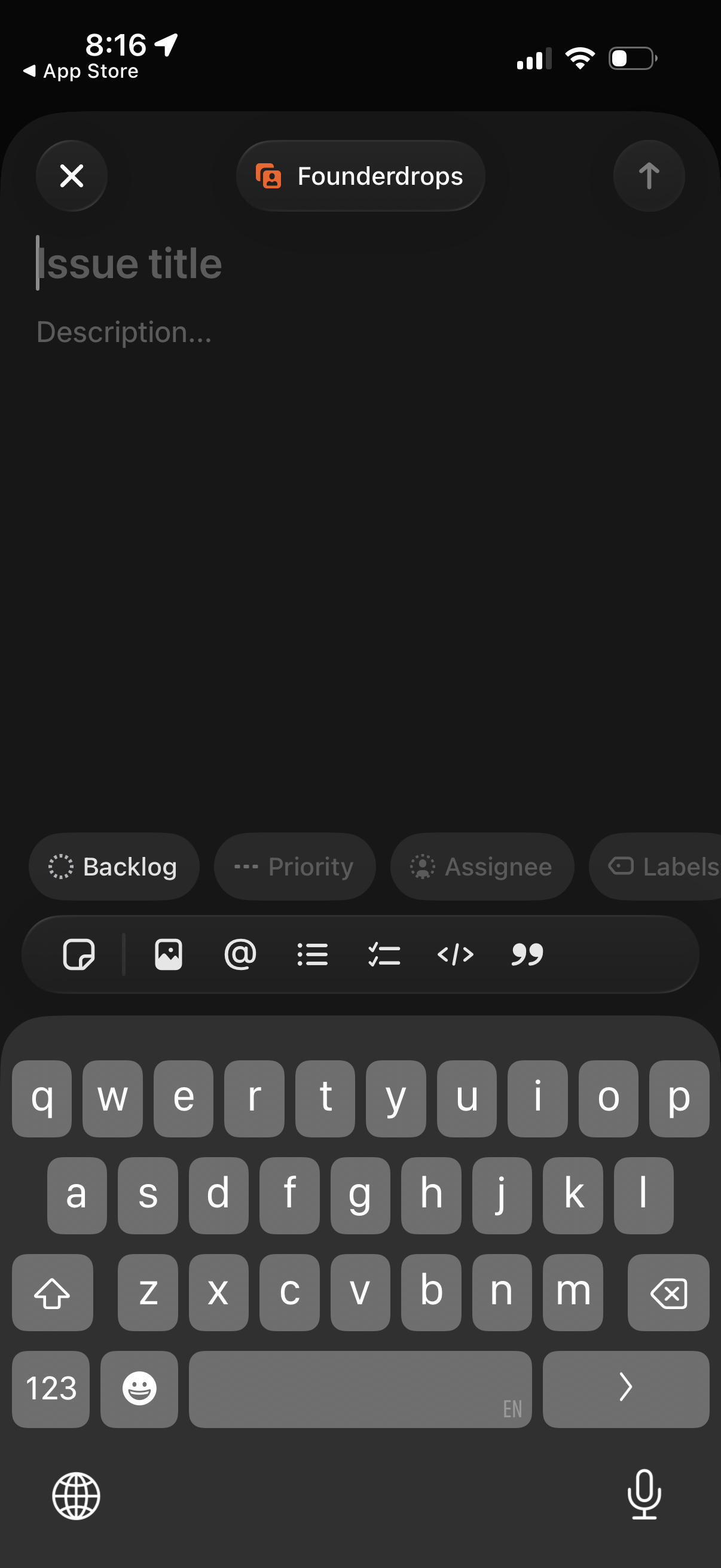
Issue creation screen for a project tracker where the user enters an issue title and description, with quick-access fields to set status/backlog, priority, assignee, and labels. Includes a toolbar for formatting and inserting attachments/mentions/code, plus close and submit actions in the header.
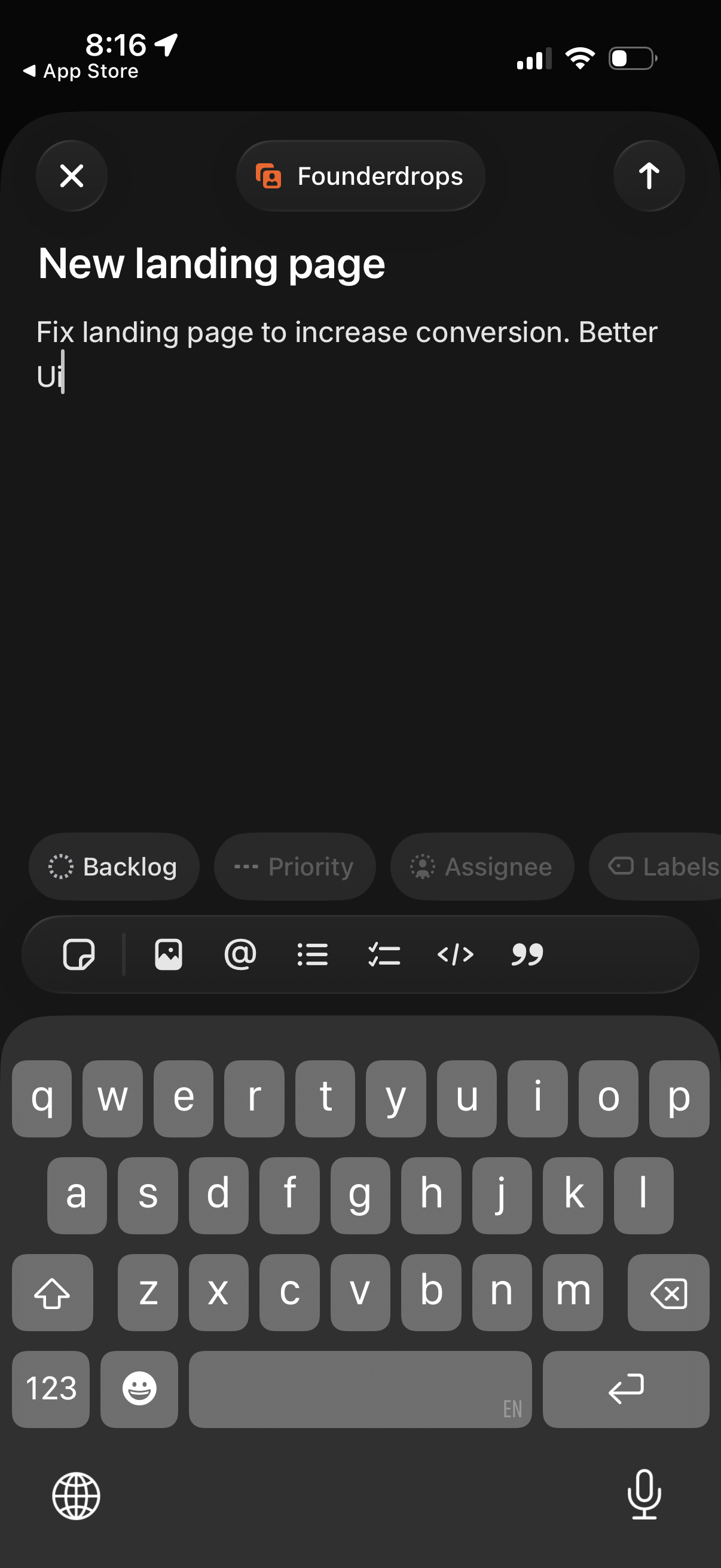
Task creation/edit screen in a project management app showing a title and description editor with rich text controls and quick actions to set status/backlog, priority, assignee, and labels. Includes close and submit buttons for saving the task.
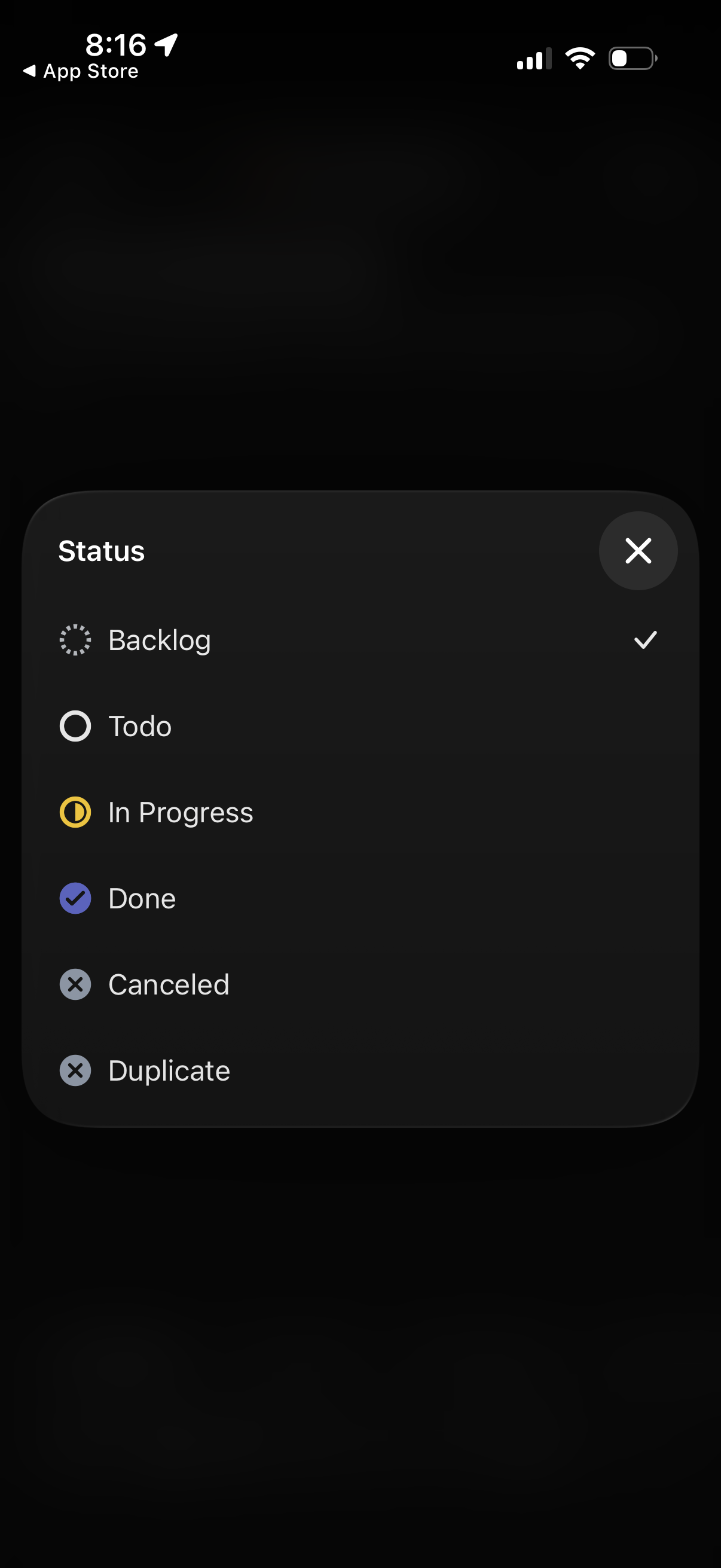
Bottom sheet modal for changing an item’s status in a task or project management app, showing single-select options like Backlog, Todo, In Progress, Done, Canceled, and Duplicate with an active checkmark. Includes a close button to dismiss the status picker.
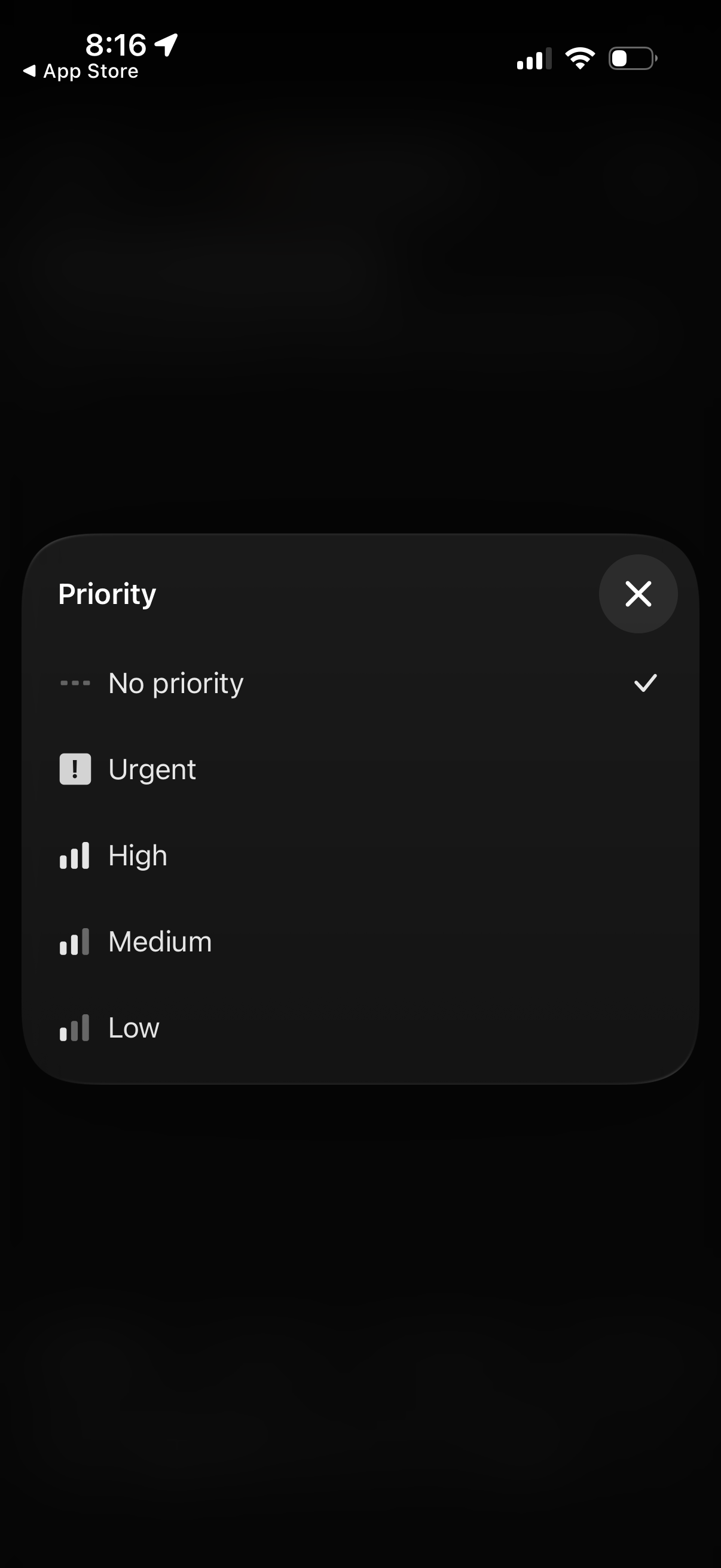
A modal bottom sheet for selecting task priority, offering options like No priority, Urgent, High, Medium, and Low with icons and a checkmark indicating the current selection. Includes a close button to dismiss the priority picker.
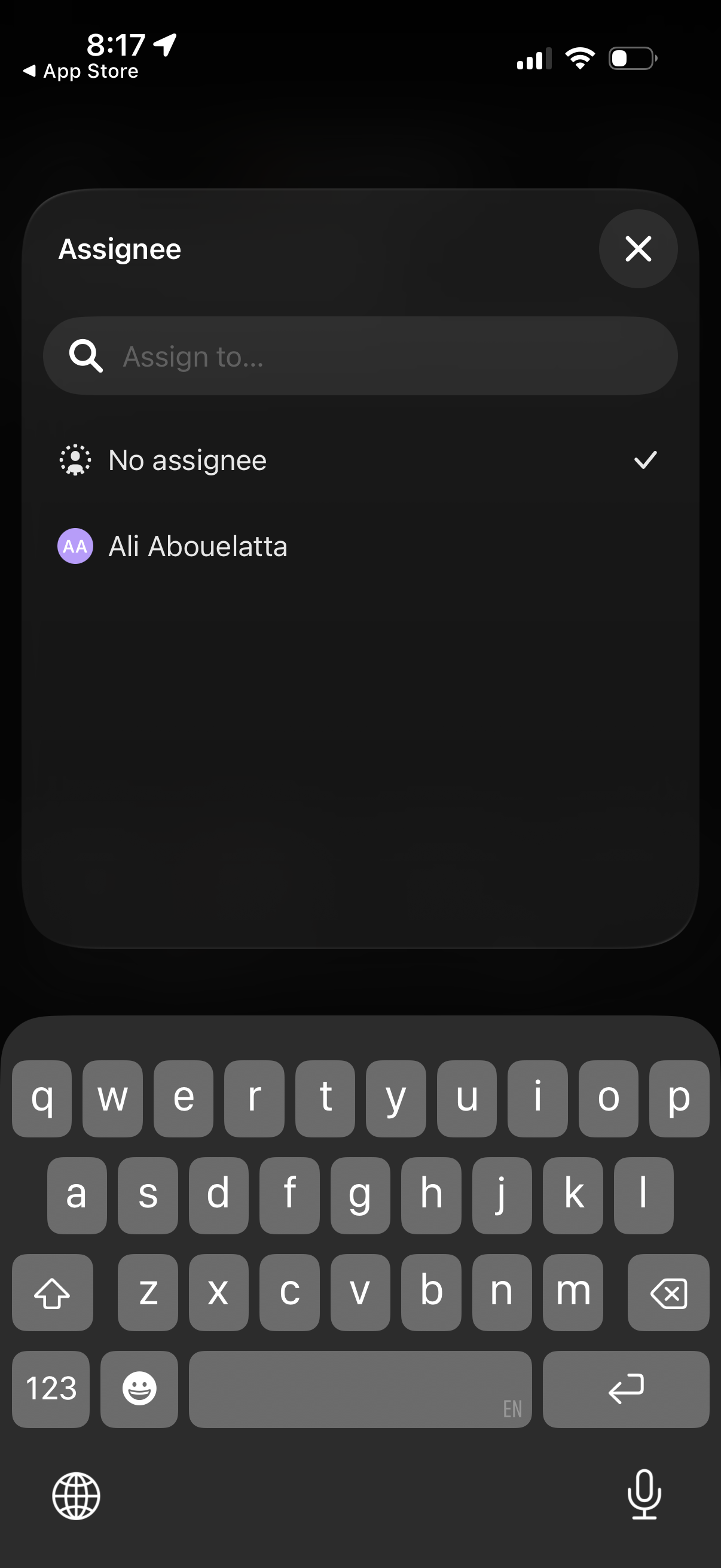
Assignee selection modal for a task or item, featuring a search field to find people and a list of assignee options including “No assignee” with a checkmark indicating the current selection. Users can choose an assignee from the list or close the sheet with an X.
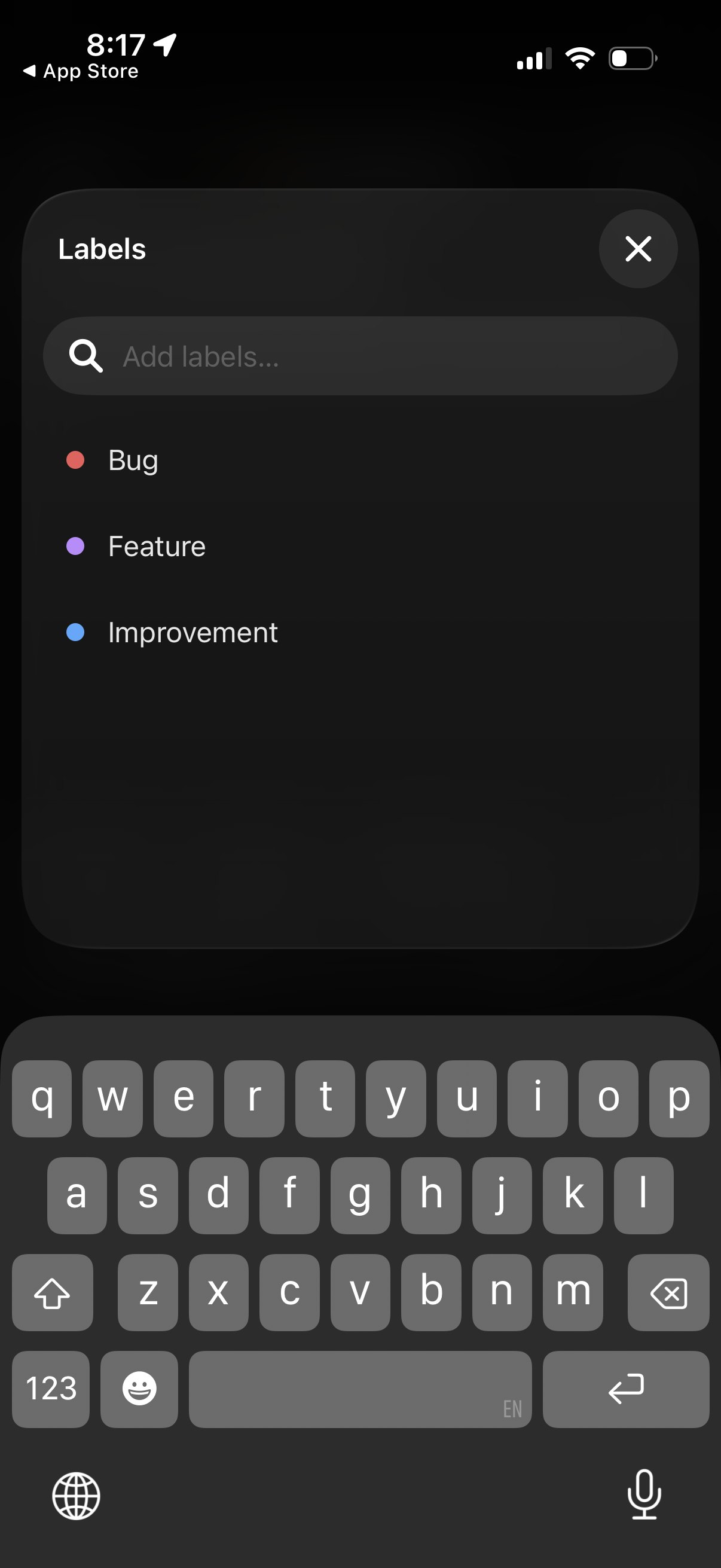
Modal bottom sheet for adding and selecting labels with a search field (“Add labels…”) and a list of color-coded label options like Bug, Feature, and Improvement, with a close button to dismiss. Used to categorize or tag an item via quick label selection and filtering.
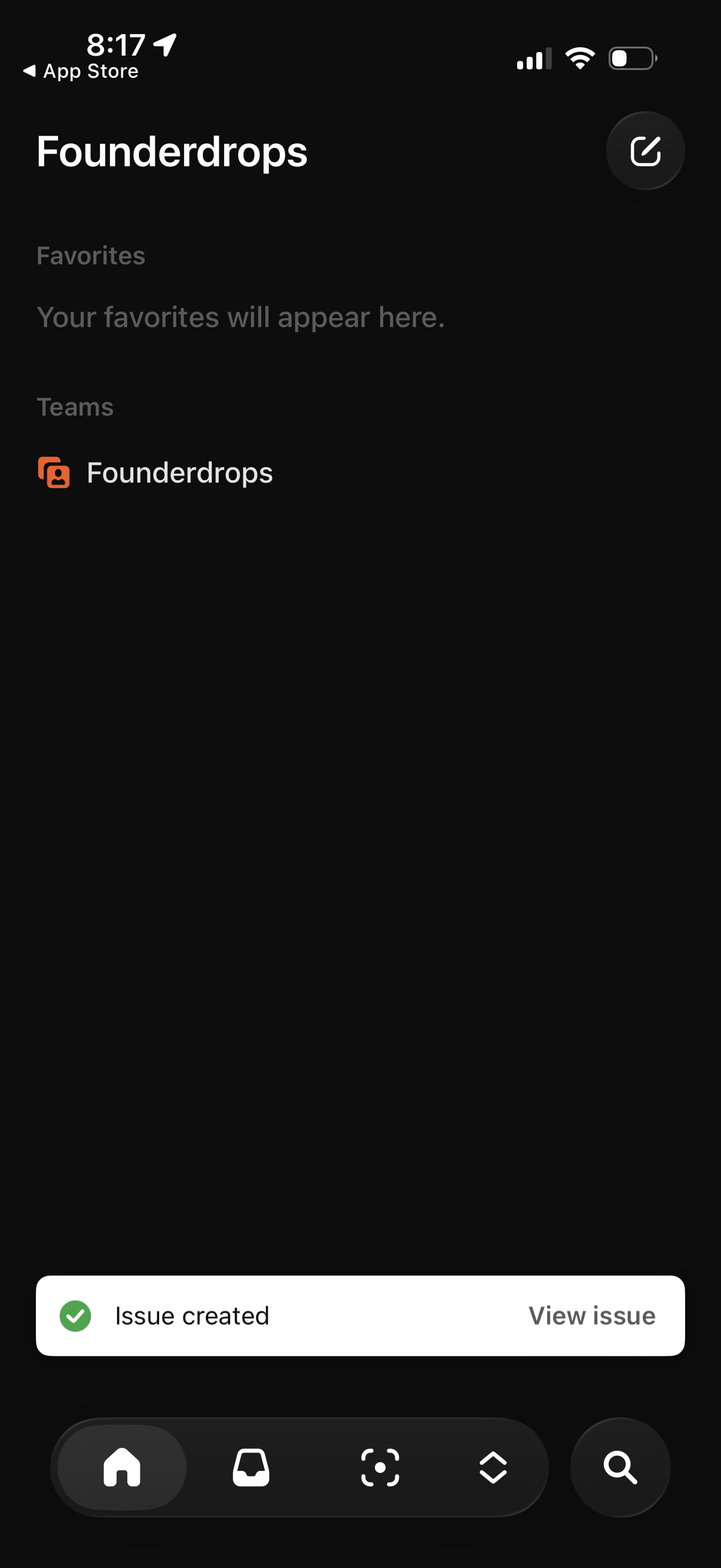
Workspace or project overview screen showing a Favorites section (empty state) and a Teams list with a selectable team, with a compose/new button to create a new item. A bottom toast confirmation indicates an issue was created with an option to view the issue, plus bottom navigation for switching sections and search.