Onboarding

Minimal white splash screen displaying the “hims” logo centered, used as an app launch/loading screen with no actions or navigation options.
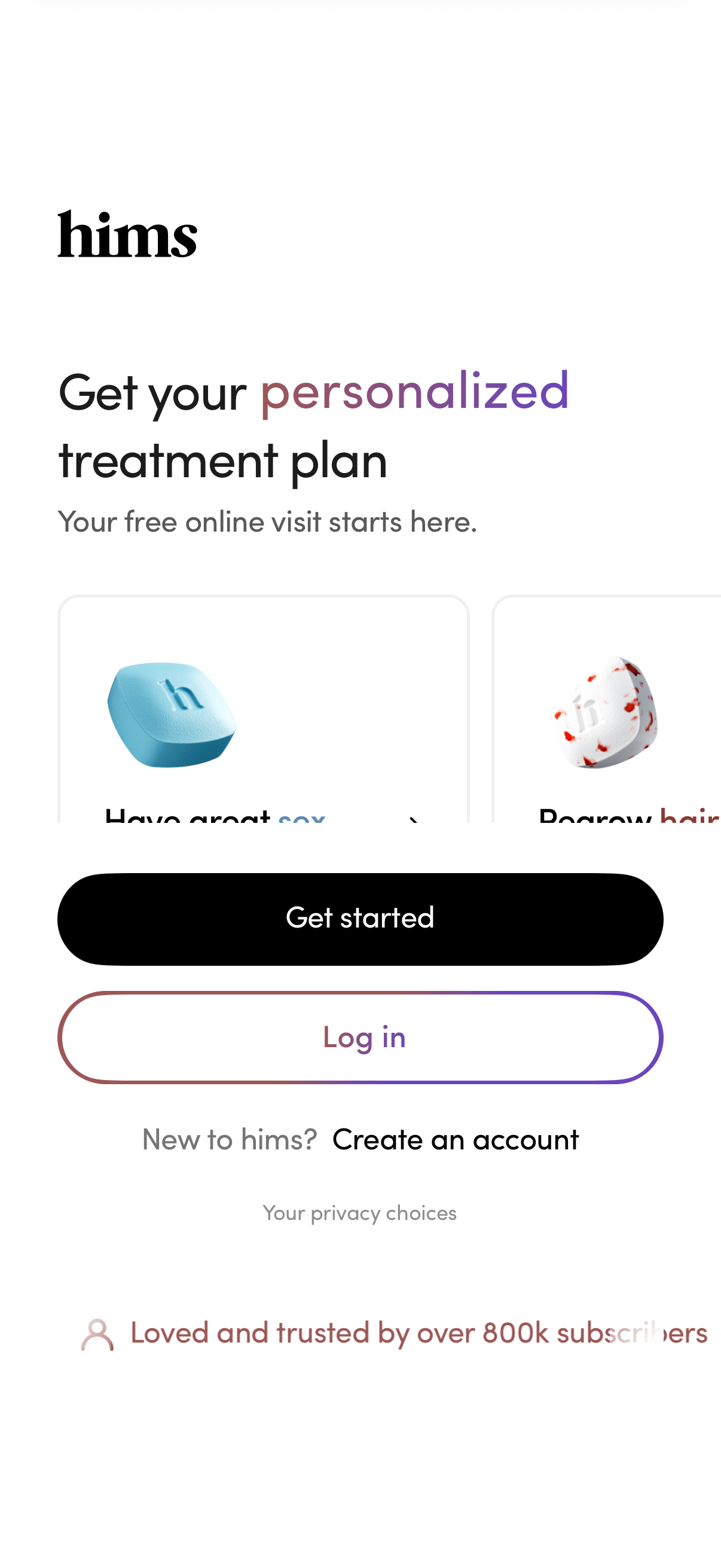
Landing screen for a telehealth service prompting users to get a personalized treatment plan and start a free online visit. Primary actions include a “Get started” CTA, options to log in or create an account, and previews of available treatment categories.
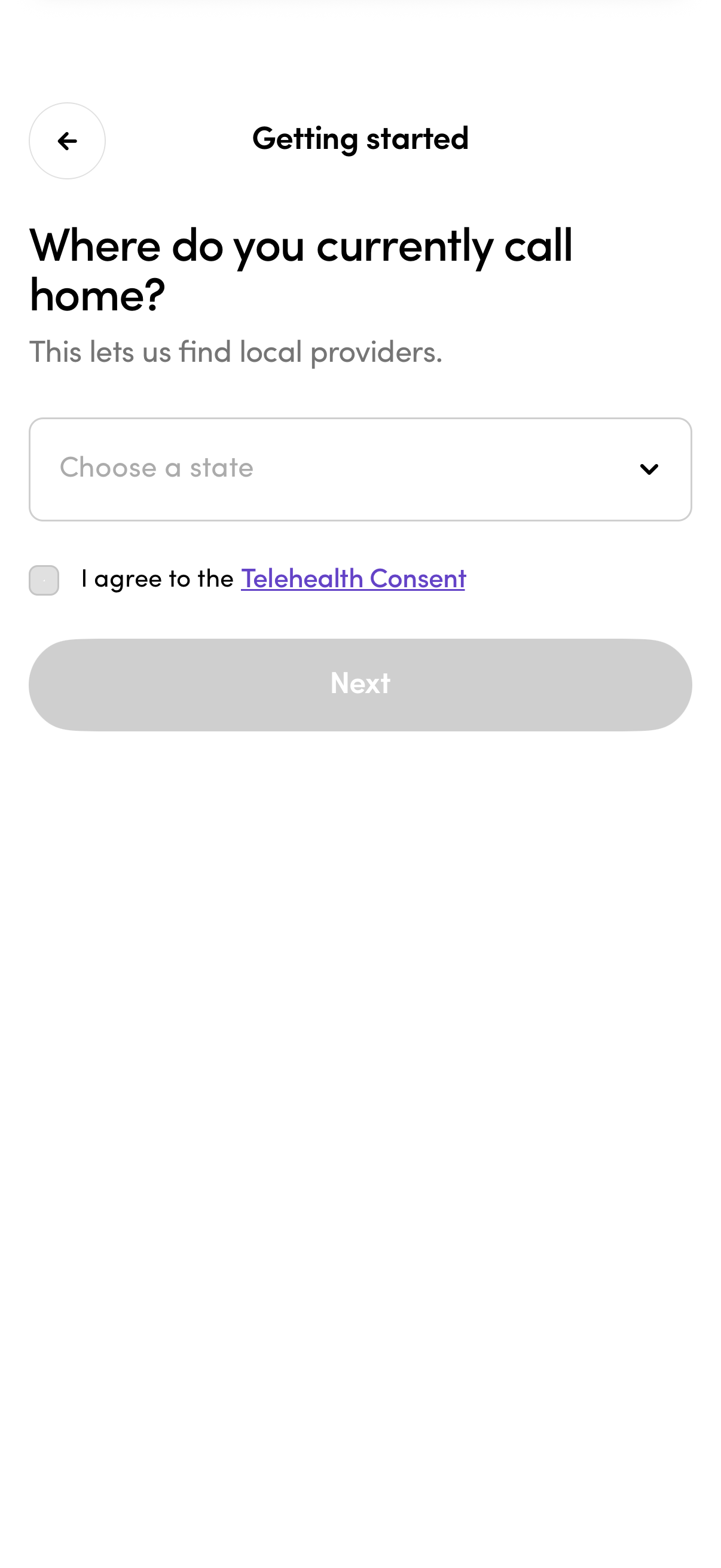
Onboarding “Getting started” screen asking the user to select their current home state from a dropdown to find local providers. Includes a required checkbox to agree to Telehealth Consent and a disabled Next button until the form is completed, with a back navigation arrow.
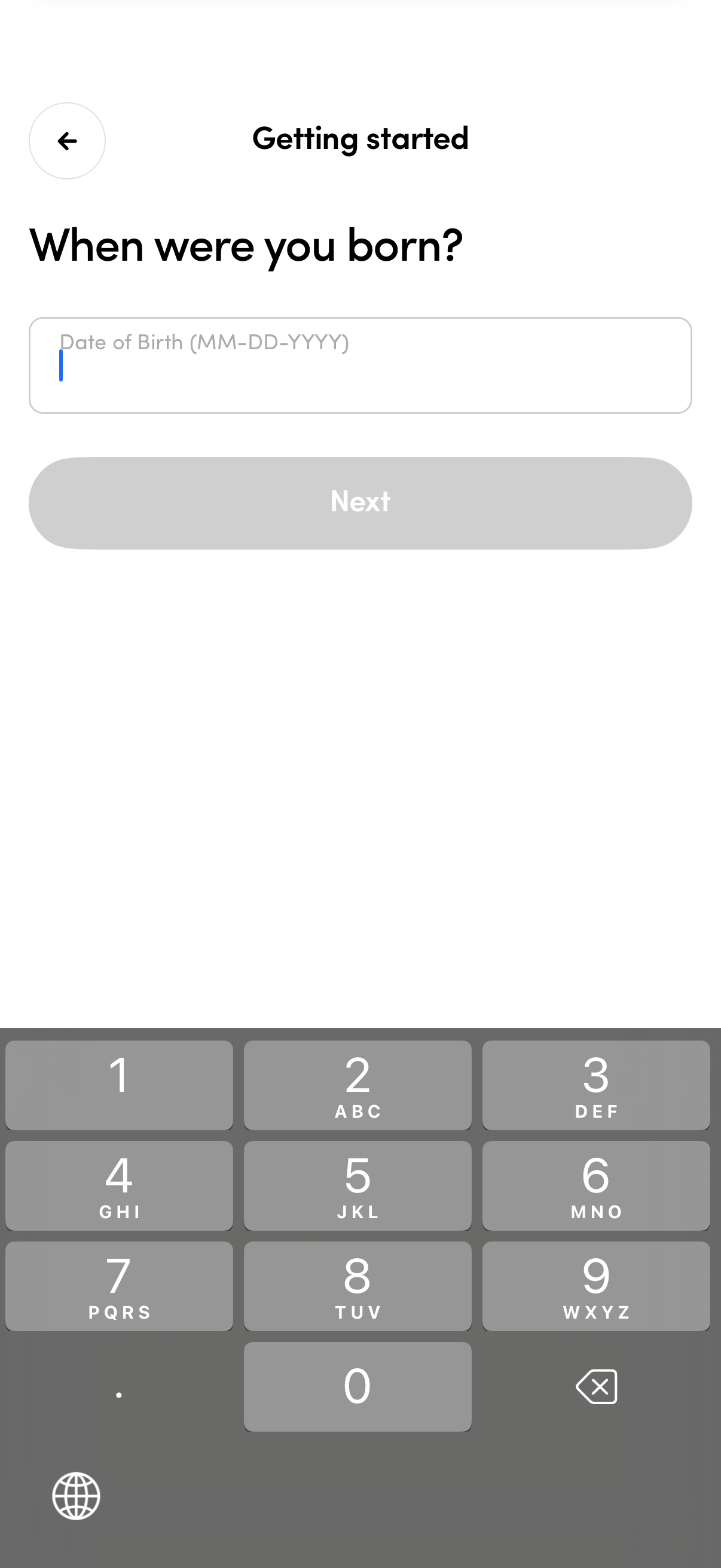
Onboarding “Getting started” form screen asking the user for their date of birth with a single DOB input field (MM-DD-YYYY) and a back button. A large Next call-to-action is disabled until the birthdate is entered, with a numeric keypad shown for data entry.
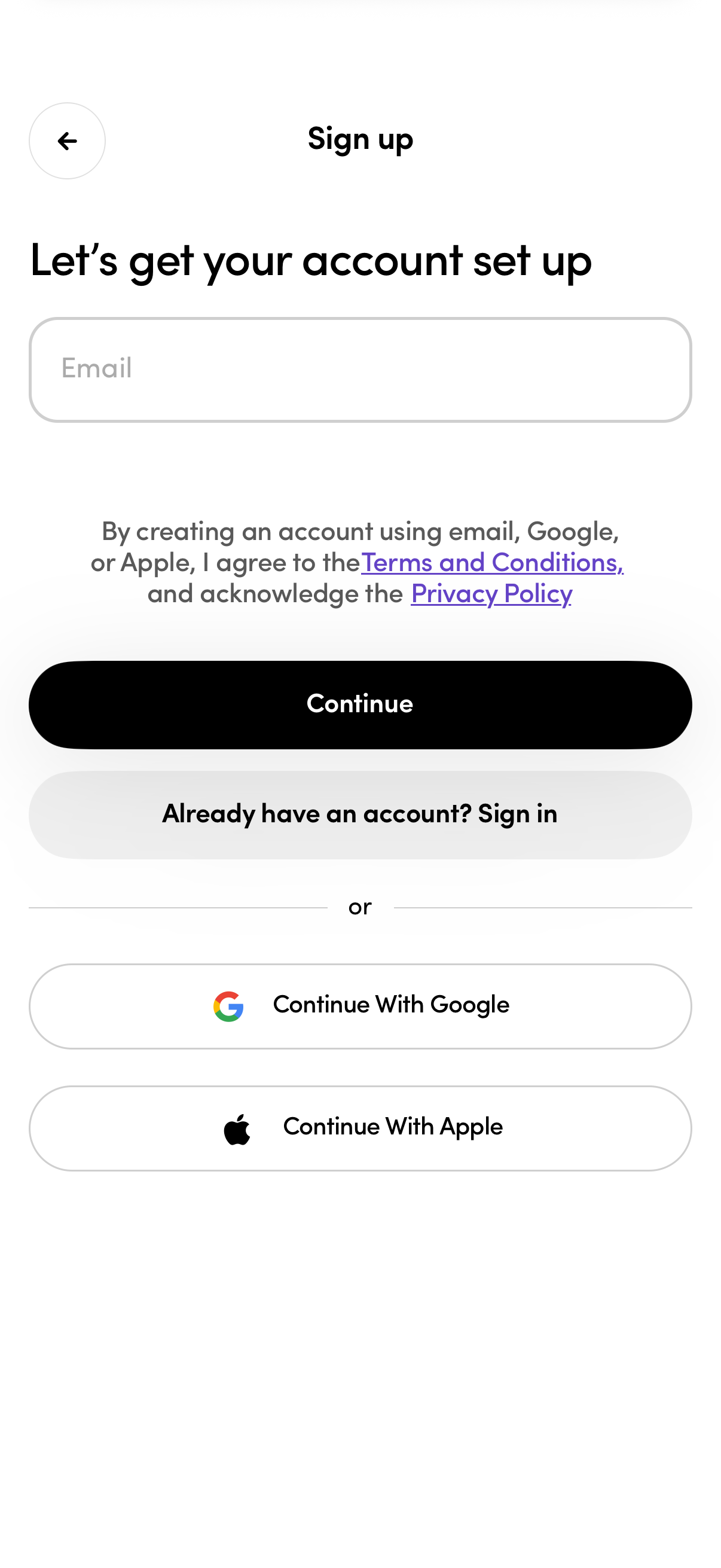
Account sign-up screen prompting the user to enter an email address to create an account and continue, with links to Terms and Conditions and Privacy Policy. Provides alternative authentication options including “Already have an account?
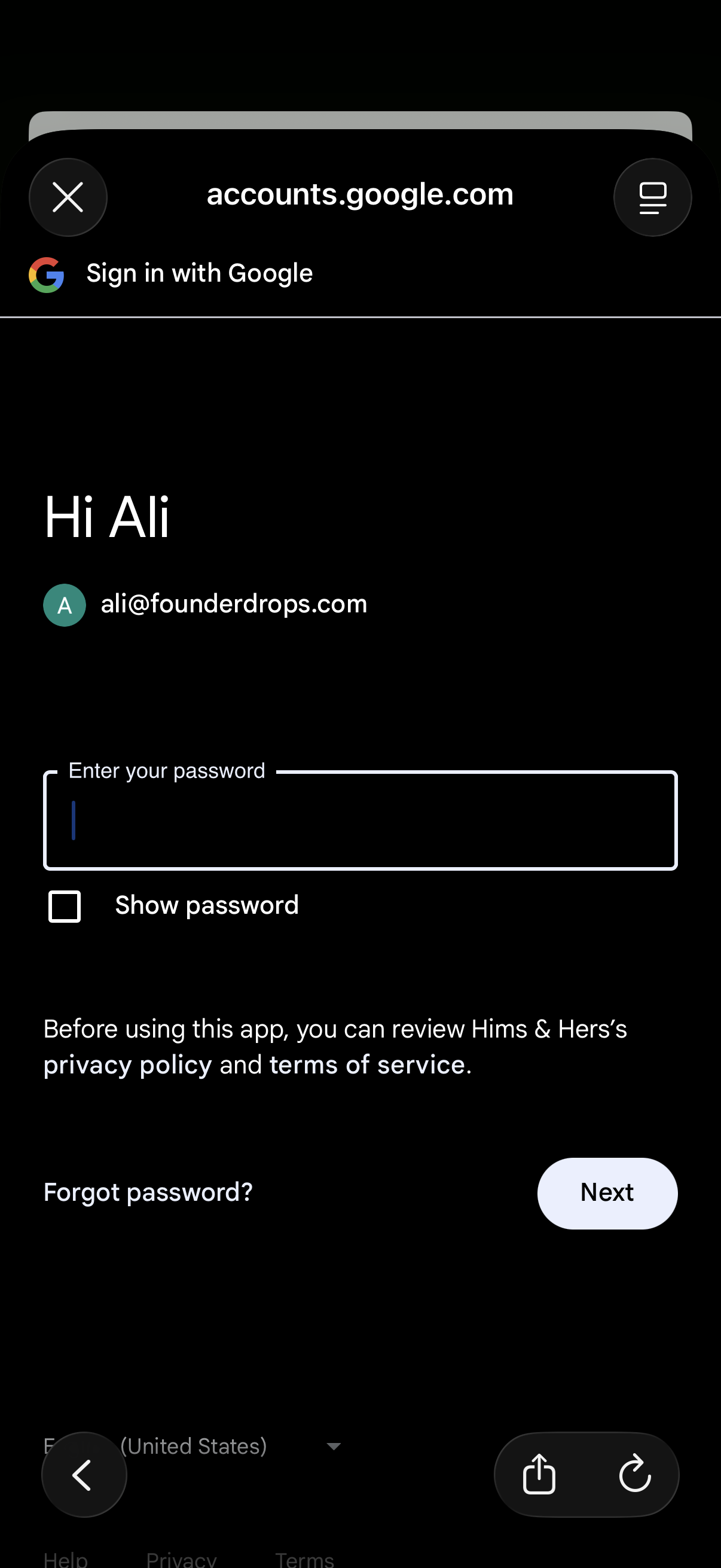
Google sign-in password verification screen showing the selected account email, a password input field with a “Show password” checkbox, and actions to continue with “Next” or recover access via “Forgot password,” along with privacy policy and terms links.
Google sign-in password verification screen showing the selected account email, a password input field with a “Show password” checkbox, and actions to continue with “Next” or recover access via “Forgot password,” along with privacy policy and terms links.
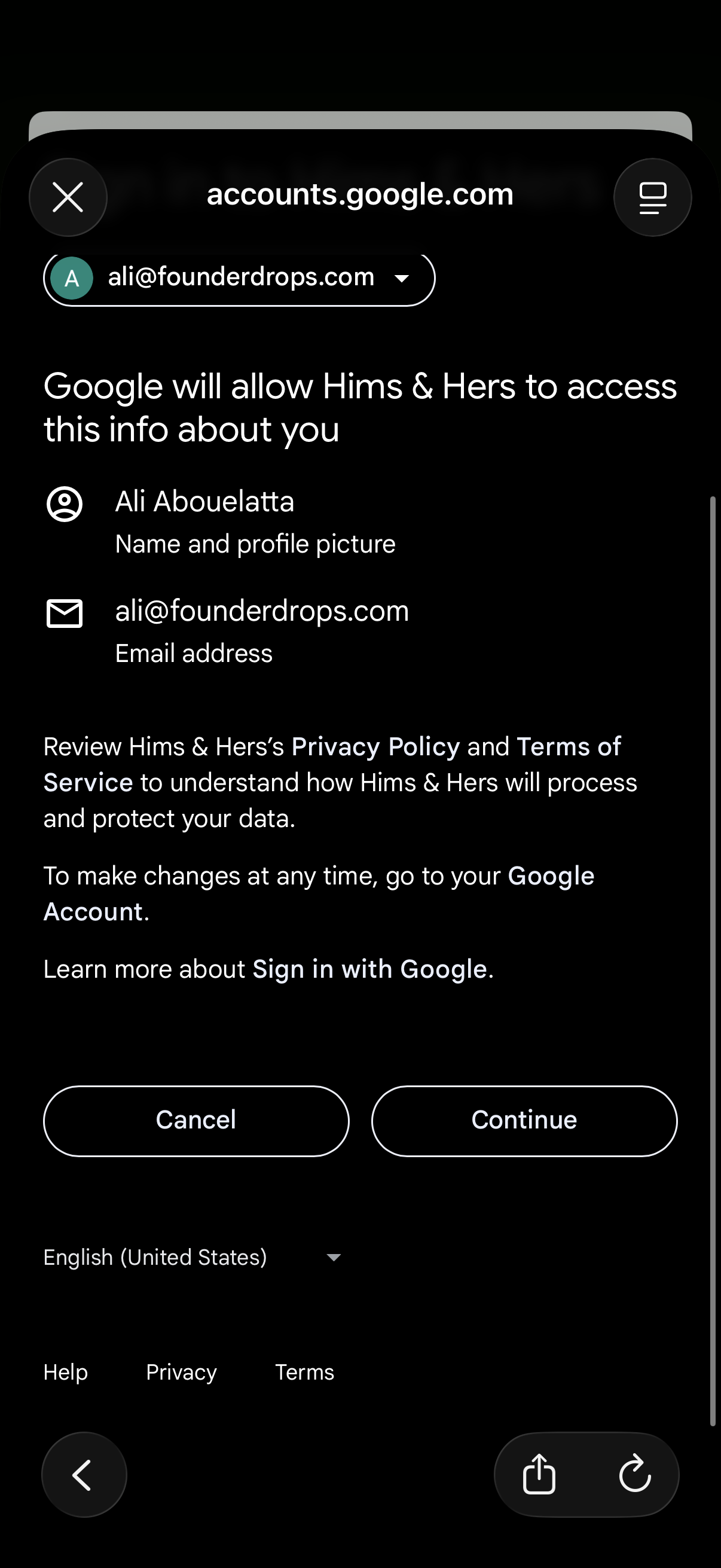
Google “Sign in with Google” OAuth consent screen showing what account information a third-party app will access (name/profile photo and email address), with an account selector and links to privacy/terms. Primary actions are to Cancel or Continue to grant access.
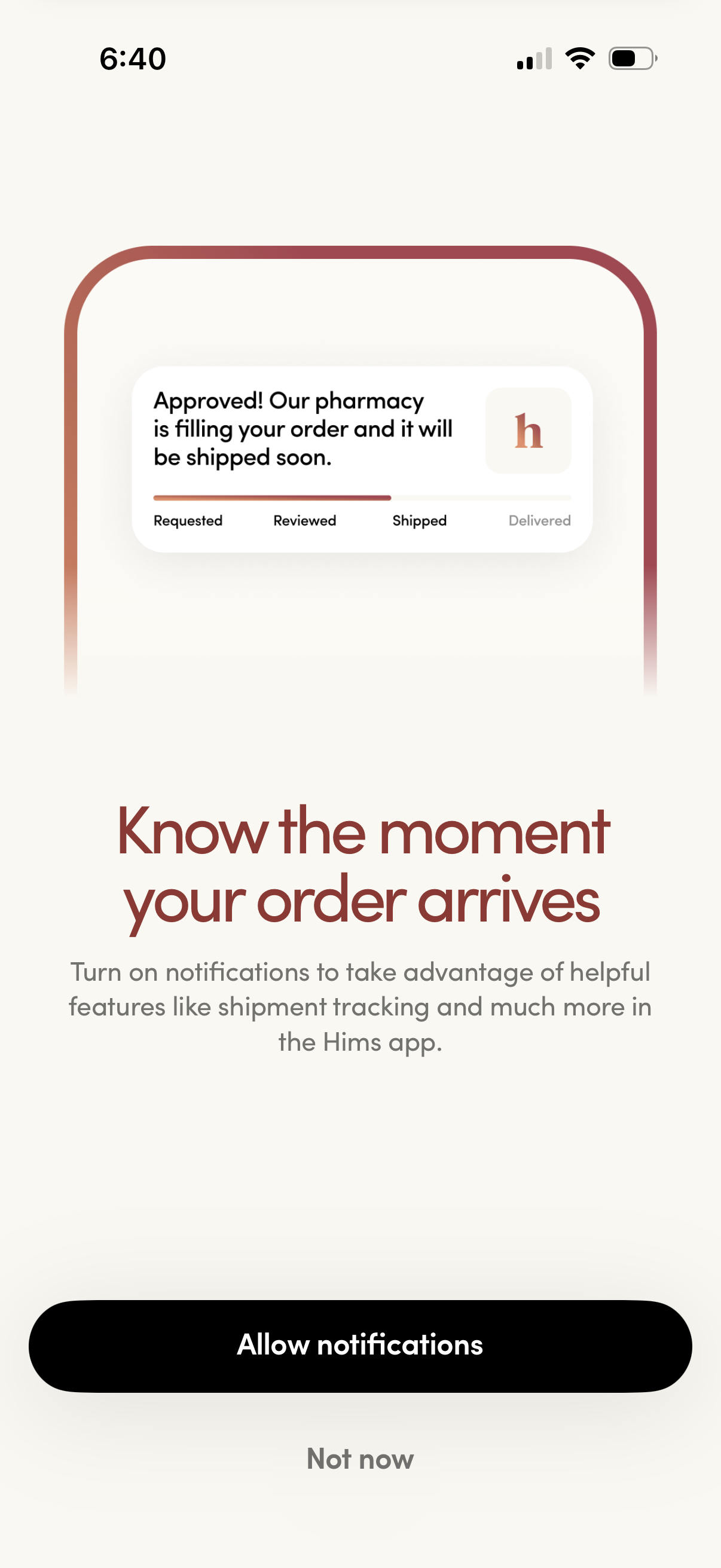
Notification permission prompt encouraging users to enable push notifications for pharmacy order updates and shipment tracking, showing an example order status timeline (requested, reviewed, shipped, delivered). Primary action is “Allow notifications” with a secondary “Not now” option.
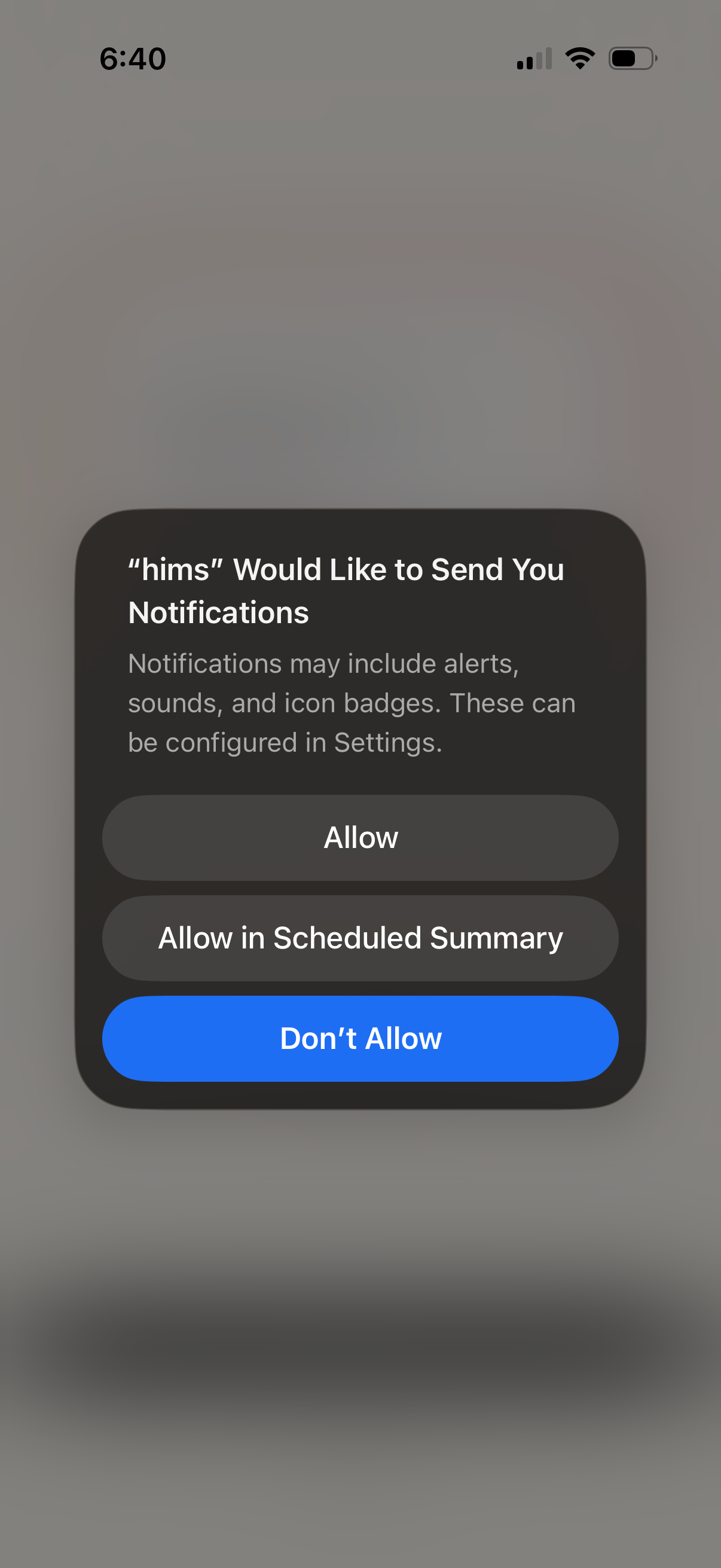
iOS system permission prompt asking the user to enable push notifications for an app, explaining alerts, sounds, and badges. Provides actions to Allow, Allow in Scheduled Summary, or Don’t Allow.