Onboarding
App launch splash screen with a centered logo on a soft gradient background and a short tagline at the bottom, shown while the app loads before onboarding or sign-in.
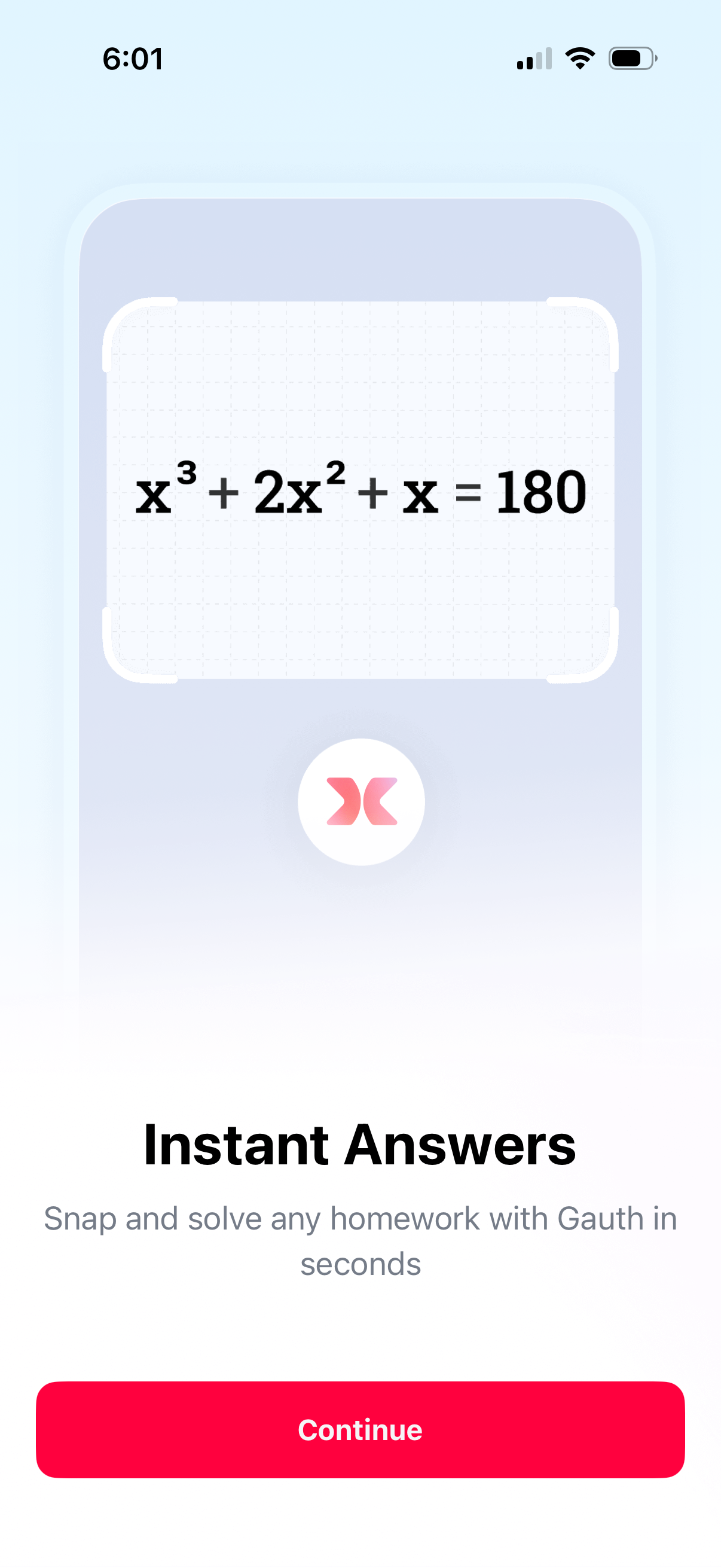
Onboarding feature-intro screen for a homework math solver that promotes “Instant Answers” by snapping a photo of an equation to get solutions in seconds. Includes an illustrative camera-capture card with a math problem and a primary CTA button to Continue.
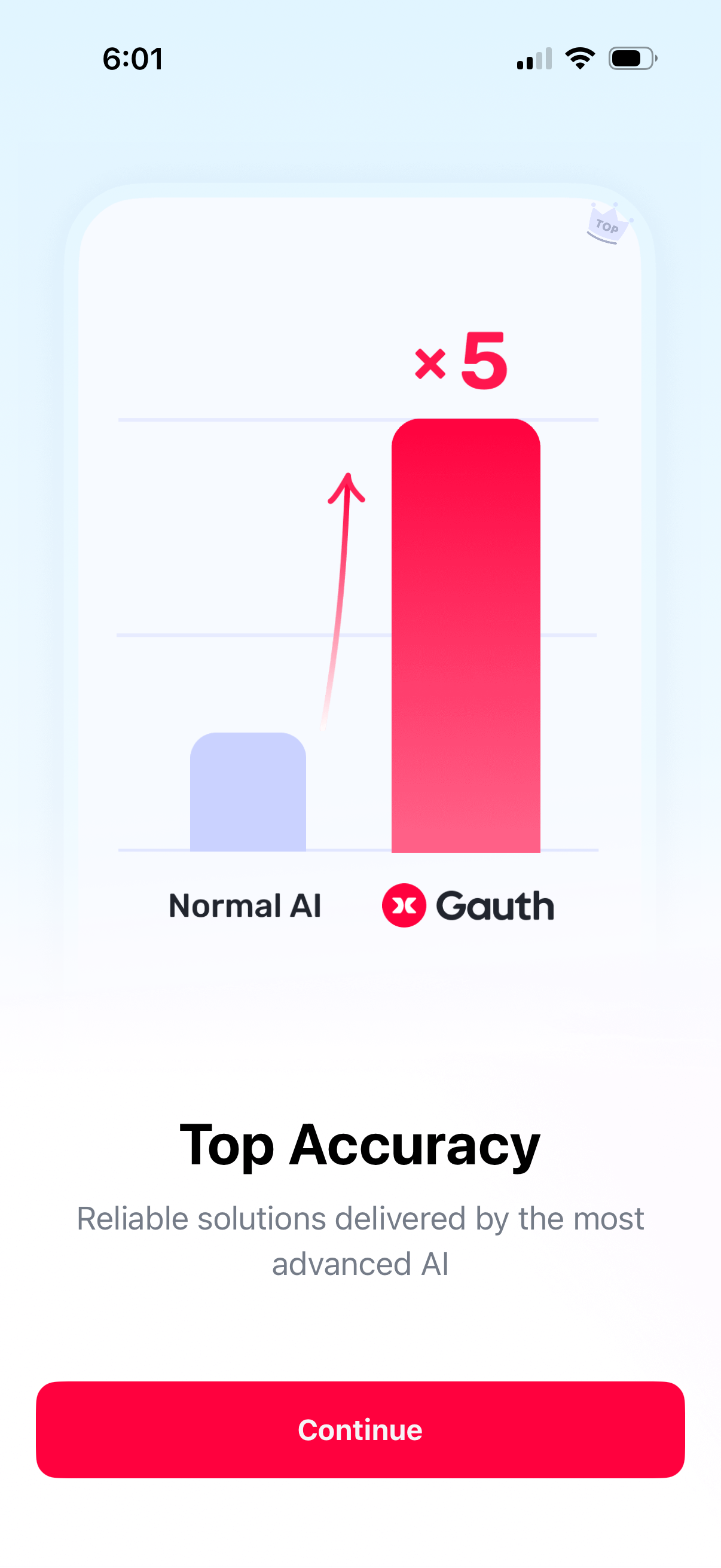
Onboarding/marketing feature highlight screen promoting “Top Accuracy” with a comparison bar chart showing the app outperforming “Normal AI” by 5x. Includes a primary CTA button to Continue to the next onboarding step.
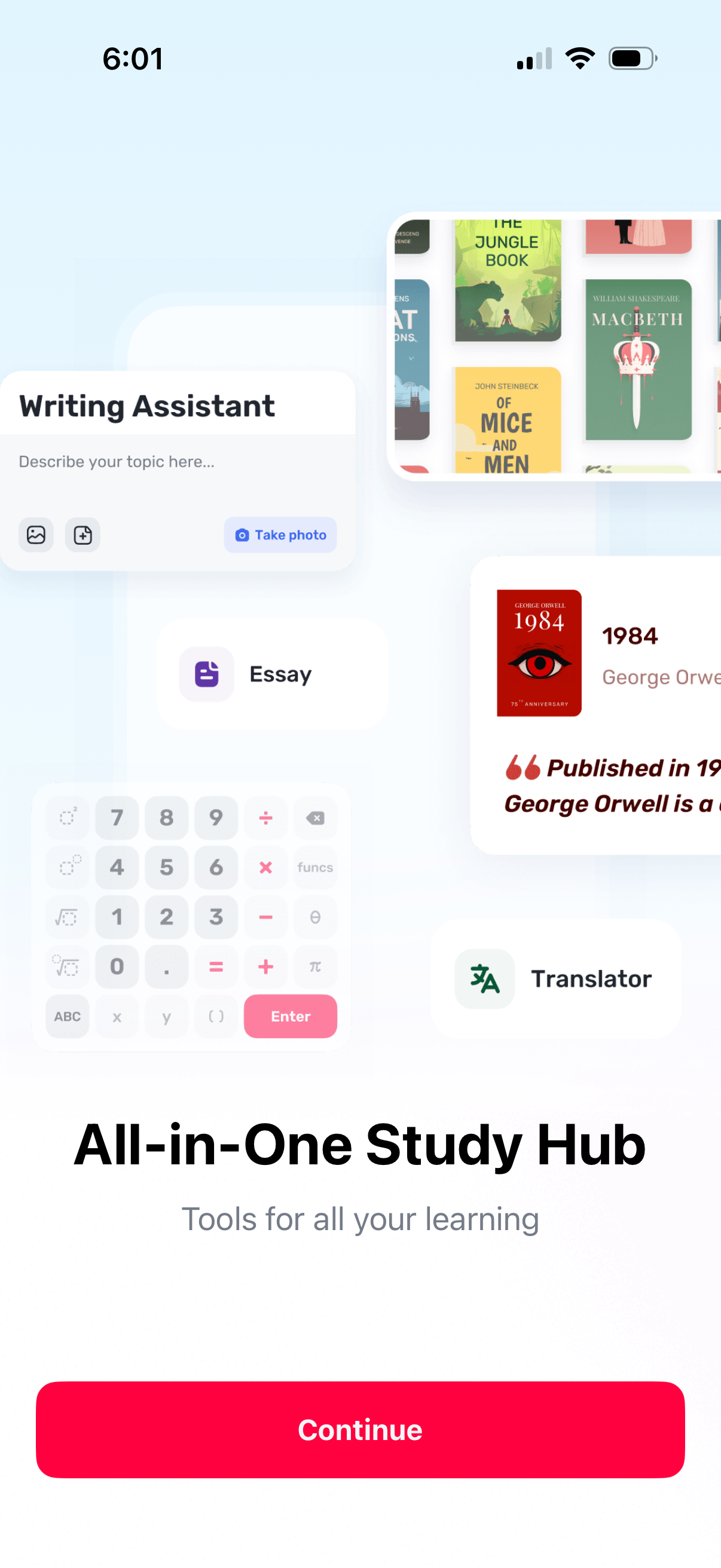
Onboarding promo screen for an all-in-one study hub showcasing tools like a writing assistant with topic input and photo capture, essay help, calculator, and translator. Includes a primary Continue CTA to proceed.
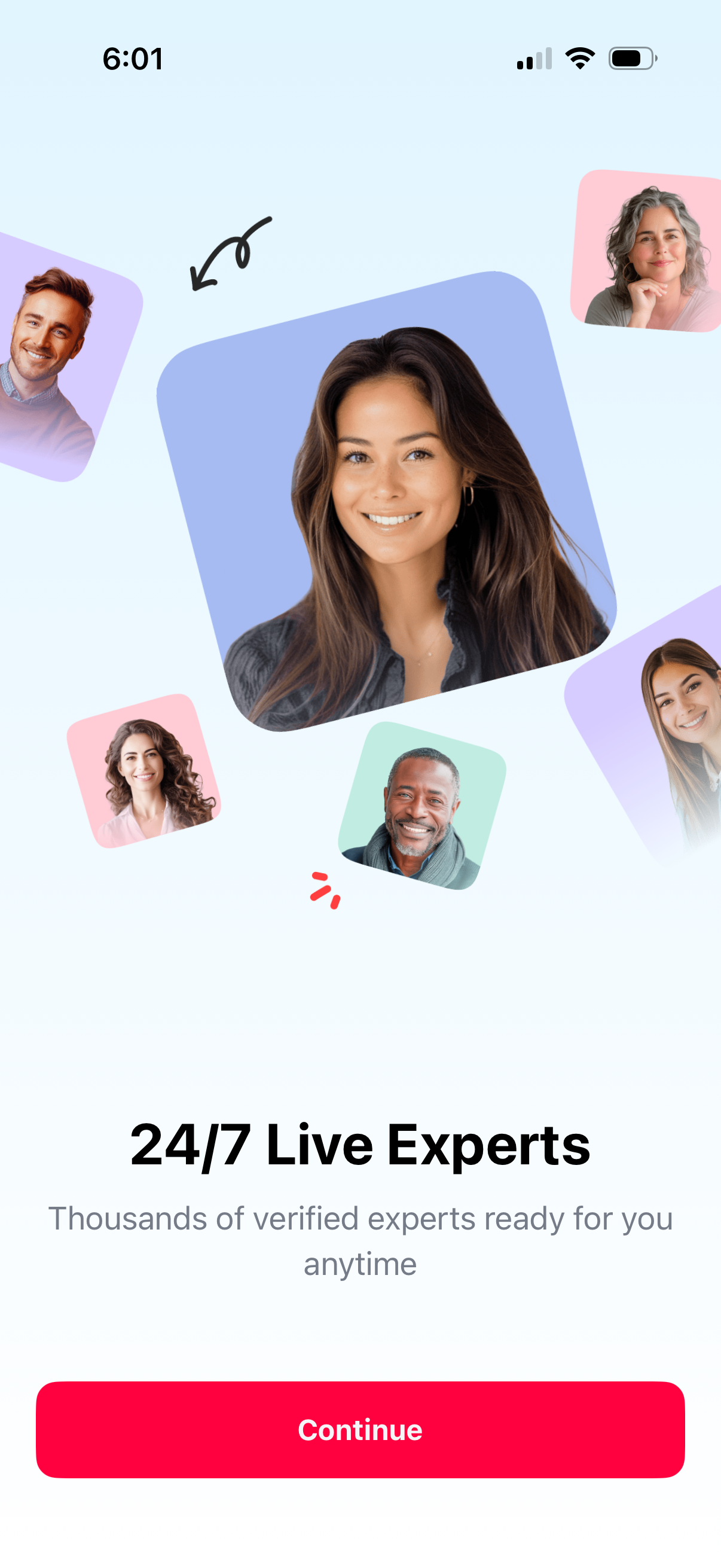
Onboarding/intro screen promoting 24/7 access to live verified experts, illustrated with profile avatars. Includes a brief value proposition and a primary “Continue” call-to-action button to proceed.
Minimal splash/loading screen for an AI assistant app, showing large brand/title text and a small “Deep thinking” status card indicating the assistant is processing a response. No user actions or navigation are available, emphasizing an in-progress waiting state.
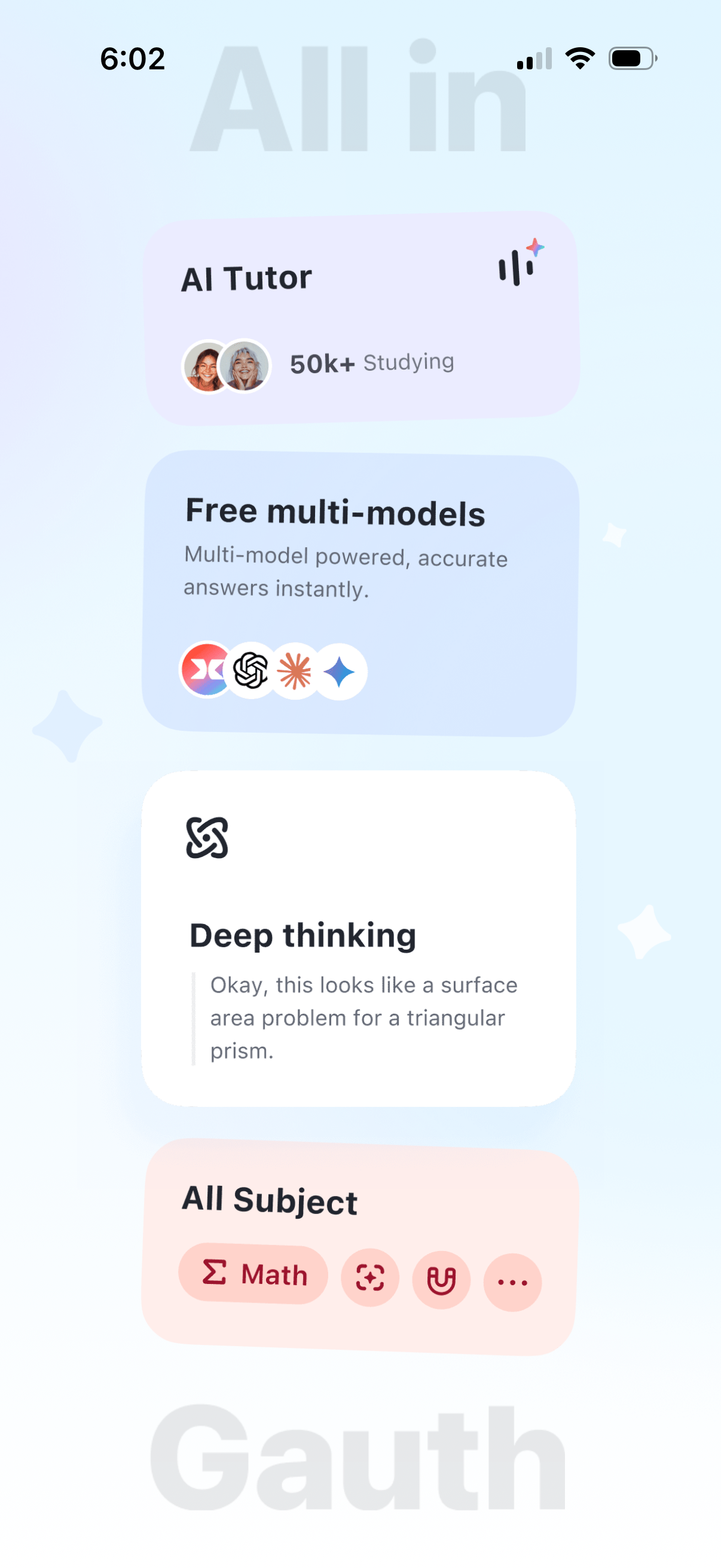
Home dashboard for an AI tutoring/study app showcasing feature cards like AI Tutor popularity, free multi-model instant answers, and a “Deep thinking” mode example. Includes an “All Subject” section with subject chips (e.
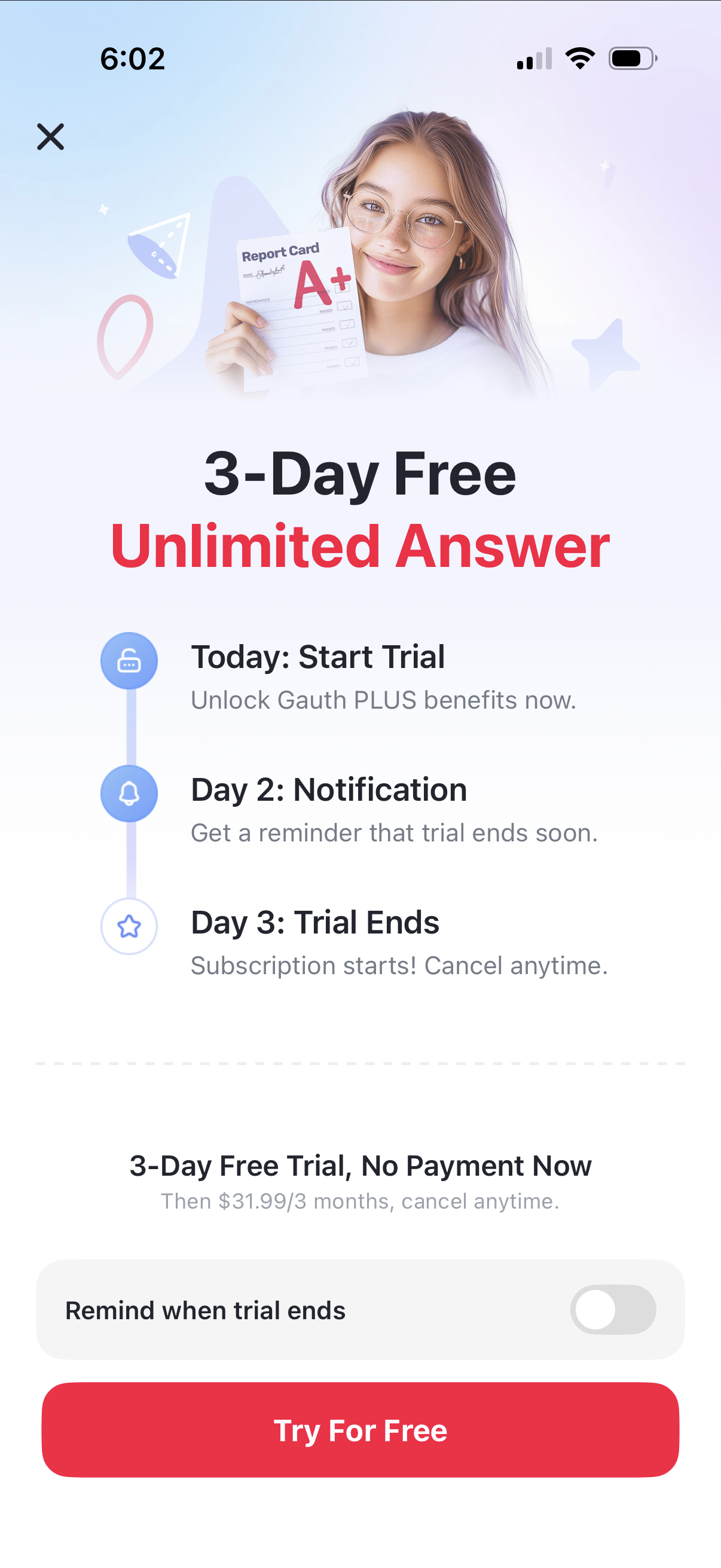
Subscription upsell paywall offering a 3-day free trial for unlimited answers, showing a timeline of what happens each day (start trial, reminder notification, trial ends and subscription begins). Includes pricing details, an optional “remind when trial ends” toggle, a primary “Try For Free” CTA, and a close button to dismiss.
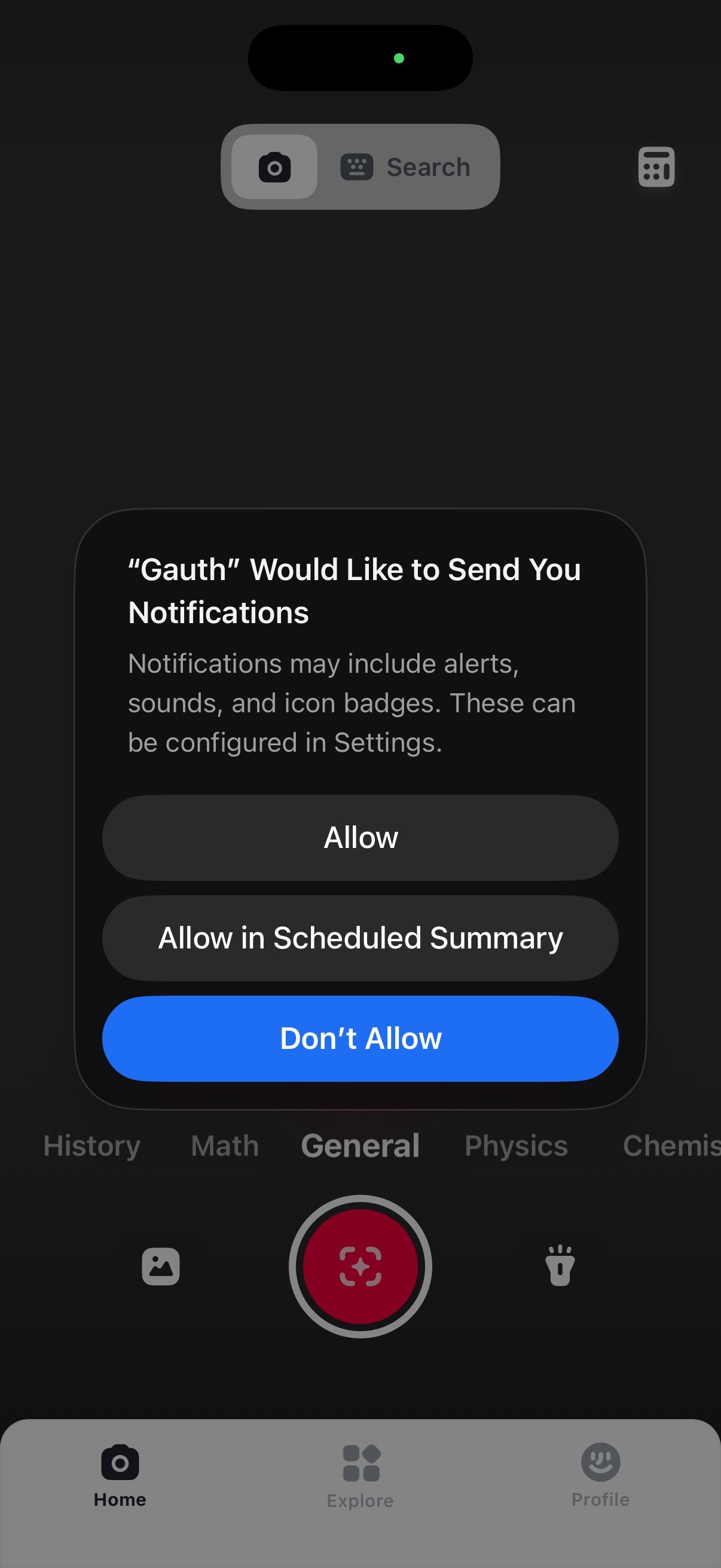
iOS push notification permission prompt overlay asking to allow app notifications, with options to Allow, Allow in Scheduled Summary, or Don’t Allow. The underlying home screen shows a search field and a main camera/scan capture button for identifying or solving content, with category tabs and bottom navigation (Home, Explore, Profile).
iOS push notification permission prompt overlay asking to allow app notifications, with options to Allow, Allow in Scheduled Summary, or Don’t Allow. The underlying home screen shows a search field and a main camera/scan capture button for identifying or solving content, with category tabs and bottom navigation (Home, Explore, Profile).
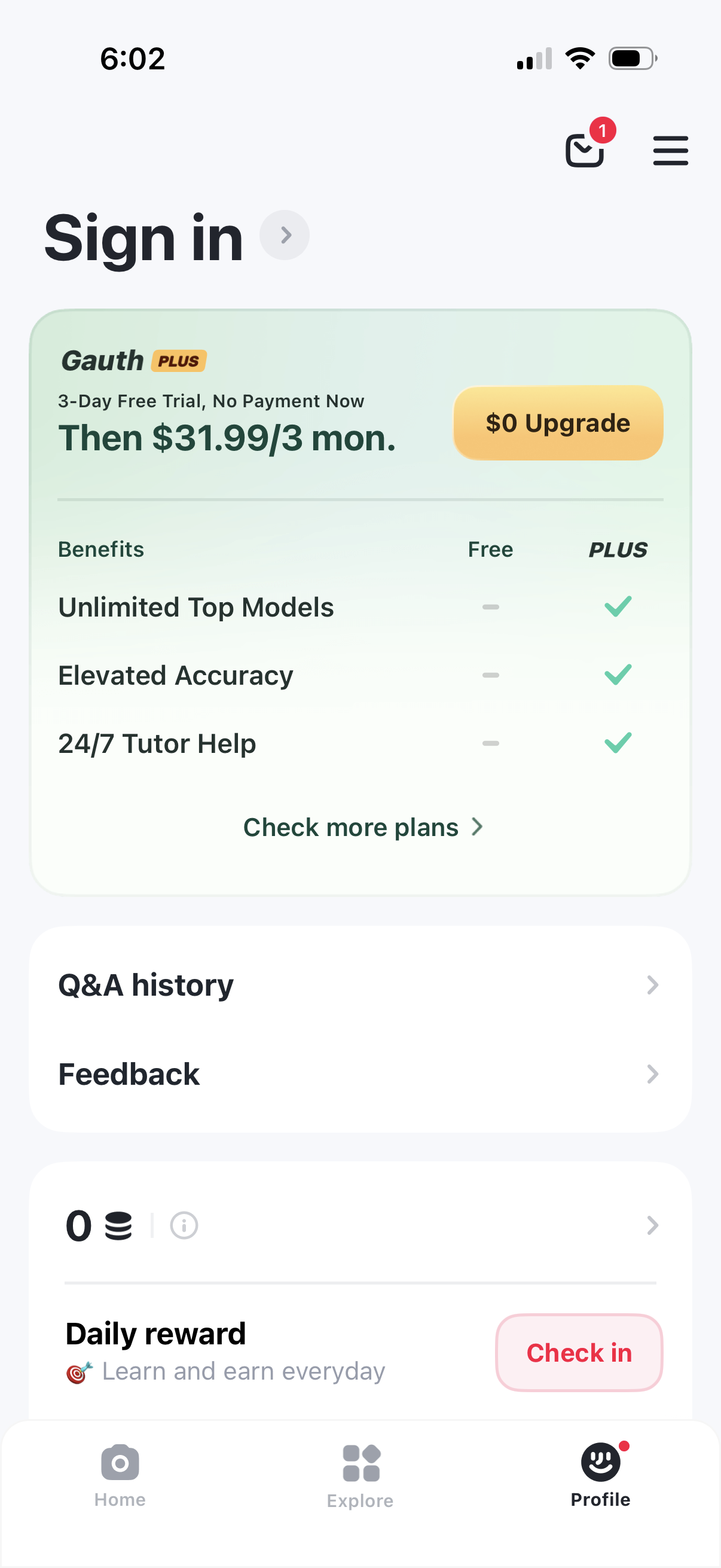
Profile sign-in screen that promotes upgrading to a premium subscription with a free trial, price details, and a benefits comparison between Free and Plus plus a primary “$0 Upgrade” CTA and link to check more plans. Secondary options include Q&A history, feedback, daily reward check-in, and a top-right inbox/notifications and menu access.
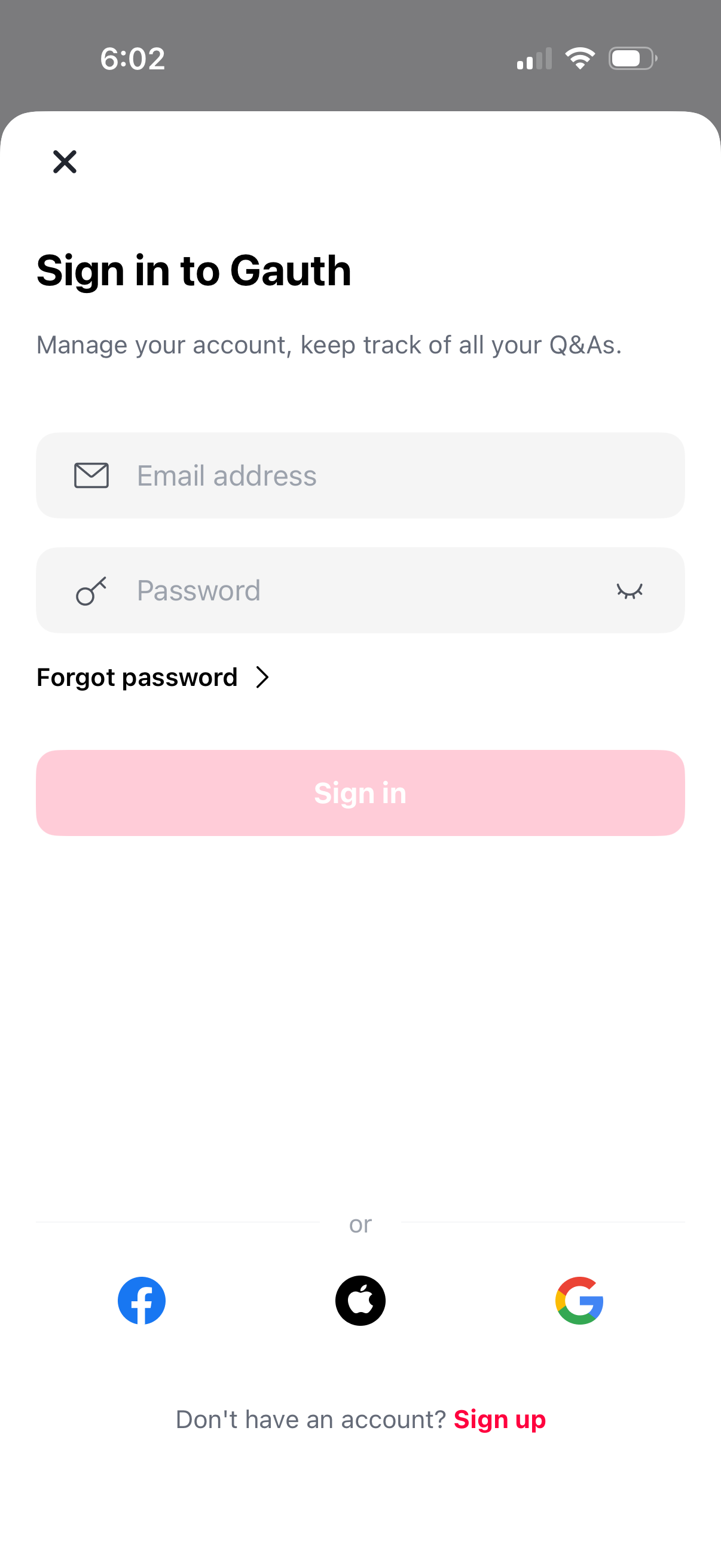
Login screen with email and password input fields, a forgot password link, and a primary sign-in button. Includes social sign-in options (Facebook, Apple, Google) plus a sign-up link for new users and a close icon to dismiss the modal.
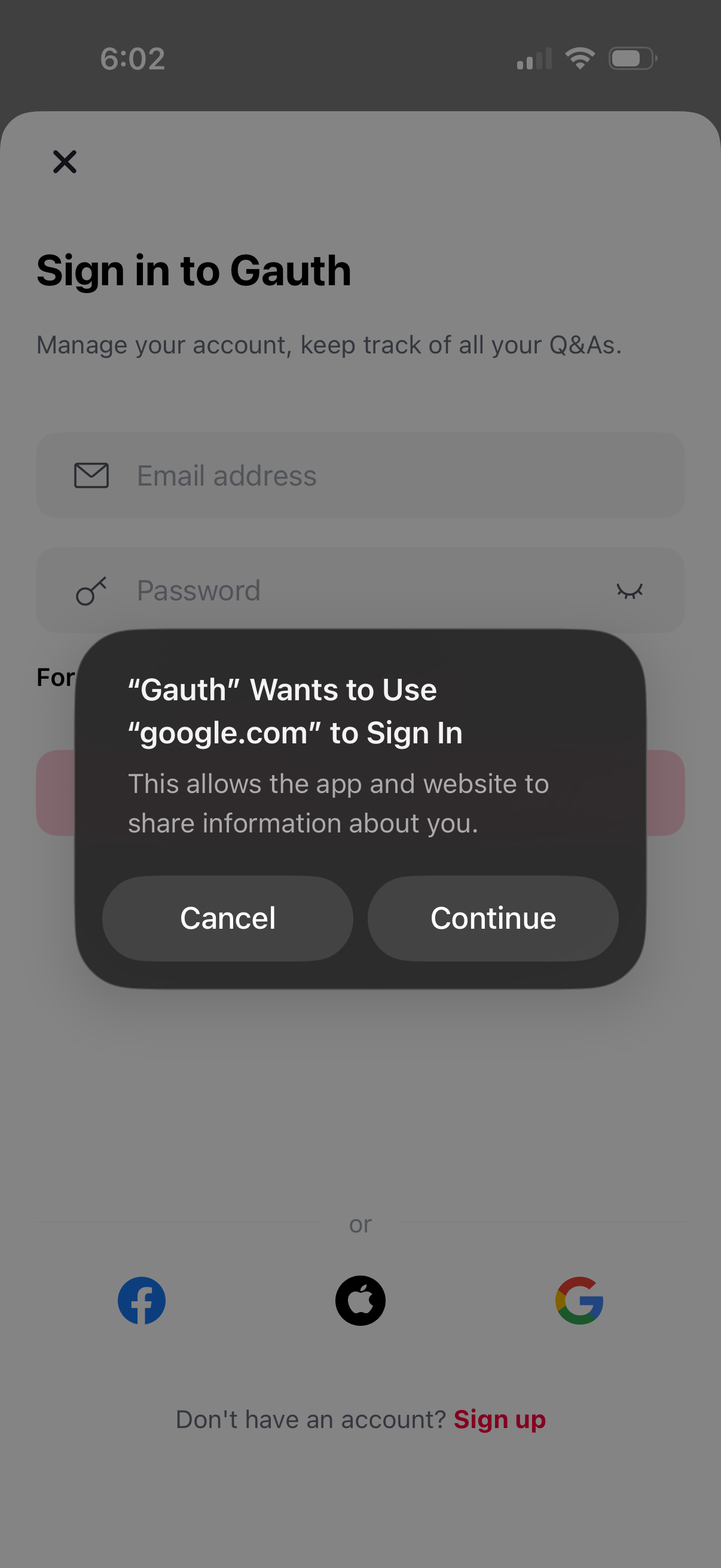
Login screen for an app with email and password fields plus social sign-in options (Facebook, Apple, Google) and a link to sign up. An iOS permission dialog is shown requesting to use google.
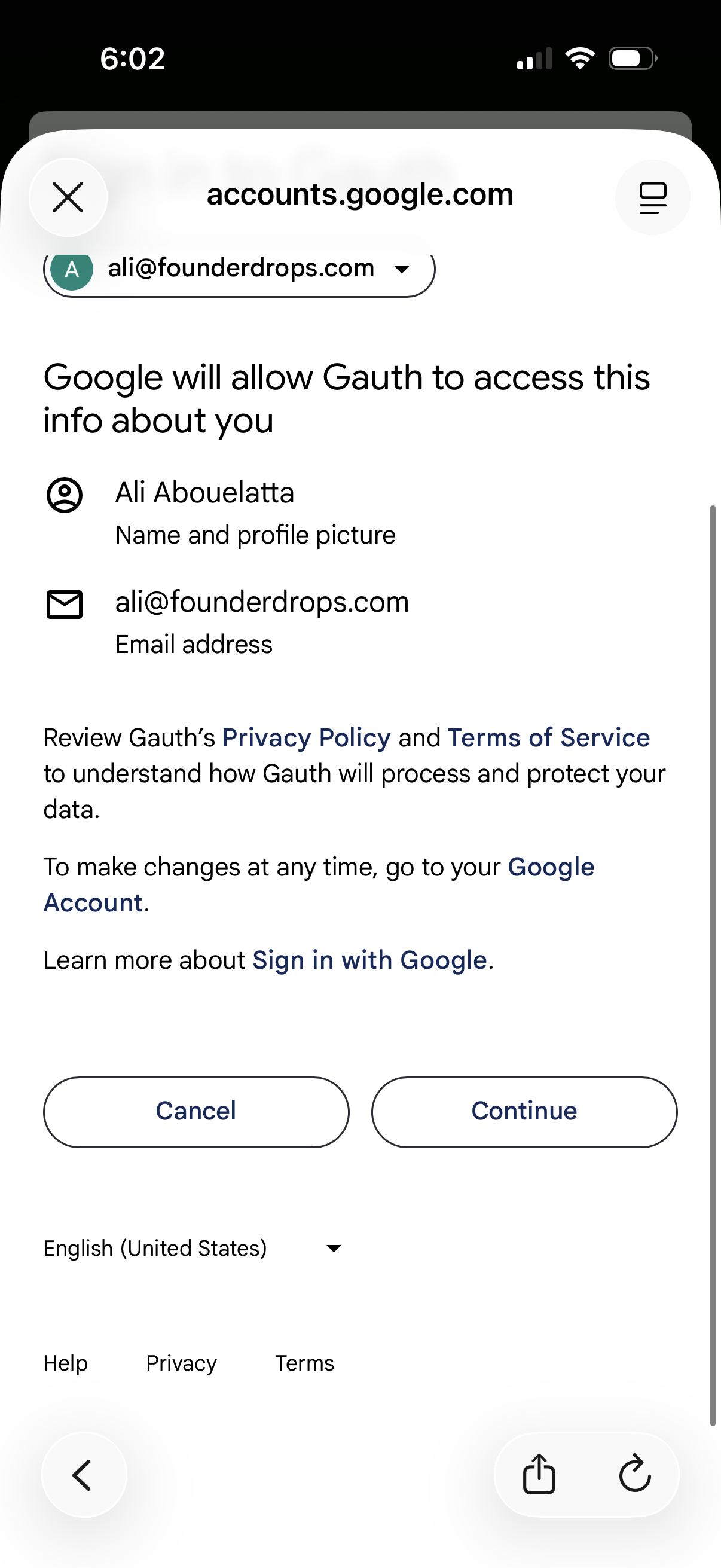
Google OAuth consent screen for “Sign in with Google,” showing what account data a third-party app will access (name/profile photo and email address) with links to privacy/terms and primary actions to Cancel or Continue the authorization.