Sign up and permissions

News app splash/loading screen showing the publisher logo and tagline on a branded background, with a centered spinner indicating the app is launching and content is loading. This is an onboarding-style startup screen with no user actions besides waiting.

Modal consent pop-up requiring users to accept the app’s Terms of Use and Privacy Policy before continuing, with buttons to view each document and an “I Agree” confirmation action.

A privacy consent screen requesting permission to continue app tracking for personalized ads and content, explaining why tracking is needed and linking to the privacy policy. Primary action is a “Continue” button to proceed to the system tracking prompt.

iOS App Tracking Transparency permission prompt asking whether to allow the app to track activity across other companies’ apps and websites for advertising. The modal offers two actions: “Ask App Not to Track” or “Allow,” overlaying an onboarding screen with a Continue button and privacy policy link.

A modal prompt asks the user to turn on customizable news alerts/notifications to stay informed about breaking news and live events. The dialog offers primary and secondary actions: Enable Notifications or Not Now.

iOS system push notification permission prompt shown over a news app home screen, asking to allow notifications with options to Allow, Allow in Scheduled Summary, or Don’t Allow. The underlying screen includes top topic tabs and bottom navigation for Home, Search, Watch, Listen, and For You.

News app home feed showing top headlines as large image cards with category chips for trending topics, estimated read time, and a primary “Watch TV” action for live streaming. Bottom navigation provides access to Home, Search, Watch, Listen, and personalized “For You” sections.

“For You” profile and preferences screen in a news/media app offering account actions (log in or create a free account), app preferences (notifications and settings), and a saved items section with empty state guidance, plus quick access to “Watch TV” and bottom navigation for Home, Search, Watch, Listen, and For You.
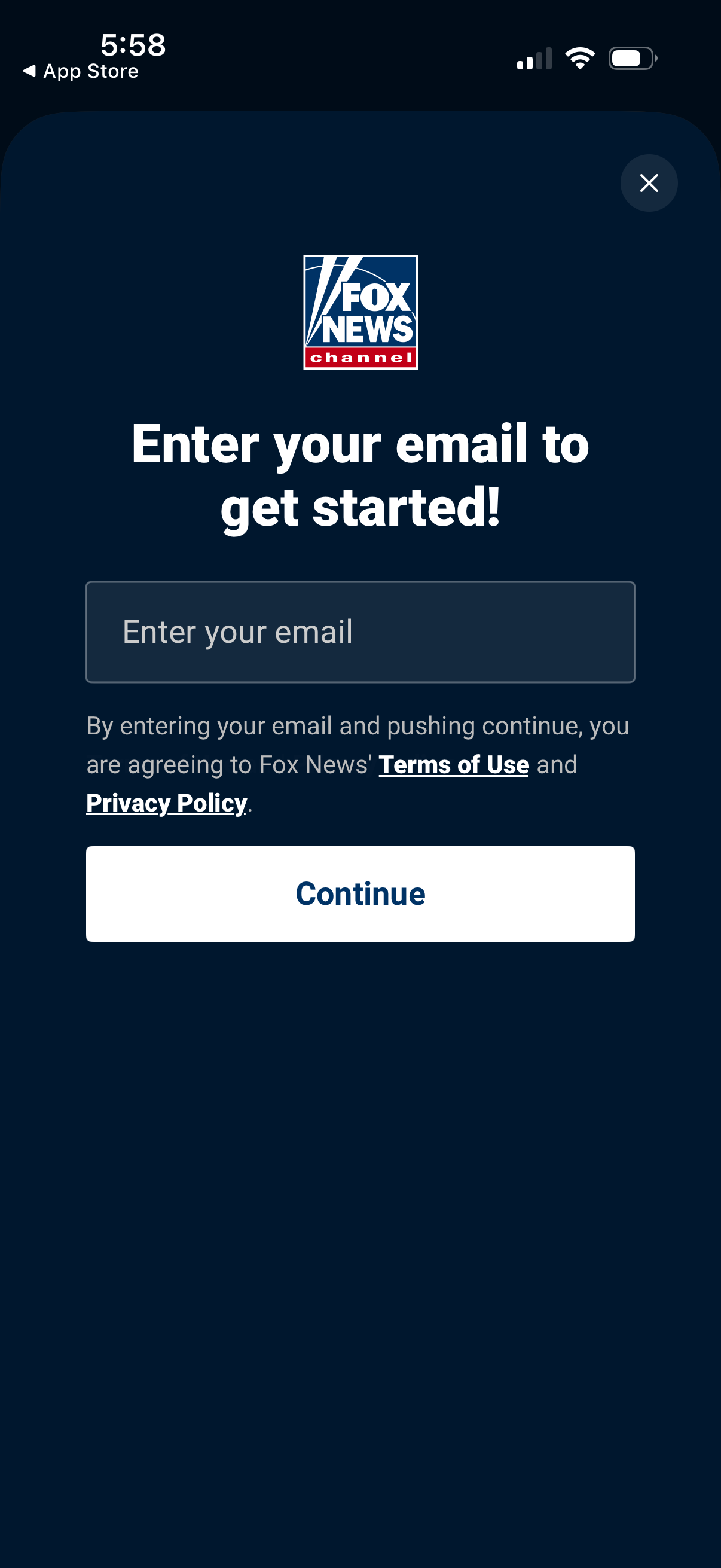
Email entry onboarding screen prompting the user to enter an email address to get started, with a primary Continue button to proceed. Includes consent text linking to Terms of Use and Privacy Policy and a close icon to dismiss the flow.

Email magic-link login confirmation screen prompting the user to check their inbox because a sign-in link was sent, with messaging about auto-refresh and a 30-minute expiration. Primary actions include resending the link, re-entering a different email, or switching to password sign-in, with a close button to exit.