Onboarding
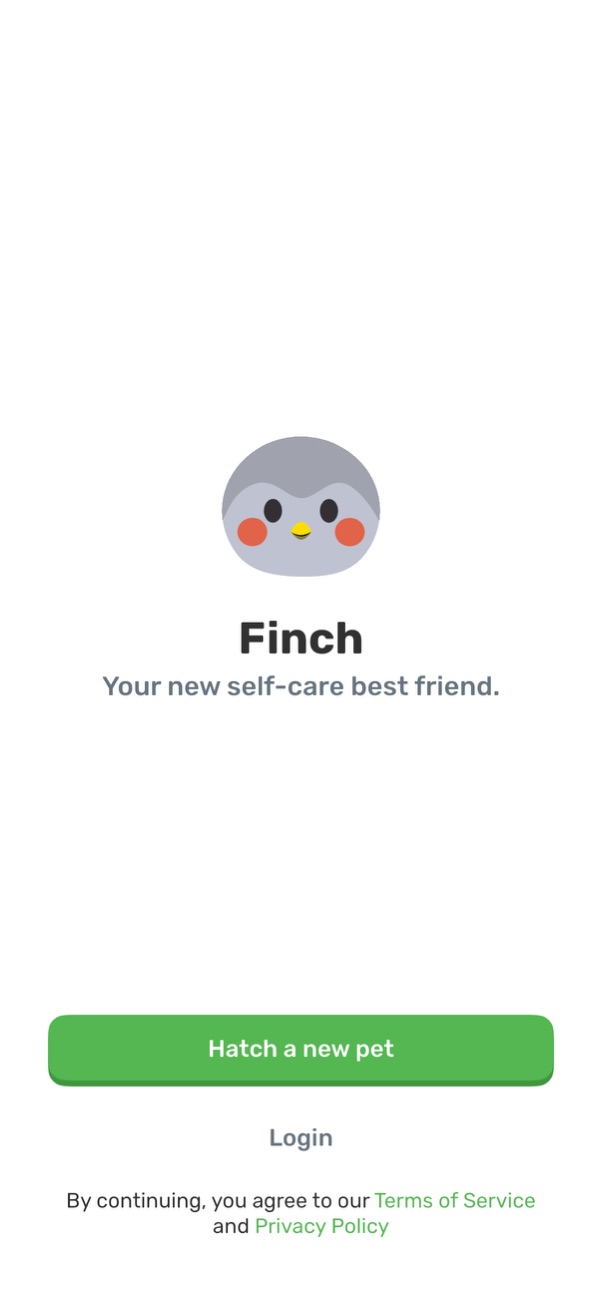
Welcome/get started screen for a self-care app featuring a mascot and tagline, prompting new users to create an account by “Hatch a new pet” or sign in via Login. Includes Terms of Service and Privacy Policy consent links at the bottom.
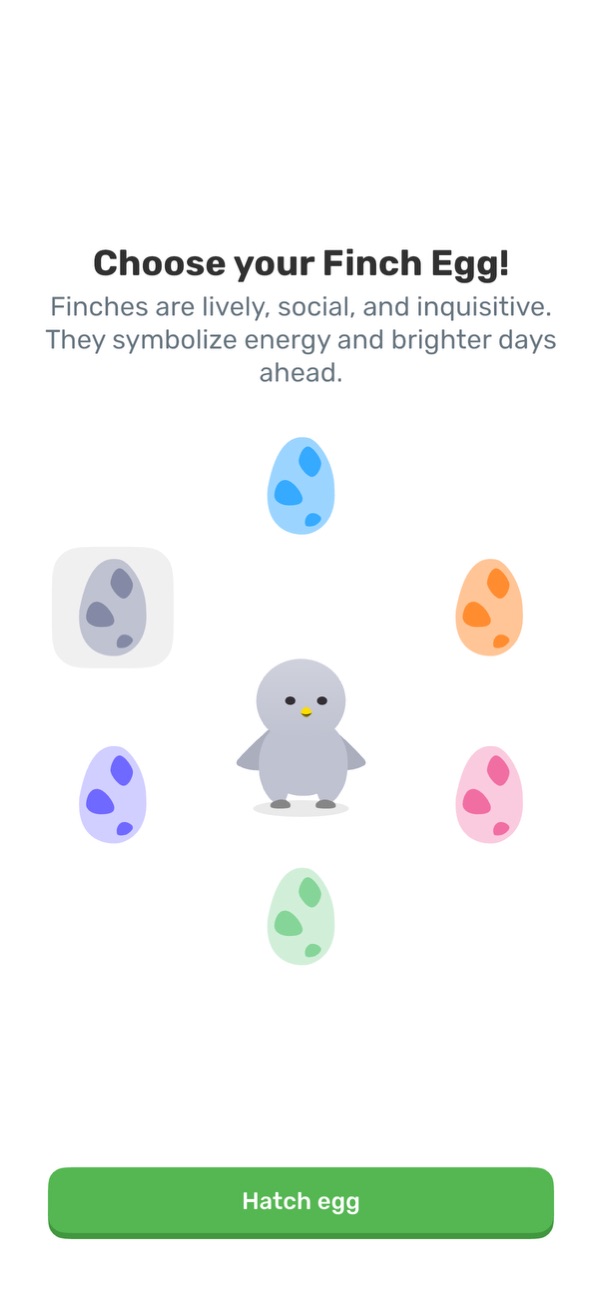
Pet selection onboarding screen prompting the user to choose a finch egg color/variant, with selectable egg options displayed around a character. Includes a primary “Hatch egg” call-to-action to confirm and proceed.
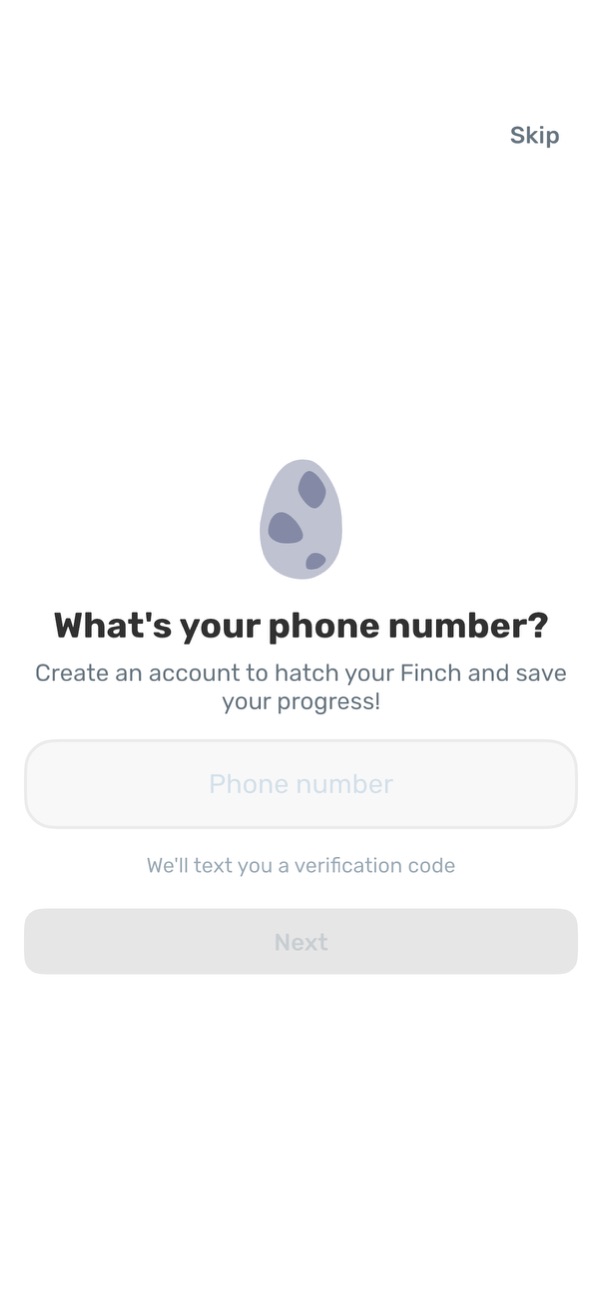
Onboarding sign-up screen asking for the user’s phone number to create an account and continue progress, with a phone number input field and a “Next” button that triggers SMS verification code sending. Includes a “Skip” option to bypass phone verification.
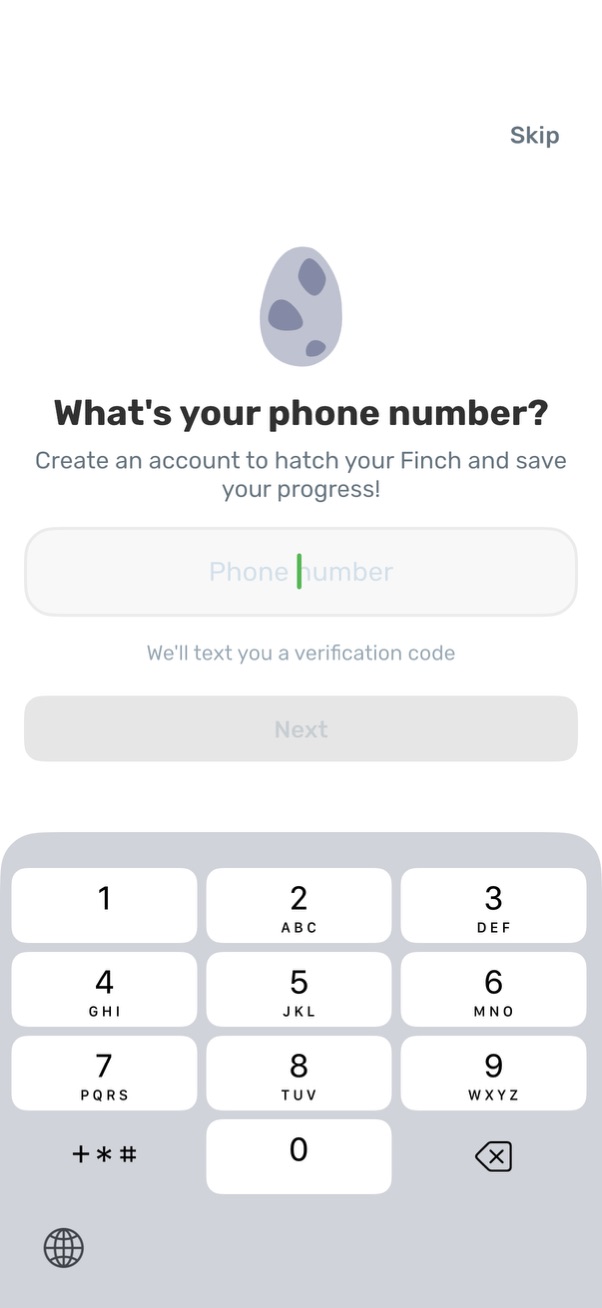
Phone number sign-up screen prompting the user to enter their phone number to create an account and receive an SMS verification code, with a disabled “Next” button until input is provided. Includes a “Skip” option and numeric keypad for phone entry.
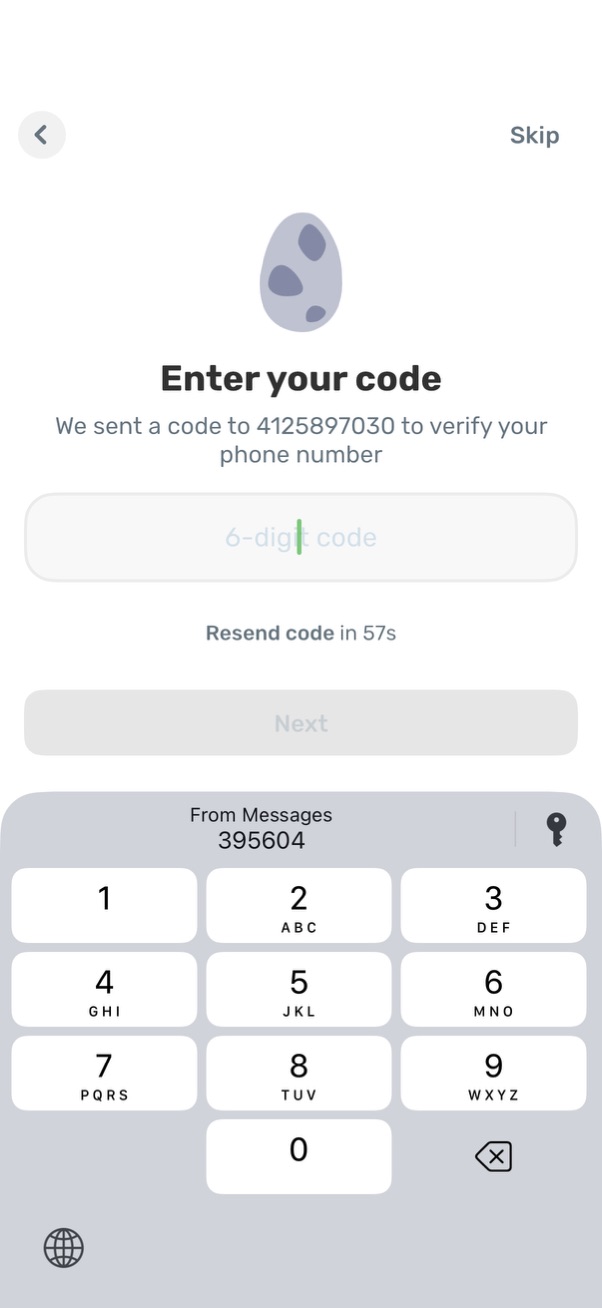
Phone number verification screen prompting the user to enter a 6-digit SMS code, showing the destination number, a resend-code countdown timer, and a disabled Next button until the code is entered. Includes back navigation and a Skip option to bypass verification.

Minimal empty-state or loading screen with a centered cracked egg illustration on a blank background, used as a placeholder when content isn’t available or is still loading. No text, navigation, or actions are shown.

Celebratory reward/achievement screen showing a newly hatched virtual pet character with the message “You hatched a birb! ” on a minimal background, indicating completion of a hatching or unlock action.
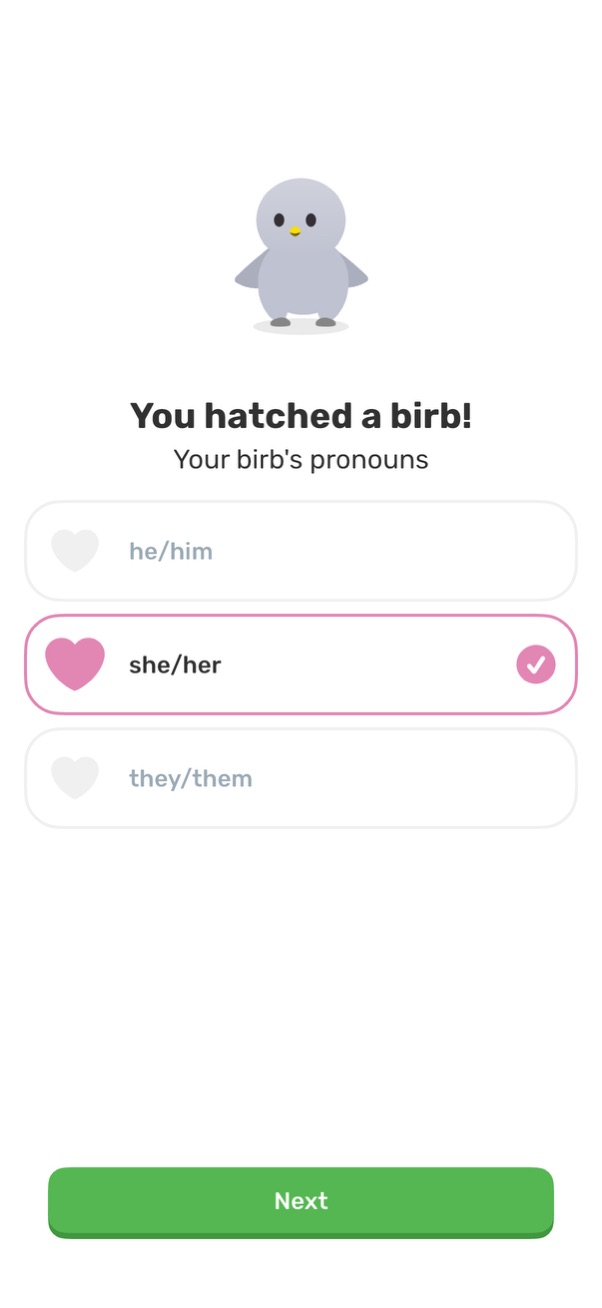
Onboarding setup screen after creating a pet/avatar, prompting the user to choose the character’s pronouns (he/him, she/her, they/them) with a selectable list and checkmark. A primary “Next” button advances to the next step.
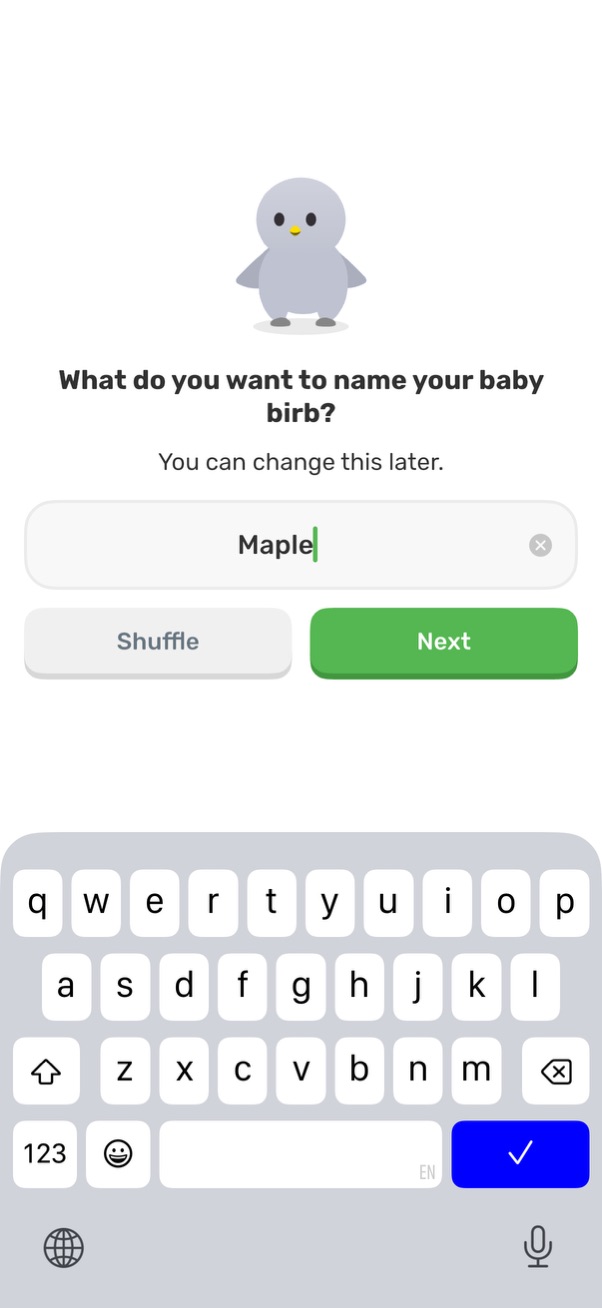
Onboarding screen prompting the user to name their baby bird/pet with a text input field (clear icon) and on-screen keyboard. Includes actions to generate a random name with “Shuffle” or continue setup with a primary “Next” button, with a note that the name can be changed later.
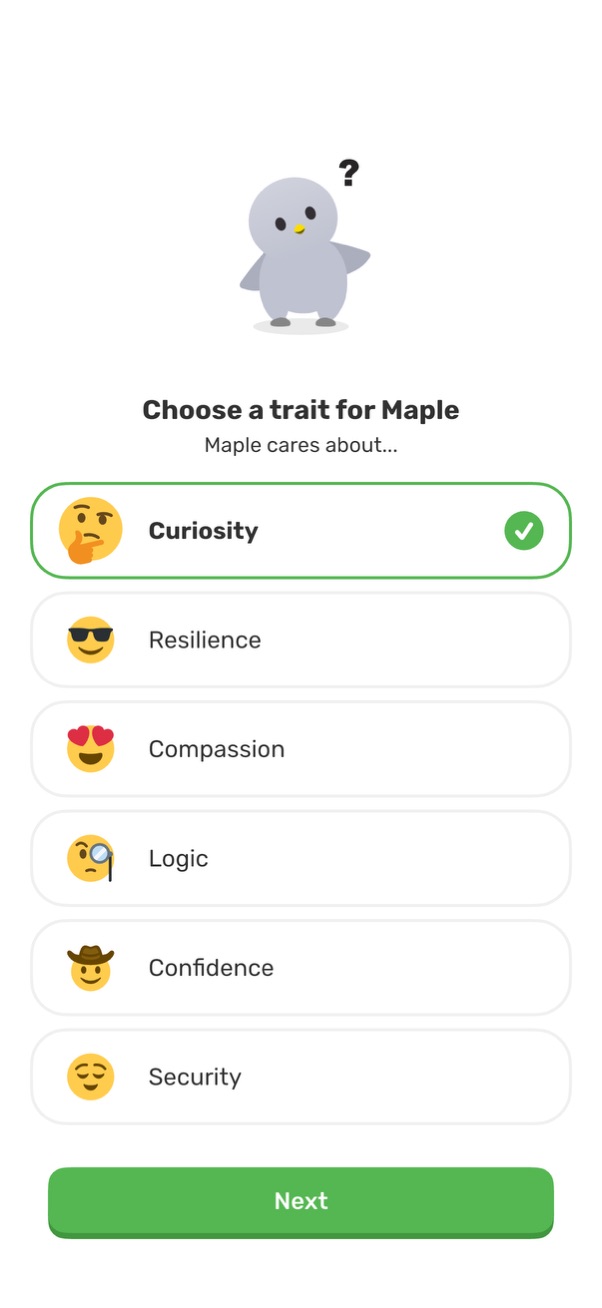
Onboarding preference selection screen asking the user to choose a personality trait for a character, showing a single-select list of trait options with emojis and a checked selected row. Includes a primary “Next” button to continue after choosing a trait.
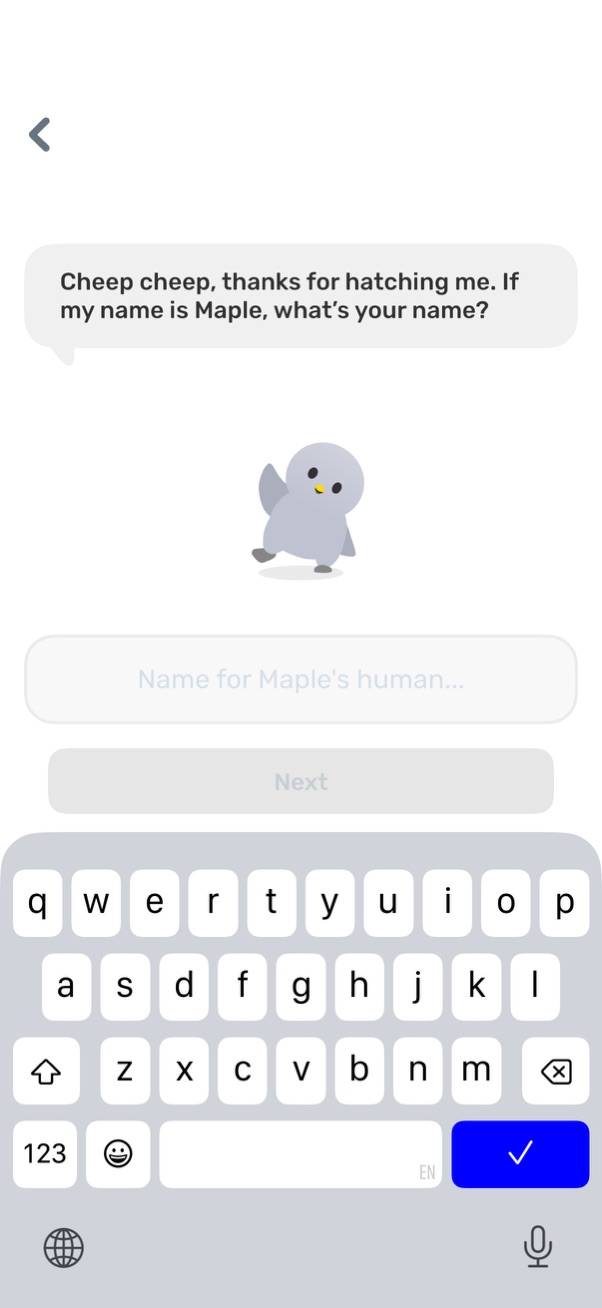
Onboarding screen for a virtual pet or companion app where the character introduces itself and asks the user to enter their name in a text field. Includes an on-screen keyboard and a disabled “Next” button that becomes available after naming the user.
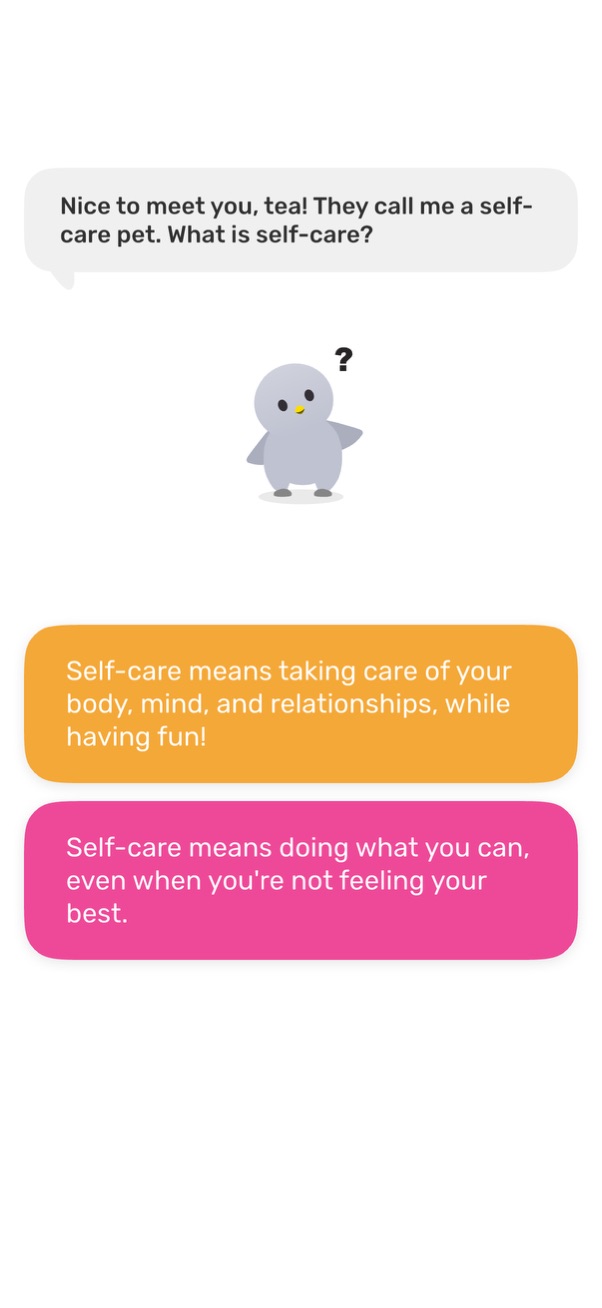
Onboarding chat-style screen introducing a self-care pet/mascot that asks the user “What is self-care? ” and prompts them to choose from multiple definition options.
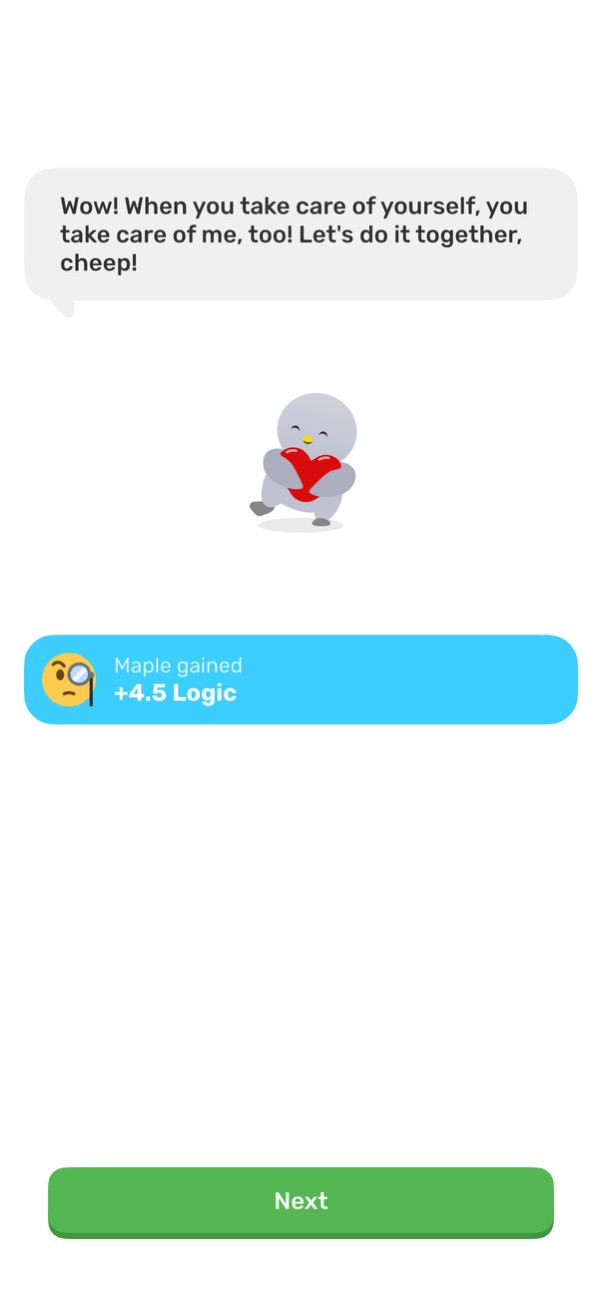
A motivational reward screen in a self-care or habit-tracking app shows a friendly mascot message and confirms progress with a stat gain (“+4. 5 Logic”).
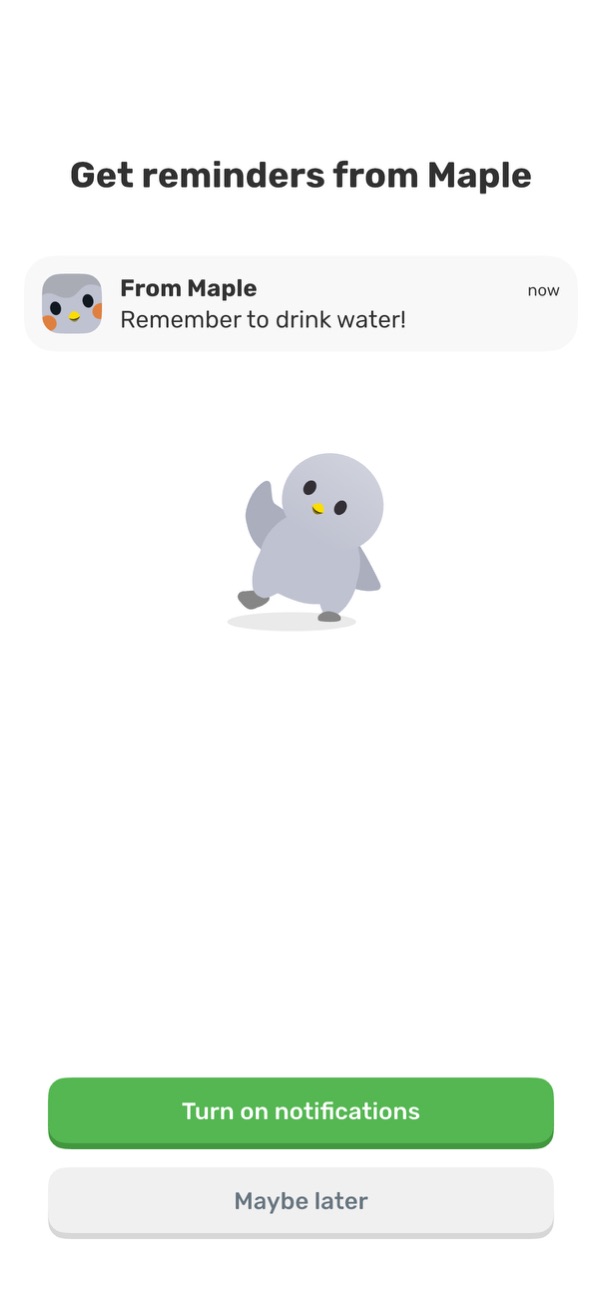
Onboarding prompt to enable push notifications so the app can send reminders, showing an example notification preview message. Primary action is “Turn on notifications” with a secondary “Maybe later” option to skip.
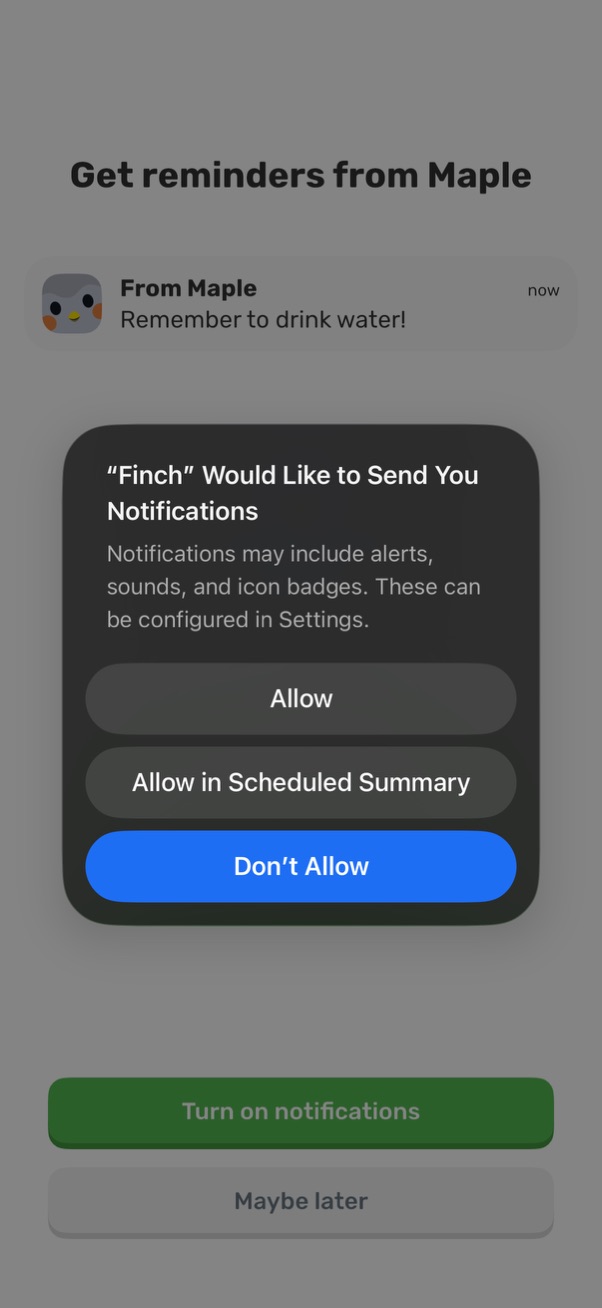
Notification permission onboarding screen prompting the user to enable push reminders, showing the iOS system dialog to allow notifications, allow in scheduled summary, or don’t allow. The underlying page markets reminders and offers primary and secondary actions to turn on notifications or choose maybe later.
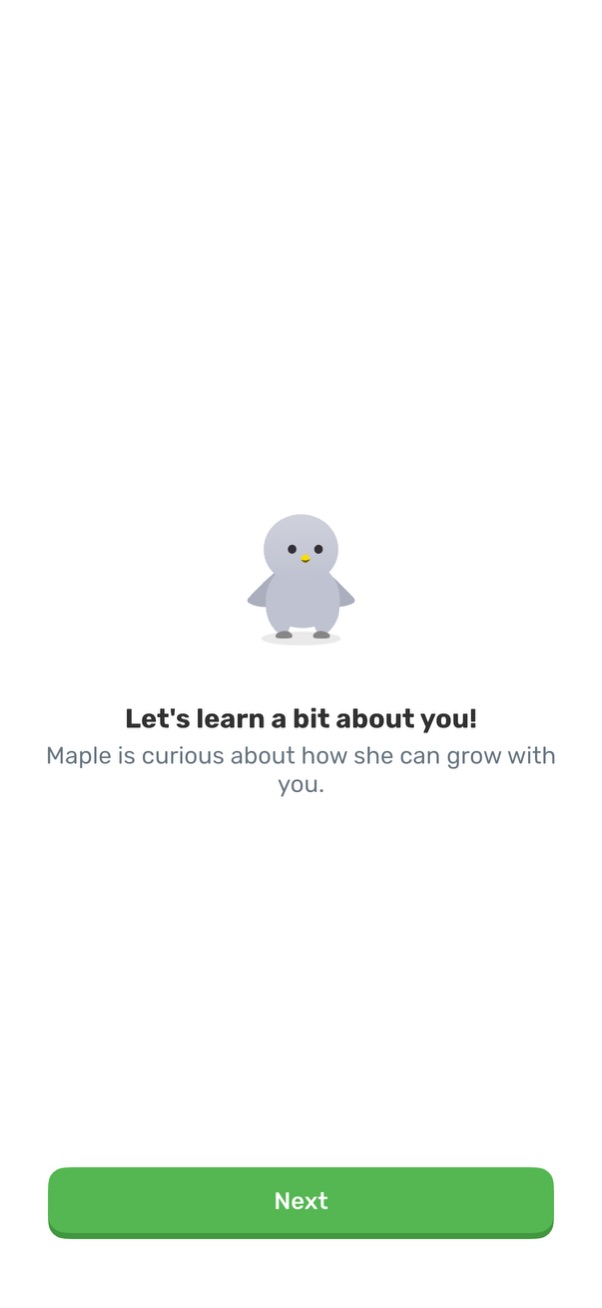
Onboarding introduction screen that prompts the user to share information about themselves so the app can personalize their experience. Features a mascot illustration with a short welcome message and a primary “Next” button to continue.
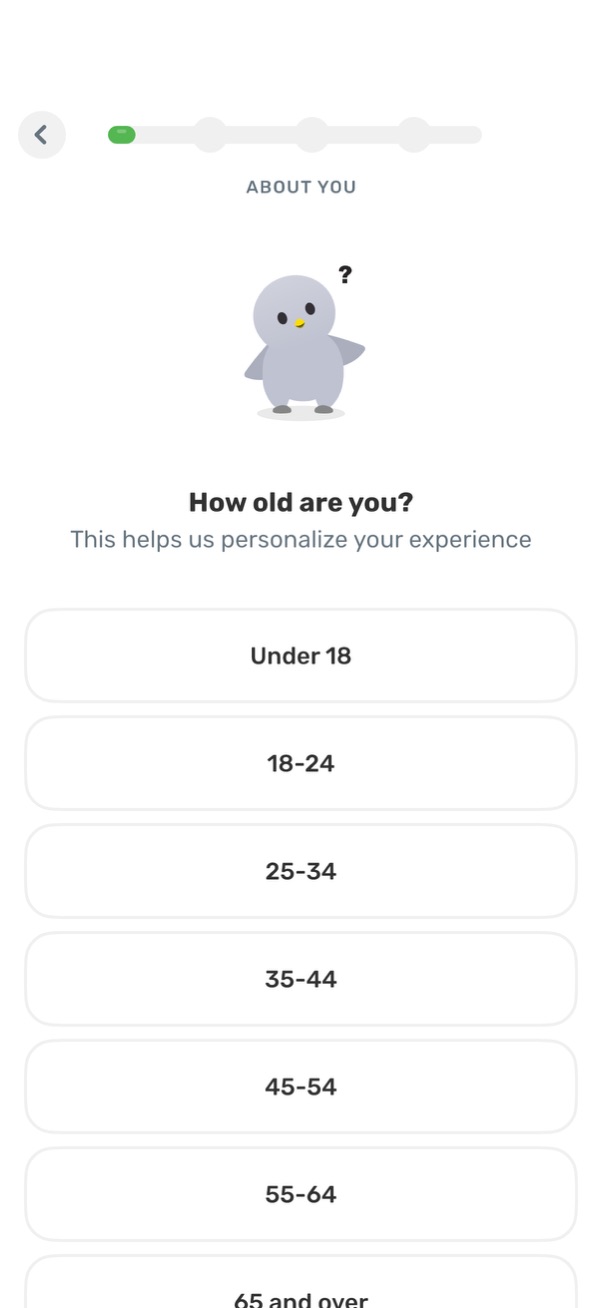
Onboarding “About you” screen asking the user to select their age range to personalize the experience, with a progress indicator and back navigation. Users choose from large tappable options like Under 18, 18–24, 25–34, 35–44, 45–54, 55–64, and 65+.
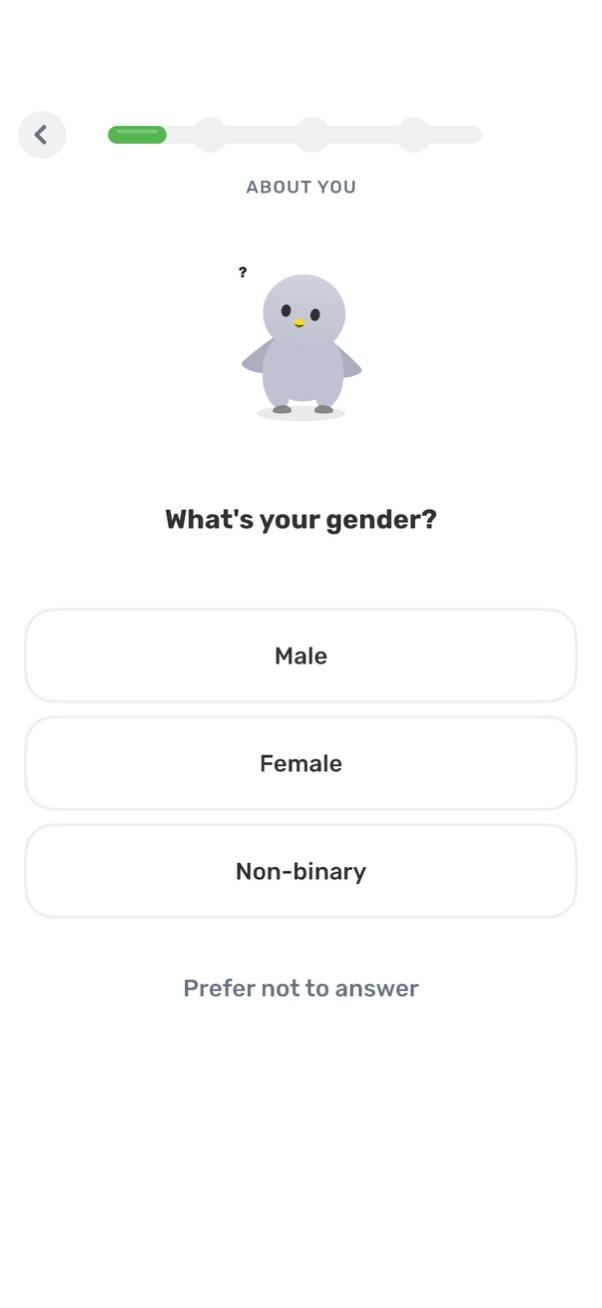
Onboarding “About you” profile setup screen asking the user to select their gender. Provides selectable options (Male, Female, Non-binary) plus a “Prefer not to answer” choice and shows progress in a multi-step flow.
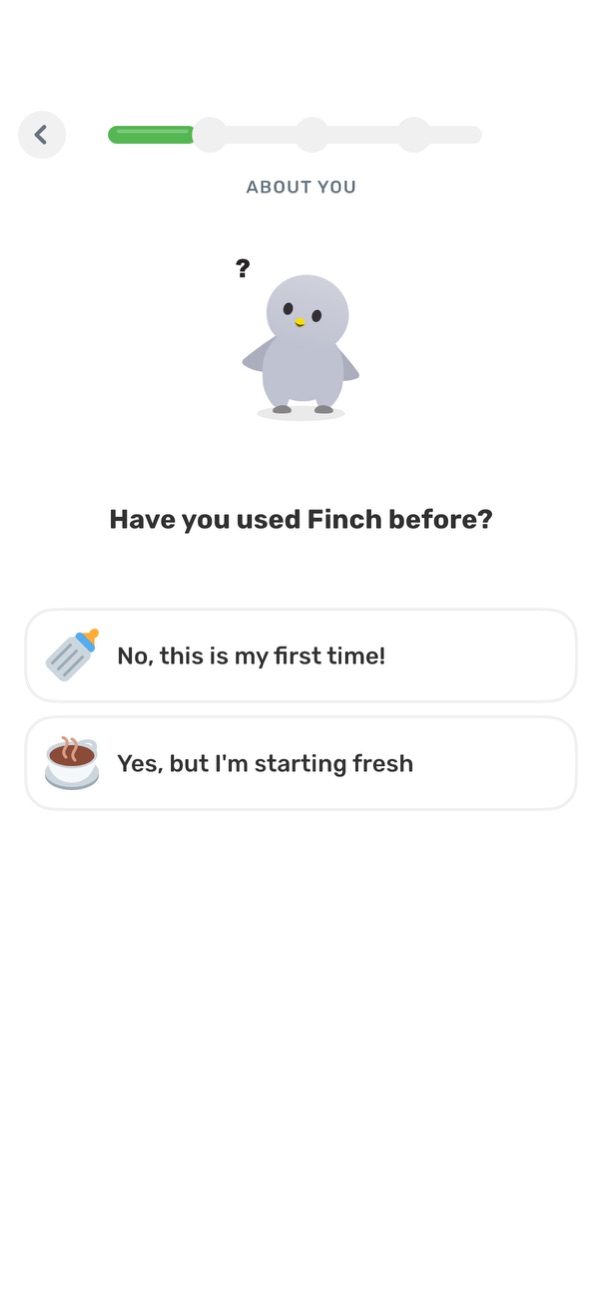
Onboarding “About you” questionnaire screen asking whether the user has used the app before, with a progress indicator and back button. Provides two large selectable options to continue: first-time user or returning user starting fresh.
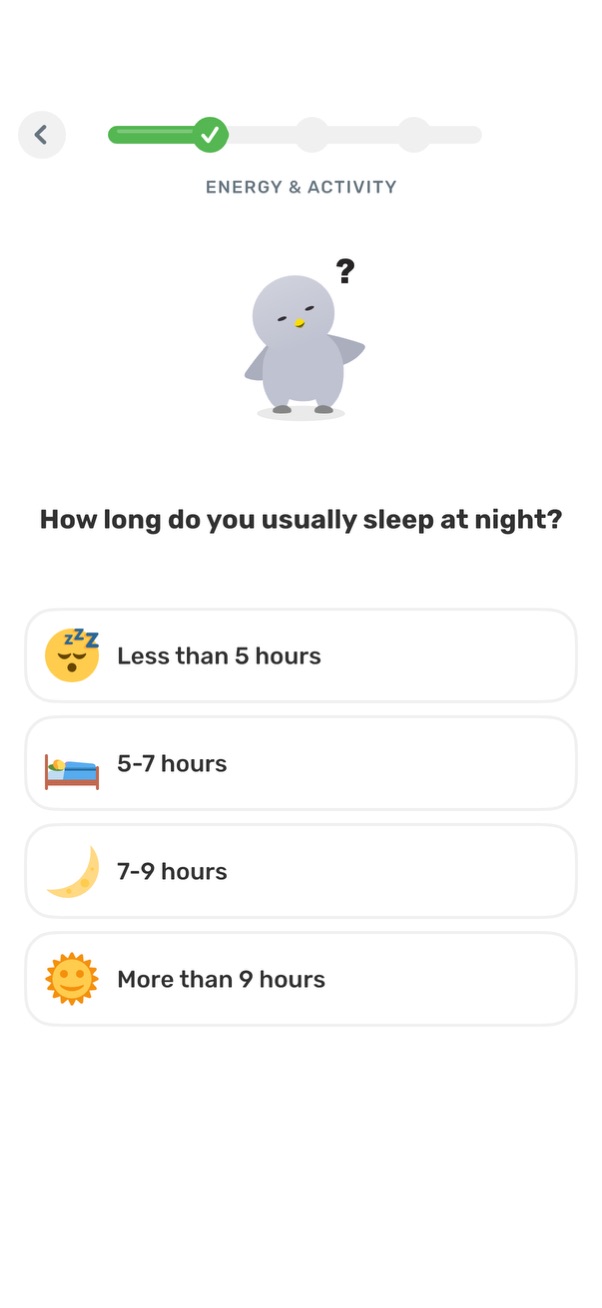
Onboarding health survey screen in an energy & activity flow asking “How long do you usually sleep at night? ” with multiple-choice sleep duration options (less than 5 hours, 5–7 hours, 7–9 hours, more than 9 hours) and a progress indicator with back navigation.
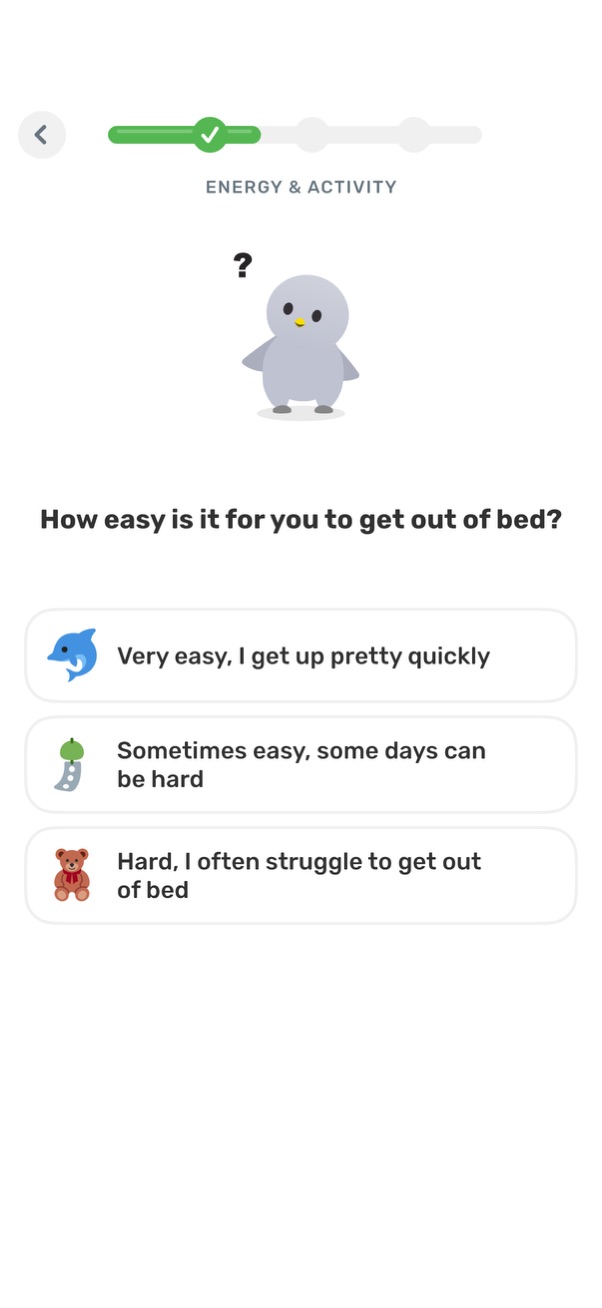
Wellness onboarding survey screen in the “Energy & Activity” section asking “How easy is it for you to get out of bed? ” Users select one of three multiple-choice options ranging from very easy to hard, with a back button and progress indicator showing step completion.
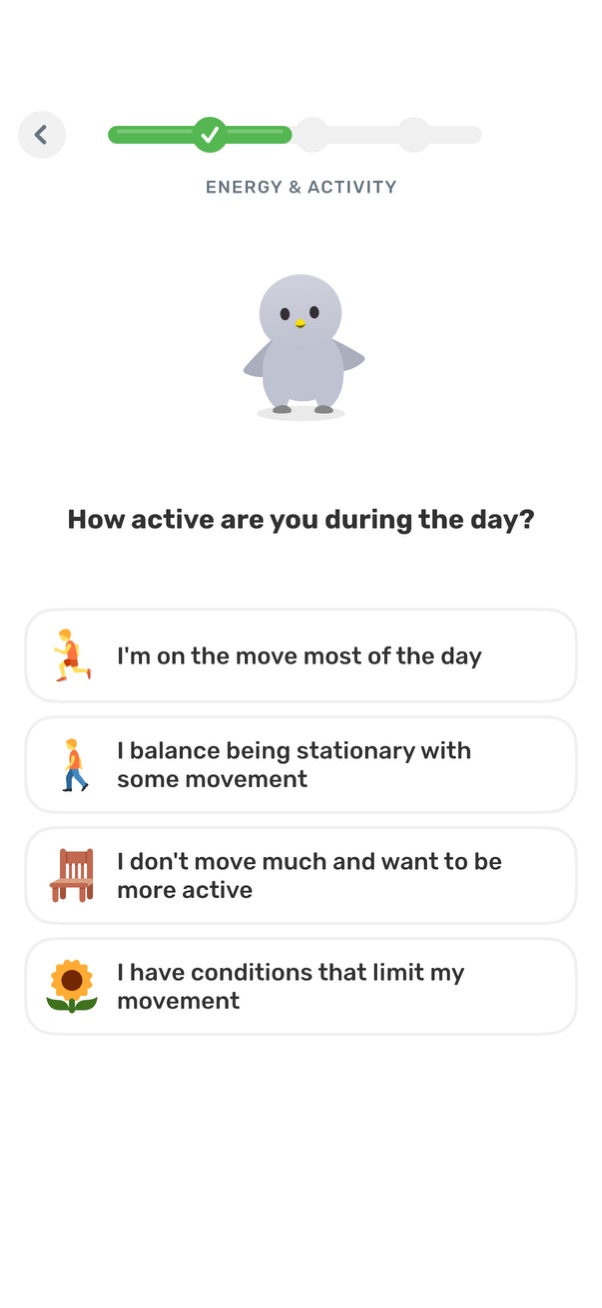
Onboarding questionnaire screen for an energy and activity profile that asks “How active are you during the day? ” Users choose one of several activity-level options (very active, balanced, mostly sedentary, or limited by conditions) within a step-based progress flow with a back button.
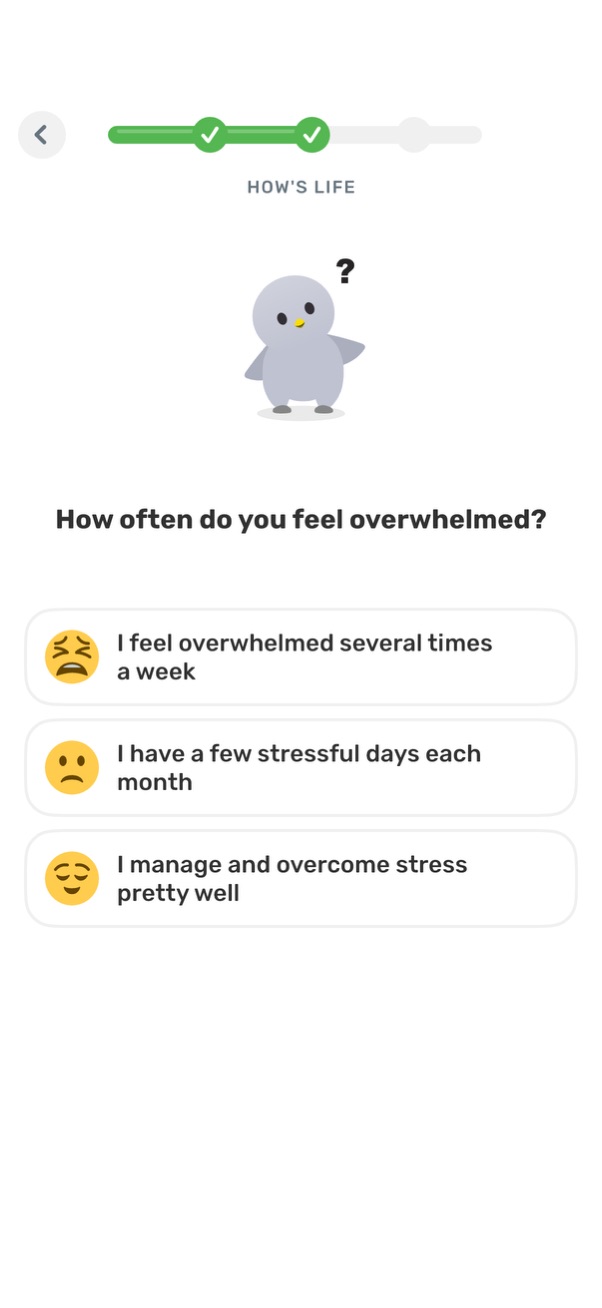
Mental health check-in questionnaire screen asking “How often do you feel overwhelmed? ” with a progress indicator and back button.
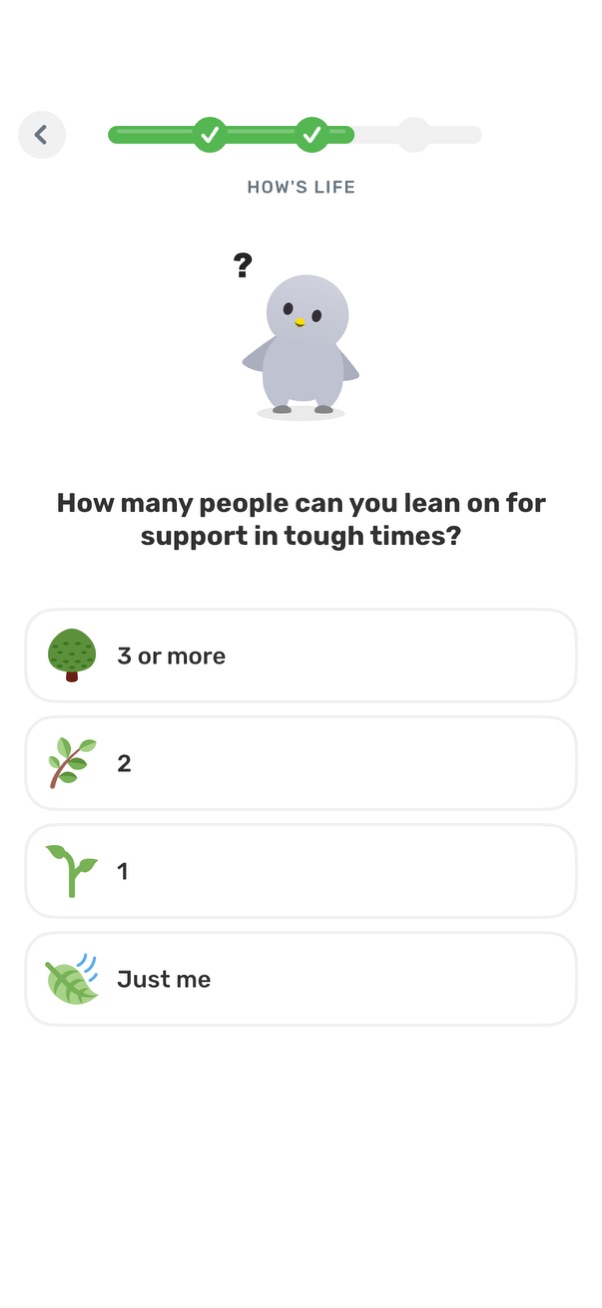
Wellbeing onboarding survey screen asking how many people the user can lean on for support in tough times, with a progress indicator and back navigation. Users choose a single option from large selectable cards (3 or more, 2, 1, or just me).
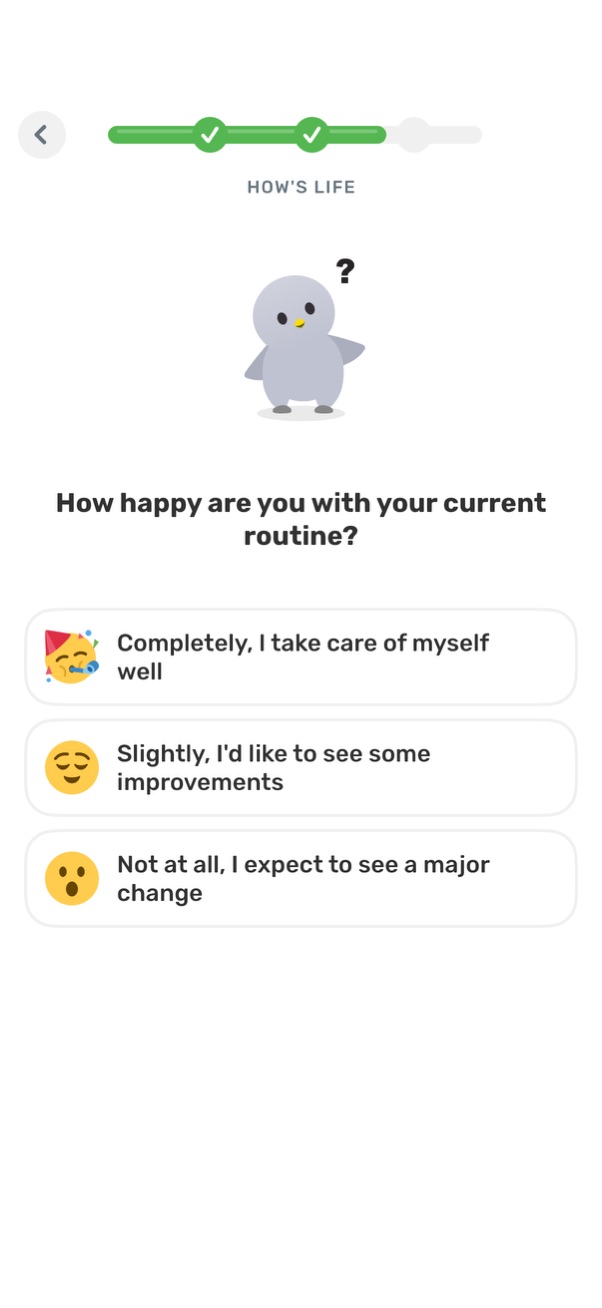
Wellness check-in onboarding survey screen asking “How happy are you with your current routine? ” with a progress indicator, back button, and three selectable multiple-choice answers ranging from completely satisfied to not at all (major change).
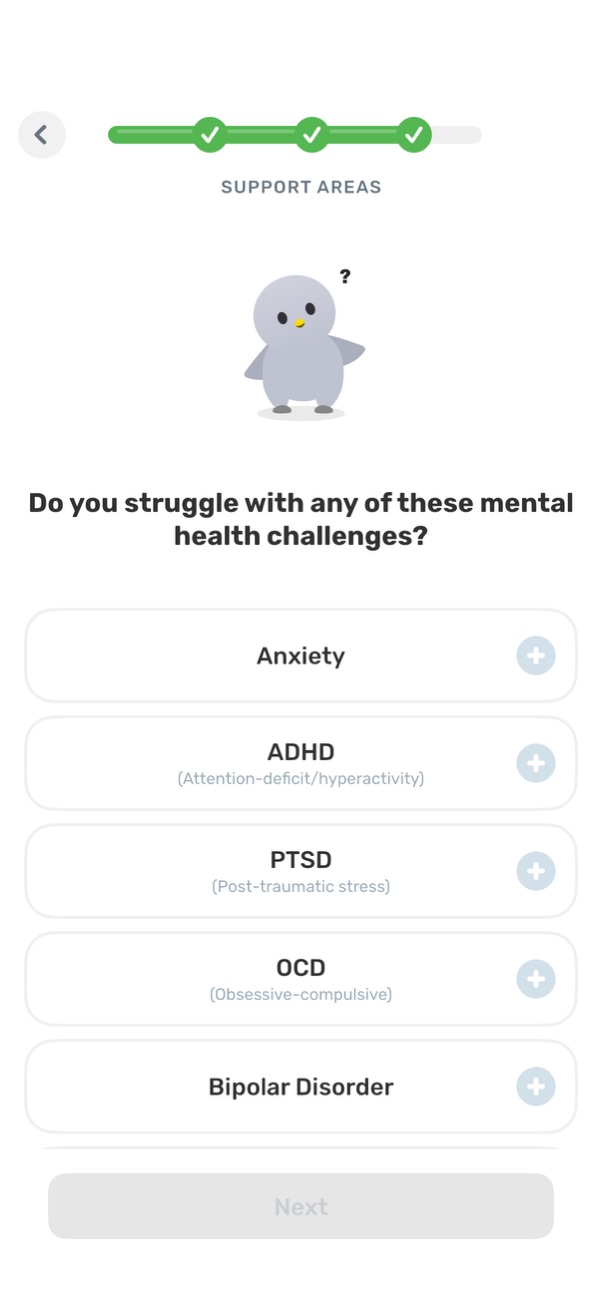
Mental health onboarding “support areas” selection screen asking which challenges the user struggles with. Shows a list of conditions (e.
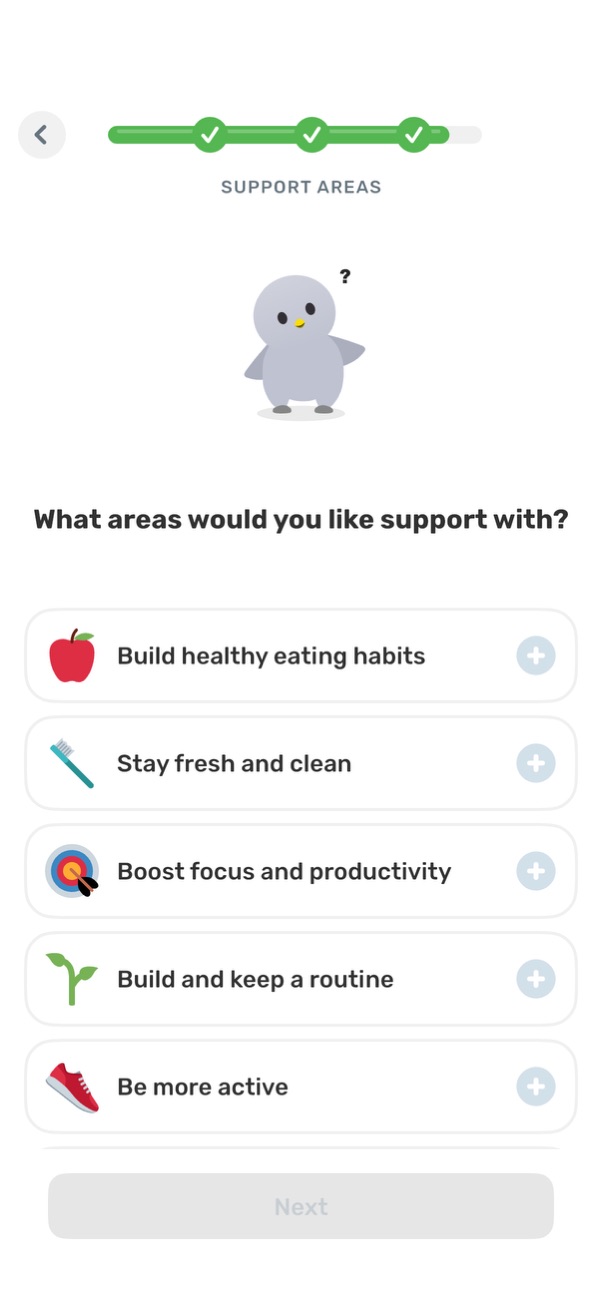
Onboarding “Support Areas” selection screen asking what areas the user would like help with, showing a list of wellness goals (healthy eating, hygiene, focus/productivity, routines, activity) each with a plus button to add. A progress indicator and back button appear at the top, with a disabled Next button at the bottom until selections are made.
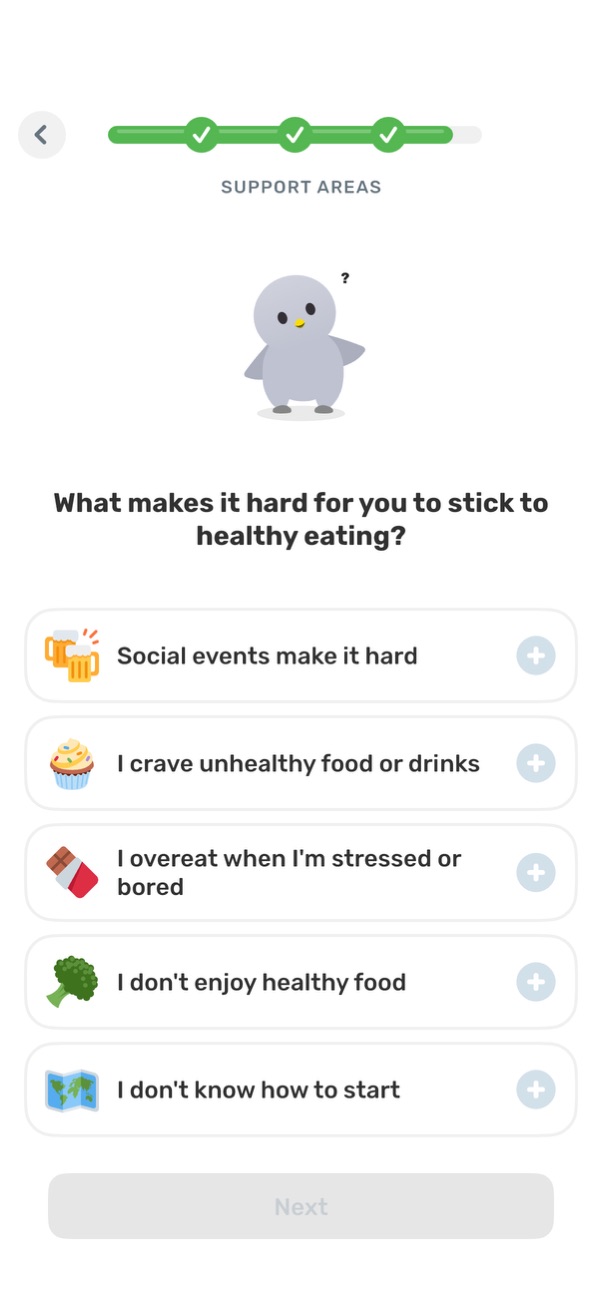
Onboarding questionnaire screen for a nutrition or health app asking what makes it hard to stick to healthy eating, with a progress indicator and multiple selectable obstacles shown as list items with plus buttons. Users choose reasons like social events, cravings, stress eating, disliking healthy food, or not knowing how to start, then proceed with a disabled Next button until selections are made.
Loading/progress screen for a wellness app showing a circular progress indicator and mascot while the app generates personalized self-care goals. Communicates that content is being created or set up during onboarding.
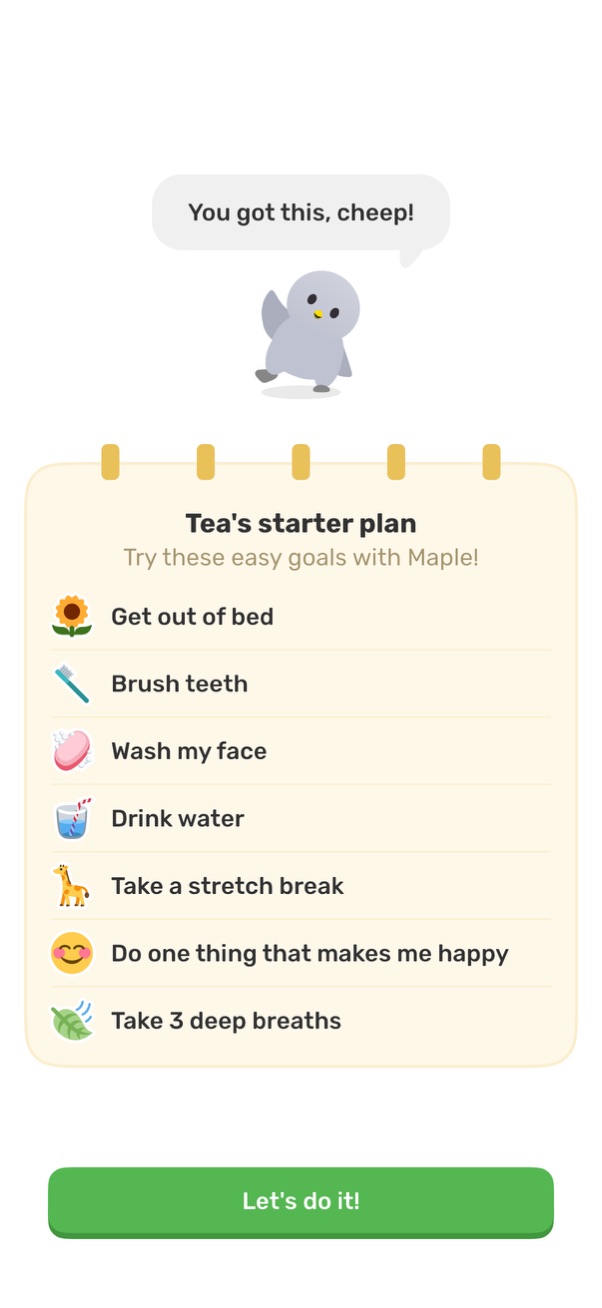
Onboarding screen for a self-care or habit-building app presenting a “starter plan” with a checklist of simple daily goals (get out of bed, brush teeth, wash face, drink water, stretch, do something happy, deep breaths). Includes a motivational mascot message and a primary CTA button to start the plan (“Let’s do it!
Upsell/paywall screen promoting a premium subscription free trial, emphasizing “7 days free” and that the app is free to use. Includes a prominent CTA button to view or claim the free offer to start the trial.
Subscription free trial reminder screen reassuring users they can cancel anytime and that a notification will be sent 2 days before the trial ends. Includes a prominent call-to-action button to view the free offer.

Promotional paywall screen offering a one-time 50% discount when starting a free trial, designed to drive subscription conversion. Includes a prominent CTA button to view free offer details and access the discounted trial.
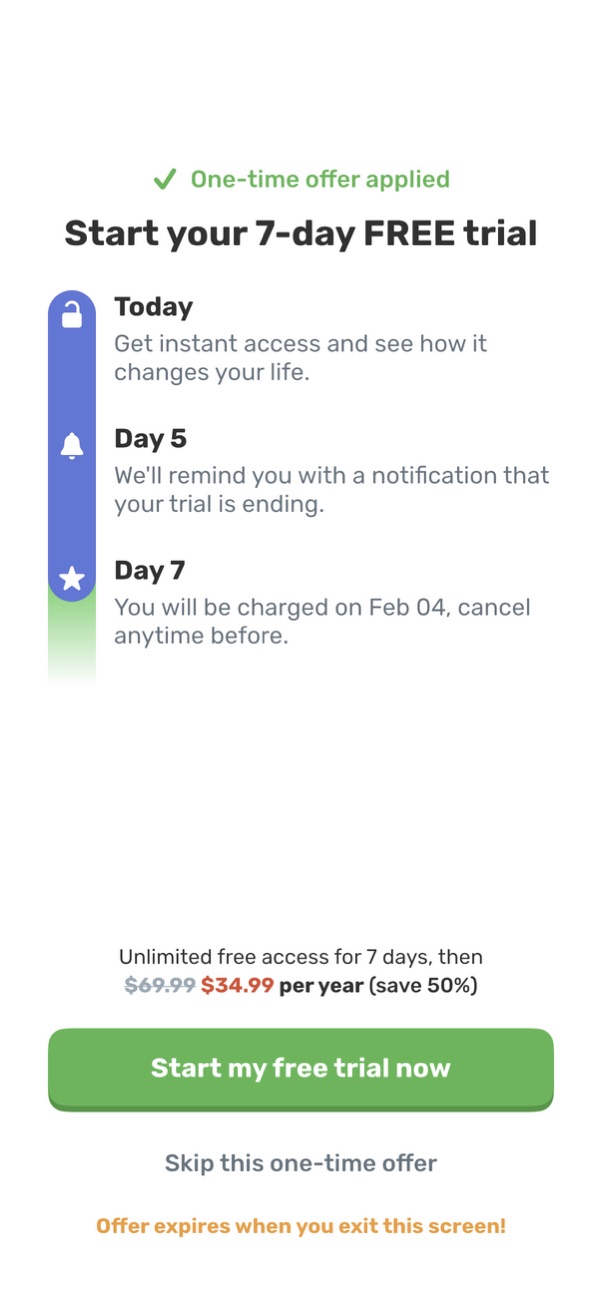
Subscription paywall screen promoting a 7-day free trial with a one-time discounted yearly plan, showing a timeline of what happens today, reminder on day 5, and billing on day 7 with cancel-anytime messaging. Primary CTA starts the free trial, with secondary options to skip the offer and a notice that the offer expires when leaving the screen.
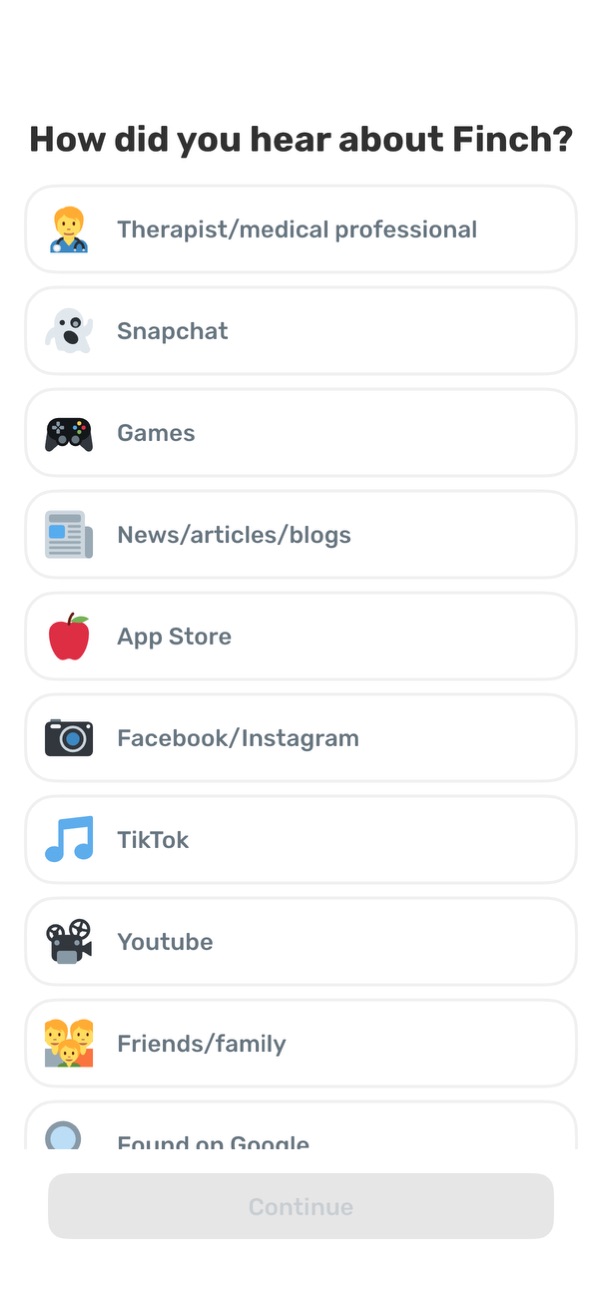
Onboarding survey screen asking “How did you hear about [app]? ” with a single-select list of referral sources (e.
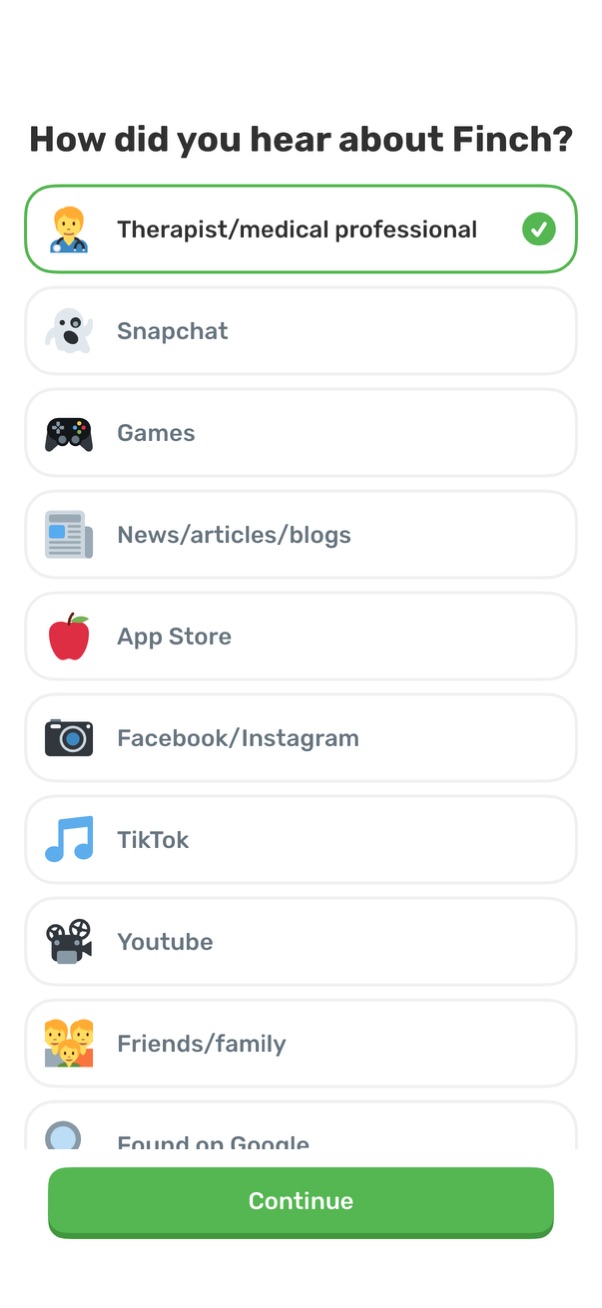
Onboarding survey screen asking “How did you hear about” the app, presenting a single-select list of referral sources (e. g.
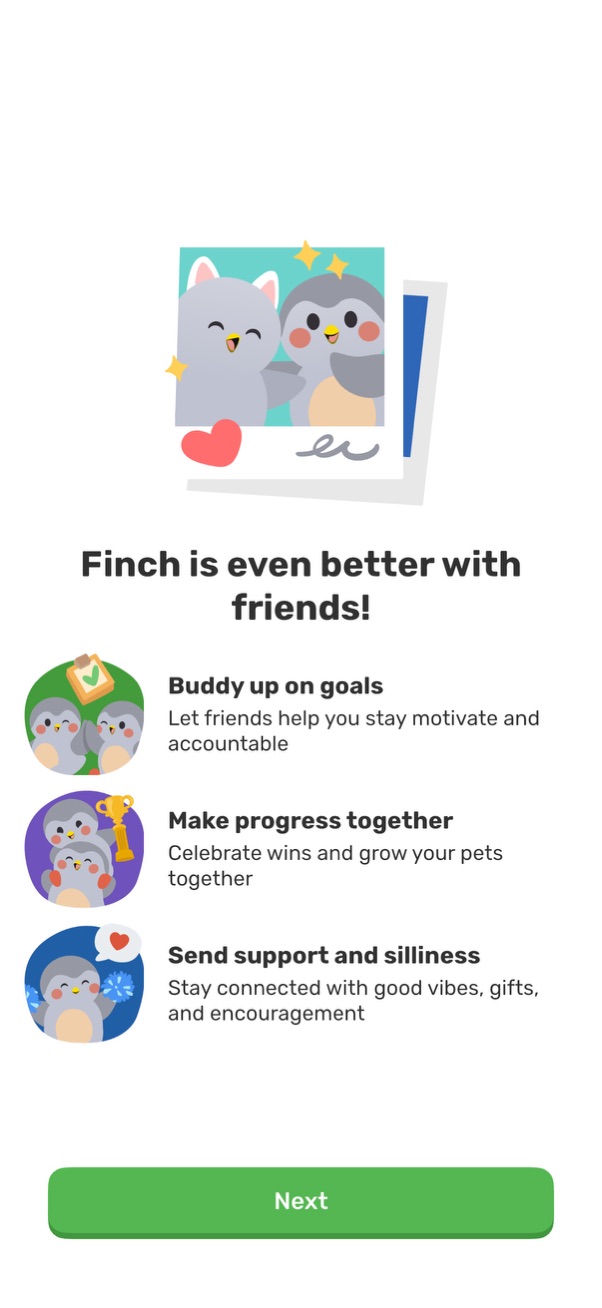
Onboarding explainer screen introducing a friends/social feature for a self-improvement app, highlighting buddying up on goals for motivation and accountability, celebrating progress together, and sending support, gifts, and encouragement. Includes a prominent “Next” button to continue setup.
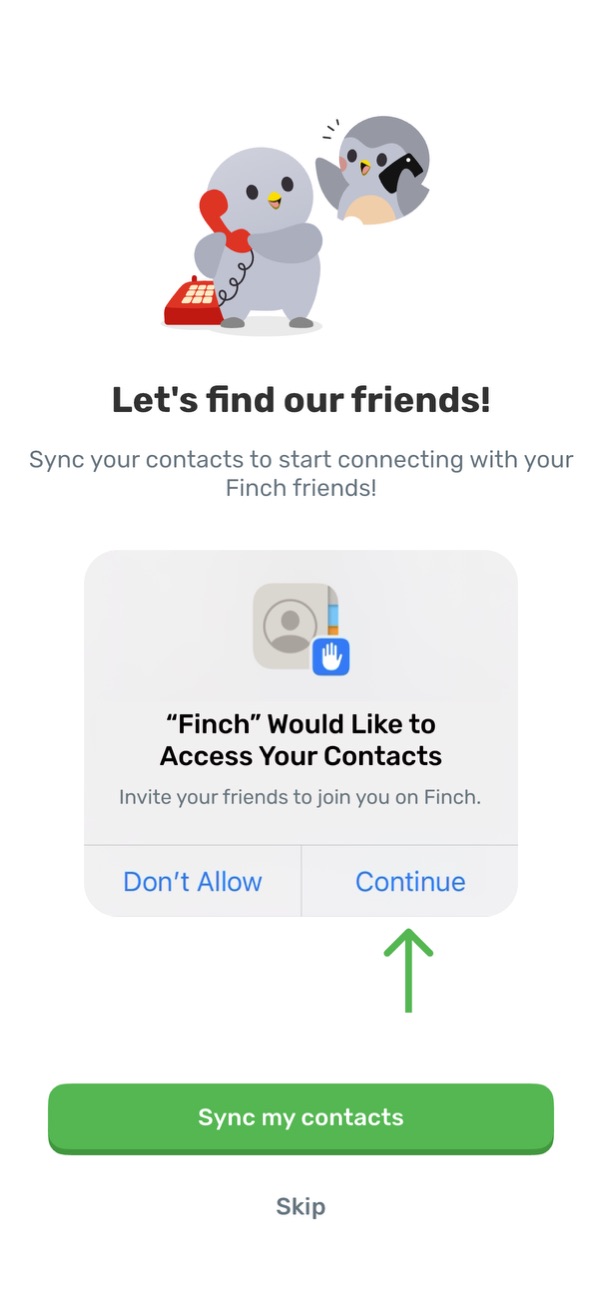
Onboarding screen prompting users to find and invite friends by syncing phone contacts, featuring an iOS contacts access permission dialog preview. Primary action is “Sync my contacts” with an option to skip.
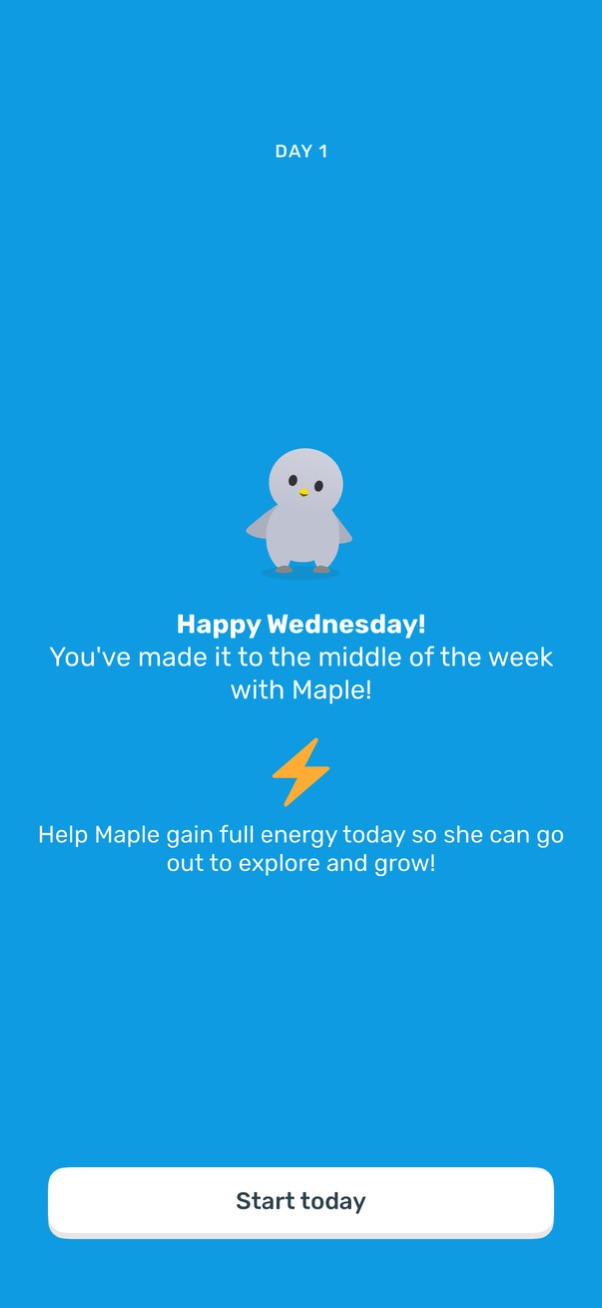
Day 1 onboarding welcome screen for a habit or self-care app featuring a mascot character, a motivational message about the day of the week and building energy to explore and grow, and a primary “Start today” call-to-action button to begin the daily activity.
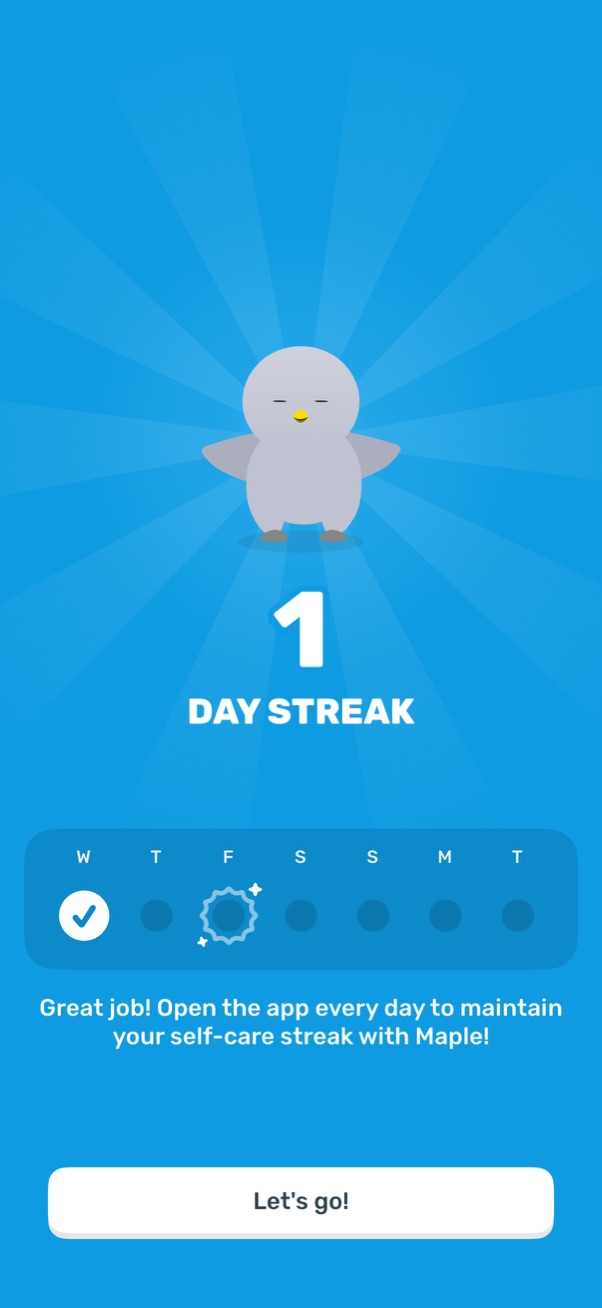
A gamified streak celebration screen showing a “1 Day Streak” achievement with a weekly calendar tracker highlighting completed days and motivating copy to open the app daily. Includes a primary “Let’s go!
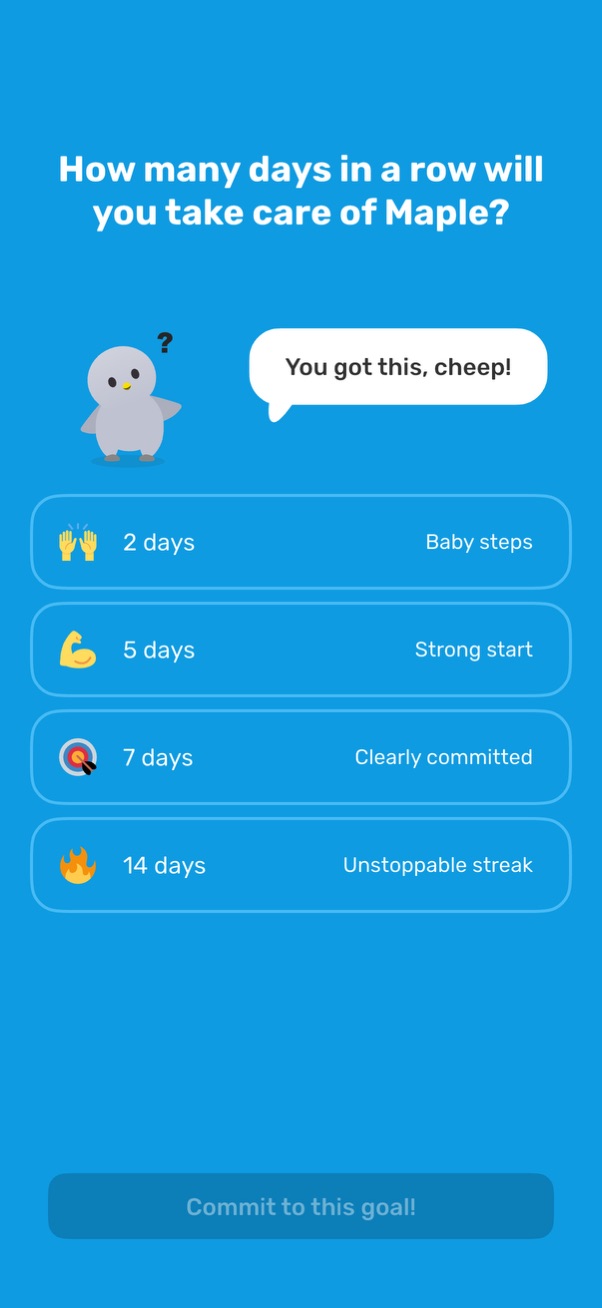
Goal-setting screen for a habit or streak challenge asking how many days in a row the user will take care of a virtual pet, with selectable commitment options (2, 5, 7, 14 days) labeled by difficulty and a primary button to commit to the chosen goal.
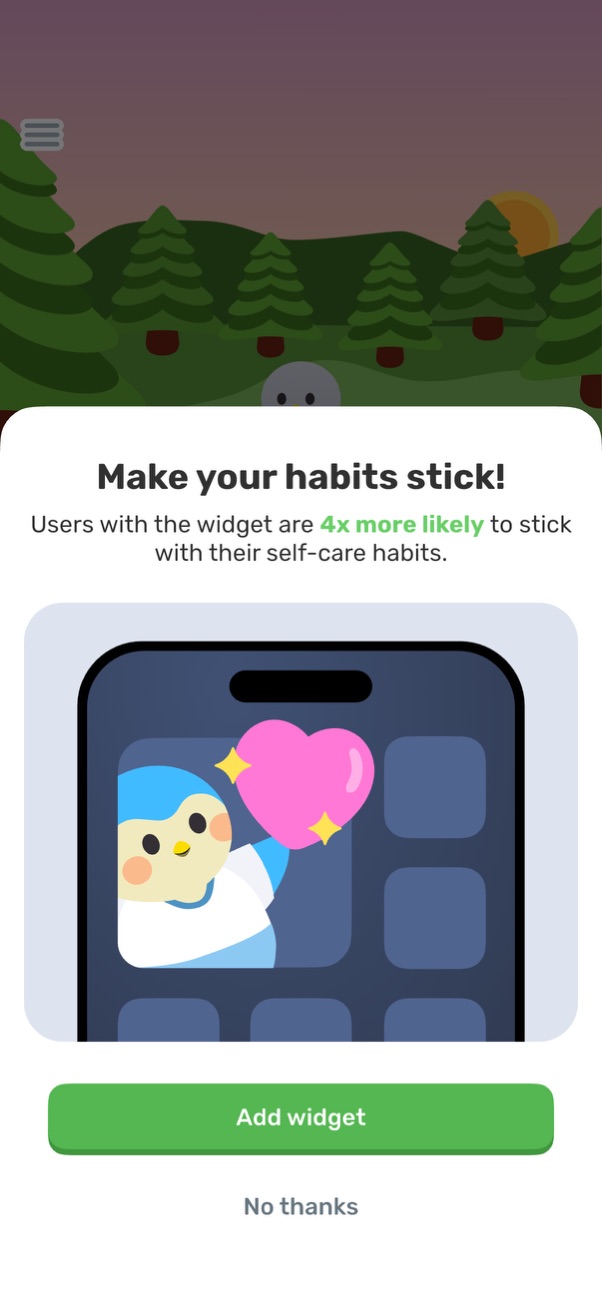
A promotional onboarding modal encourages users to add a home screen widget to help them stick with self-care habits, featuring an illustration and benefit statement. Primary actions include a prominent “Add widget” button and a secondary “No thanks” dismiss option.
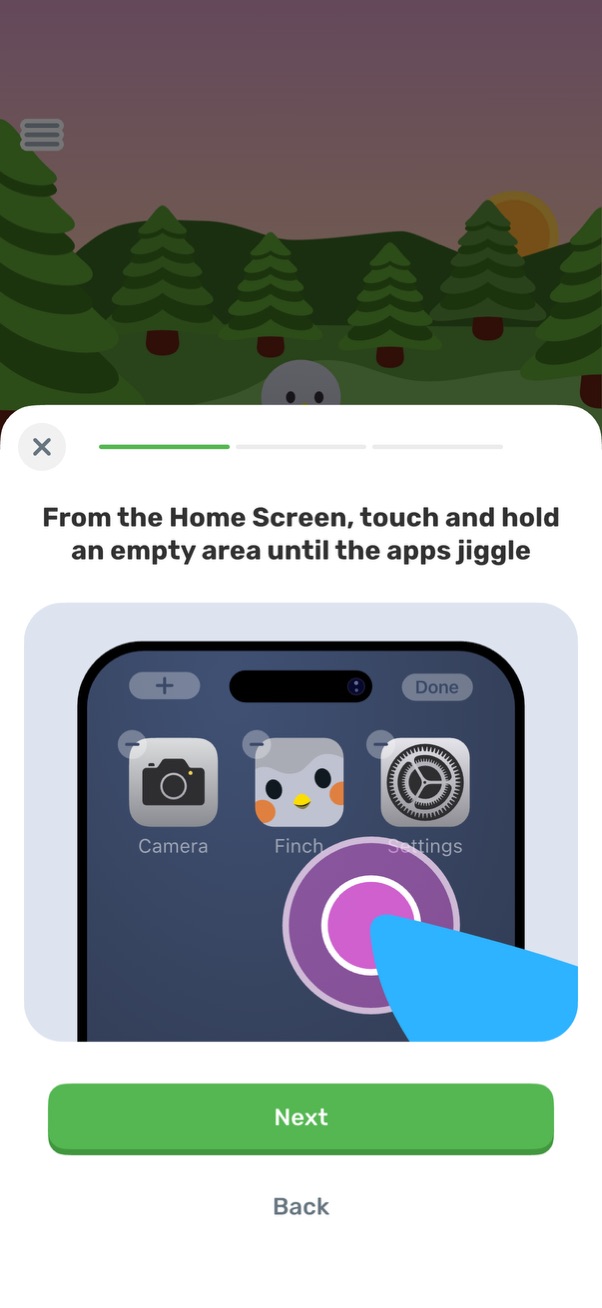
An in-app onboarding tutorial screen explaining how to touch and hold an empty area on the phone home screen until app icons jiggle, shown with an instructional image. Includes a progress indicator, close button, and primary Next plus secondary Back navigation buttons.
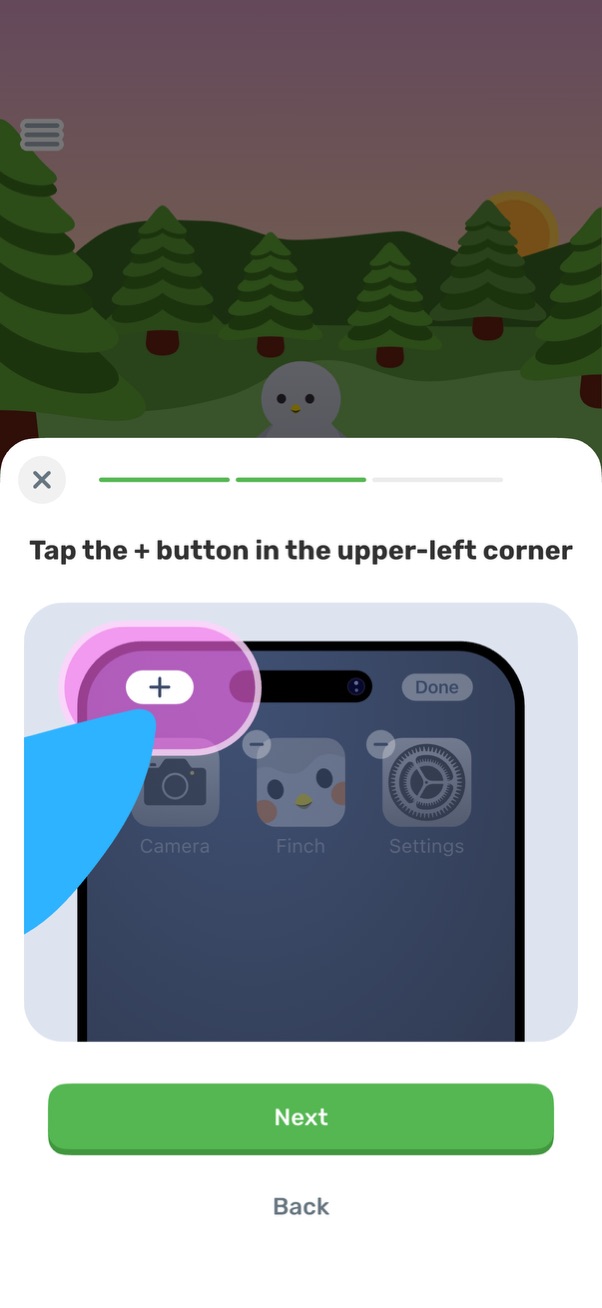
Onboarding tutorial overlay shown as a bottom sheet with a progress indicator, instructing users to tap the + button in the upper-left corner, illustrated with an annotated screenshot. Includes primary “Next” and secondary “Back” actions plus a close icon to dismiss the guide.
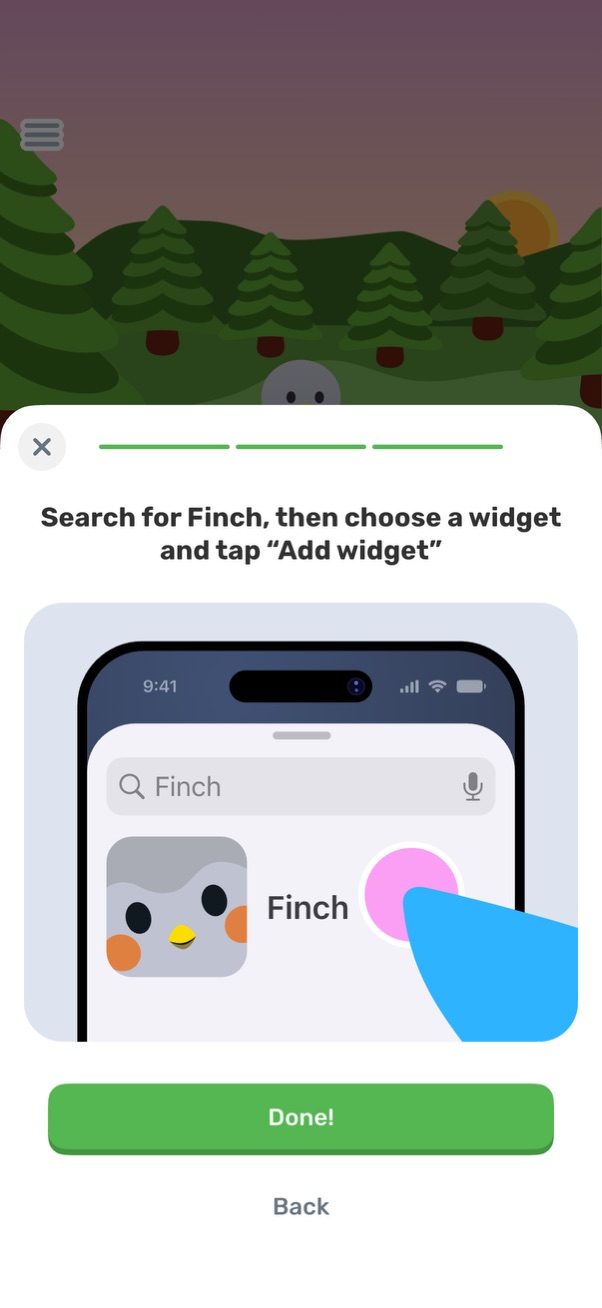
Instructional onboarding modal explaining how to add an iOS home screen widget by searching for the app and tapping “Add widget,” shown with a sample widget selection preview. Includes a progress indicator, close button, and primary “Done!
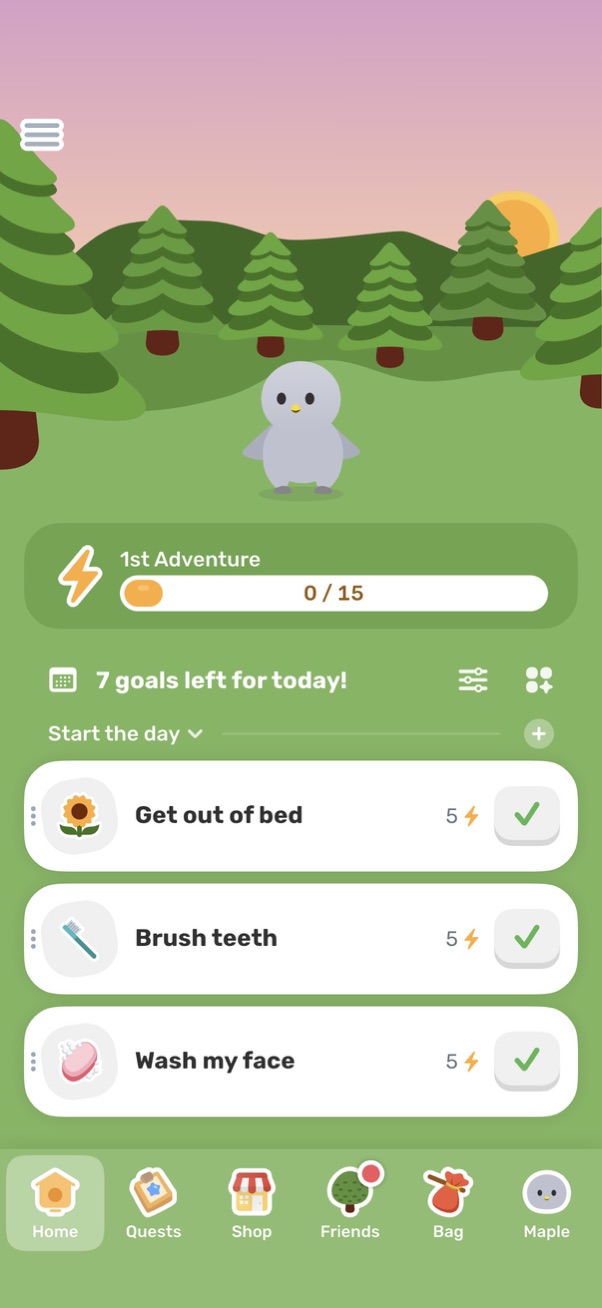
Home dashboard of a gamified habit/goal tracker showing a virtual pet and adventure progress bar, plus a “goals left for today” section with a morning routine checklist. Users can mark tasks complete with a check button, add goals, and navigate via tabs like Home, Quests, Shop, Friends, and Bag.