Google Signup
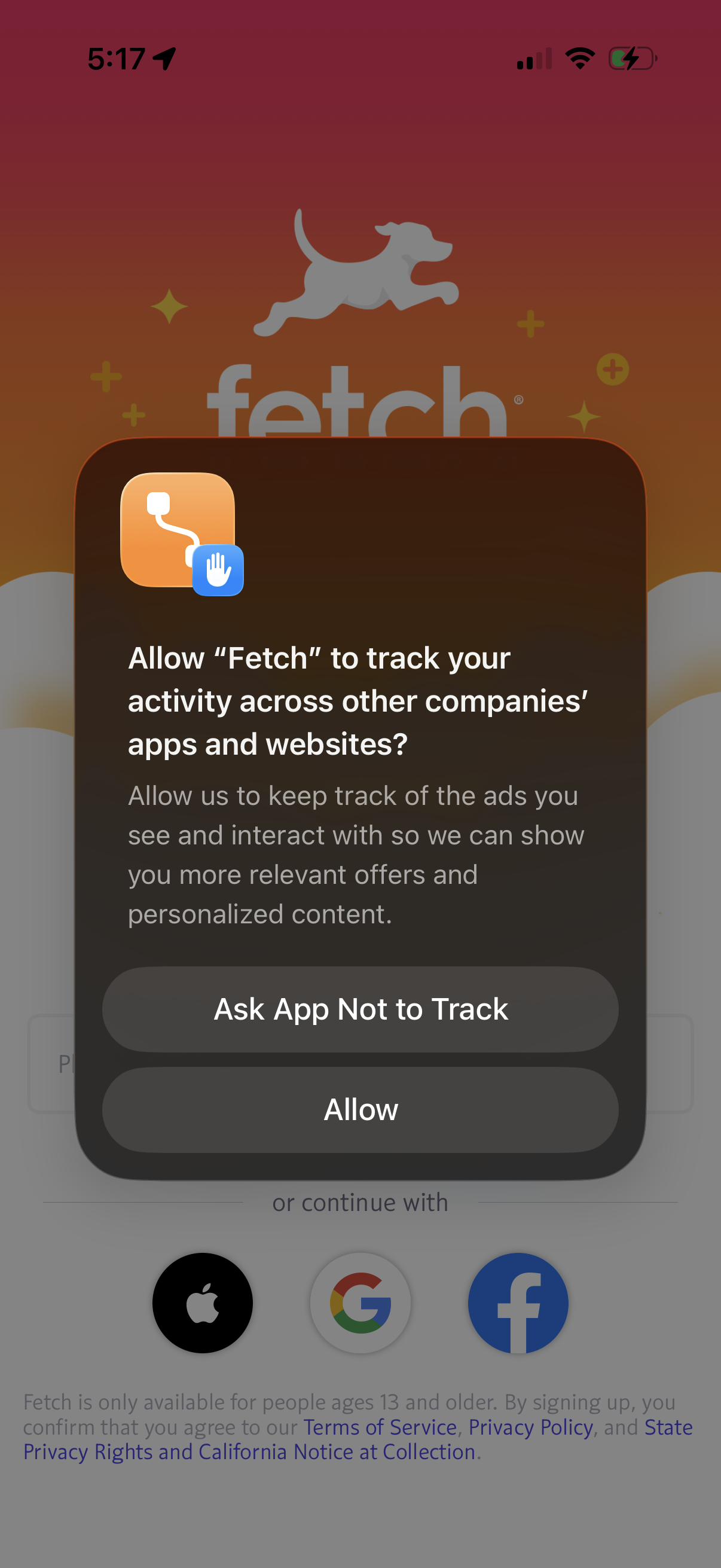
iOS App Tracking Transparency permission modal asking whether to allow the app to track user activity across other companies’ apps and websites for ad personalization, with primary actions to “Ask App Not to Track” or “Allow” displayed over the app’s sign-in screen.
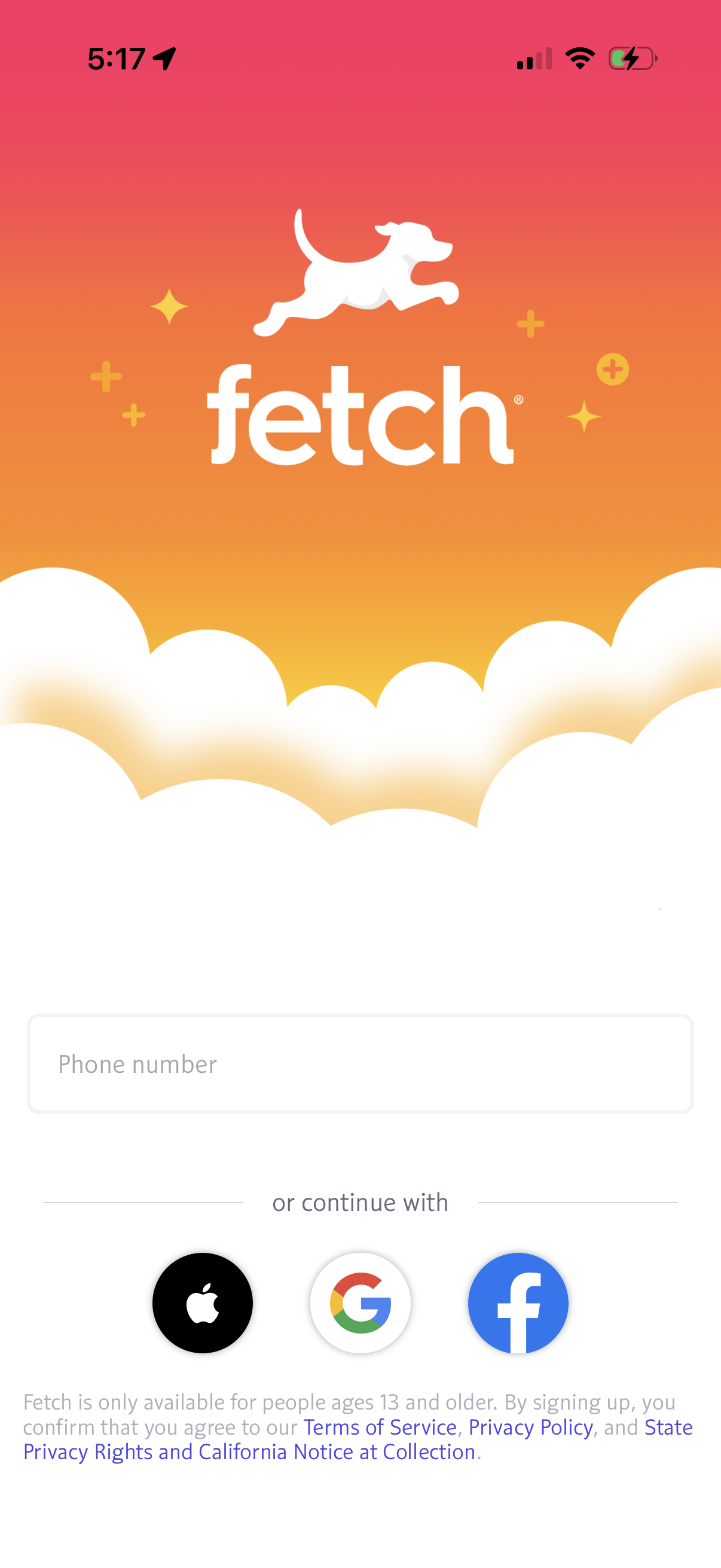
App sign-up/login screen with brand splash header and a phone number input for SMS authentication. Provides alternative social sign-in options (Apple, Google, Facebook) and shows age requirement plus links to Terms of Service and Privacy Policy.
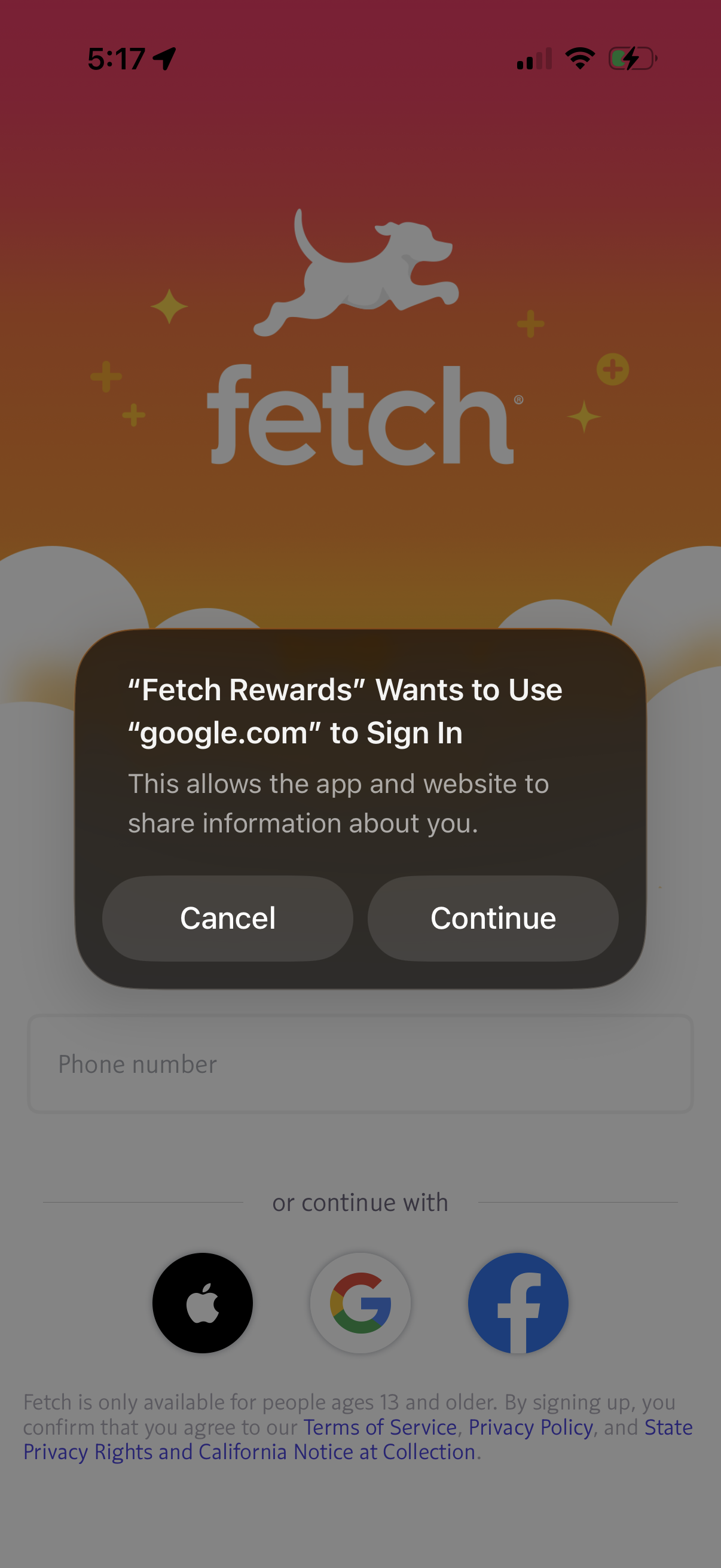
A rewards app sign-in/sign-up screen showing a native iOS permission dialog for OAuth web login (“Use google. com to sign in”) with Cancel and Continue actions.
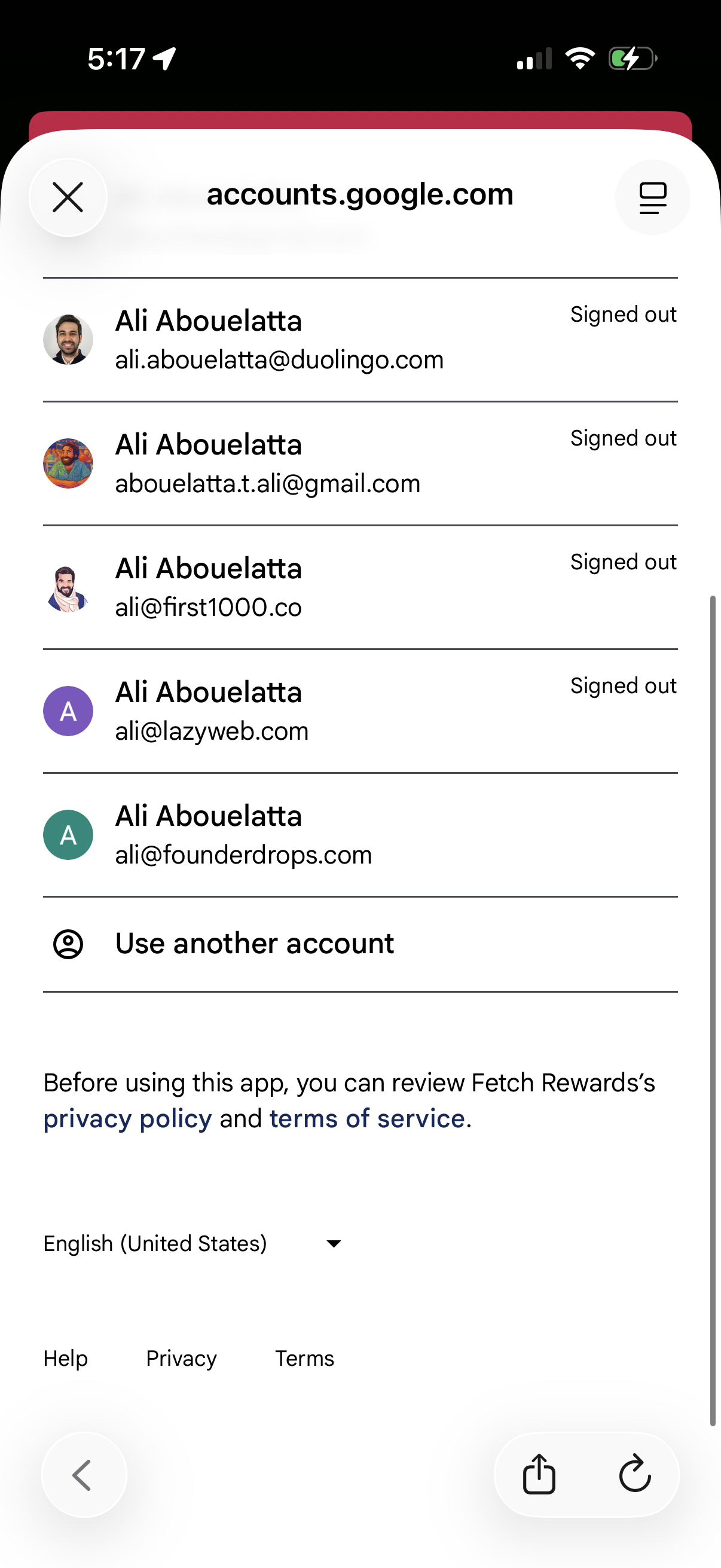
Google account chooser and sign-in screen showing a list of saved accounts with avatars, email addresses, and signed-out status for selecting an existing account. Includes a “Use another account” option plus links to privacy policy, terms of service, and language selection.
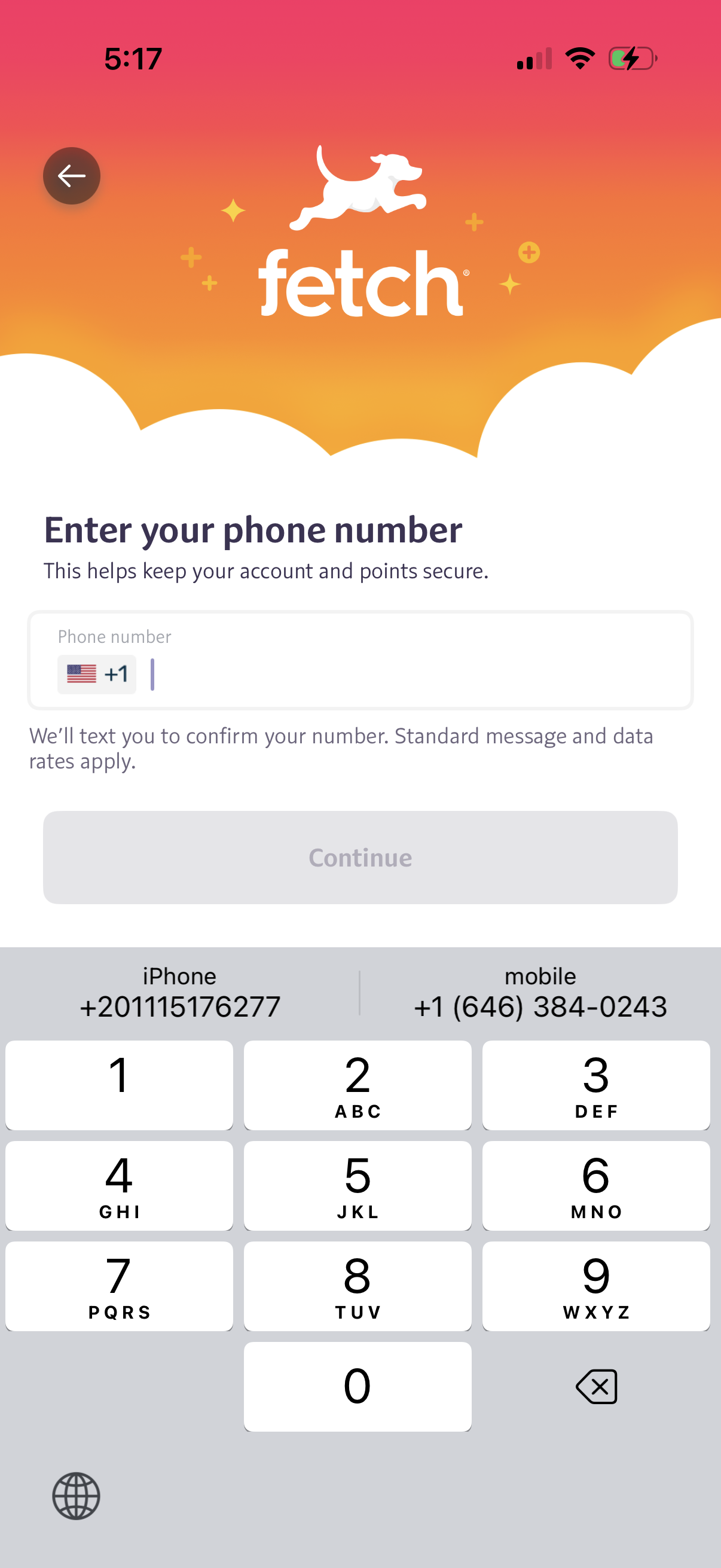
Phone number entry screen in an onboarding/account security flow, prompting the user to input a mobile number with a selectable country code and explaining that an SMS text will be sent to confirm the number. Includes a back button and a disabled “Continue” CTA that activates once a valid phone number is entered.
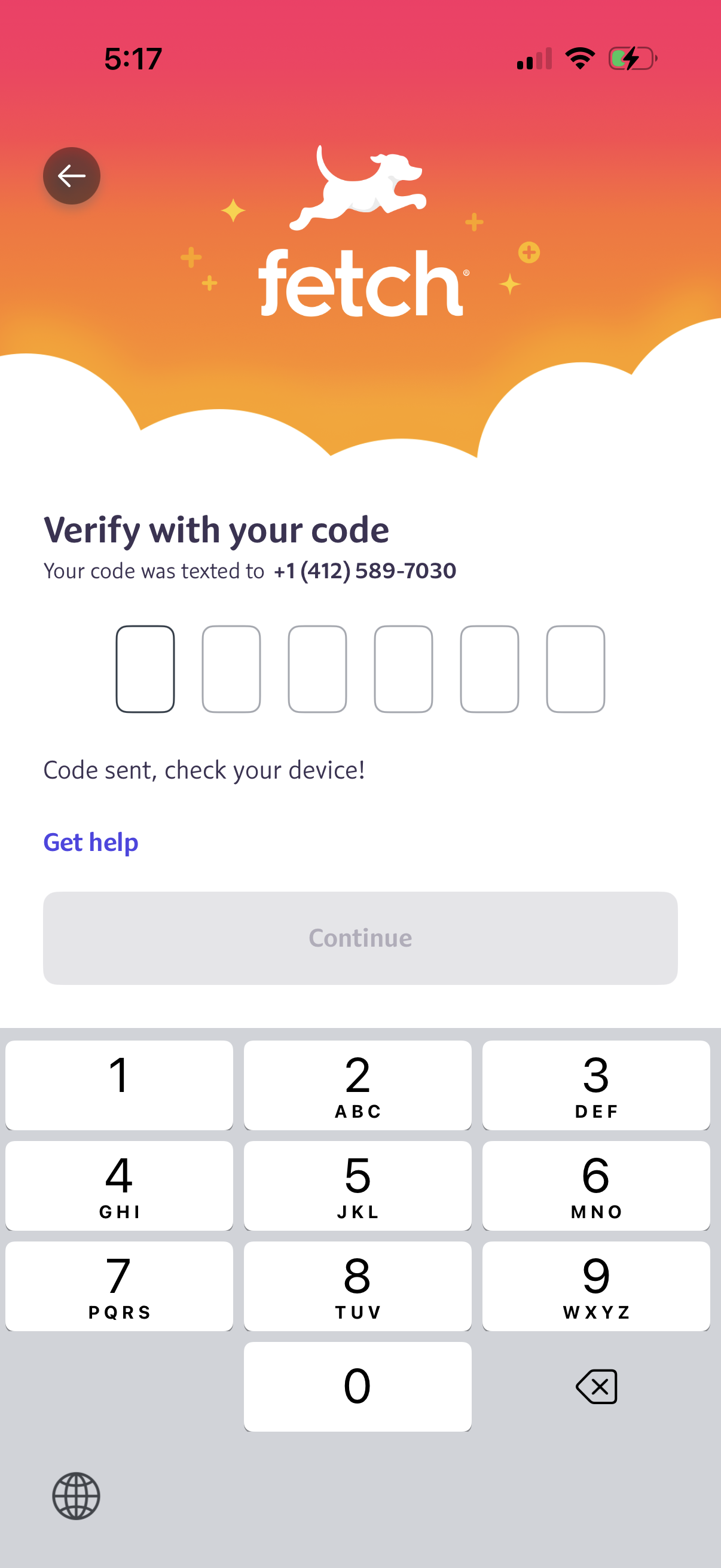
SMS verification (OTP) screen for phone number sign-in, prompting the user to enter a 6-digit code sent via text with a disabled Continue button until completion. Includes back navigation, a “Get help” support link, and confirmation that the code was sent.
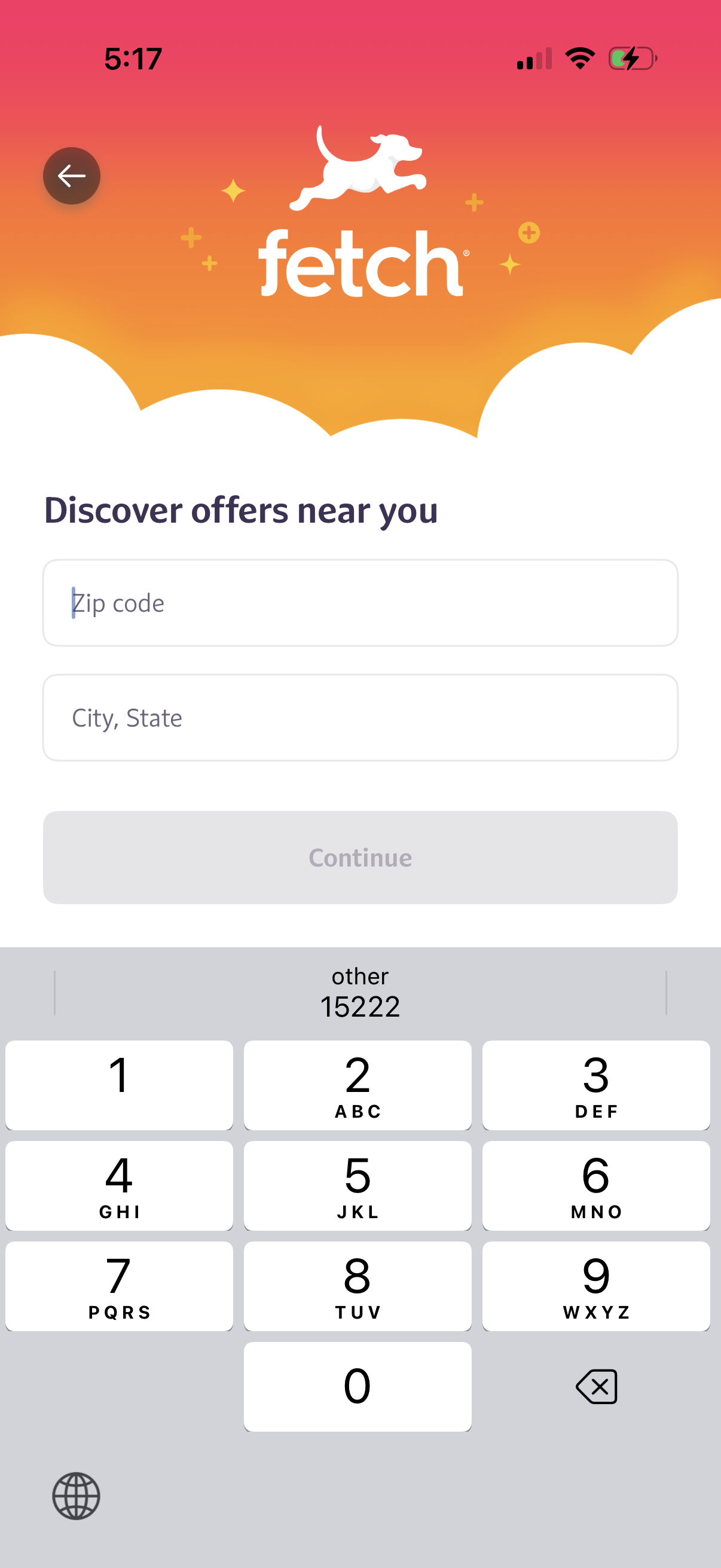
Location entry screen for discovering nearby offers, prompting the user to input a zip code or city and state. Includes a back button and a disabled “Continue” button that becomes available after valid location details are entered.
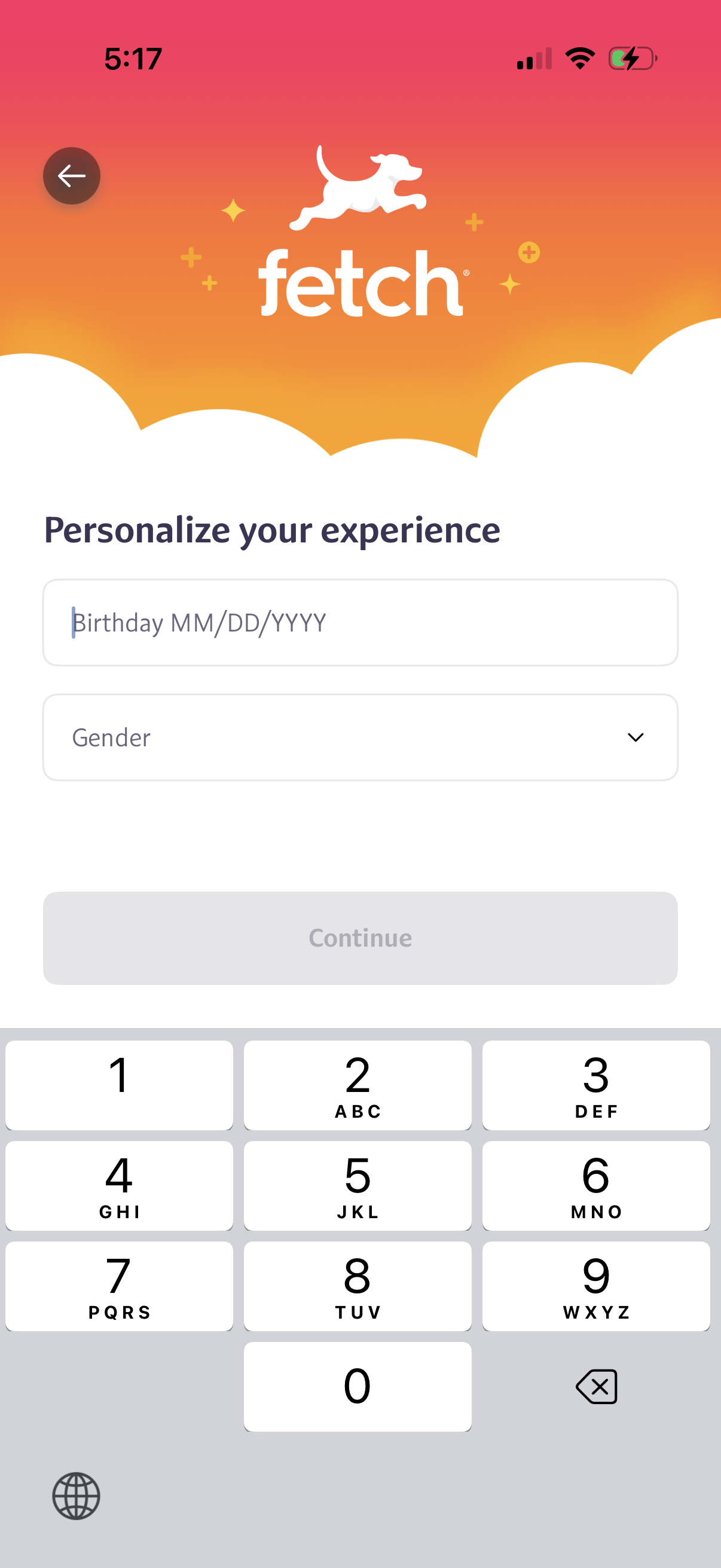
Onboarding profile personalization screen asking the user to enter their birthday (MM/DD/YYYY) and select a gender from a dropdown. Includes a back button and a disabled Continue button that becomes active once required fields are completed.
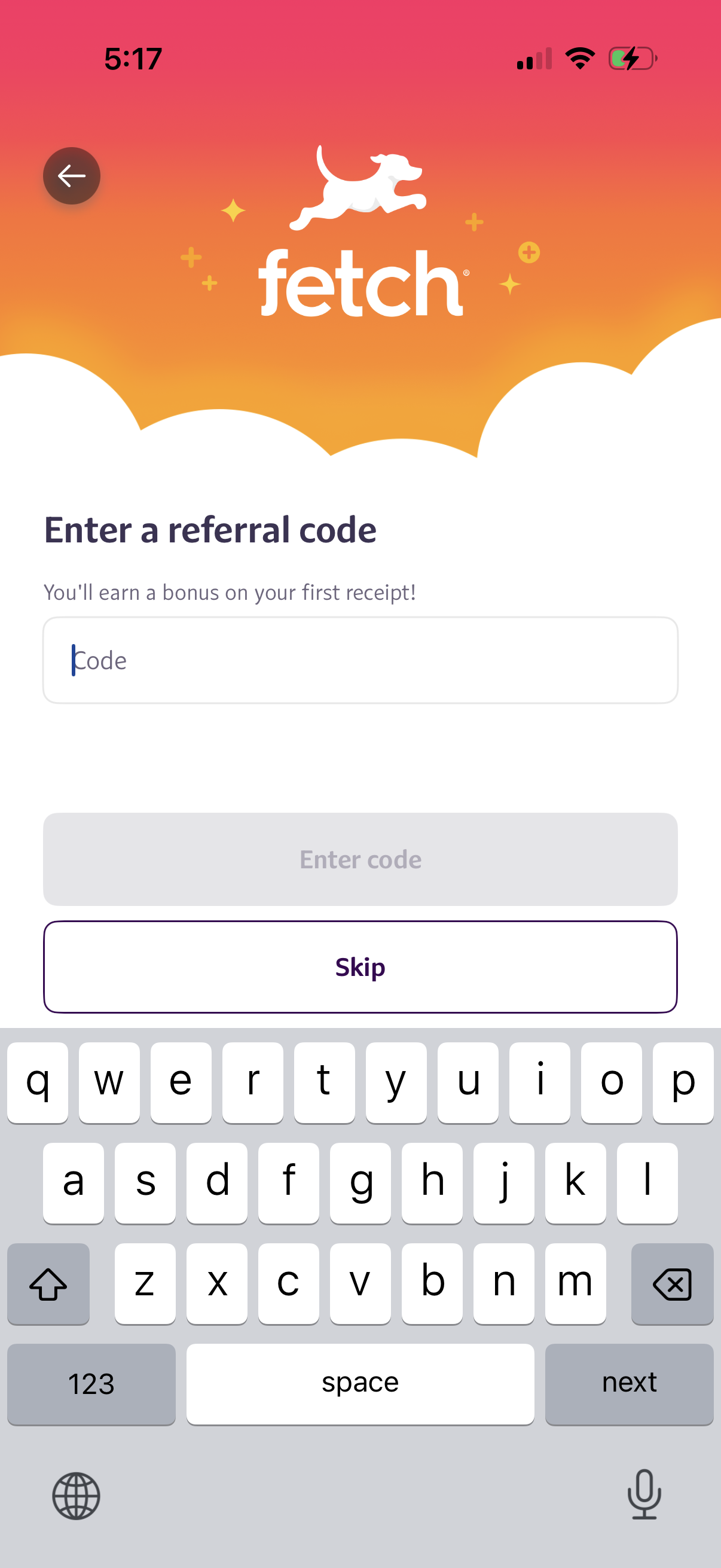
Referral code entry screen during onboarding that prompts the user to enter a promo/referral code to earn a bonus, with a text input field and a primary “Enter code” button. Includes a secondary “Skip” option and a back arrow to return to the previous step.

Welcome/onboarding splash screen introducing a feature or location called “Fetch Point,” with a large hero illustration and no visible form fields or primary call-to-action buttons. This screen serves as an introductory step in the onboarding flow before proceeding further in the app.
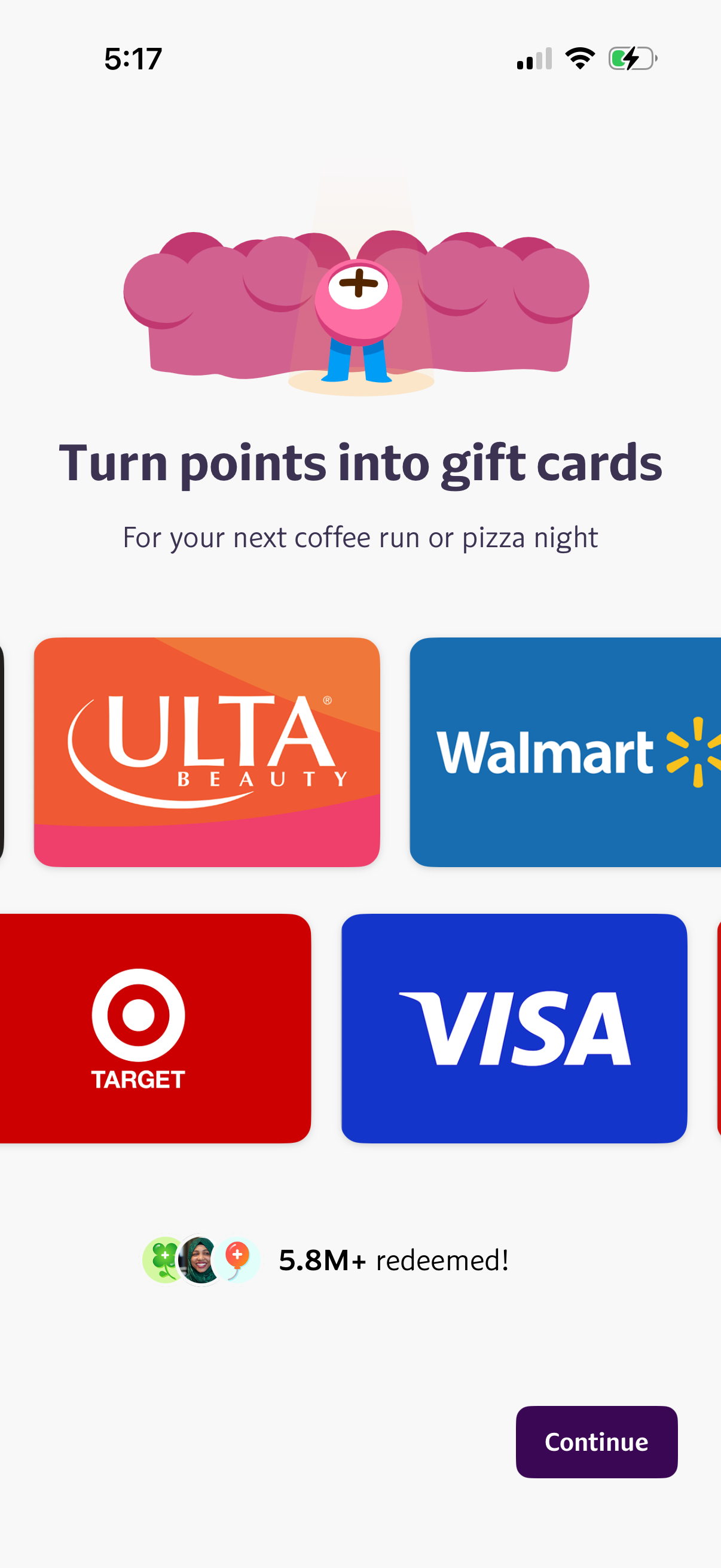
Rewards redemption onboarding screen prompting users to turn loyalty points into gift cards, featuring a scrollable grid of popular retailer gift card options (e. g.
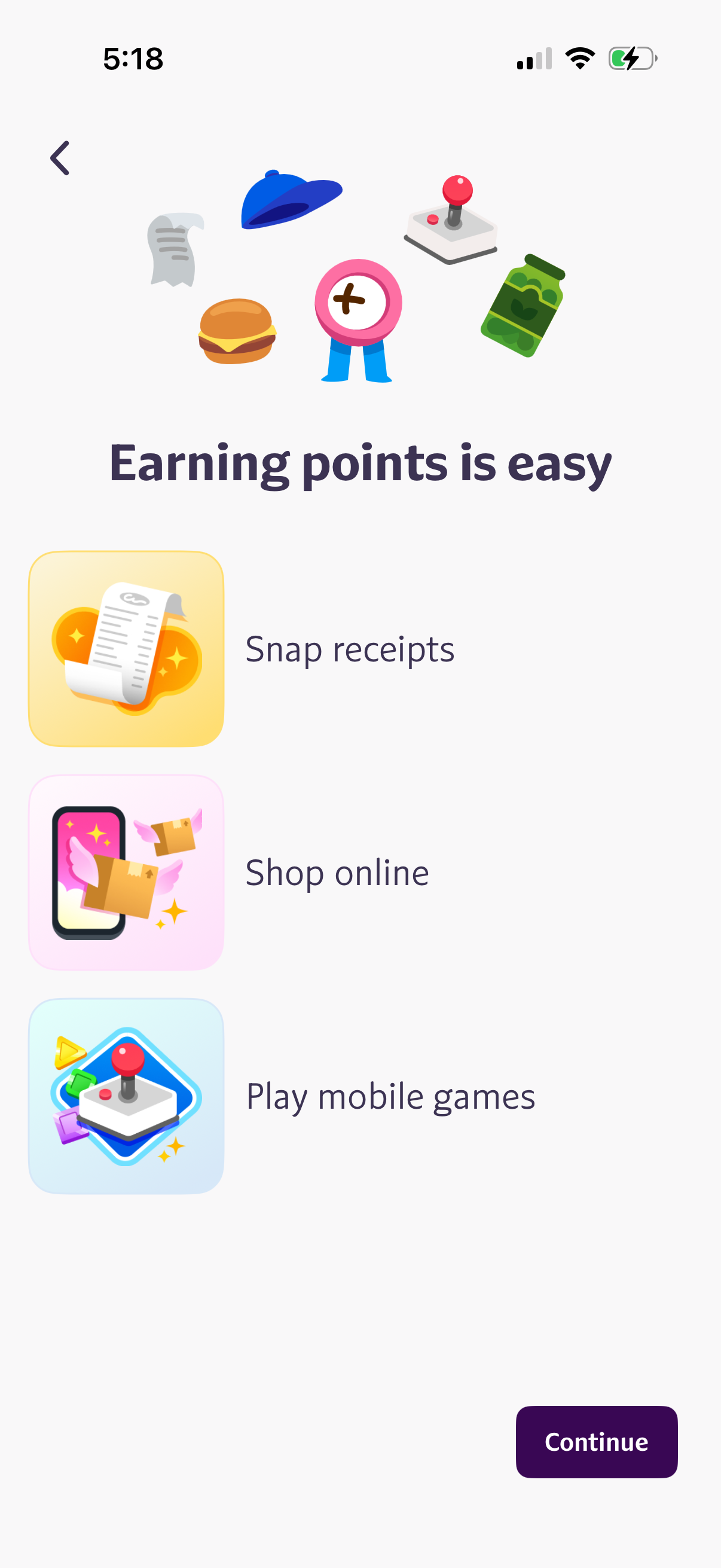
Rewards onboarding screen explaining how to earn points, showing options like snapping receipts, shopping online, and playing mobile games, with a back arrow and a primary Continue button to proceed.
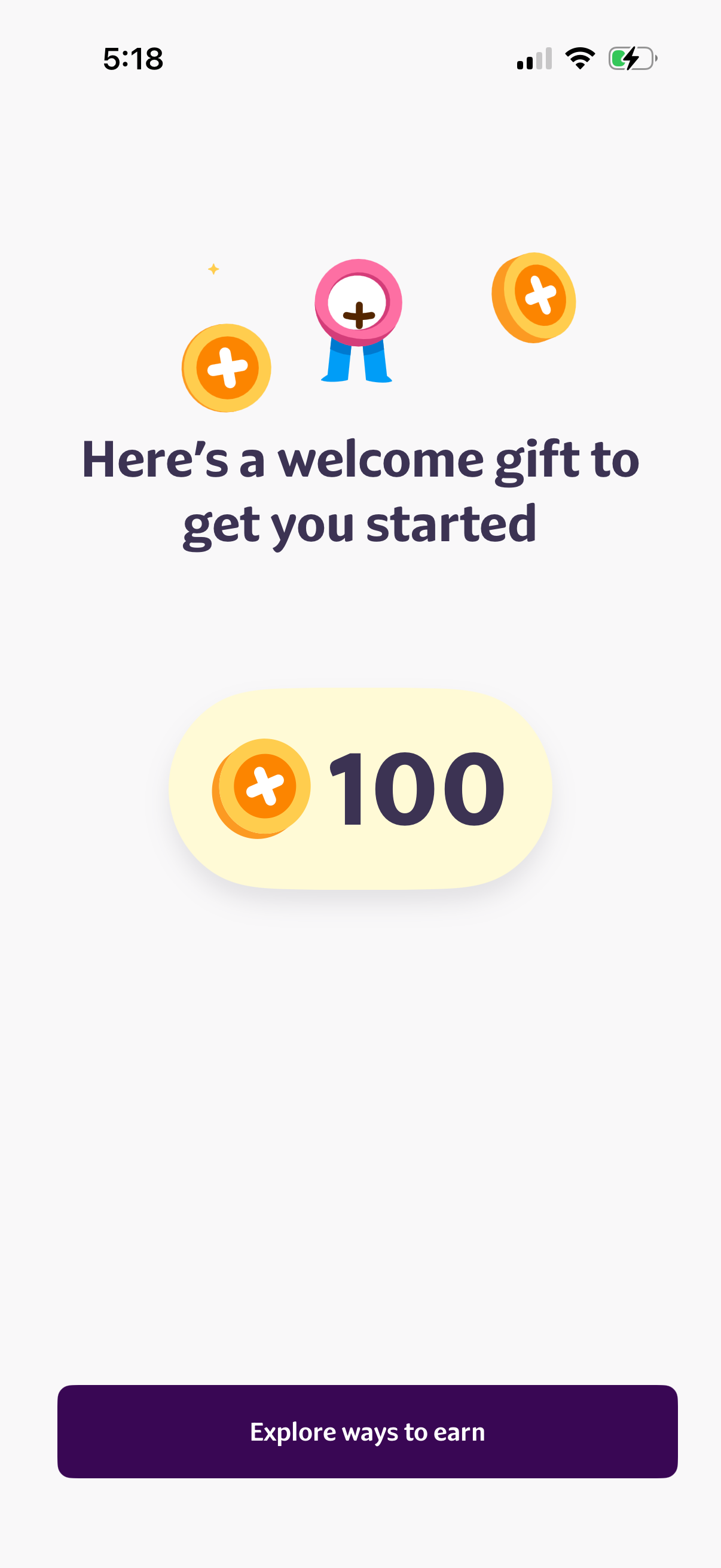
Welcome reward screen that grants a starting bonus of 100 in-app points/coins, with a primary CTA button to “Explore ways to earn” for learning how to collect more rewards.
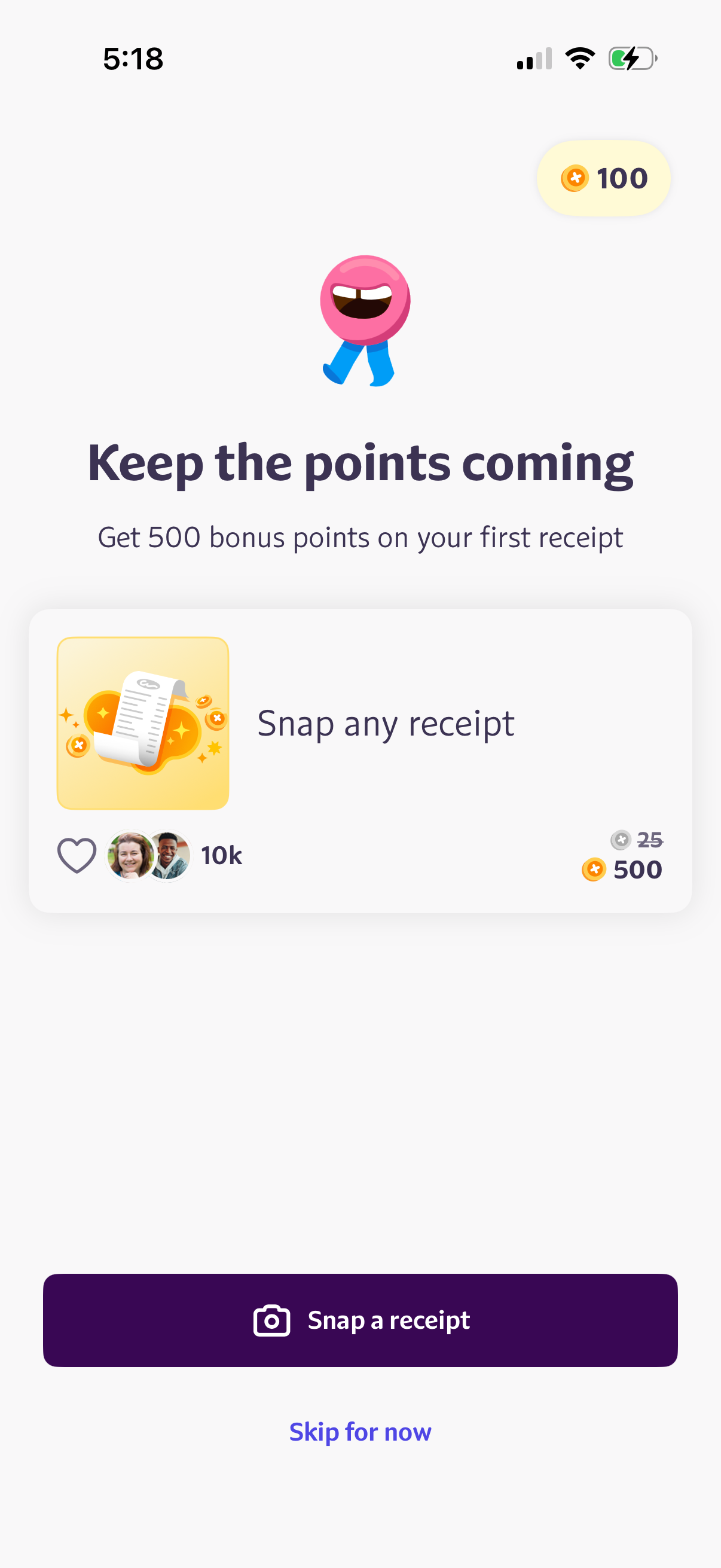
Rewards onboarding prompt encouraging users to earn points by scanning purchase receipts, highlighting a first-receipt bonus and showing current points balance. Primary CTA is a “Snap a receipt” button with an option to skip for now, plus a featured task card for snapping any receipt.
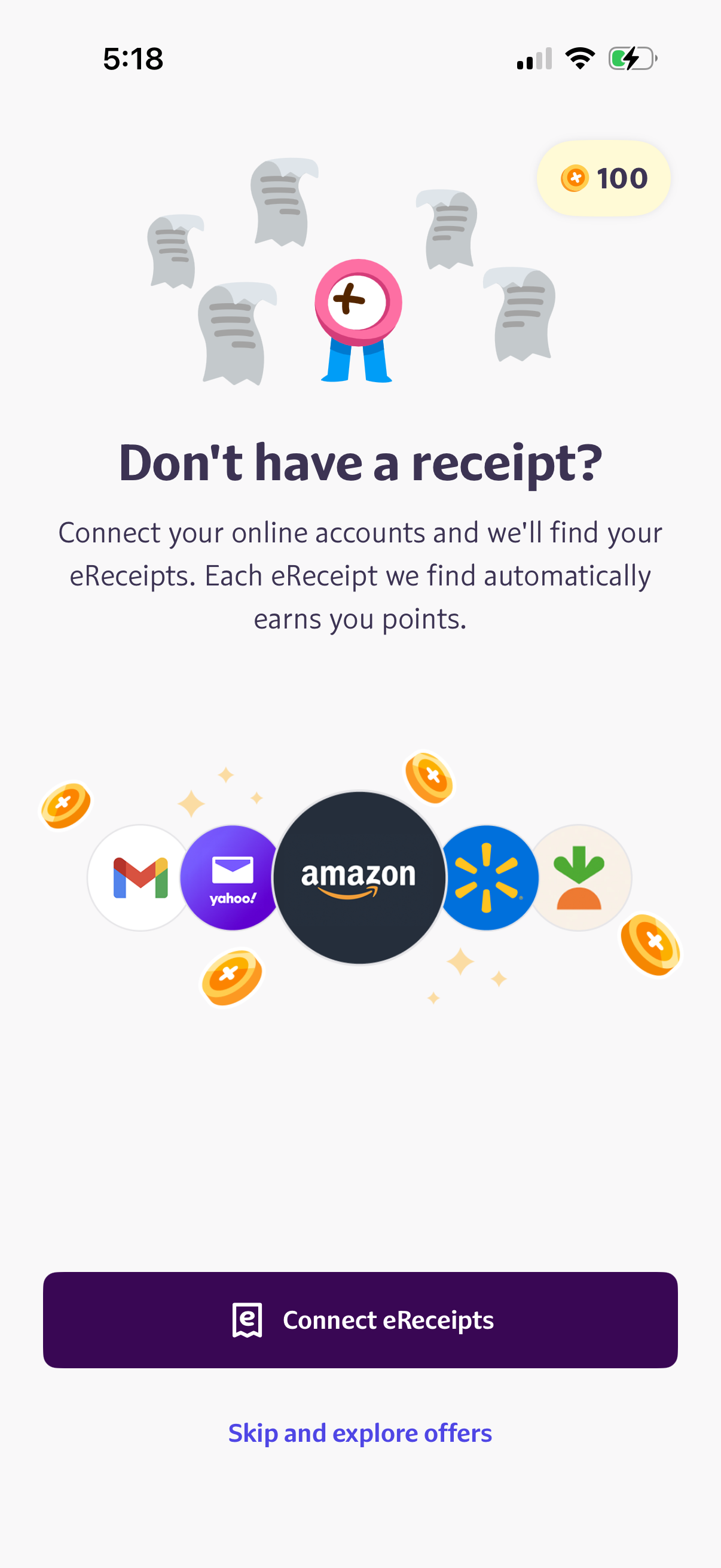
Onboarding prompt encouraging users to connect online shopping/email accounts to automatically find and import eReceipts, earning reward points for each receipt found. Provides a primary CTA to “Connect eReceipts” and a secondary option to skip and explore offers, with a points balance indicator.
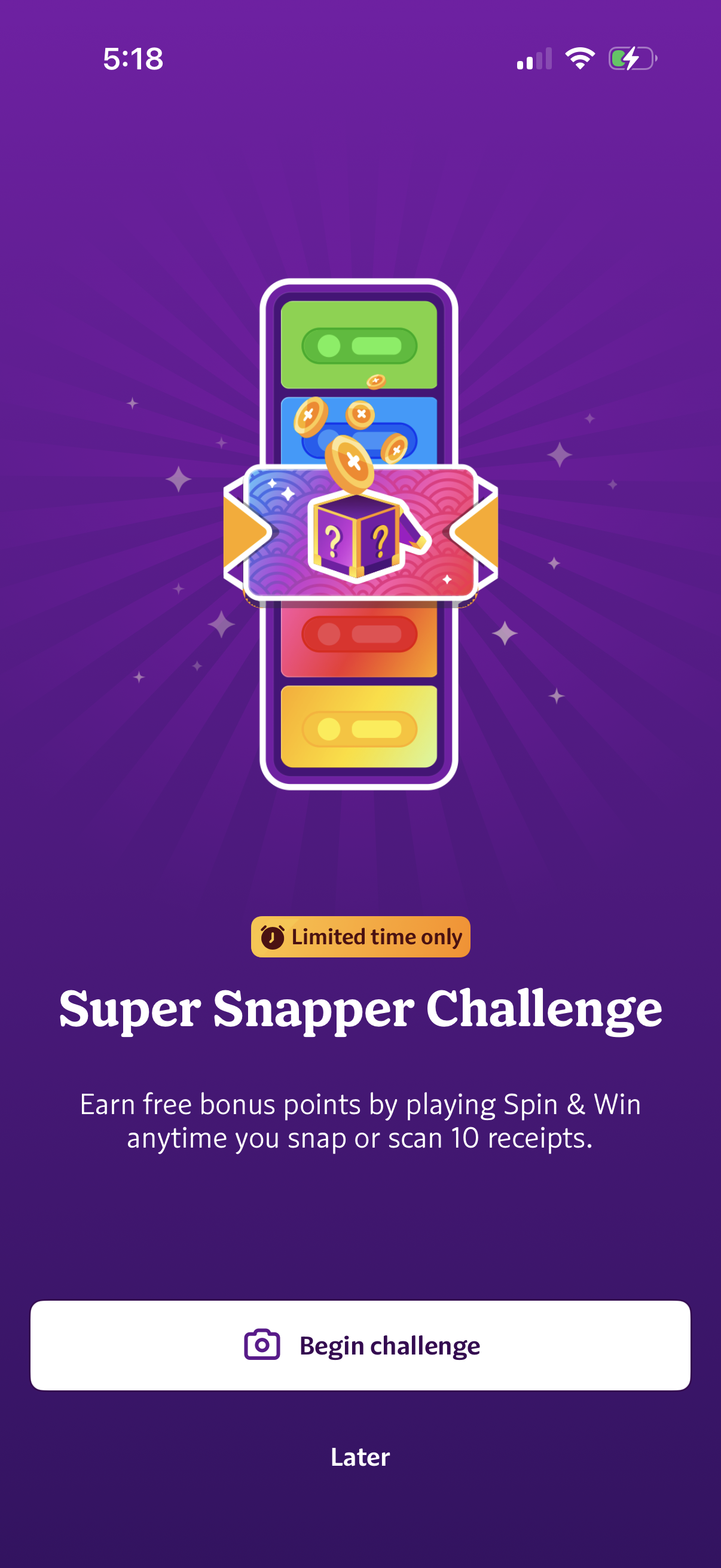
Promotional challenge landing screen for a limited-time “Super Snapper Challenge” that rewards bonus points through a Spin & Win mechanic when users snap or scan a set number of receipts. Primary CTA is “Begin challenge” with an option to dismiss and do it later.