Social Signup
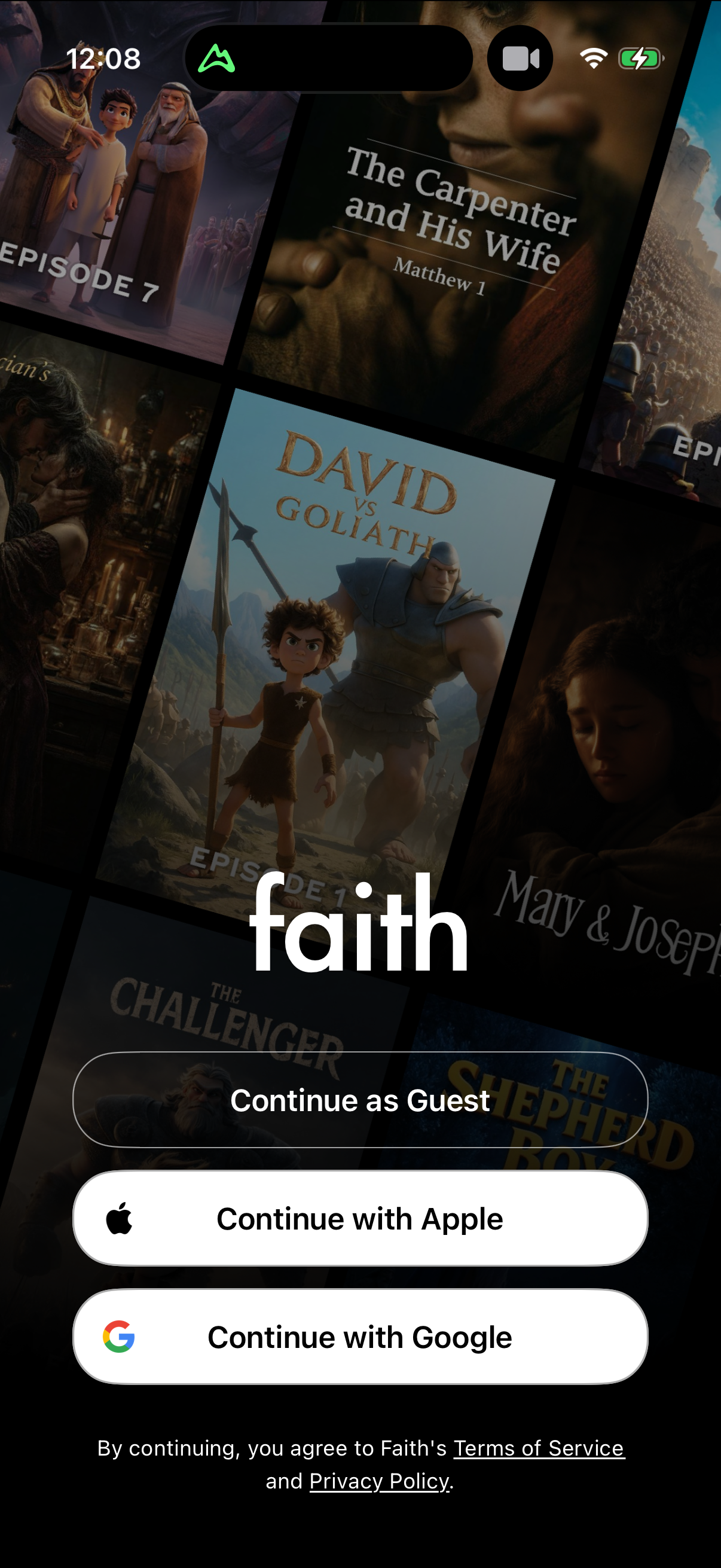
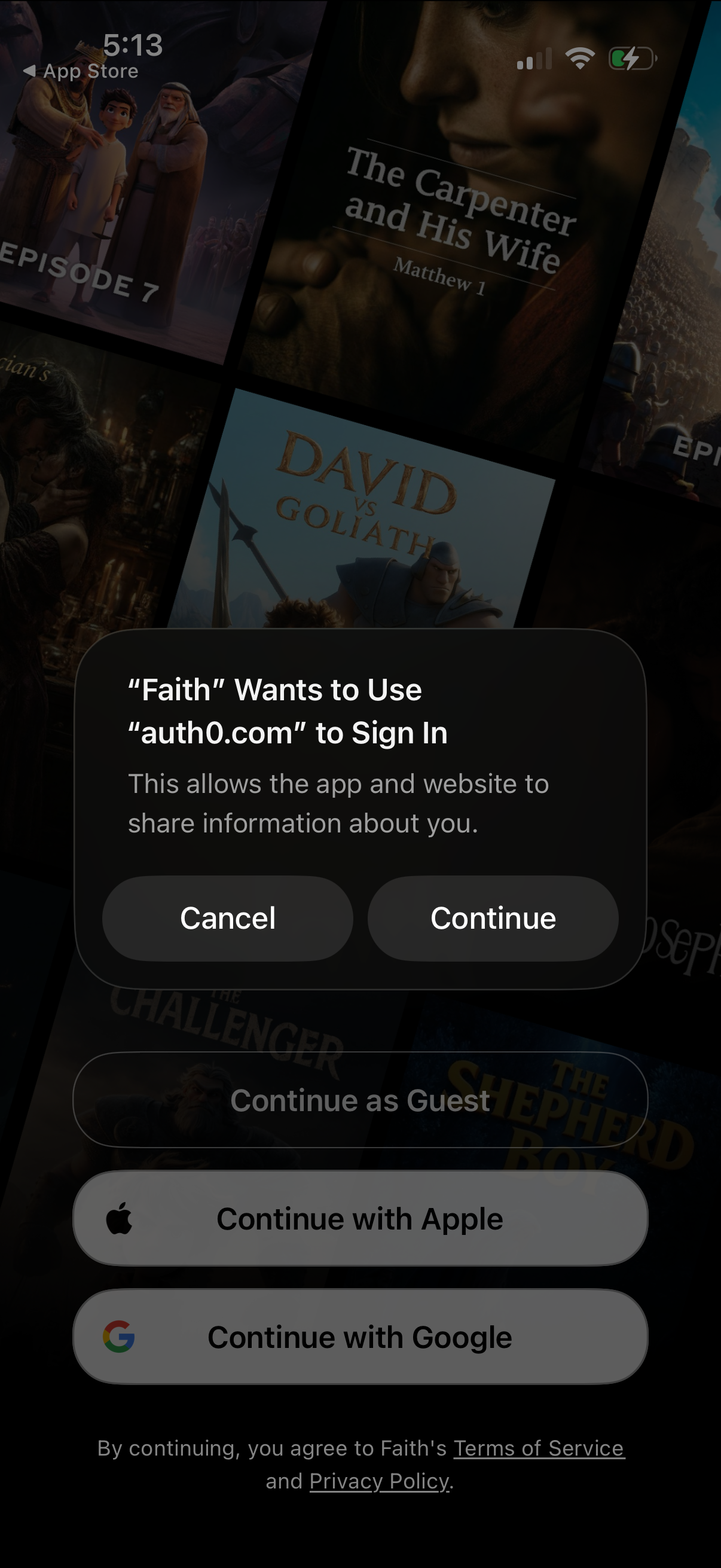
iOS sign-in flow showing a system authorization dialog where the app requests permission to use an external domain (auth0. com) to sign in, with Cancel and Continue actions.
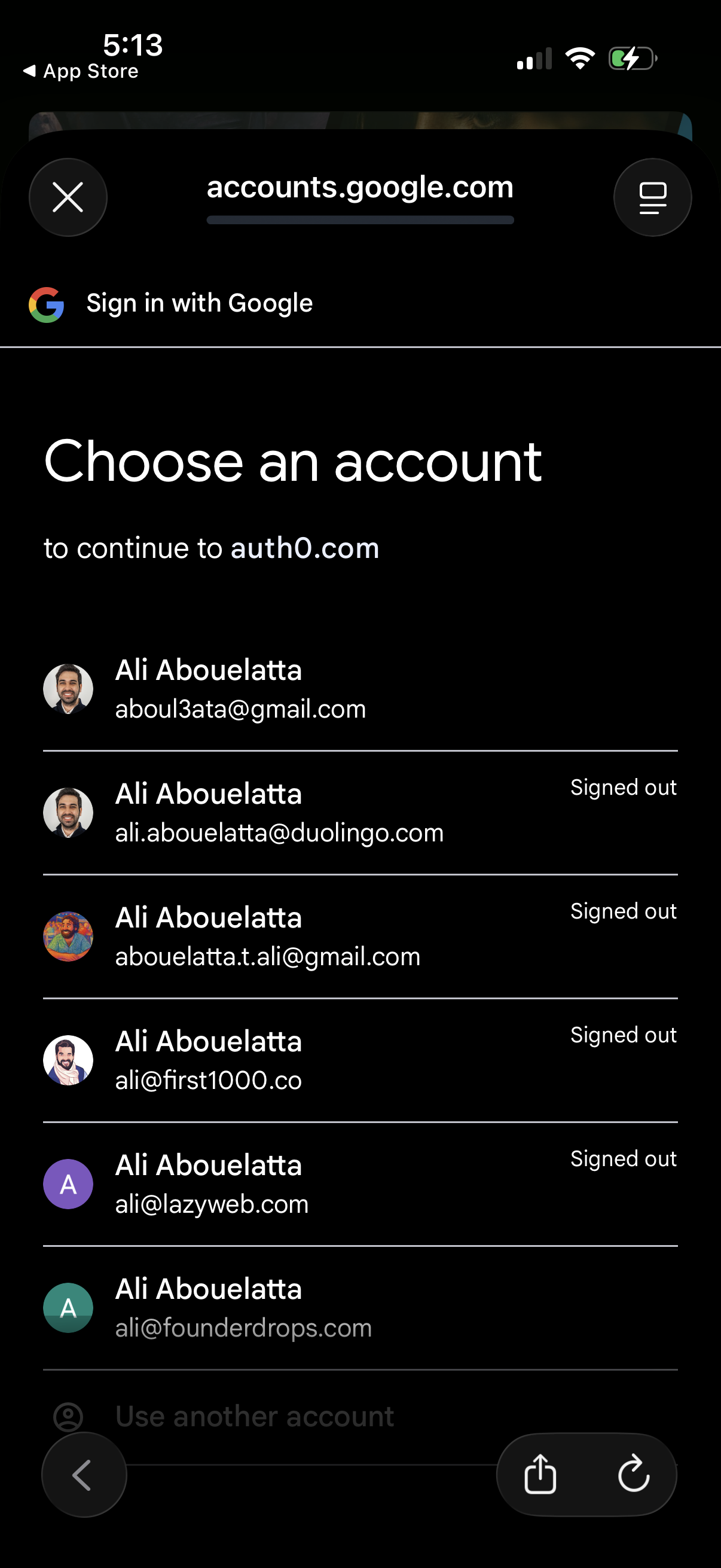
Google OAuth sign-in screen prompting the user to choose a Google account to continue to a third-party site, showing a list of saved accounts with avatars, email addresses, and signed-out status. Includes options to select an account, use another account, or close the login flow.
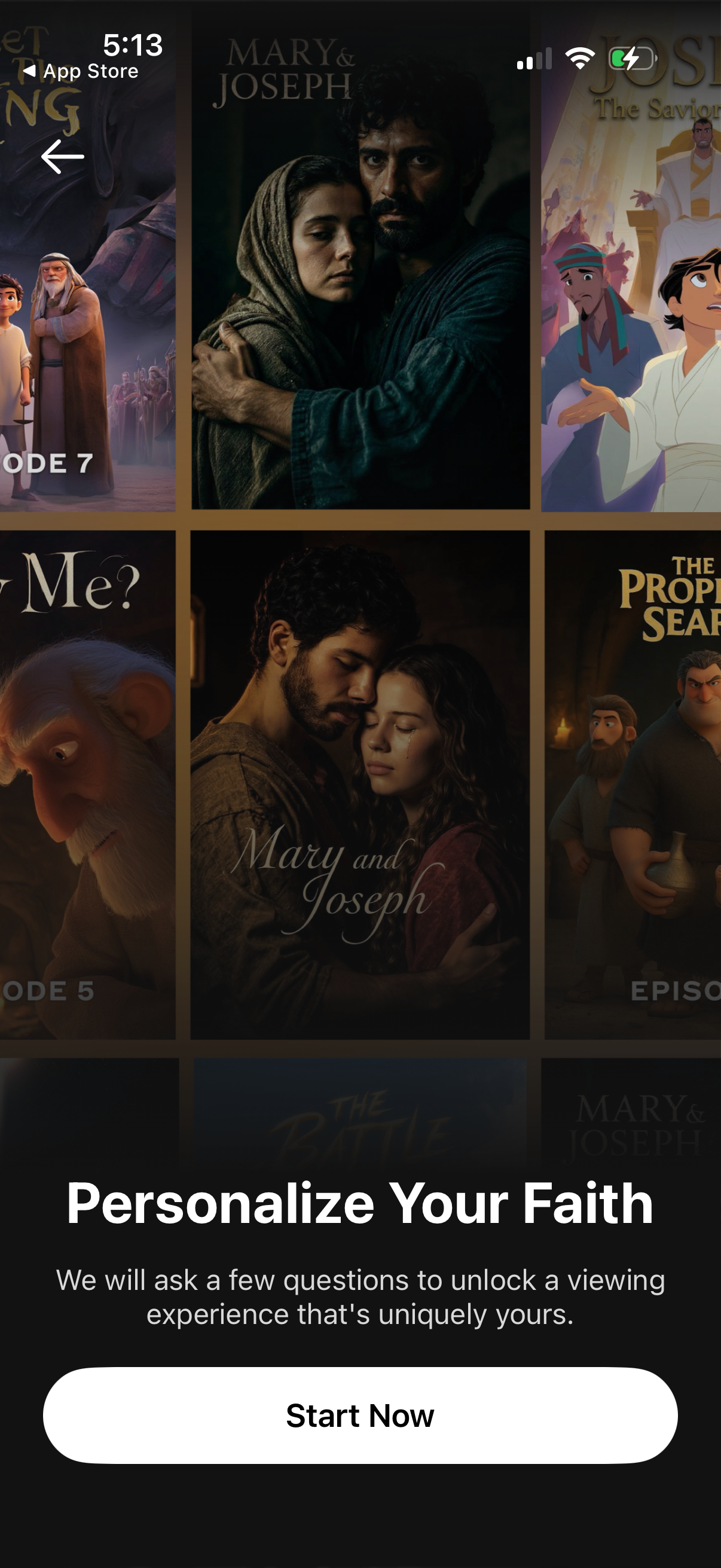
Streaming video app onboarding prompt encouraging users to personalize their faith-based viewing experience, shown over a grid of show/episode cover thumbnails. Includes a prominent “Start Now” call-to-action to begin a questionnaire-style personalization flow, with a back navigation icon.
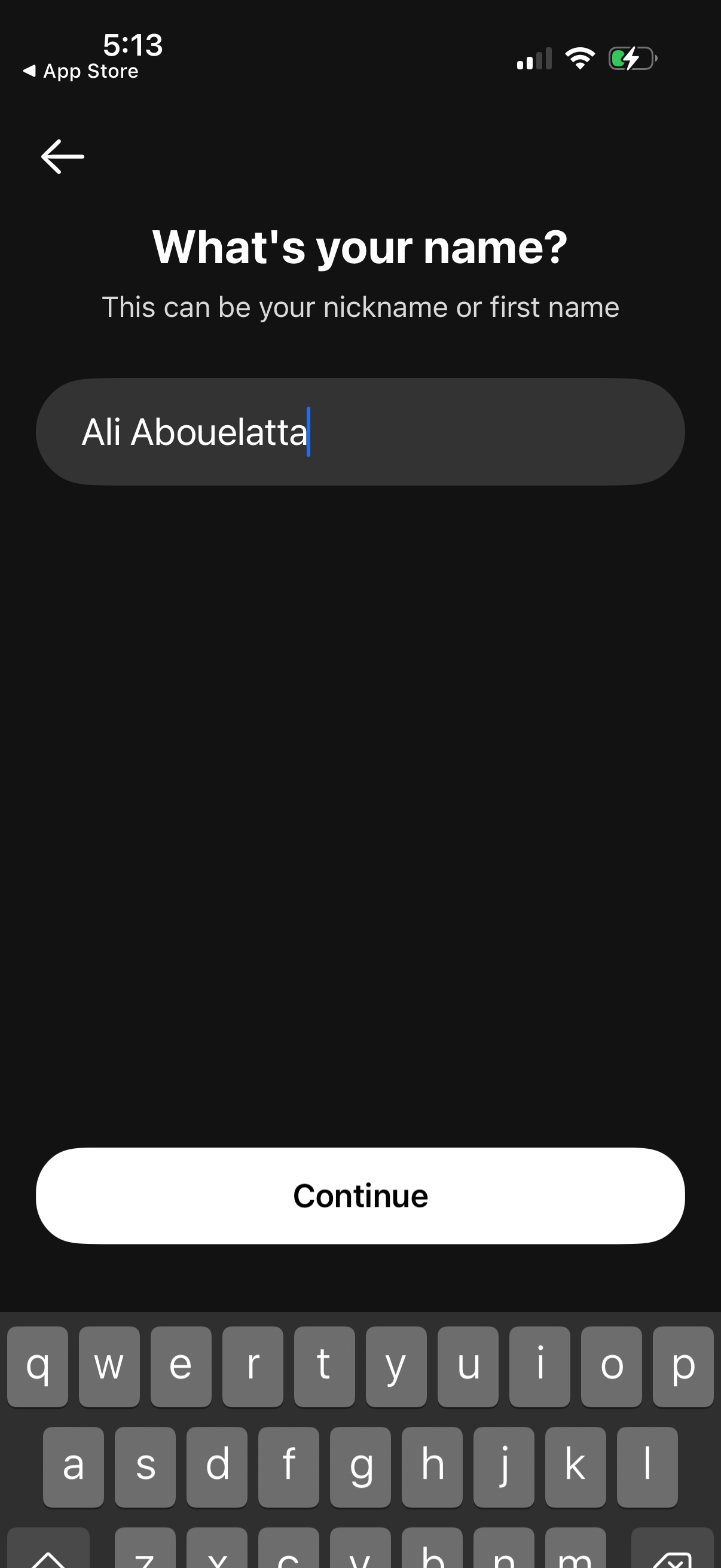
Onboarding profile setup screen prompting the user to enter their name (nickname or first name) in a text field, with a back arrow for navigation and a primary Continue button to proceed.
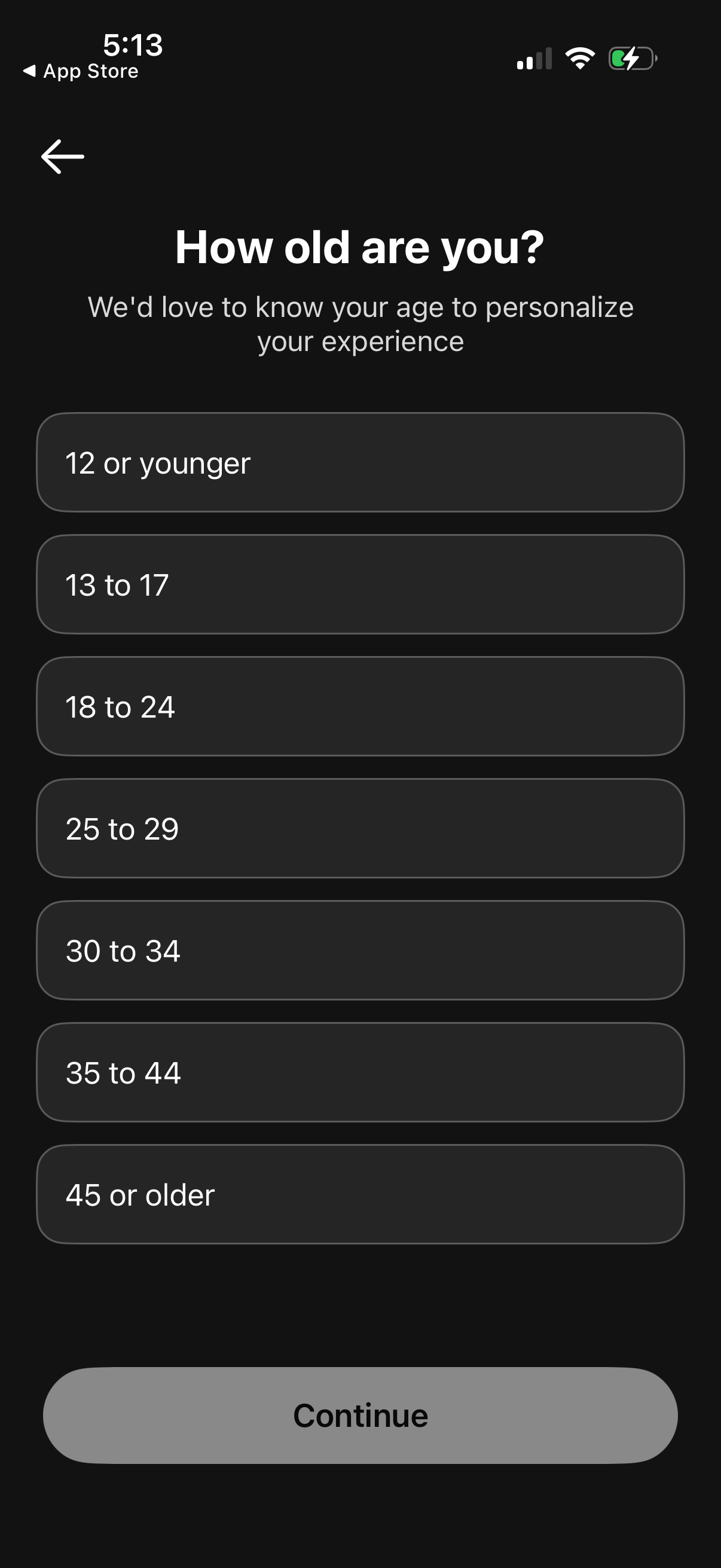
Onboarding profile step asking the user to select their age range to personalize the app experience. Presents multiple age bracket options (from 12 or younger to 45 or older) and a bottom “Continue” button with a back navigation arrow.
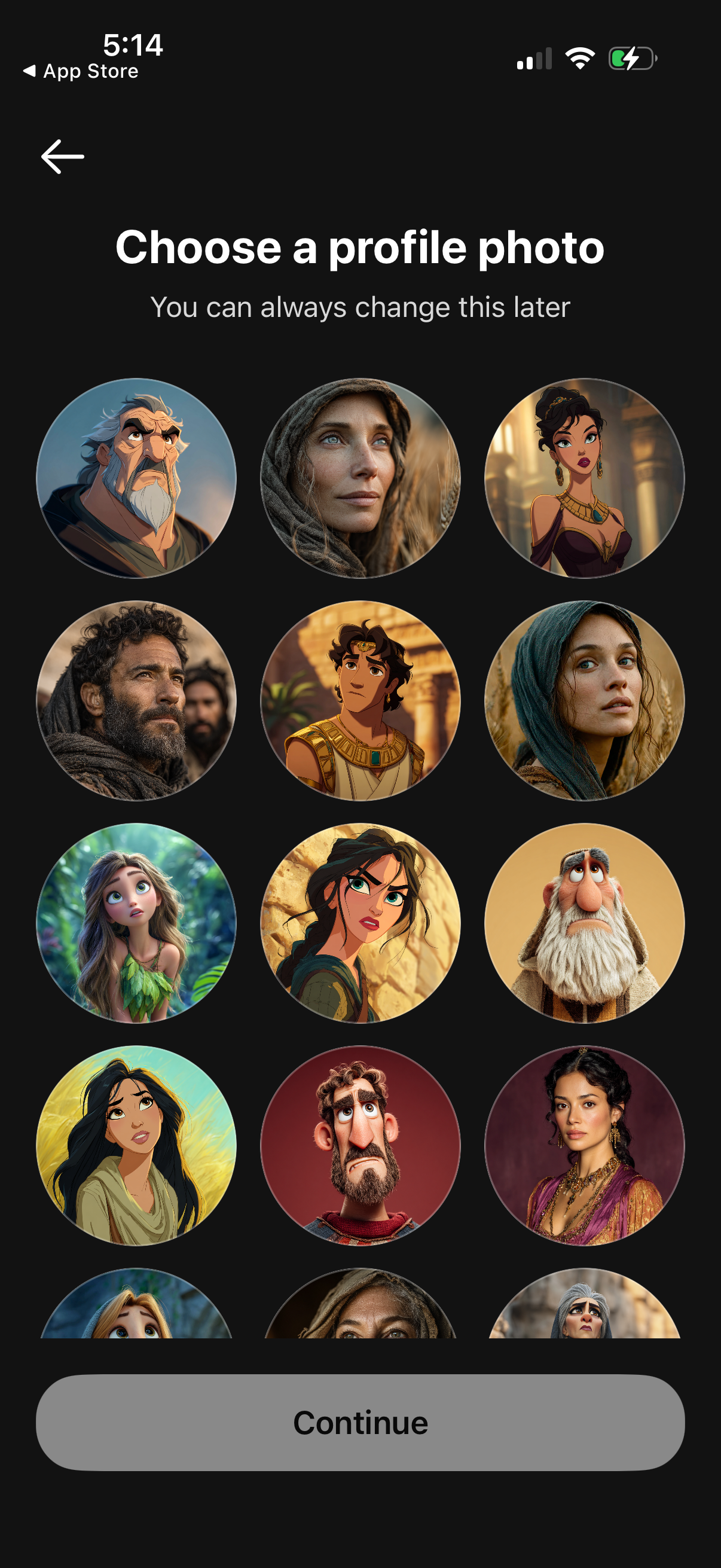
Profile setup screen prompting the user to choose a profile photo from a grid of avatar options, with a back button and helper text indicating it can be changed later. A large “Continue” button at the bottom confirms the selection and proceeds.
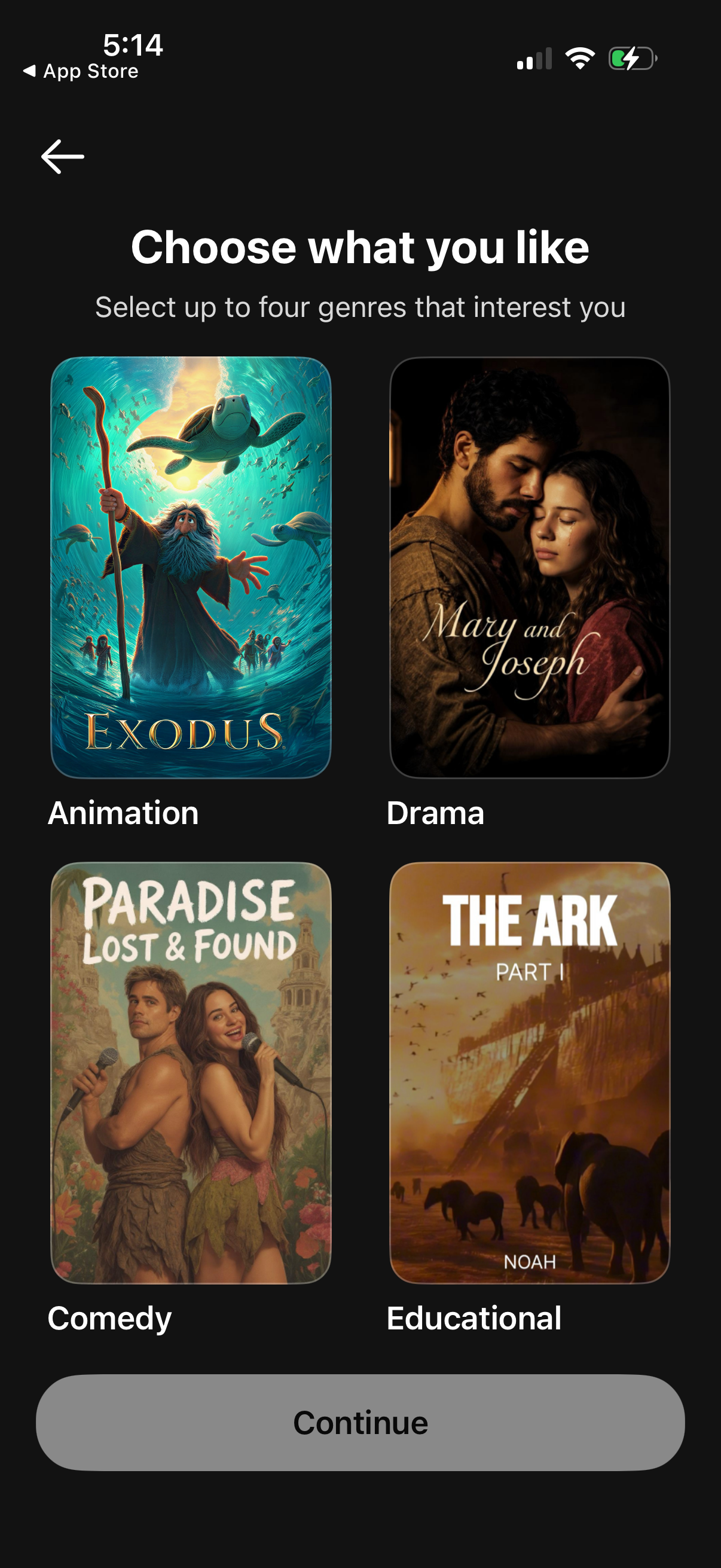
Onboarding preference selection screen for a streaming or content app prompting the user to choose up to four genres of interest from a grid of poster-style cards (e. g.
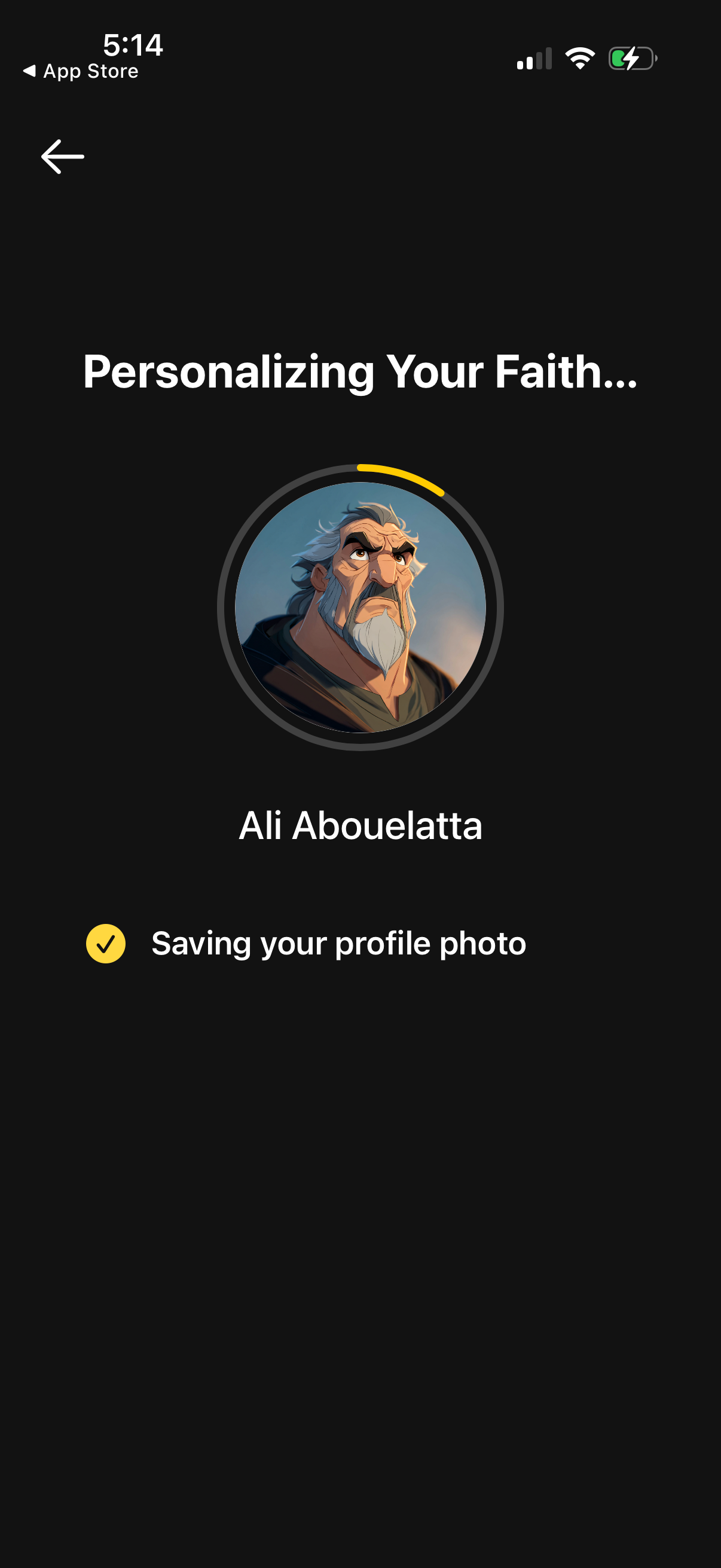
A personalization/loading progress screen for a faith-based app showing “Personalizing Your Faith…” with a circular profile avatar and status updates like “Saving your profile photo. ” Includes a back button and progress indicator to communicate setup completion while user profile details are being saved.
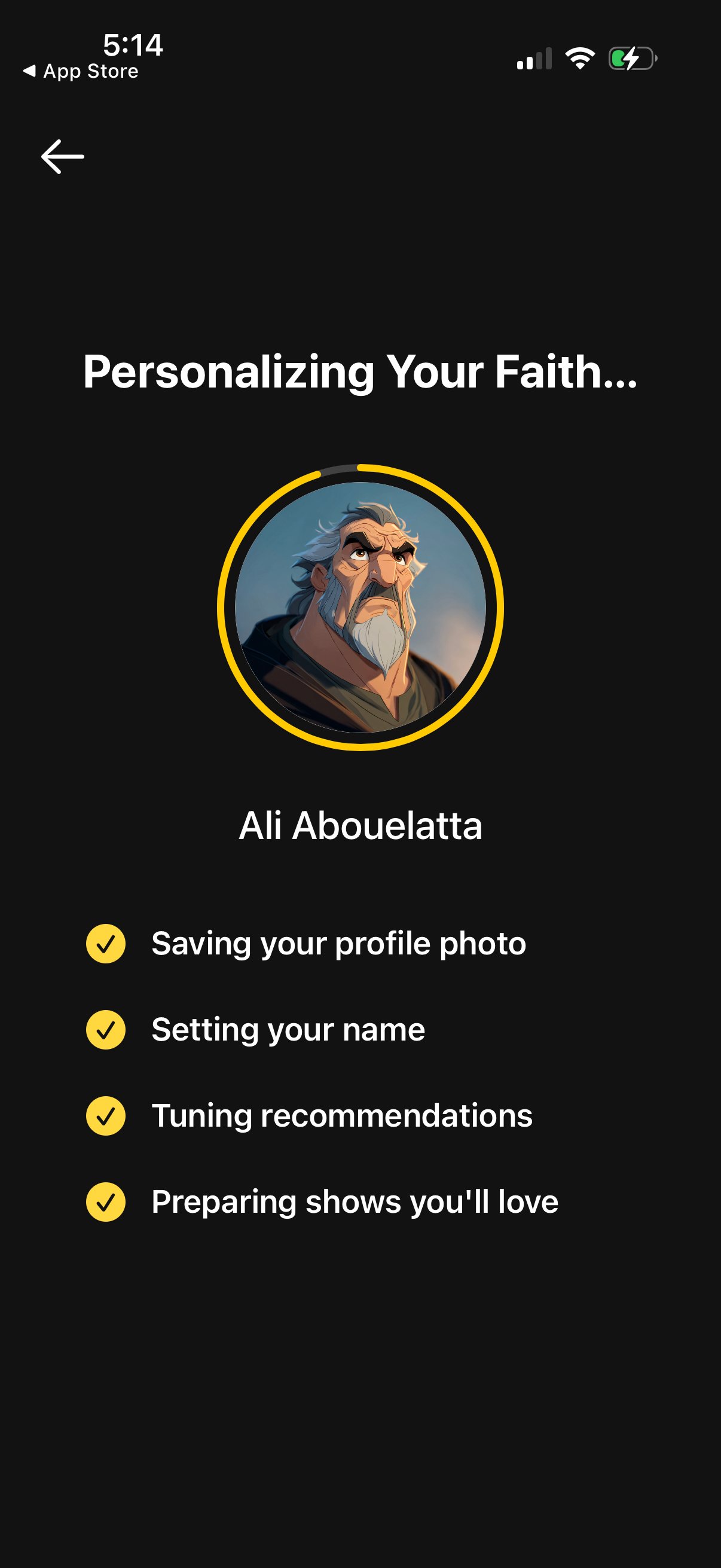
Onboarding personalization progress screen showing “Personalizing Your Faith” with a circular avatar and name while the app completes setup steps like saving profile photo, setting name, tuning recommendations, and preparing content. Includes a back button and checklist-style status indicators confirming each task is done.
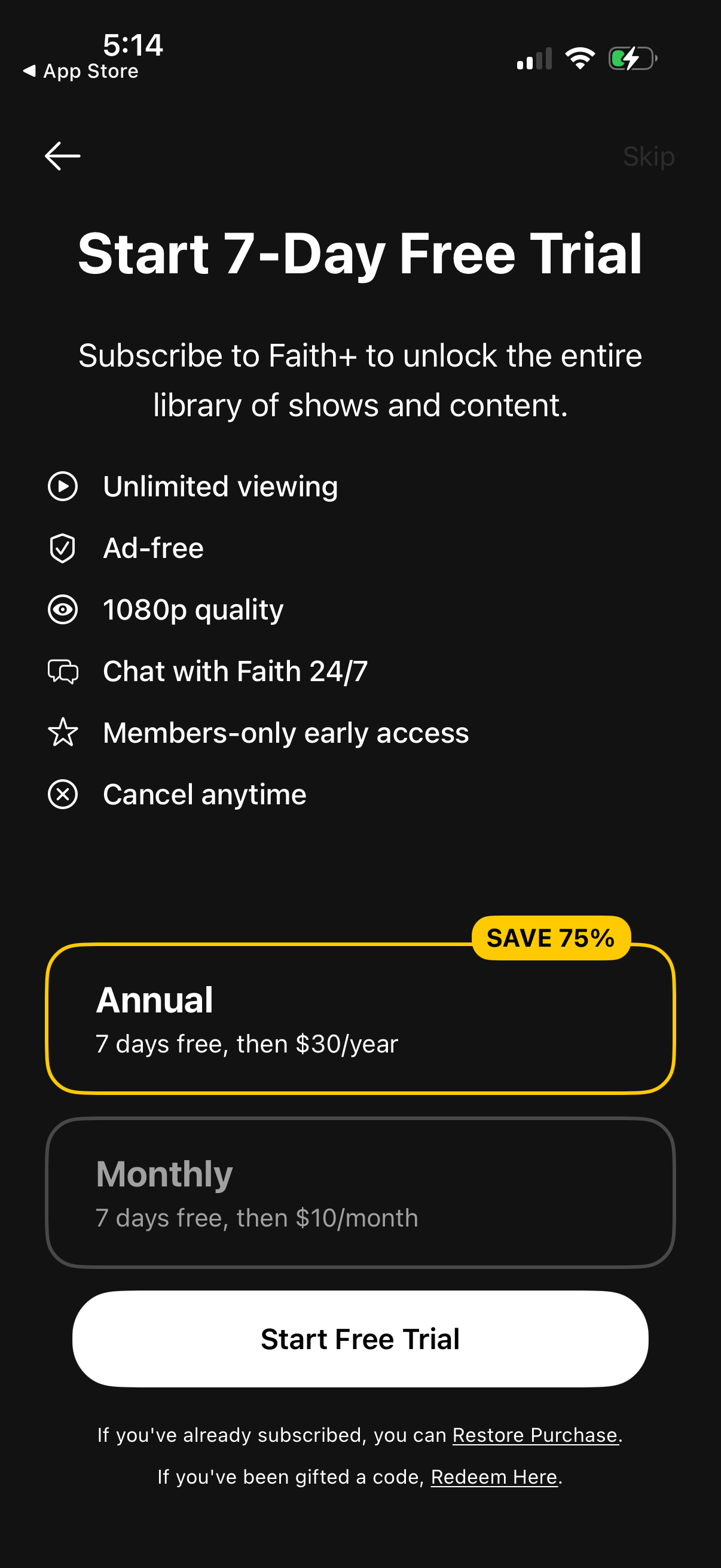
Subscription paywall screen prompting users to start a 7-day free trial to unlock the full content library, highlighting benefits like unlimited viewing, ad-free 1080p, 24/7 chat, early access, and cancel anytime. Includes plan selection for annual vs monthly pricing with savings badge, primary “Start Free Trial” CTA, plus options to skip, restore purchase, or redeem a code.
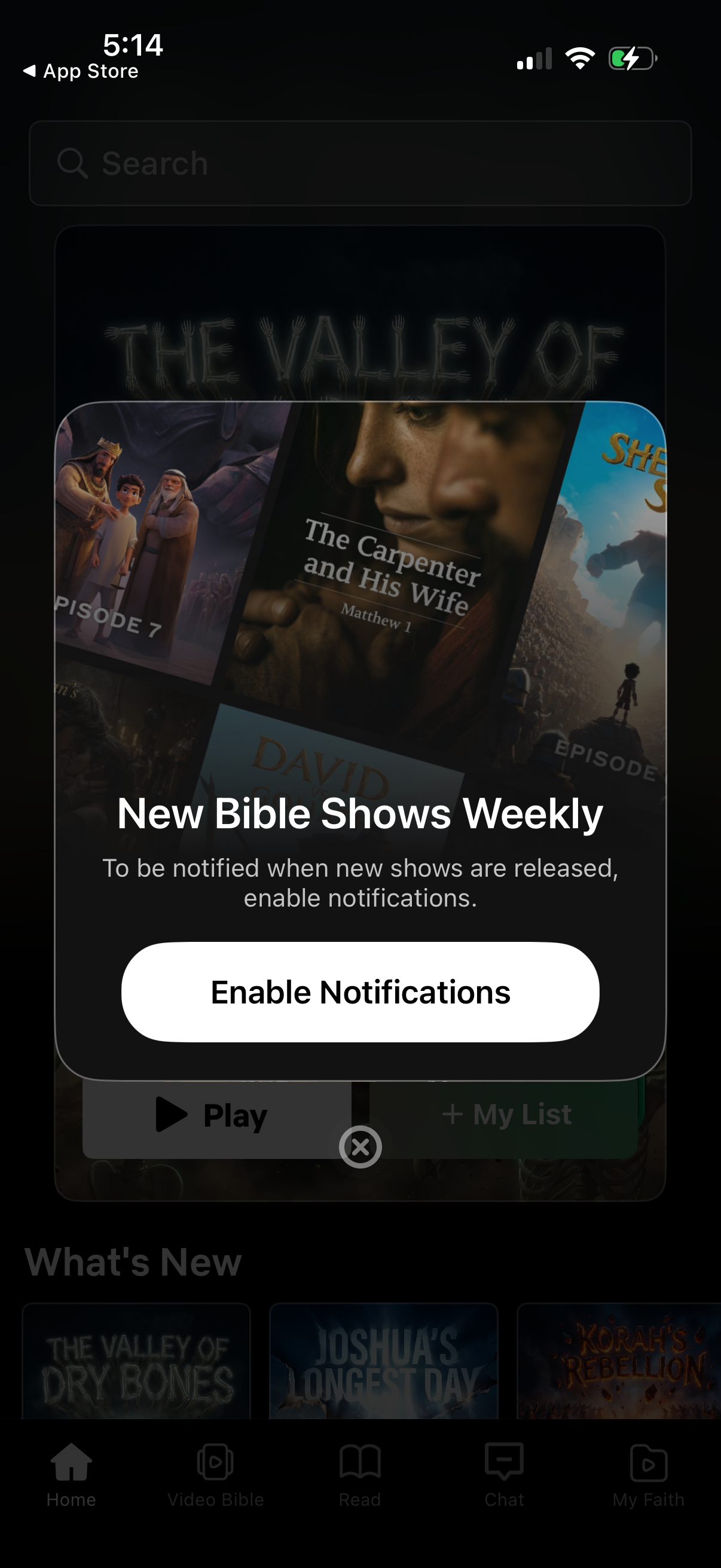
A modal prompt overlays a Bible video streaming home screen asking users to enable push notifications so they can be alerted when new weekly shows are released. The dialog includes a primary “Enable Notifications” call-to-action with a close button to dismiss and continue browsing content.
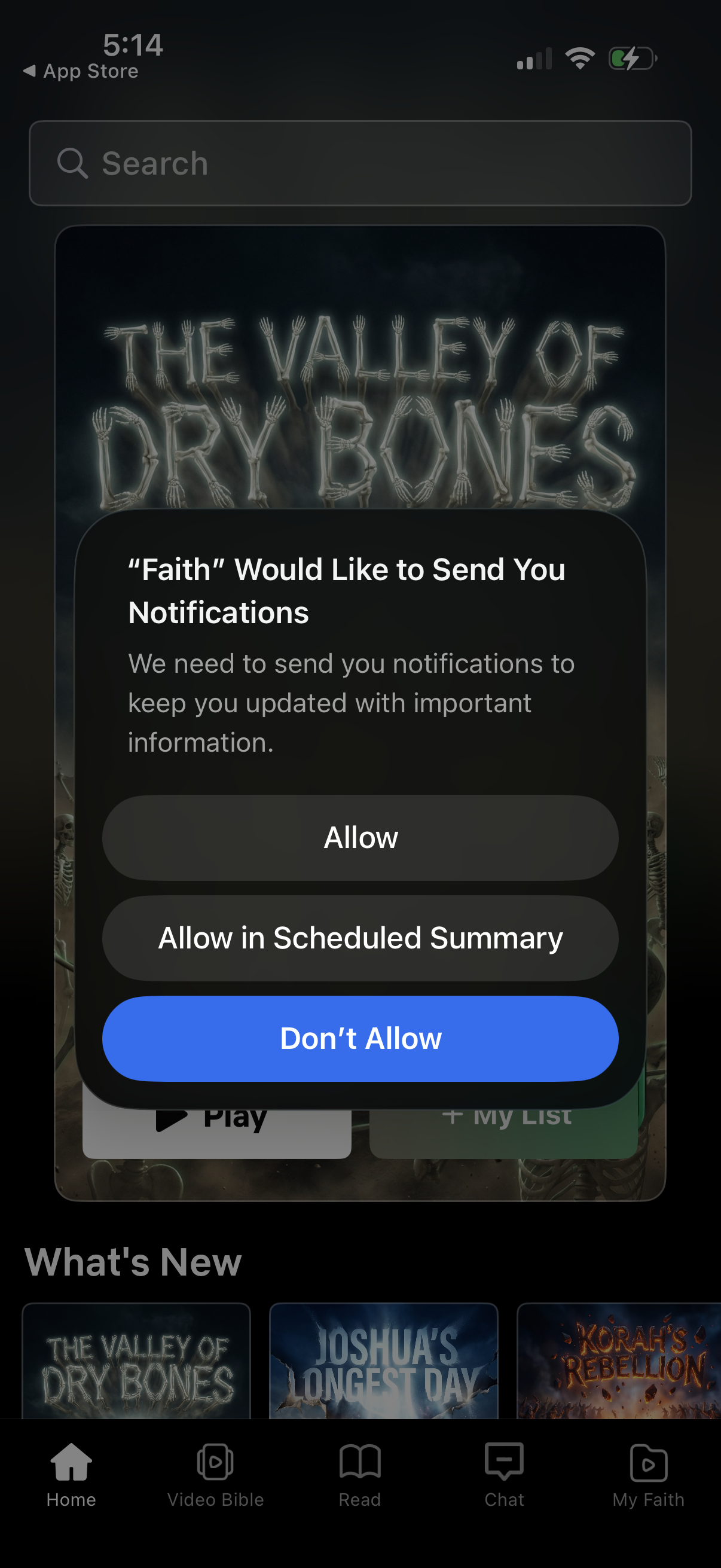
System push notification permission prompt overlay asking to allow an app to send notifications, with options to Allow, Allow in Scheduled Summary, or Don’t Allow. The prompt appears on top of the app’s home/discover screen with a search bar, featured content cards, and bottom tab navigation.