Onboarding Survey
App launch splash screen for Facetune, showing the centered brand logo and app name on a dark background while the photo editing/retouching app loads.
Welcome/onboarding screen for a photo editing and retouching app (Facetune) featuring a promotional collage of portrait images, a “Share with confidence” tagline, and a primary “Continue” button to proceed into the app.
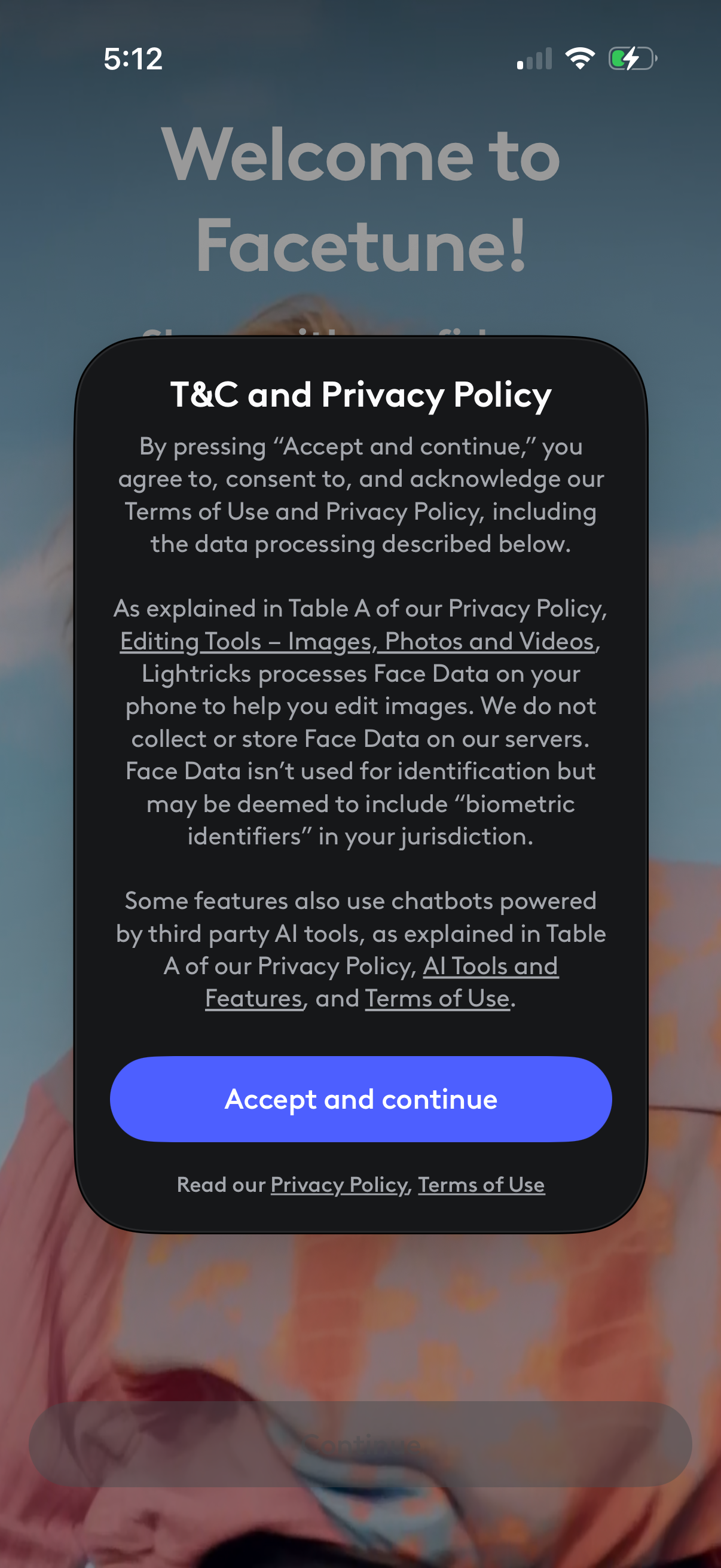
App welcome screen with a modal dialog prompting users to review and consent to Terms & Conditions and Privacy Policy, including disclosures about face data processing and third‑party AI tools. Primary action is a prominent “Accept and continue” button with links to read the Privacy Policy and Terms of Use.
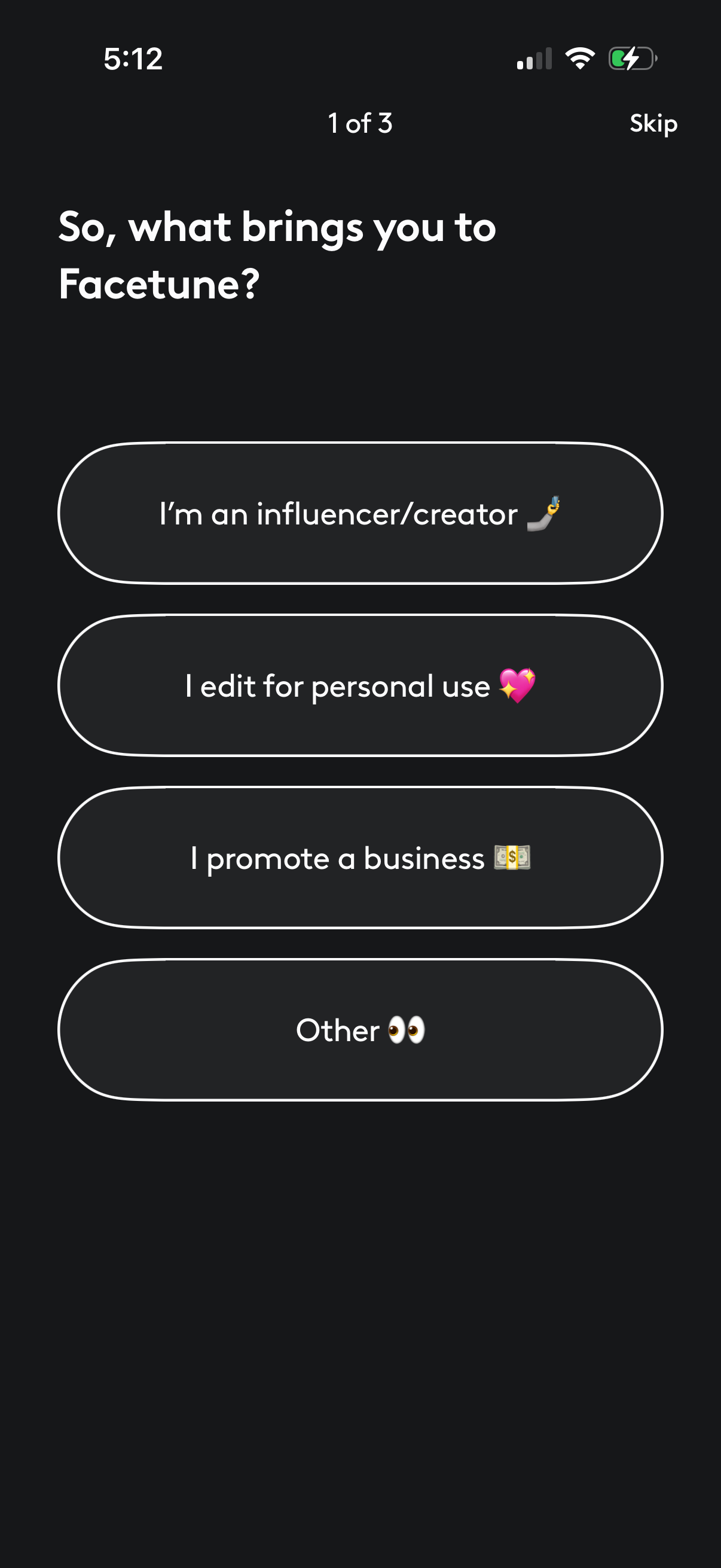
Onboarding survey screen asking the user’s reason for using the app, with a progress indicator (1 of 3) and a Skip option. Users choose one of several large button answers such as influencer/creator, personal editing, promoting a business, or other to personalize the experience.
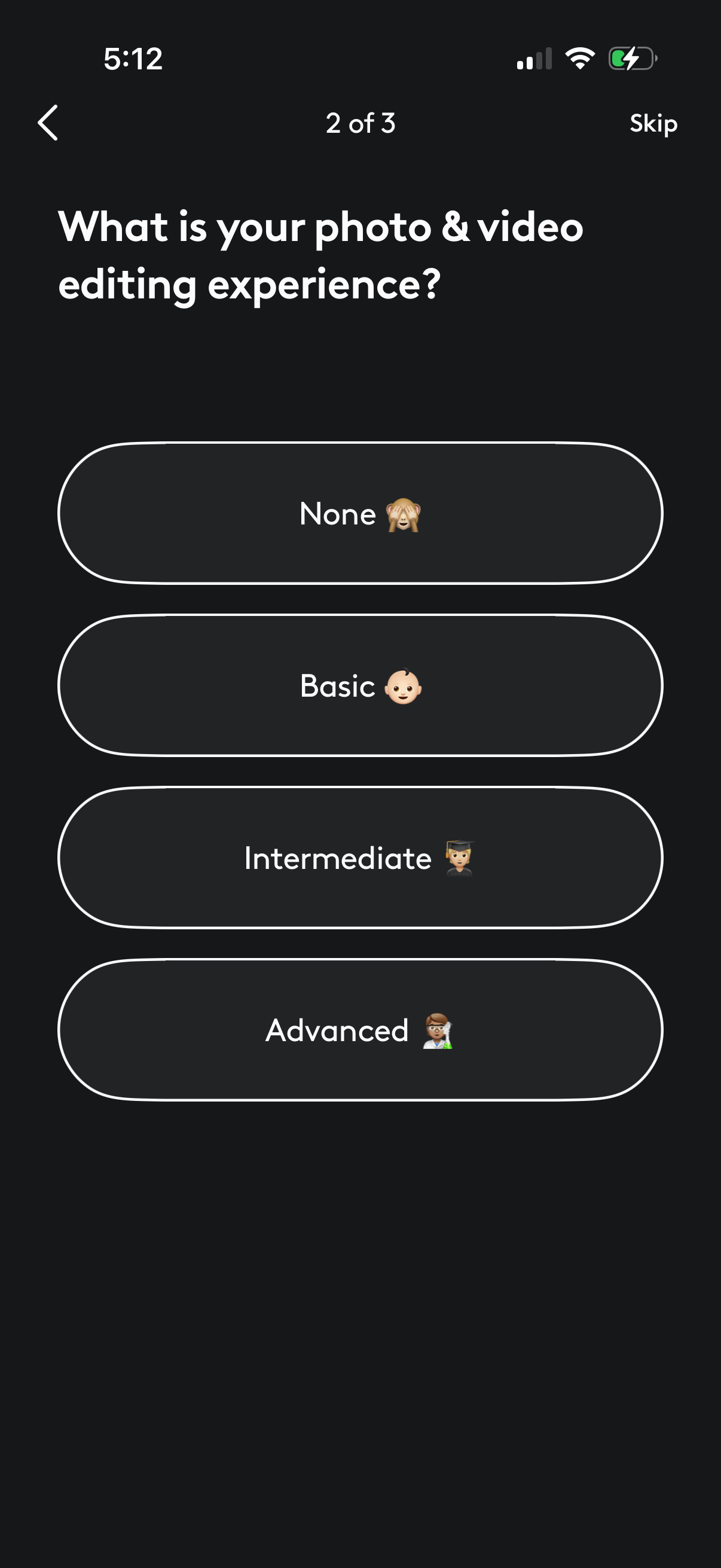
Onboarding questionnaire screen asking users to select their photo and video editing experience level. Provides multiple-choice buttons for None, Basic, Intermediate, or Advanced, with back navigation and a Skip option plus step progress indicator.
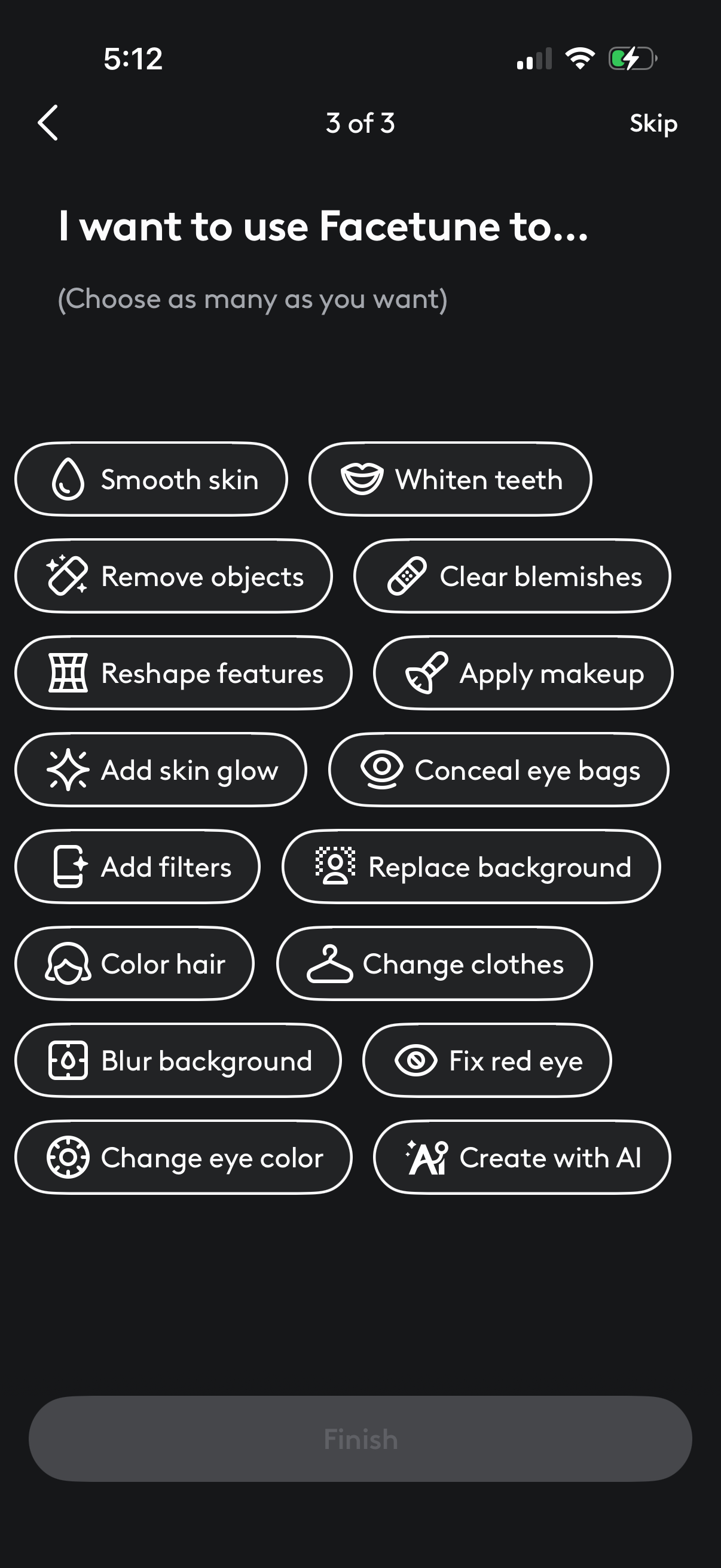
Onboarding personalization screen asking users what they want to use a photo editor for, allowing multi-select of goals like smoothing skin, whitening teeth, removing objects, reshaping features, applying makeup, adding filters, changing hair/eye color, and replacing or blurring backgrounds. Includes back navigation, a Skip option, and a disabled Finish button until selections are made.
A full-screen loading/setup state with an illustration and the message “Hang tight while we get things ready…”, indicating the app is preparing or initializing data. This is an in-between progress screen with no user actions besides waiting.
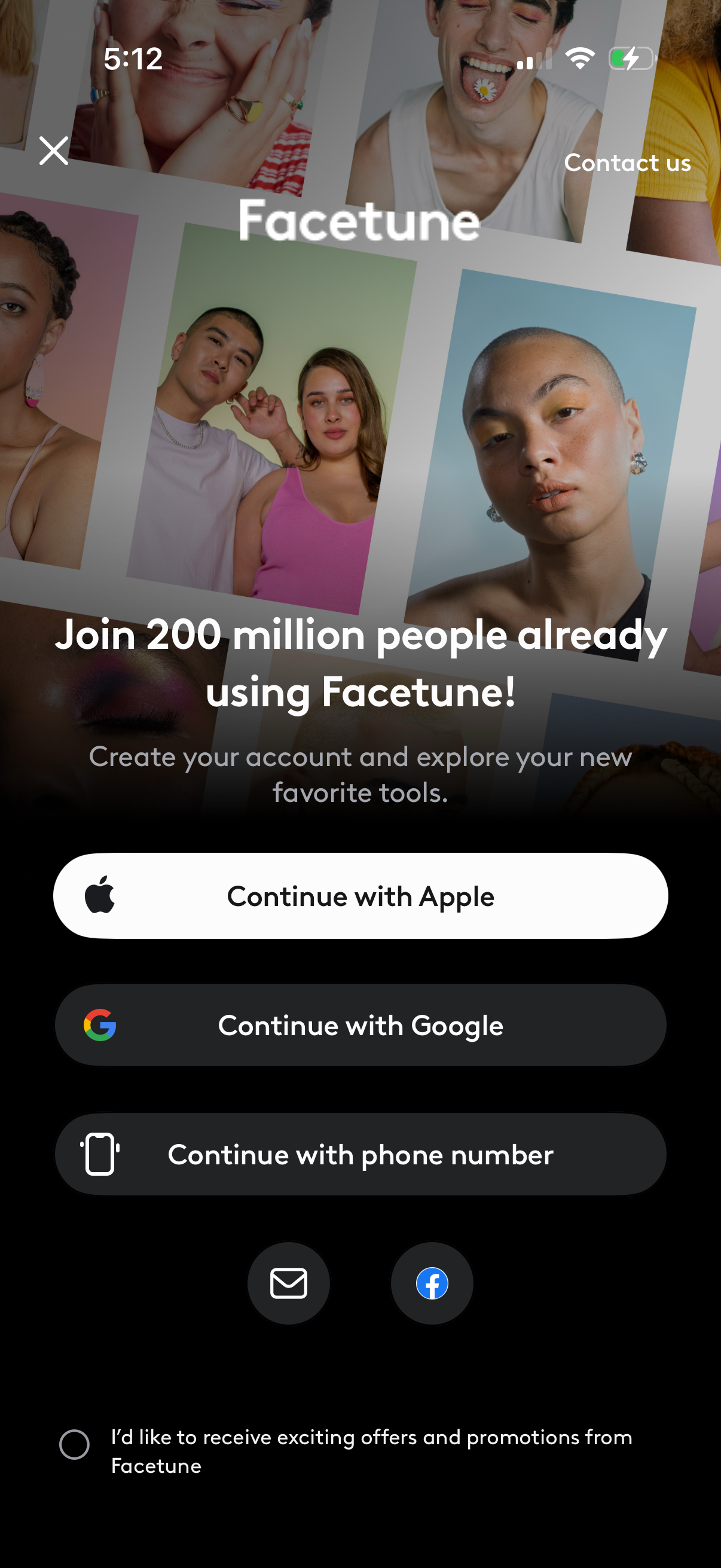
Account creation and sign-in screen for a photo editing app, promoting joining the platform and offering authentication options via Apple, Google, or phone number with additional email and Facebook icons. Includes a marketing opt-in checkbox for receiving offers and a contact us link with a close button to dismiss the modal.
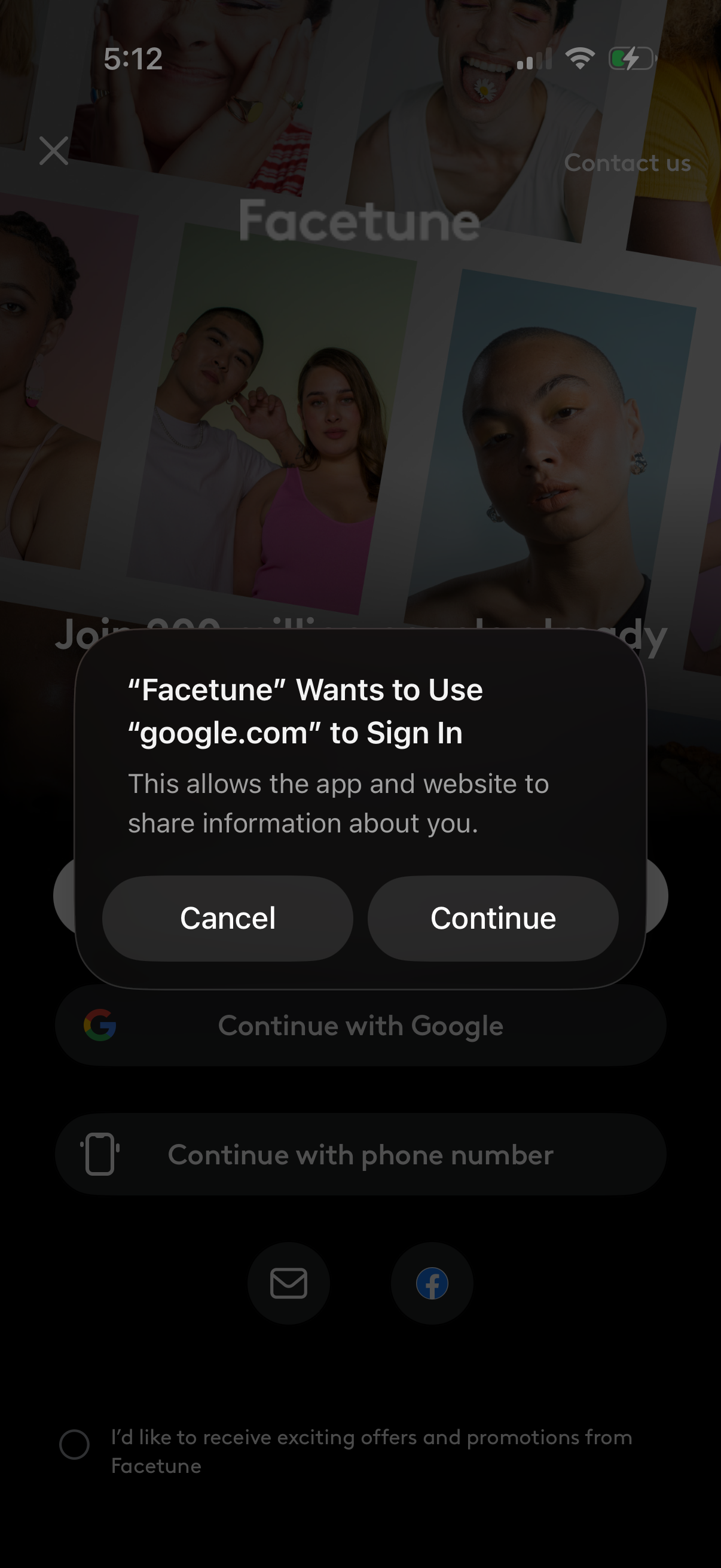
iOS system modal requesting permission for a third-party app to use google. com to sign in, explaining data sharing and offering Cancel or Continue actions.
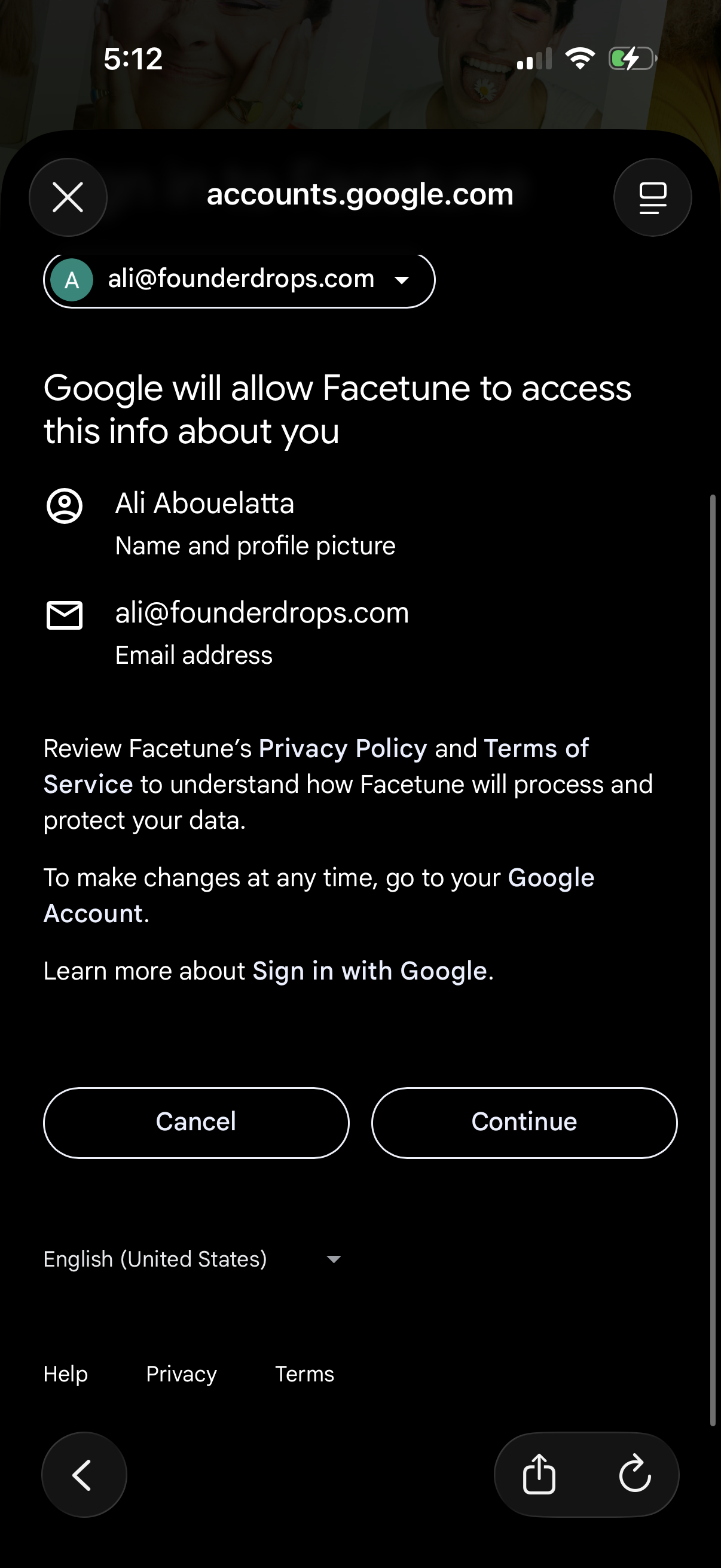
Google OAuth consent screen for “Sign in with Google” showing the selected account and the specific profile data the app will access (name, profile photo, and email address). Provides links to privacy/terms and primary actions to Cancel or Continue to grant permission.
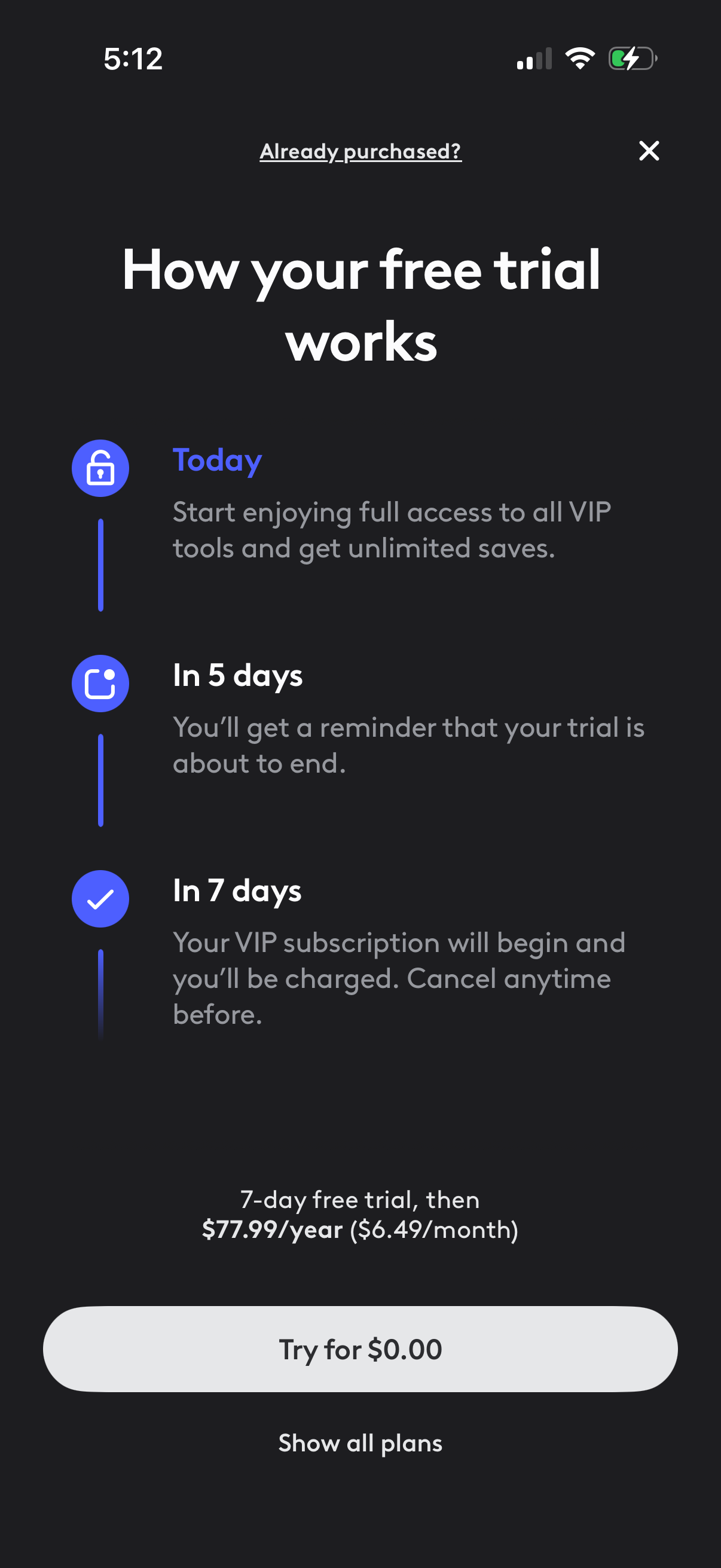
Subscription paywall explainer screen describing how a 7-day free trial works with a timeline (today full VIP access, reminder in 5 days, charged in 7 days) and cancellation details. Includes pricing per year/month plus primary CTA to start the free trial for $0, a link to show all plans, and an “Already purchased?
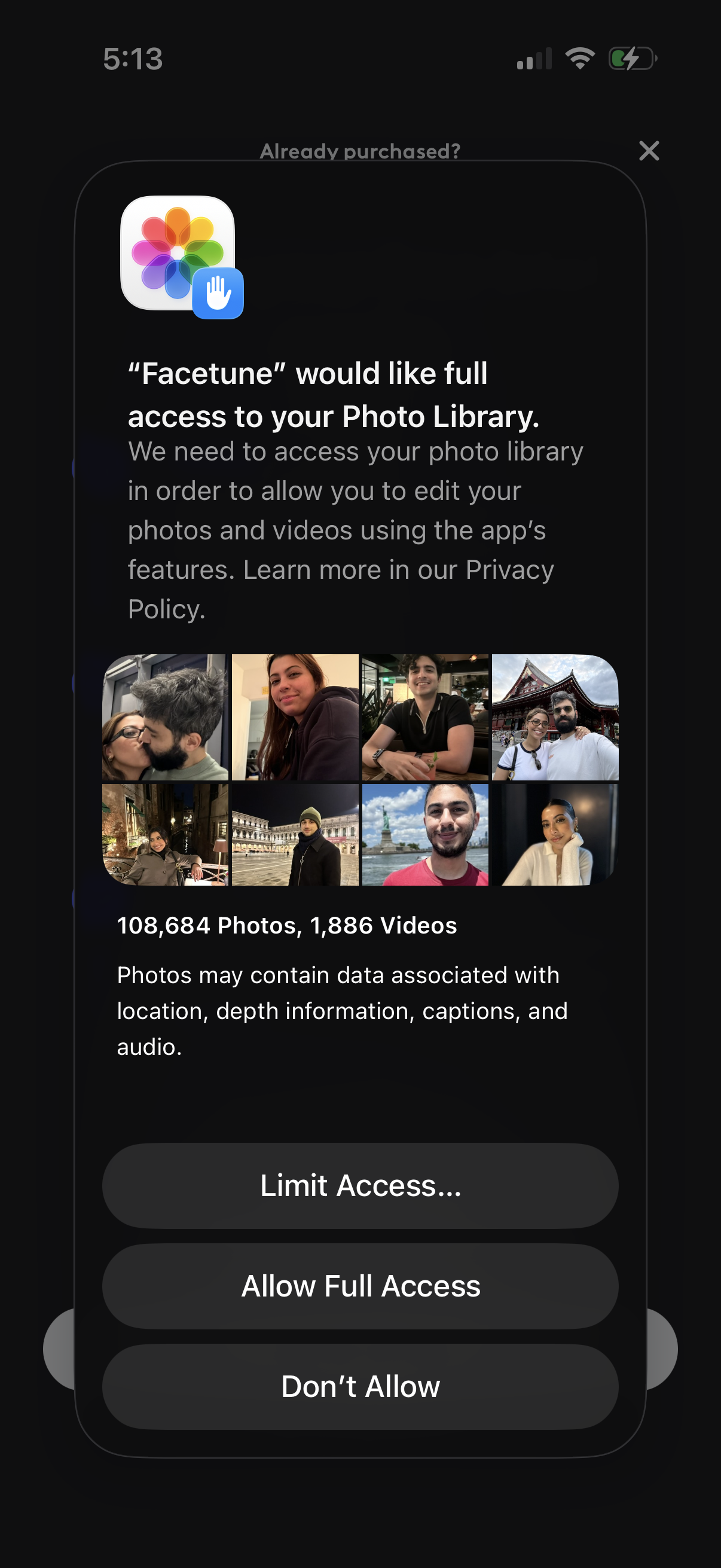
iOS system permission prompt requesting an app to access the user’s Photo Library for editing photos and videos, showing a preview grid and explaining privacy implications. Primary actions include choosing Limit Access, Allow Full Access, or Don’t Allow (with close/dismiss option).
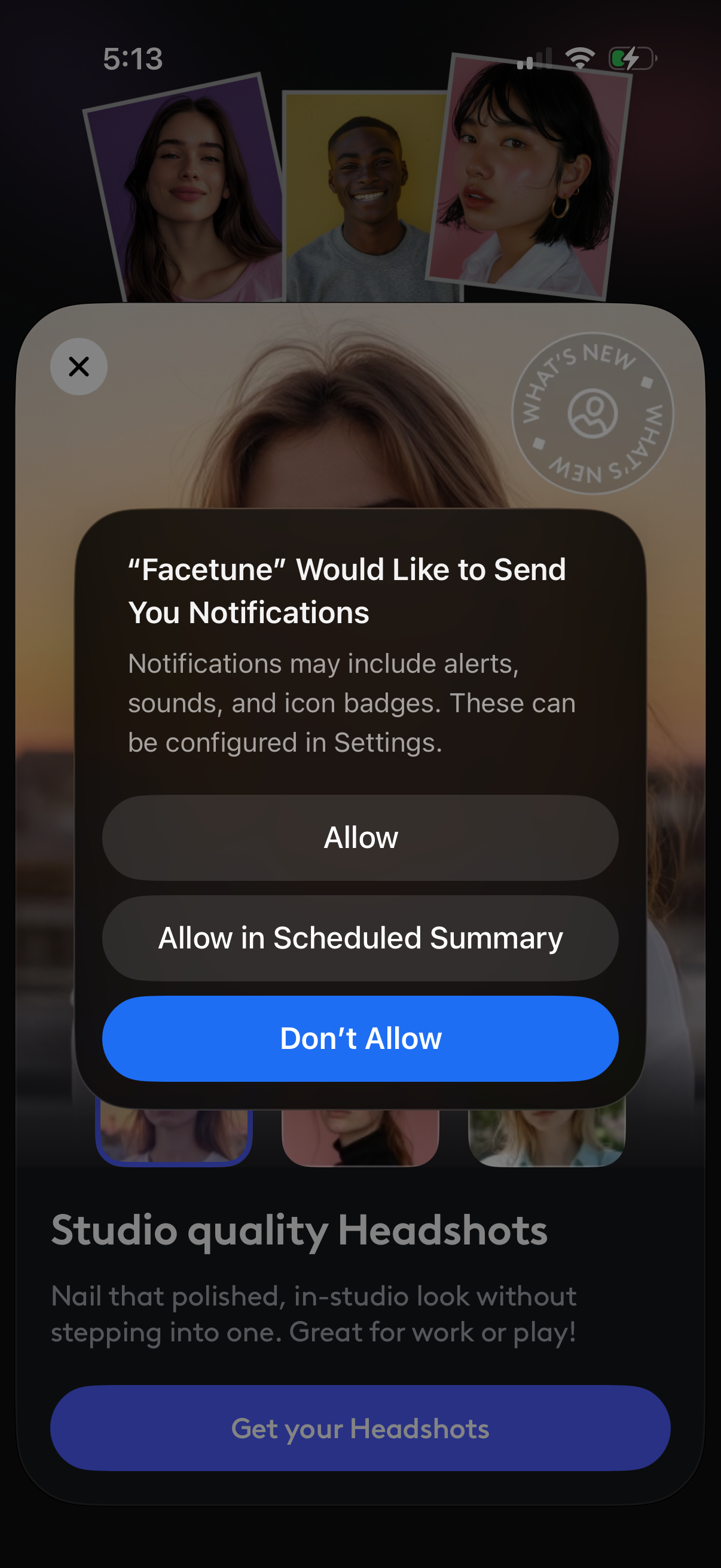
iOS system permission modal requesting to allow an app (Facetune) to send push notifications, with actions to Allow, Allow in Scheduled Summary, or Don’t Allow. The prompt overlays an app promo screen for studio-quality headshots with a primary CTA to get headshots.
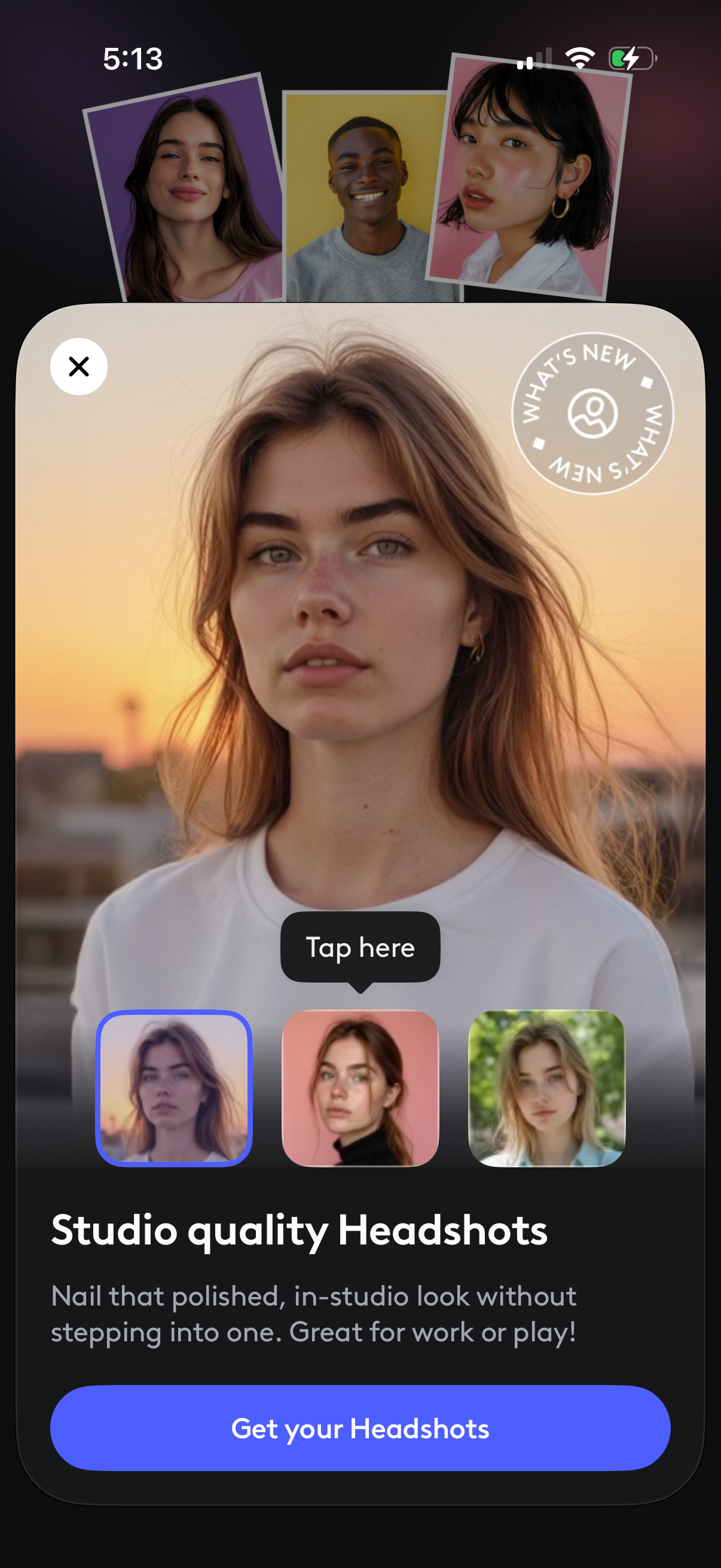
Promotional upsell modal for an AI photo editing feature offering “Studio quality Headshots,” showing a preview portrait with selectable style thumbnails and a primary CTA button to “Get your Headshots. ” Includes a close (X) control and “What’s new” badge to highlight the new feature.
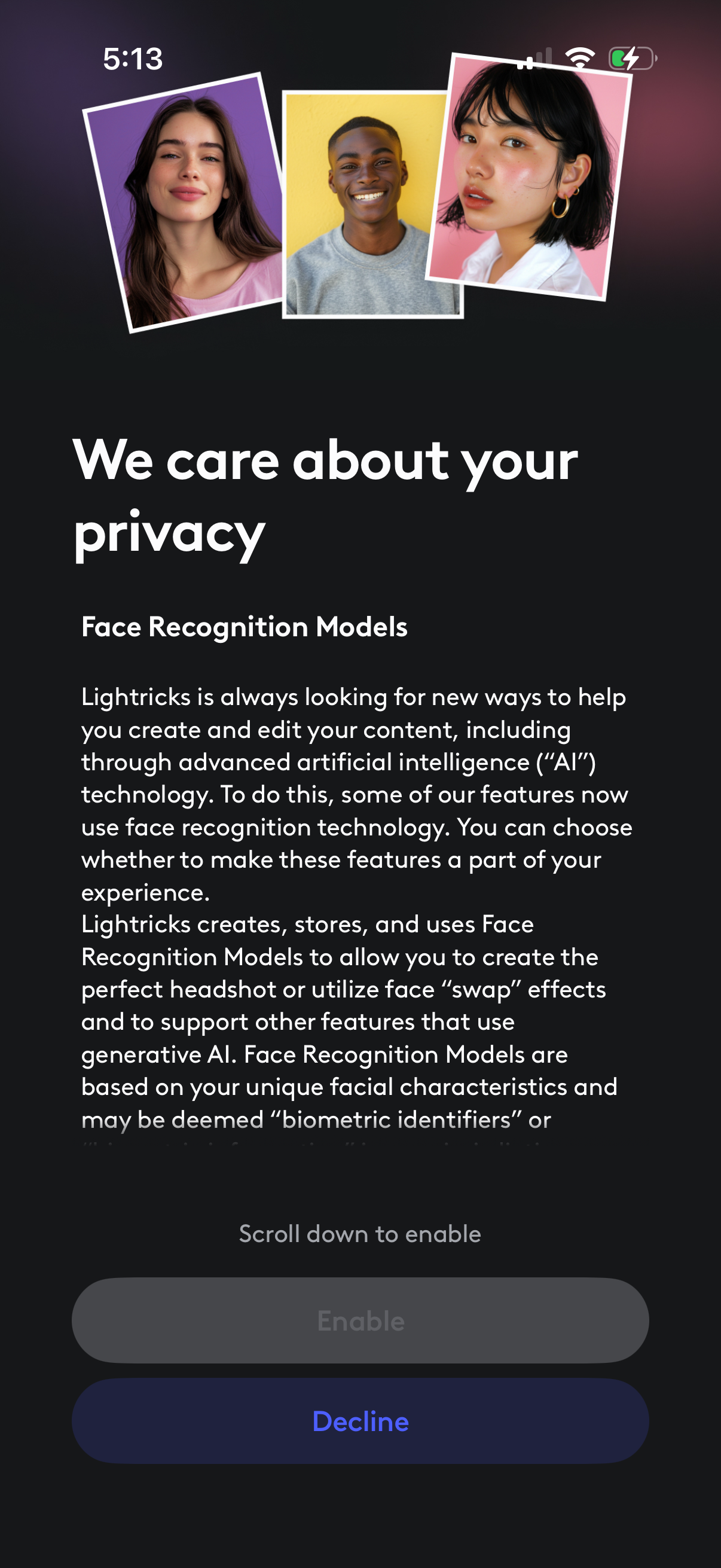
Privacy consent screen explaining the app’s use of AI face recognition models for features like headshot creation and face swap effects, with informational copy about biometric identifiers. User can scroll to enable the feature (disabled until scrolled) or choose Decline via a prominent action button.
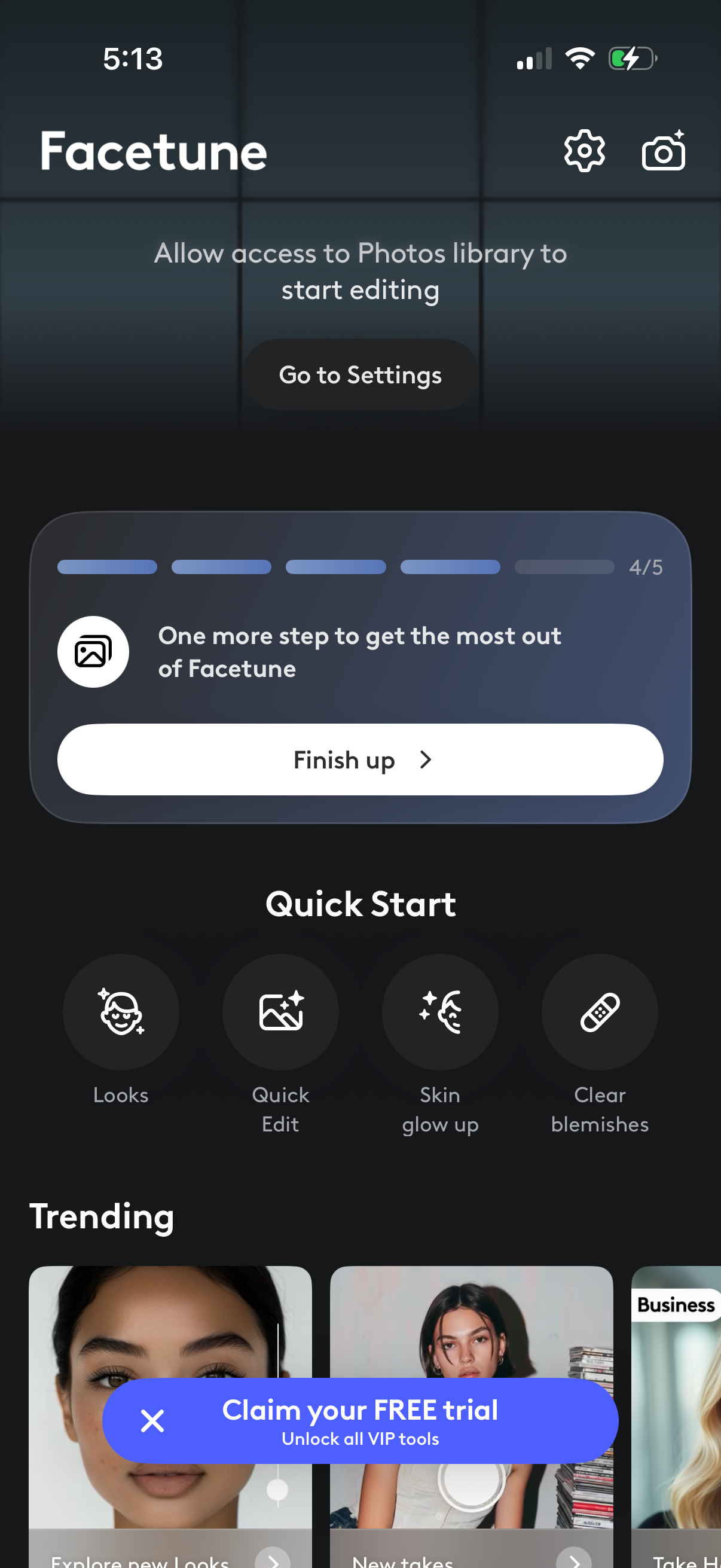
Home screen of a photo selfie editing app prompting the user to allow Photos library access with a “Go to Settings” button, plus an onboarding/progress card to “Finish up. ” The screen also highlights quick-start editing tools (looks, quick edit, skin glow, clear blemishes), trending templates, and a banner to claim a free trial for premium features, with settings and camera shortcuts in the header.