Social Login and onboarding
Eventbrite app splash screen showing the centered Eventbrite logo and wordmark on a solid background while the app loads. No actions or navigation options are available on this launch screen.
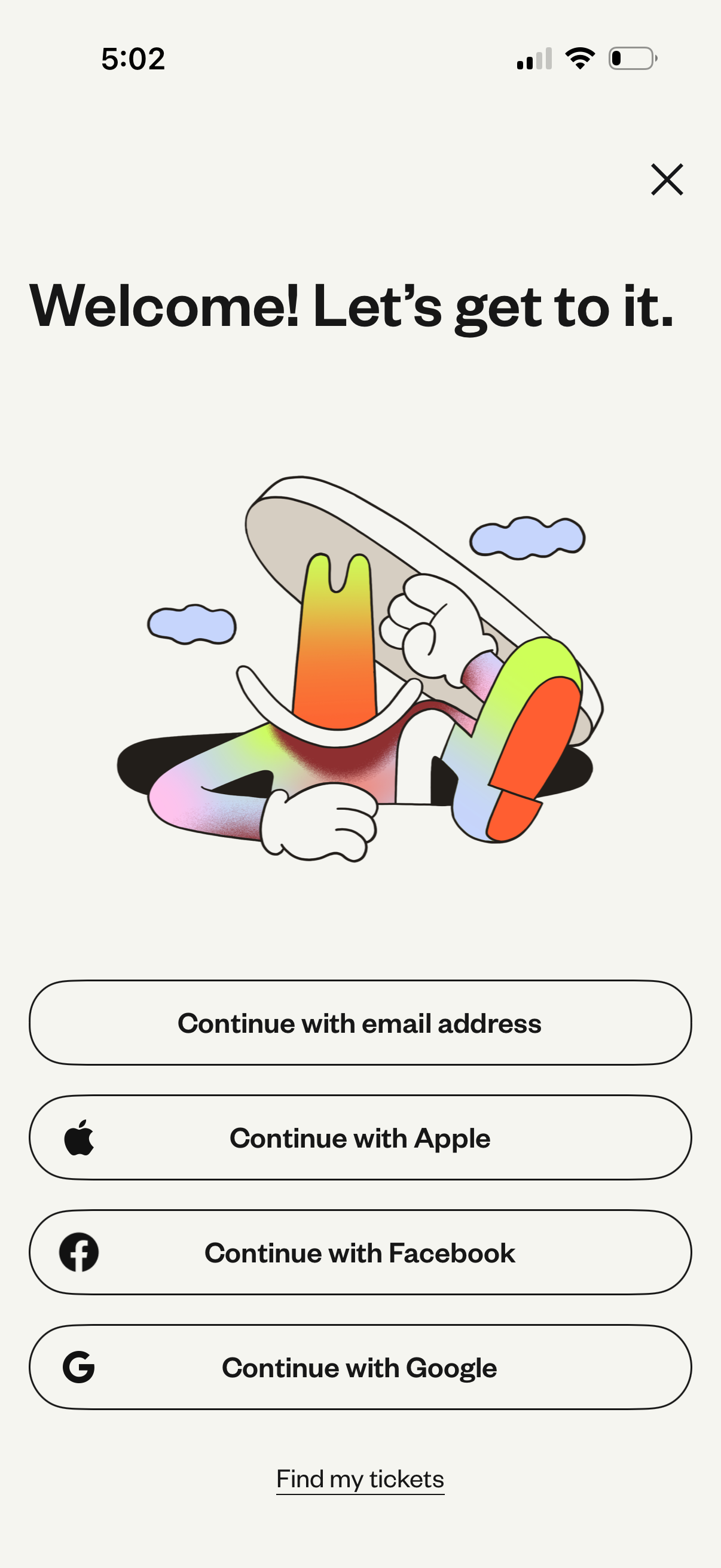
Welcome / sign-in screen prompting users to get started with authentication options, offering continue with email address or social login via Apple, Facebook, and Google. Includes a close (X) to dismiss and a “Find my tickets” link for retrieving existing purchases without full sign-in.
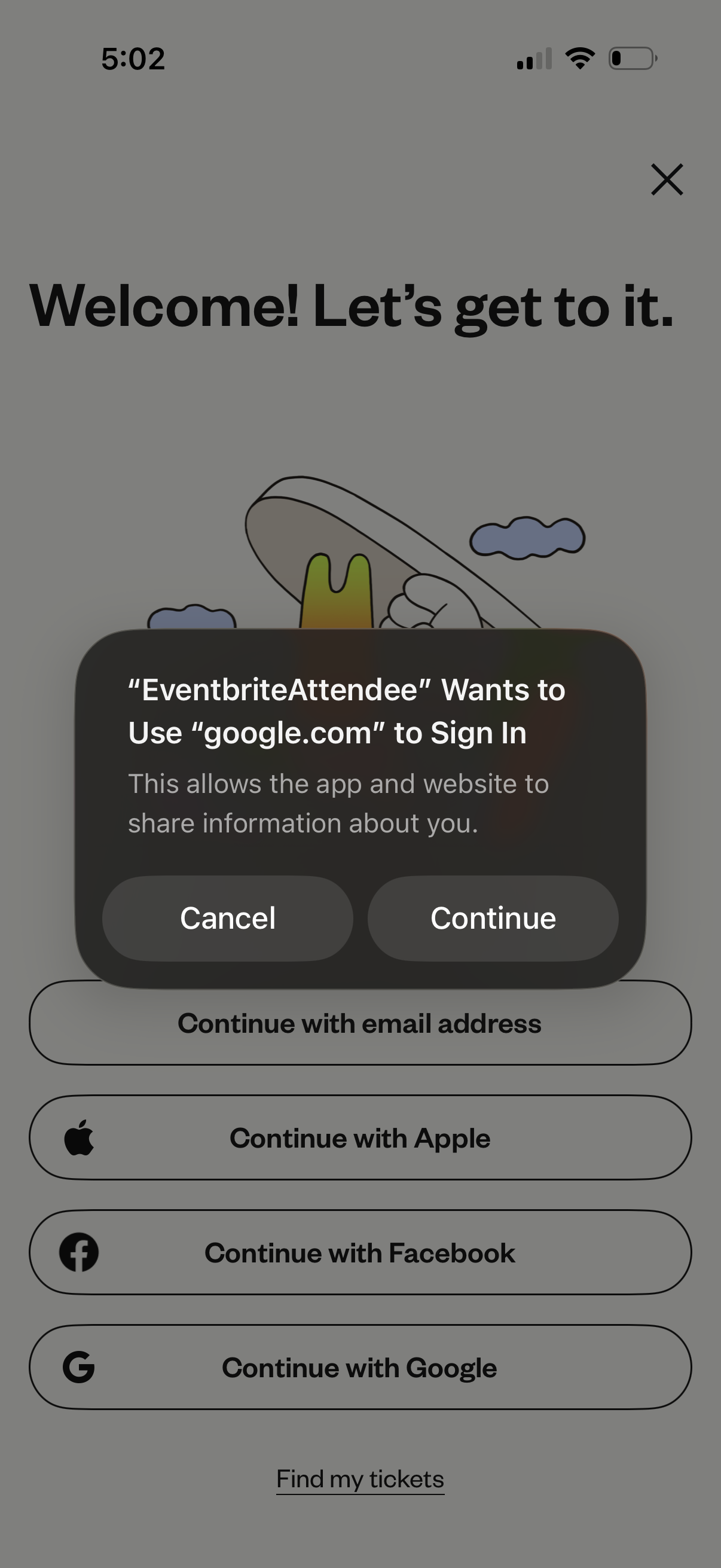
Welcome/onboarding login screen offering multiple sign-in options (email, Apple, Facebook, Google) with a link to find tickets, overlaid by an iOS permission modal asking to use a web domain (google. com) for authentication with Cancel and Continue actions.
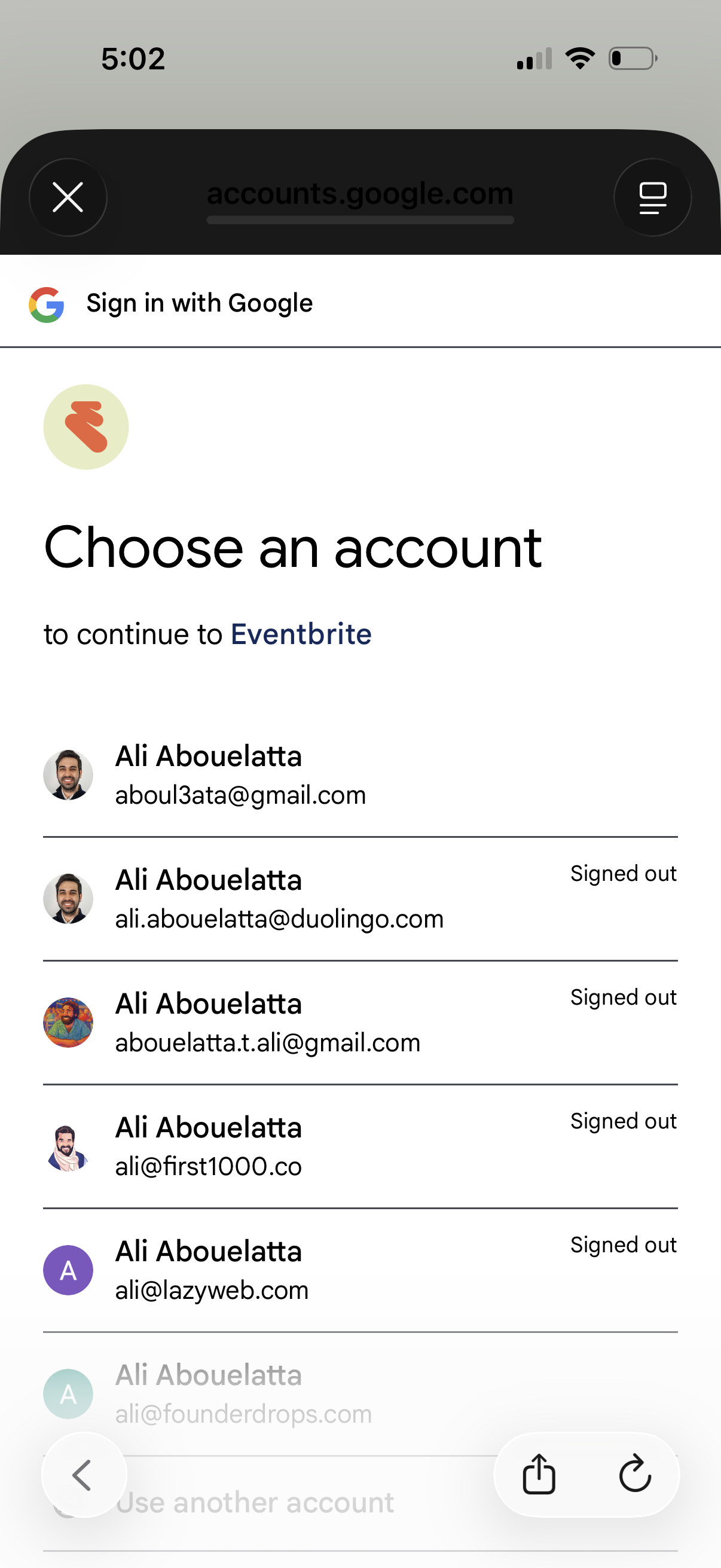
Google OAuth sign-in screen prompting the user to choose an account to continue to a third-party app, showing a list of saved Google accounts with avatars, email addresses, and signed-out status. Users can tap an account to authenticate or close the flow.
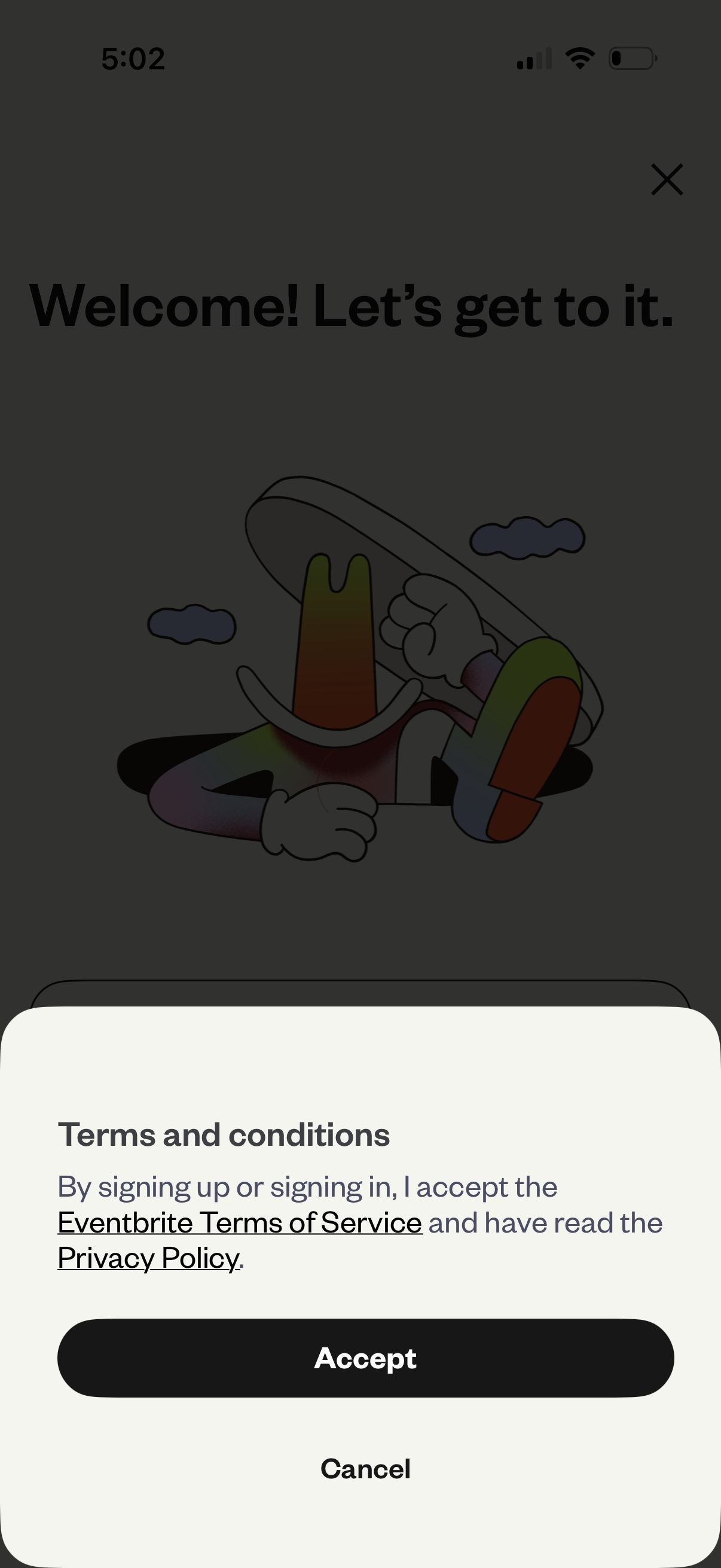
Welcome/onboarding screen with a bottom-sheet modal prompting the user to accept terms and conditions, including links to Terms of Service and Privacy Policy. Primary action is a prominent “Accept” button with a secondary “Cancel” option and a close (X) dismiss control.
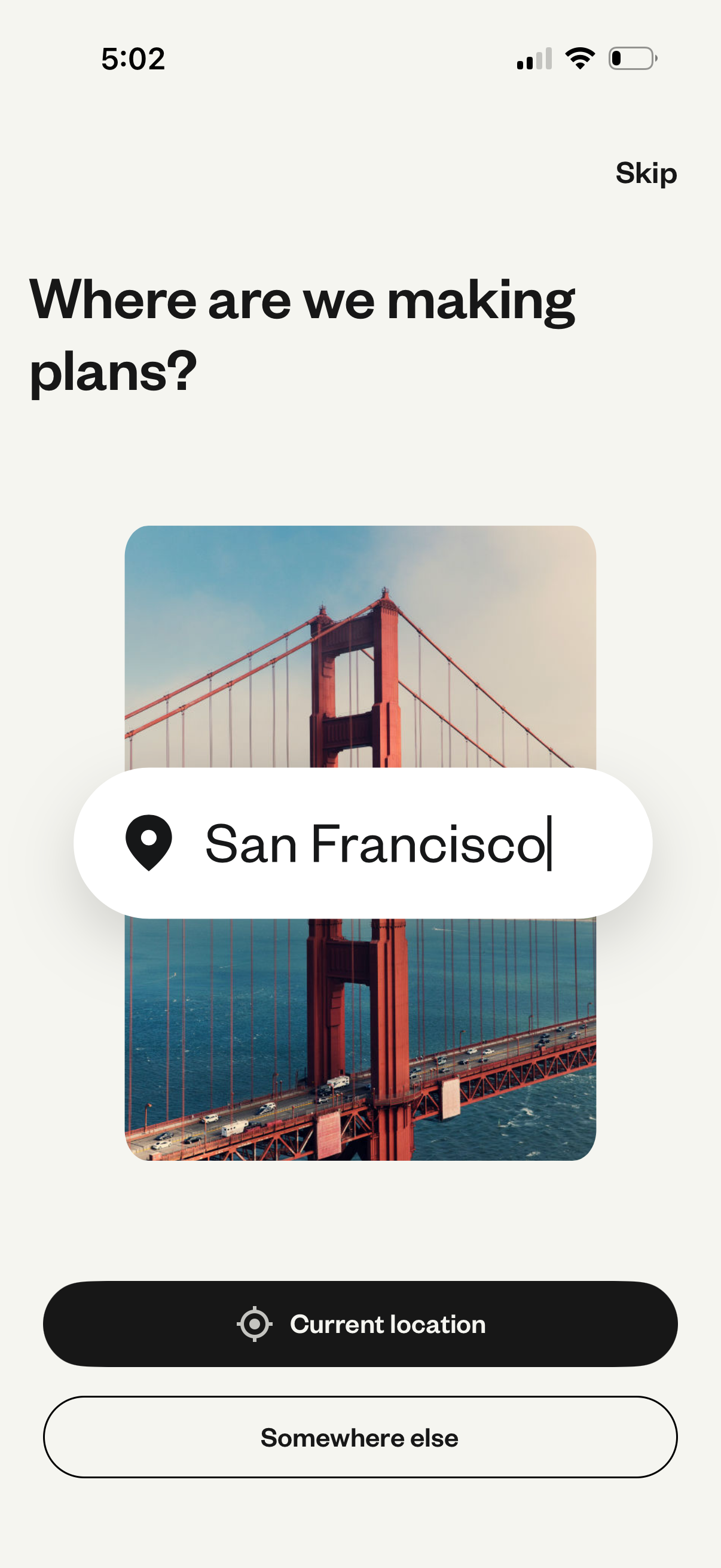
Onboarding location selection screen asking where the user is making plans, with a city input field (map pin) and a “Skip” option. Provides quick actions to use the device’s current location or choose somewhere else.
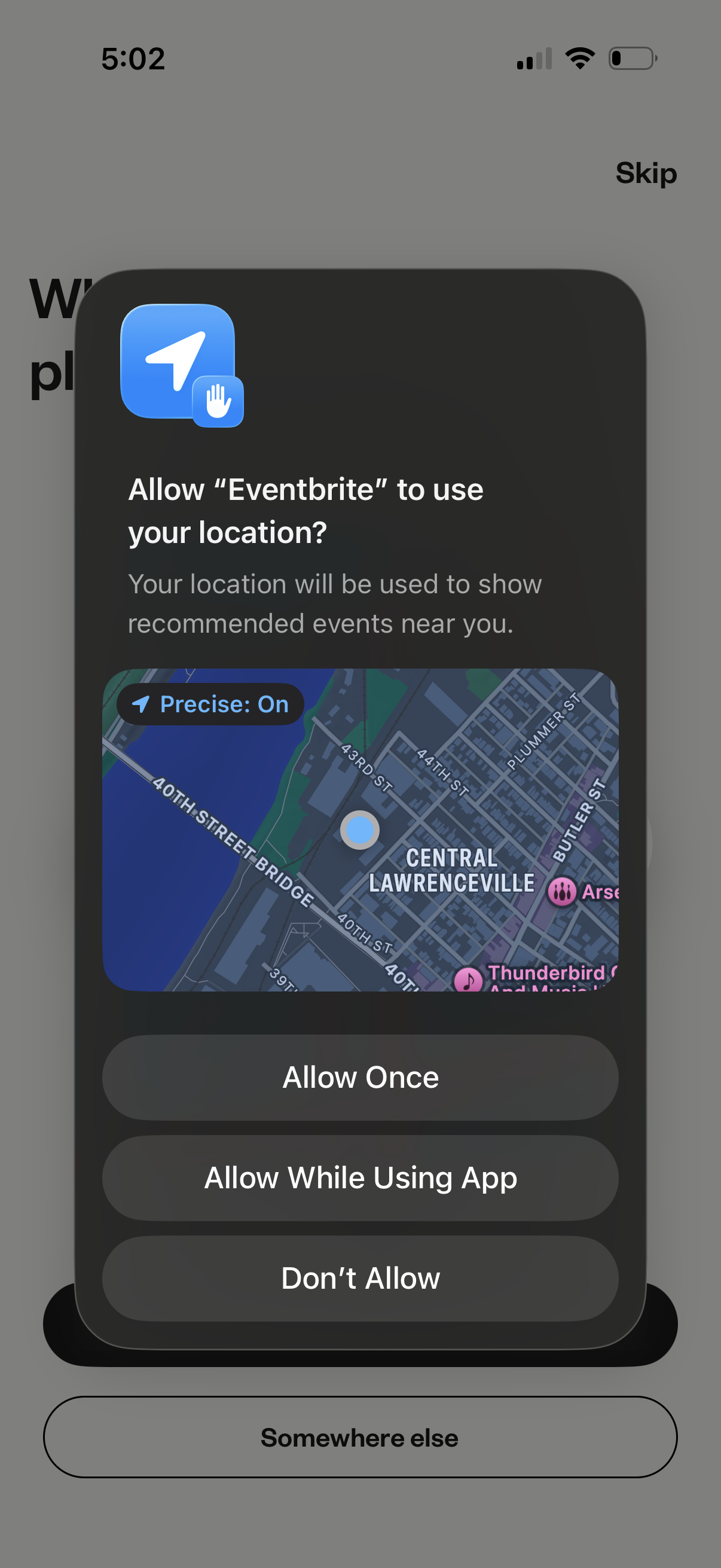
iOS system modal requesting location permission for an events app to recommend nearby events, showing a map preview with Precise Location toggle. Primary actions are Allow Once, Allow While Using App, or Don’t Allow, with an underlying onboarding screen offering Skip and “Somewhere else” location selection.
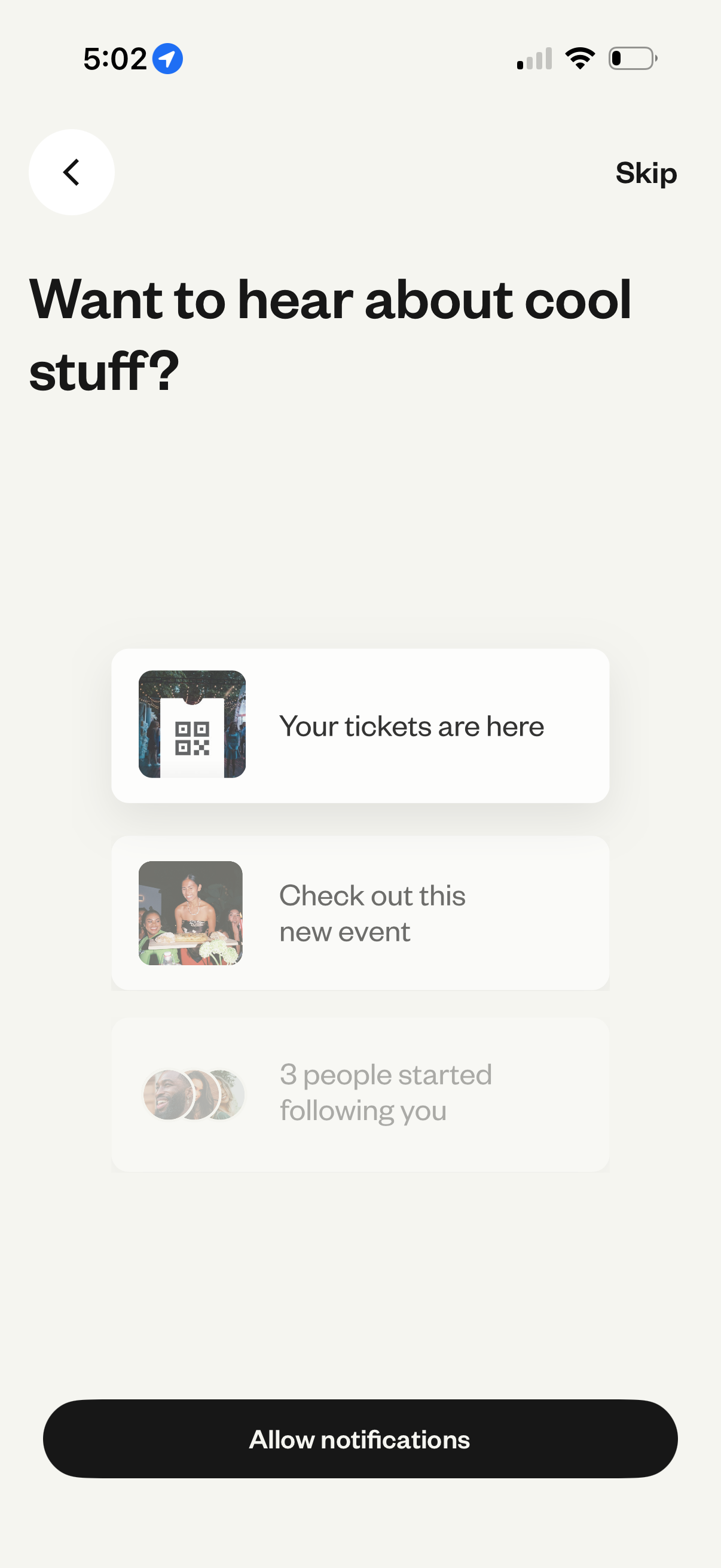
Push notification permission onboarding screen asking users to allow notifications, with preview examples of alerts like tickets available, new event recommendations, and new followers. Includes a primary “Allow notifications” CTA plus skip and back navigation options.
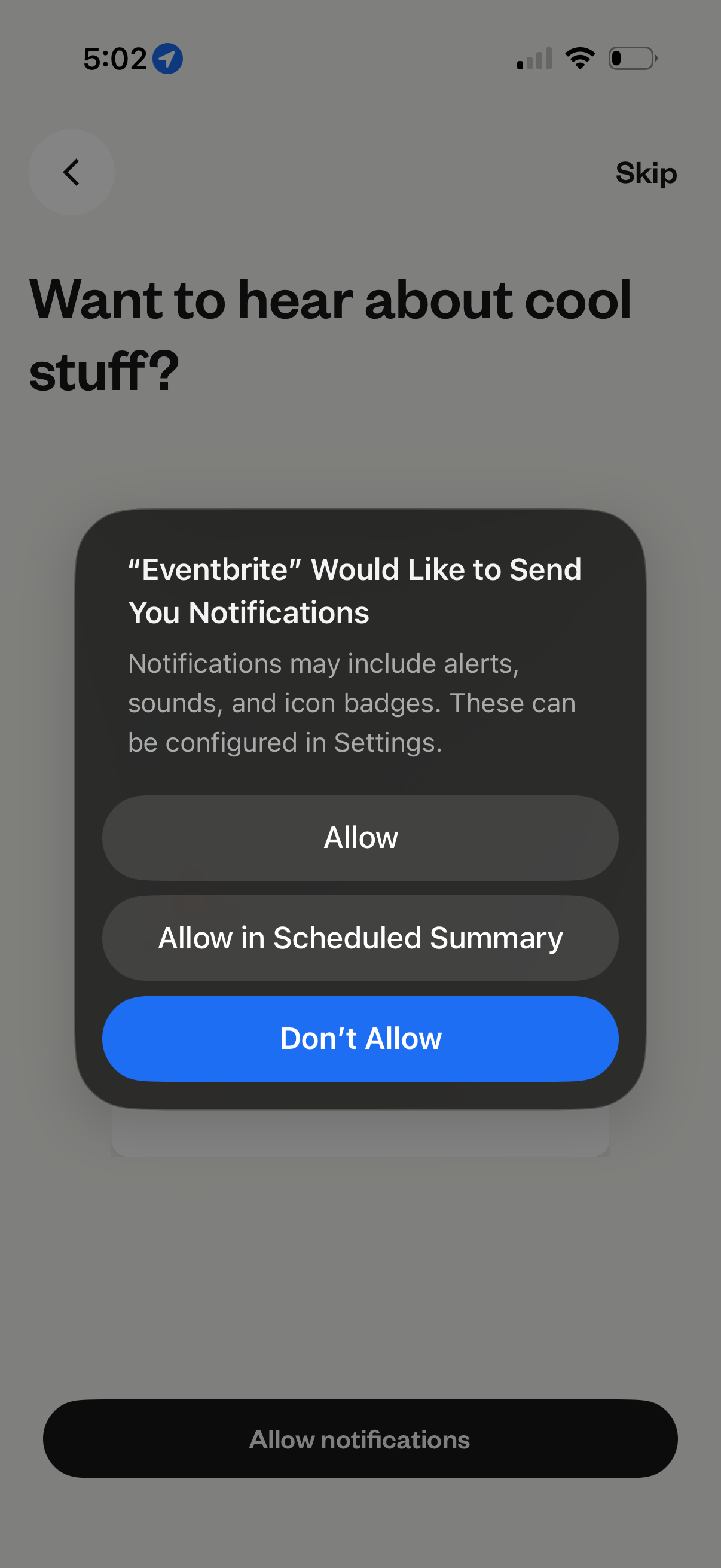
Onboarding screen prompting the user to enable push notifications, showing the iOS system permission modal with options to Allow, Allow in Scheduled Summary, or Don’t Allow, plus a Skip option to continue without notifications. The screen is framed as “Want to hear about cool stuff?
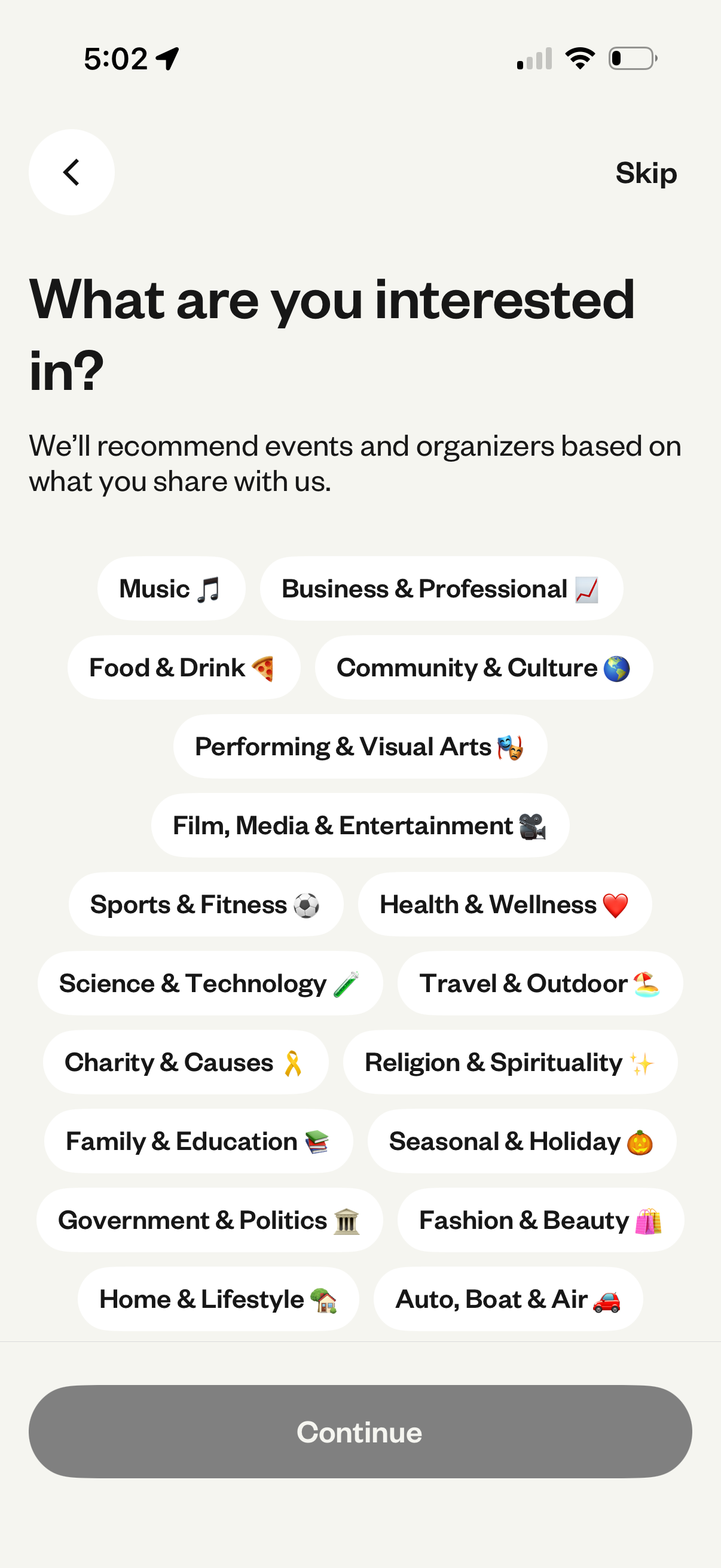
Onboarding interest selection screen for an events app where users choose preferred categories (e. g.
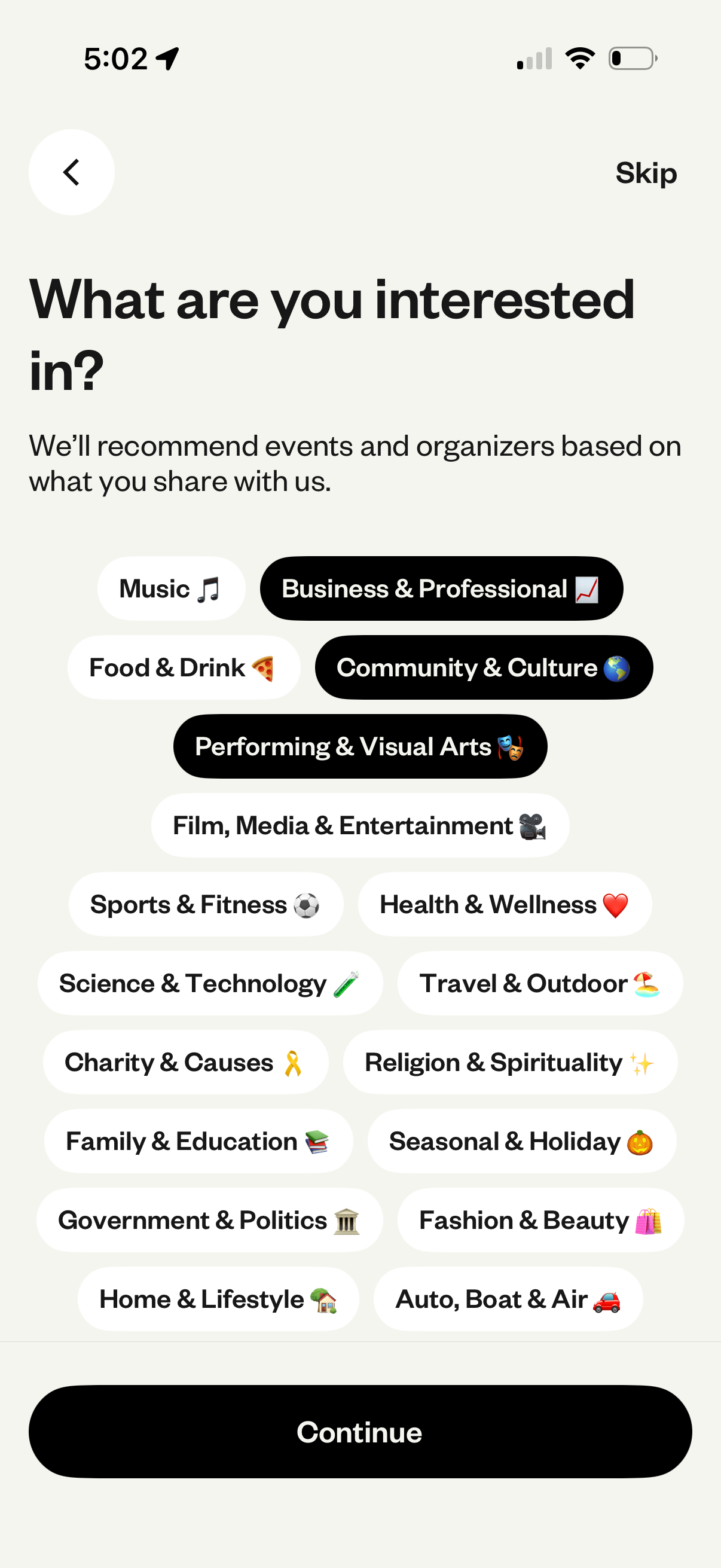
Onboarding interests selection screen for an events app where users pick multiple event categories (e. g.
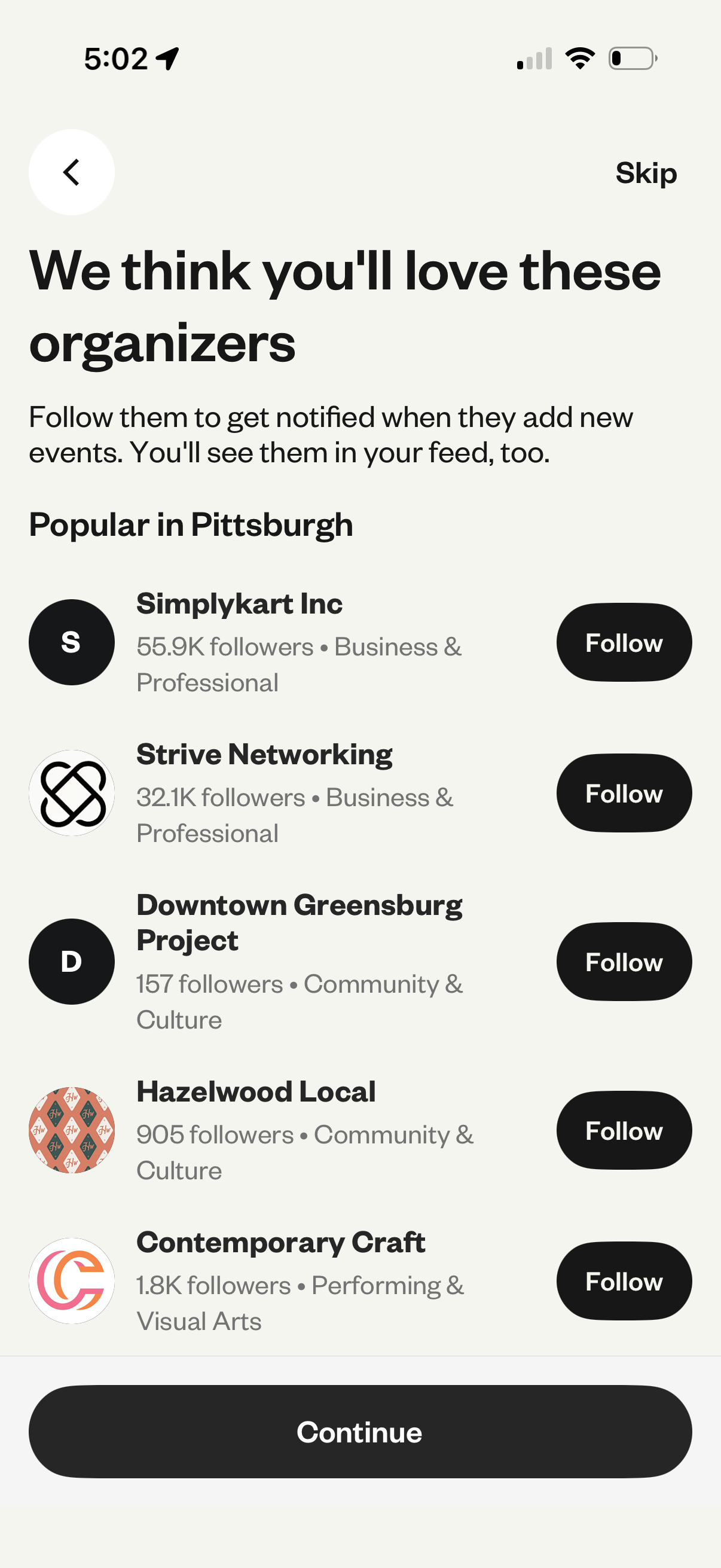
Onboarding recommendation screen suggesting popular local event organizers to follow, showing a list with organizer avatars, follower counts, and categories plus per-item Follow buttons. Includes back navigation, a Skip option, and a bottom Continue CTA to proceed after selecting organizers.
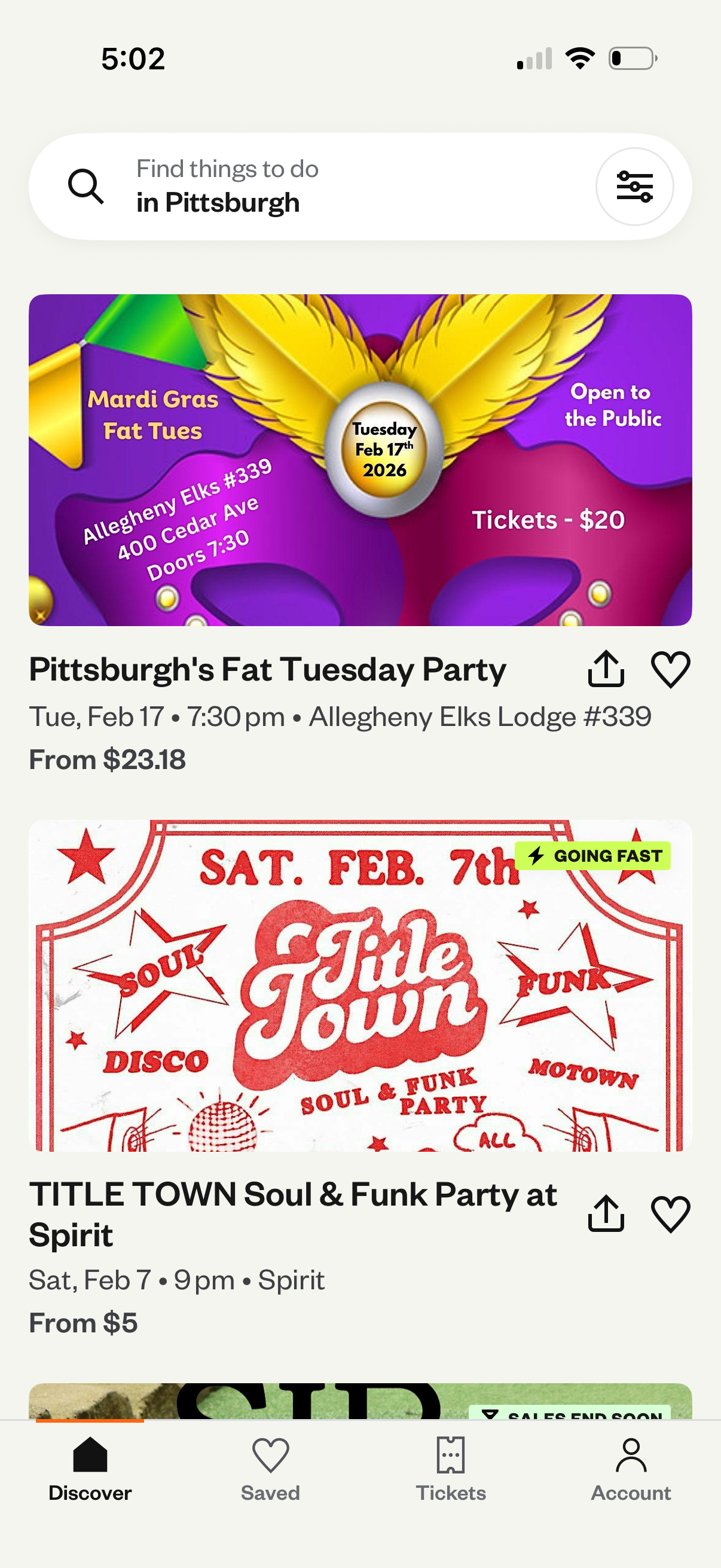
Event discovery feed for a specific city with a search bar (“Find things to do”) and filter button, showing a scrollable list of event cards with image, title, date/time, venue, and starting price plus save (heart) and share actions. Bottom navigation includes Discover, Saved, Tickets, and Account for browsing and managing saved events and purchased tickets.