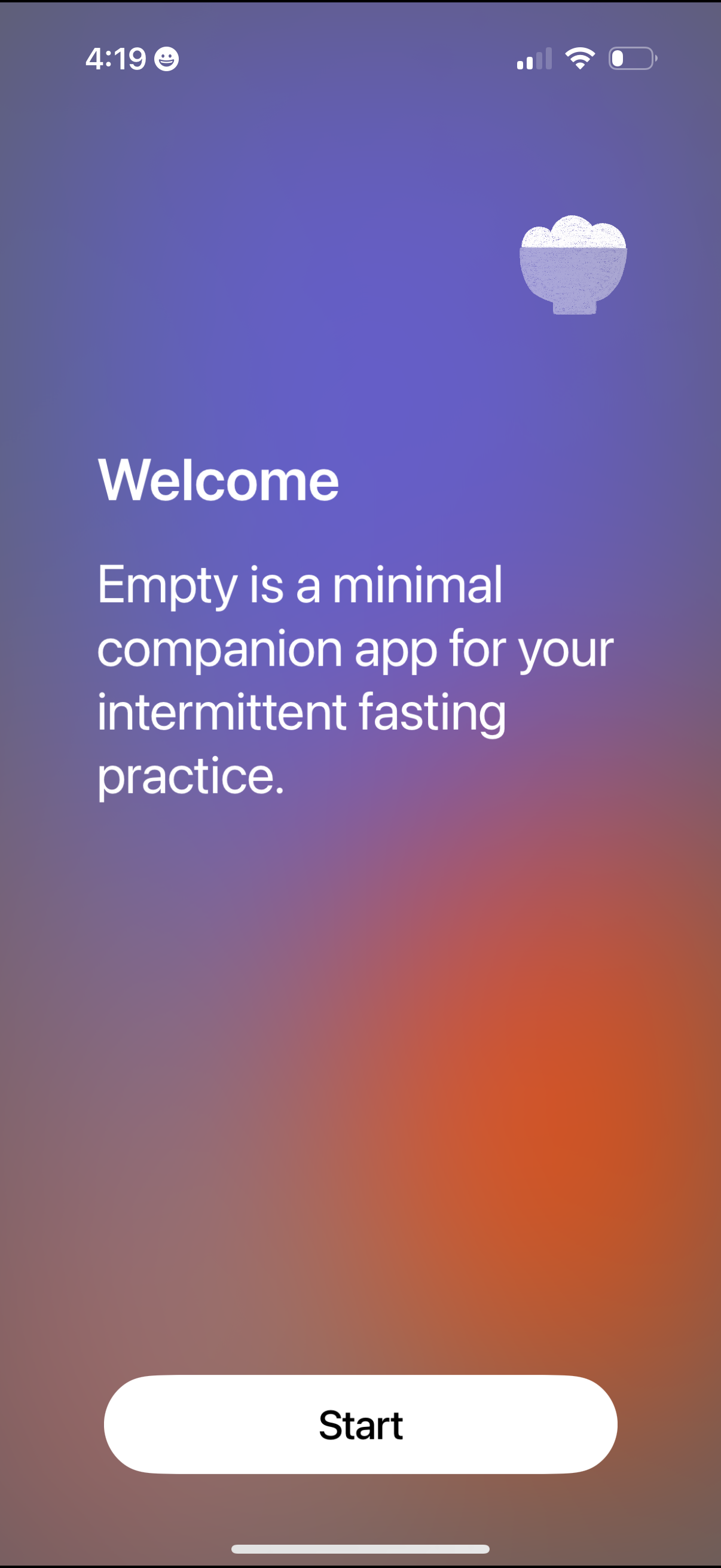
Welcome onboarding screen for an intermittent fasting companion app, introducing the app’s purpose with minimal copy. A primary “Start” button begins the setup or initial flow.
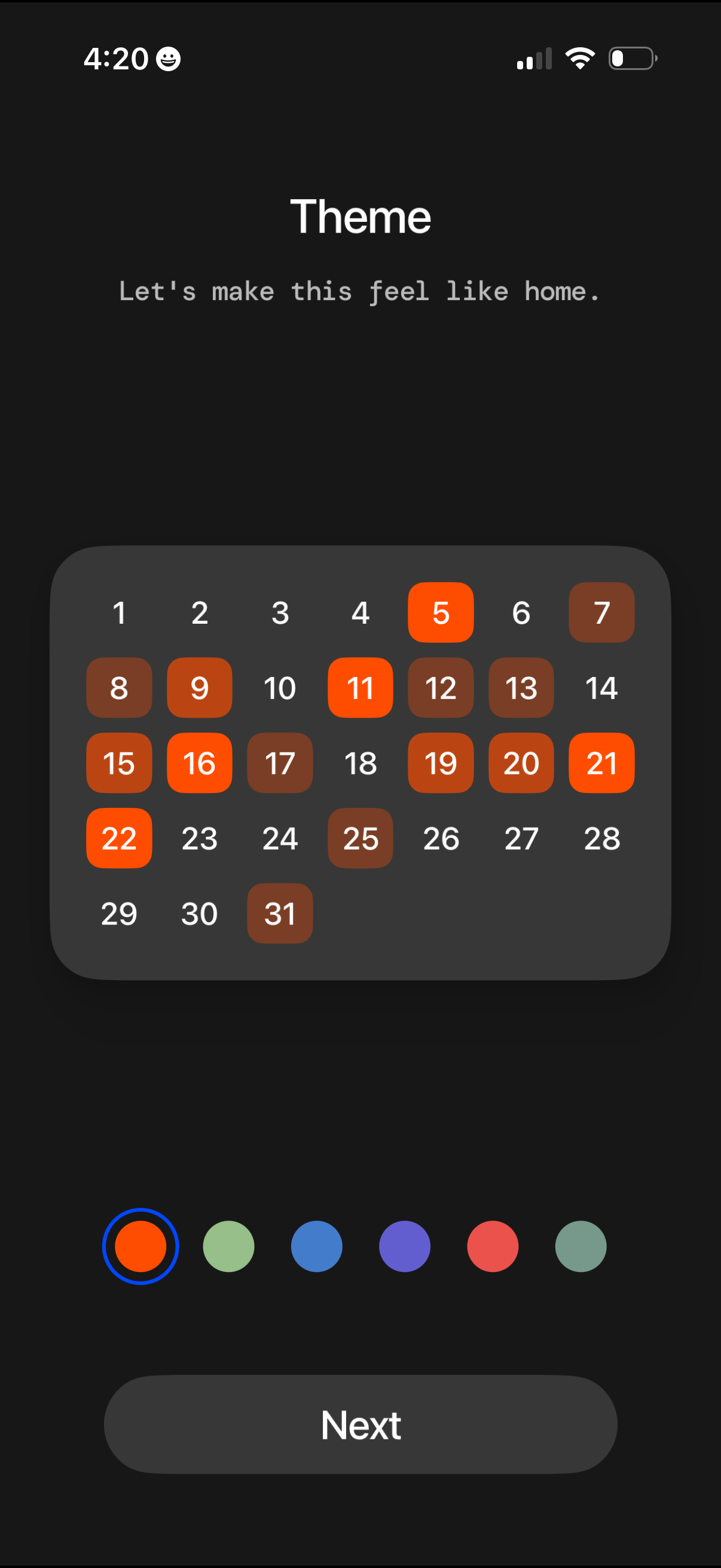
Theme selection screen in onboarding that previews a calendar UI with highlighted dates and lets users choose an accent color from a palette of swatches. A primary “Next” button advances after picking the preferred theme color.
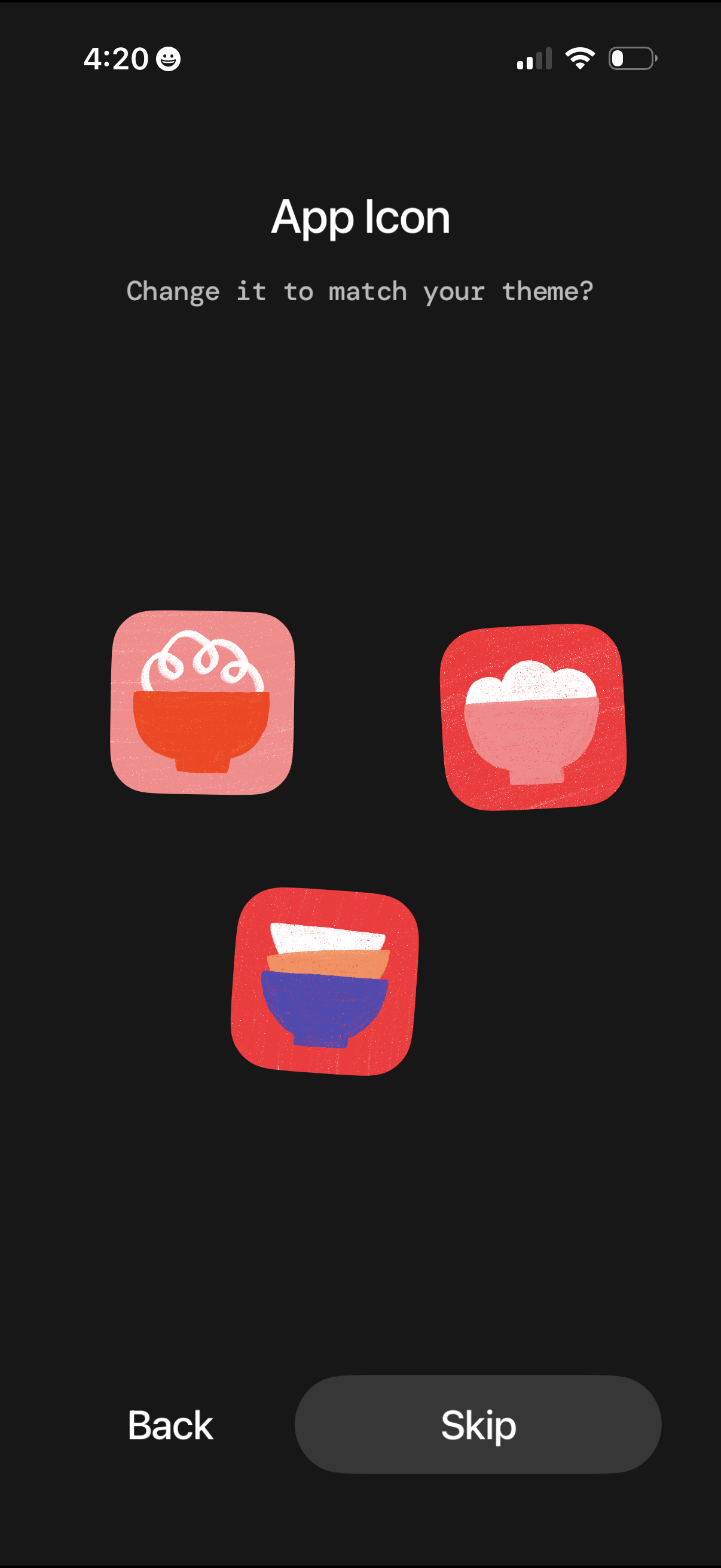
App icon customization screen that lets users choose between multiple alternate app icon designs to match their theme. Includes navigation actions to go back or skip this personalization step.
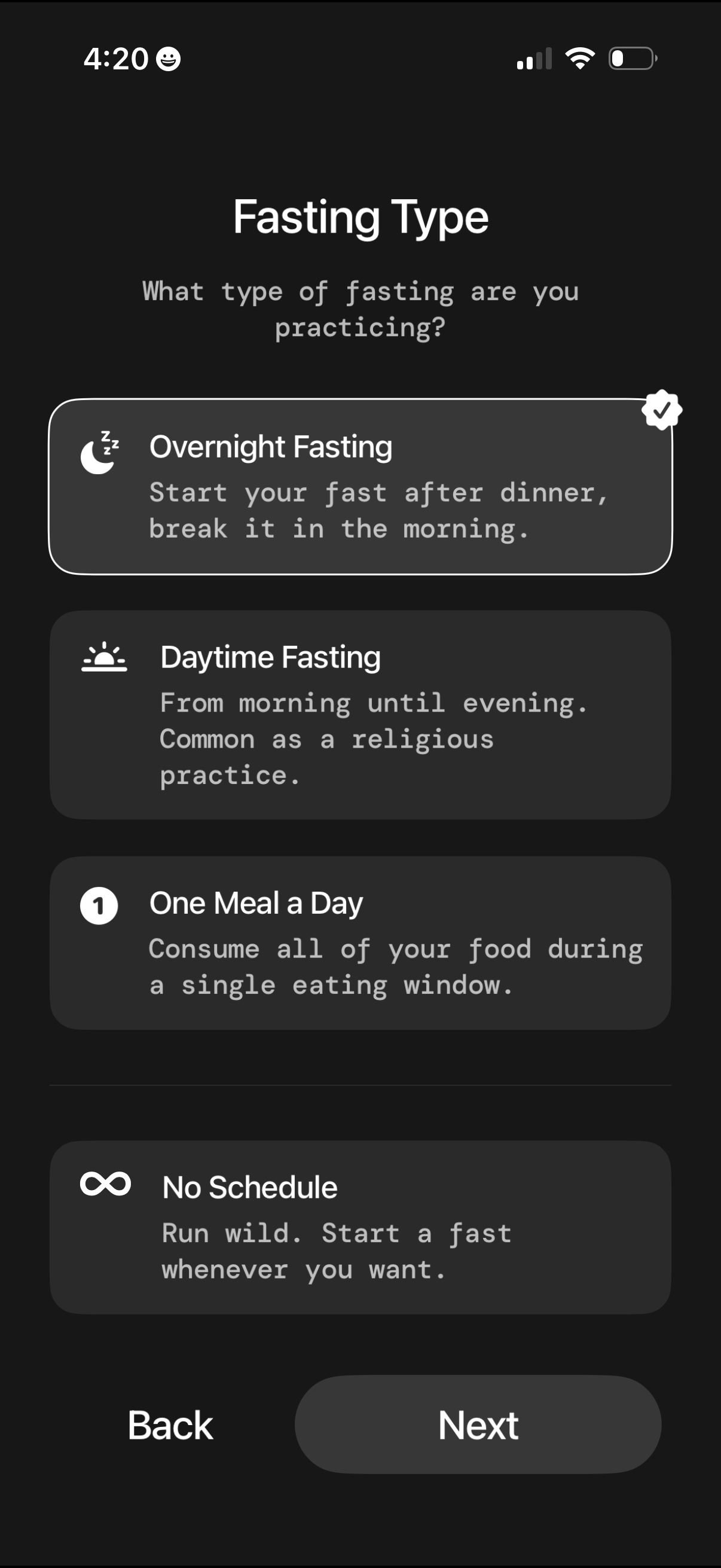
A fasting app setup screen prompting the user to choose a fasting type with selectable cards and brief descriptions, including Overnight Fasting, Daytime Fasting, One Meal a Day, and No Schedule, with the current selection indicated by a checkmark. Bottom navigation provides Back and Next actions to continue onboarding.
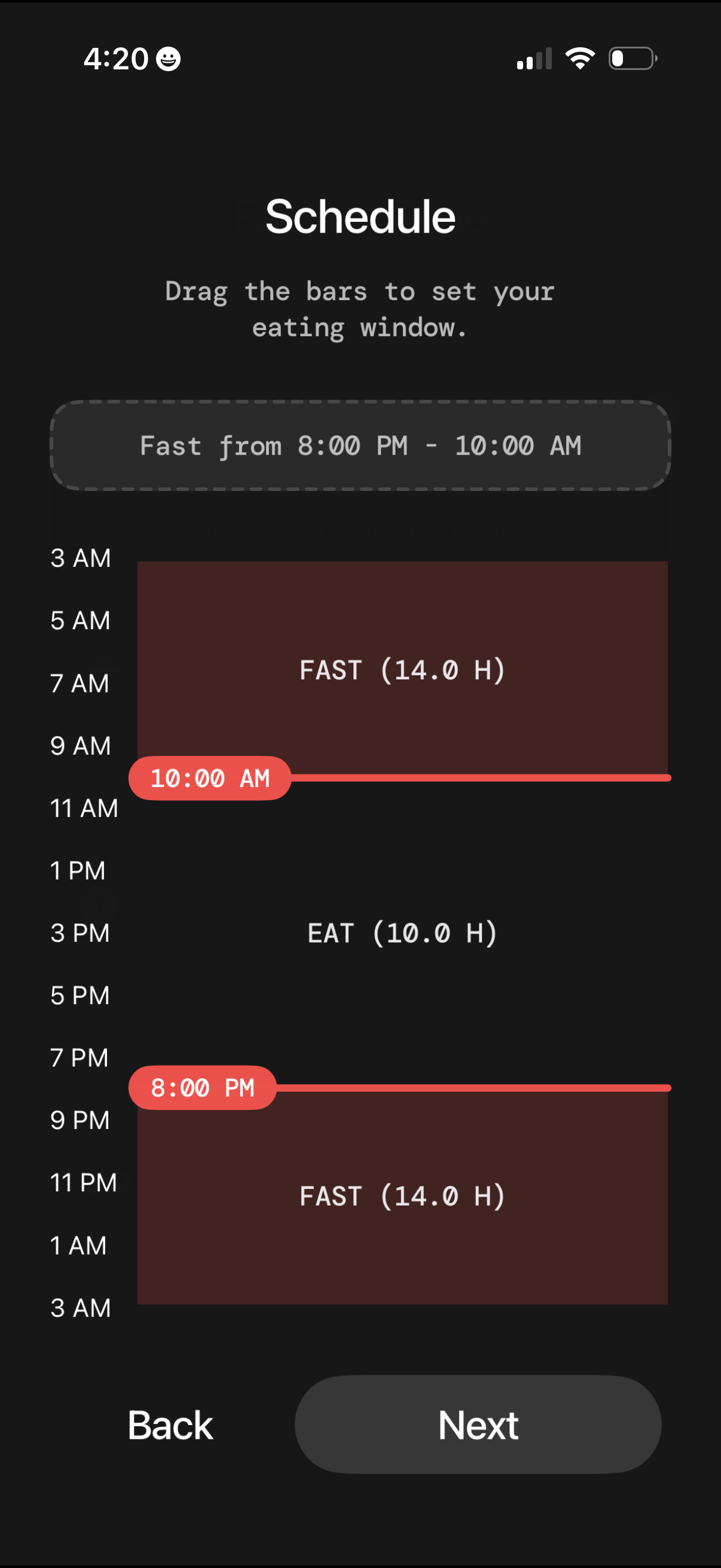
Intermittent fasting schedule setup screen where users drag time bars to define their daily eating window, showing fasting and eating durations with start/end time labels on a 24-hour timeline. Includes a summary of the fast period (e.
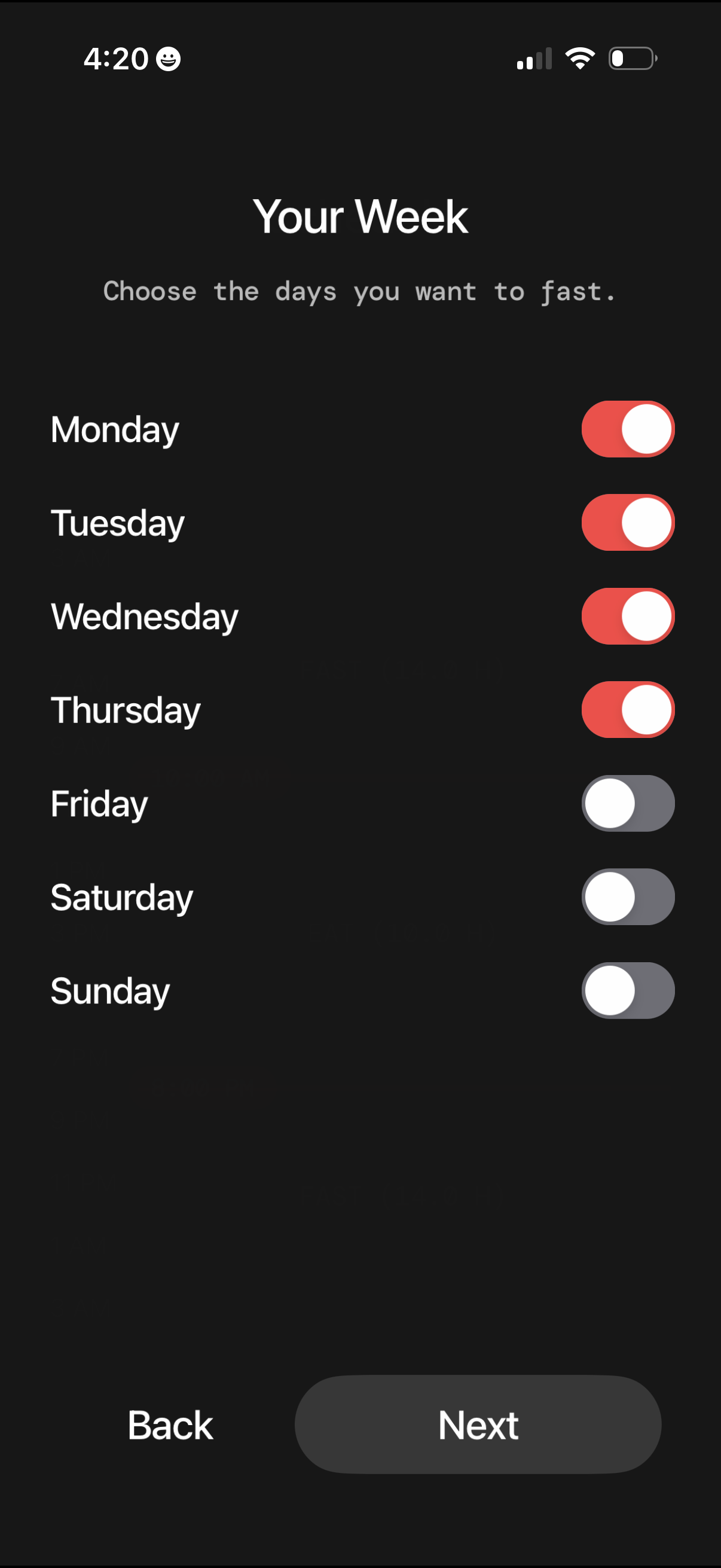
Weekly fasting schedule setup screen where users choose which days of the week to fast using on/off toggle switches for Monday through Sunday. Includes navigation actions to go Back or proceed to Next in the onboarding flow.
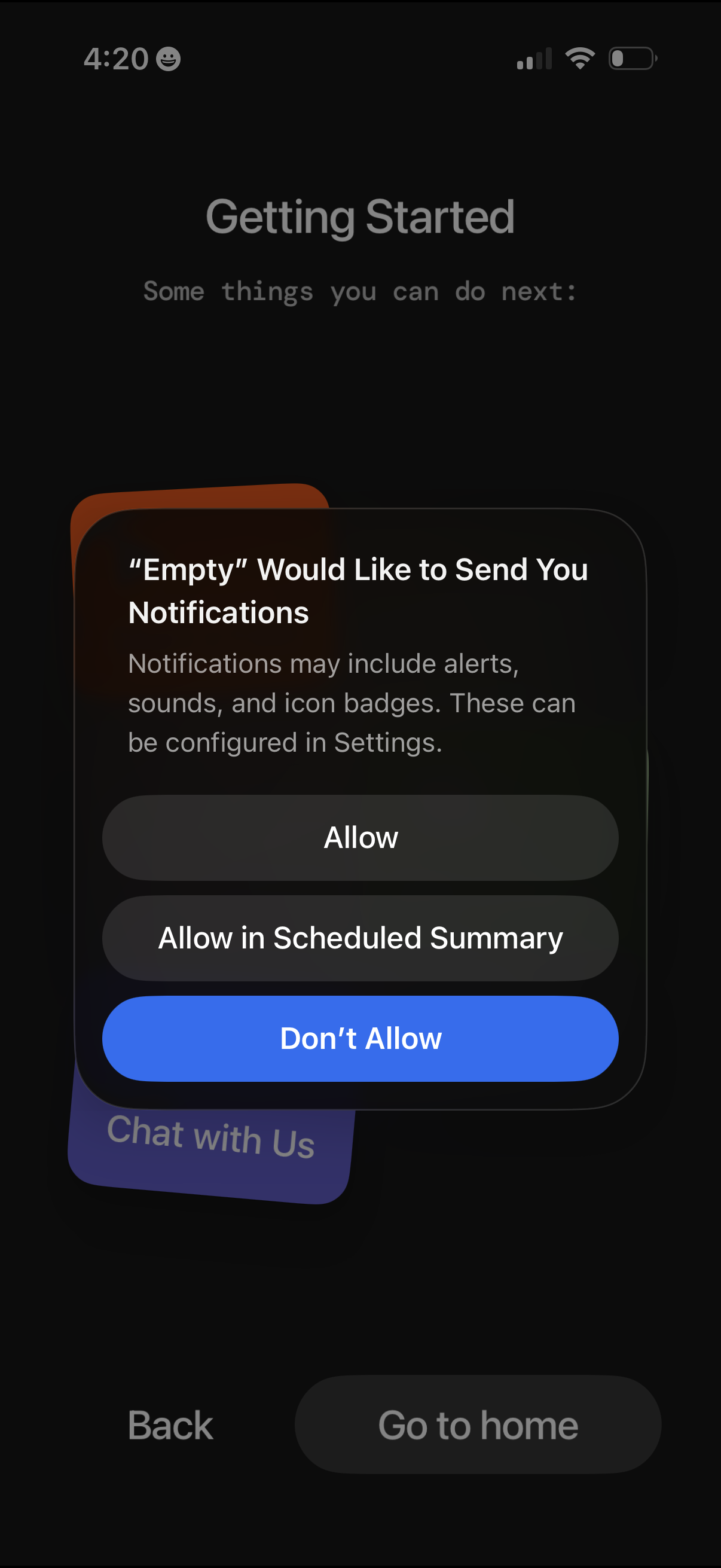
iOS system permission modal requesting to allow an app to send push notifications, with options to Allow, Allow in Scheduled Summary, or Don’t Allow. The prompt appears over a “Getting Started” onboarding screen with navigation actions like Back and Go to home.
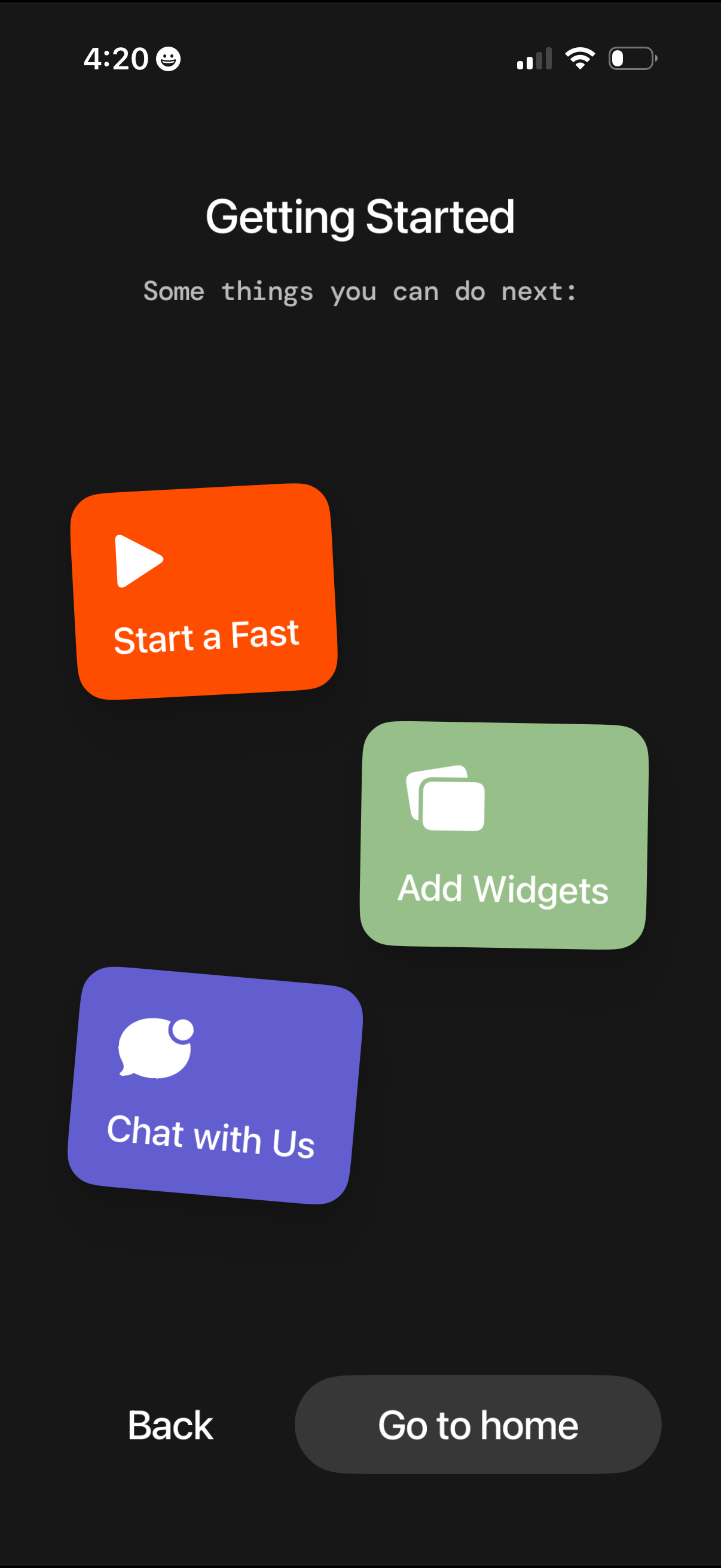
Getting Started onboarding screen that suggests next steps with large action cards to start a fast, add widgets, or chat with support. Bottom navigation provides Back and a primary Go to home button to exit setup.