Onboarding
App launch welcome screen for a brain training app, showing branding and a tagline for personalized training. Primary actions include a prominent “Get started” button for onboarding and a secondary “Already a member?
Onboarding value proposition screen for a brain training app promoting “5 minutes a day” personalized exercises to improve focus, memory, and language skills. Includes a progress indicator, back arrow, and primary Continue button to proceed through setup.
Onboarding setup screen that introduces personalizing a training program by answering a few quick questions, with a progress indicator and back navigation. Includes a prominent “Continue” button to proceed to the questionnaire.
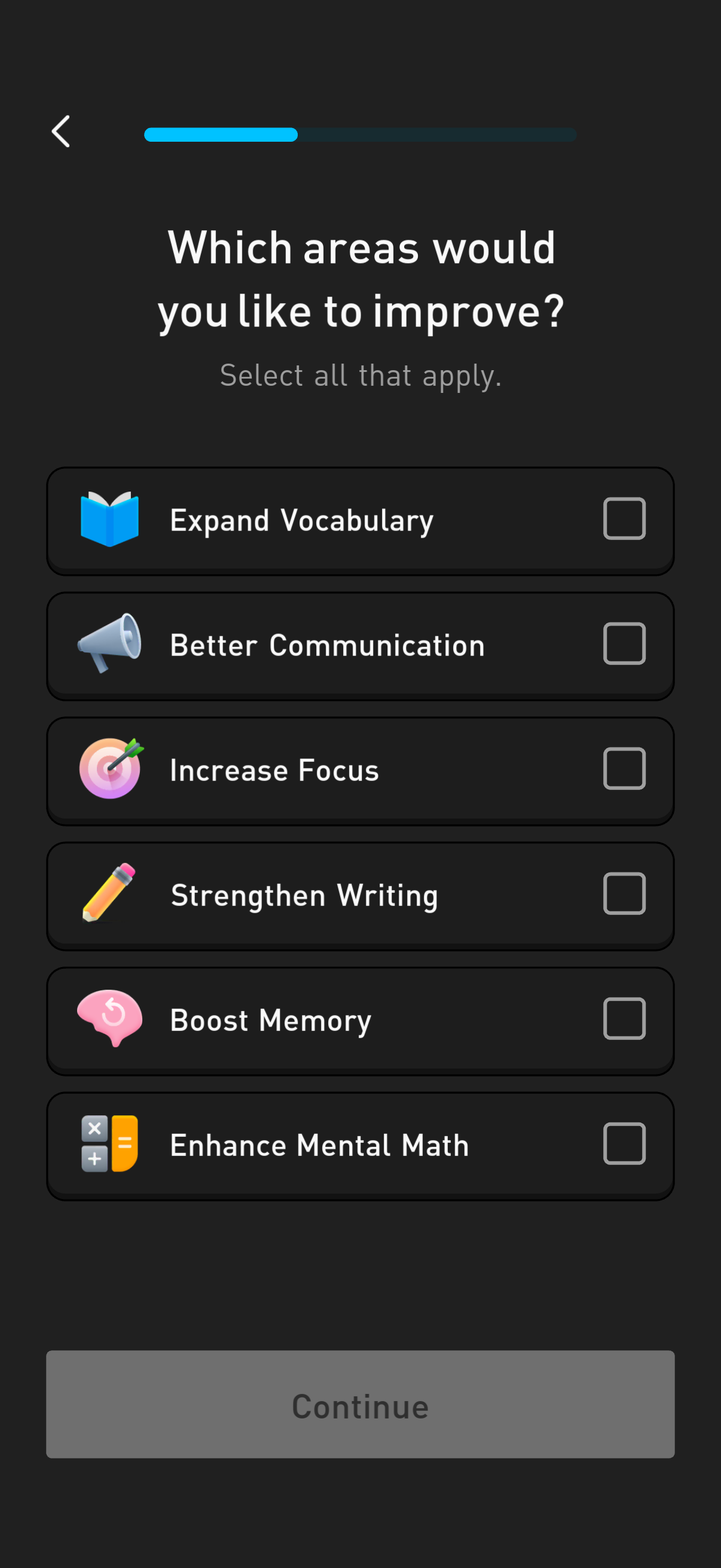
Onboarding preferences screen asking users which areas they want to improve, with multi-select checklist options like vocabulary, communication, focus, writing, memory, and mental math. Includes a progress indicator, back navigation, and a disabled “Continue” button that becomes active after selections.
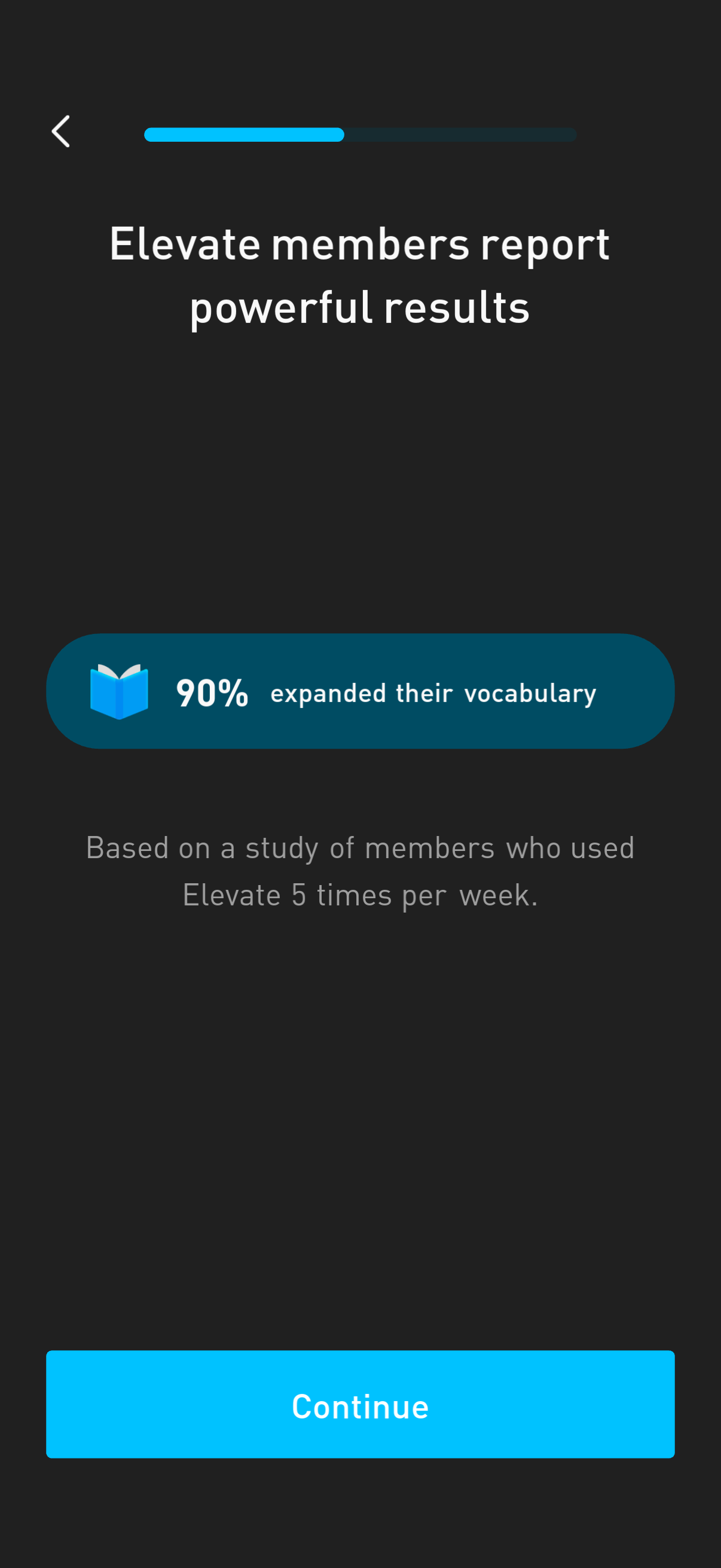
Onboarding-style results/benefits screen highlighting member impact statistics, featuring a progress indicator, a large metric card (e. g.
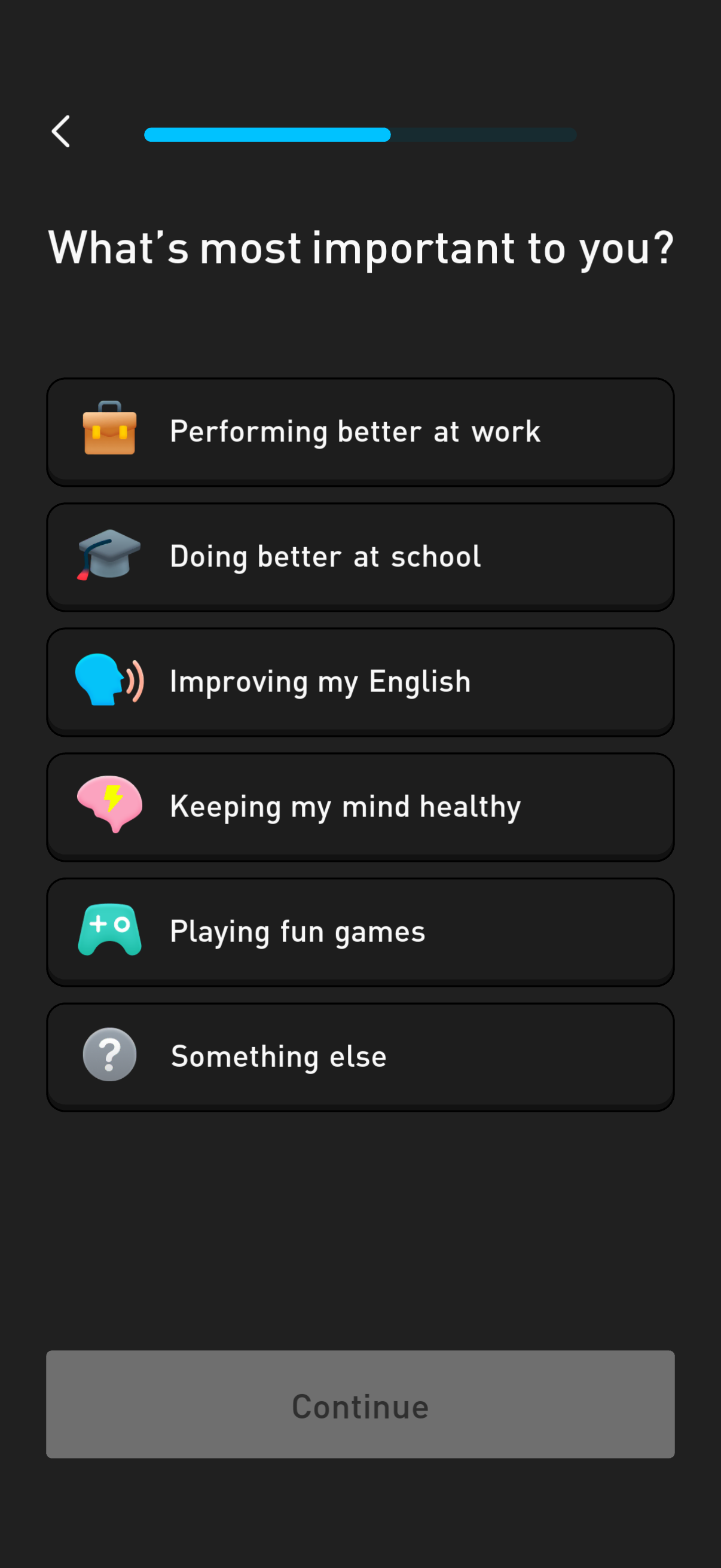
Onboarding preference selection screen asking “What’s most important to you? ” with a progress indicator, back button, and selectable goal options such as performing better at work, doing better at school, improving English, keeping mind healthy, playing games, or something else.
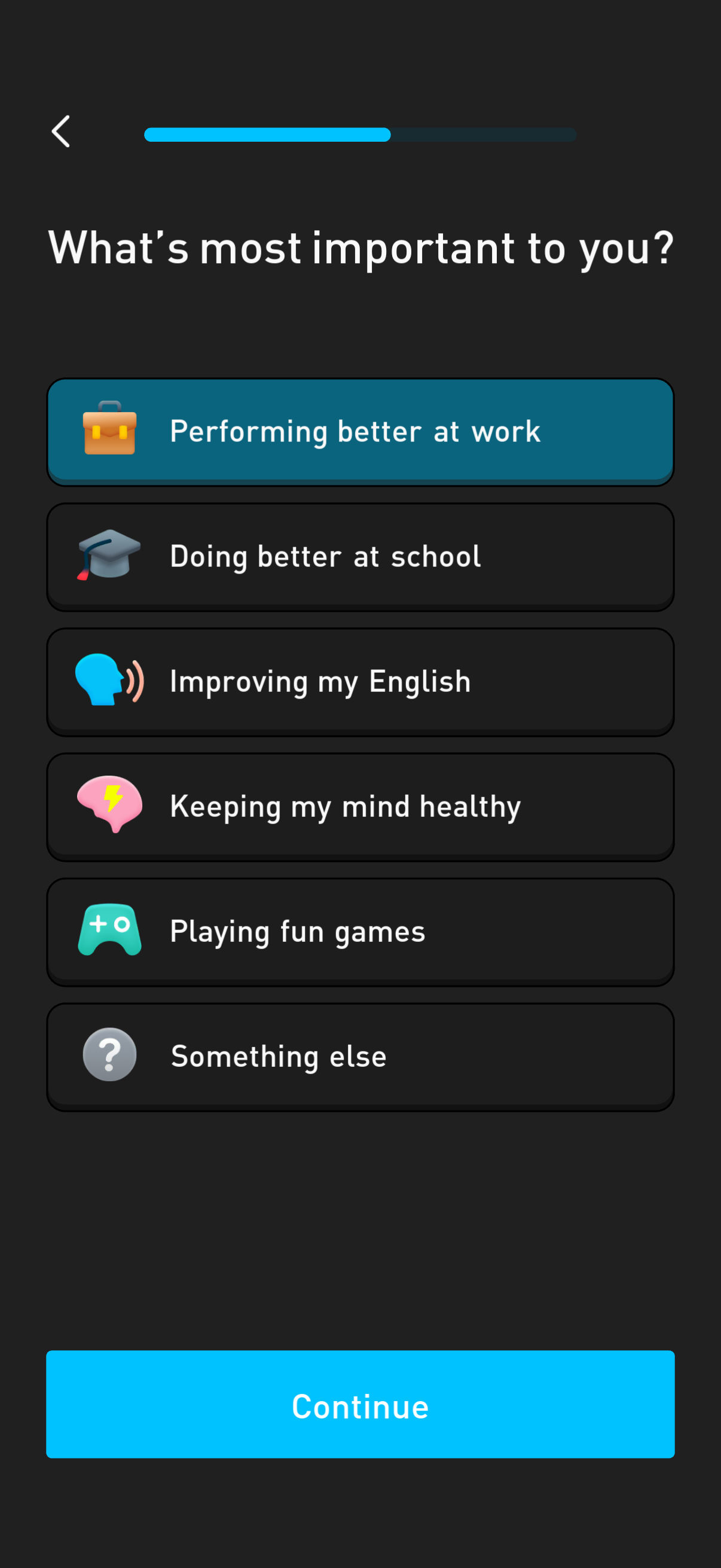
Onboarding preference screen asking “What’s most important to you? ” with selectable goal options such as performing better at work, doing better at school, improving English, keeping mind healthy, playing fun games, or something else.
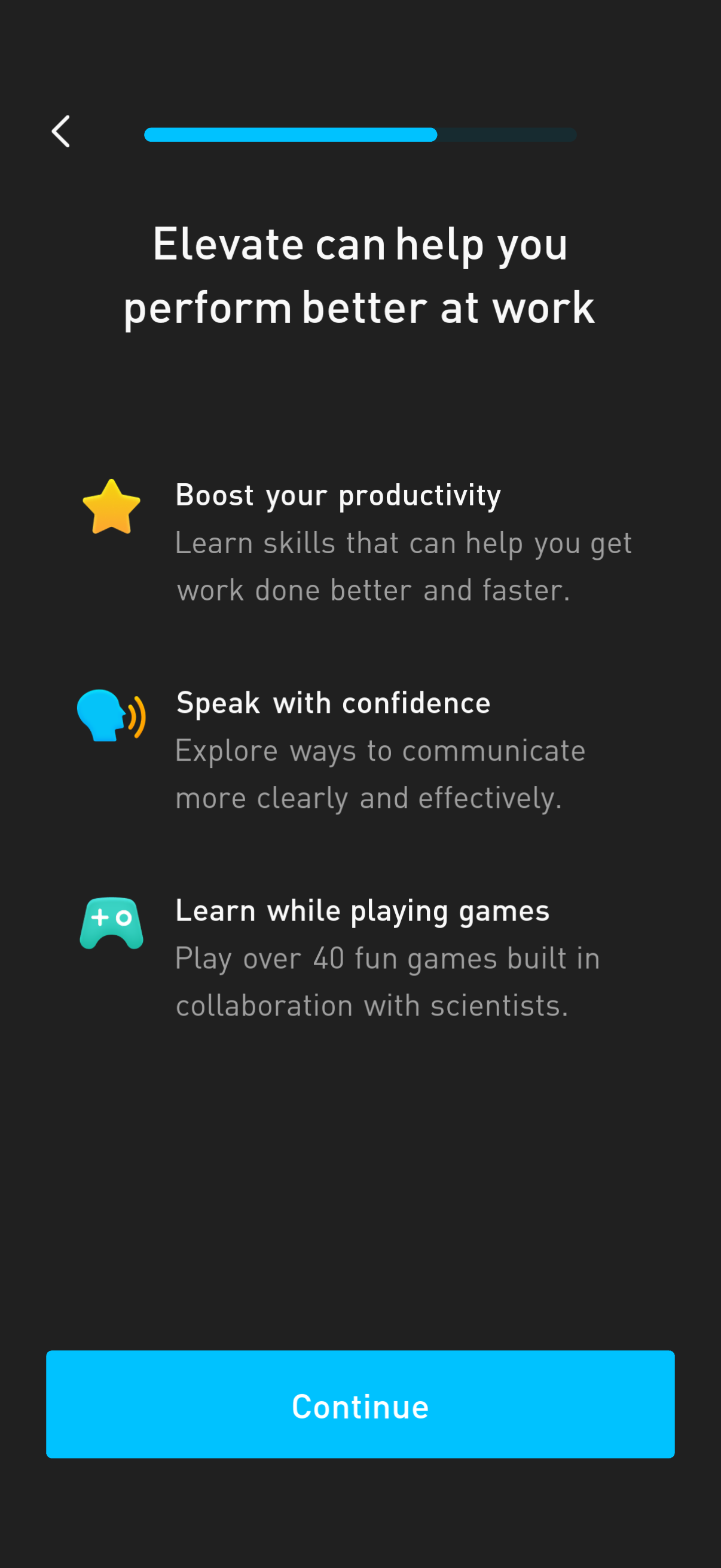
Onboarding value proposition screen for a skills-training app explaining how it helps users perform better at work, highlighting benefits like boosting productivity, speaking with confidence, and learning through games. Includes a progress indicator, back navigation, and a primary “Continue” button to proceed in the onboarding flow.
Onboarding health and focus questionnaire screen asking whether the user has ADD/ADHD, with multiple-choice options (Yes, I think I do, No, Prefer not to share, Not sure). Includes a progress indicator, back navigation, and a disabled Continue button that becomes active after selecting an answer.
Onboarding questionnaire screen asking the user if they have ADD/ADHD, with multiple-choice options (Yes, I think I do, No, Prefer not to share, Not sure) and a progress indicator. Includes a prominent Continue button to proceed after selecting an answer.
An onboarding or educational tip screen showing a “Did you know? ” fact about educational games improving ADD/ADHD symptoms, with a progress indicator and back arrow for navigation.
Onboarding survey screen asking “How did you hear about us? ” with a single-select list of acquisition sources (Instagram/Facebook, news/blog, TikTok, influencer, search engine, App Store, mobile game, other) and a disabled Continue button until a choice is made.
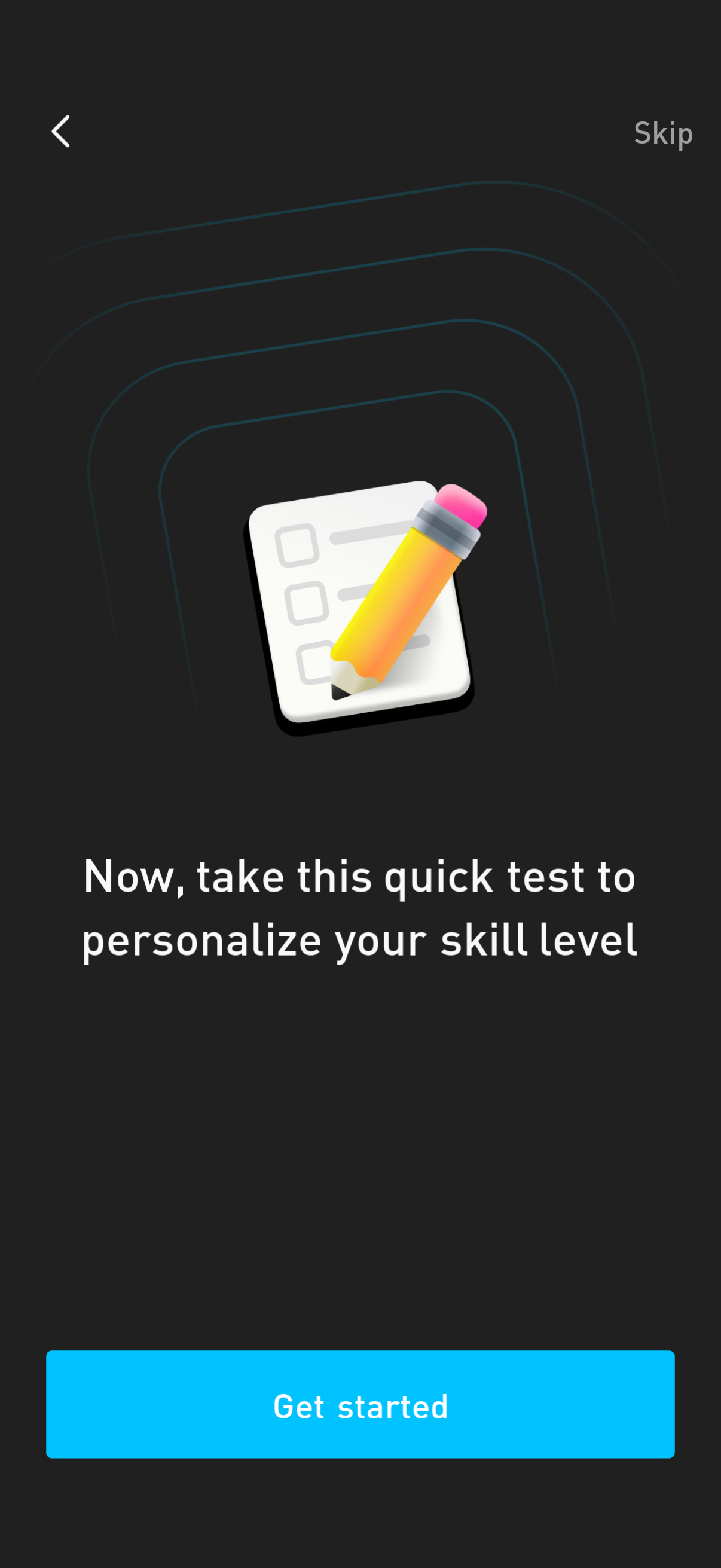
Onboarding prompt encouraging the user to take a quick assessment test to personalize their skill level, featuring an illustration and a primary “Get started” CTA. Includes navigation controls to go back or skip the step.
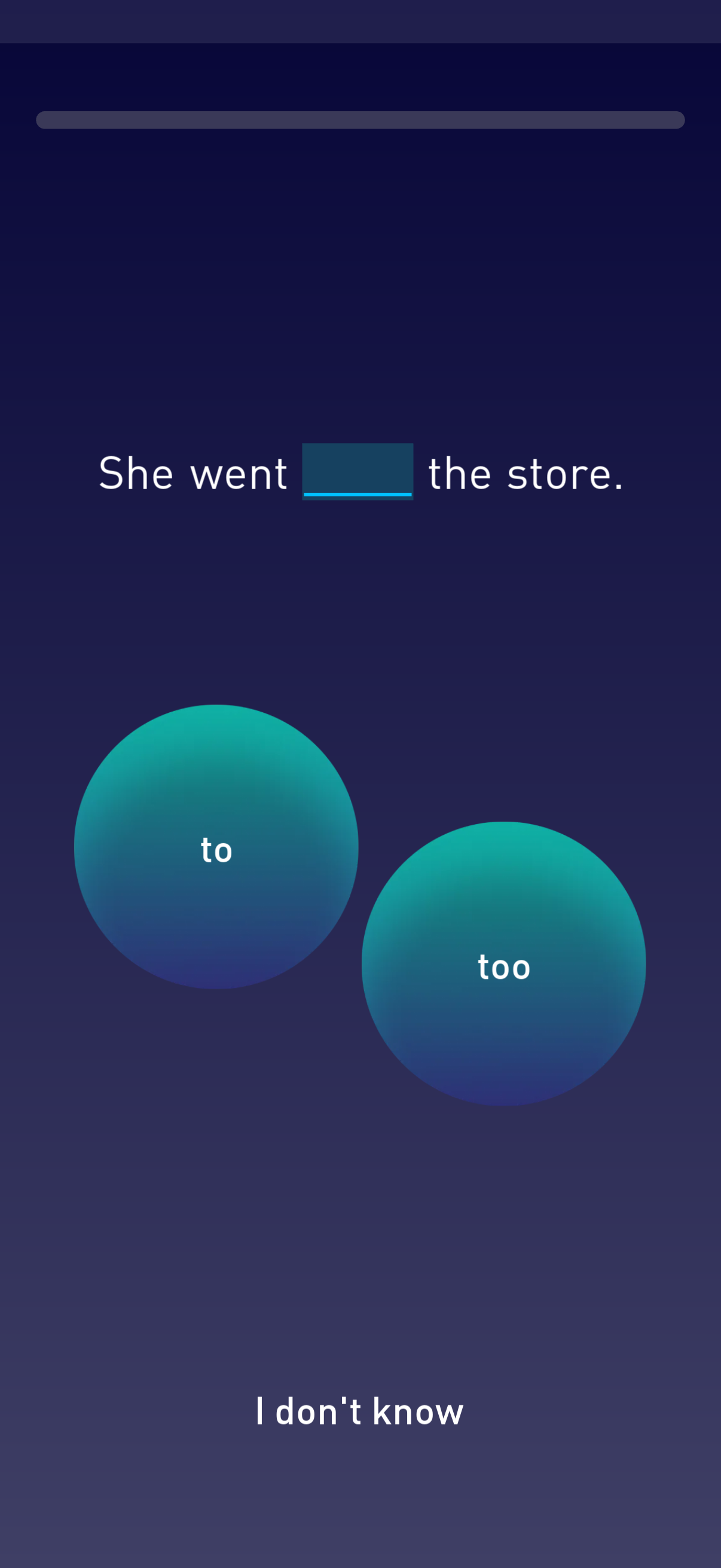
Language learning quiz screen with a fill-in-the-blank sentence prompt and multiple-choice answer buttons to select the correct word. Includes an “I don’t know” option to skip or reveal the answer.
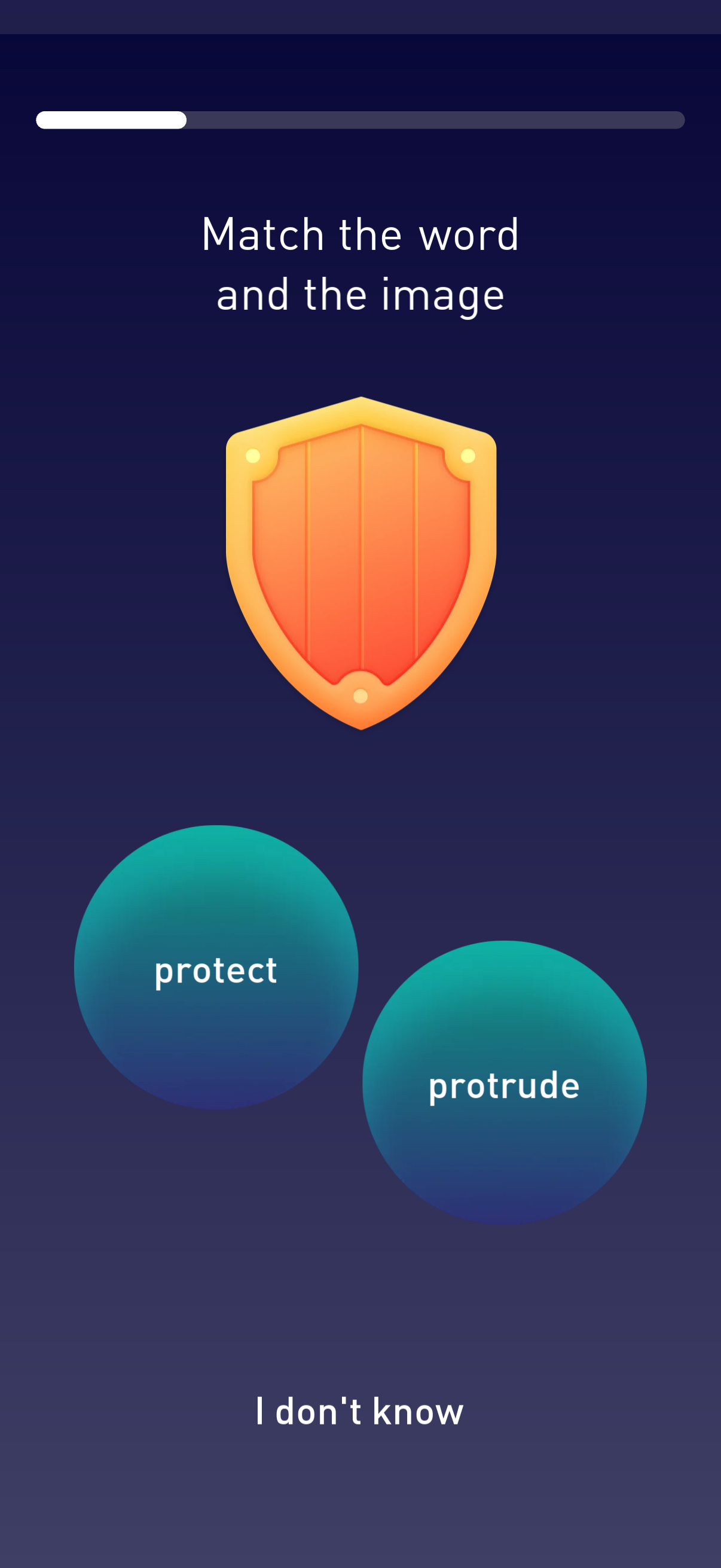
Vocabulary learning quiz screen prompting the user to match a word to an image, showing an illustration (shield) and multiple-choice word options. Includes a progress indicator and an “I don’t know” option to skip or indicate uncertainty.
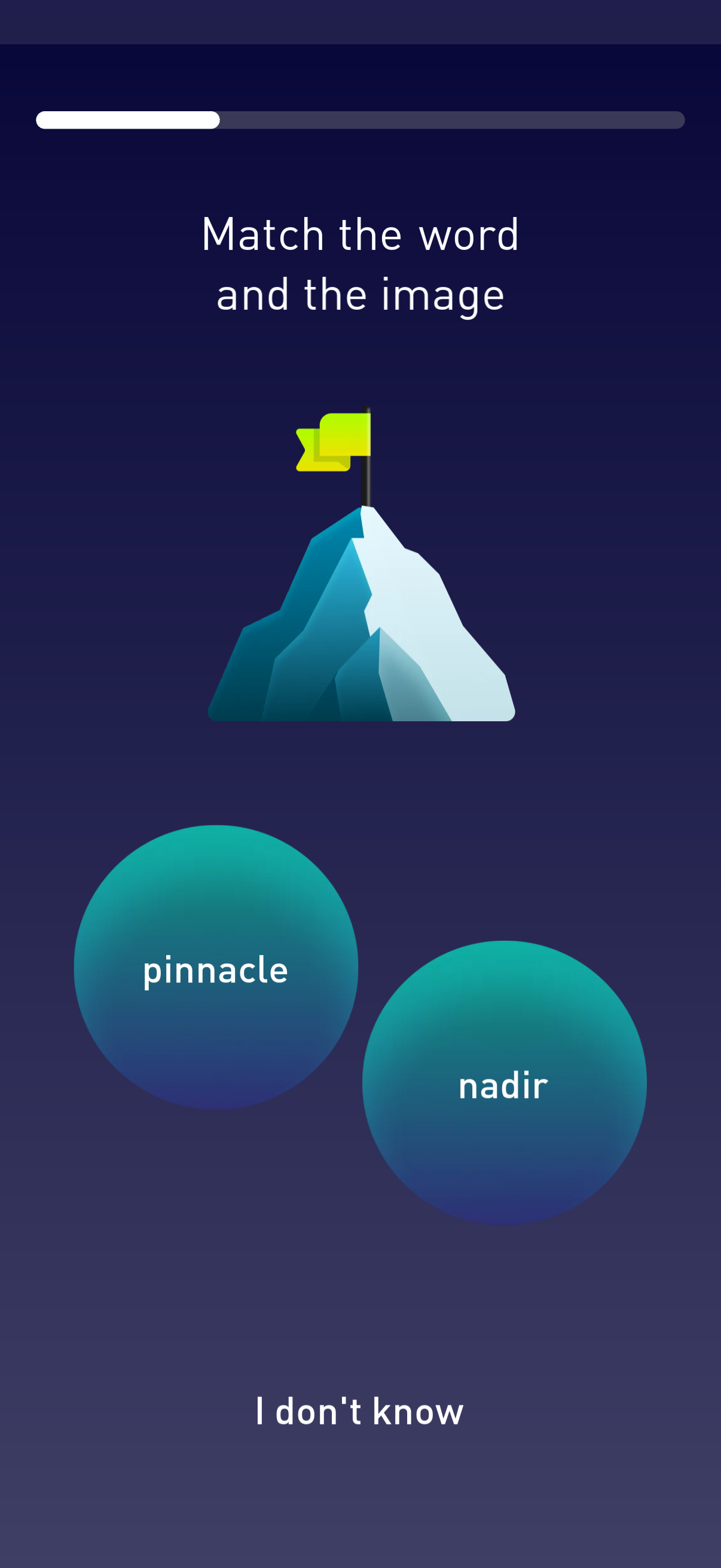
Vocabulary learning quiz screen prompting the user to match a word to an image, showing an illustration and two multiple-choice answer buttons. Includes a progress indicator at the top and an “I don’t know” option to skip or reveal the answer.
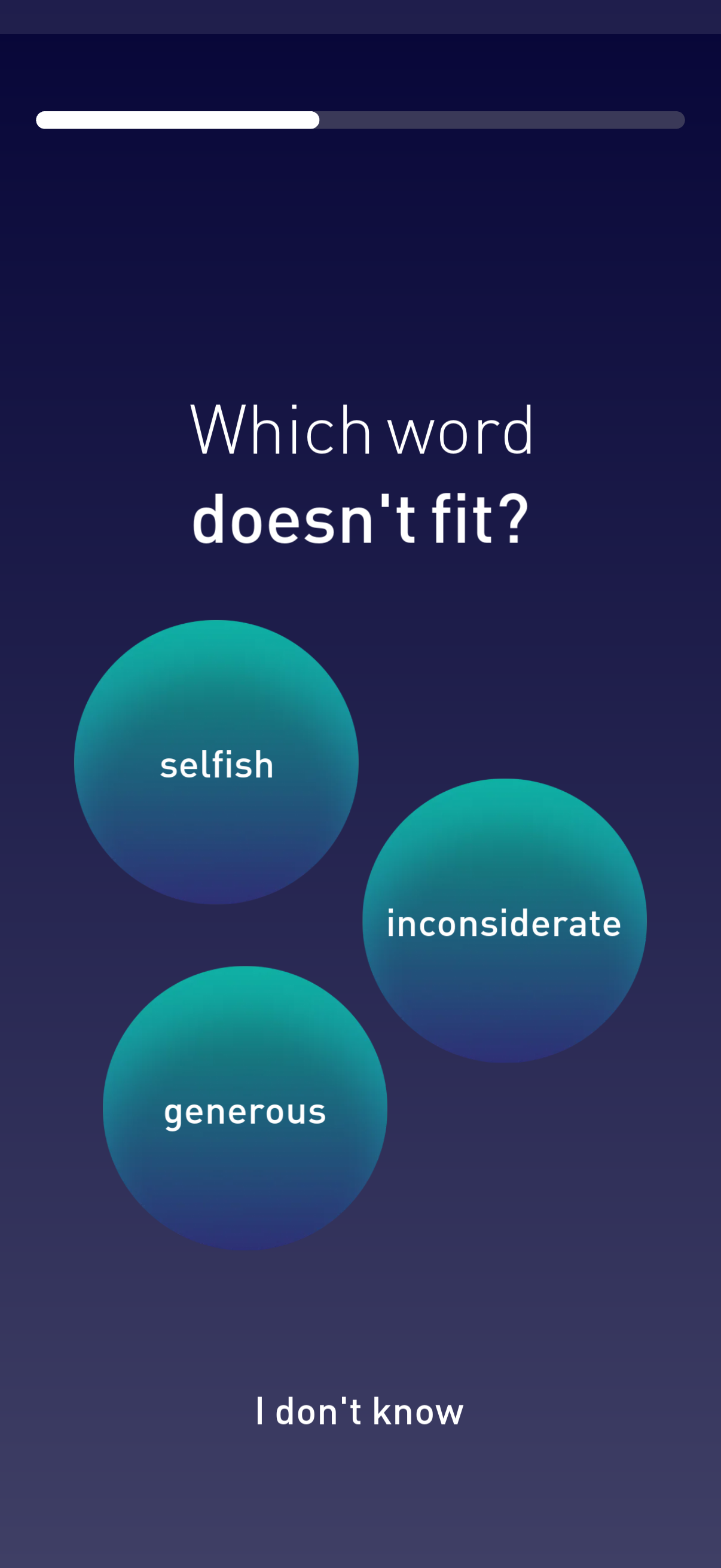
Vocabulary quiz question screen asking “Which word doesn’t fit? ” with multiple-choice word options presented as large tappable buttons and a progress bar at the top.
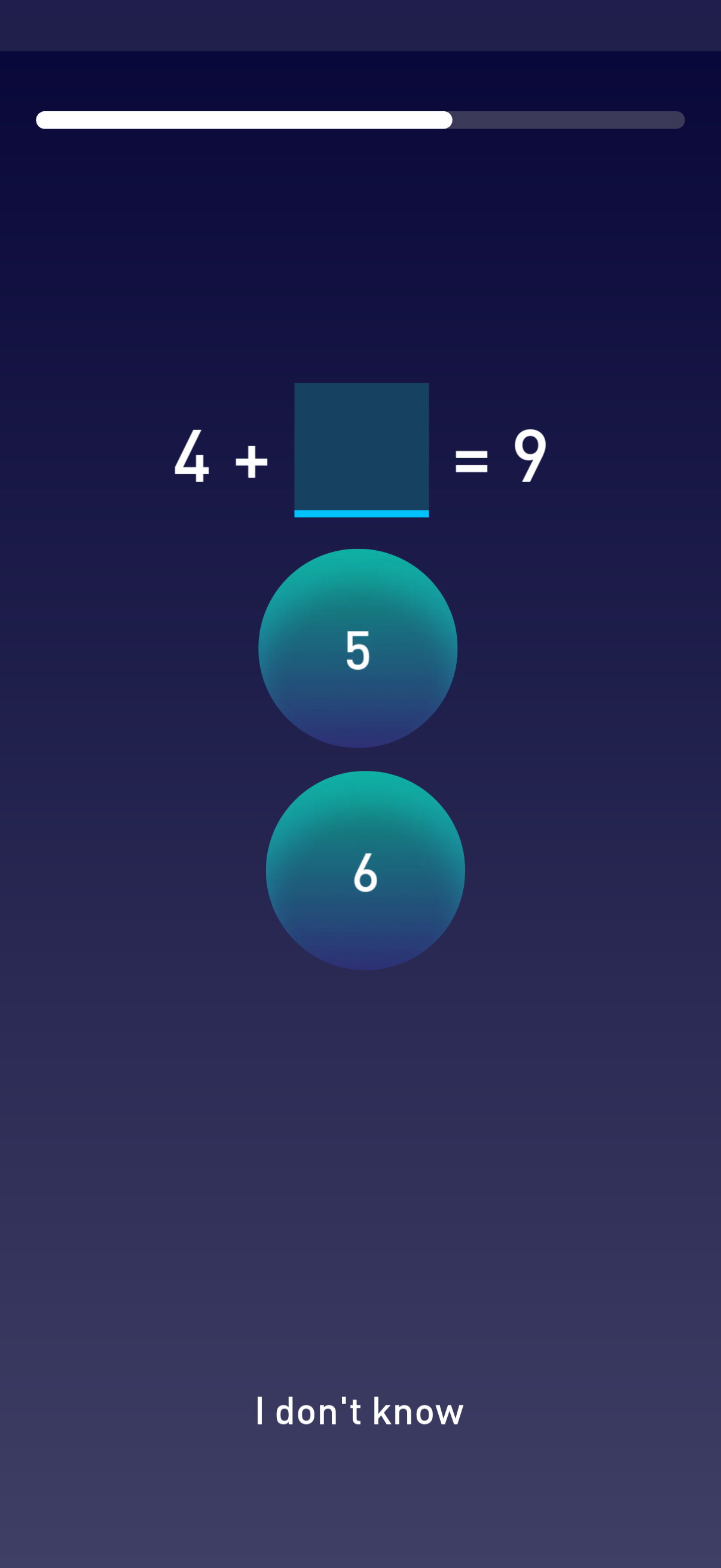
Math quiz question screen showing an equation with a missing number (4 + [blank] = 9) and large tap-to-select answer choices (5 and 6). Includes a progress bar at the top and an “I don’t know” option for skipping the question.
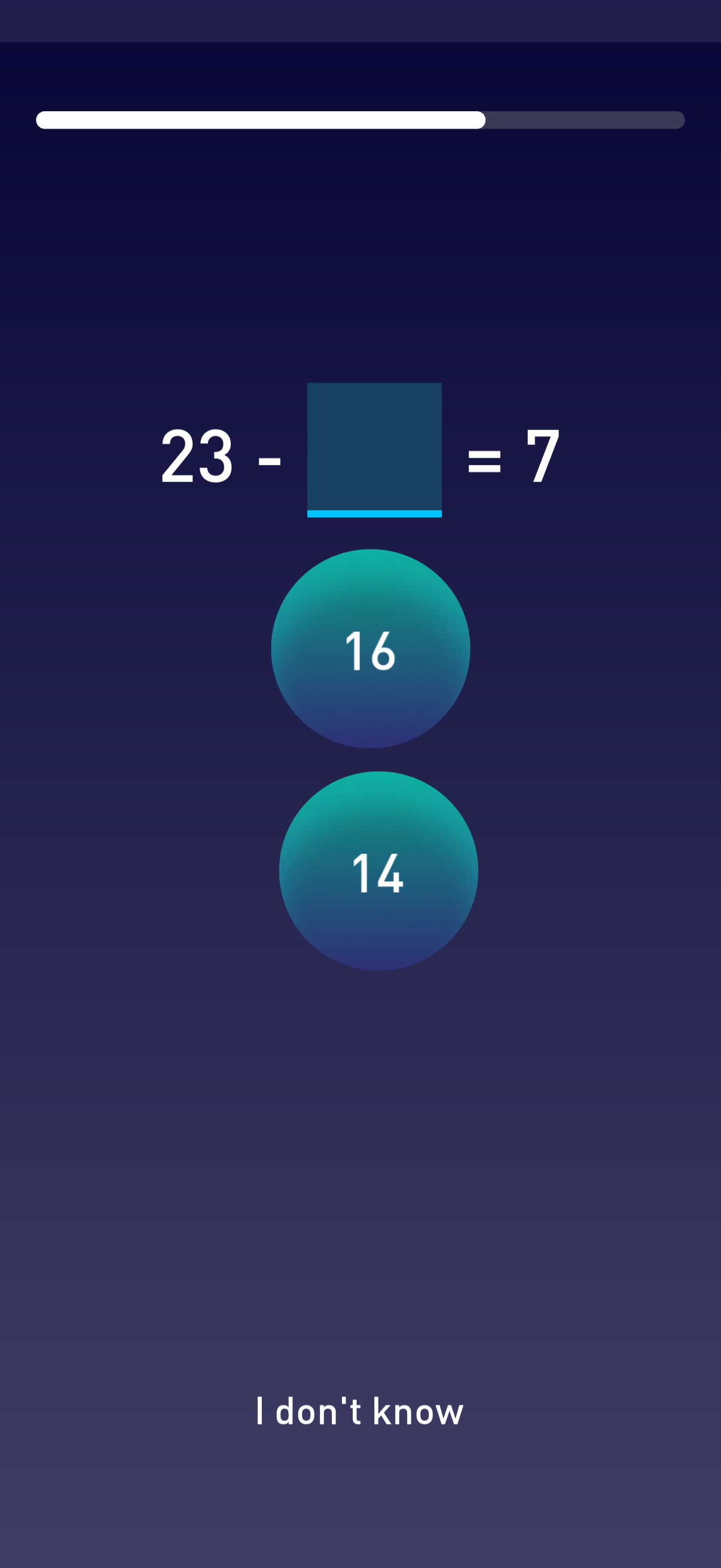
Math quiz screen asking the user to solve a subtraction equation with a missing number (e. g.
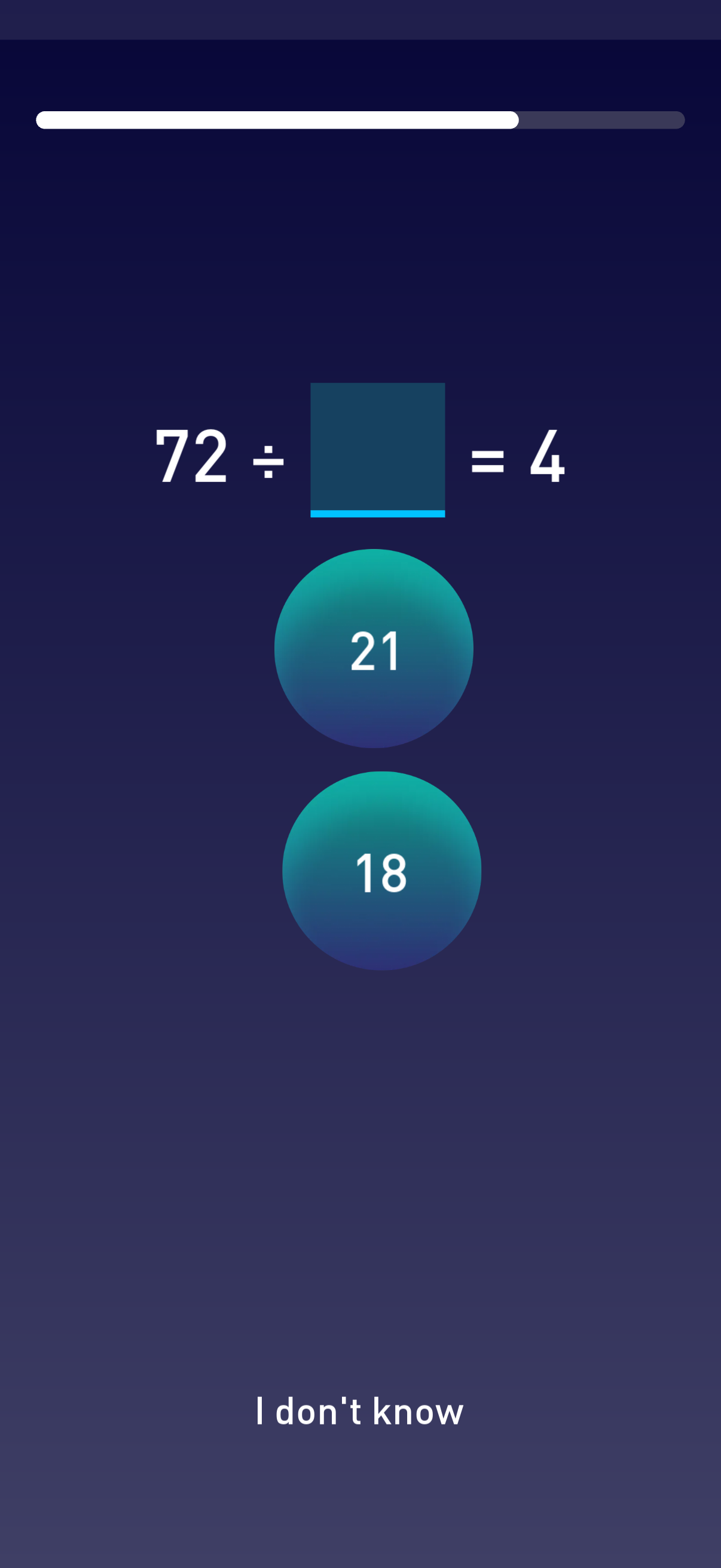
Math quiz question screen showing a division equation with a missing number (72 ÷ [blank] = 4) and multiple-choice answer buttons. Includes a progress bar at the top and an “I don’t know” option to skip the question.
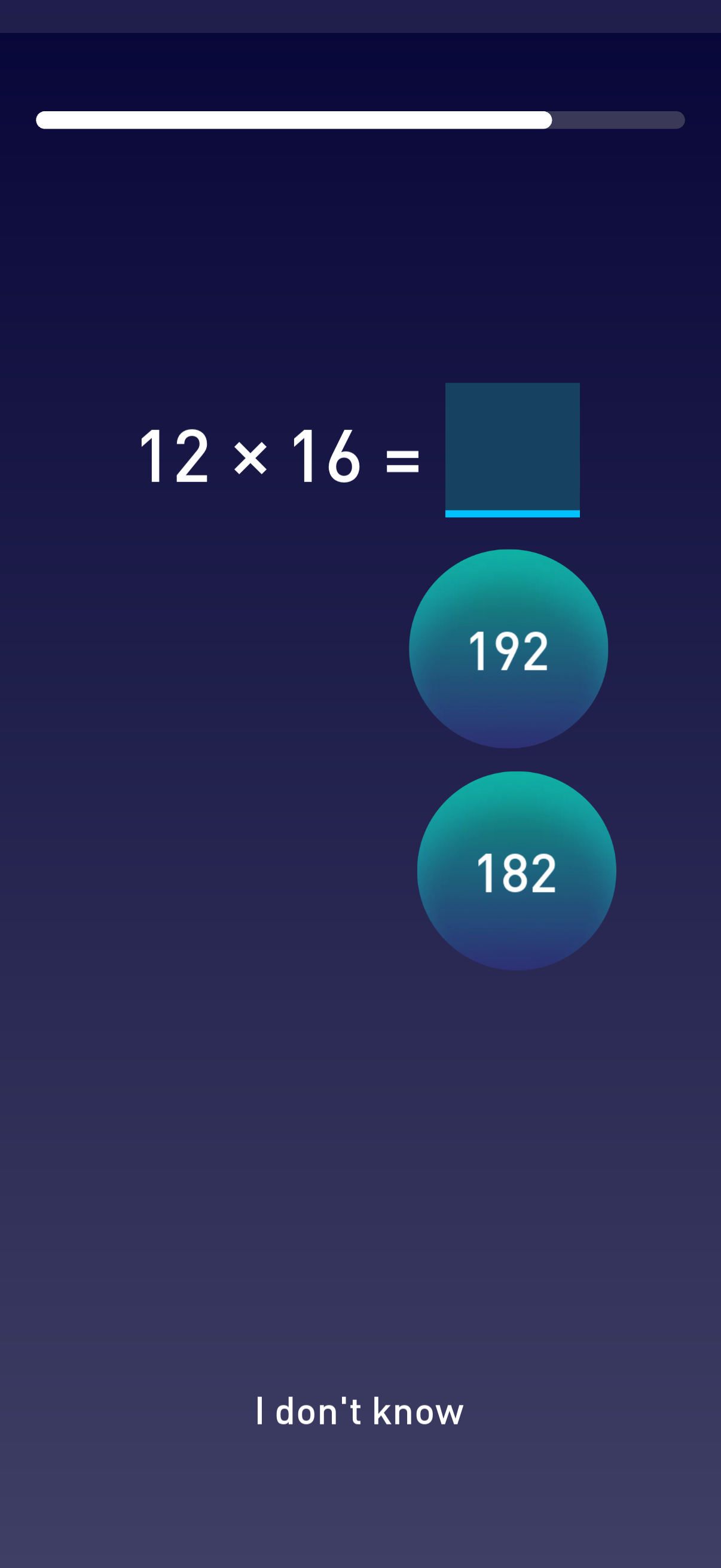
Math learning quiz screen showing a multiplication problem (12 × 16 =) with multiple-choice answer buttons and an “I don’t know” option, plus a progress bar indicating current quiz progress. Users select an answer to continue to the next question.
Onboarding self-assessment screen asking the user to rate their ability to remember names, with a progress indicator at the top. Users choose one of four large option buttons (Excellent, Above Average, Average, Below Average) to continue the setup flow.
Multi-step assessment/survey question screen asking the user to rate their ability to recall details of conversations, shown with a progress indicator. Provides multiple-choice response buttons (Excellent, Above Average, Average, Below Average) for quick self-rating.
Confirmation and loading screen after completing an assessment, showing a circular progress indicator and a “Thank you” message. It informs the user that the app is determining their skill levels across writing, speaking, reading, math, and memory.
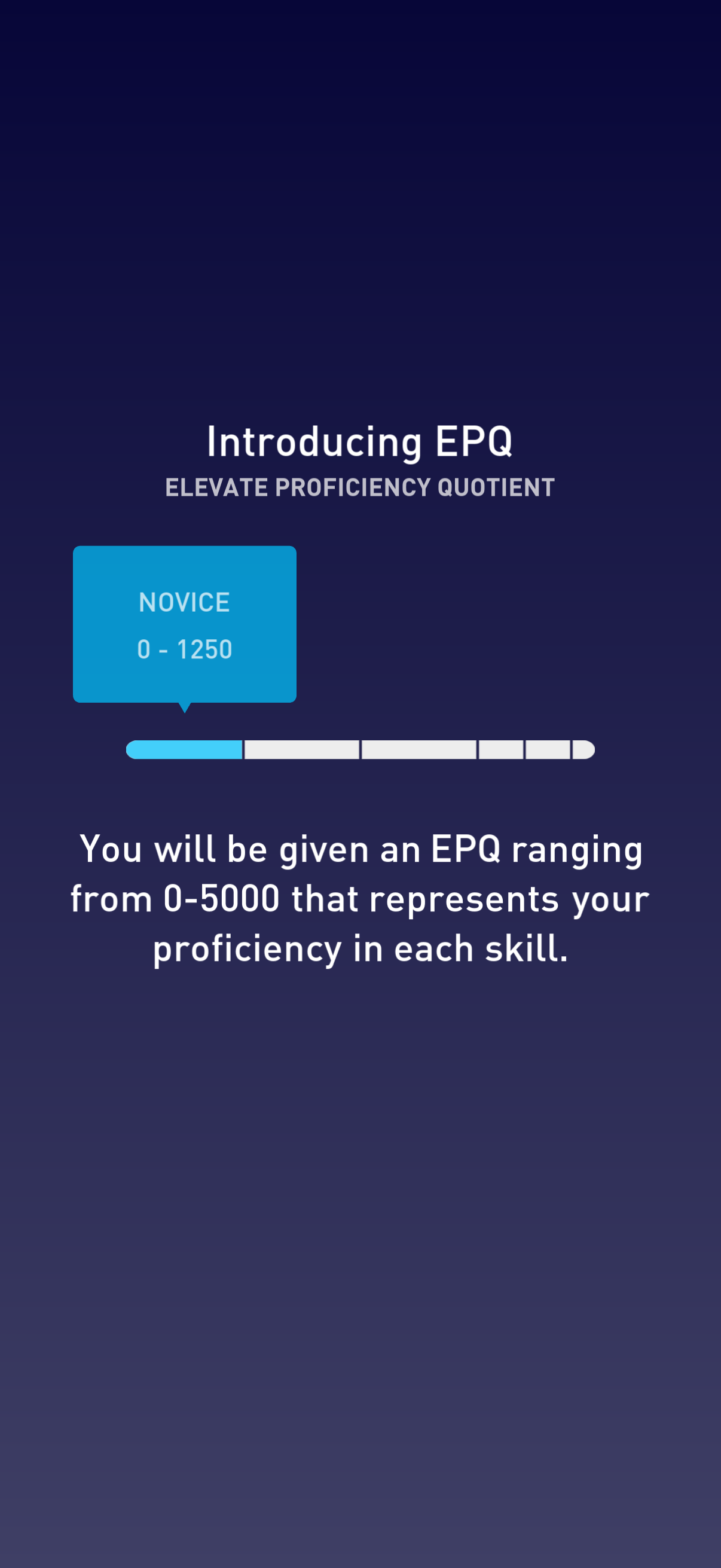
Onboarding explainer screen introducing an EPQ (Elevate Proficiency Quotient) scoring system, showing a segmented progress bar with a “Novice” tier range (0–1250). It explains users will receive an EPQ score from 0–5000 representing proficiency across different skills.
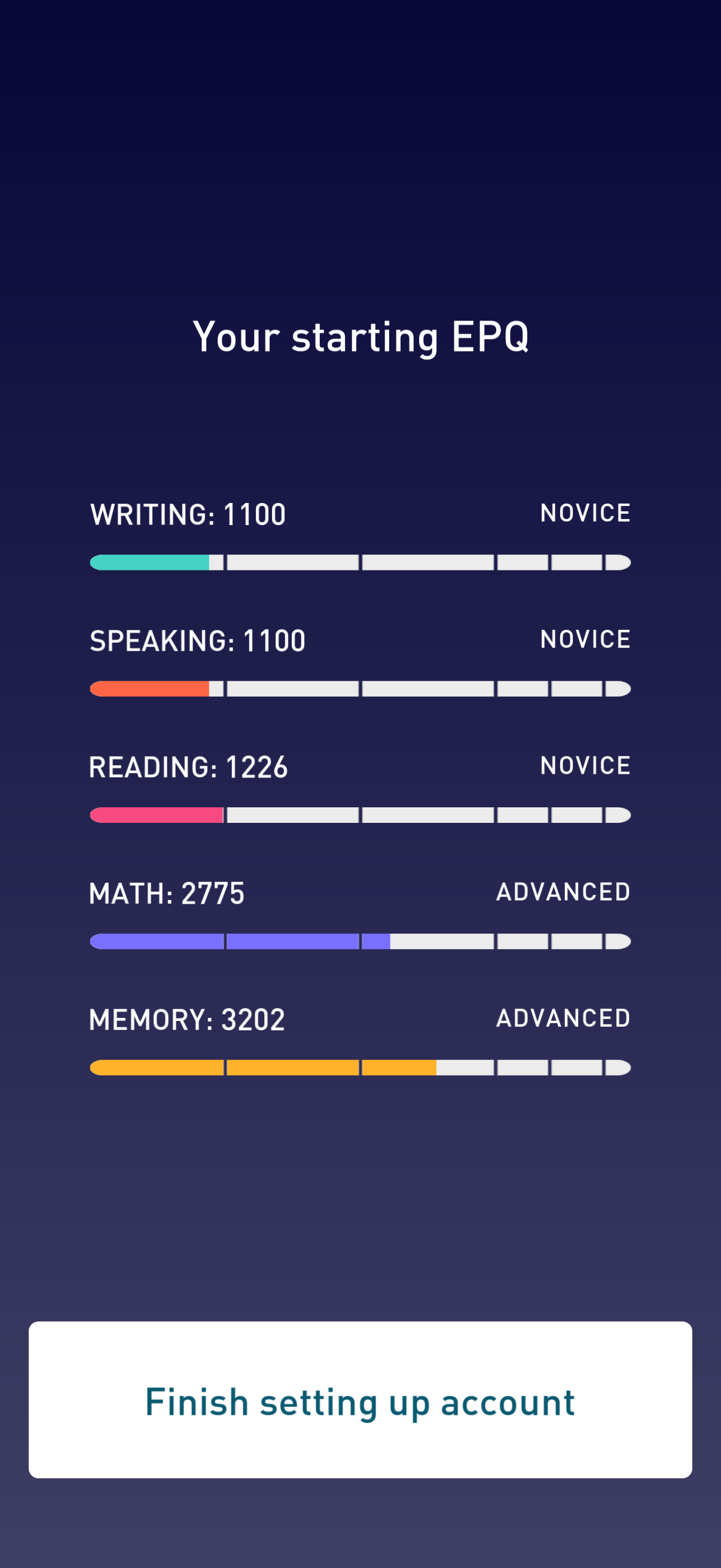
Assessment results screen showing a user’s starting skill scores and levels across writing, speaking, reading, math, and memory with colored progress bars labeled novice/advanced. Includes a primary call-to-action button to finish setting up the account.
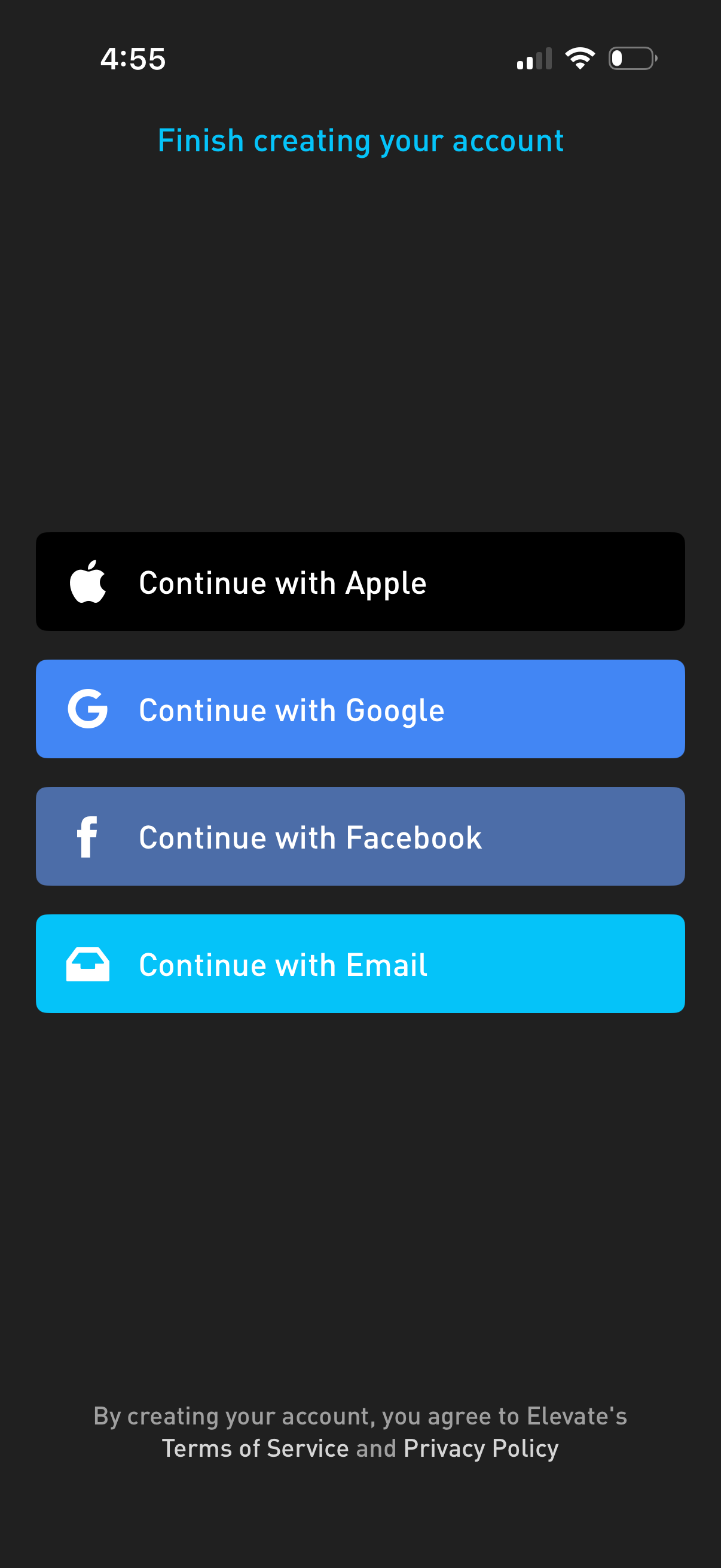
Account creation/sign-up screen prompting users to finish creating an account with single sign-on options: Continue with Apple, Google, Facebook, or Email. Includes terms of service and privacy policy consent text at the bottom.
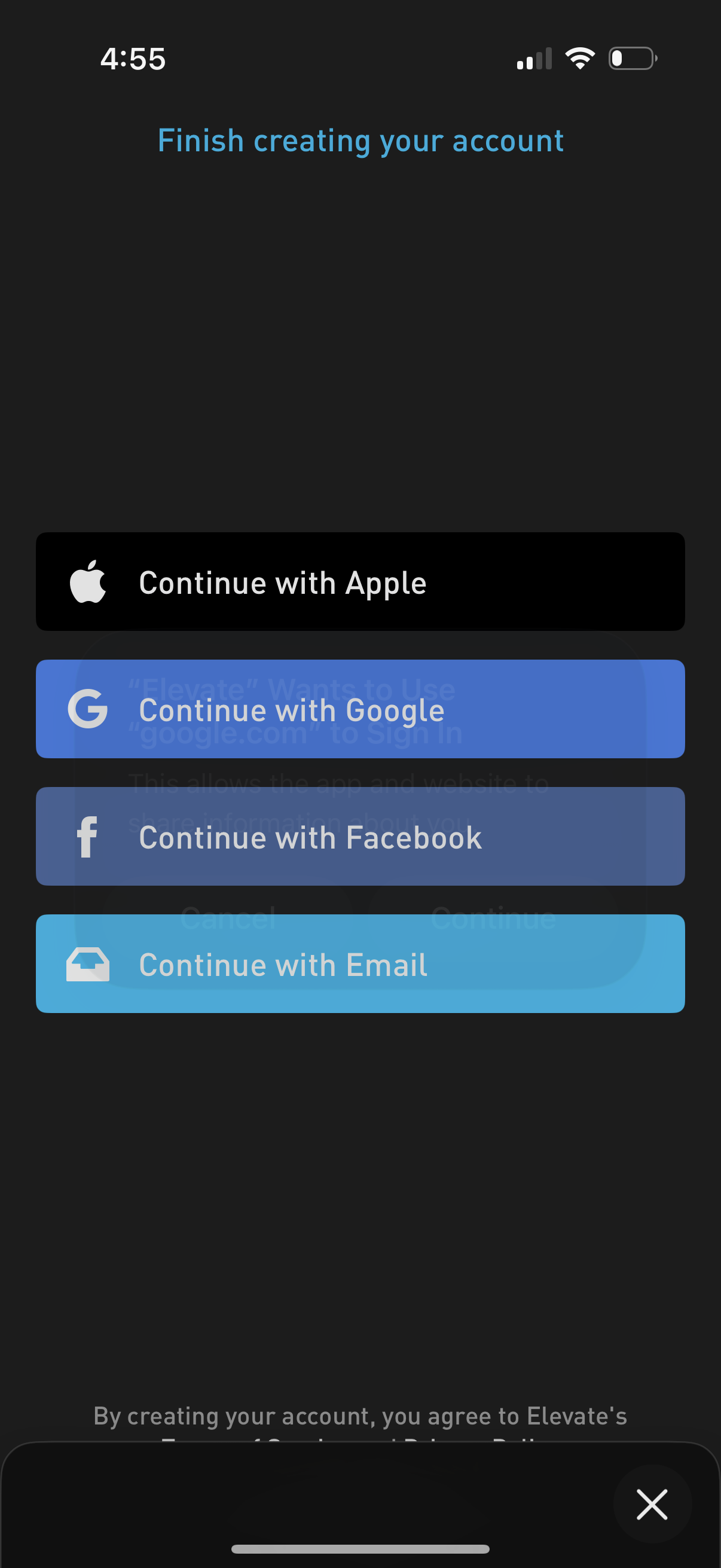
Account creation sign-up screen prompting users to finish creating an account by choosing an authentication method, with large buttons to continue with Apple, Google, Facebook, or Email. Includes an option to dismiss/close the modal and a brief terms agreement notice.
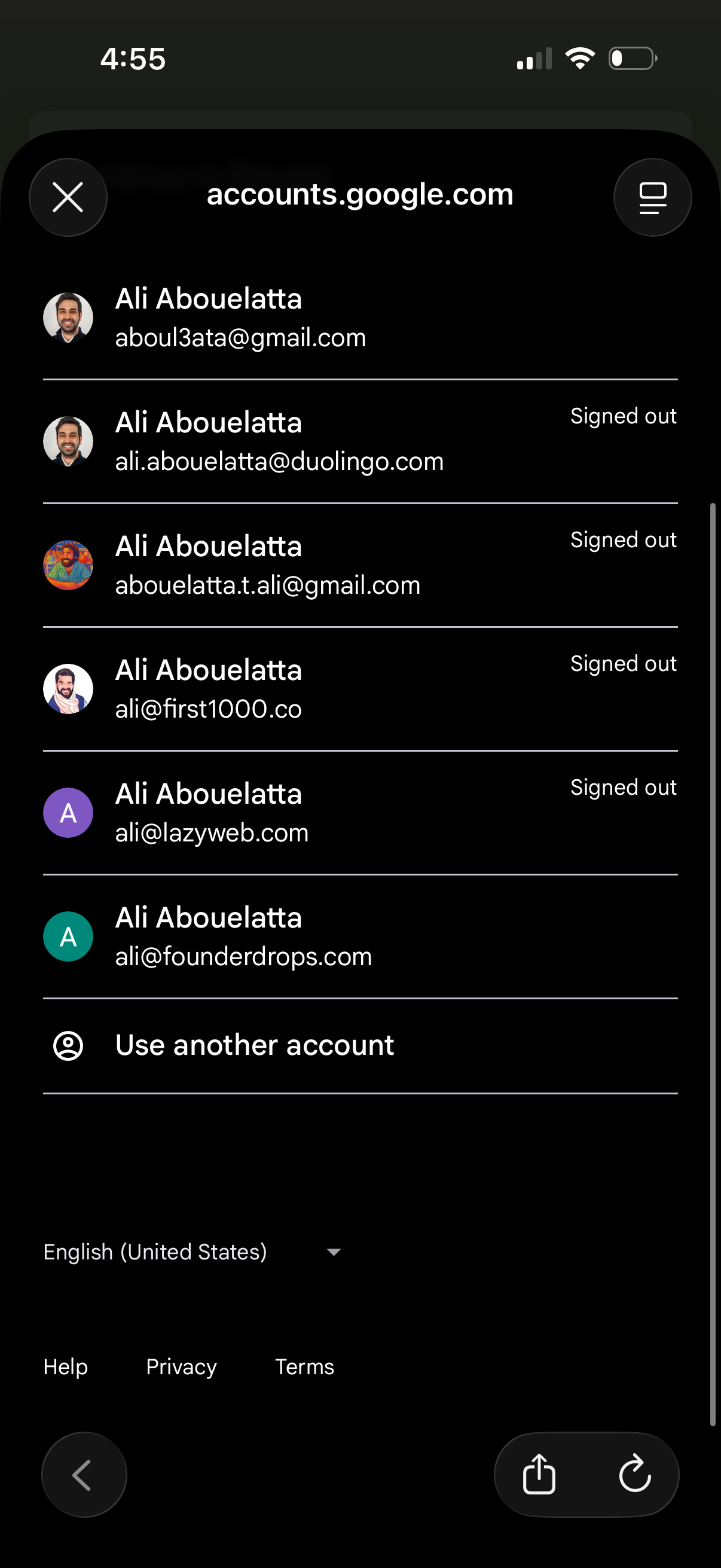
Google account chooser screen showing a list of saved profiles with avatars and email addresses, indicating which accounts are signed out and allowing the user to select an account to continue. Includes an option to “Use another account” to add/sign in with a different Google account.

Blank dark loading or transition screen with only the iOS status bar visible and no content, navigation, or actions shown. Likely represents an app splash screen, empty state, or moment before a view loads.
Loading/progress screen in a fitness app showing a spinner and the message “Creating your training program…” while a personalized workout plan is being generated, with a 5-star rating social proof displayed at the bottom.
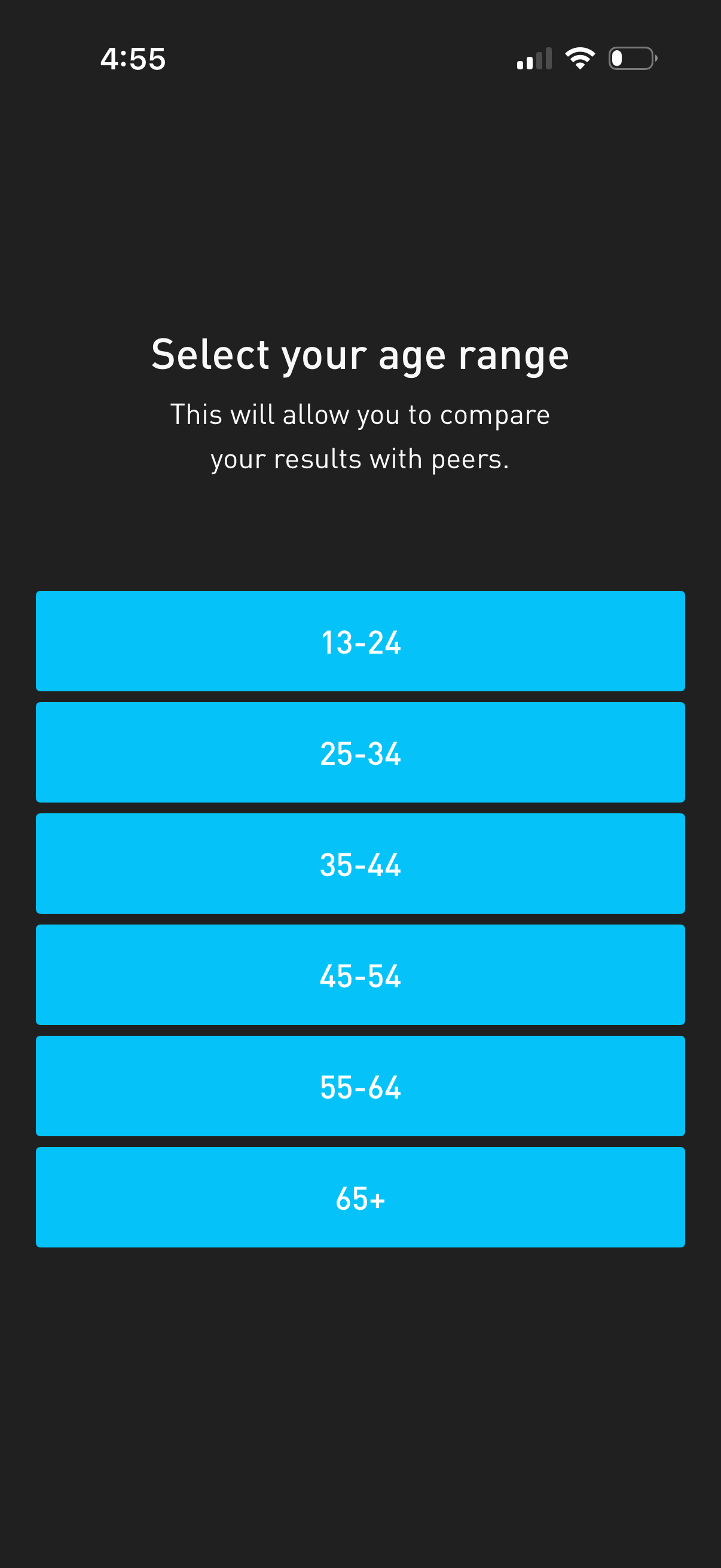
Onboarding demographics screen prompting the user to select their age range to compare results with peers. Presents large selectable buttons for predefined ranges (13–24, 25–34, 35–44, 45–54, 55–64, 65+).
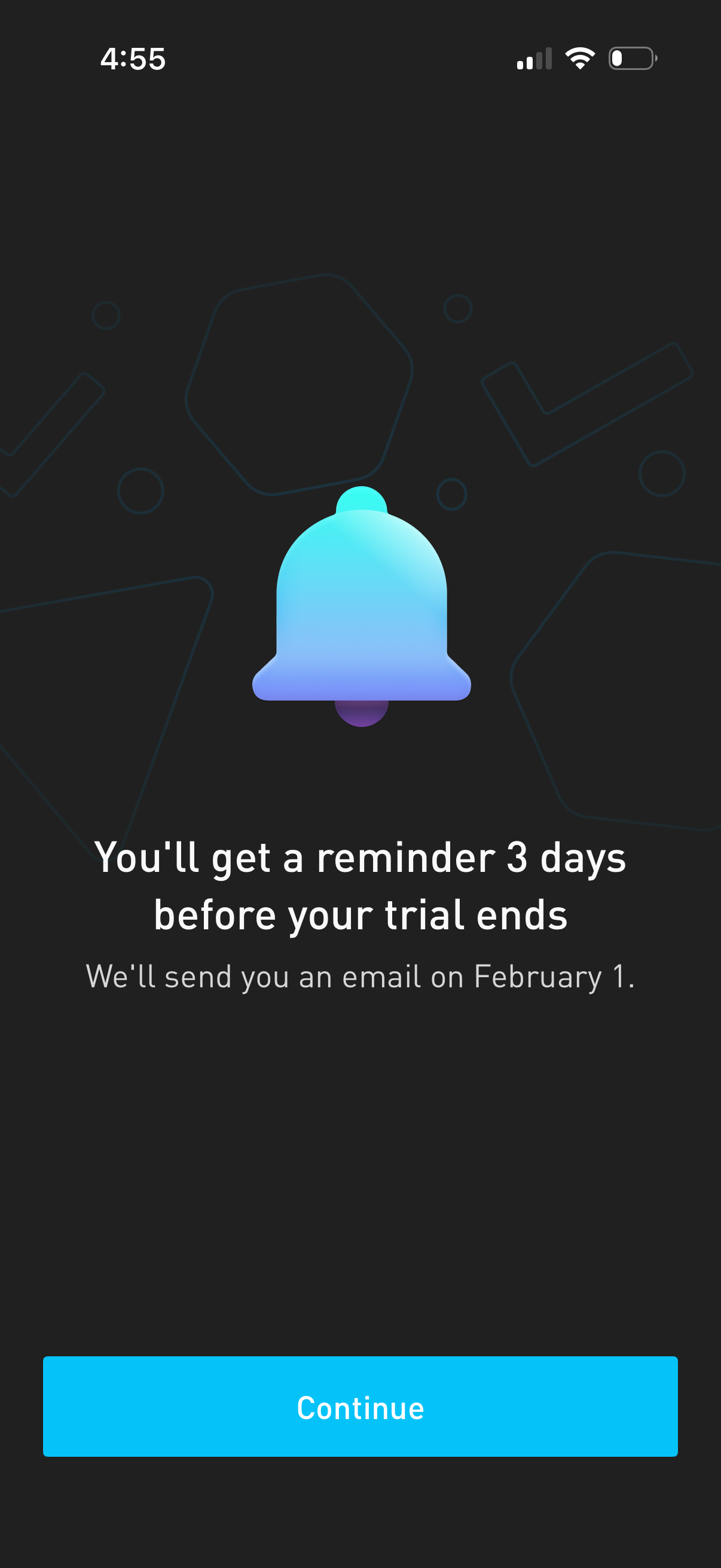
Trial subscription reminder confirmation screen informing the user they’ll receive an email notification 3 days before the free trial ends, with a primary “Continue” button to proceed.
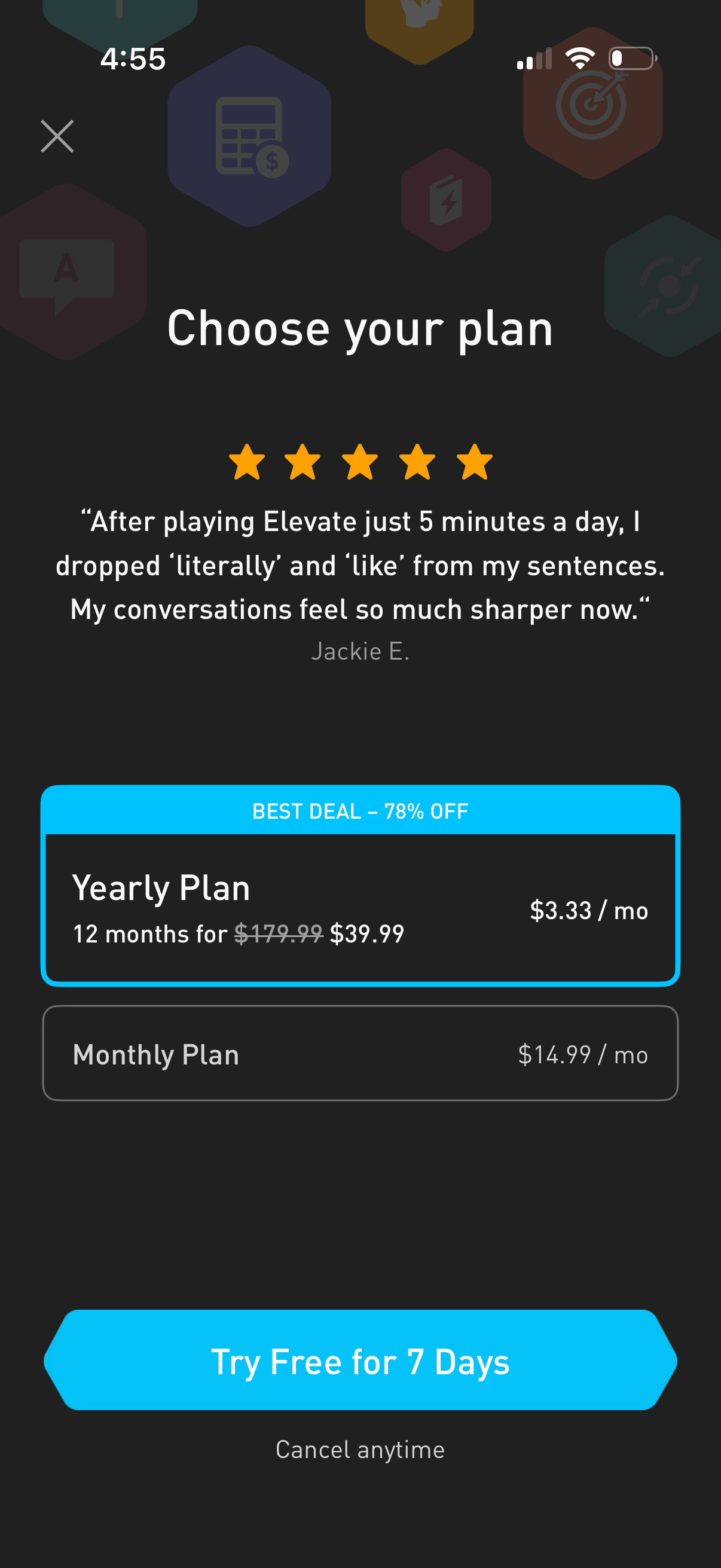
Subscription paywall screen prompting users to choose a plan, featuring a 5-star testimonial and two pricing options (yearly discounted best deal vs monthly) with per-month cost and savings shown. Primary CTA is “Try Free for 7 Days” with a note that you can cancel anytime and a close button to dismiss.
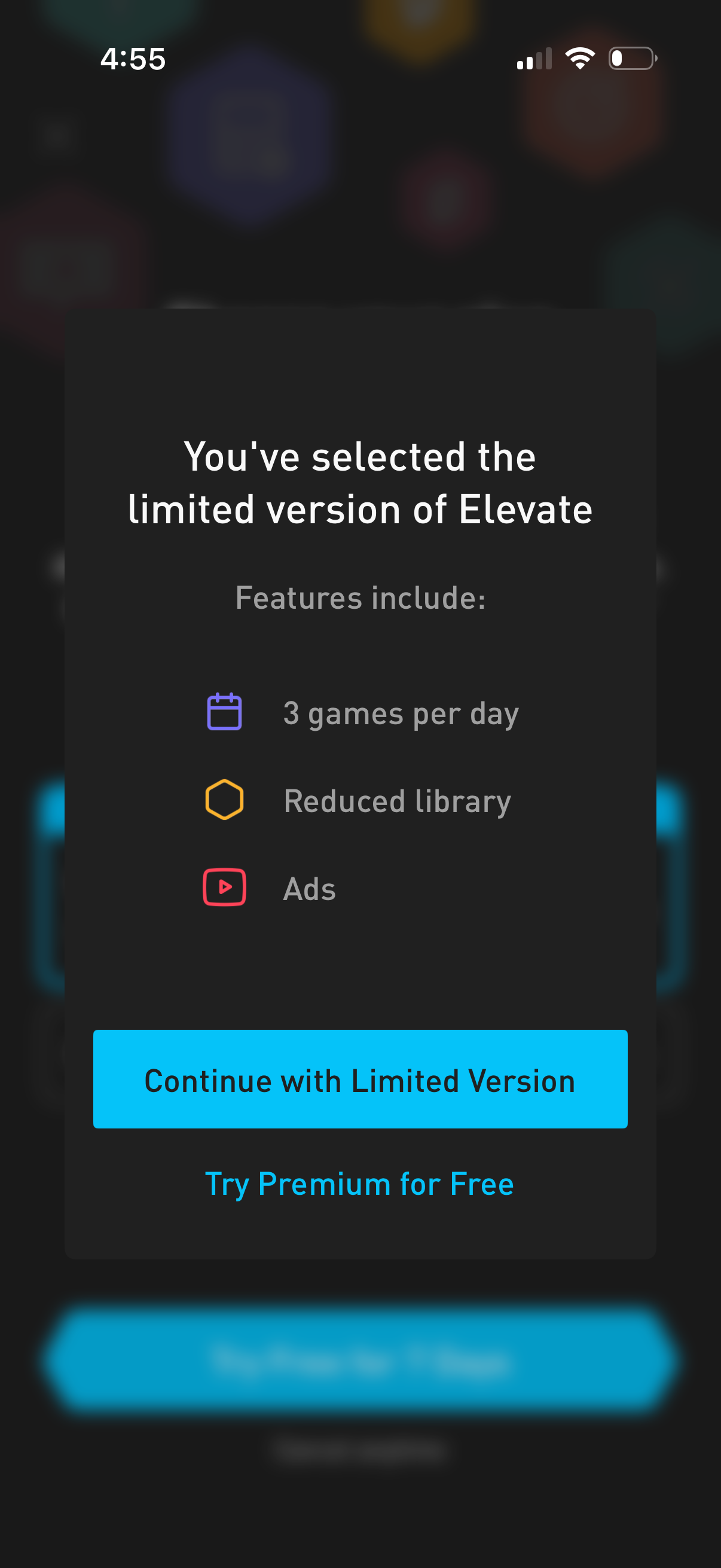
Modal paywall/upgrade prompt confirming the user selected a limited free version and listing restrictions like a daily game limit, reduced content library, and ads. Provides primary CTA to continue with the limited version and secondary option to try premium for free.
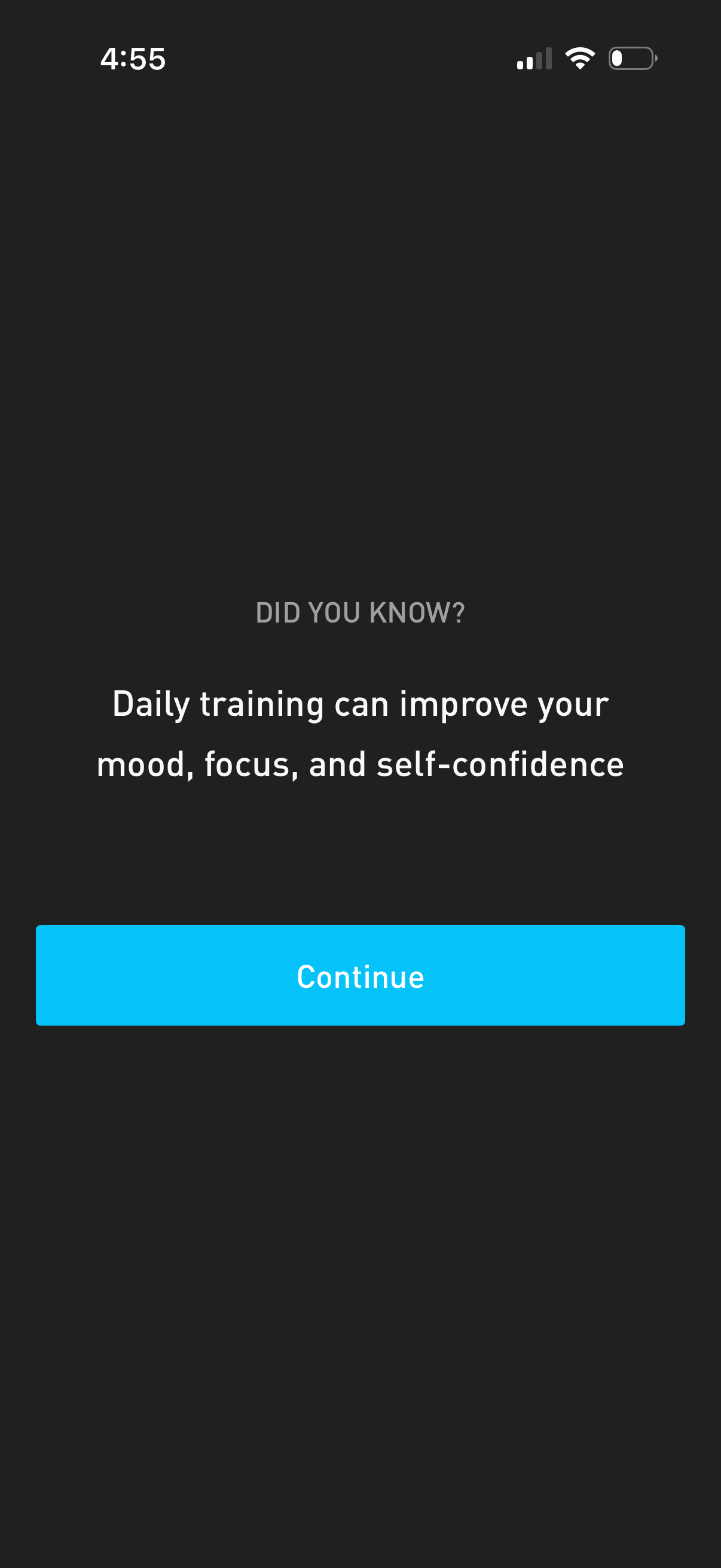
Motivational “Did you know? ” informational screen in a training or wellness app that shares a tip about benefits of daily training and prompts the user to proceed.
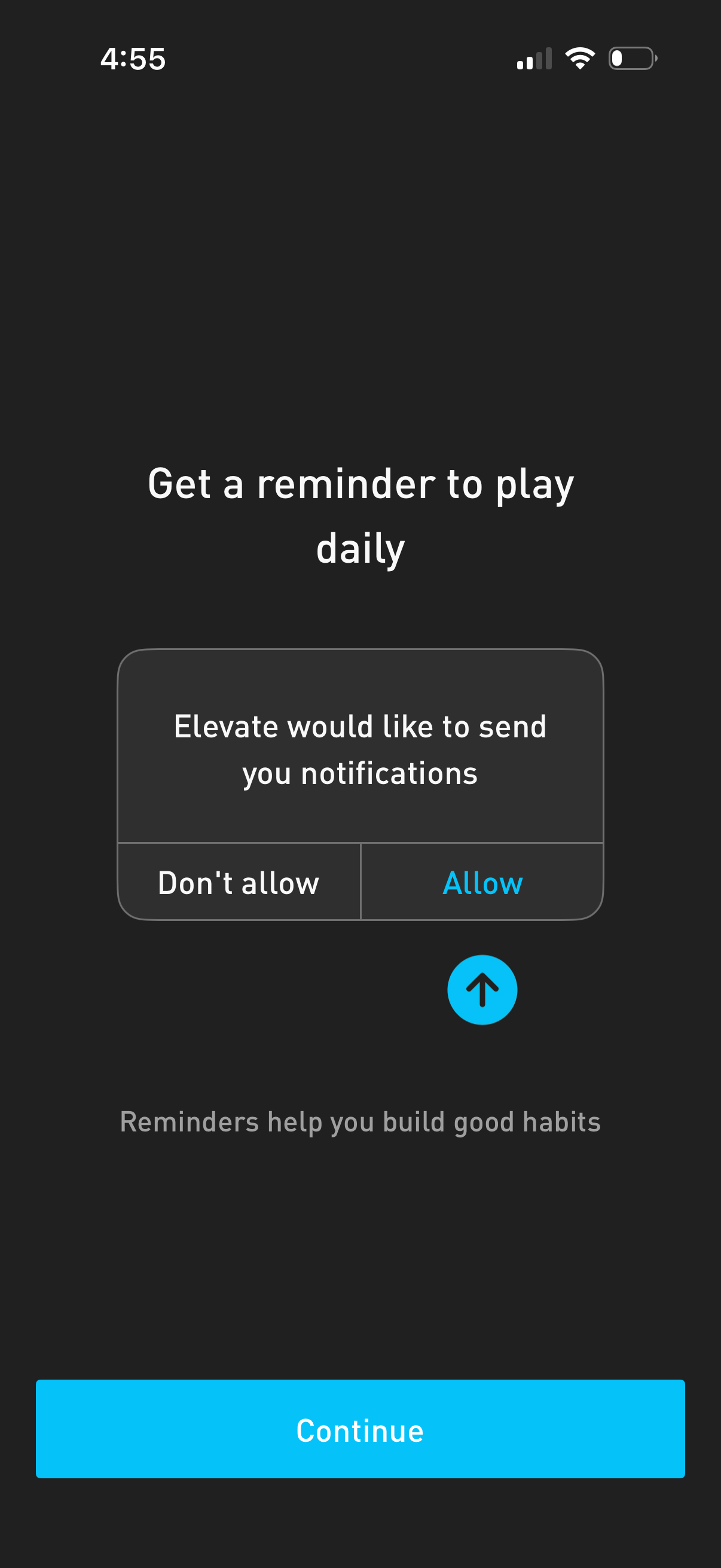
Onboarding screen prompting the user to enable daily reminders, showing an iOS push notification permission dialog with Allow/Don’t Allow options. The screen emphasizes building habits and includes a primary Continue button to proceed.
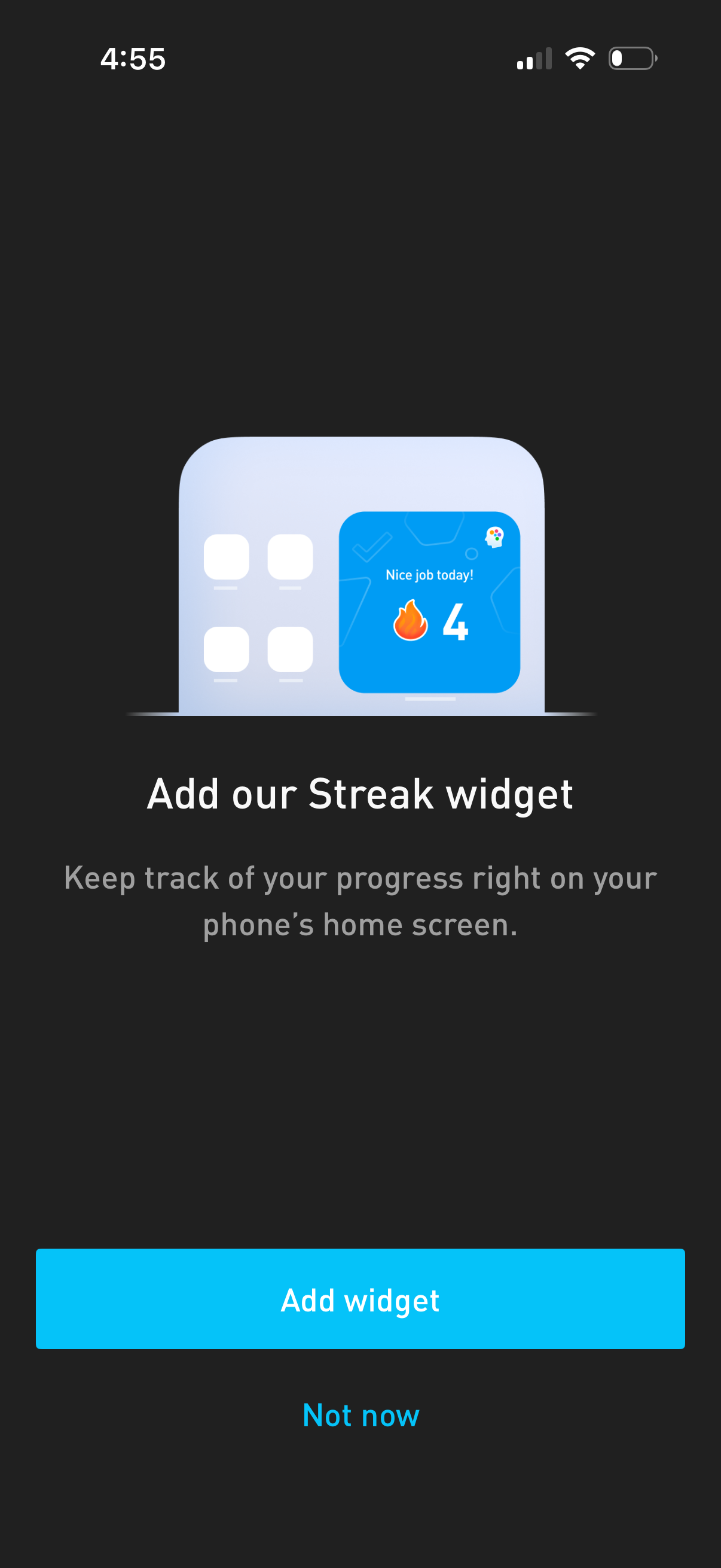
Onboarding prompt encouraging users to add a “Streak” home screen widget to track progress, showing a widget preview with streak count. Provides primary CTA to “Add widget” and a secondary option to dismiss with “Not now.
Onboarding completion/confirmation screen thanking the user and indicating setup is finished and they’re ready to start using the app. A primary “Continue” button advances into the main experience.
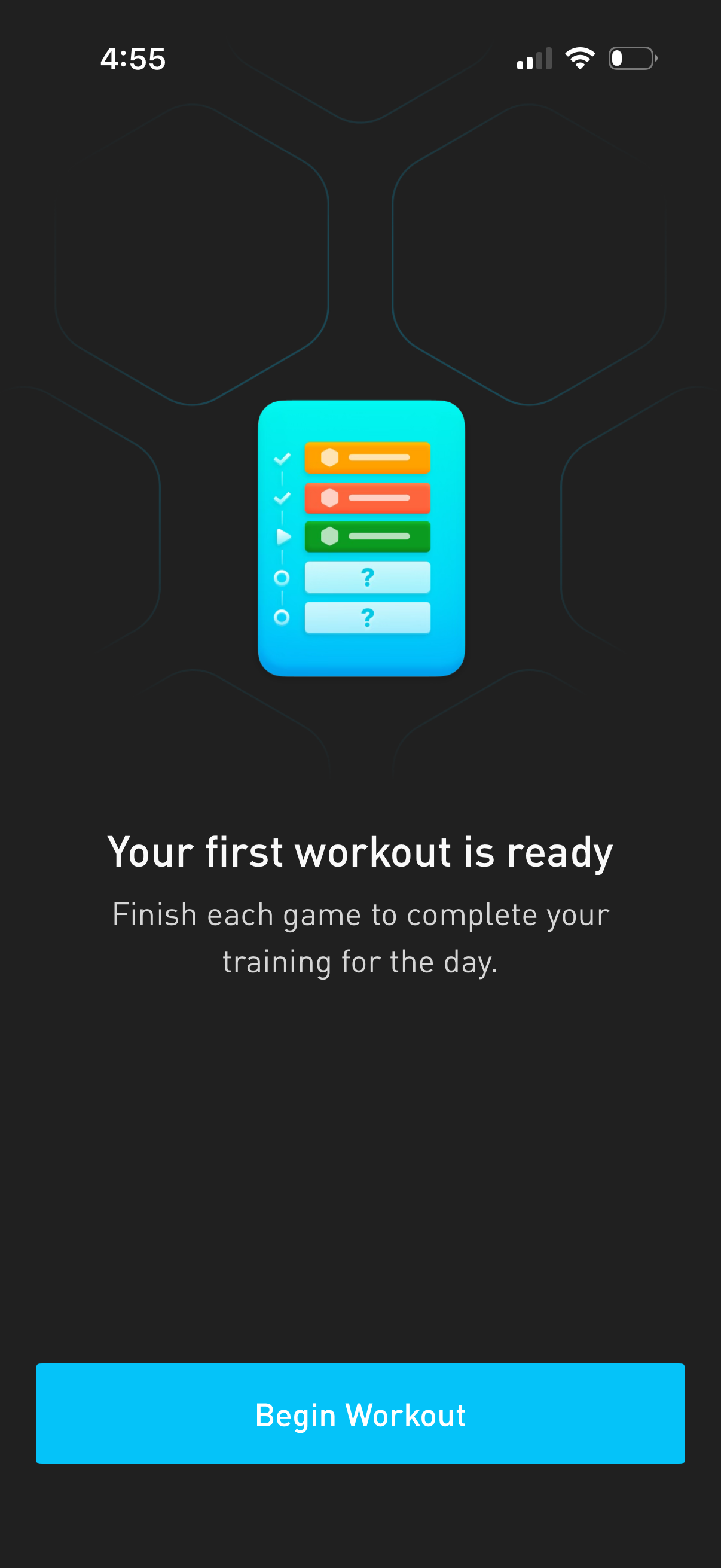
Workout readiness onboarding screen that informs the user their first workout is prepared and explains they must finish each game to complete daily training. Includes a primary call-to-action button to begin the workout.