Greeting Lesson Tutorial
Full-screen tutorial countdown/loading screen with the message “Tutorial starting in…” and a large countdown number indicating the tutorial is about to begin. It serves as a transitional onboarding state before entering the guided walkthrough.
Minimal splash/welcome screen for an Arabic-language app showing a “Marhaban/Hello” greeting on a solid background, with a small pause icon button in the top-left to pause/stop the intro.
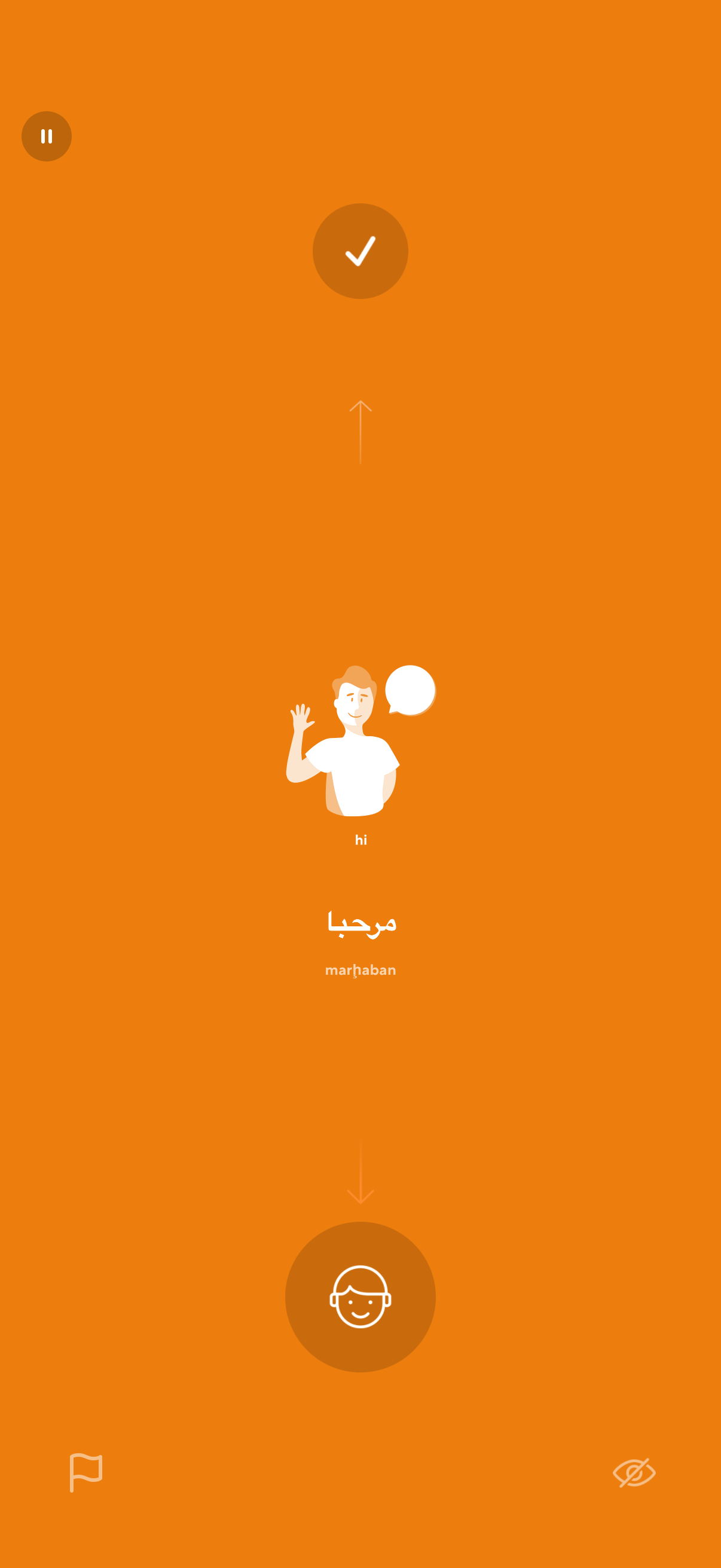
Language learning or translation practice screen showing a greeting phrase in multiple languages with pronunciation, prompting the user to interact by swiping/advancing. Includes controls to pause, report/flag content, toggle sound or visibility, and a progress/confirmation check at the top.
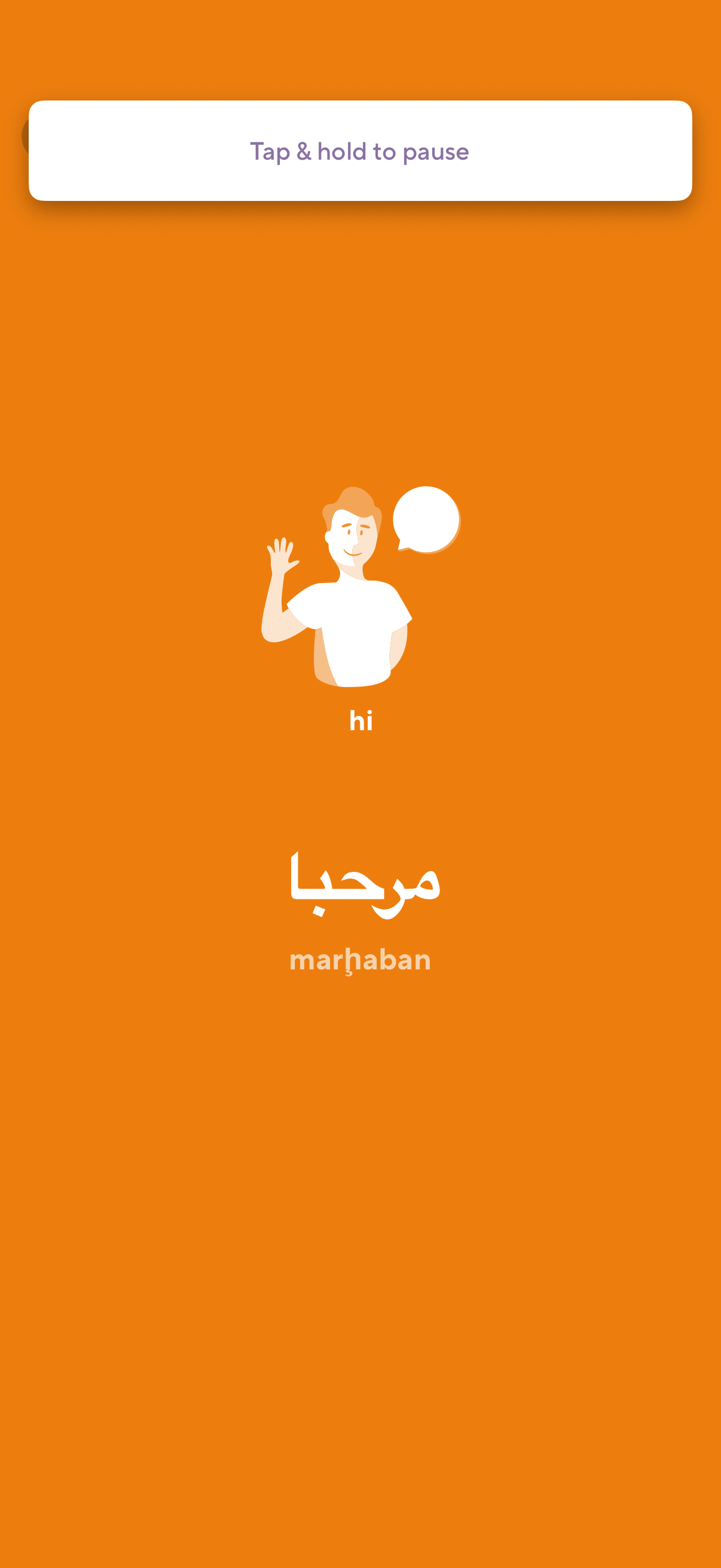
Animated onboarding or language-learning greeting screen showing “hi” with its Arabic translation “مرحبا” and transliteration “marḥaban,” alongside an illustration. A top hint instructs users to “Tap & hold to pause,” indicating a story-style lesson or flashcard playback control.
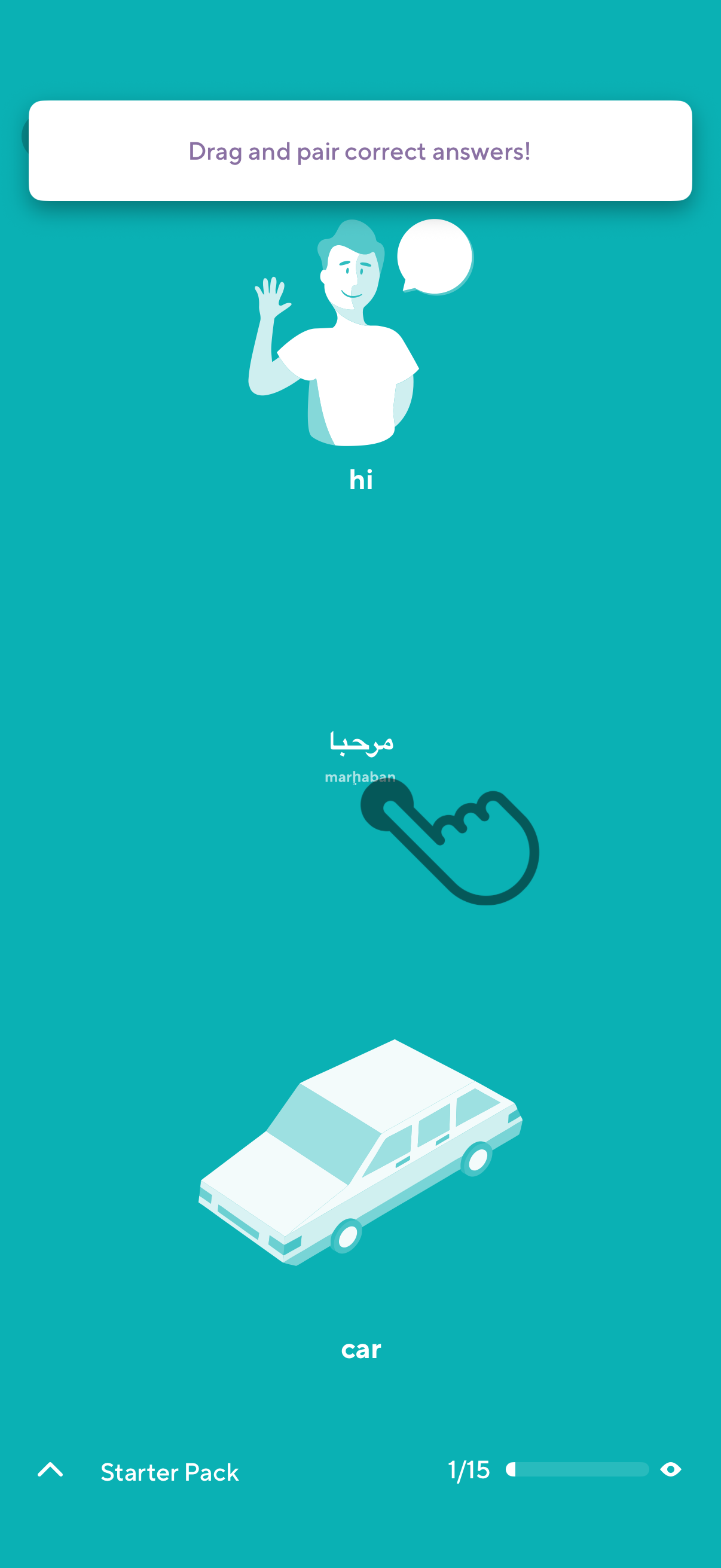
Language learning quiz screen with a drag-and-drop matching task prompting users to pair correct answers, showing an English word and its translated counterpart to connect. Includes lesson pack navigation and a progress indicator (e.
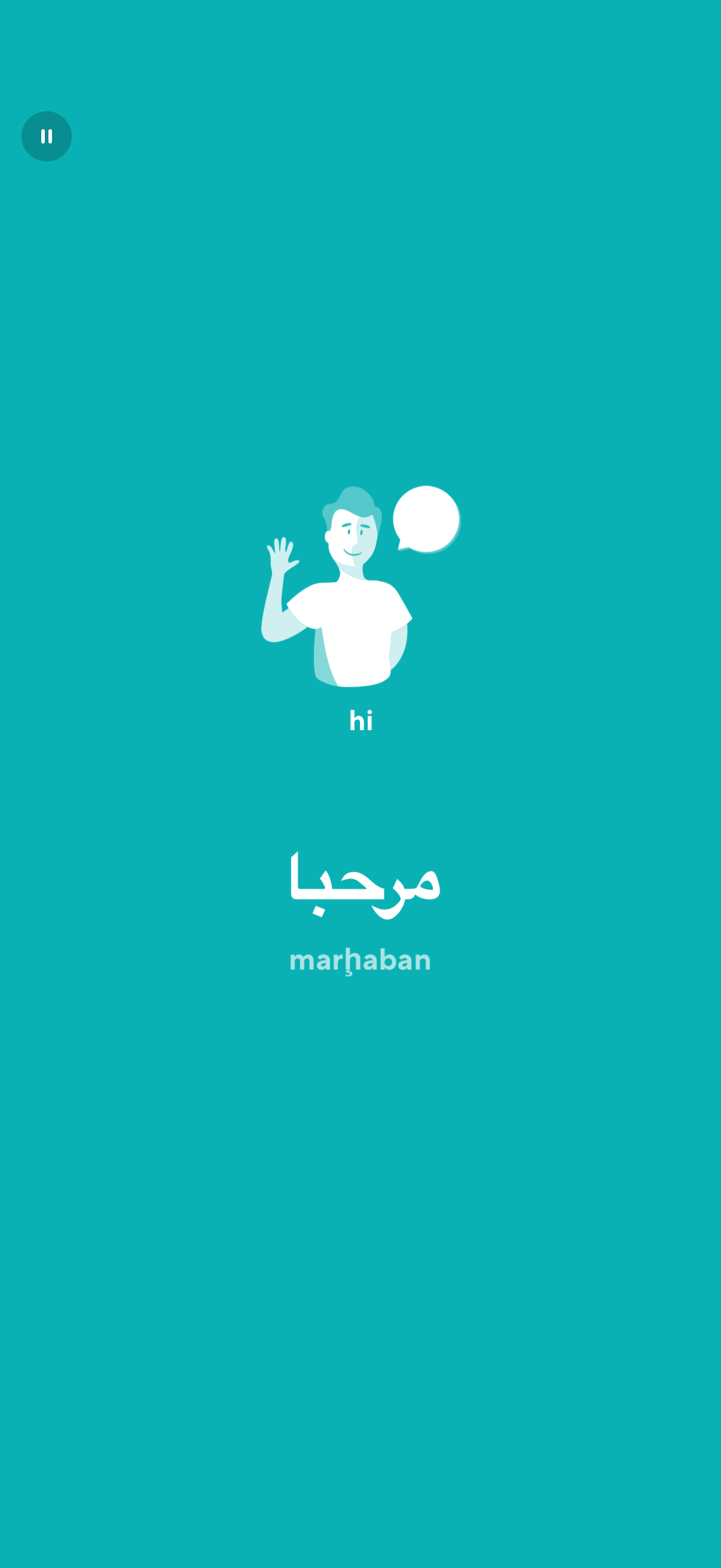
Minimal welcome or onboarding splash screen showing a greeting with “hi” and “marhaban” in Arabic, indicating language learning or multilingual introduction. A pause button in the corner suggests this is part of an auto-advancing lesson or tutorial sequence.
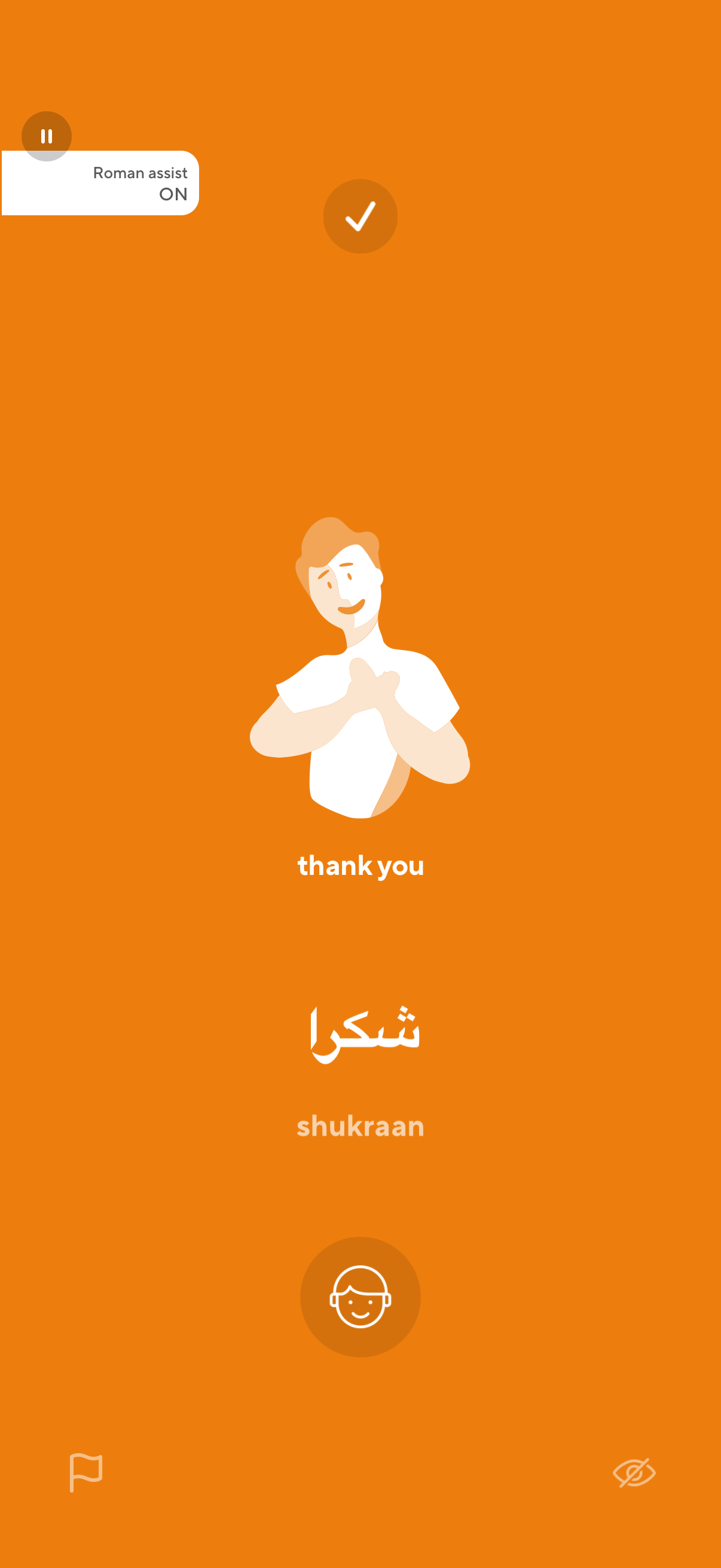
Language learning confirmation screen showing a “thank you” phrase with Arabic script and transliteration, indicating the Roman assist feature is turned on. Includes a completion checkmark and simple navigation/controls for continuing or accessing help/settings.
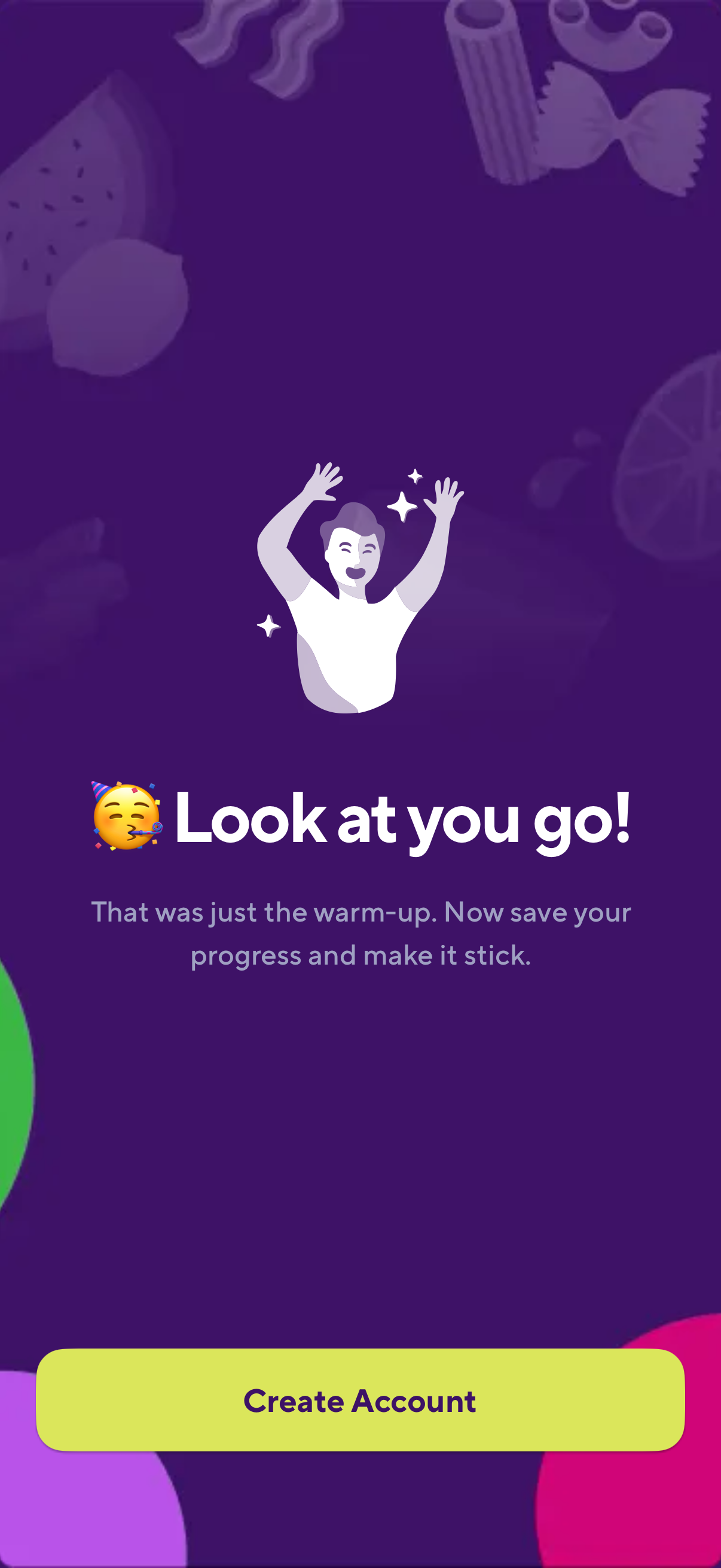
Celebratory post-onboarding screen congratulating the user for completing a warm-up and prompting them to save progress by creating an account. Includes a prominent “Create Account” call-to-action button.
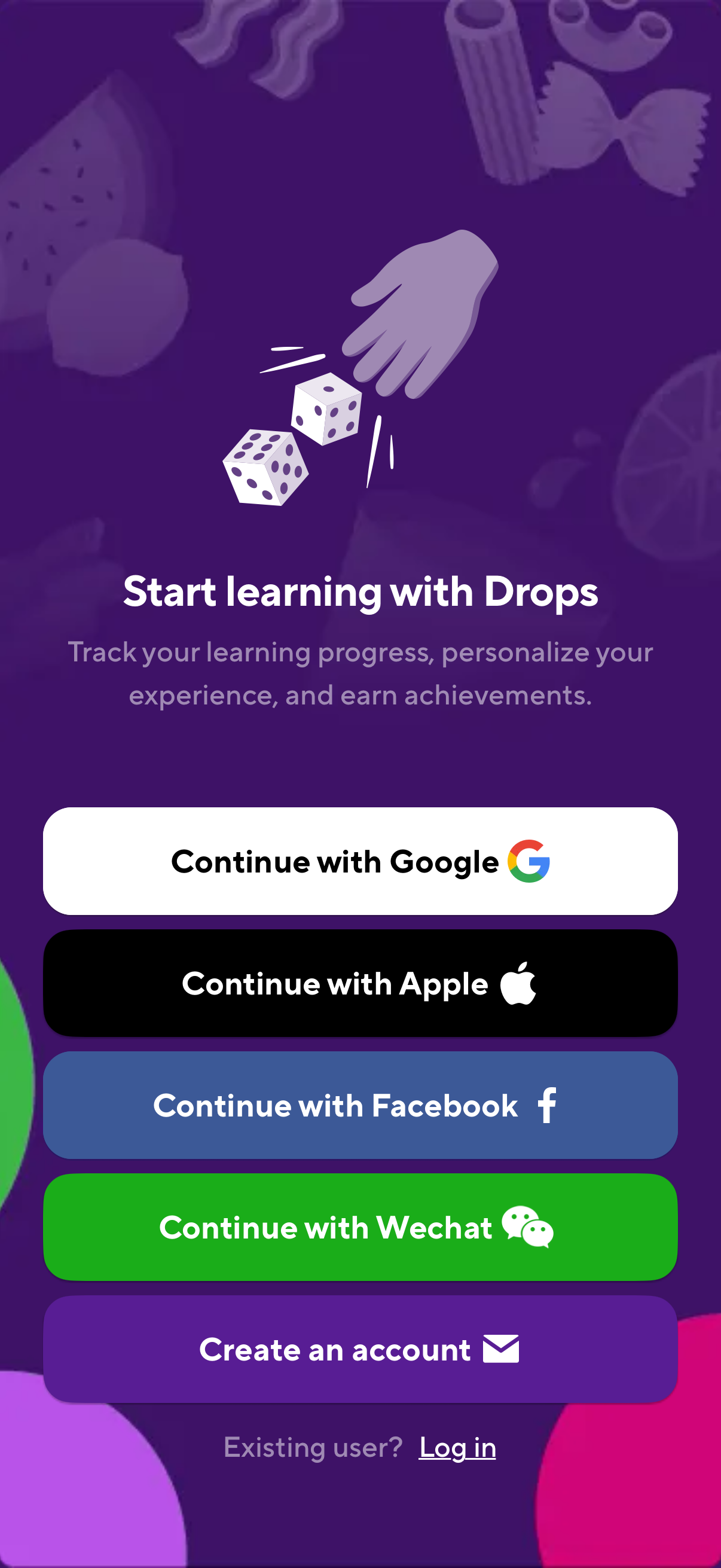
Onboarding welcome screen for a learning app introducing “Drops,” highlighting benefits like tracking progress, personalization, and achievements. Provides multiple authentication options with large buttons to continue with Google, Apple, Facebook, or WeChat, plus create an account and a link to log in for existing users.
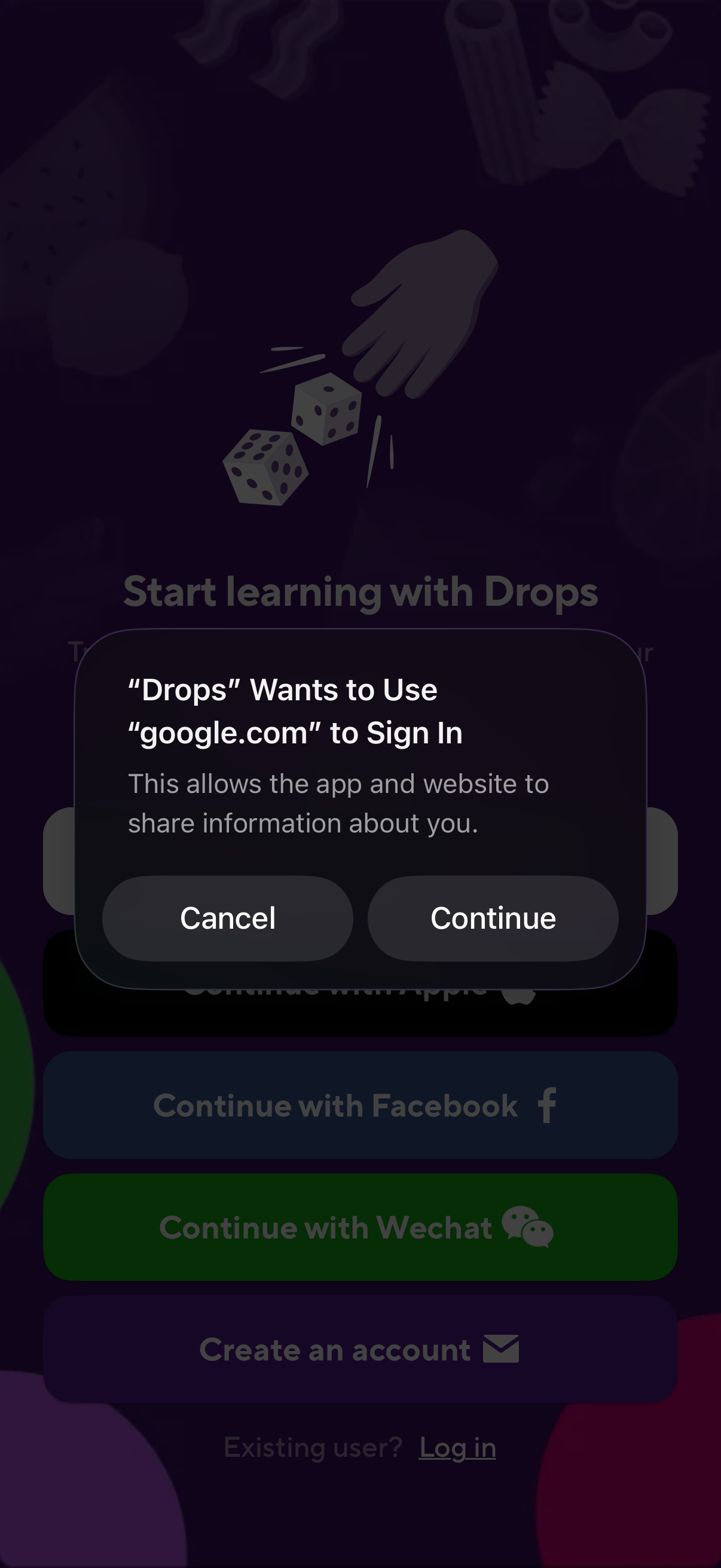
A sign-in/onboarding screen for a learning app showing multiple authentication options (Continue with Apple, Facebook, WeChat, or create an account) with an iOS permission modal asking to use a website (google. com) to sign in, offering Cancel or Continue.
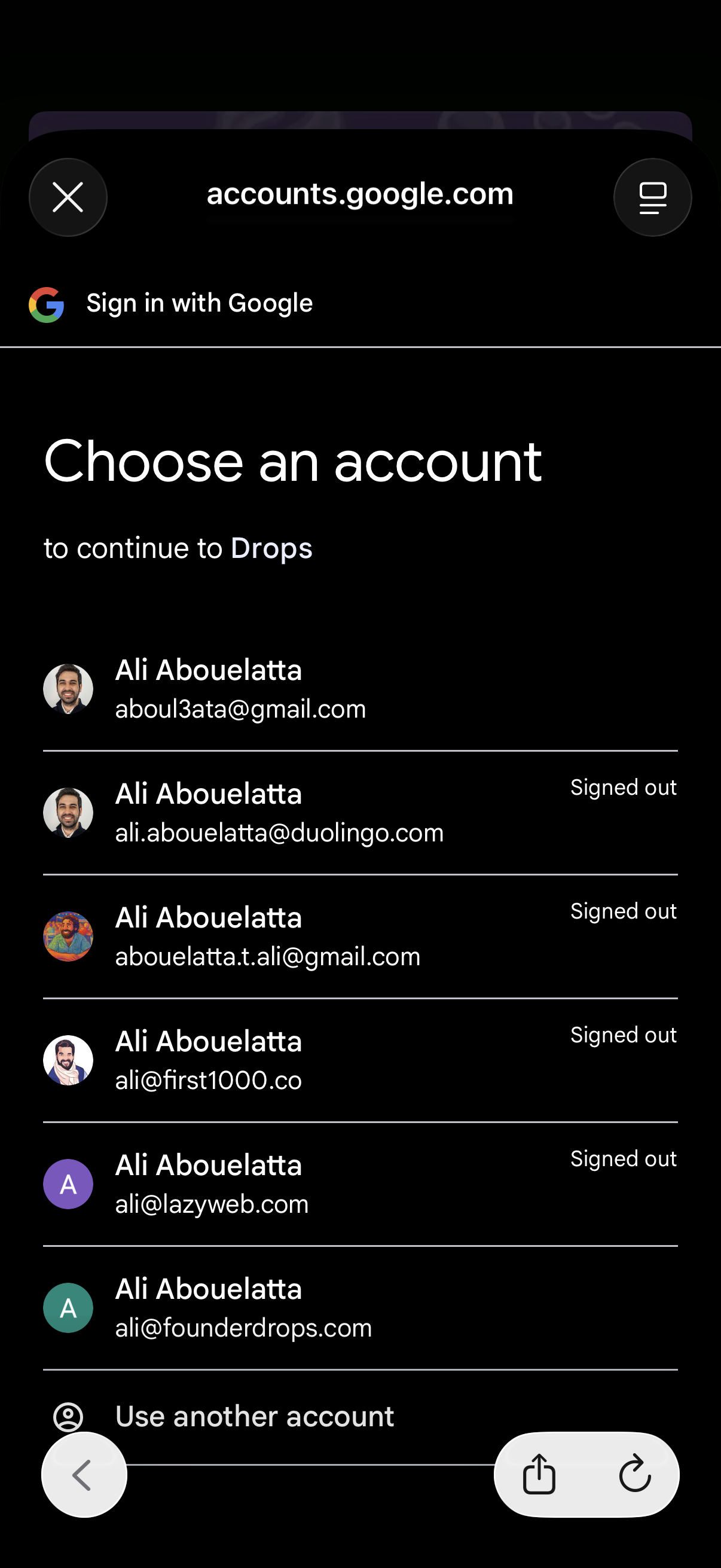
Google OAuth sign-in screen prompting the user to choose an account to continue to an app, showing a list of previously used Google accounts with avatars and signed-out status. Includes an option to use another account and controls to close the login modal.
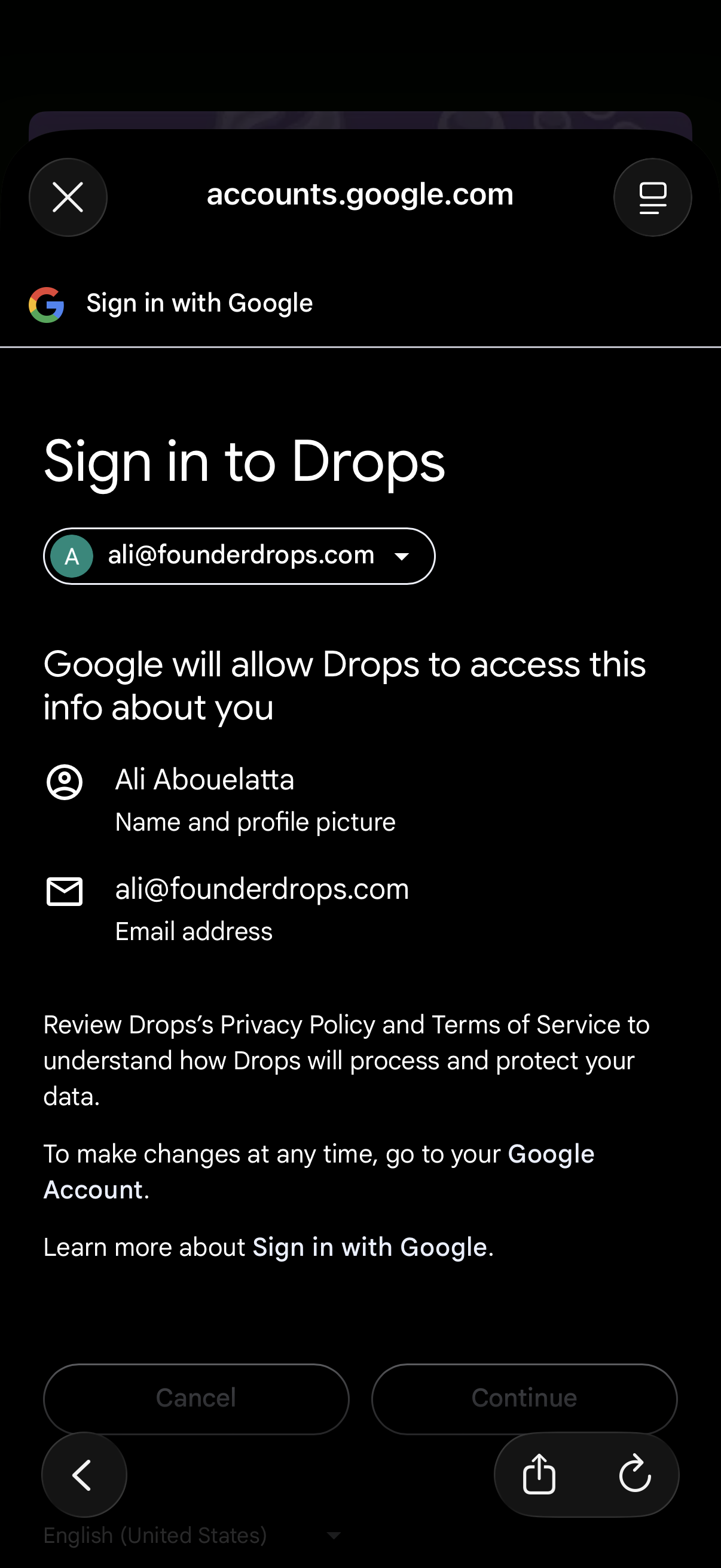
Google OAuth “Sign in with Google” consent screen for signing in to an app, showing the selected Google account dropdown and the list of data the app will access (name/profile photo and email). Primary actions are Cancel or Continue to grant permission and proceed with login.