Onboarding
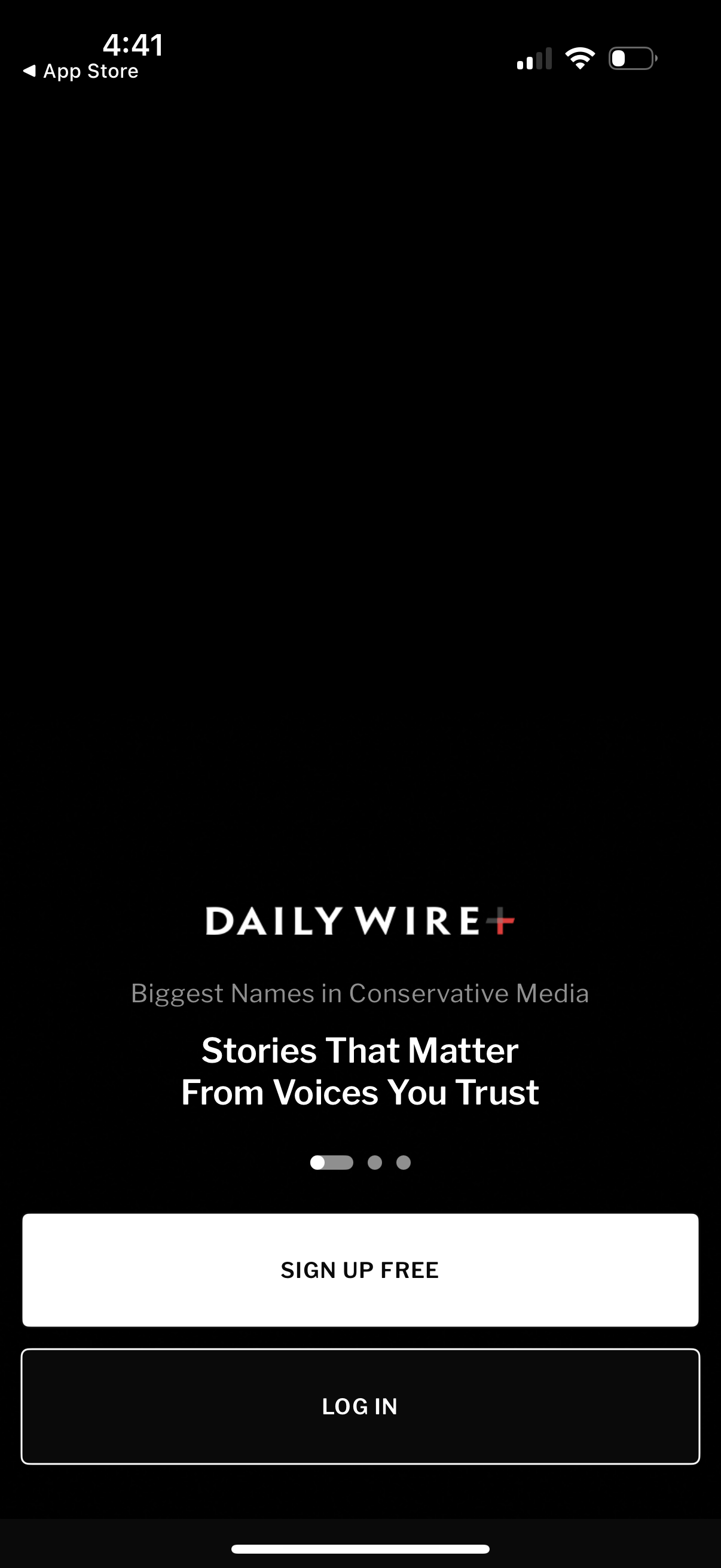
App welcome/onboarding screen for a news and media service highlighting a value proposition with carousel indicators, offering primary actions to Sign up free or Log in. Includes a back link to the App Store and uses a dark, minimal layout focused on account creation and sign-in.
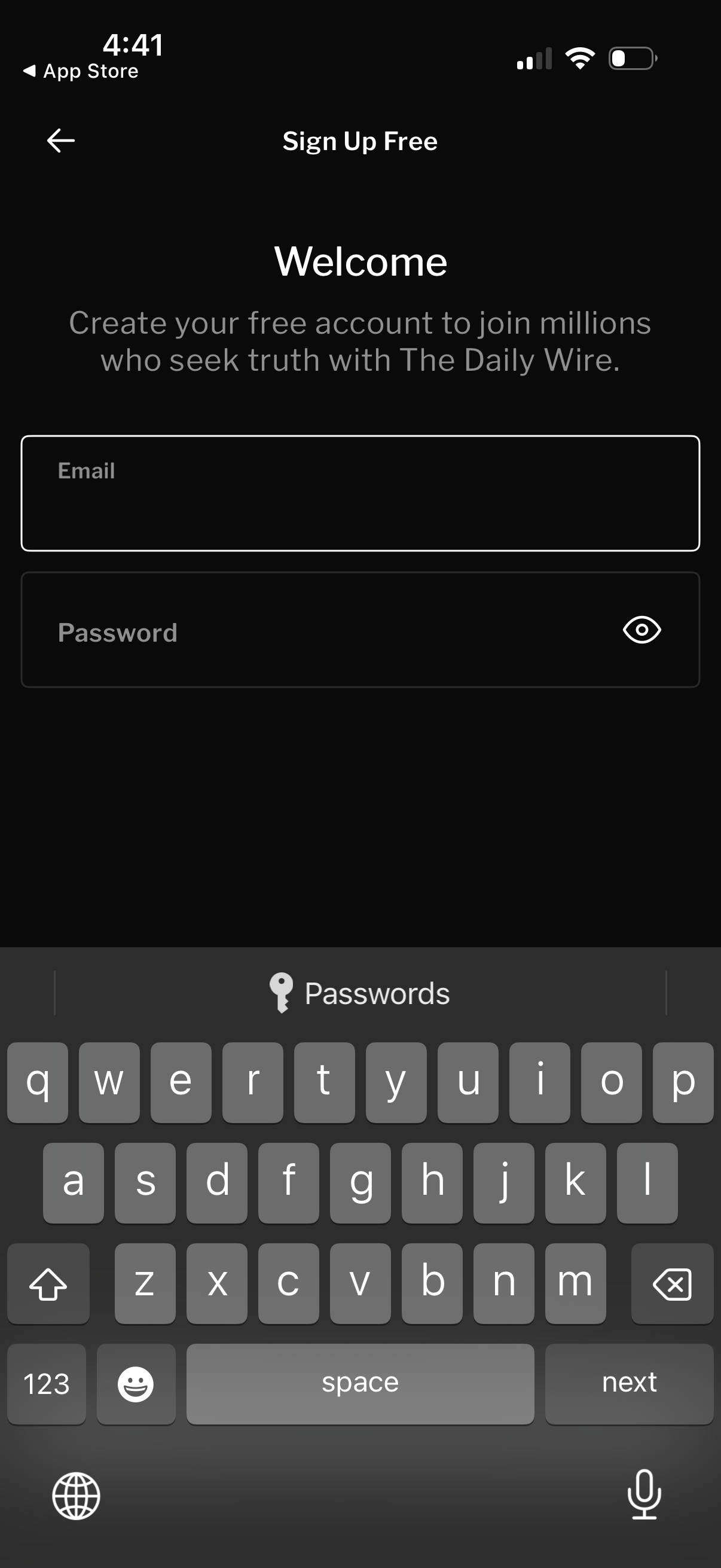
Dark-themed sign up screen for creating a free account, featuring a welcome message and form fields for email and password with a show/hide password icon and a back navigation arrow.
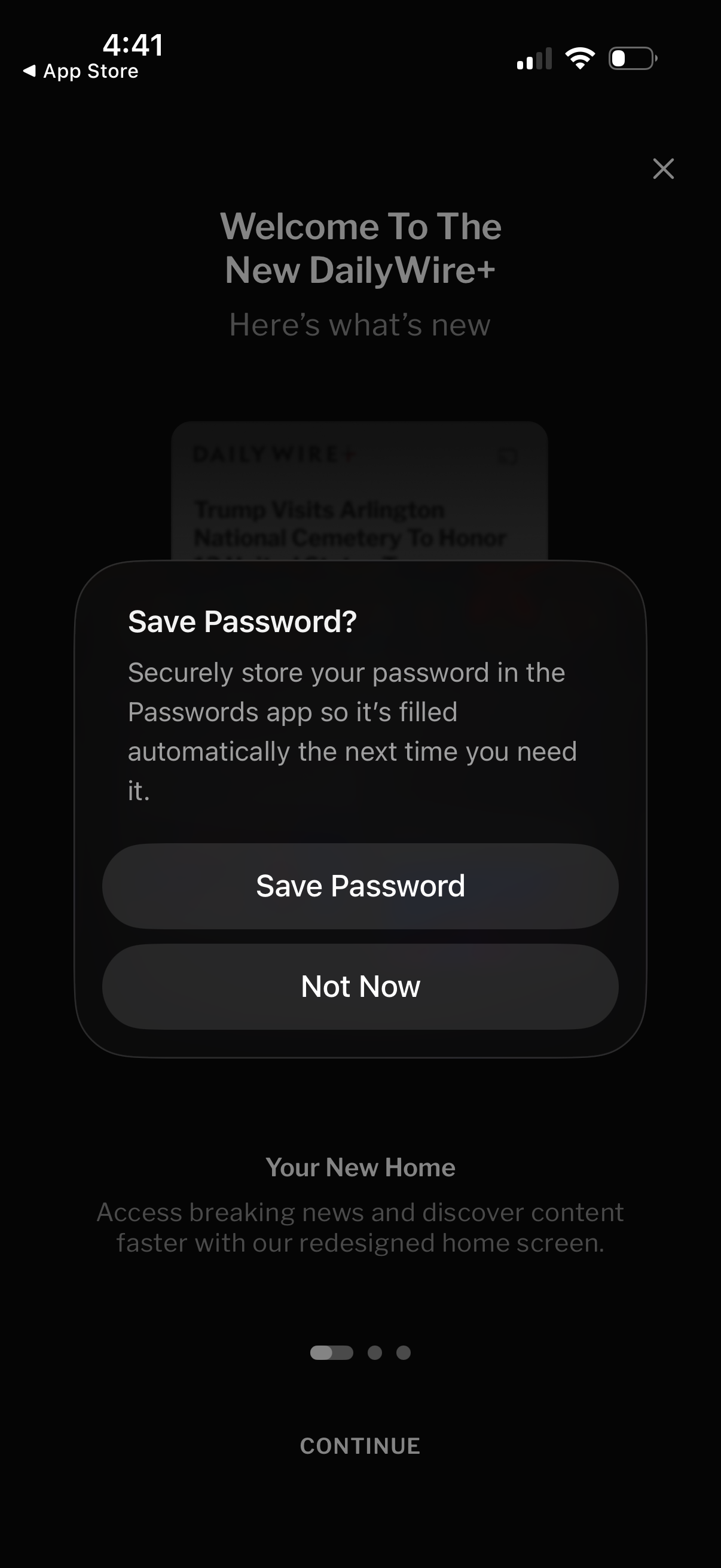
A system modal prompts the user to save their login password to the device password manager for autofill, with primary and secondary actions “Save Password” and “Not Now. ” The prompt overlays an app onboarding/what’s-new screen that can be dismissed with a close icon.
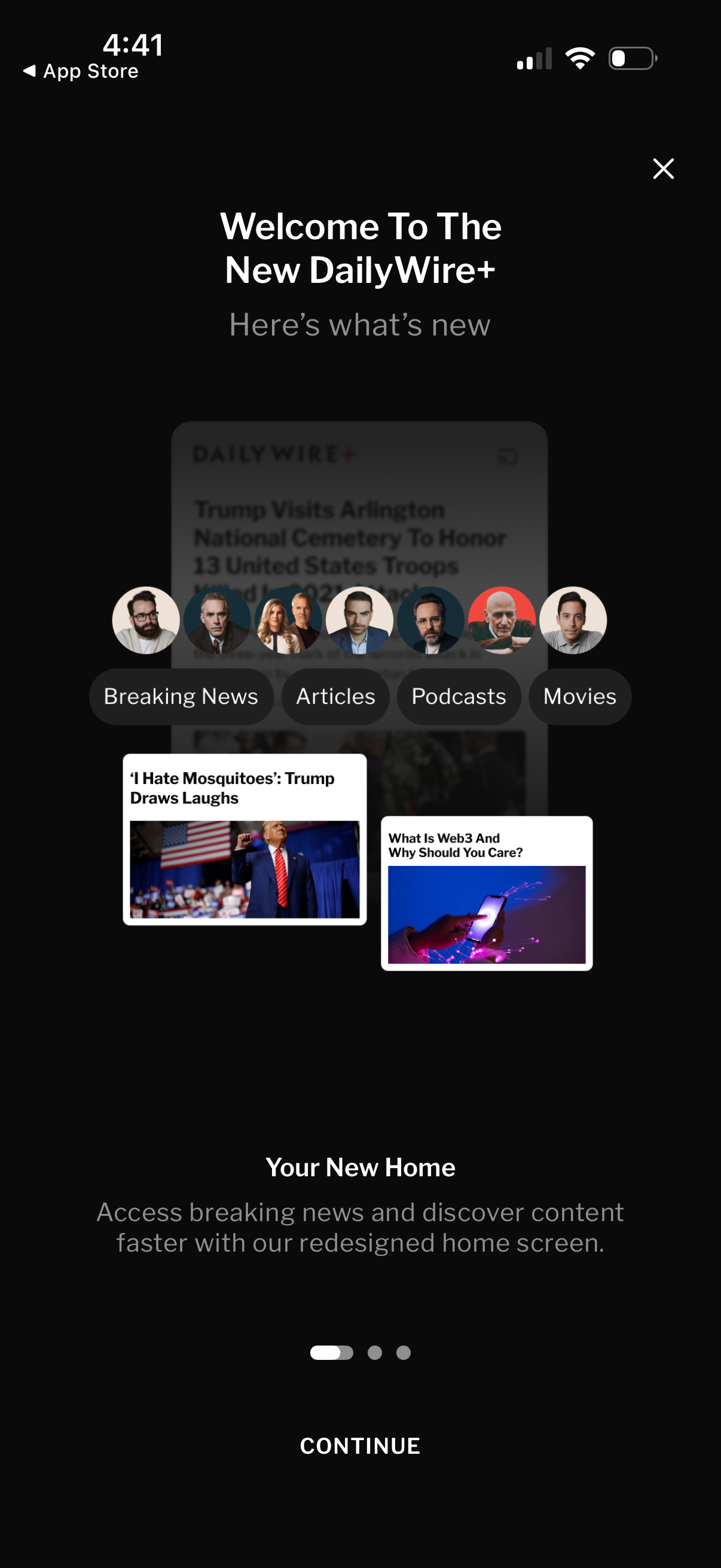
Onboarding “what’s new” update screen introducing a redesigned news app home with content categories like Breaking News, Articles, Podcasts, and Movies plus preview cards. Users can close the modal or tap Continue to proceed through the carousel of new features.
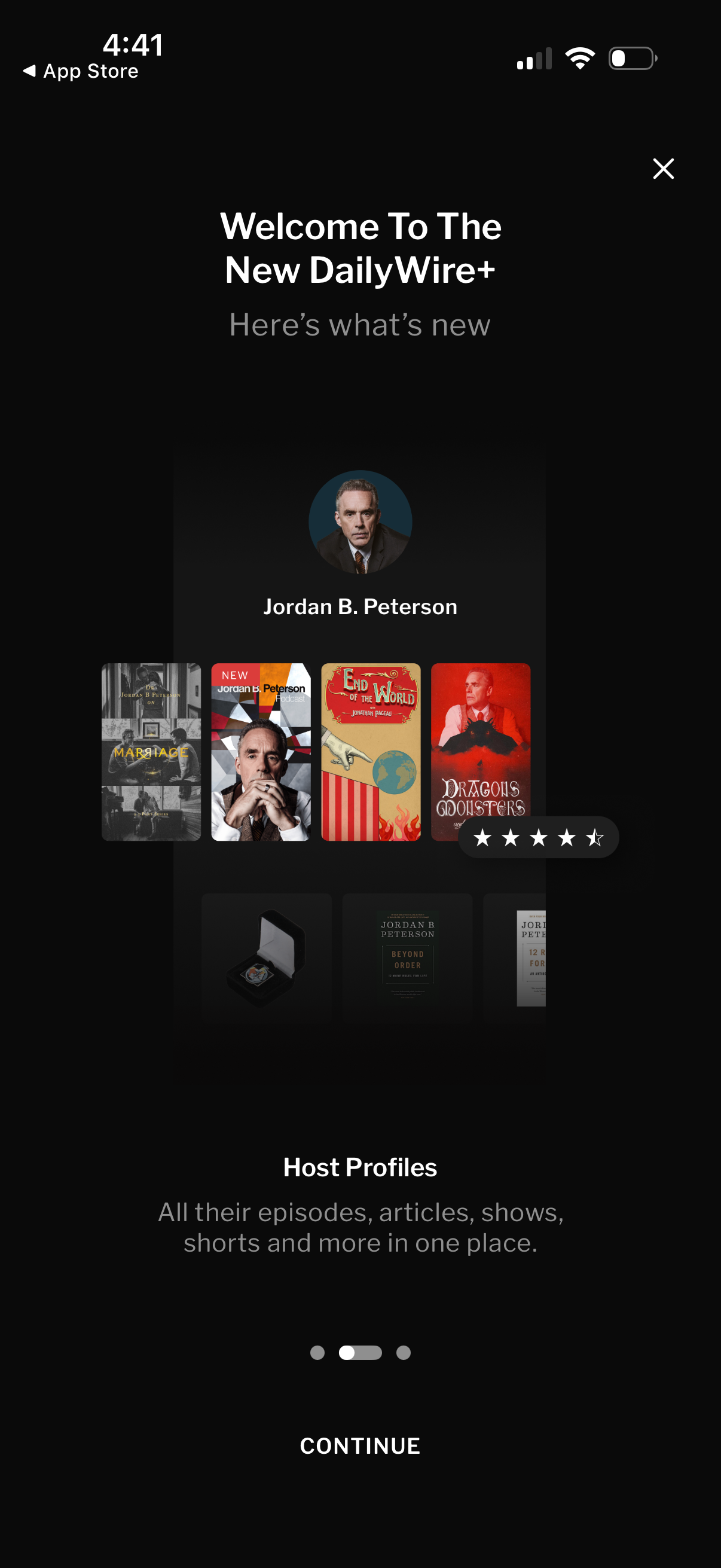
Onboarding “What’s new” screen introducing an app update that highlights new Host Profiles, showing a host card with avatar/name and a horizontal carousel of their content (episodes, articles, shows). Users can tap Continue to proceed or close the modal with an X, with pagination dots indicating multiple intro slides.
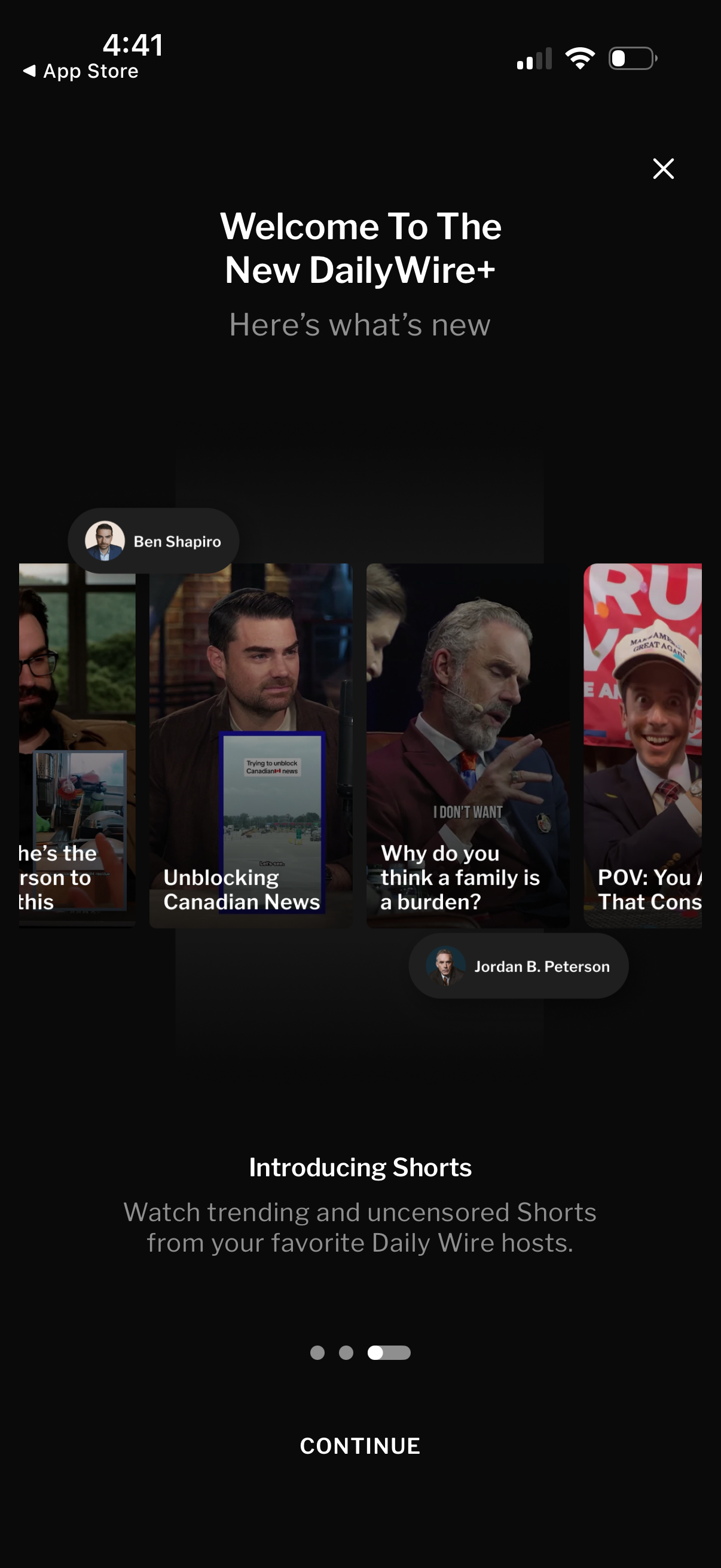
Onboarding “What’s new” welcome screen for a media/streaming app update introducing a Shorts feature, showing a horizontal carousel of short-video previews with creator labels. Includes pagination dots, a primary Continue button to proceed, and a close (X) to dismiss.
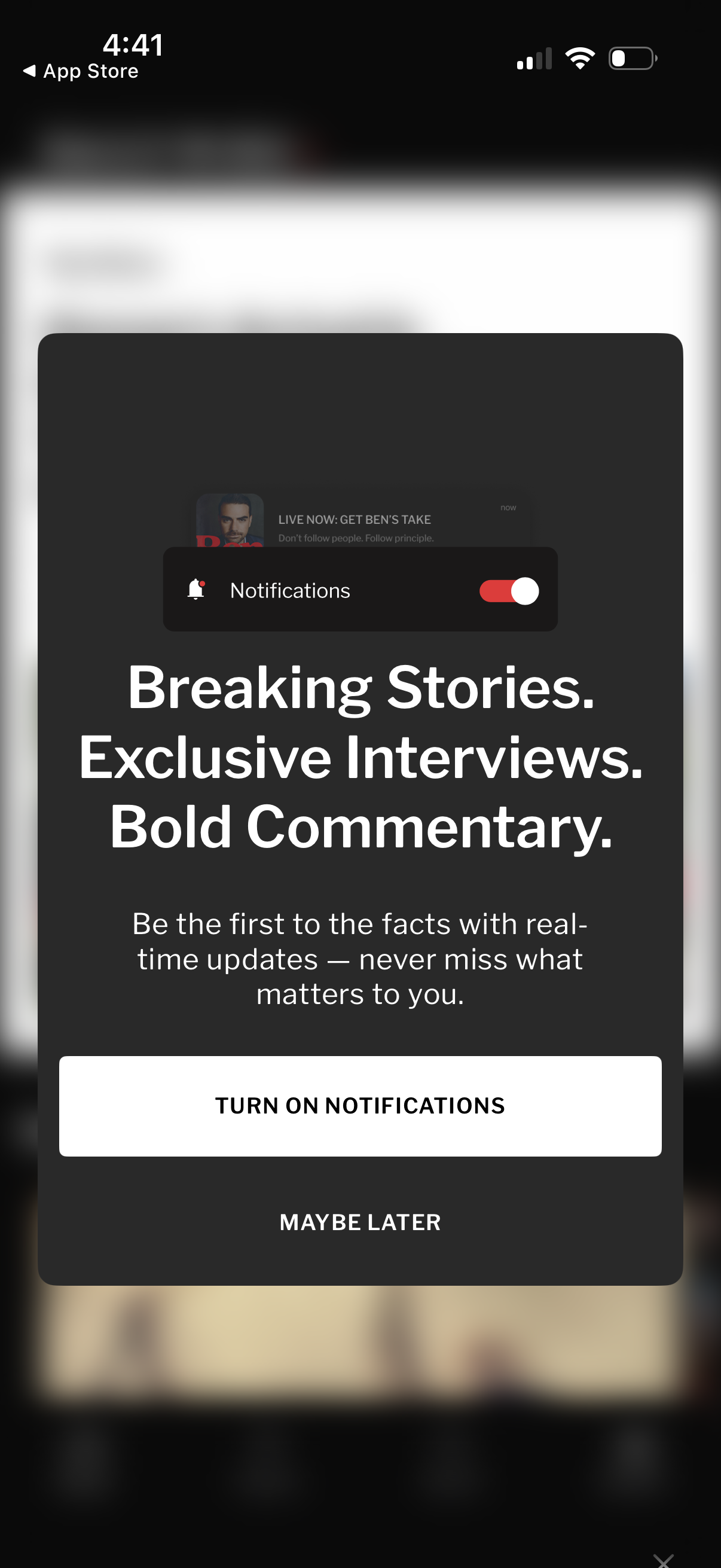
Fullscreen onboarding modal prompting the user to enable push notifications for real-time news updates, featuring a notification toggle and explanatory marketing copy. Primary CTA is “Turn on notifications” with a secondary “Maybe later” option to dismiss or postpone.
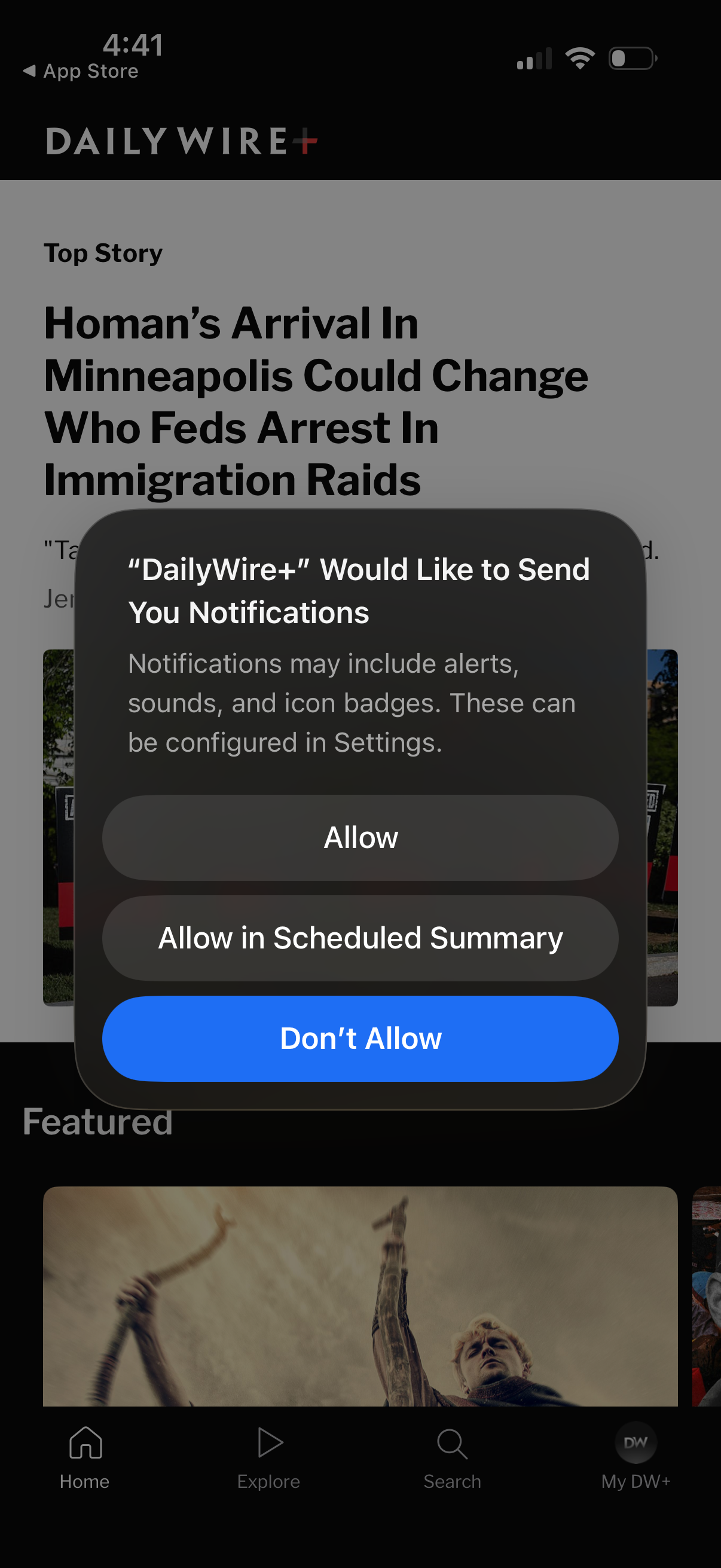
iOS push notification permission prompt overlaying a news app home feed, asking to allow notifications with options for Allow, Allow in Scheduled Summary, or Don’t Allow. Background shows the top story headline and bottom tab navigation for Home, Explore, Search, and profile/account.

News app home feed showing a “Top Story” article card with headline, excerpt, author, read time, timestamp, and a large featured image, followed by a “Featured” section carousel. Bottom tab navigation provides Home, Explore, Search, and account/profile access.