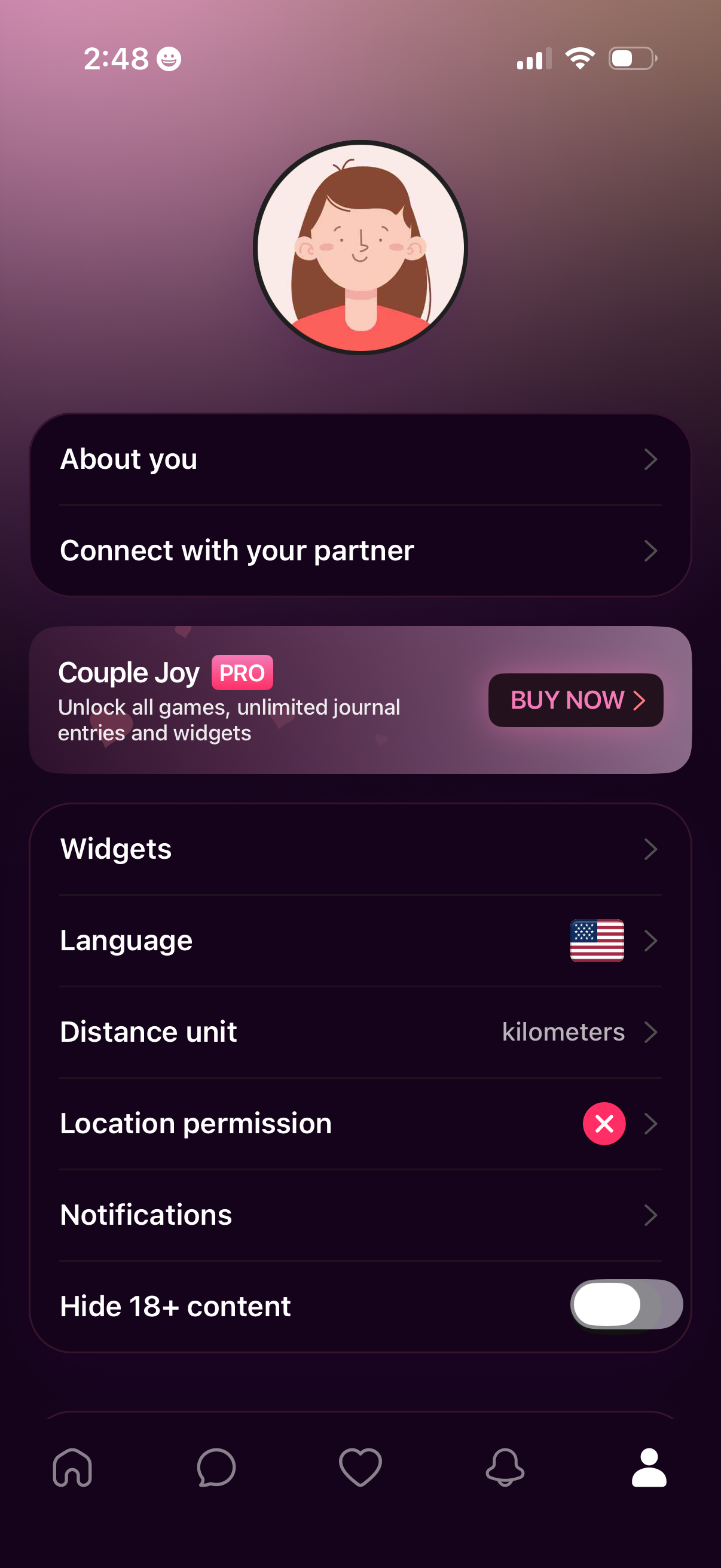
Profile/settings screen for a couples relationship app with options to edit “About you,” connect with a partner, and manage app preferences like widgets, language, distance units, location permissions, and notifications, plus a toggle to hide 18+ content. Includes an upsell banner for a Pro subscription with a “Buy now” call to action.
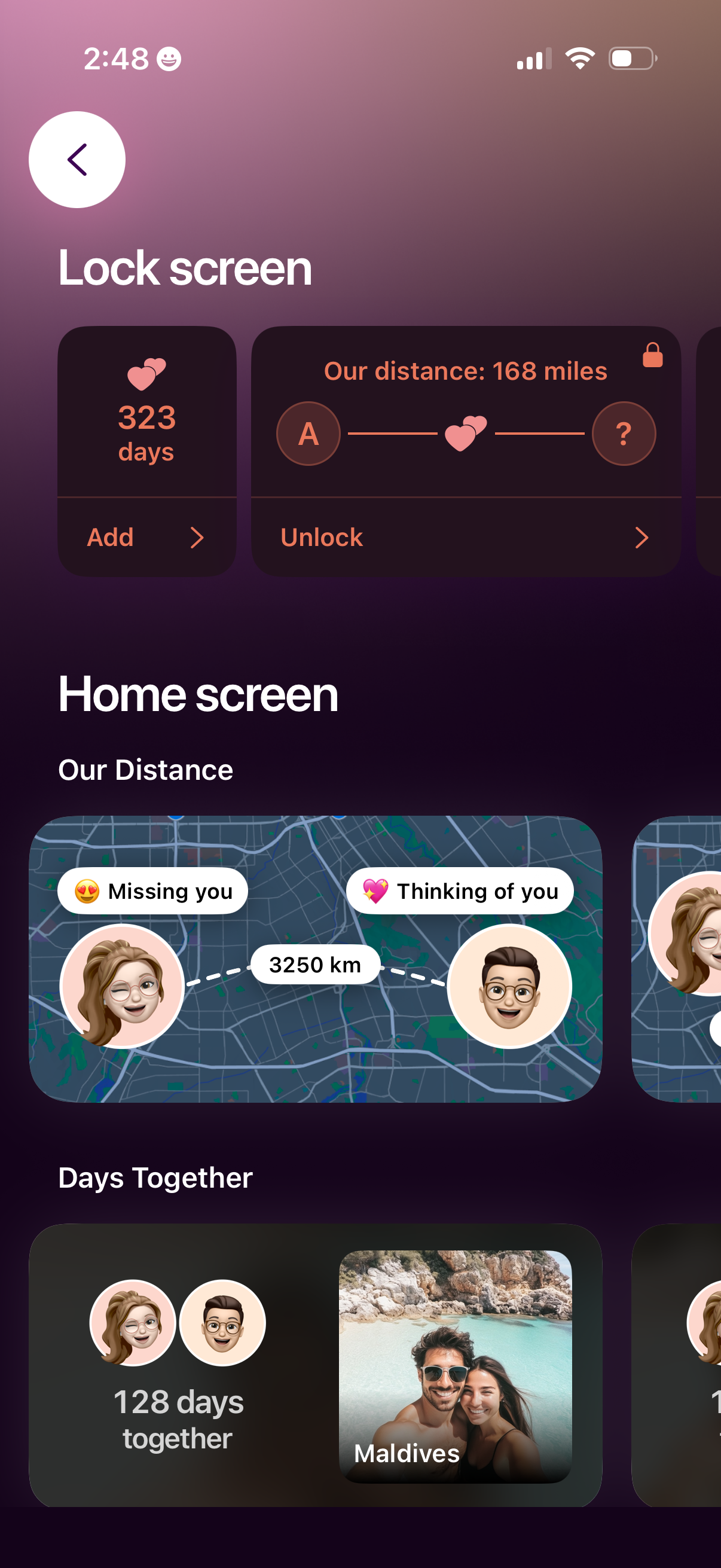
Widget customization screen for a couples/relationship app showing preview cards for Lock screen and Home screen widgets, including days together and long-distance tracking with an “unlock” action. Users can add and configure different widget styles like a map-based distance widget and a days counter to display on their phone widgets.
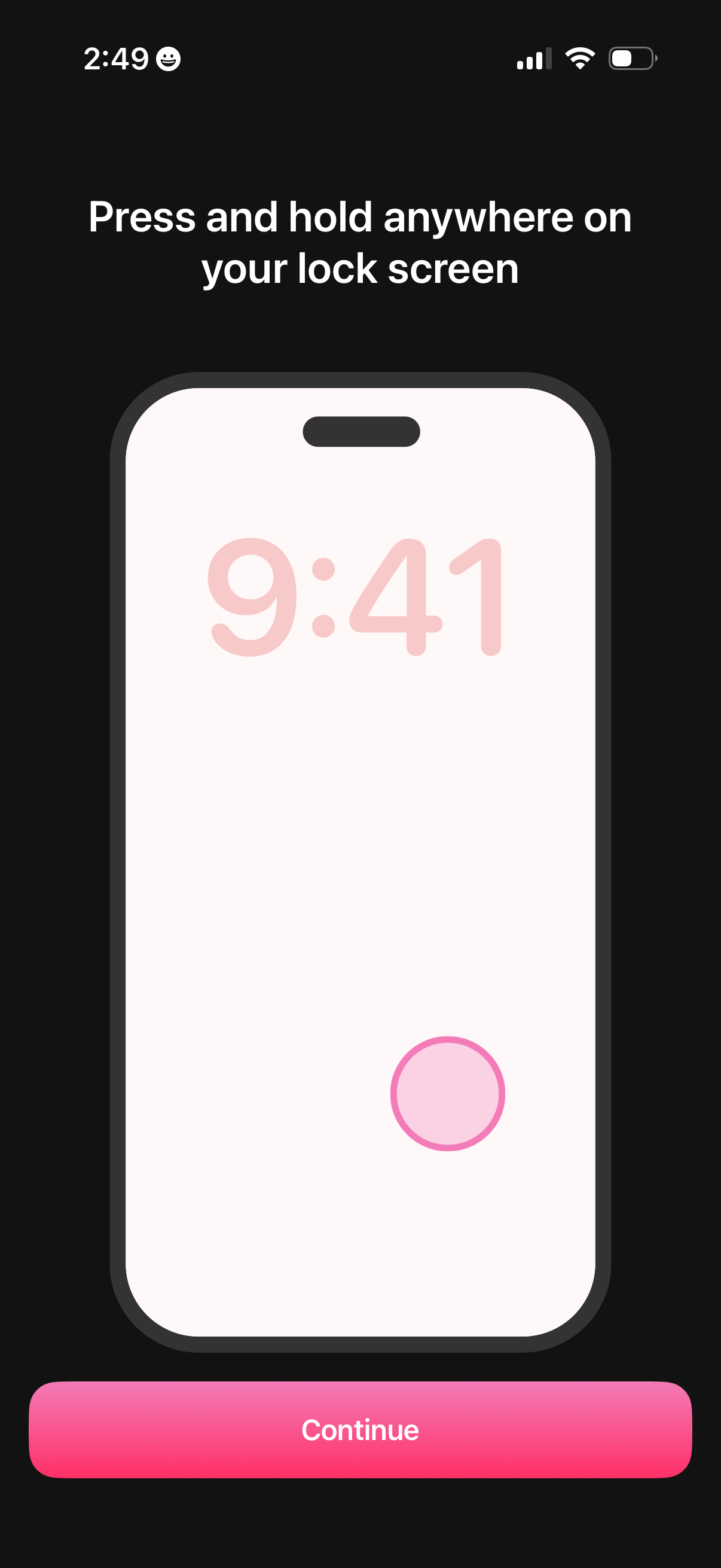
Onboarding tutorial screen explaining how to customize the iPhone lock screen by pressing and holding anywhere on the lock screen, illustrated with a lock screen mockup. A prominent “Continue” button advances to the next step.
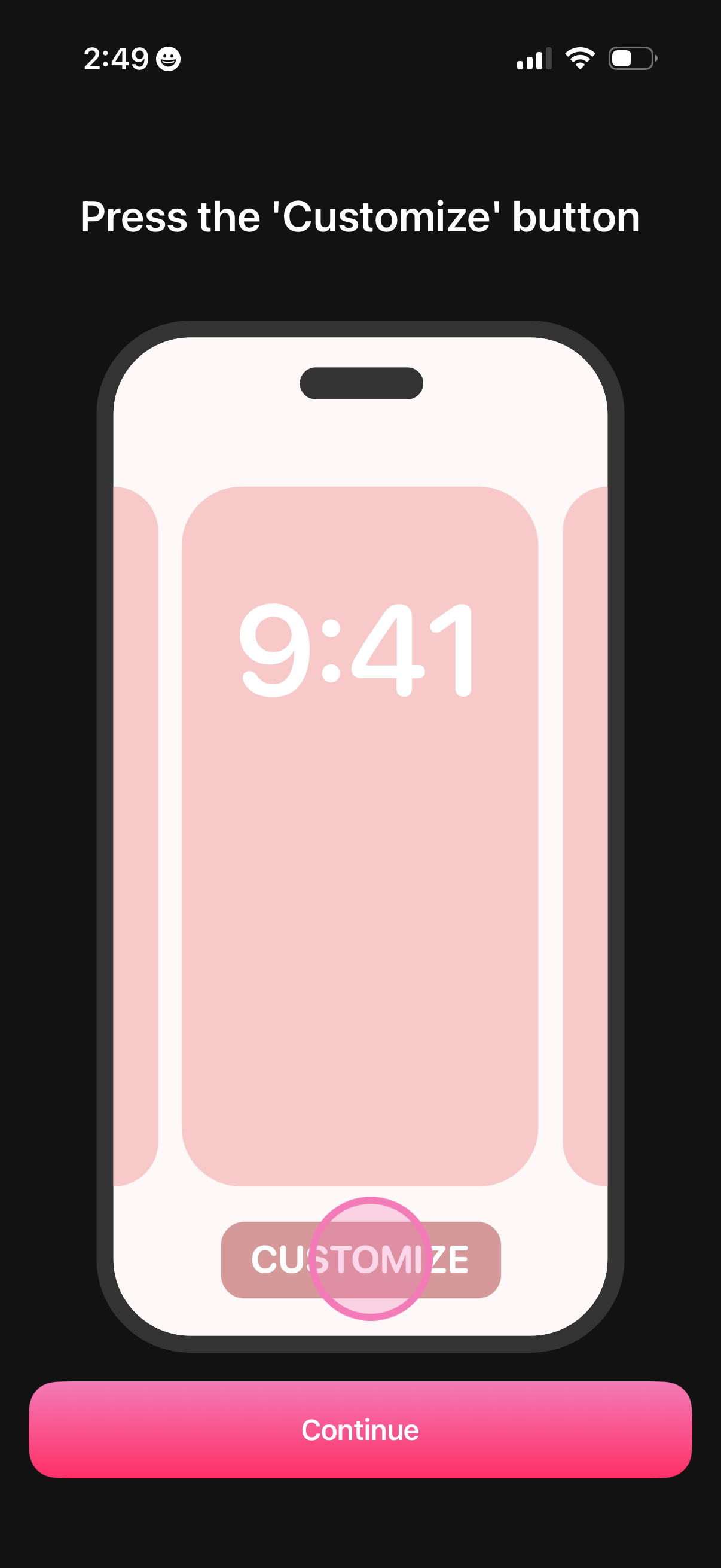
Onboarding instruction screen that guides users to tap the “Customize” button on a phone lock screen preview, with a highlighted callout. Includes a primary “Continue” button to proceed to the next step.
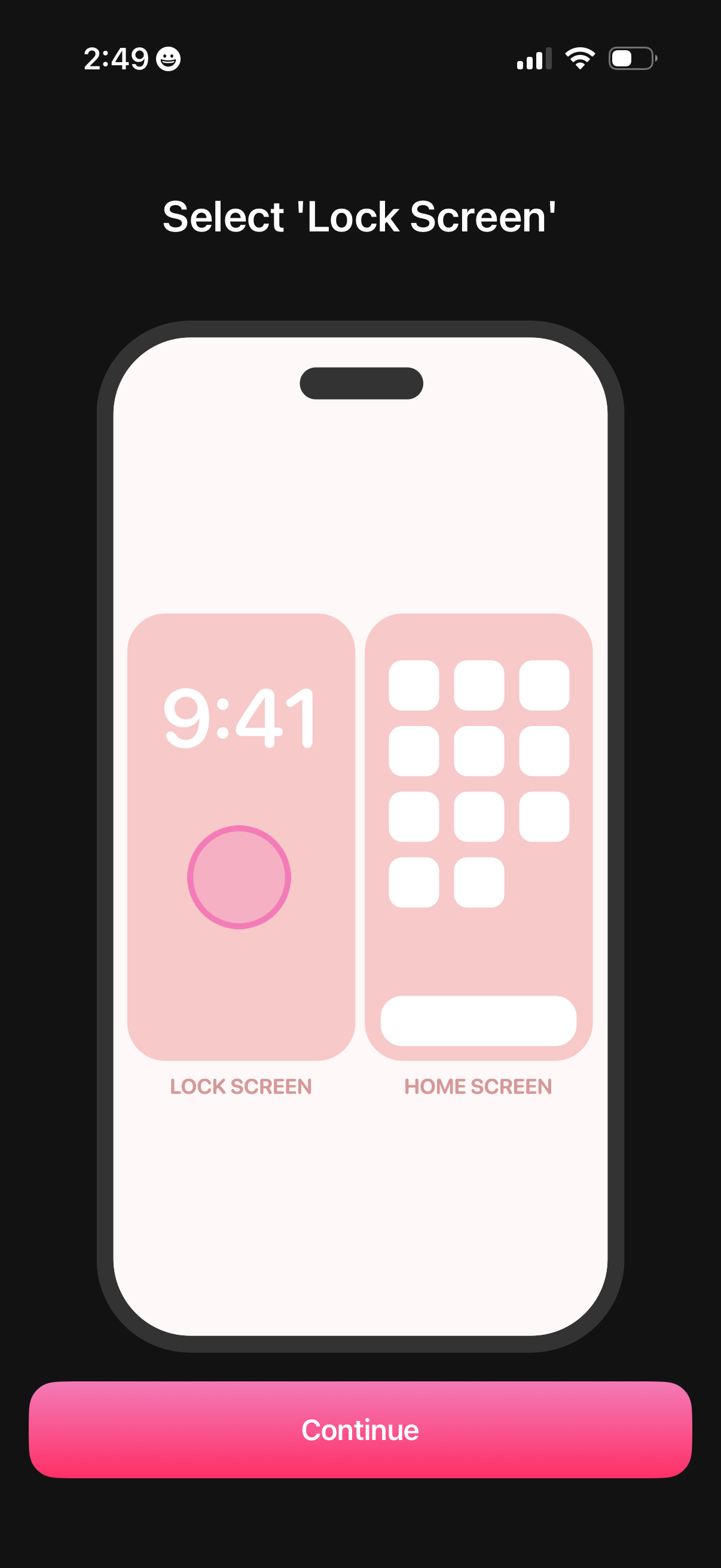
Onboarding selection screen prompting the user to choose where to place a widget or customization, offering two options: Lock Screen or Home Screen. A prominent Continue button advances after making the selection.
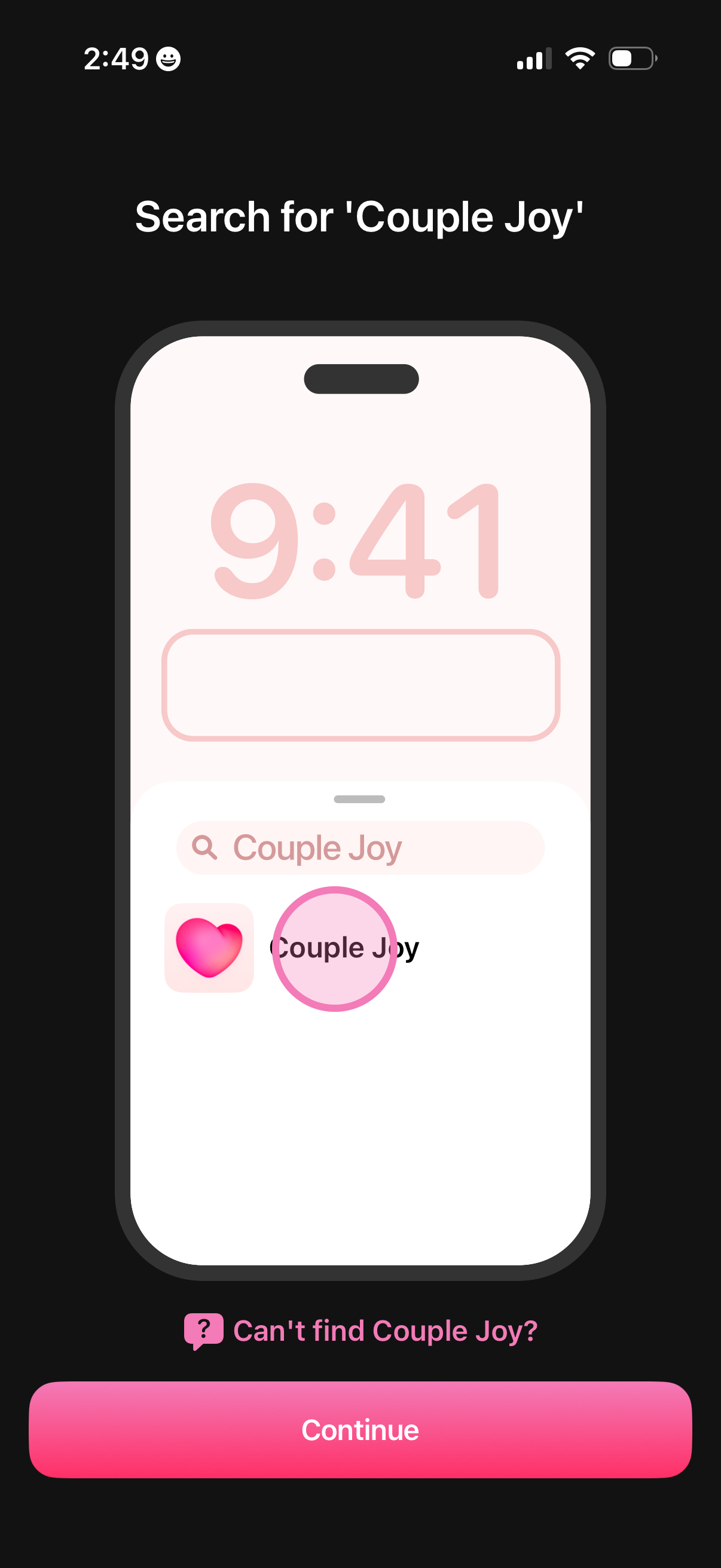
Onboarding screen prompting the user to search for and select an app in the device app list, showing a search bar with results and an option for “Can’t find it? ”.
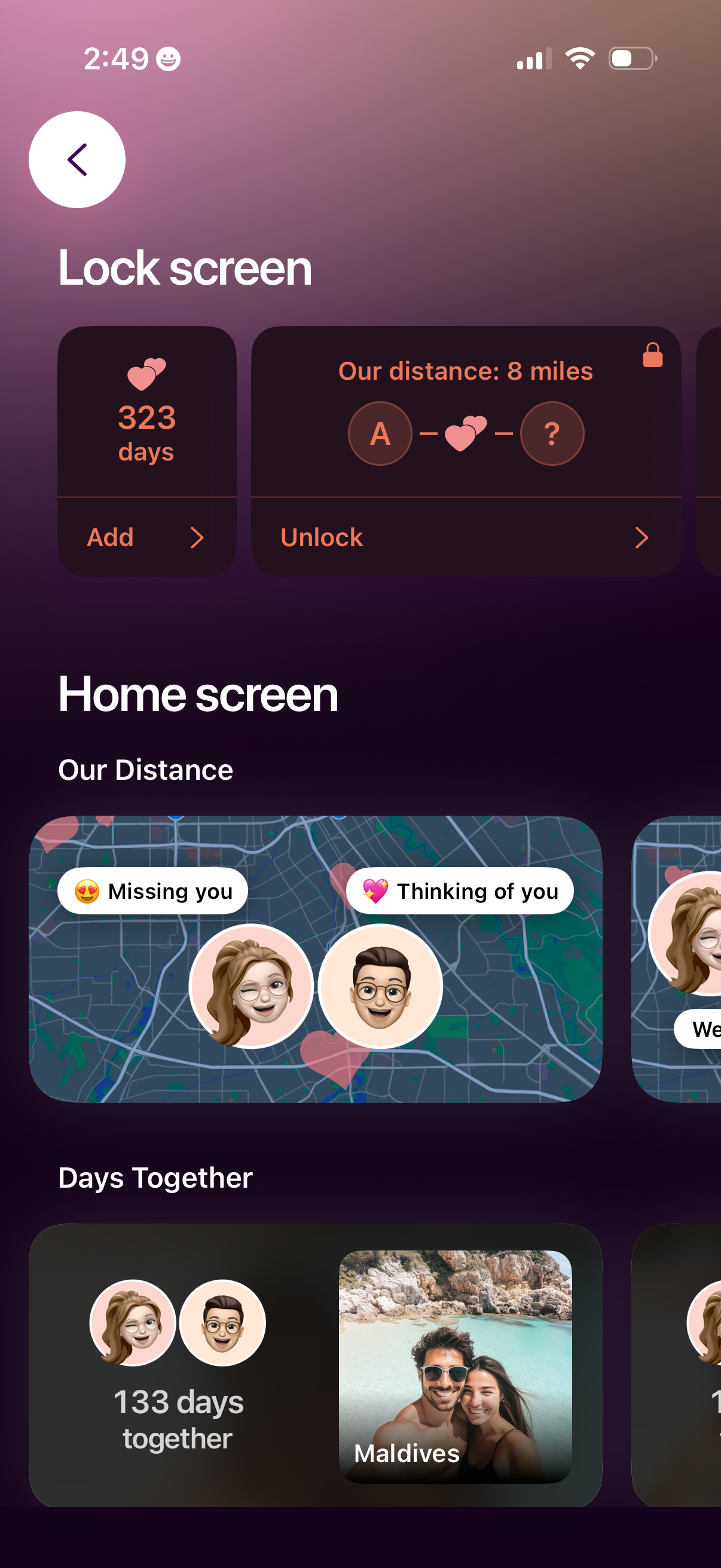
Customization screen for a couples app that lets users set up lock screen and home screen widgets showing relationship stats like days together and real-time distance between partners, with options to add widgets and unlock premium features. Includes widget previews such as a map-based “Our Distance” card with partner avatars and message bubbles, plus a “Days Together” photo widget.
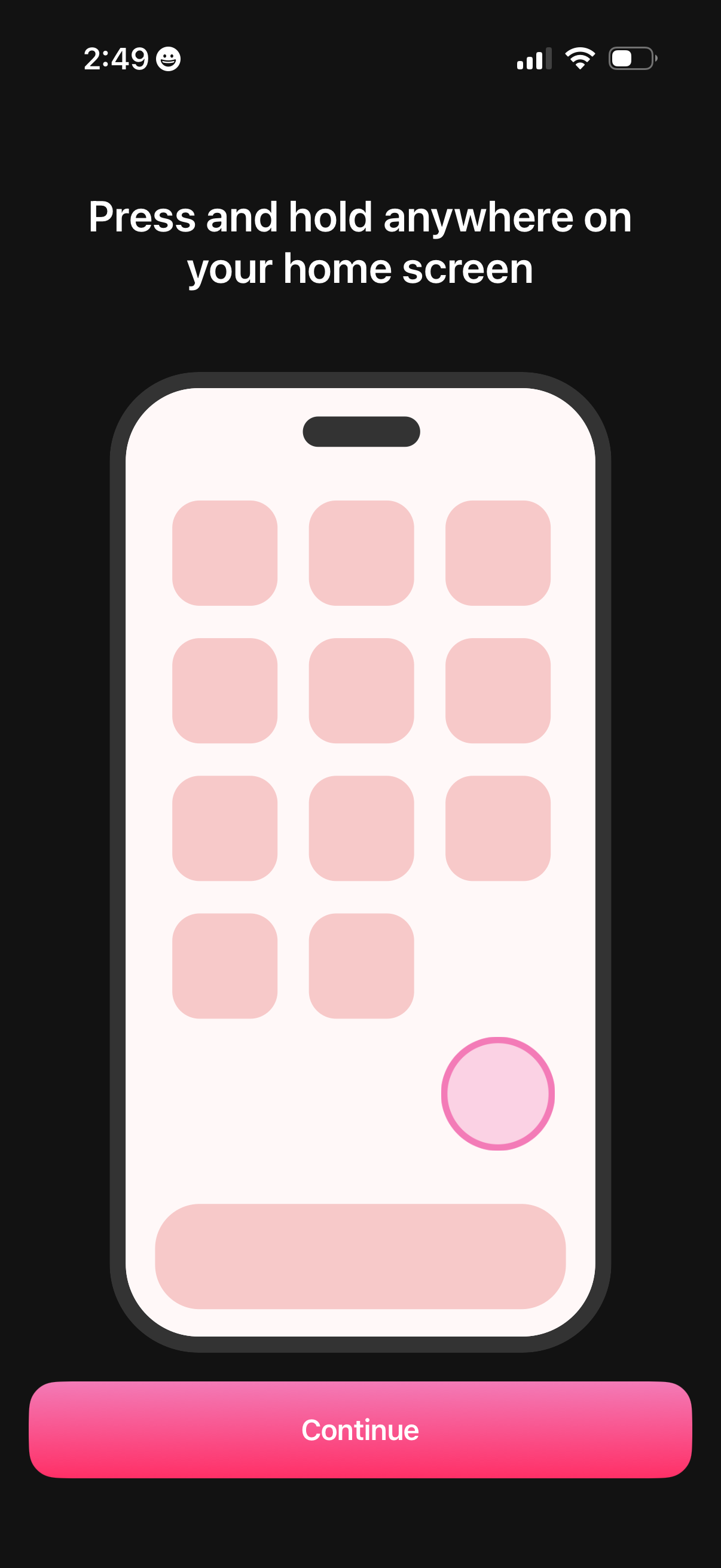
Onboarding instruction screen teaching users to press and hold anywhere on their home screen to enter edit mode (for adding widgets or rearranging apps), illustrated with a phone mockup. A prominent Continue button advances to the next setup step.
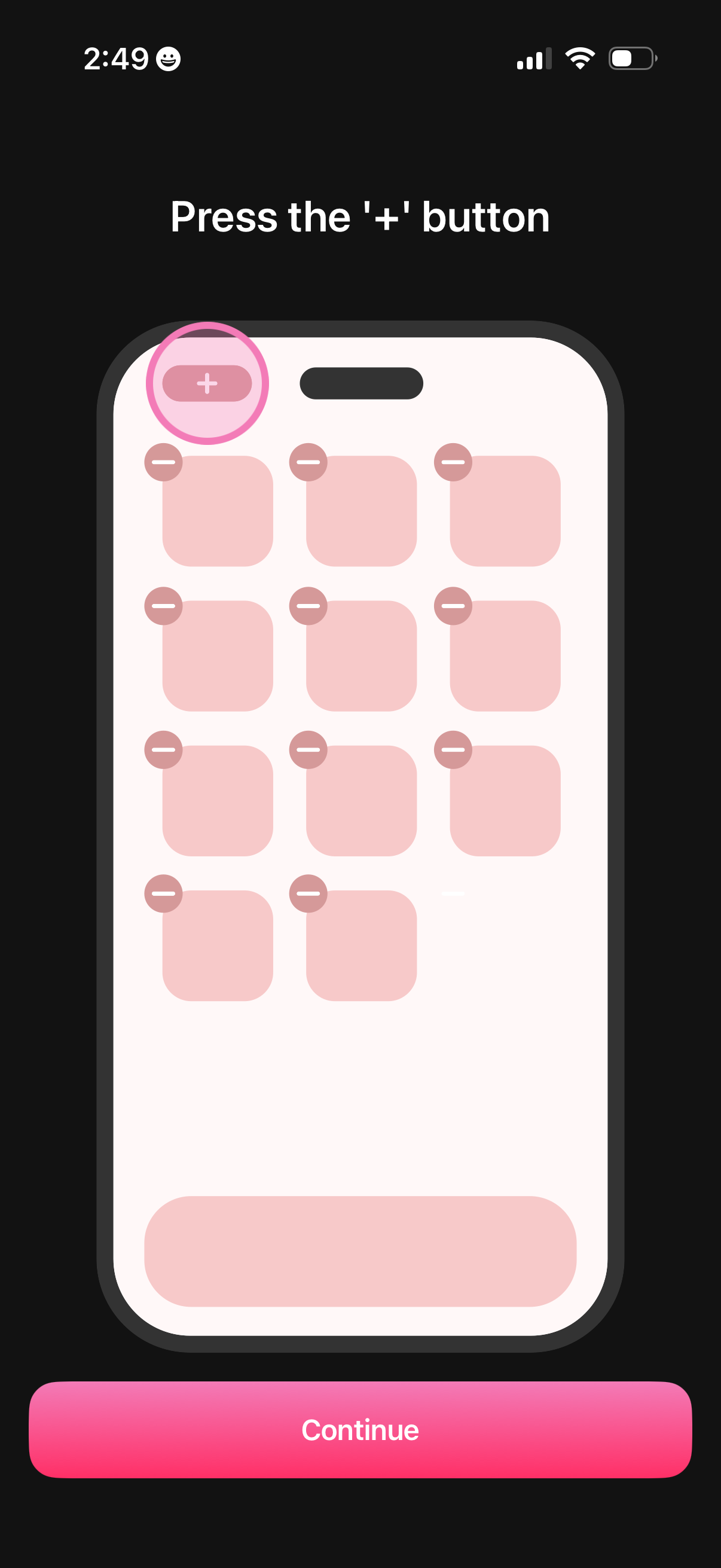
Onboarding/tutorial screen instructing the user to press a plus (+) add button highlighted on a grid-based gallery or item manager layout. Includes a primary “Continue” call-to-action at the bottom to proceed after adding an item.

App Store onboarding screen instructing users to search for a specific app name in the store, showing a search field and matching result to select. Includes help link for “can’t find it” and a primary Continue button to proceed after locating the app.