Onboarding
App splash/loading screen showing the Citizen logo and app name centered on a black background while the app launches.
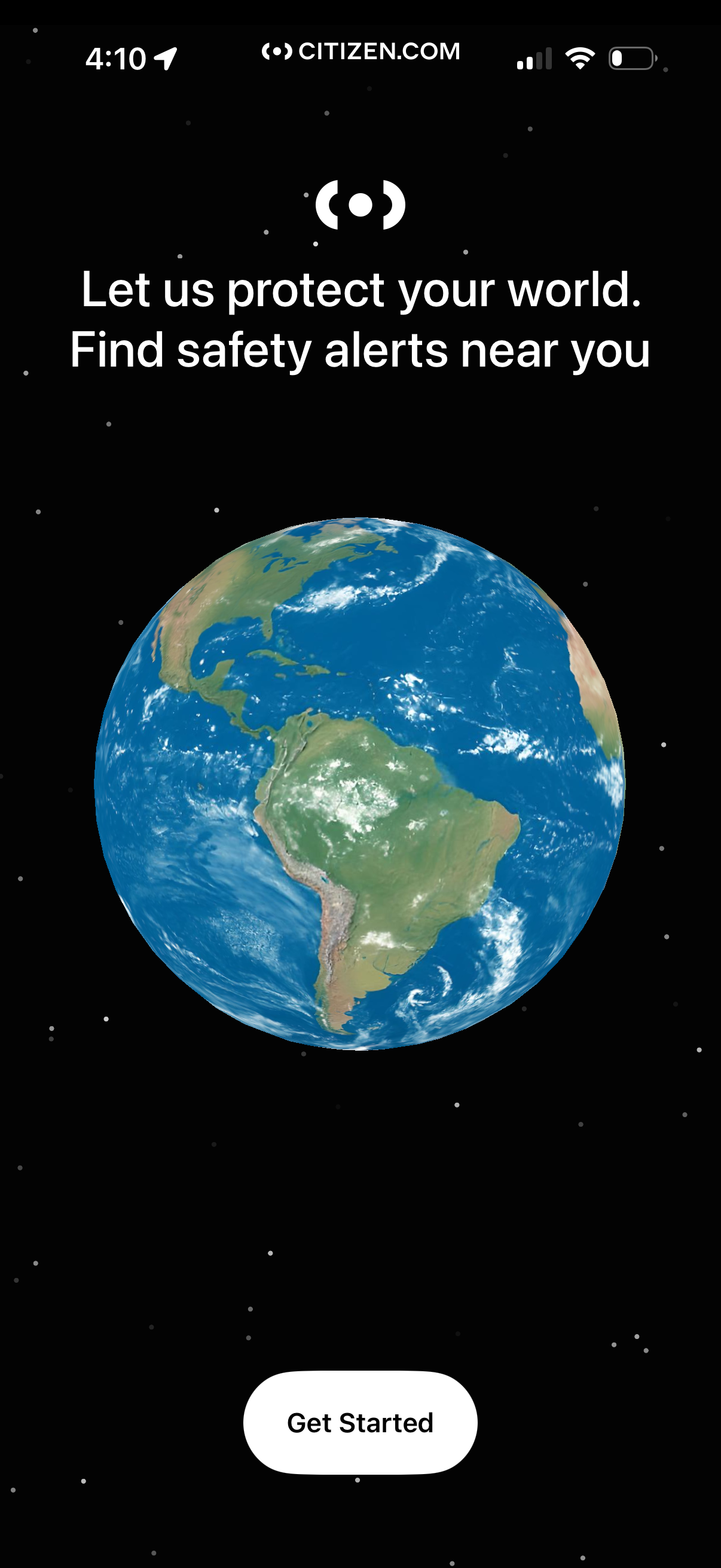
Onboarding welcome screen for a personal safety and neighborhood alert app, highlighting protection and finding nearby safety alerts. Features a single primary call-to-action button to “Get Started” to begin setup.
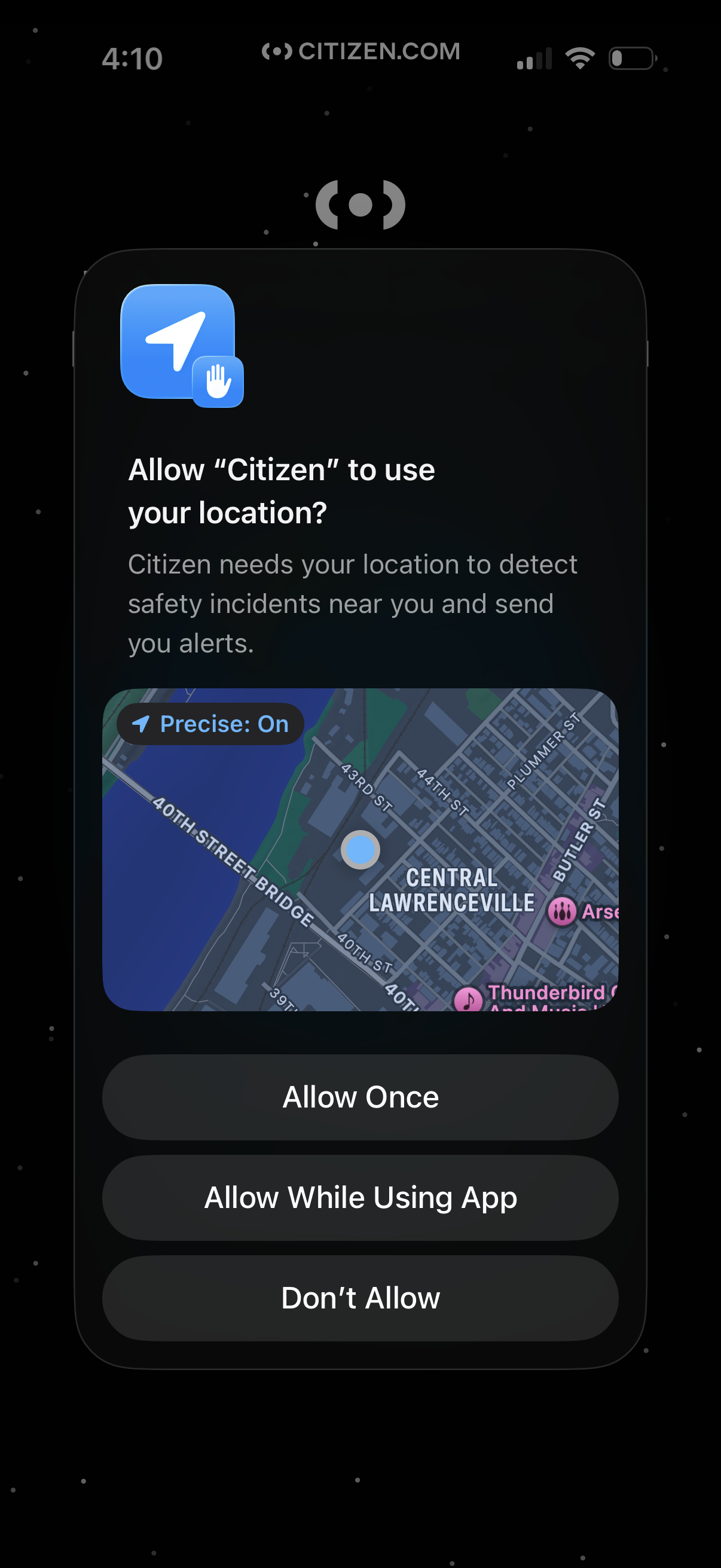
iOS system permission prompt requesting location access for the Citizen safety alerts app, explaining it needs your location to detect nearby incidents and send alerts, with a map preview and precise location toggle. Primary actions offer Allow Once, Allow While Using App, or Don’t Allow.
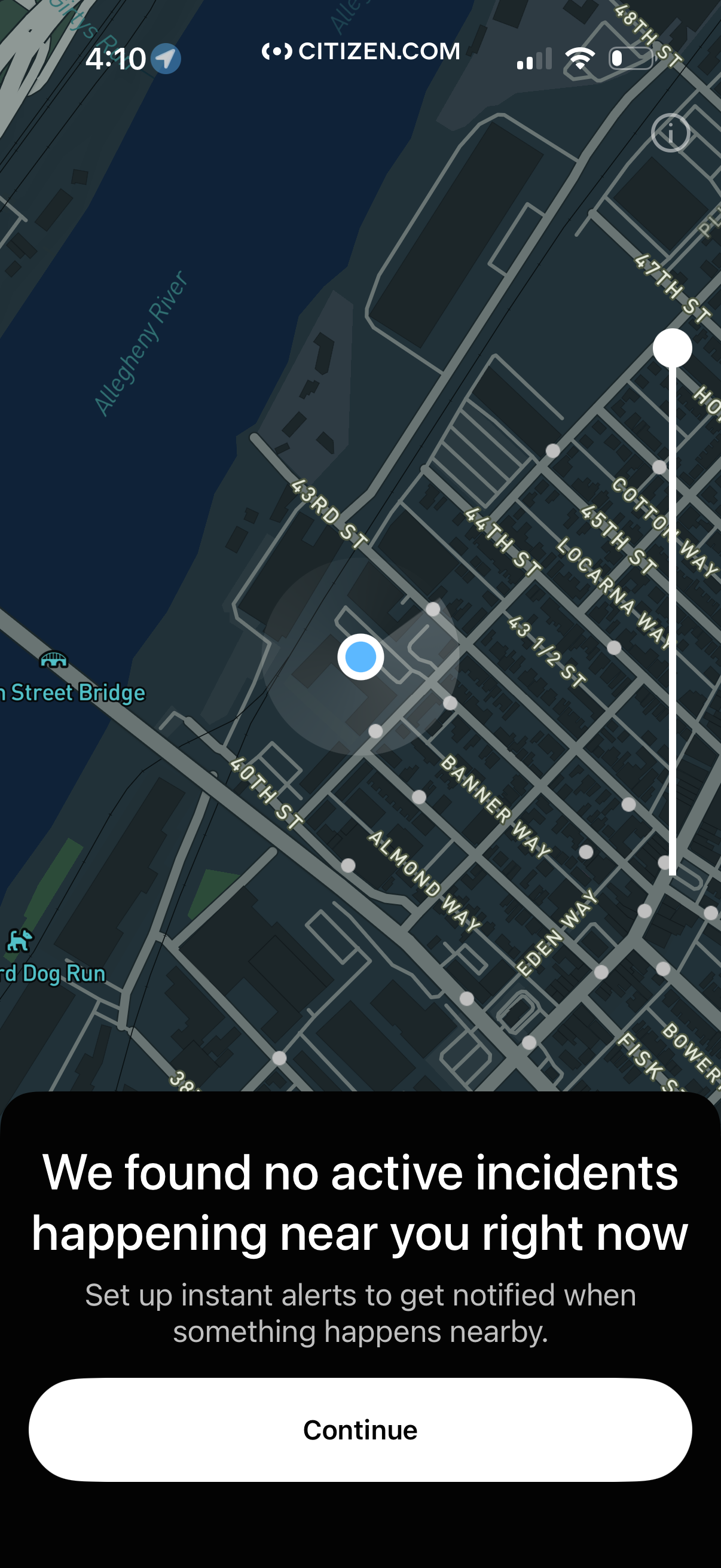
Location-based safety app map view centered on the user’s current position, showing nearby streets and area context. A bottom sheet reports “no active incidents near you,” encourages setting up instant alerts/notifications, and provides a primary Continue button.
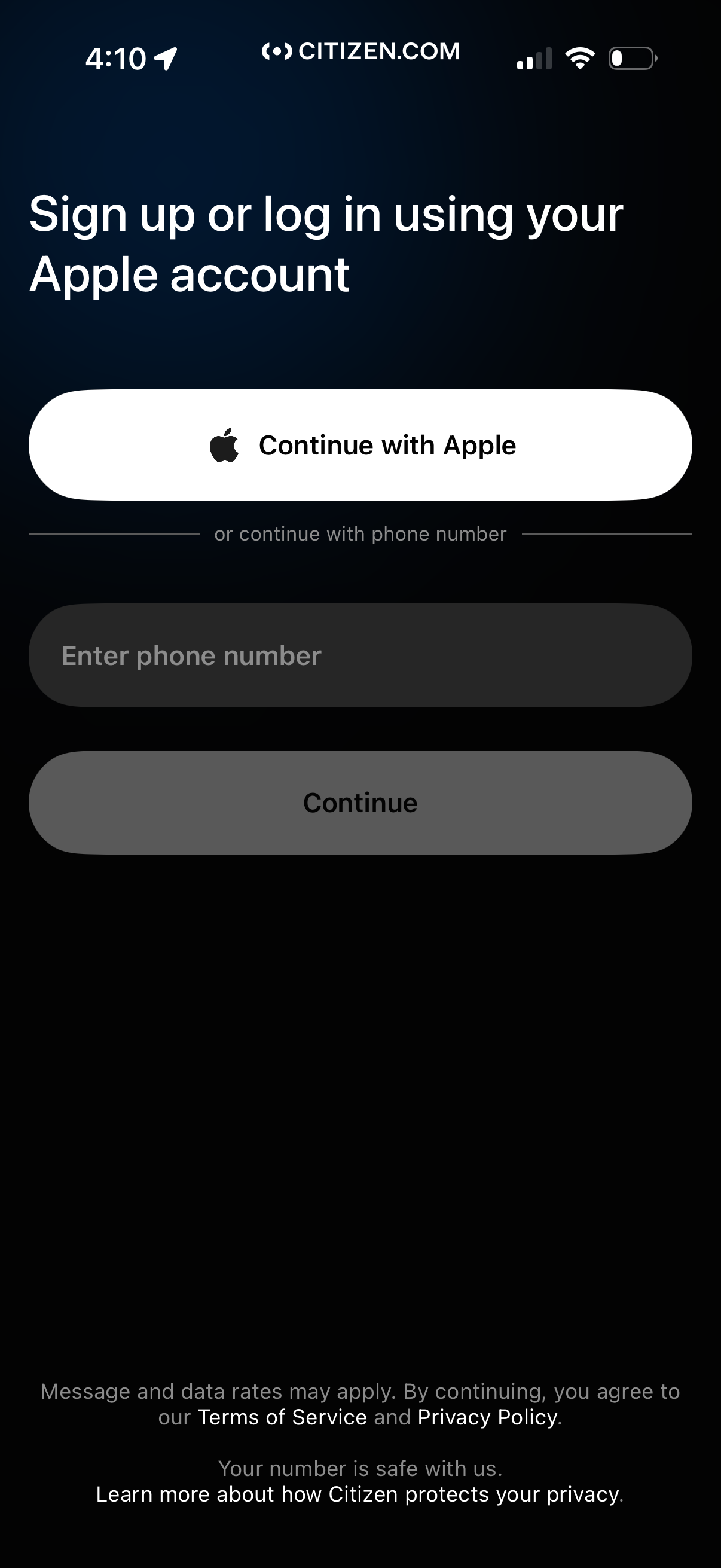
Authentication screen prompting users to sign up or log in, offering a primary “Continue with Apple” social login option or an alternative phone number field with a “Continue” button. Includes terms of service and privacy policy consent text related to messaging/data rates.
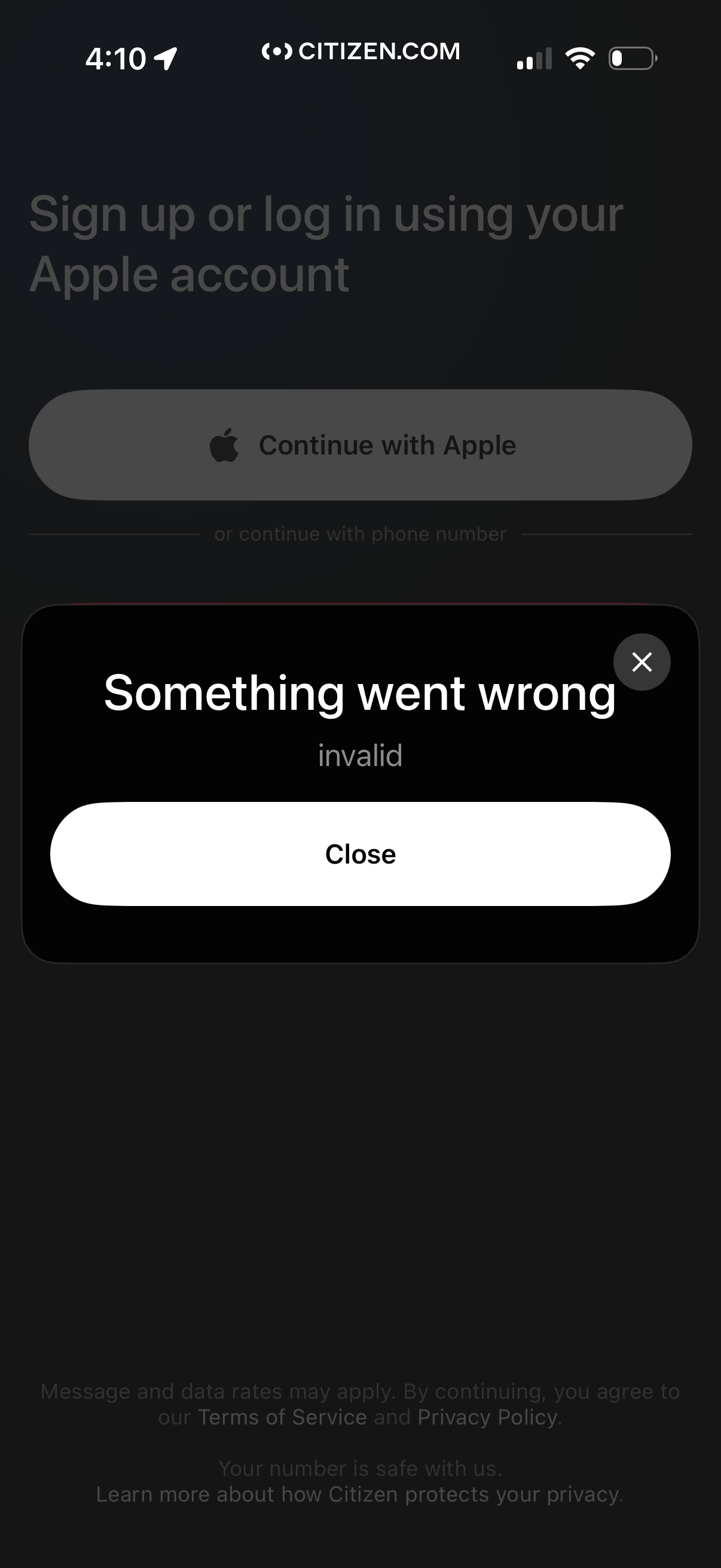
Mobile sign-up/login screen prompting users to continue with Apple (or phone number) with an error modal overlay stating “Something went wrong” and “invalid,” offering a Close button and dismiss (X) to exit the alert.
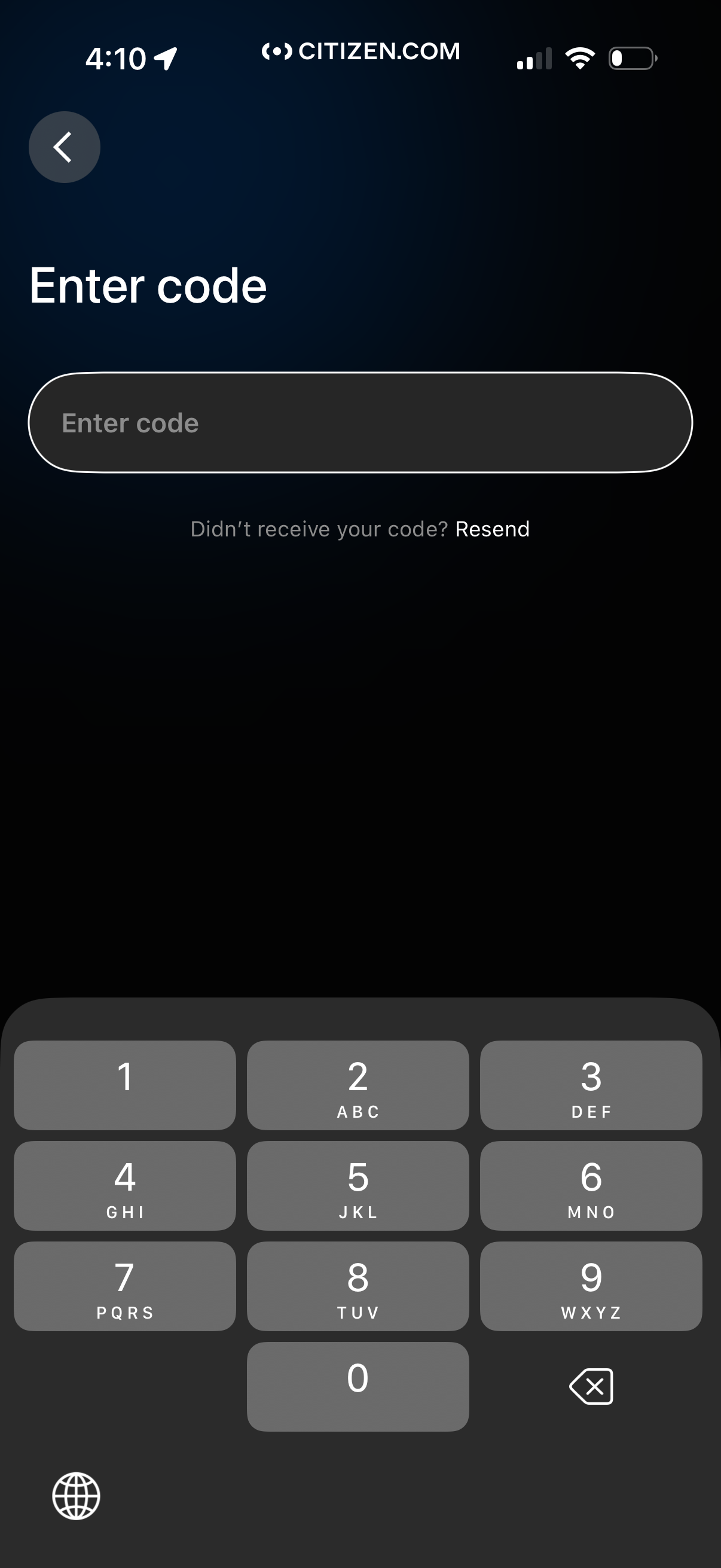
Verification screen prompting the user to enter a one-time passcode in a single input field for login or account confirmation. Includes a back button and a “Resend” link for users who didn’t receive the code, with a numeric keypad for code entry.
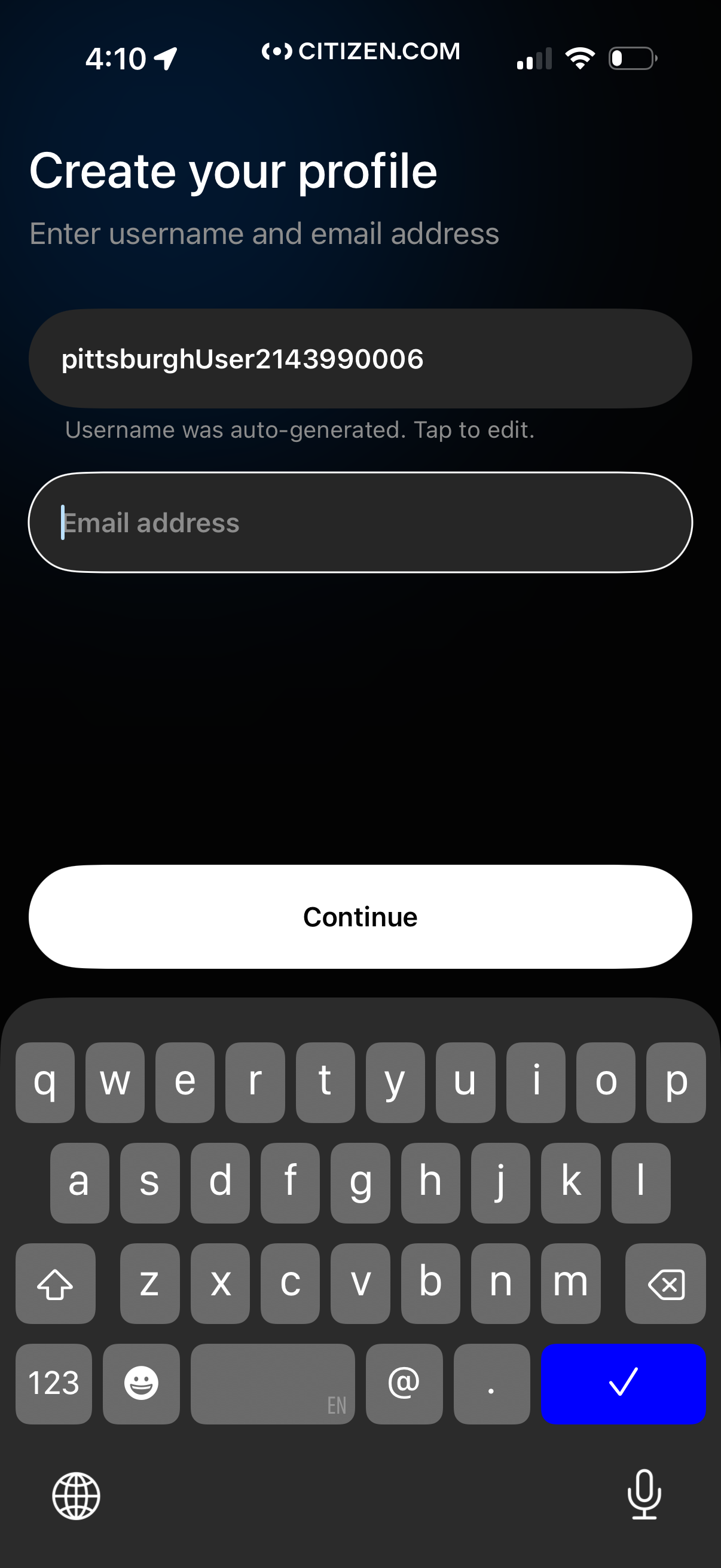
Profile creation onboarding screen prompting the user to enter a username and email address, with an auto-generated username field that can be edited. Includes a primary “Continue” button to proceed to the next step.
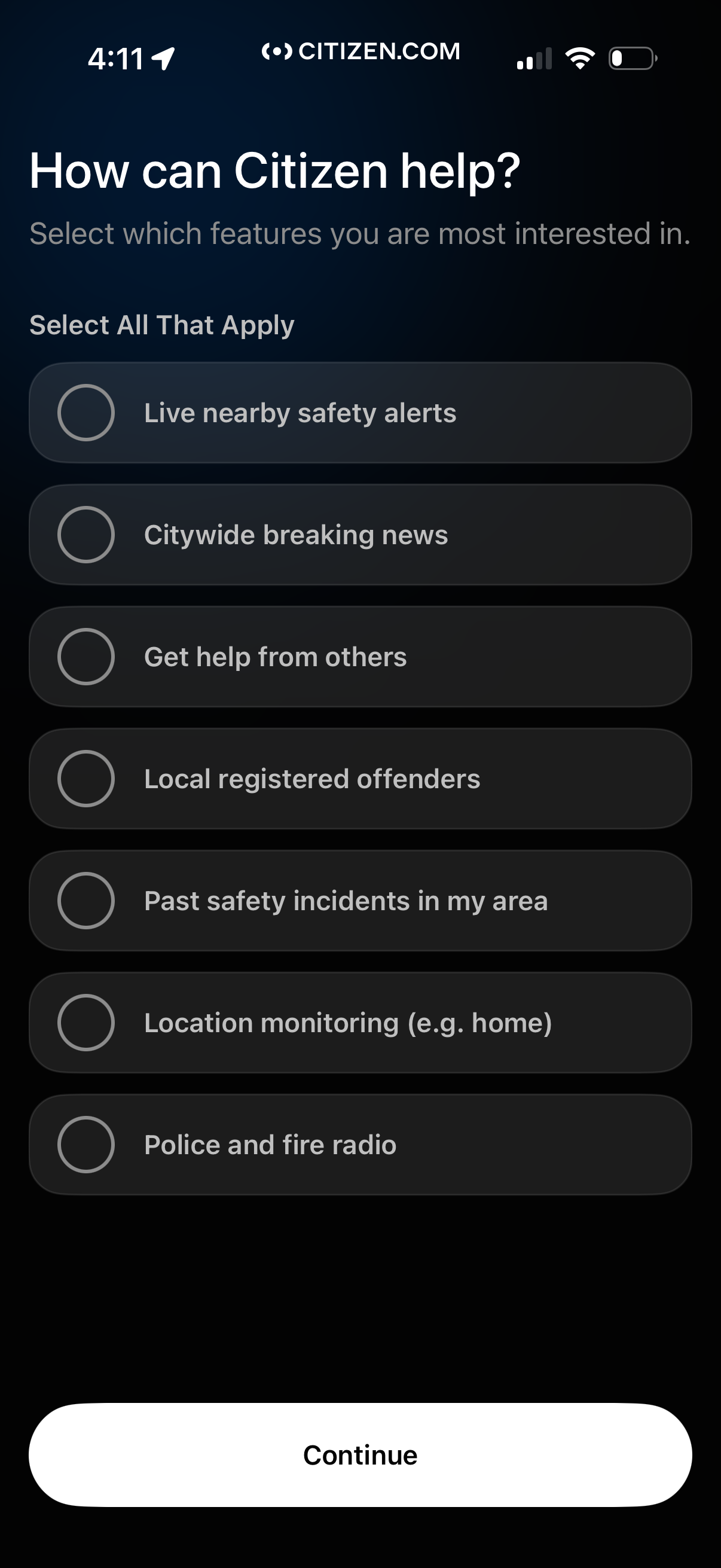
Onboarding preferences screen asking users to select all safety features they’re interested in, using a multi-select list with circular checkboxes (e. g.
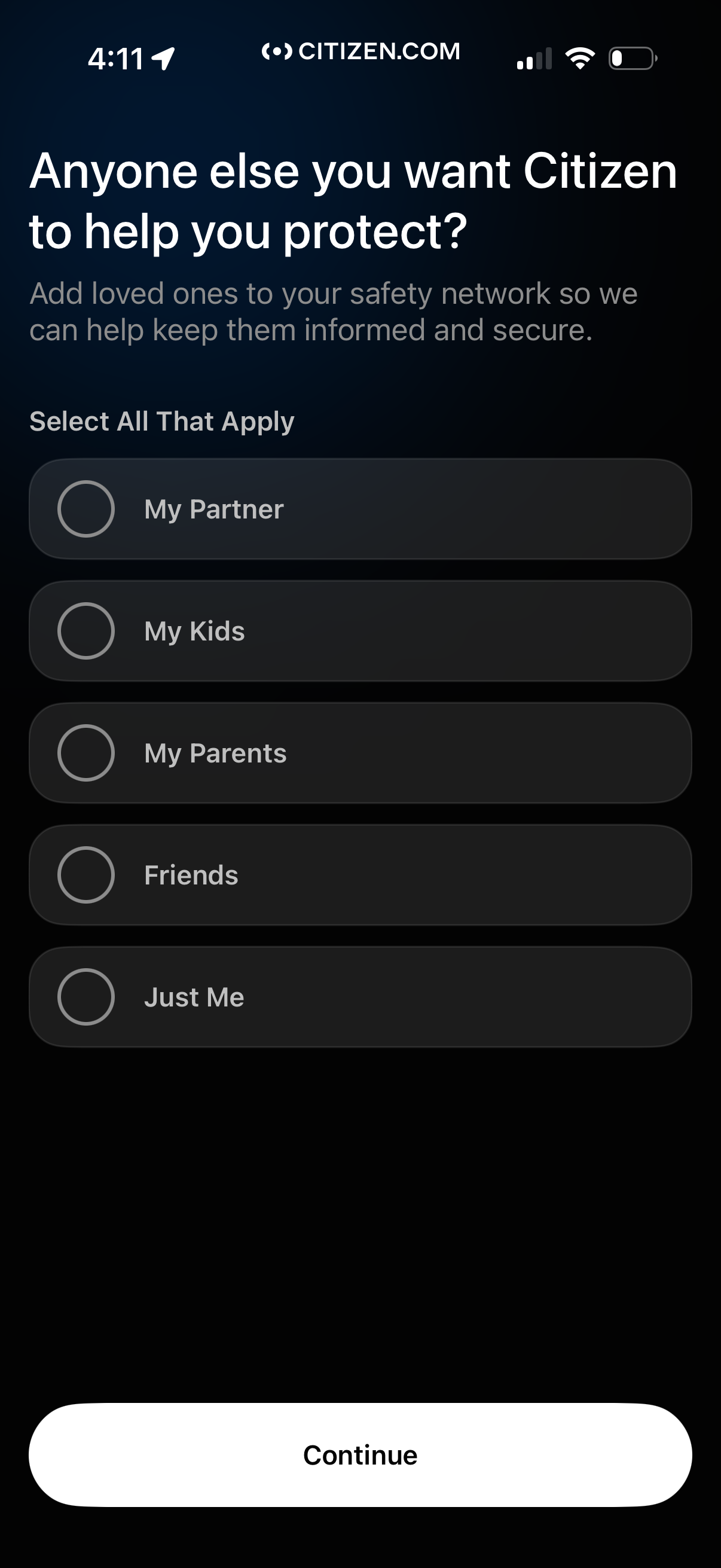
Onboarding screen for a personal safety app asking who else the user wants to protect by adding loved ones to their safety network. Users can select all that apply from options like partner, kids, parents, friends, or just me, then tap Continue to proceed.
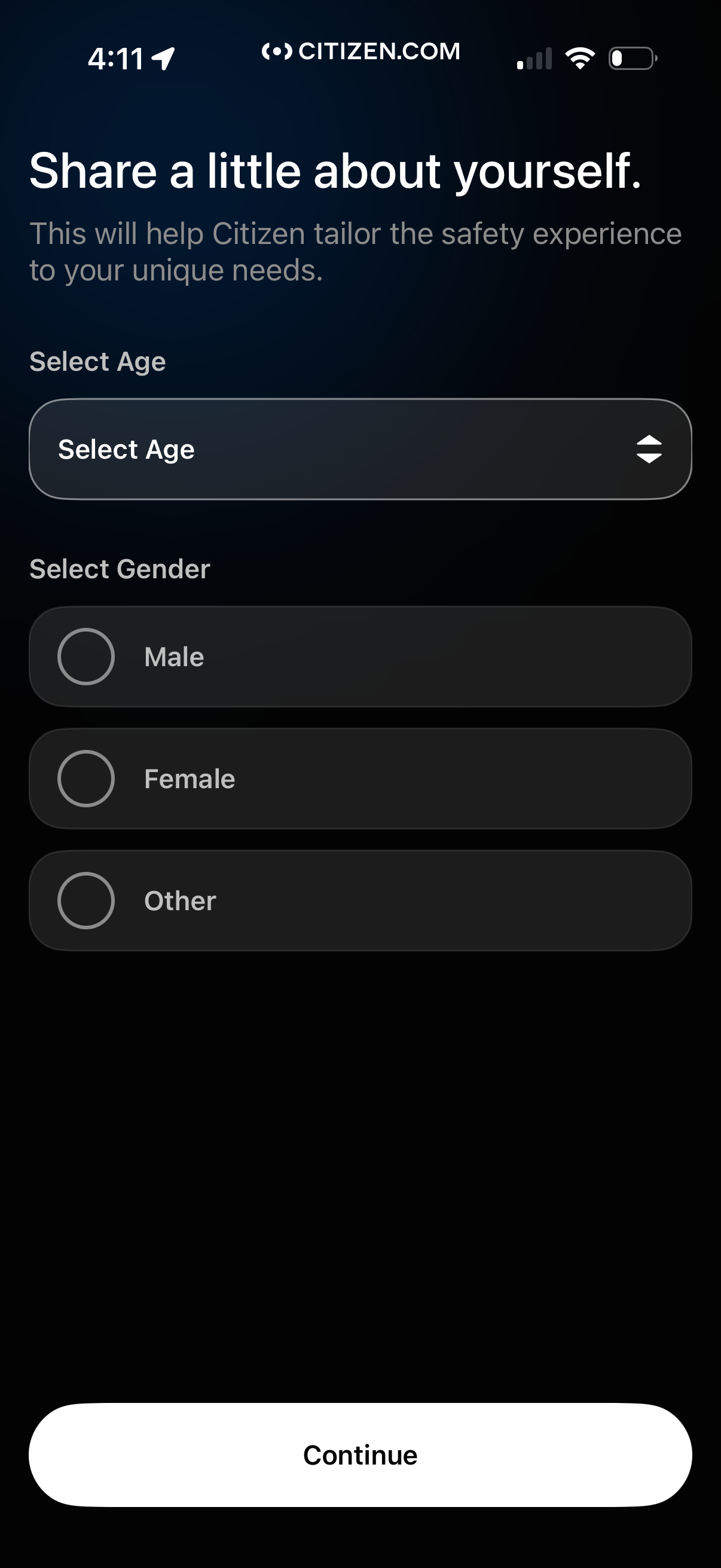
Onboarding profile information screen asking users to share demographics to personalize the safety experience, with a dropdown to select age and radio buttons to select gender (male, female, other). A prominent Continue button advances to the next step.
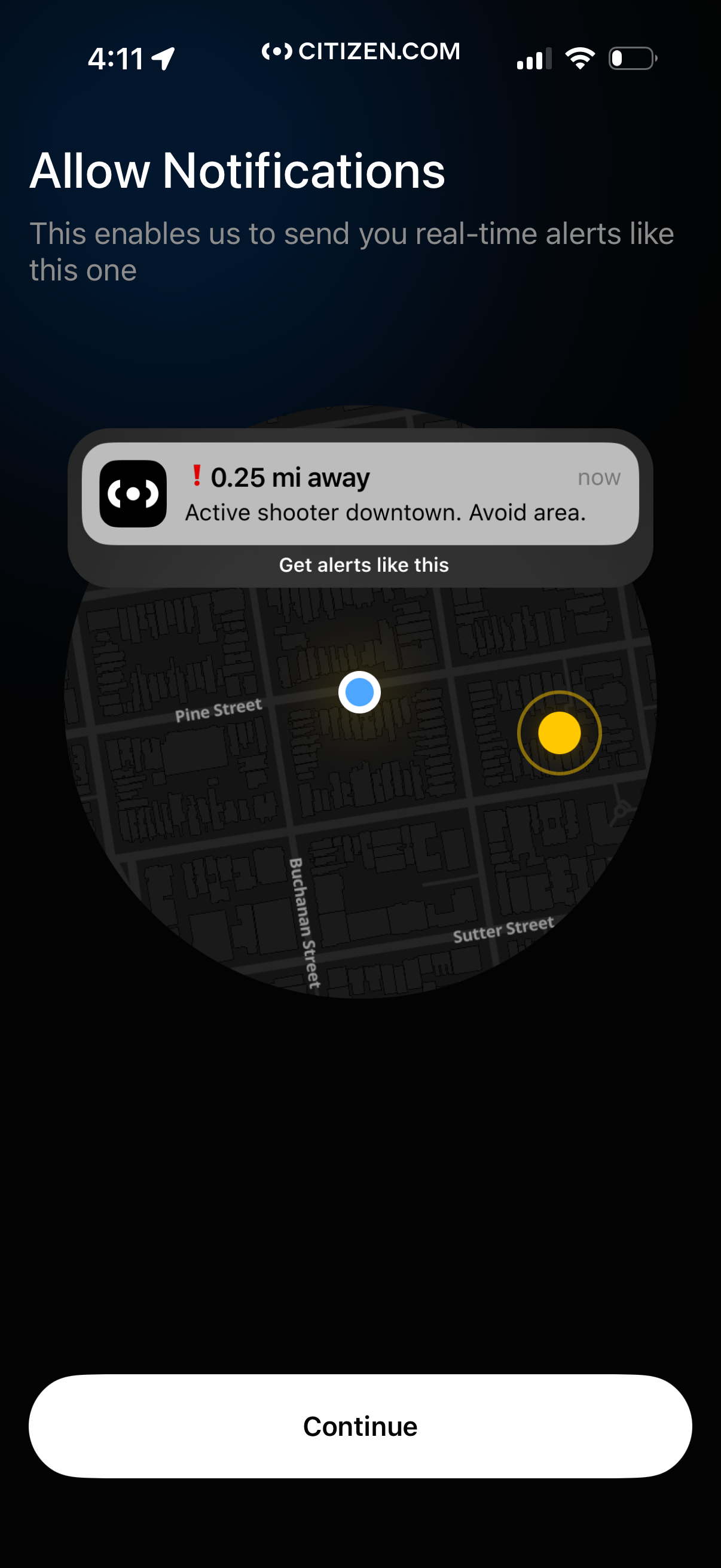
Onboarding permission screen prompting users to allow push notifications to receive real-time nearby safety alerts, showing an example alert over a map preview. Primary action is a “Continue” button to proceed with enabling notifications.
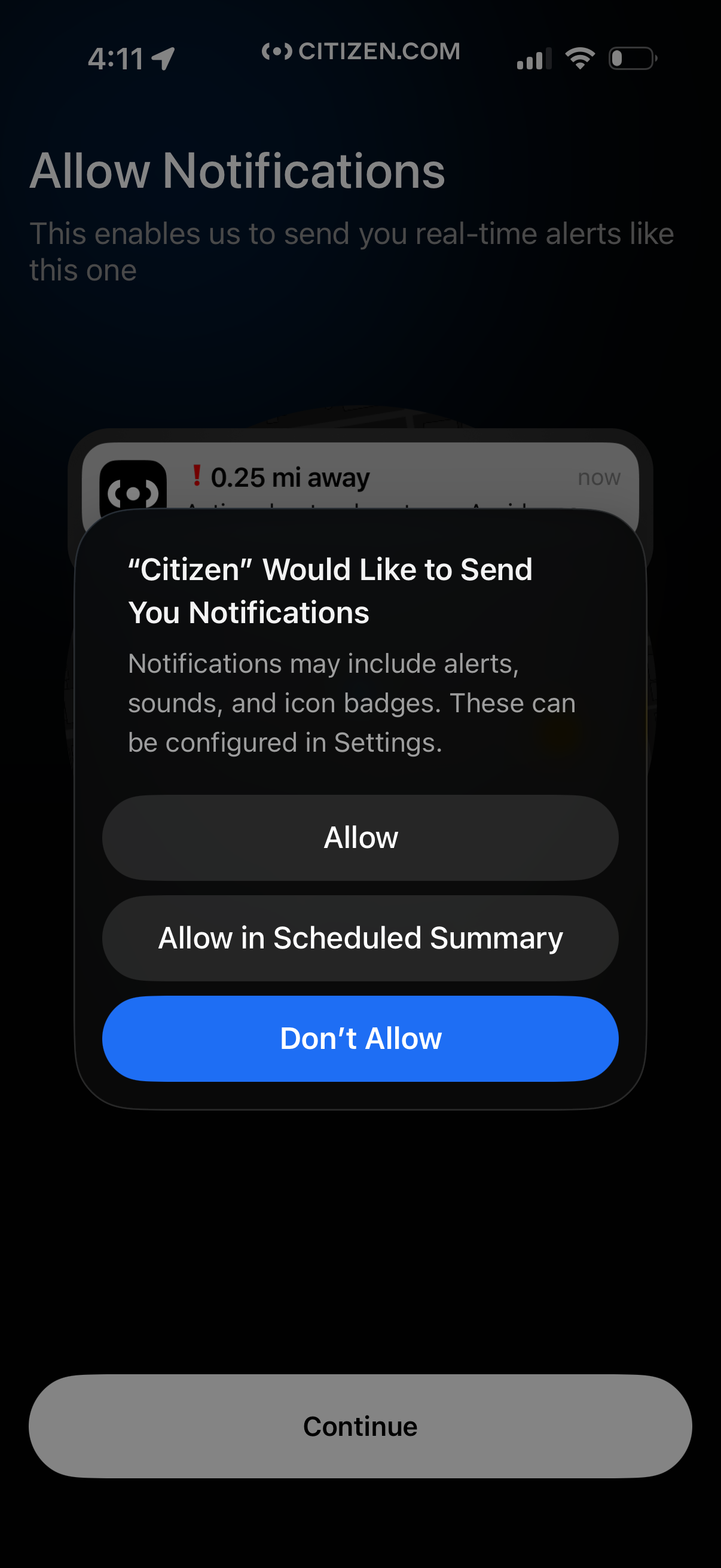
Onboarding screen prompting users to enable push notifications for real-time alerts, showing the iOS permission modal with options to Allow, Allow in Scheduled Summary, or Don’t Allow. A disabled Continue button sits behind the prompt, indicating notification permission is required or encouraged to proceed.
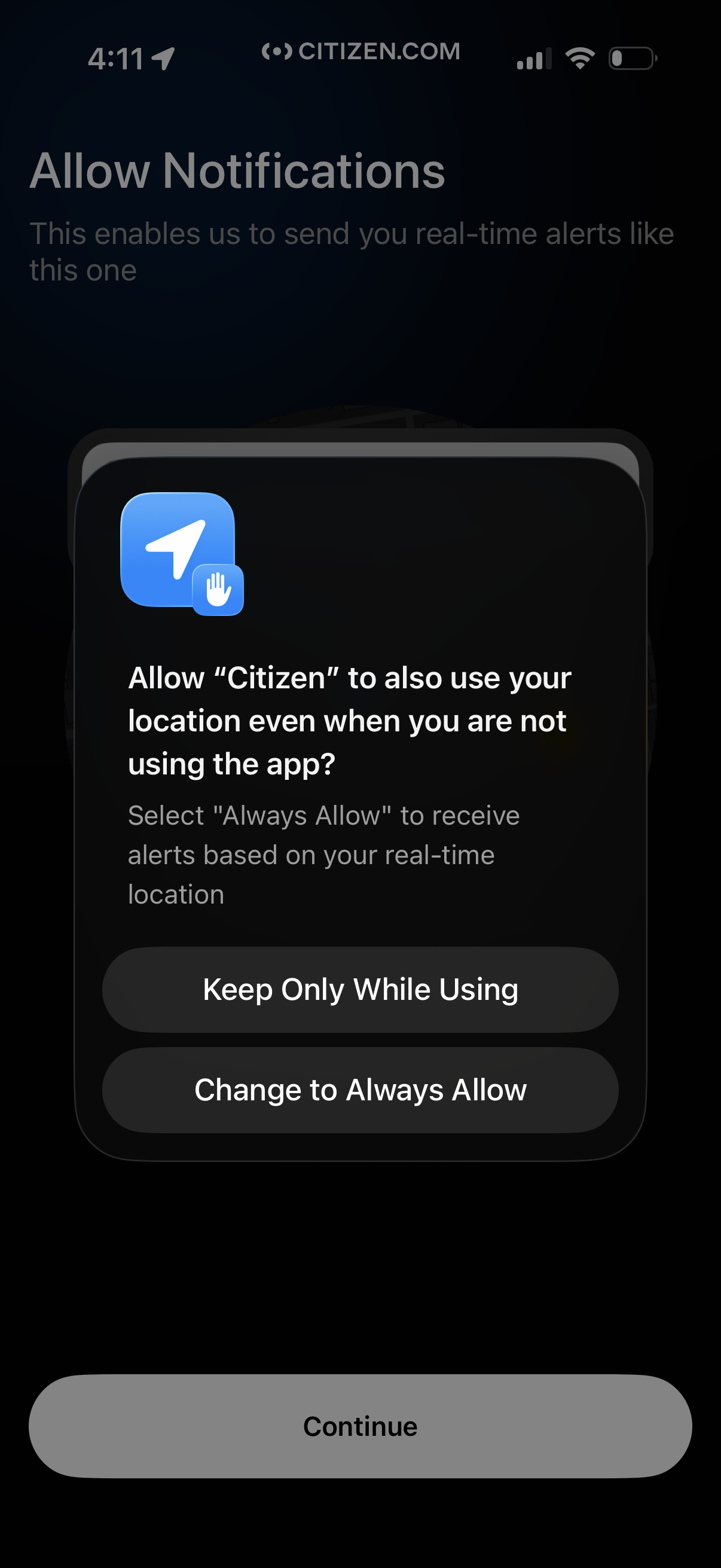
Onboarding permission screen prompting the user to allow notifications and enable background location access to receive real-time alerts based on their current location. Includes a system-style dialog to keep location “Only While Using” or “Always Allow,” plus a primary Continue button to proceed.
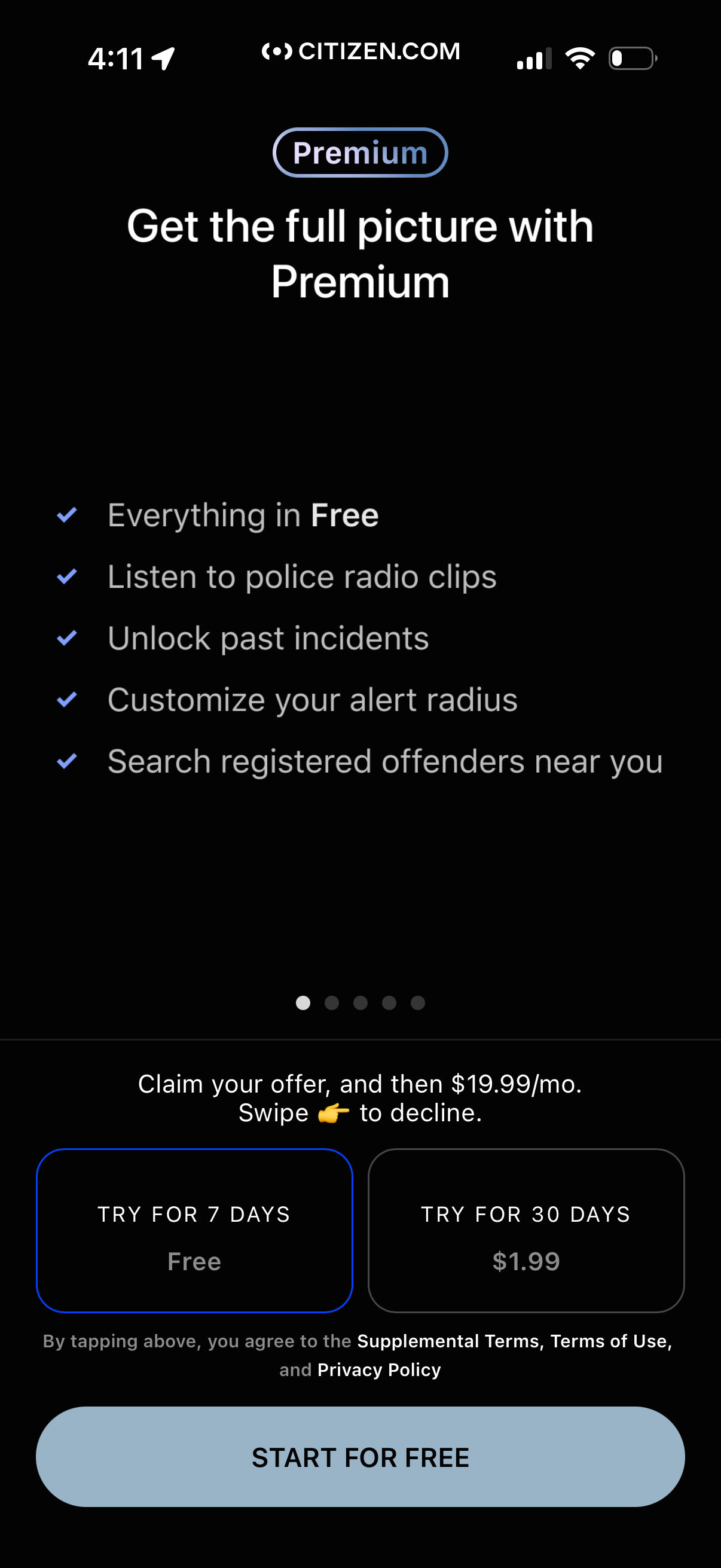
Premium subscription paywall upsell screen highlighting benefits like police radio clips, access to past incidents, customizable alert radius, and searching nearby registered offenders. Offers free trials with selectable durations (7 days free or 30 days for a low price), shows monthly pricing after the offer, and a primary CTA to start for free.