swipe through recommendations
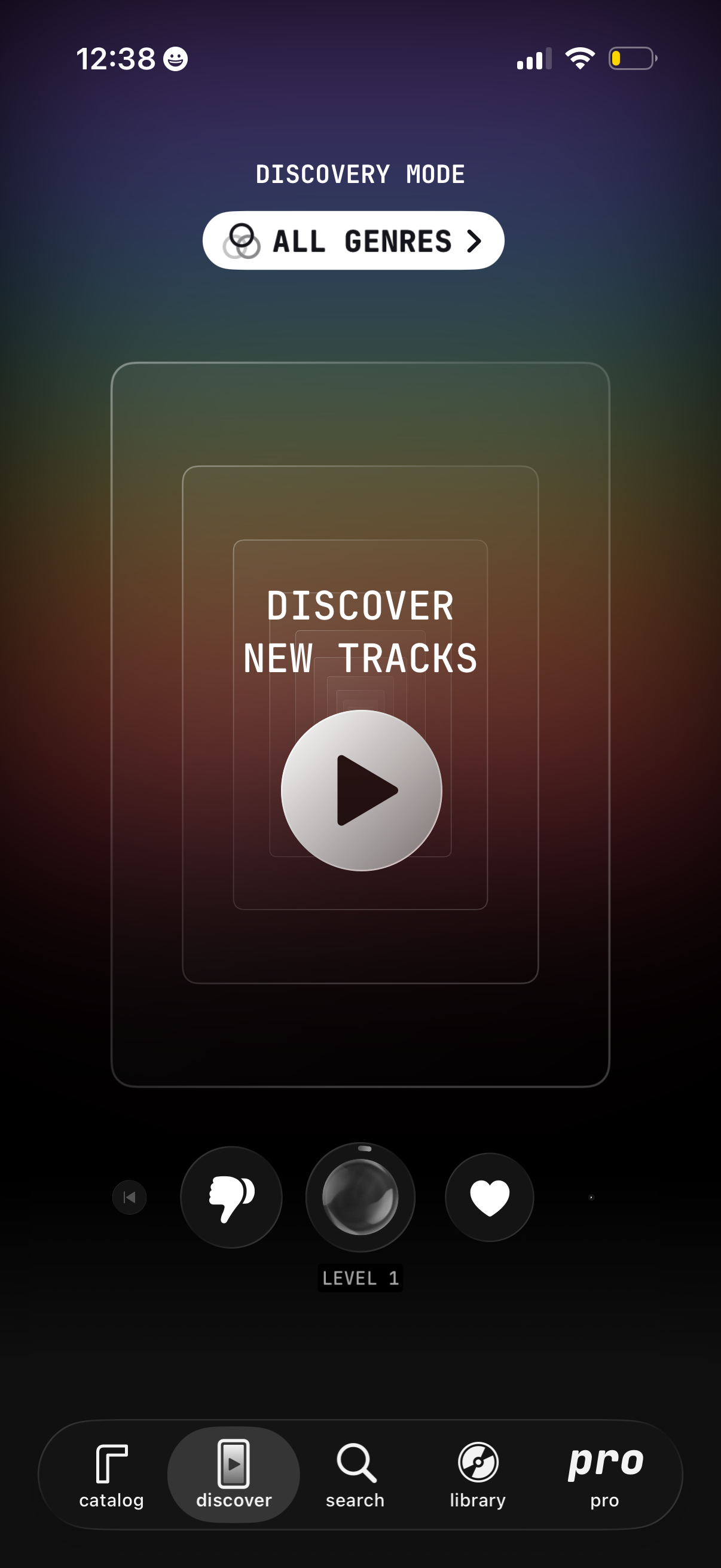
Music discovery mode screen that lets users browse and play new tracks with a genre filter (All Genres) and a central play button to start discovering. Users can provide feedback with dislike/skip and like actions, see a progression level indicator, and navigate via a bottom tab bar (catalog, discover, search, library, pro).
Music discovery mode screen with an “All genres” filter dropdown and a central discovery card, plus large controls to dislike/skip, like/favorite, and play next track with a level indicator. Bottom tab bar navigation includes catalog, discover, search, library, and a pro section.
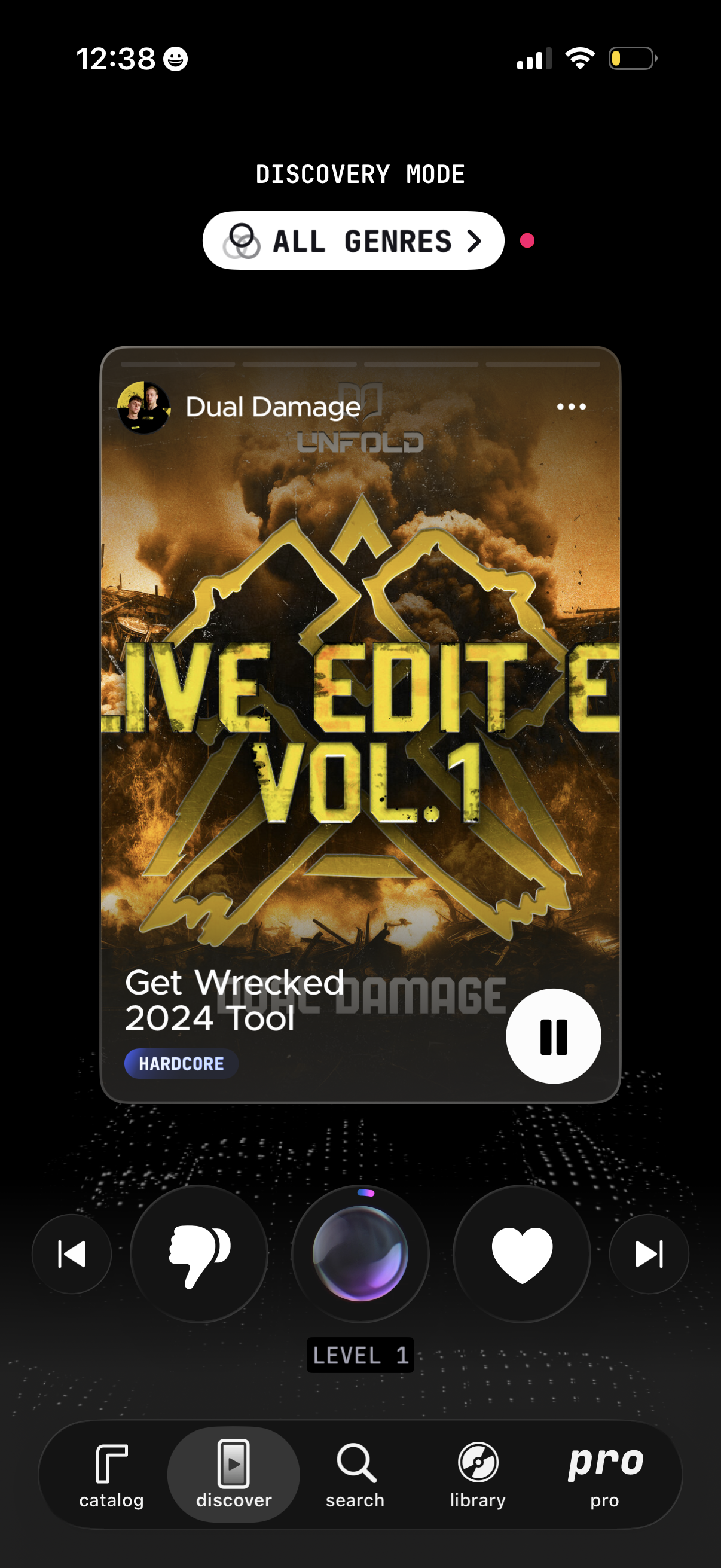
Music discovery screen in “Discovery Mode” with an “All genres” filter showing a large featured track/playlist card with cover art, title, artist, and genre tag. Users can play/pause, like, skip, and give feedback with a thumbs-down, plus access more options from a menu and navigate via a bottom tab bar (catalog, discover, search, library, pro).
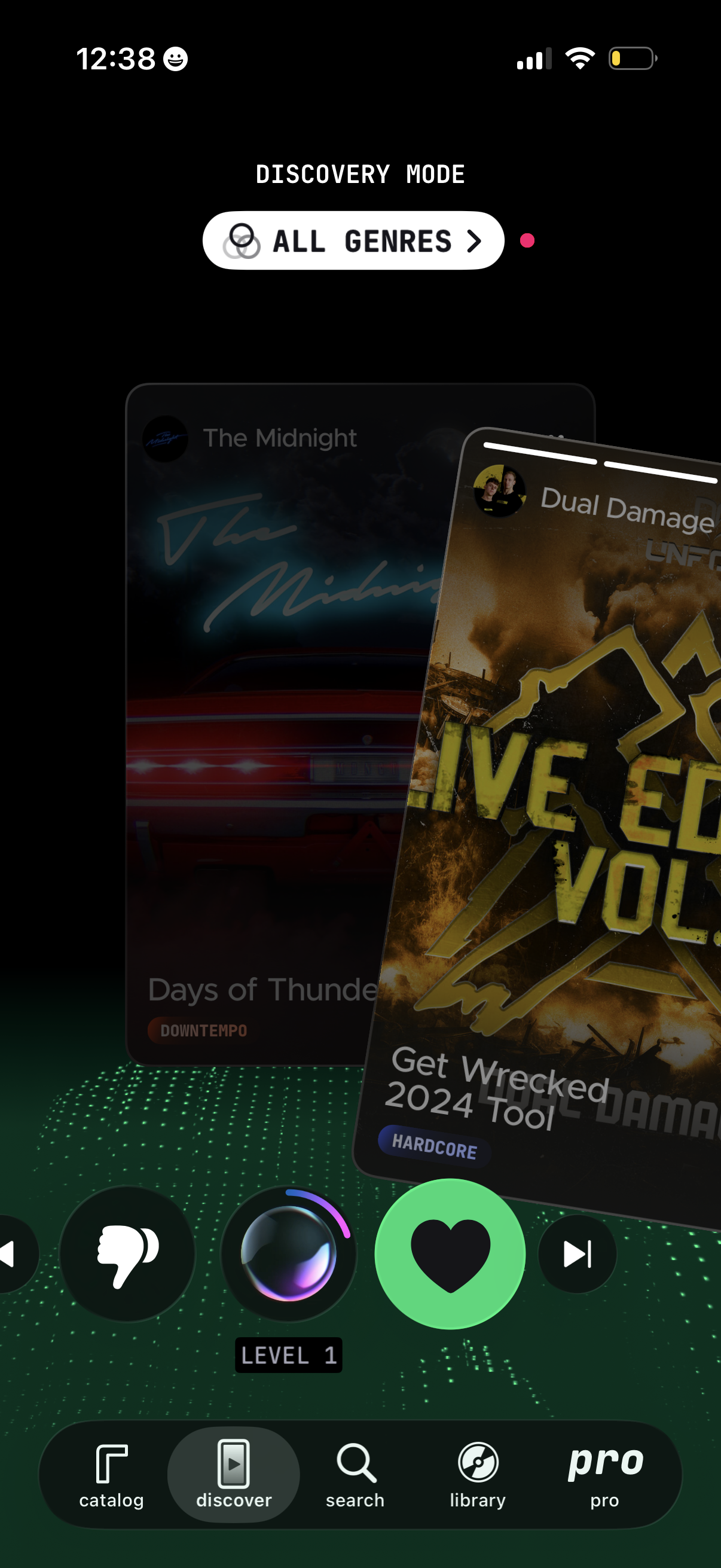
Music discovery screen in “Discovery Mode” with an “All genres” filter, showing swipeable track/album cards and playback controls. Users can like/save the current track, skip or dismiss, adjust a level/mood slider, and navigate via bottom tabs for catalog, discover, search, library, and pro.
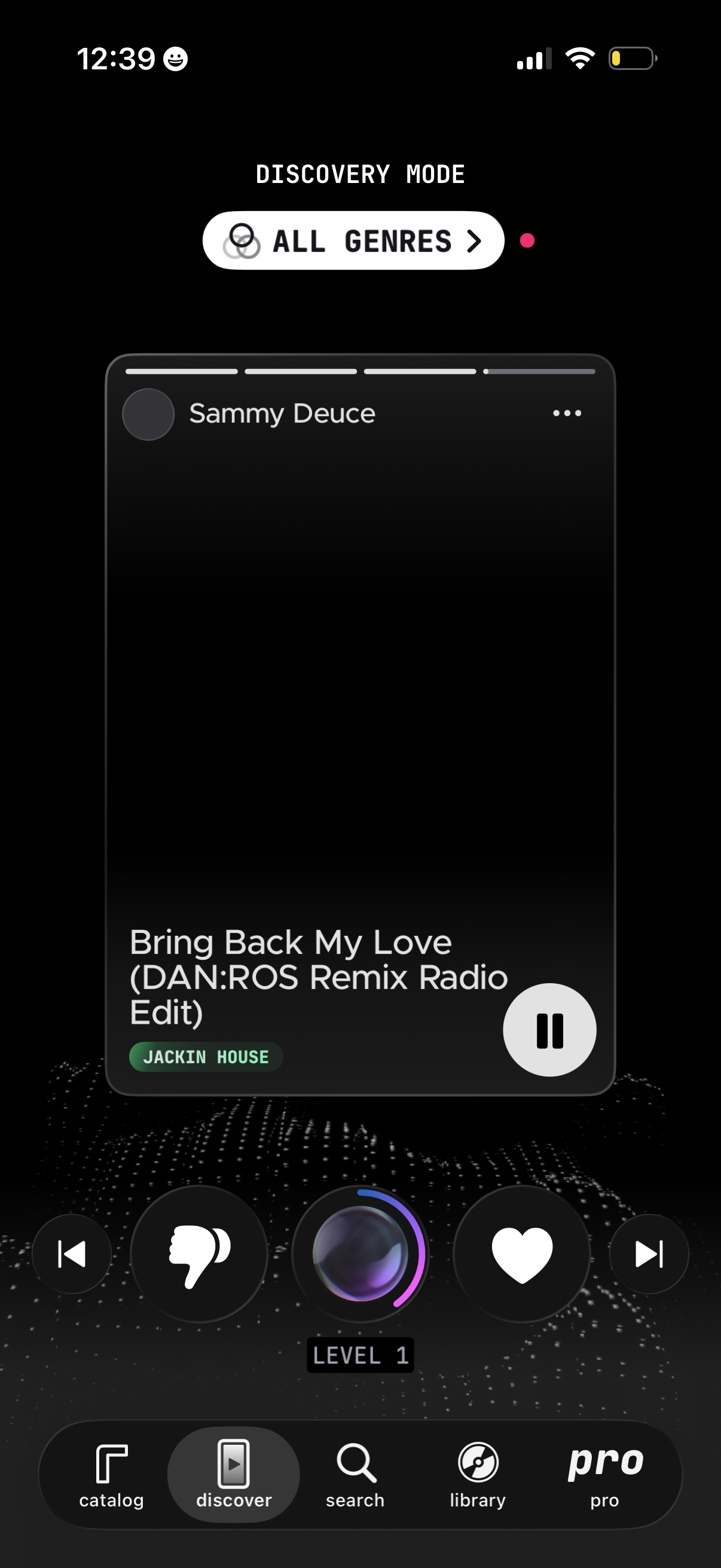
Music discovery player screen in “Discovery Mode” with an All Genres filter selector, showing the current track card with artist/title/genre tag and a pause/play control. Includes quick actions for skip/back, dislike, like/favorite, and a level/progress indicator, plus bottom navigation tabs for catalog, discover, search, library, and pro.
Music discovery mode screen with an “All genres” filter dropdown, showing the currently playing track and artist with a genre tag, plus options menu and a prominent play/pause control. Bottom controls allow dislike/skip and like/favorite, with a progress/level indicator and a tab bar for catalog, discover, search, library, and pro.
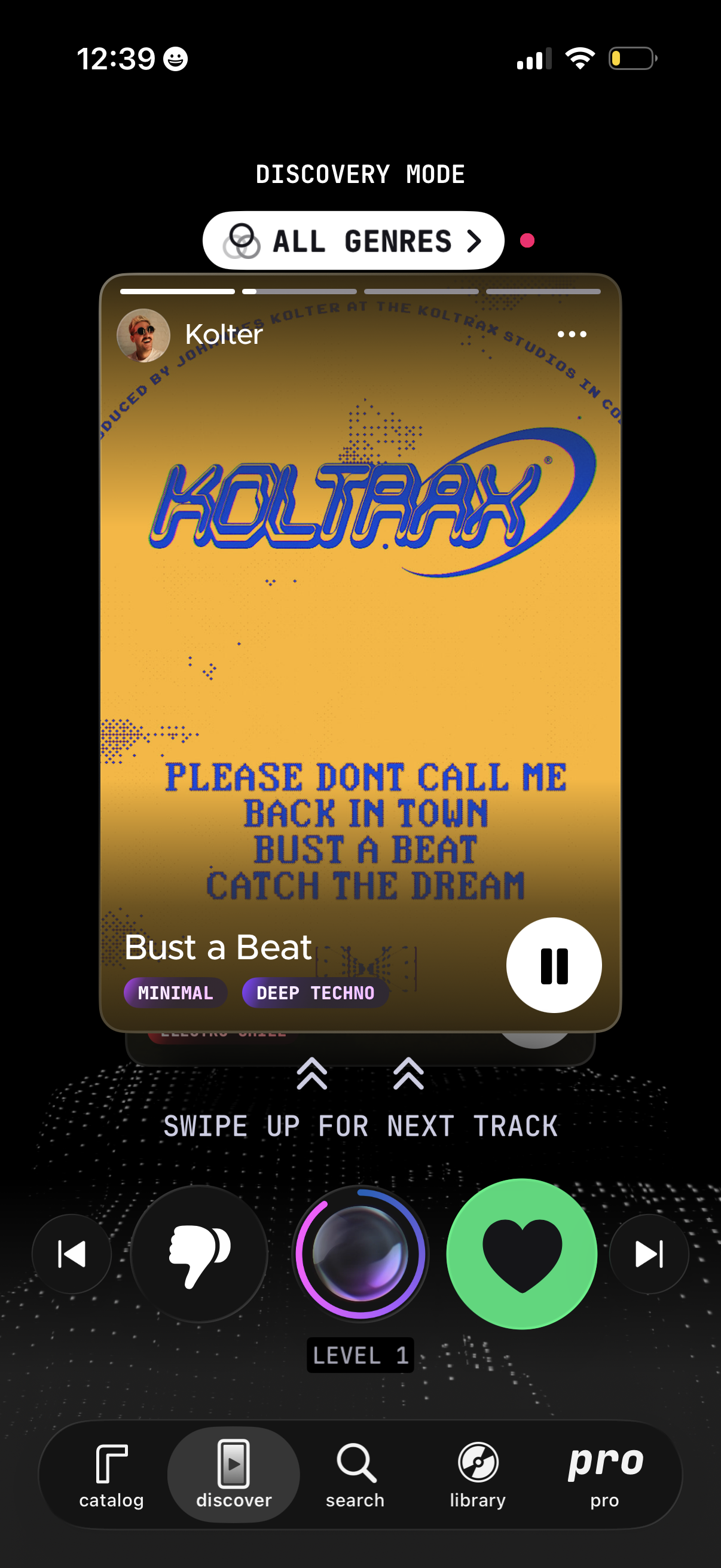
Music discovery mode player screen showing the current track with full album art, artist name, and genre tags, plus a large play/pause control and like button. Users can filter by “All genres,” swipe up to skip to the next track, and access bottom navigation for catalog, discover, search, library, and pro.
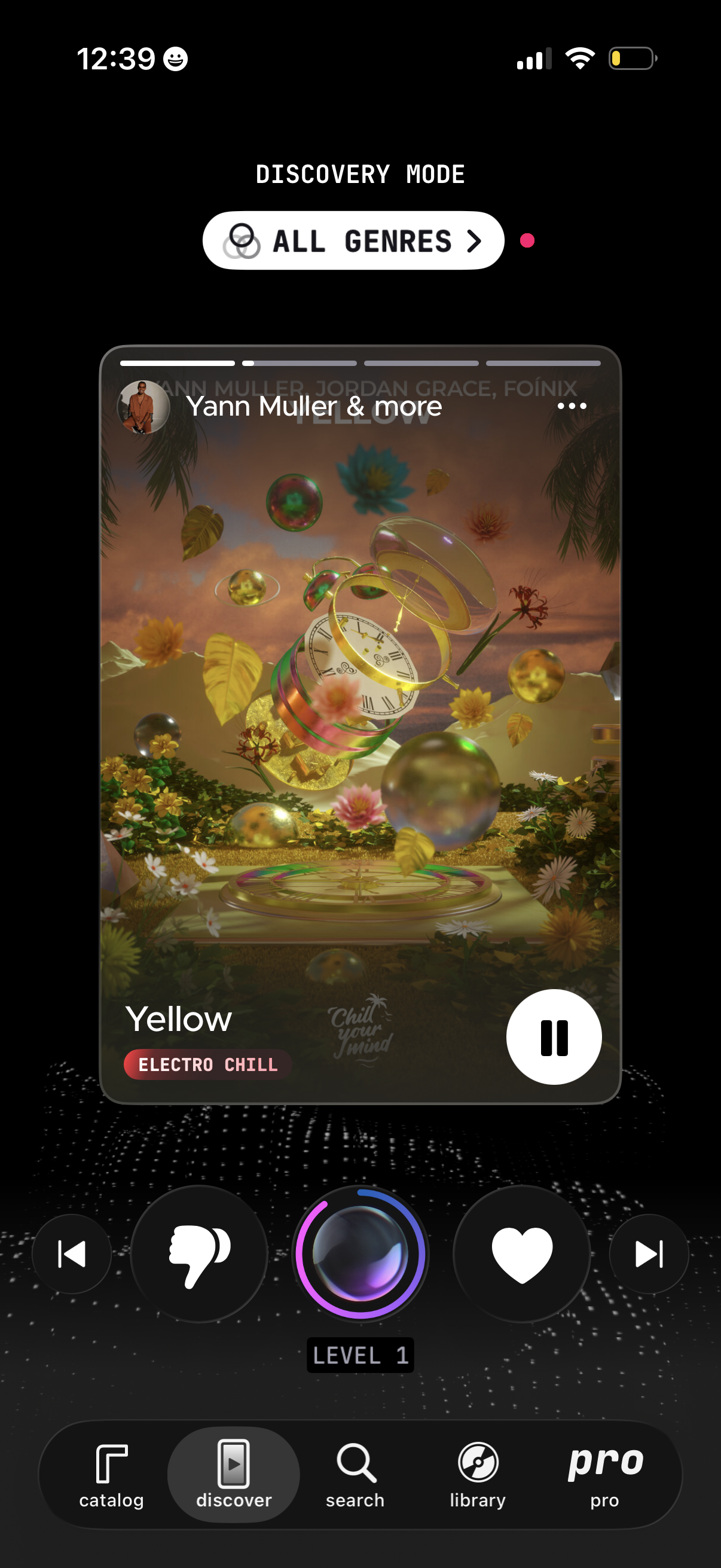
Music discovery screen in “Discovery Mode” with an all-genres filter, showing a currently playing track card with artwork, title, genre tags, and a large pause button. Includes like/favorite, skip controls, a level/progress indicator, and bottom navigation tabs for catalog, discover, search, library, and pro.
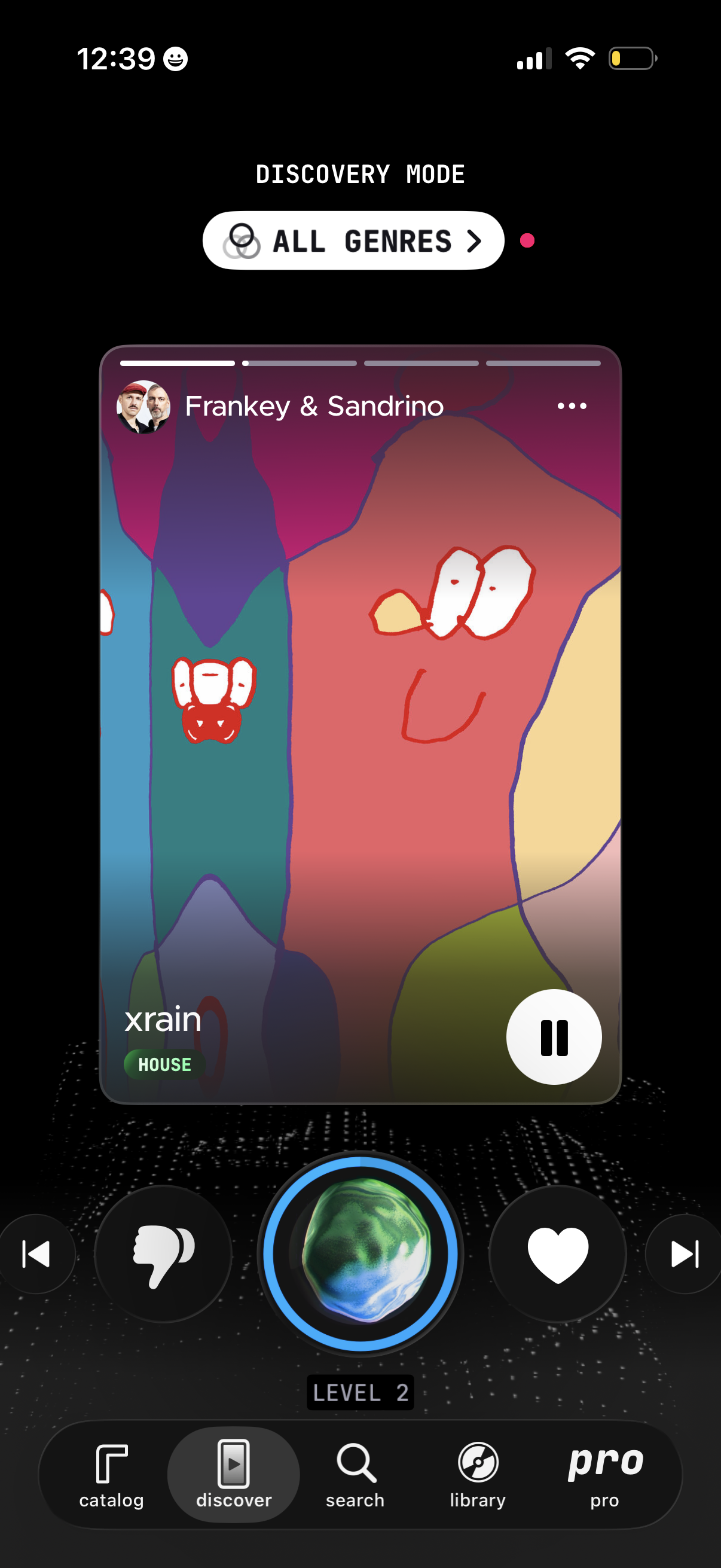
Music discovery player screen in “Discovery Mode” with an “All genres” filter, showing currently playing track/artist artwork, genre tag, and a large pause control. Provides quick feedback and like/dislike buttons, previous/next track controls, a level/progress indicator, and bottom navigation tabs for catalog, discover, search, library, and pro.
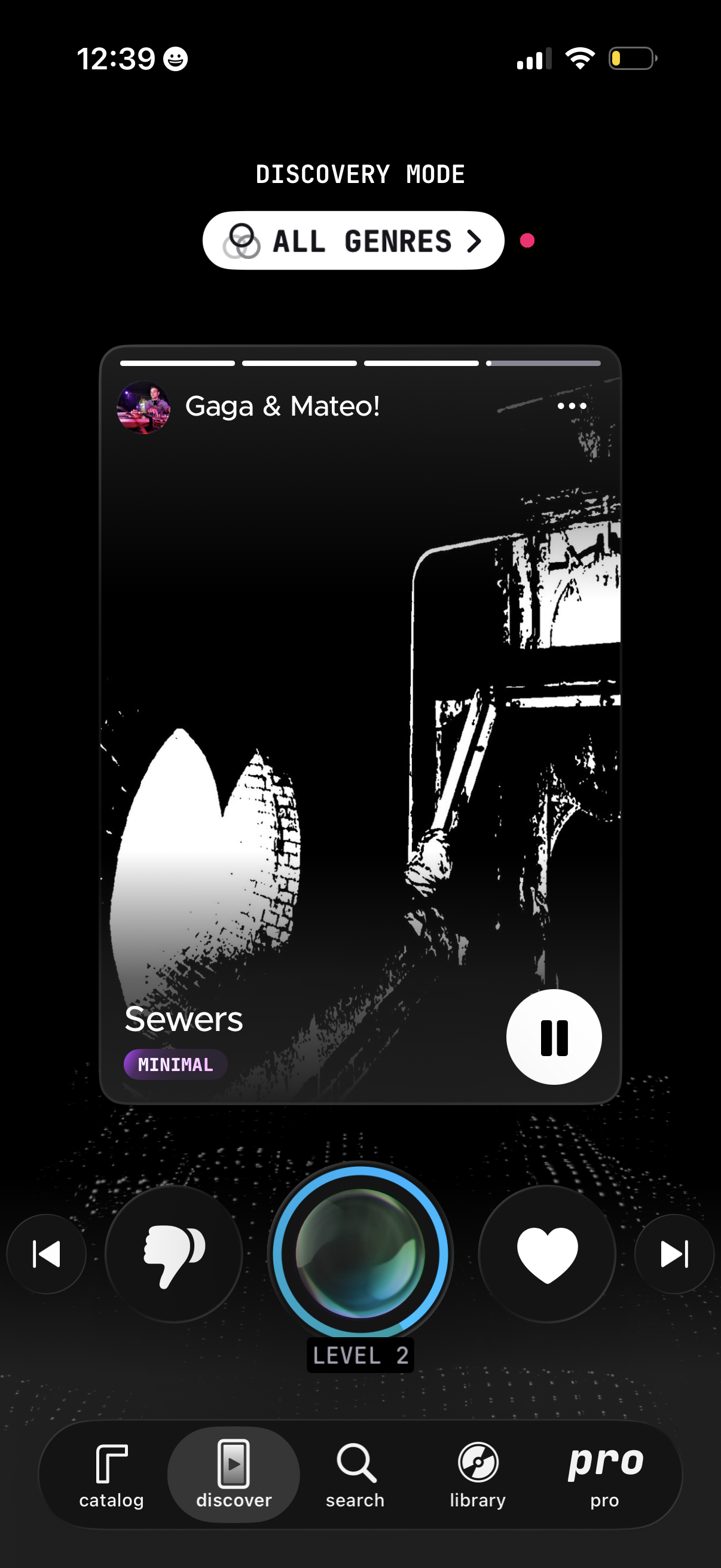
Music discovery mode screen showing a currently playing track card with artwork, artist/title, and genre tag, plus a large play/pause control. Users can filter by “All genres” and use bottom action buttons to like or dislike and skip tracks, with a tab bar to switch between catalog, discover, search, library, and pro.
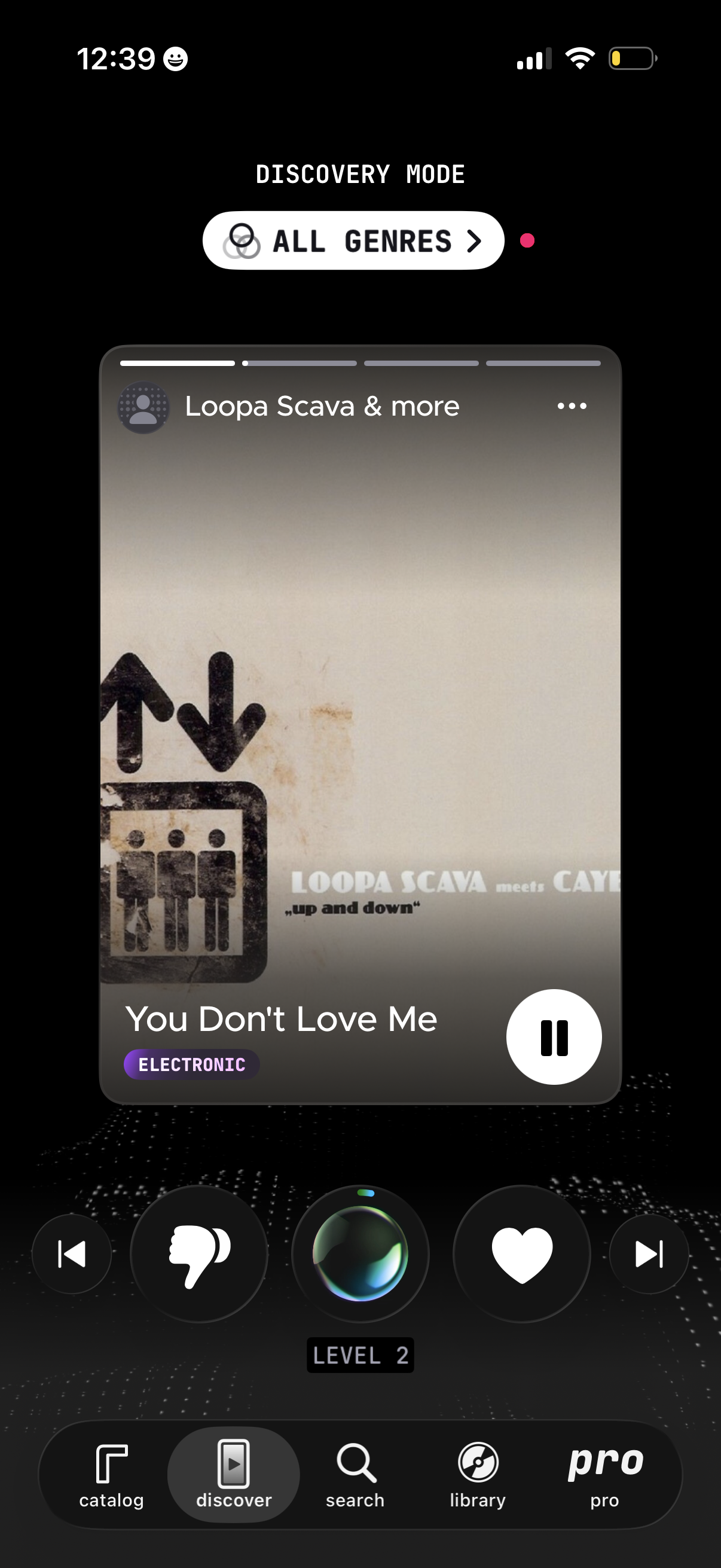
Music discovery screen showing “Discovery Mode” with an “All genres” filter and a large now-playing track card featuring album art, artist, song title, genre tag, and a play/pause control. Includes quick actions for skip/previous, dislike, like/favorite, and navigation tabs for catalog, discover, search, library, and pro.
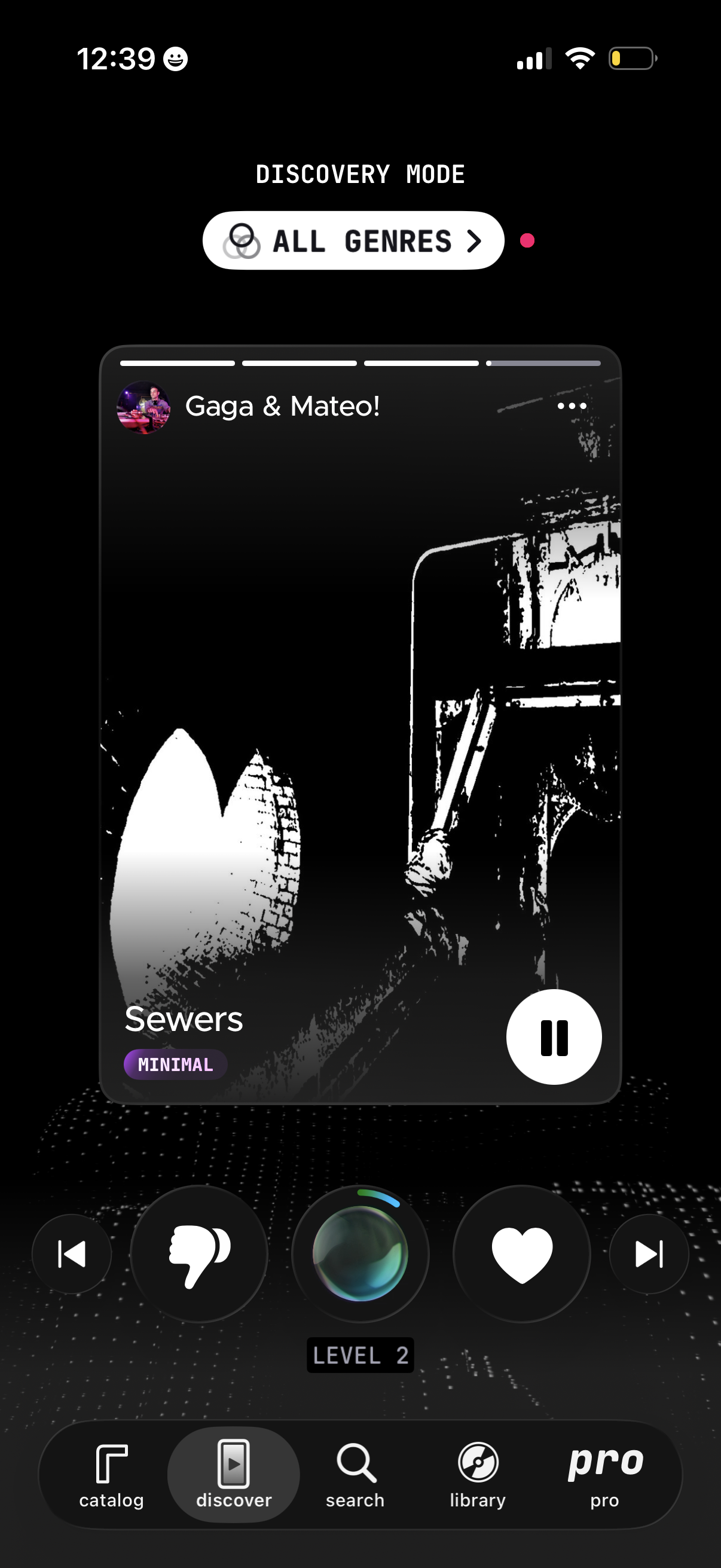
Music discovery mode player screen with an “All genres” filter, showing the currently playing track and artist with cover art, genre tag, and a large pause button. Includes playback controls plus quick actions to dislike/skip, like/favorite, and navigate via a bottom tab bar (catalog, discover, search, library, pro).
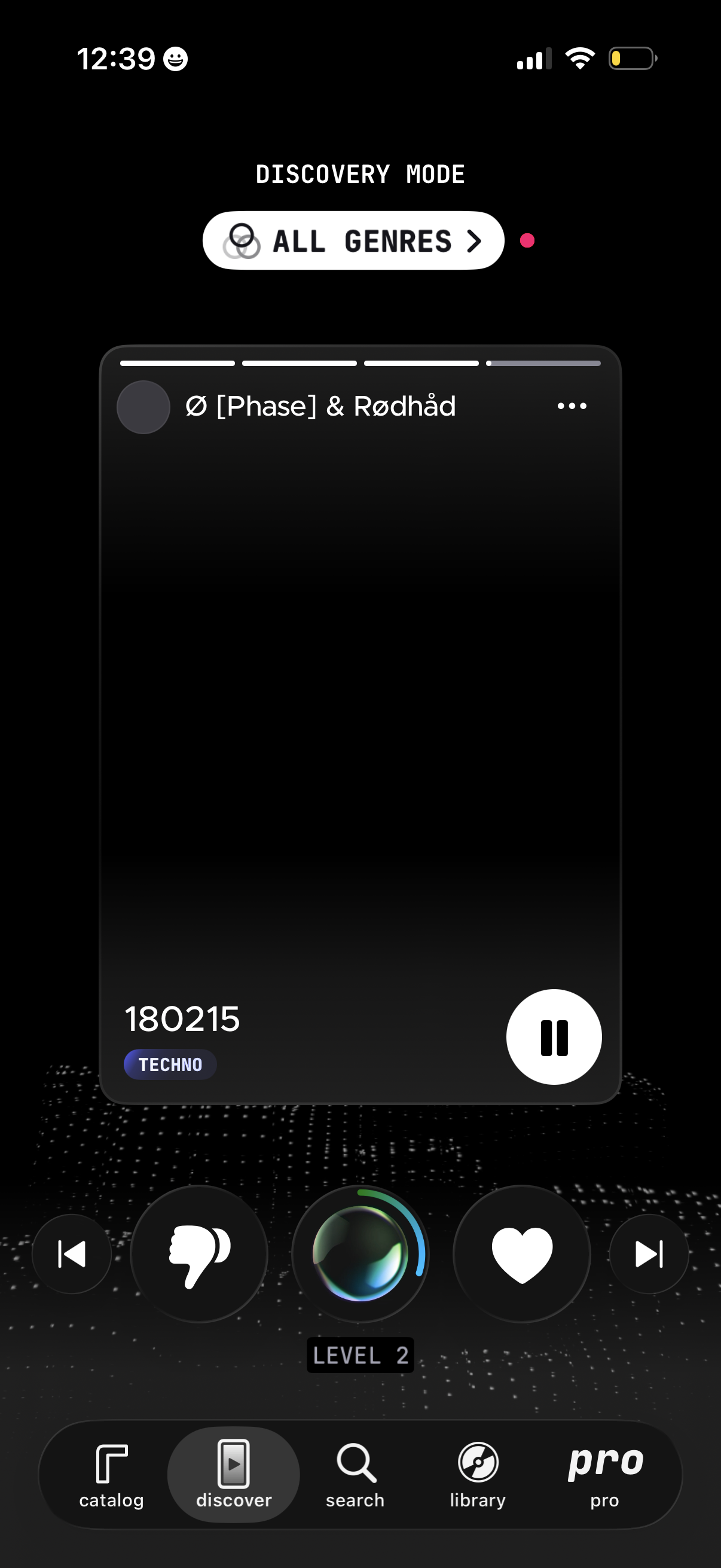
Music discovery player screen in “Discovery Mode” with an All Genres filter and a large track card showing the current song, genre tag, and overflow menu. Users can play/pause, skip, like or dislike tracks, view a level/progress indicator, and navigate via bottom tabs for catalog, discover, search, library, and pro.
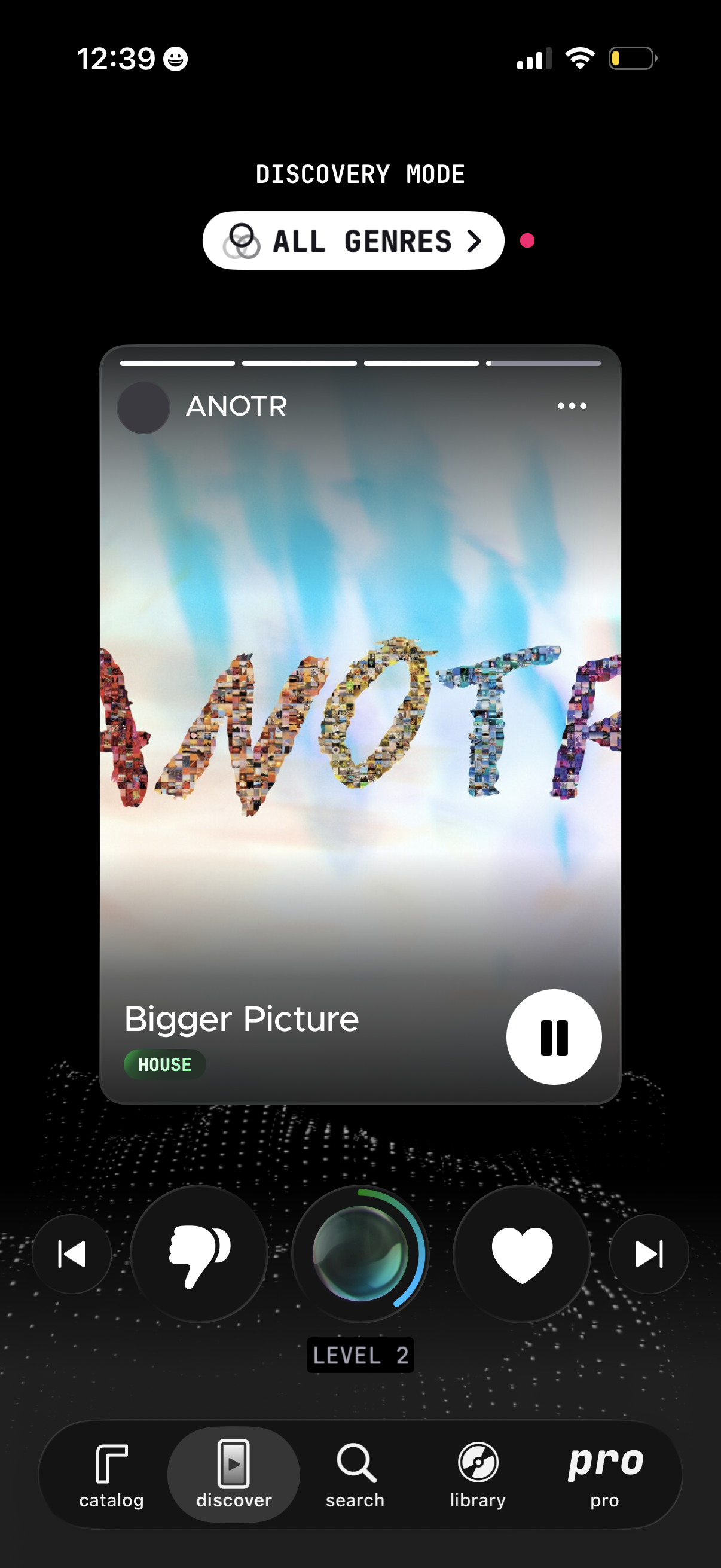
Music discovery screen showing a currently playing track card with album art, artist/title, and genre tag, plus playback controls like play/pause, skip, and more options. Users can filter discovery by genre (e.
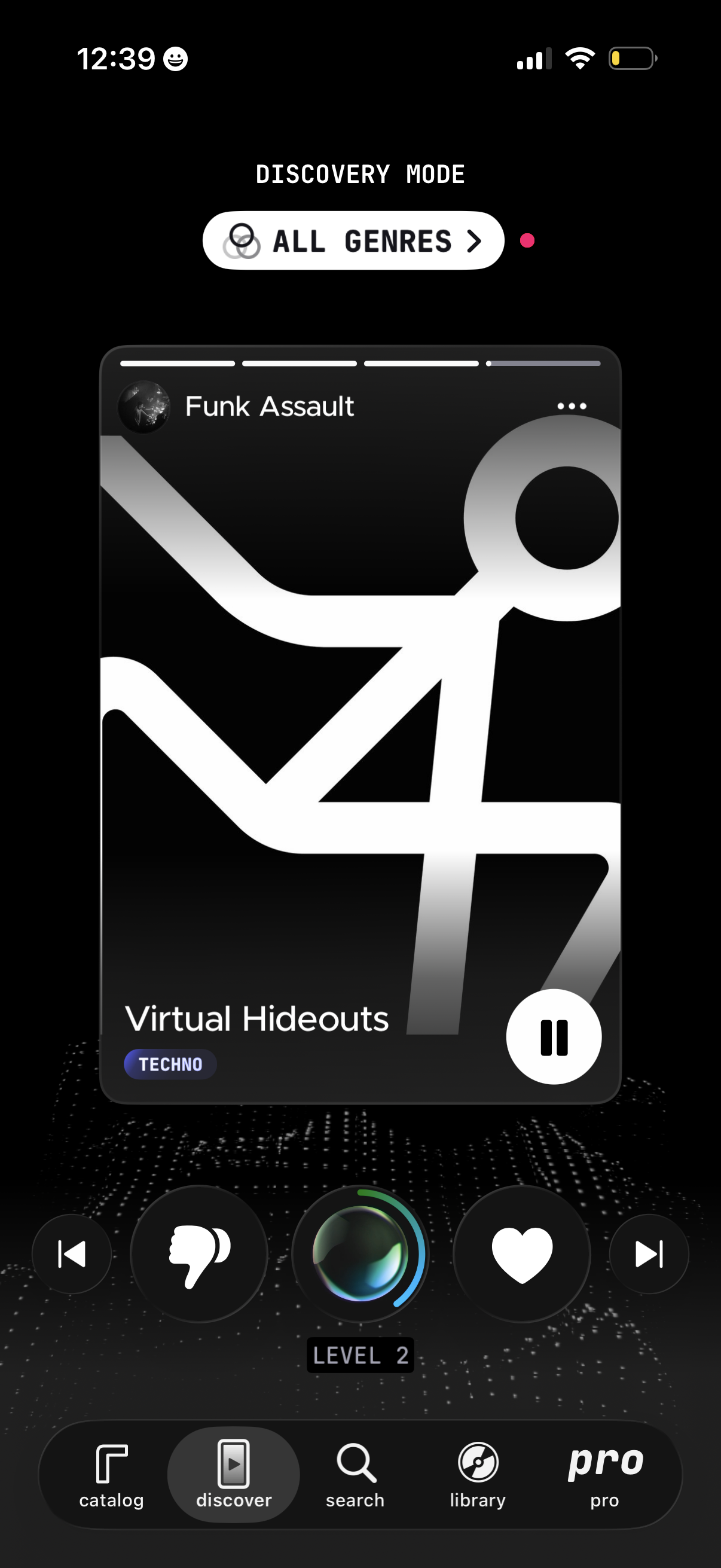
Music discovery mode screen showing a swipeable track card with album art, artist and song title, genre tag, and a play/pause control, plus like and dislike buttons for rating recommendations. Includes an “All genres” filter and bottom navigation tabs for catalog, discover, search, library, and pro.
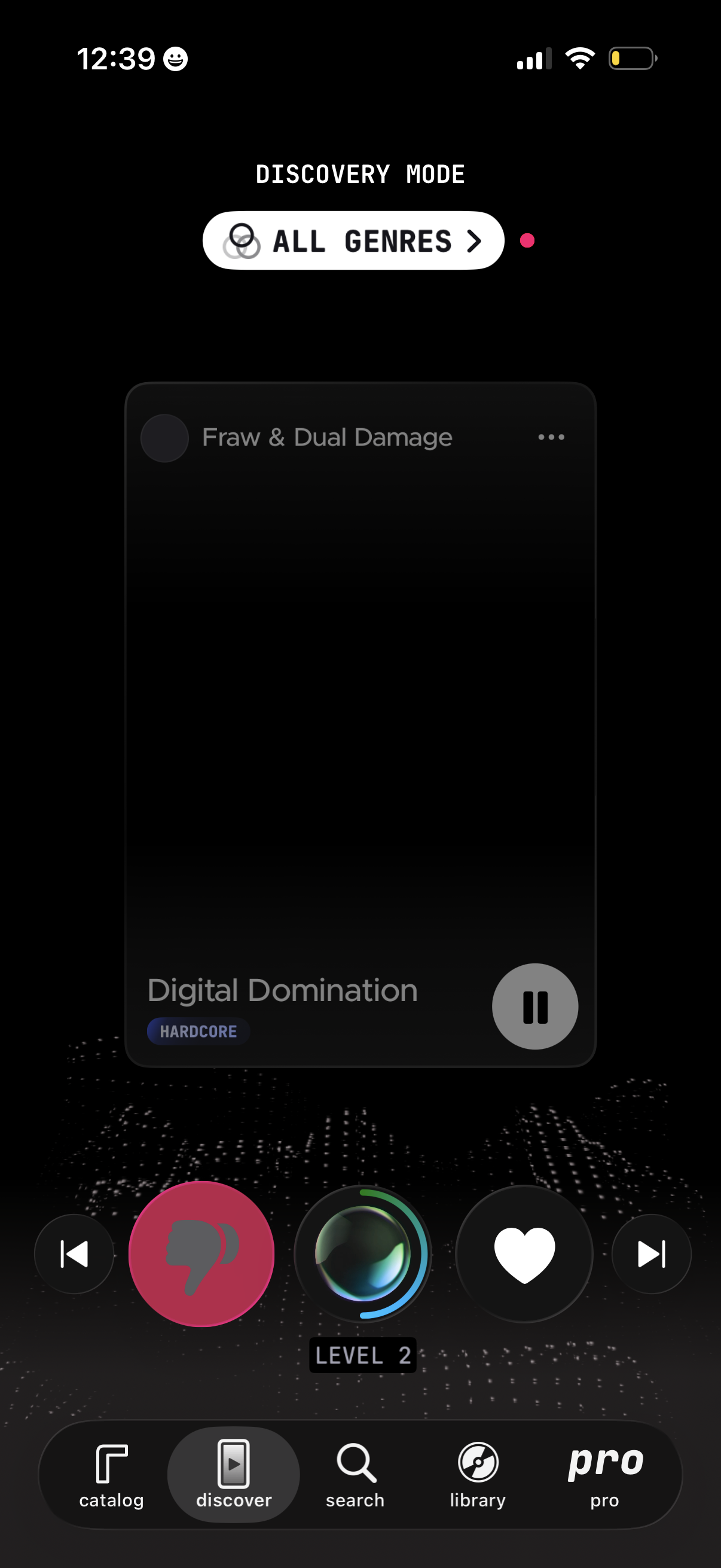
Music discovery screen in “Discovery Mode” with an “All genres” filter, showing the currently playing track card with artist/title and a pause control. Users can skip tracks, dislike or like/save the song, view a level/progress indicator, and navigate via a bottom tab bar (catalog, discover, search, library, pro).
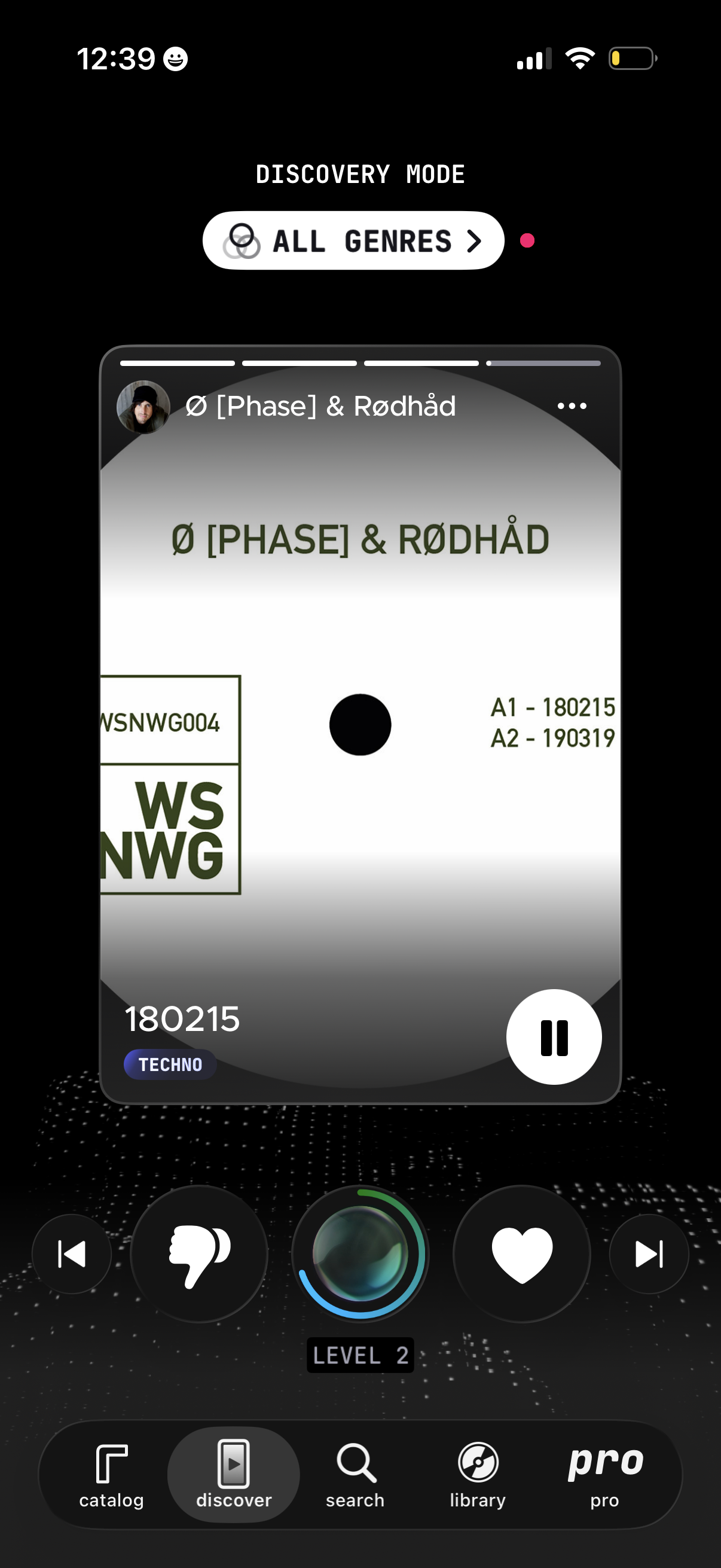
Music discovery screen in “Discovery Mode” with an “All Genres” filter, showing the currently playing track/artist cover art and a large play/pause control. Includes engagement and navigation actions like dislike/skip back, like/favorite, skip forward, plus a bottom tab bar for catalog, discover, search, library, and pro.
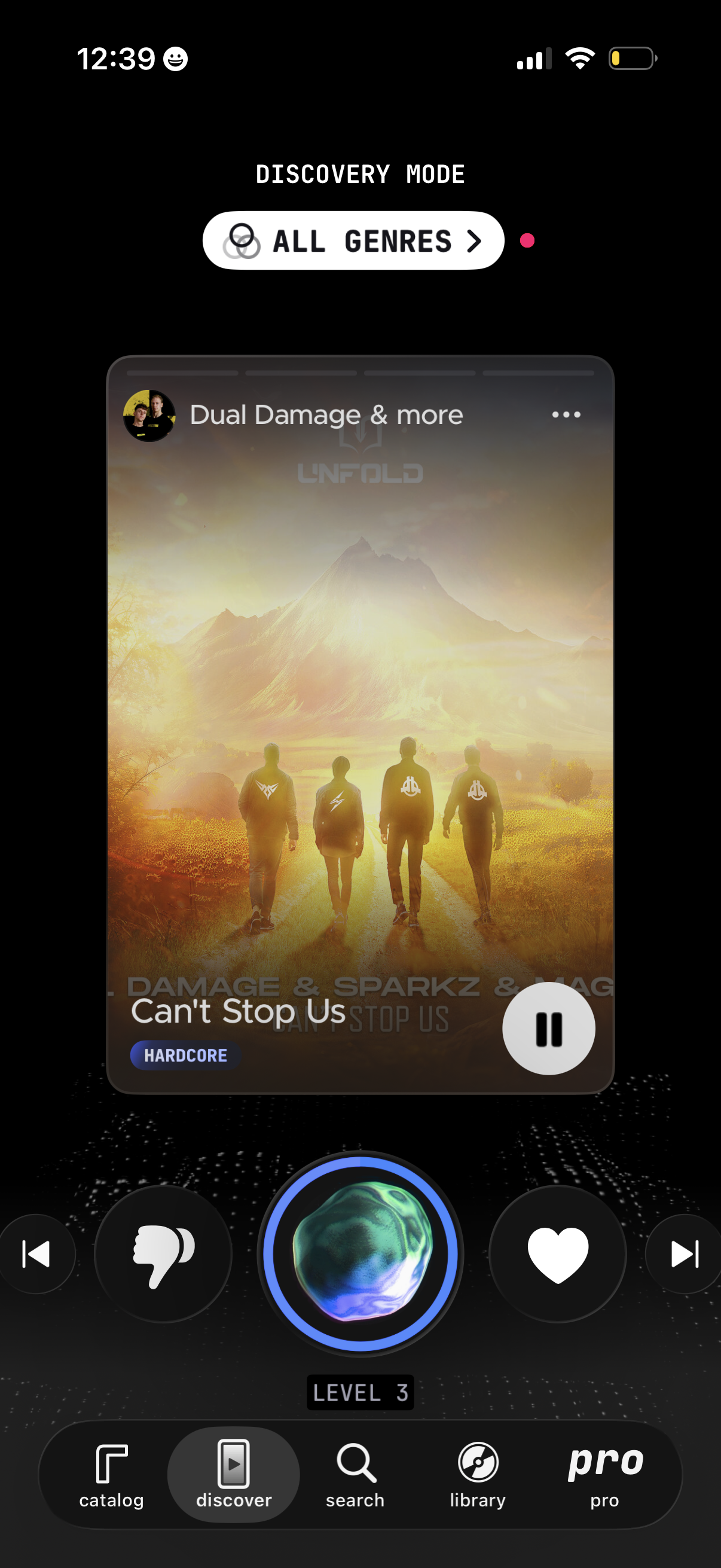
Music discovery player screen showing a currently playing track with album art, track title, genre tag, and a large play/pause control, plus dislike/like and skip buttons. Includes “Discovery Mode” with an “All genres” filter, a level/progress indicator, and bottom navigation tabs for catalog, discover, search, library, and pro.