create a playlist
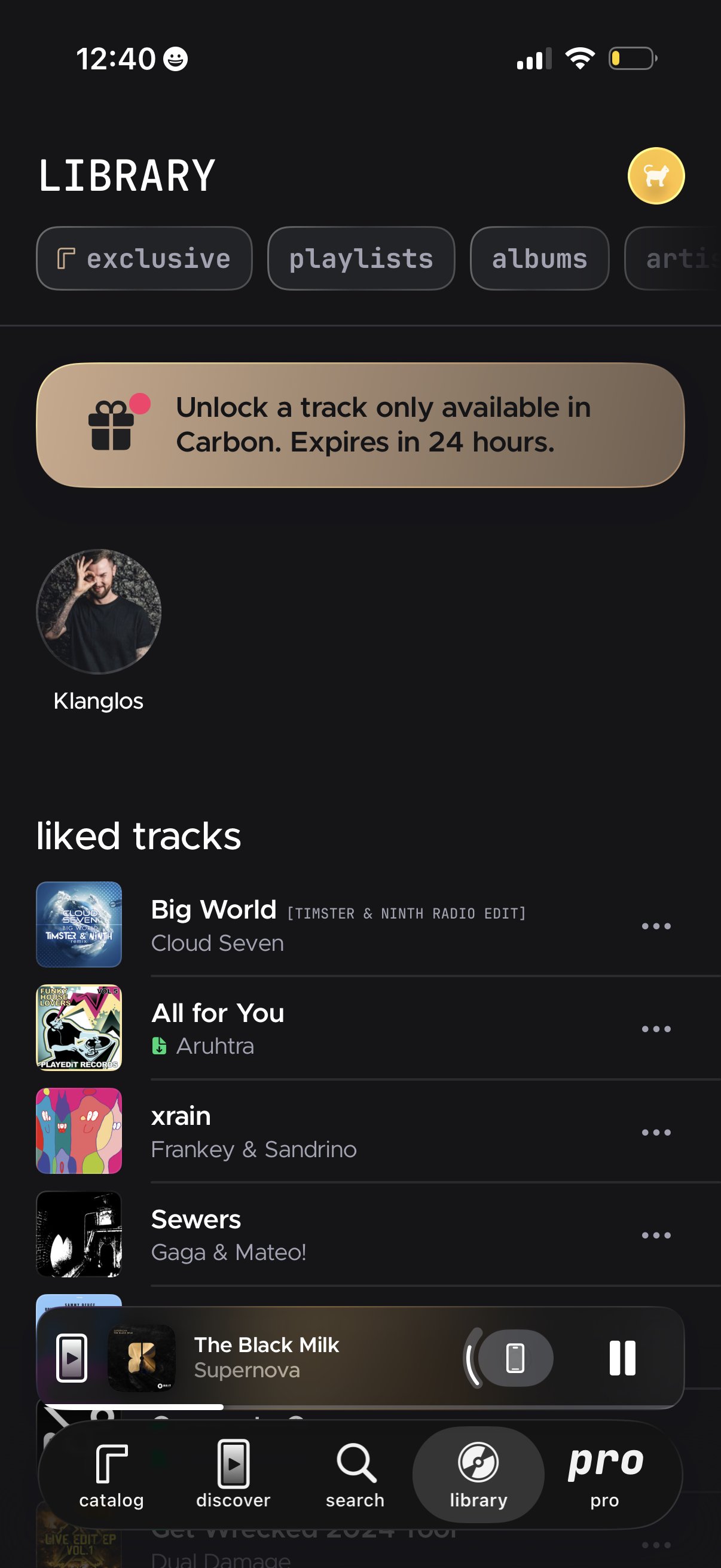
Music app library screen with category tabs (exclusive, playlists, albums) and a promotional banner to unlock an exclusive track for a limited time. Shows an artist shortcut and a “liked tracks” list with album art and overflow menus, plus a bottom mini-player with now playing controls and a tab bar for catalog, discover, search, library, and pro.
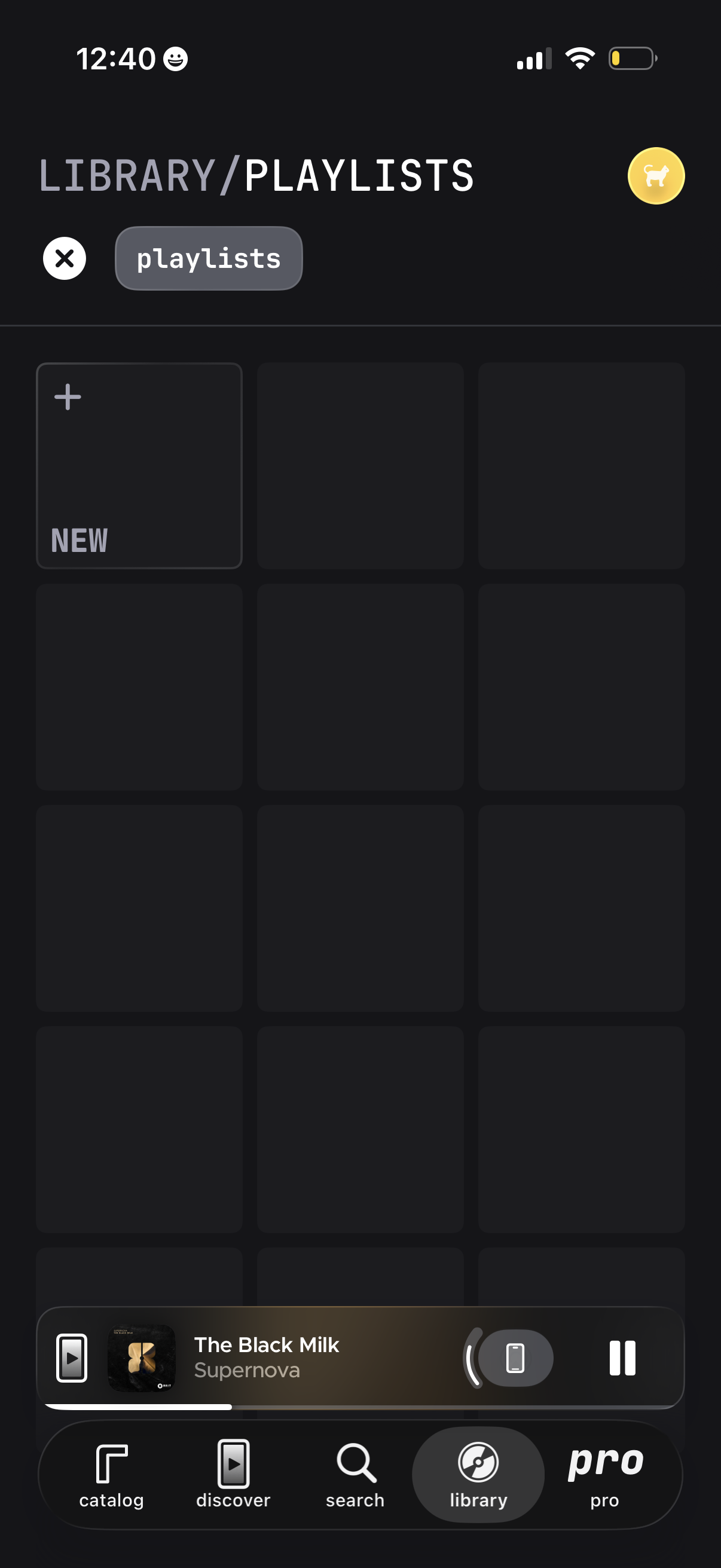
Music app library screen showing a Playlists tab with a grid of playlist tiles and a prominent “New” tile with a plus icon to create a playlist. Includes a bottom mini-player with current track and playback controls plus a tab bar for navigating between catalog, discover, search, library, and pro.
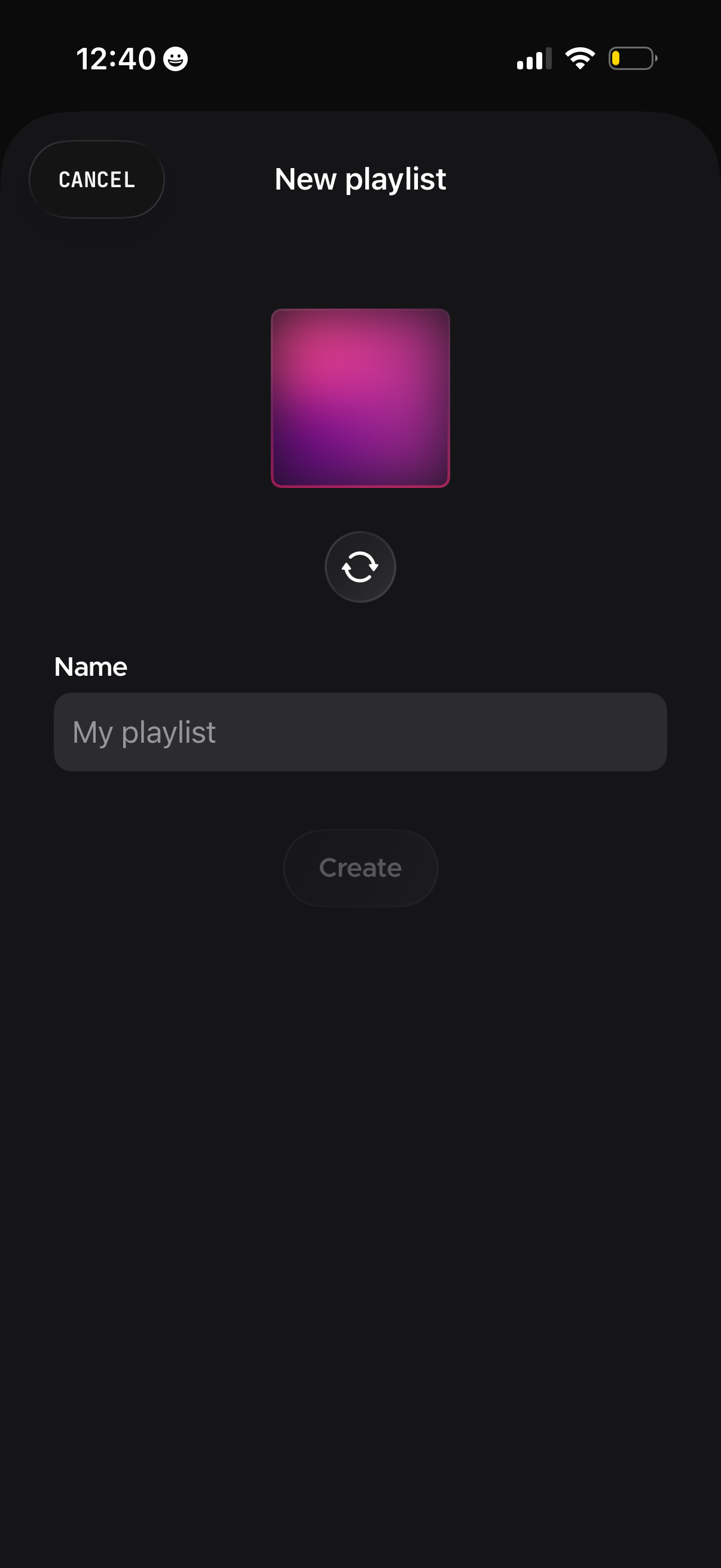
Create new playlist screen in a music app with a cover artwork preview and refresh/shuffle icon to change the cover image. Includes a playlist name text field and primary Create button (disabled until a name is entered), plus a Cancel action to exit.
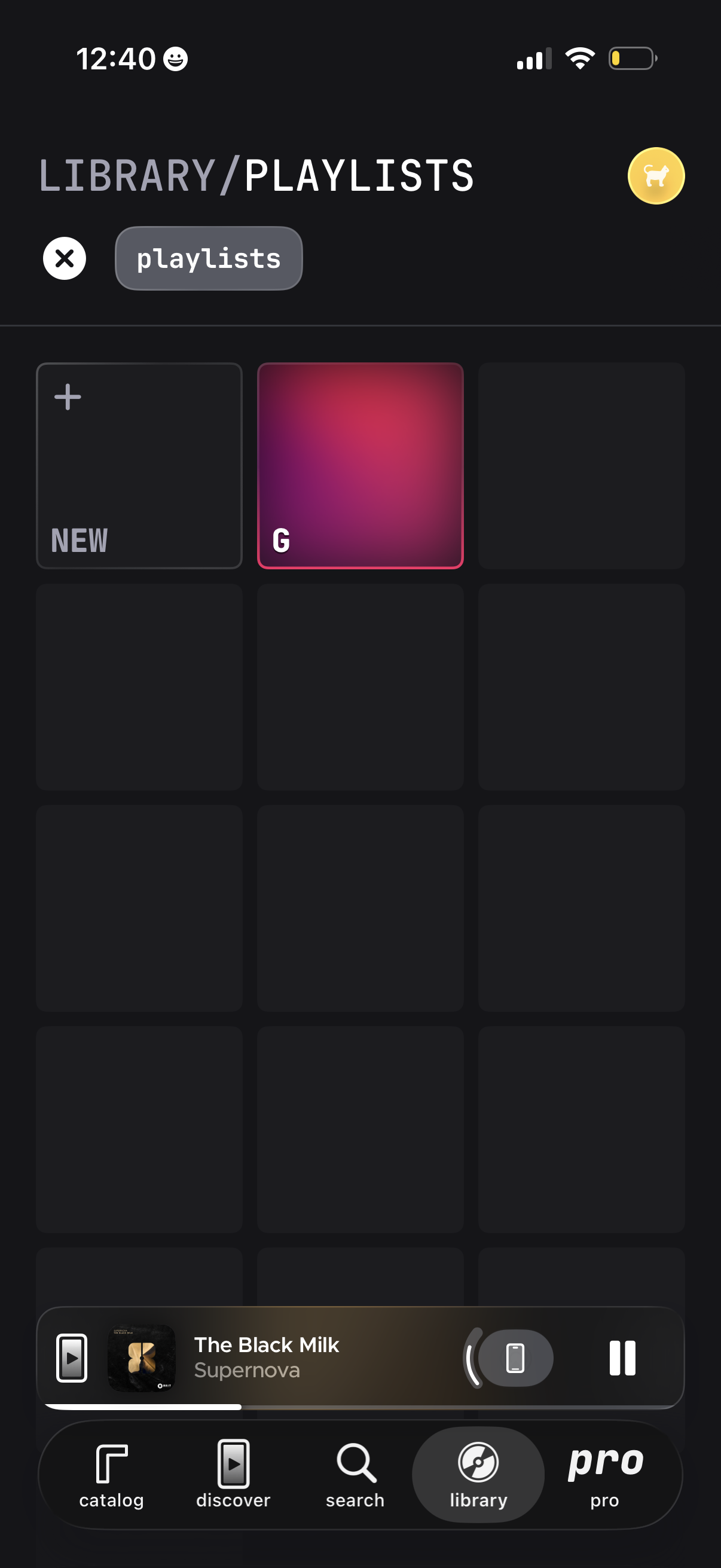
Music app library playlists screen showing a grid of playlist cover tiles with a prominent “New” card to create a playlist and an existing playlist tile, plus a filter/search chip for playlists and a close/back action. A persistent mini player with track controls and a bottom tab bar (catalog, discover, search, library, pro) allow quick navigation while browsing playlists.
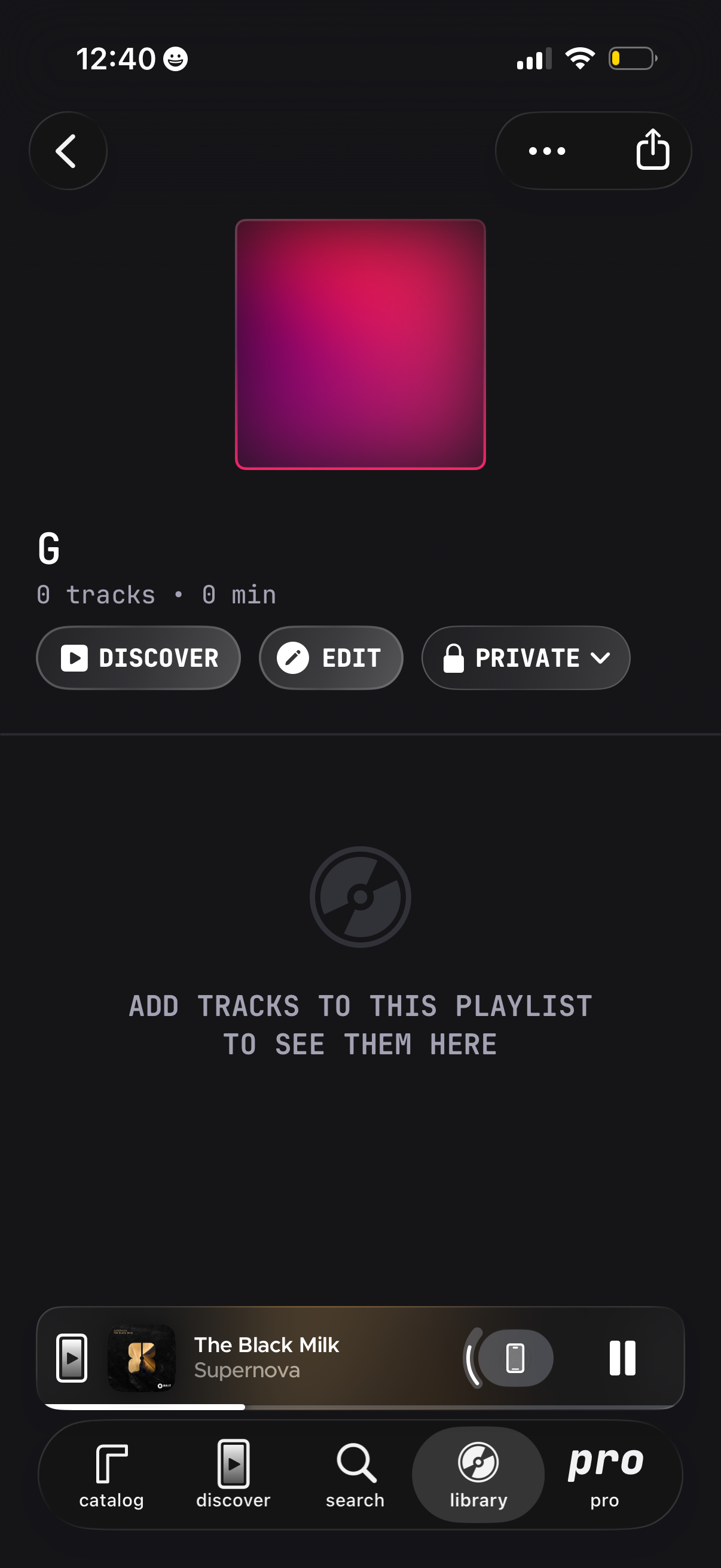
Empty music playlist details screen showing playlist cover art, name, and track count/duration, with actions to Discover tracks, Edit playlist, and toggle privacy (private/public), plus overflow and share options. The track list area displays an empty state prompting the user to add tracks, with a persistent mini player and bottom navigation.