Onboarding
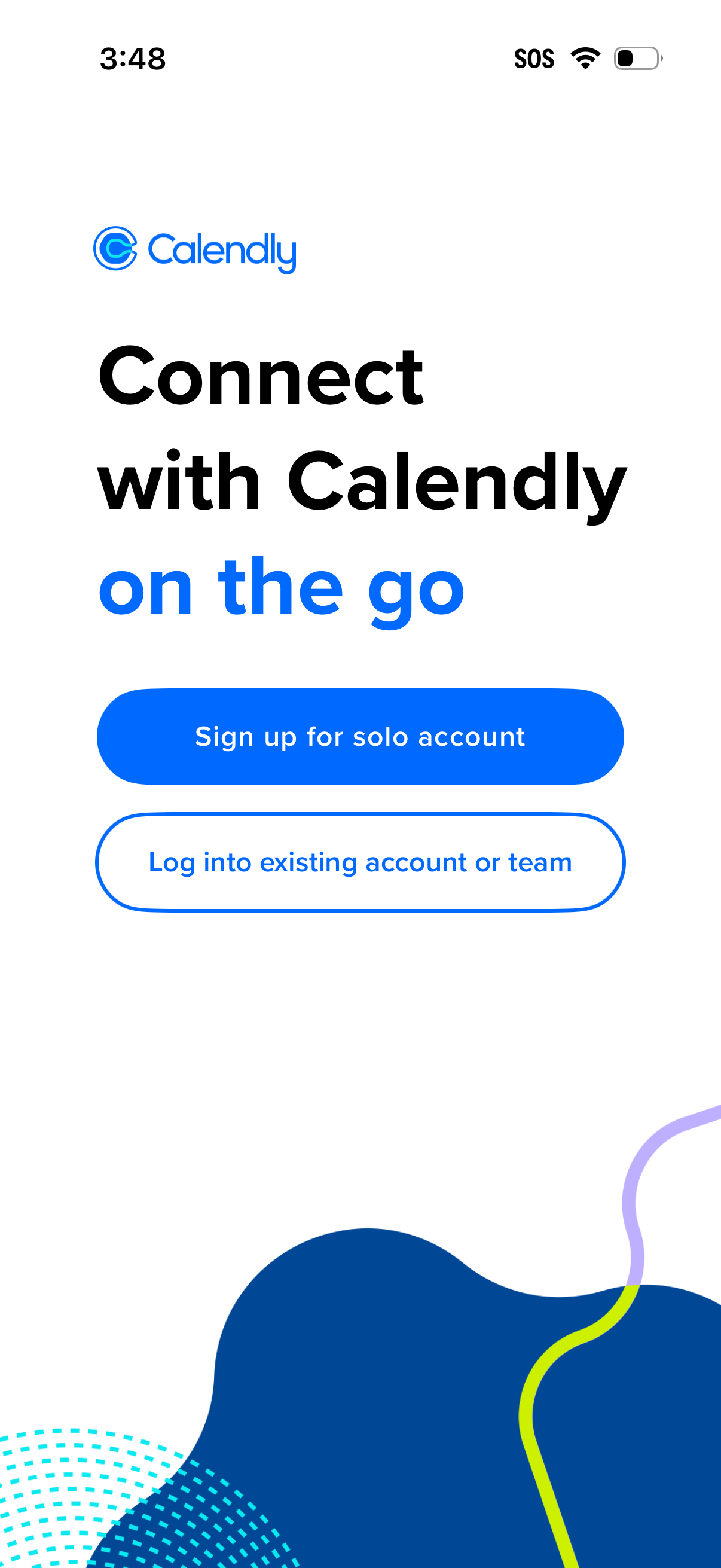
Calendly welcome/onboarding screen prompting users to connect on mobile with two primary actions: sign up for a solo account or log into an existing account or team. Clean landing page with branding and prominent CTA buttons for registration and login.
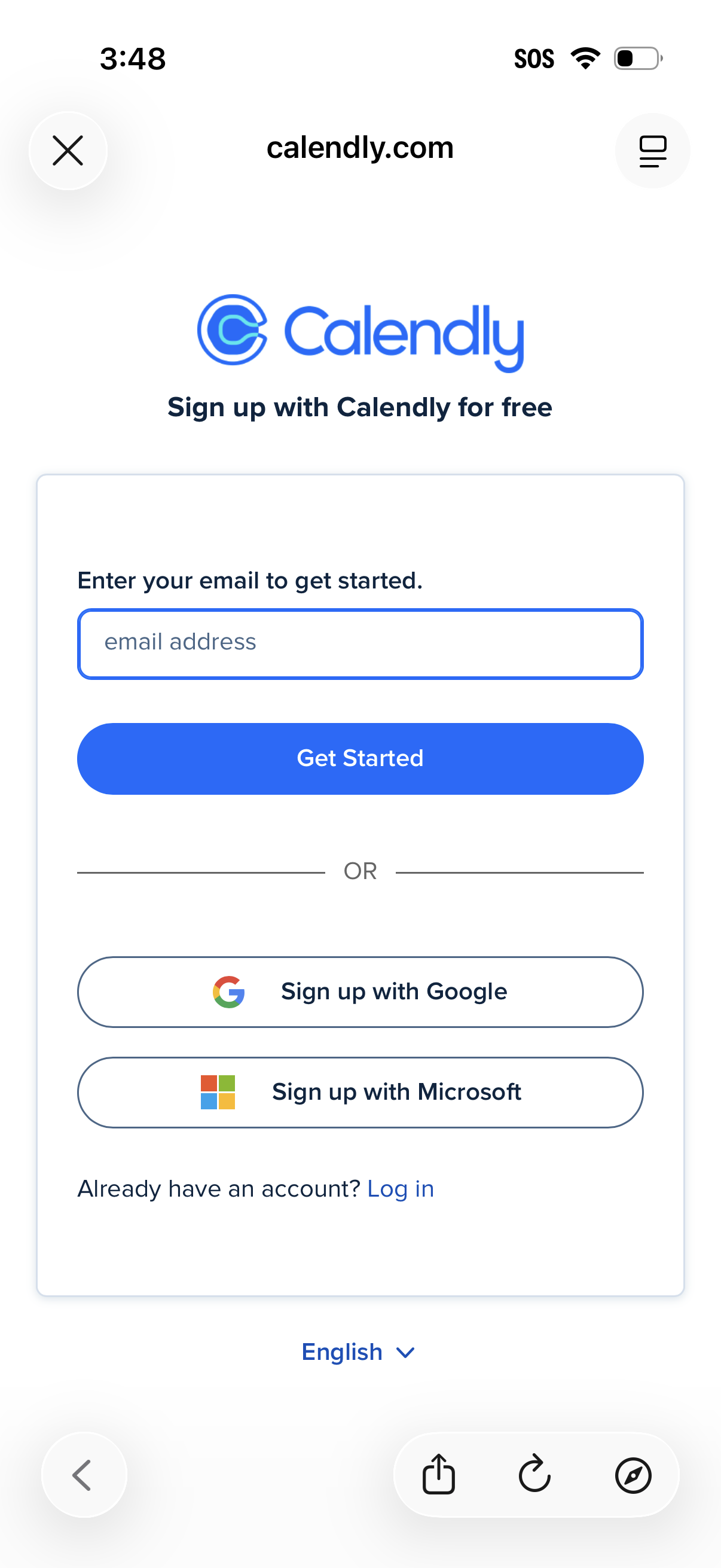
Calendly sign-up screen prompting users to enter an email address to get started, with a primary “Get Started” button. Offers alternative social authentication options to sign up with Google or Microsoft and includes a link to log in for existing accounts.
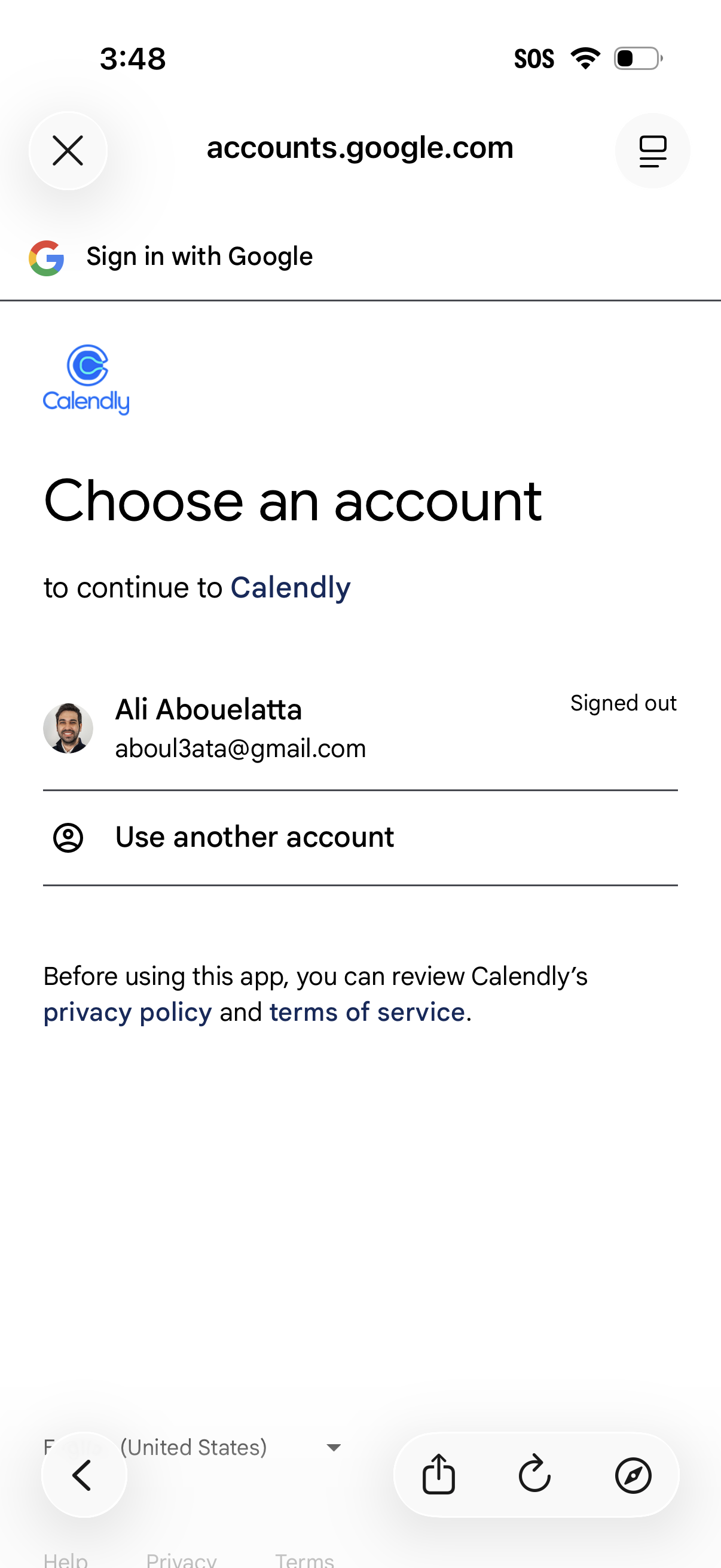
Google OAuth sign-in screen prompting the user to choose a Google account to continue to a third-party app (Calendly), showing an existing account with status and an option to use another account. Includes links to the app’s privacy policy and terms of service before proceeding.
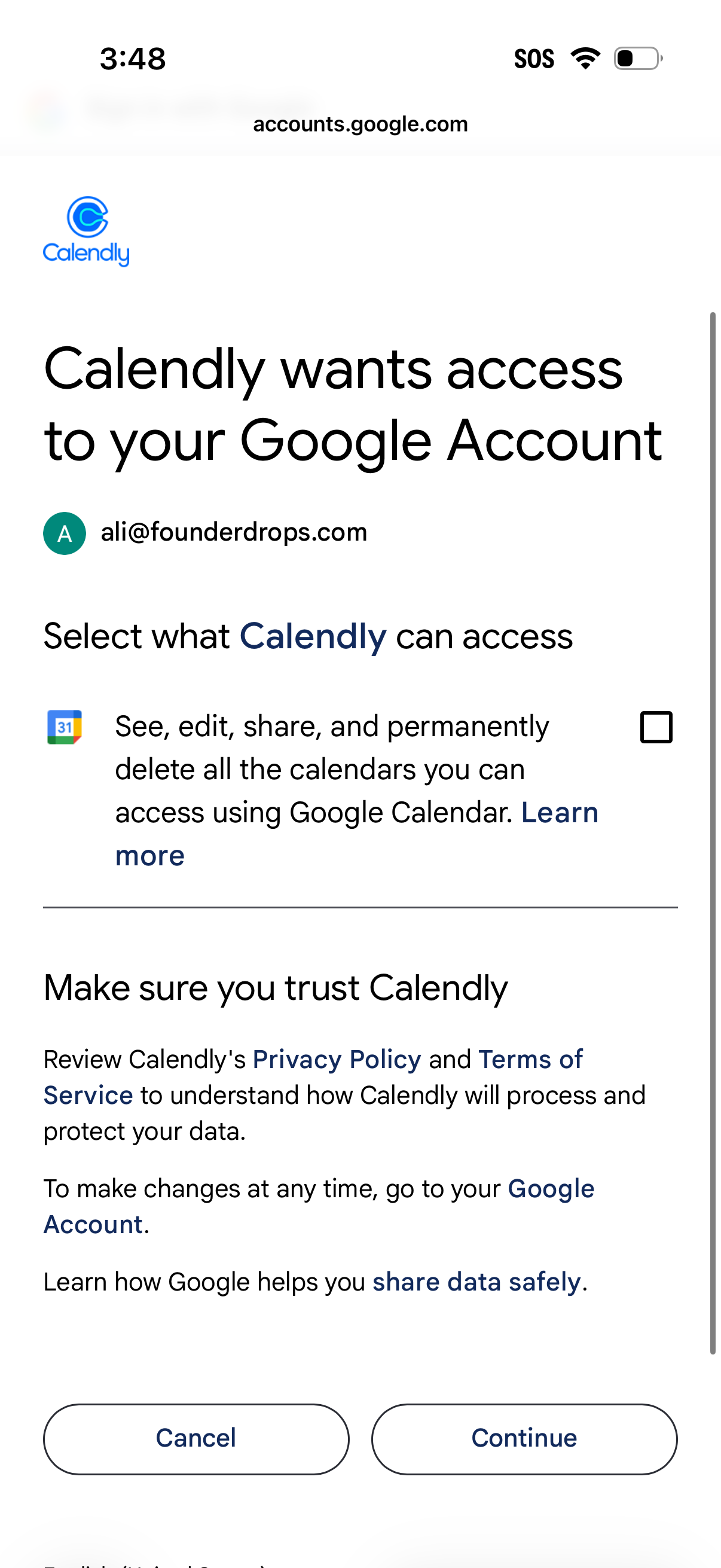
Google OAuth consent screen requesting permission for Calendly to access a user’s Google Account, including a selectable scope to manage Google Calendar (see/edit/share/delete). Provides trust and privacy policy information with primary actions to Cancel or Continue authorization.
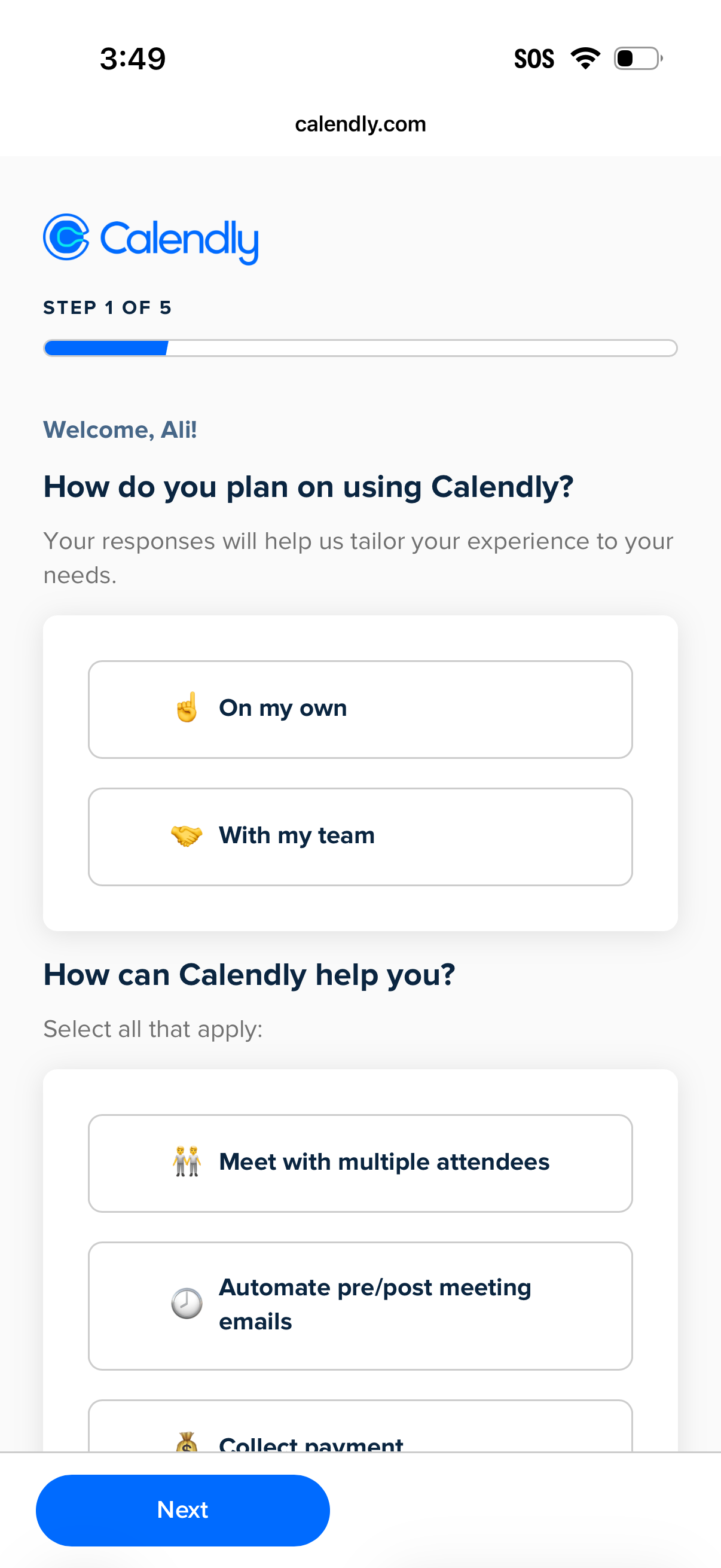
Calendly onboarding survey screen (step 1 of 5) asking how the user plans to use the product (on my own vs with my team) and what goals they need help with via selectable options like meeting with multiple attendees, automating pre/post meeting emails, and collecting payments. Includes a progress bar and a prominent Next button to continue setup.
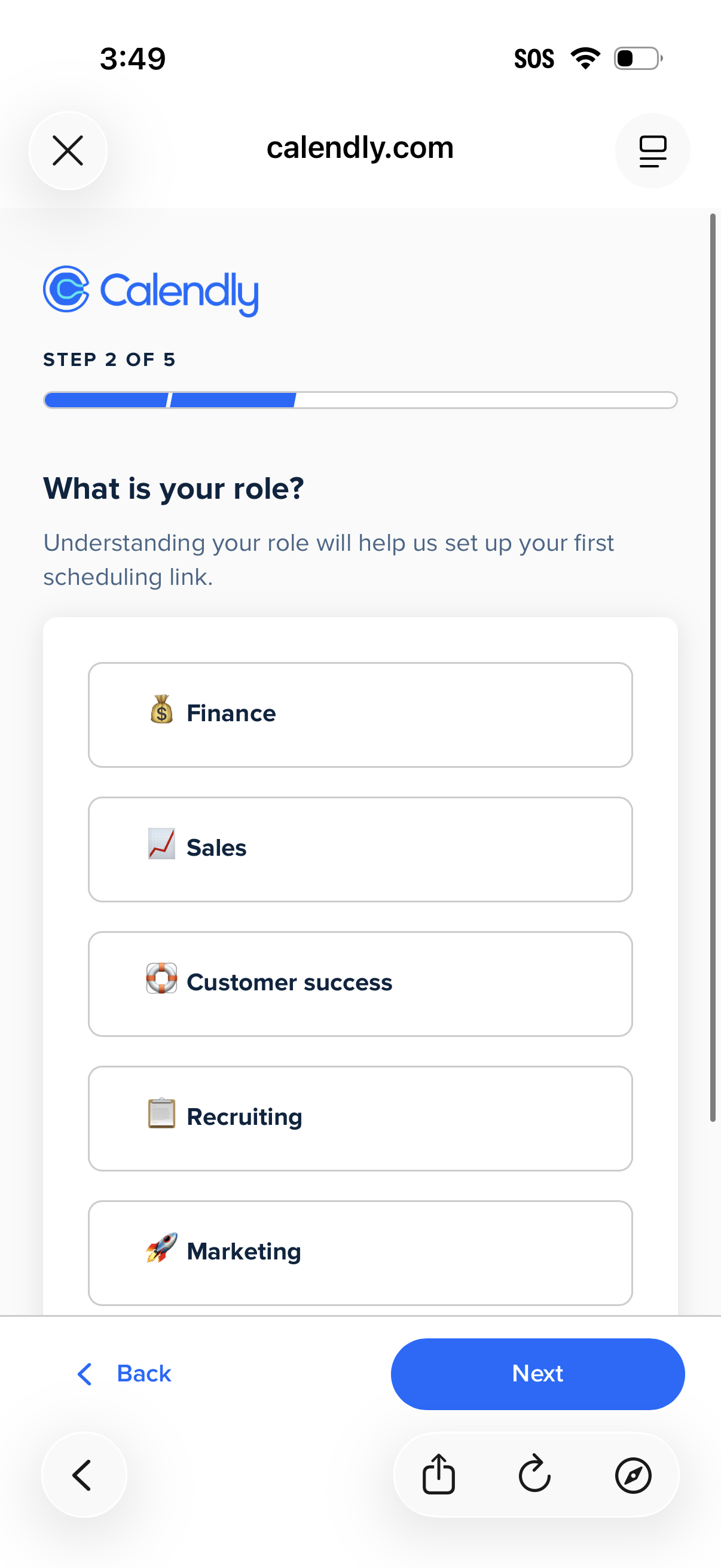
Onboarding step screen for a scheduling tool asking “What is your role? ” with a progress indicator (step 2 of 5) and a list of selectable role options like Finance, Sales, Customer success, Recruiting, and Marketing.
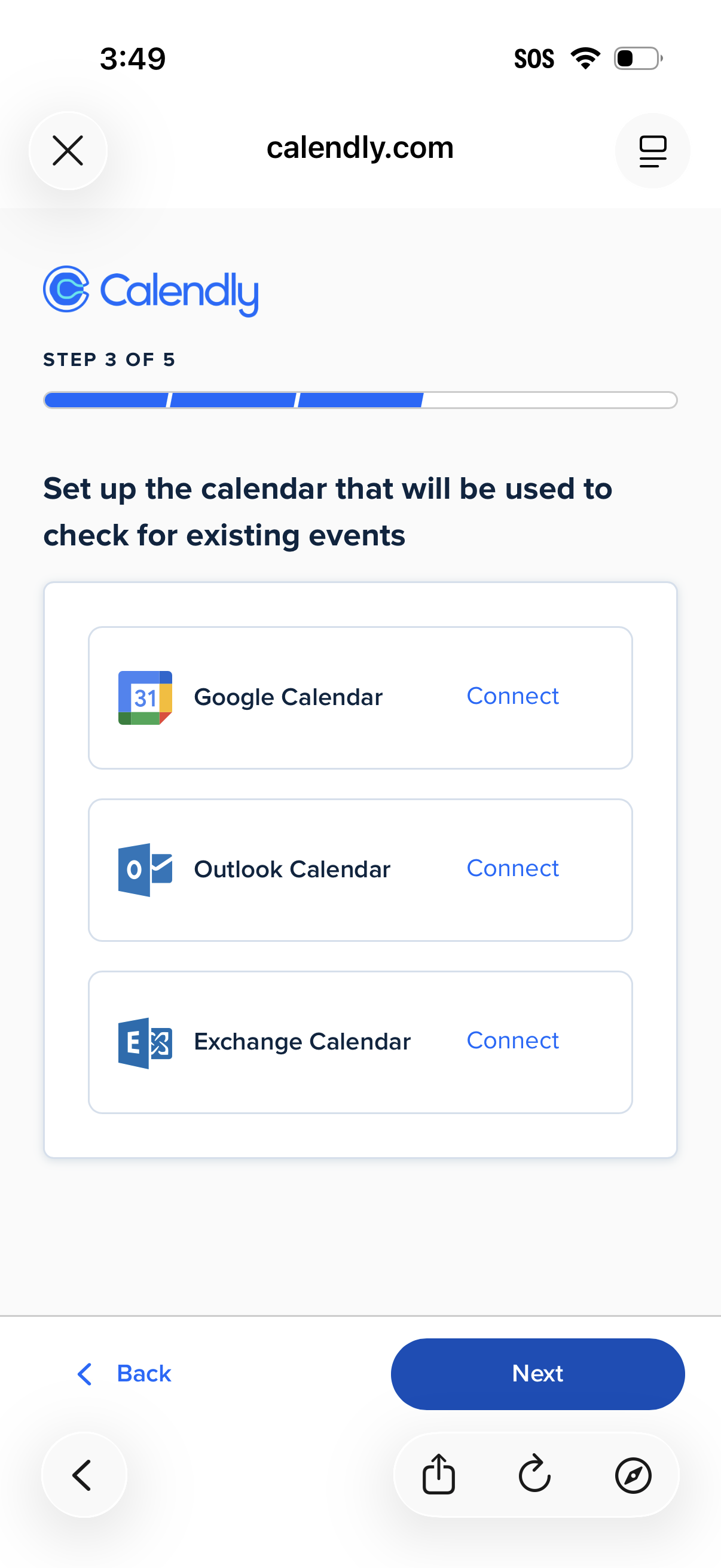
Onboarding setup screen for a scheduling app where users connect a calendar to check for existing events, offering Connect options for Google Calendar, Outlook Calendar, and Exchange Calendar. Includes a step progress indicator and primary navigation actions with Back and Next buttons.
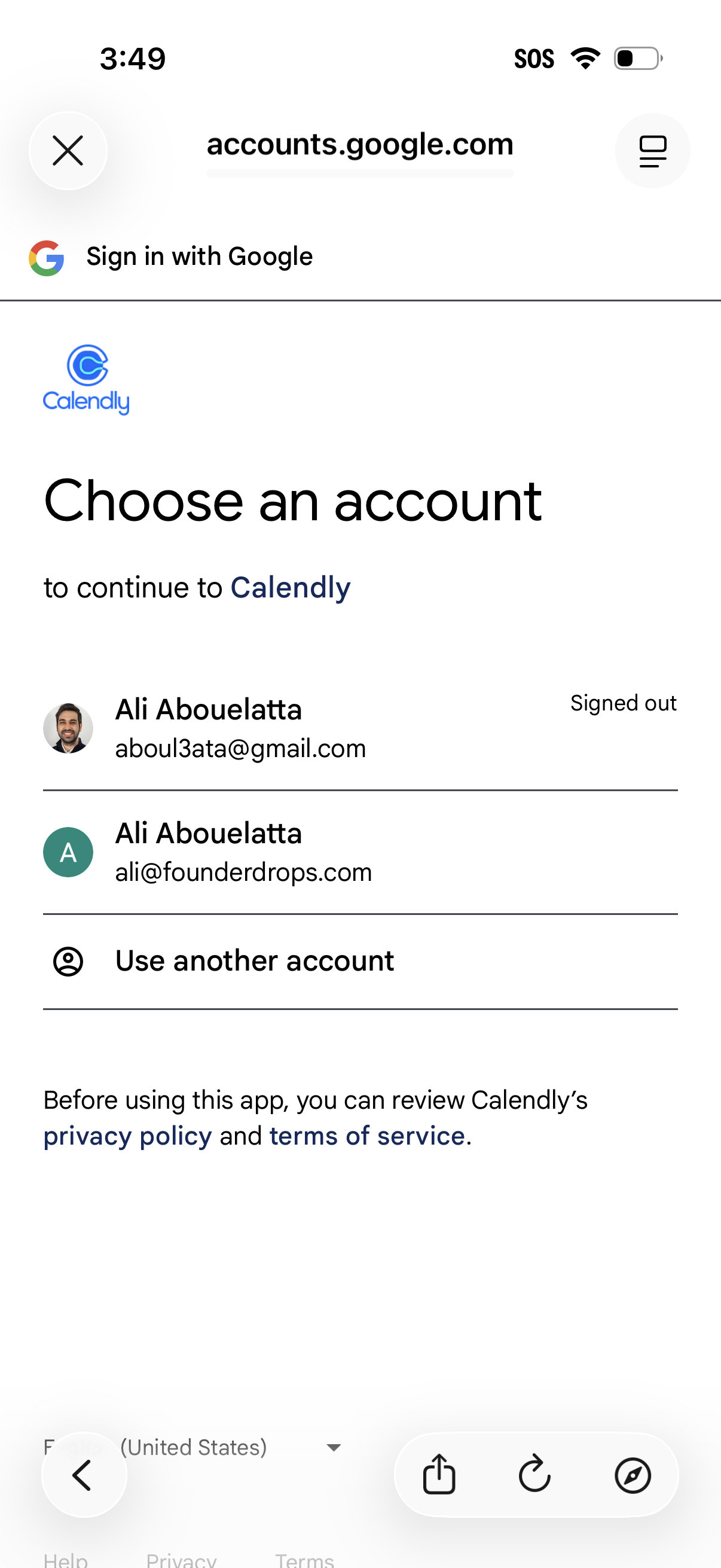
Google OAuth “Sign in with Google” account chooser screen for continuing to a third-party app (Calendly), showing a list of saved Google accounts with status and an option to use another account. Includes links to the app’s privacy policy and terms of service before proceeding.
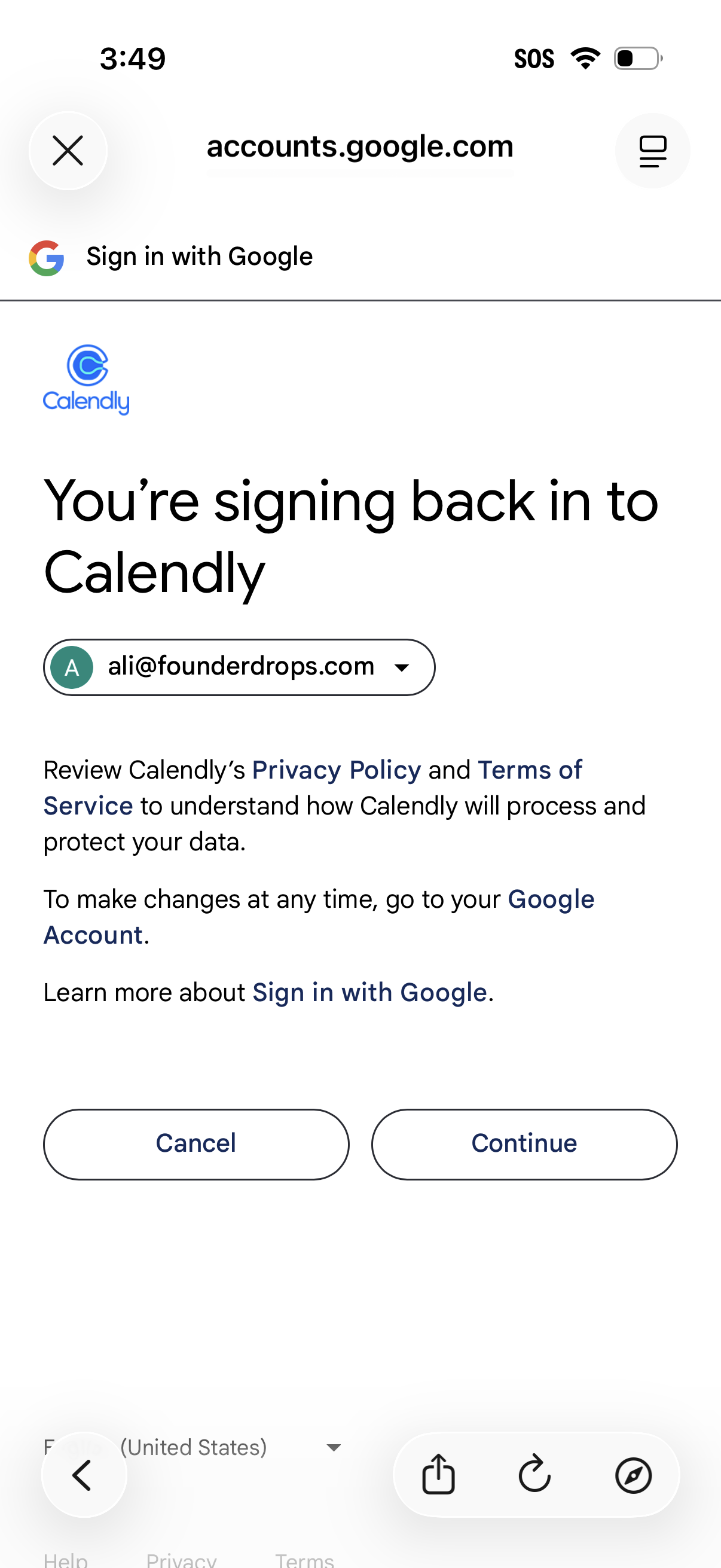
Google OAuth sign-in confirmation screen for logging back into Calendly, showing the selected Google account and links to privacy policy and terms. Primary actions are to cancel or continue to authorize access and proceed with the login.
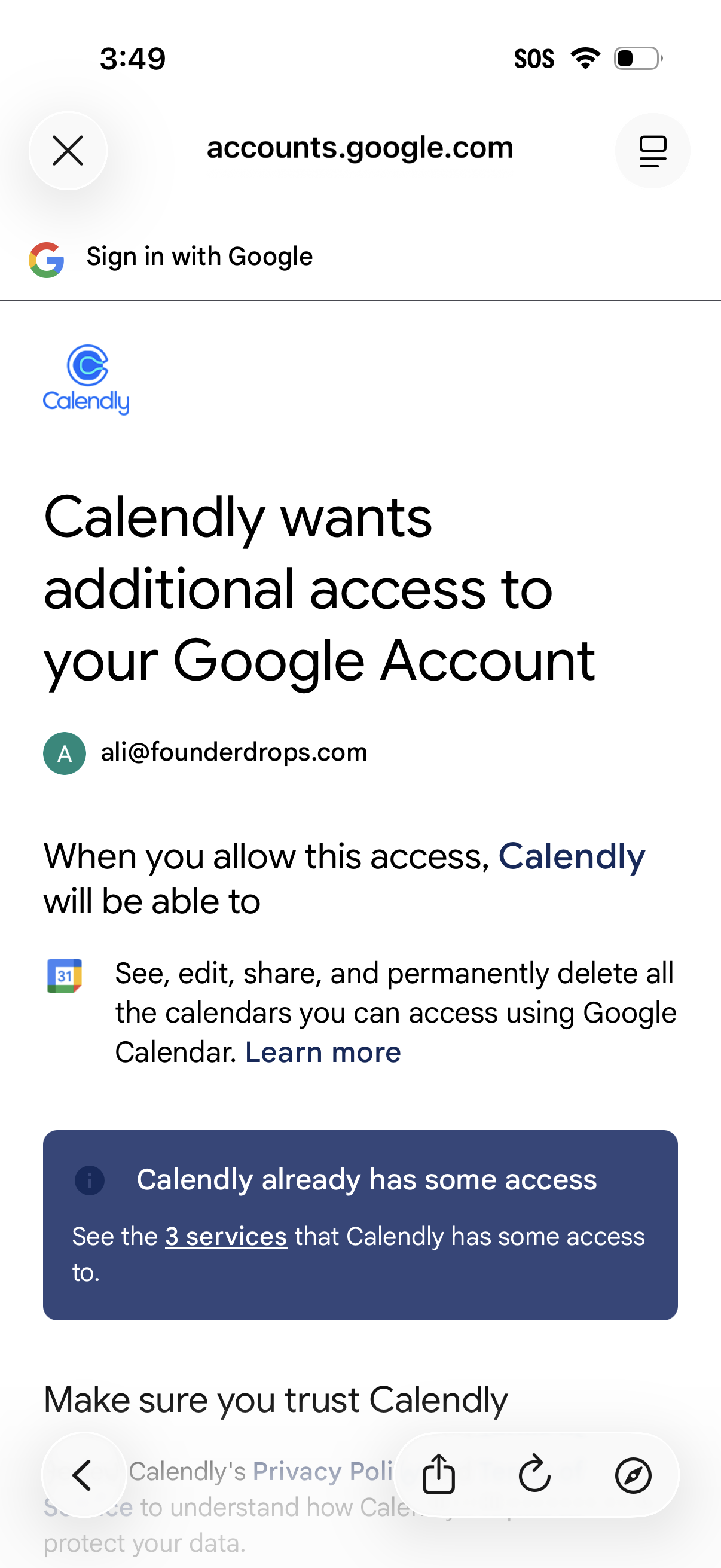
Google OAuth consent screen asking the user to grant Calendly additional access to their Google Account, showing the selected account and the requested permissions for Google Calendar (view, edit, share, delete). Includes a notice that Calendly already has some access with a link to review connected services and trust/privacy information.
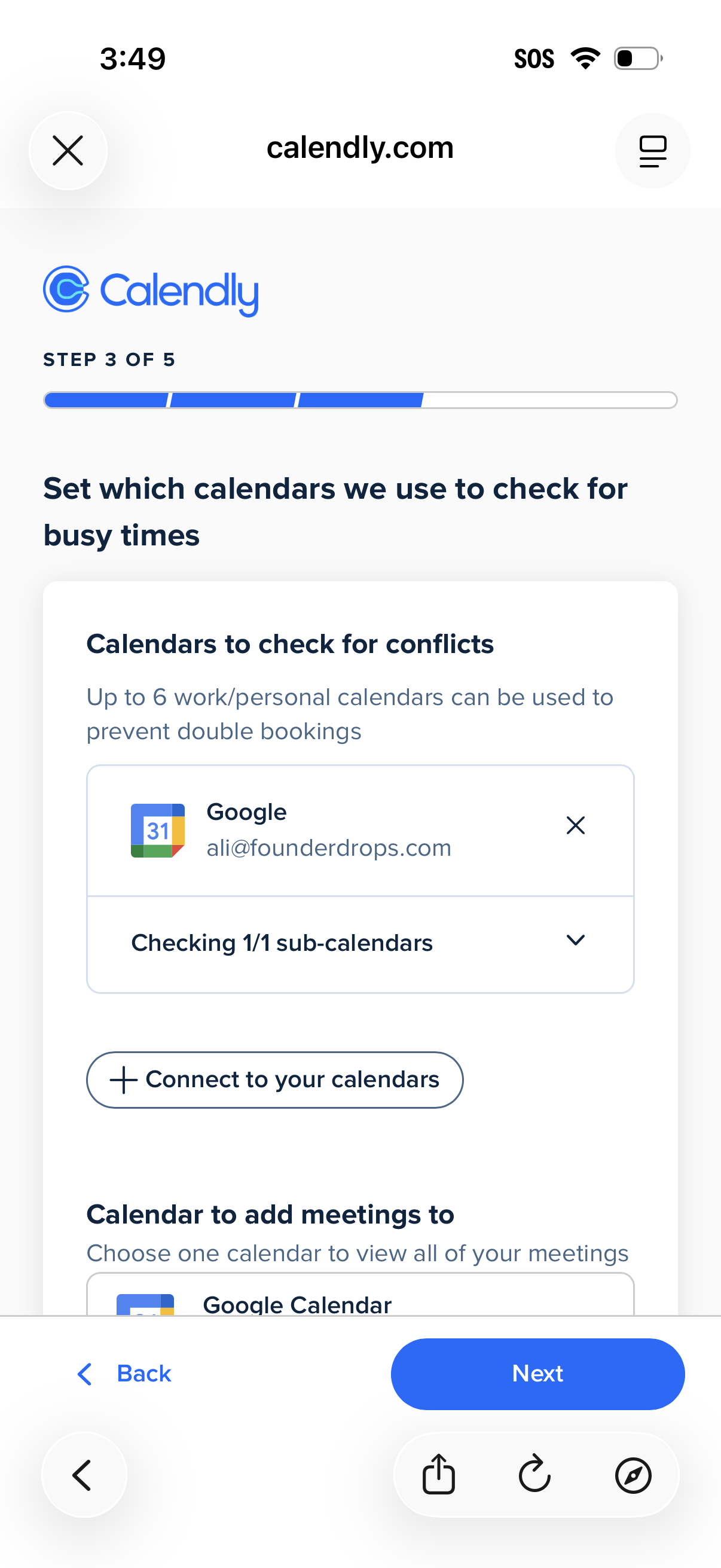
Calendly onboarding step for calendar integration where users choose which connected calendars are checked for busy times and conflicts to prevent double bookings, with options to connect additional calendars and manage sub-calendars. The screen also lets users select a primary calendar to add meetings to, with Back and Next navigation in a multi-step setup flow.
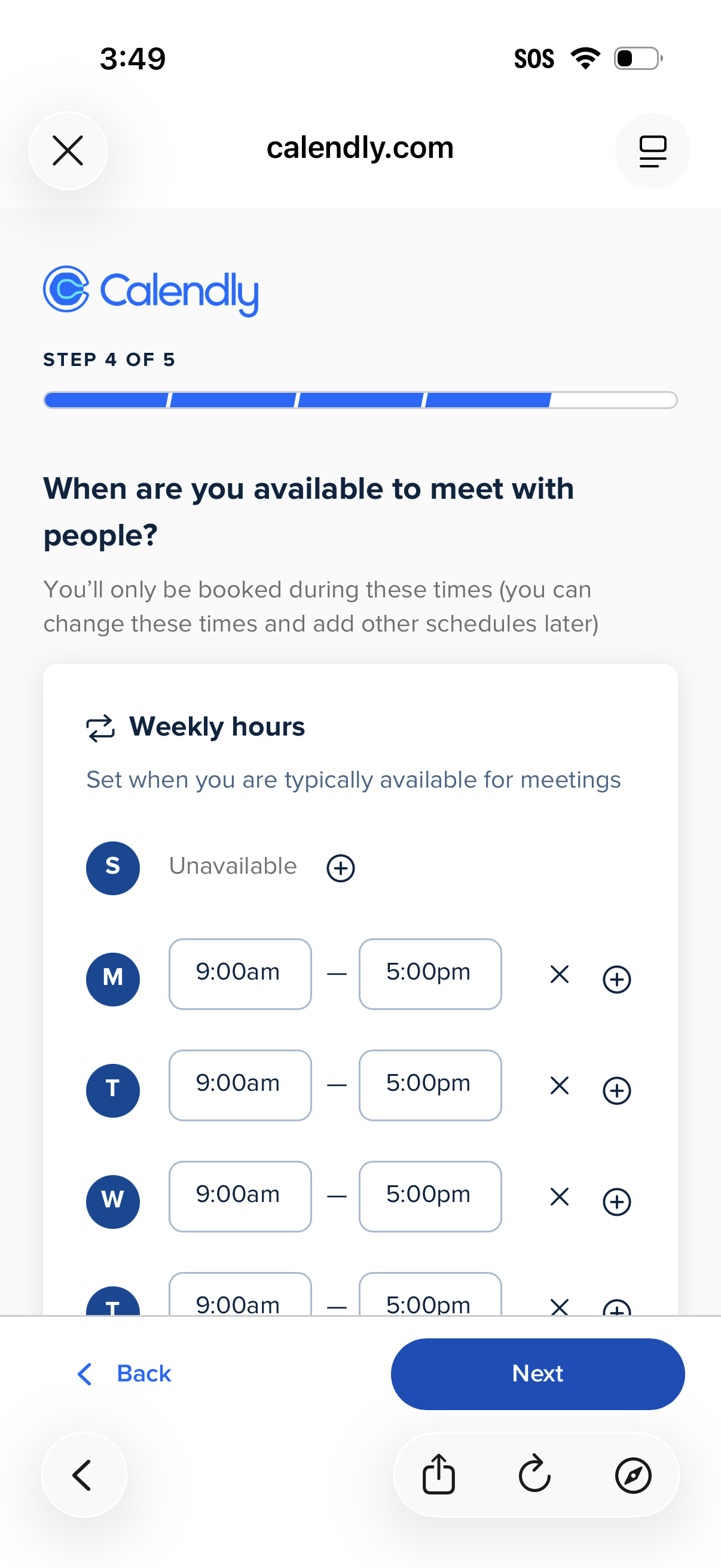
Scheduling setup step for defining meeting availability, showing a weekly hours editor where users set start/end times per day, mark days unavailable, and add or remove additional time ranges. Includes progress indicator and primary navigation actions to go Back or proceed Next.
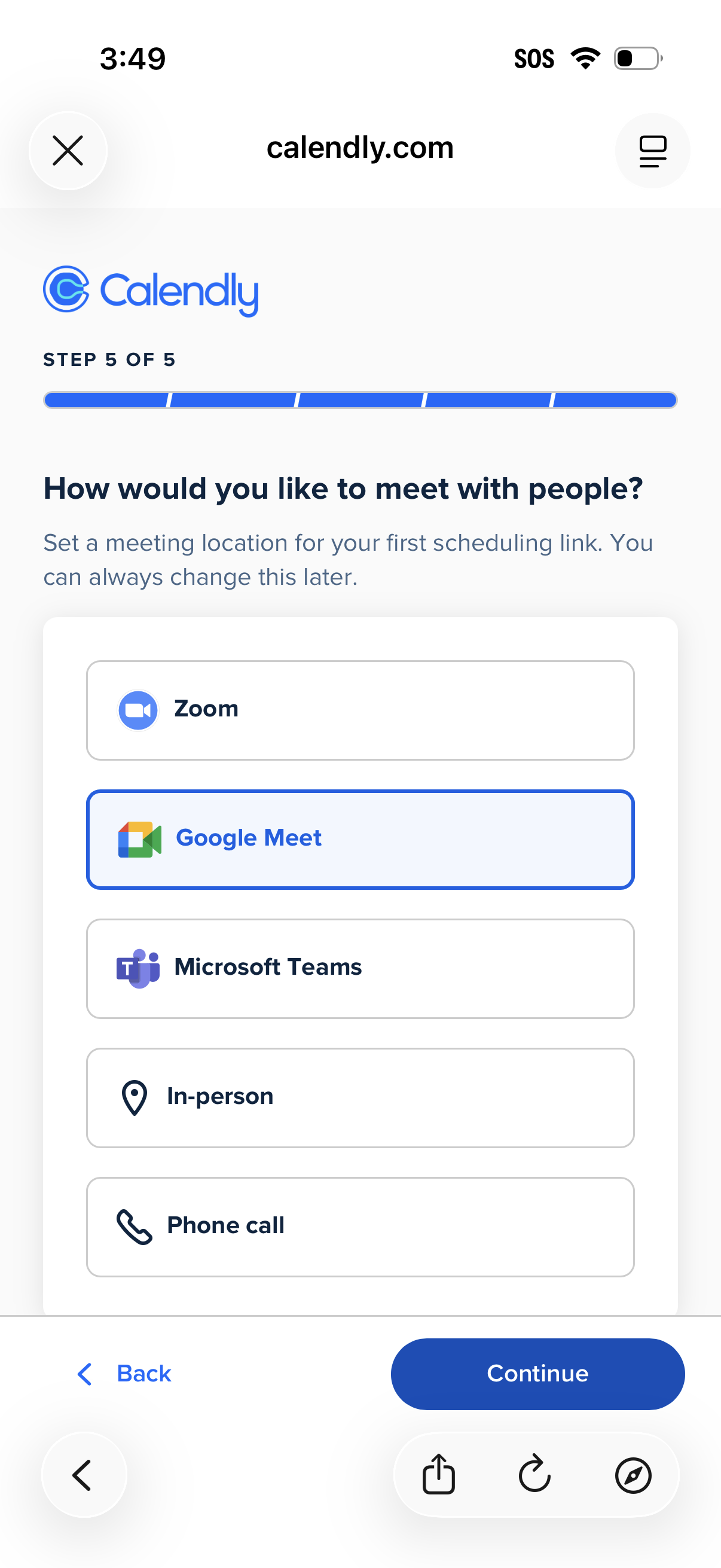
Calendly onboarding step to set the default meeting location for a new scheduling link by choosing a meeting method (Zoom, Google Meet, Microsoft Teams, in-person, or phone call). Includes a progress indicator and primary actions to go back or continue after selecting an option.
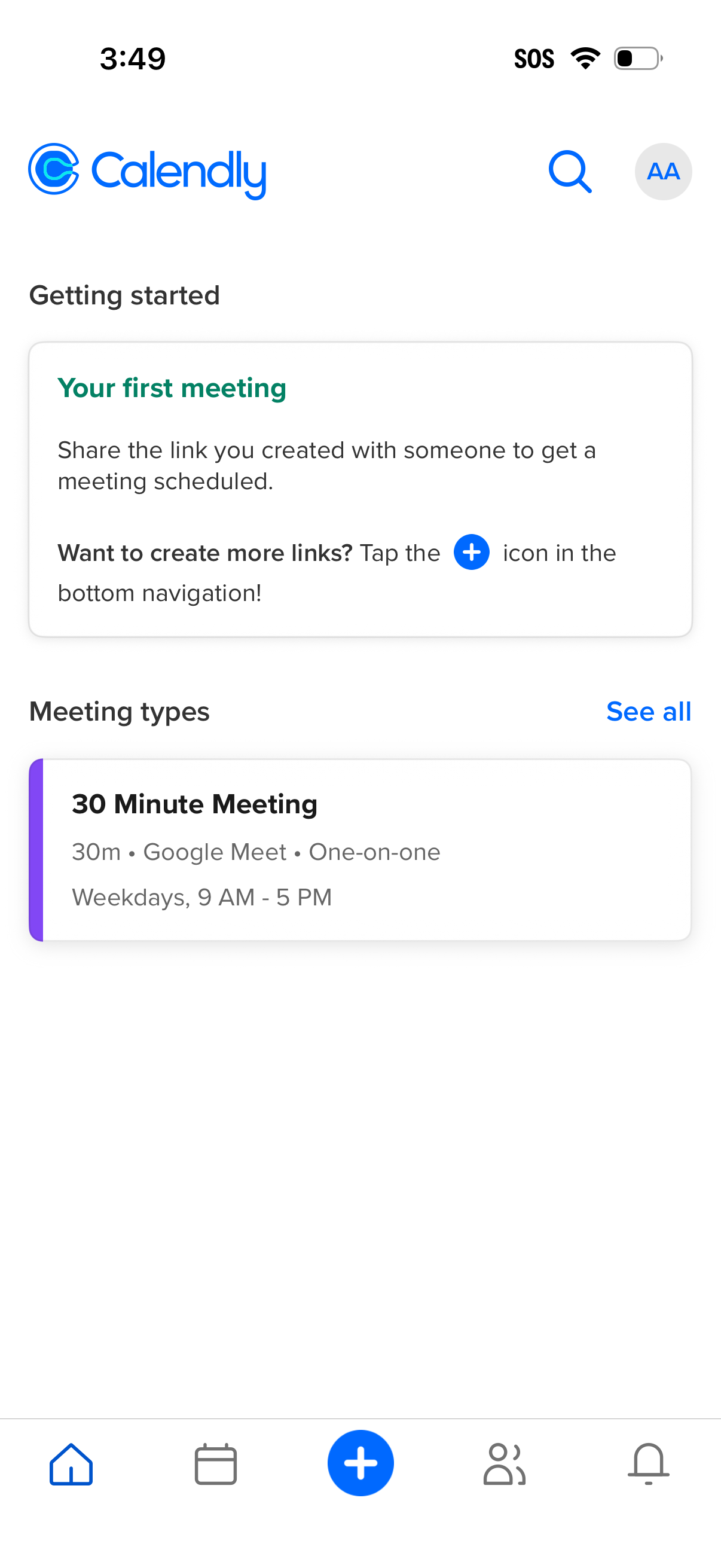
Home dashboard of a scheduling app showing “Getting started” guidance for sharing a booking link and creating more meeting links, plus a “Meeting types” list with a 30‑minute one‑on‑one Google Meet option and availability details. Includes search and text-size controls at the top and a bottom navigation bar with a prominent plus button to create a new meeting type.