Onboarding

Minimal splash/loading screen showing the BeReal logo centered on a black background, used as the app launch or startup screen before entering onboarding or the main feed.
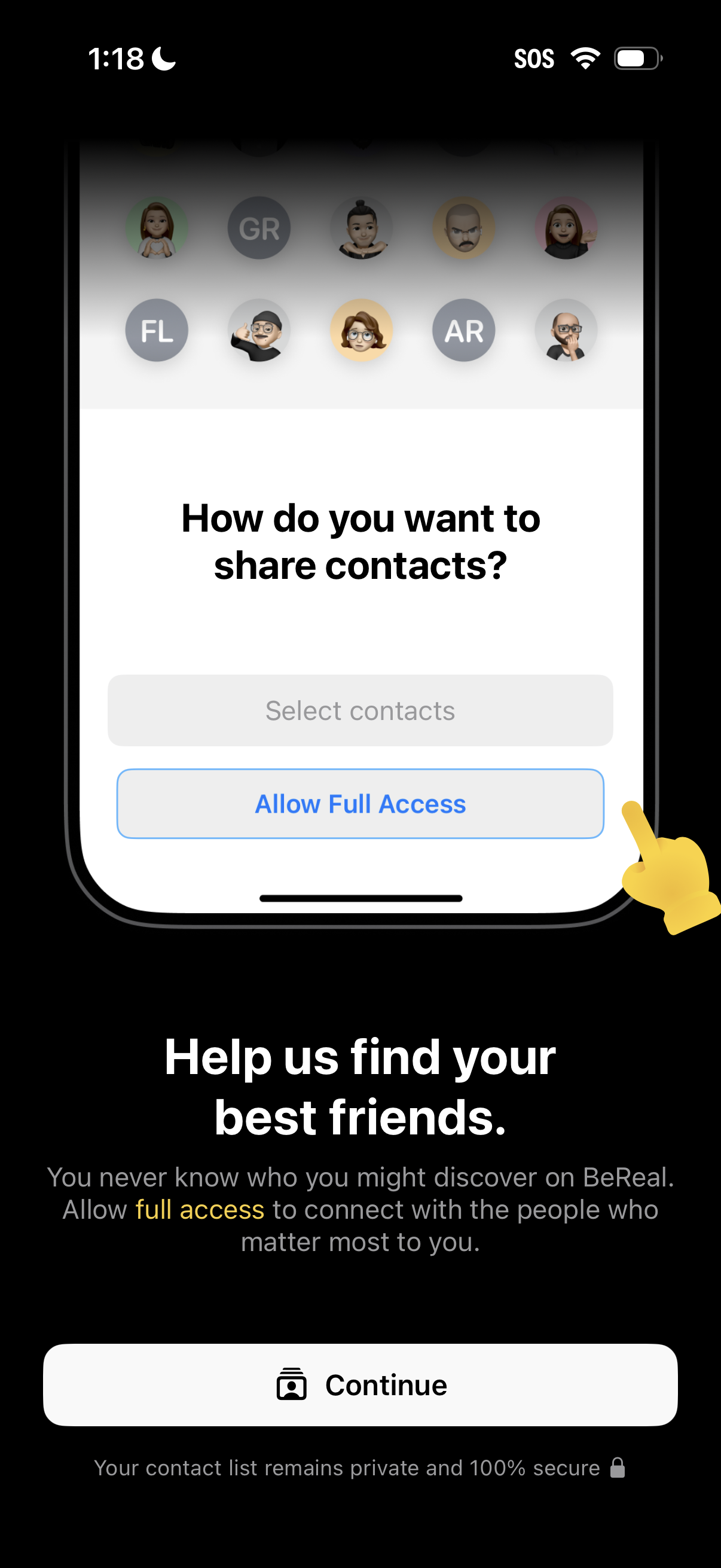
Contacts permission onboarding screen asking how the user wants to share contacts to find friends, offering options to select specific contacts or allow full access. Includes explanatory privacy text and a primary Continue button to proceed with contact syncing.
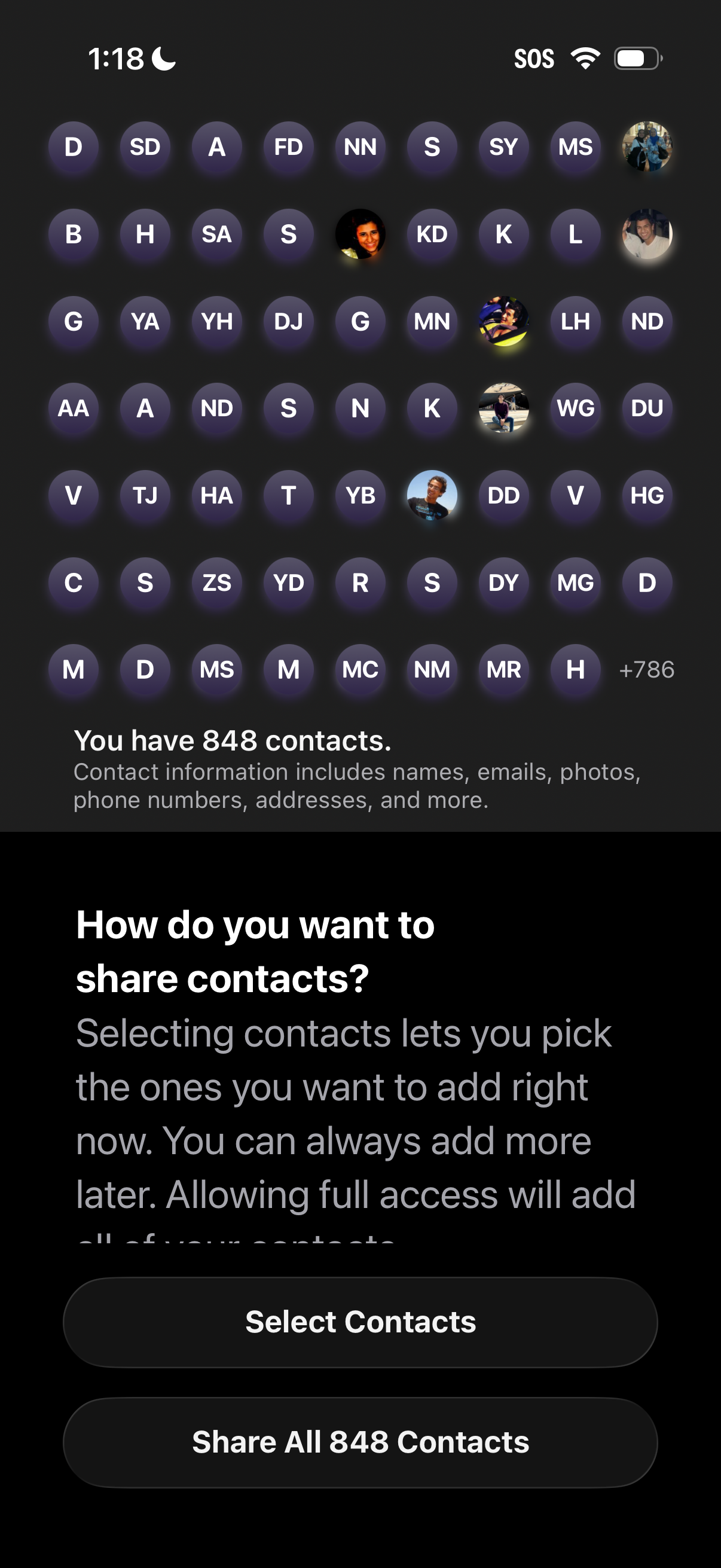
Contacts access permission screen asking how the user wants to share contacts, showing a preview grid of contact initials/avatars and the total number of contacts. Provides two primary actions: select specific contacts to share now or grant full access to share all contacts at once.
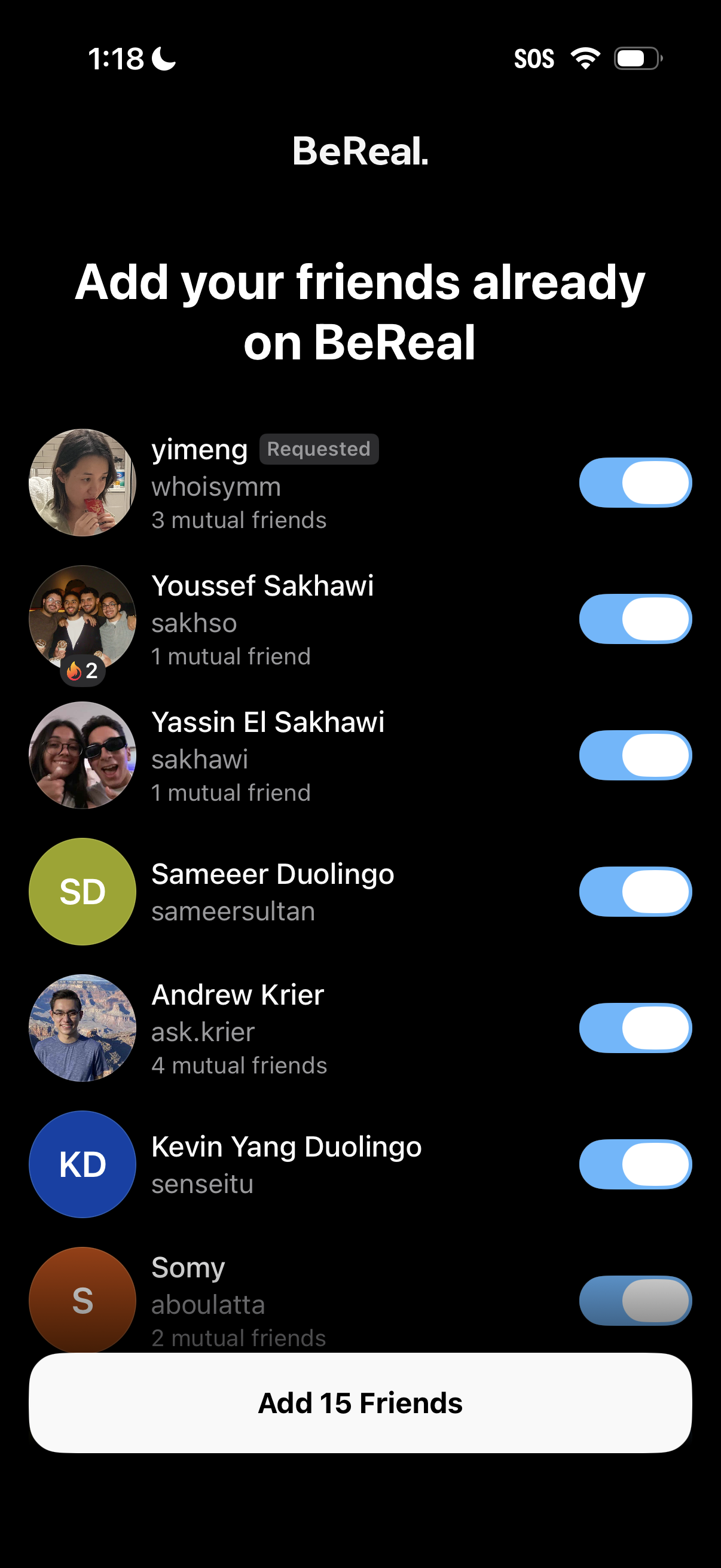
Friend discovery screen prompting the user to add friends already on the app, showing a scrollable list of suggested contacts with avatars, usernames, mutual friends count, and per-person toggle switches to select. A bottom CTA button summarizes the selection and lets the user add multiple friends at once (e.
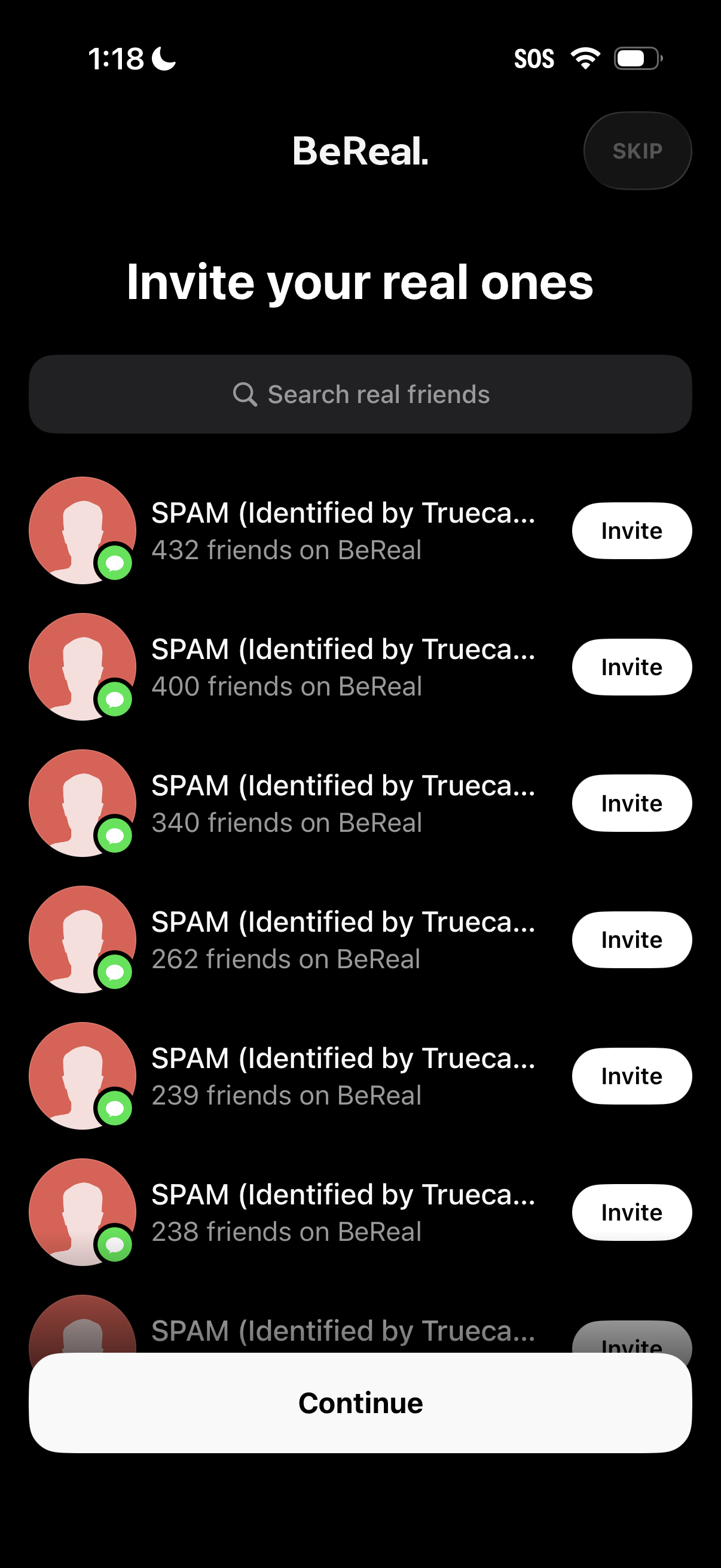
Friend invite onboarding screen prompting users to “Invite your real ones,” with a search bar to find friends and a scrollable contact list showing profile avatars, friend counts, and per-row Invite buttons. Includes top-right Skip option and a fixed bottom Continue button to proceed after inviting.
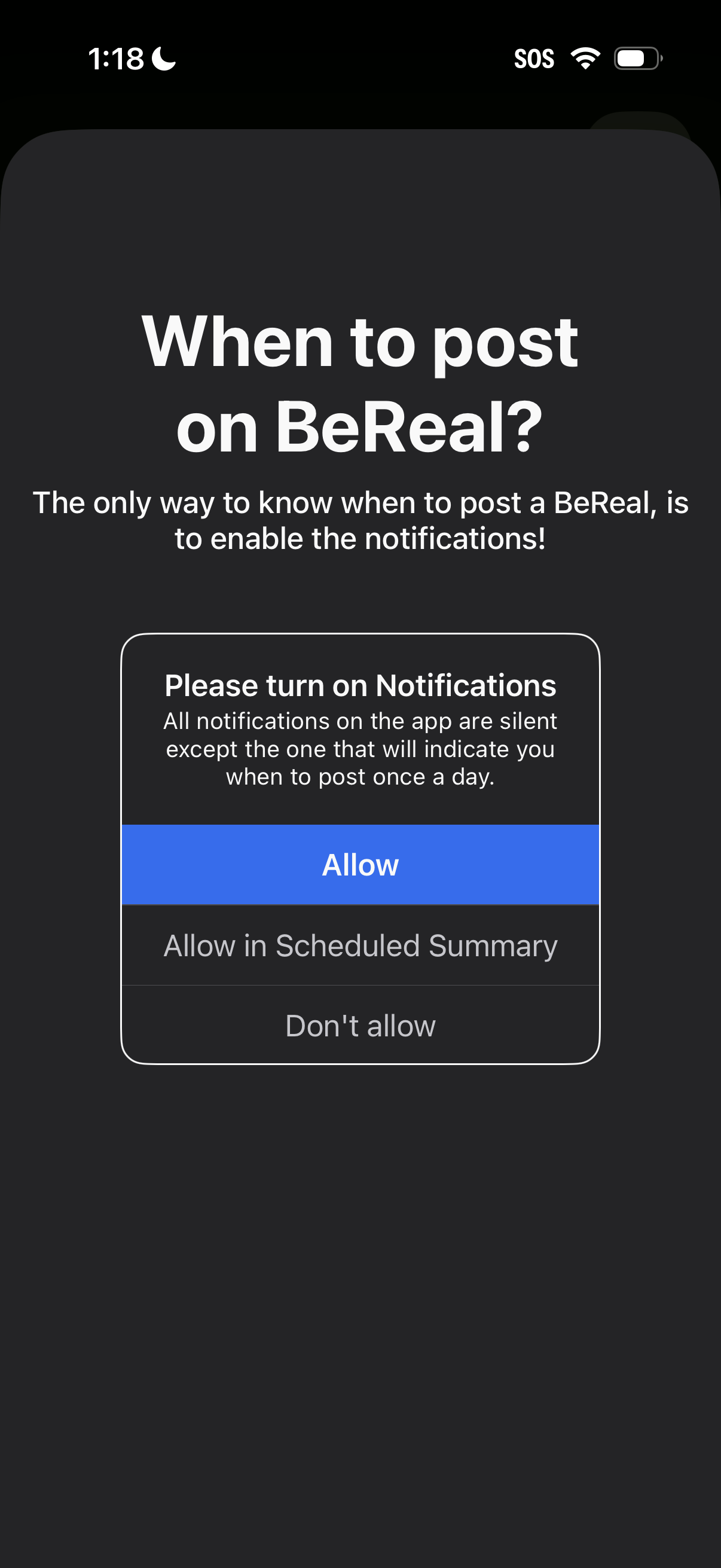
Onboarding prompt explaining that users must enable push notifications to know when to post once per day, with an iOS permission dialog offering Allow, Allow in Scheduled Summary, or Don’t allow. The screen encourages turning on notifications for the daily posting alert while other app notifications remain silent.
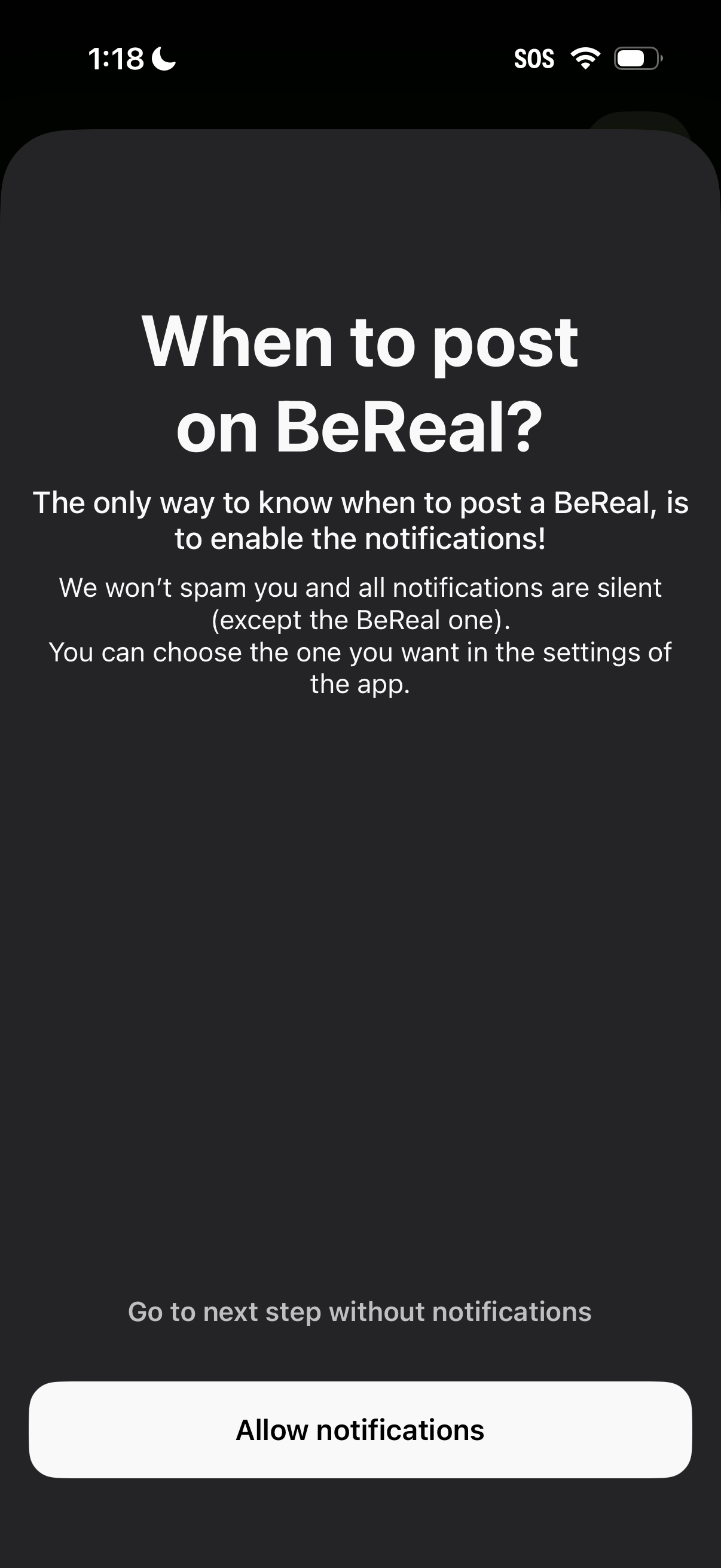
Onboarding permission prompt explaining that to know when to post, users must enable app notifications, with reassurance about silent notifications and settings control. Primary CTA is “Allow notifications” with a secondary option to continue to the next step without enabling notifications.
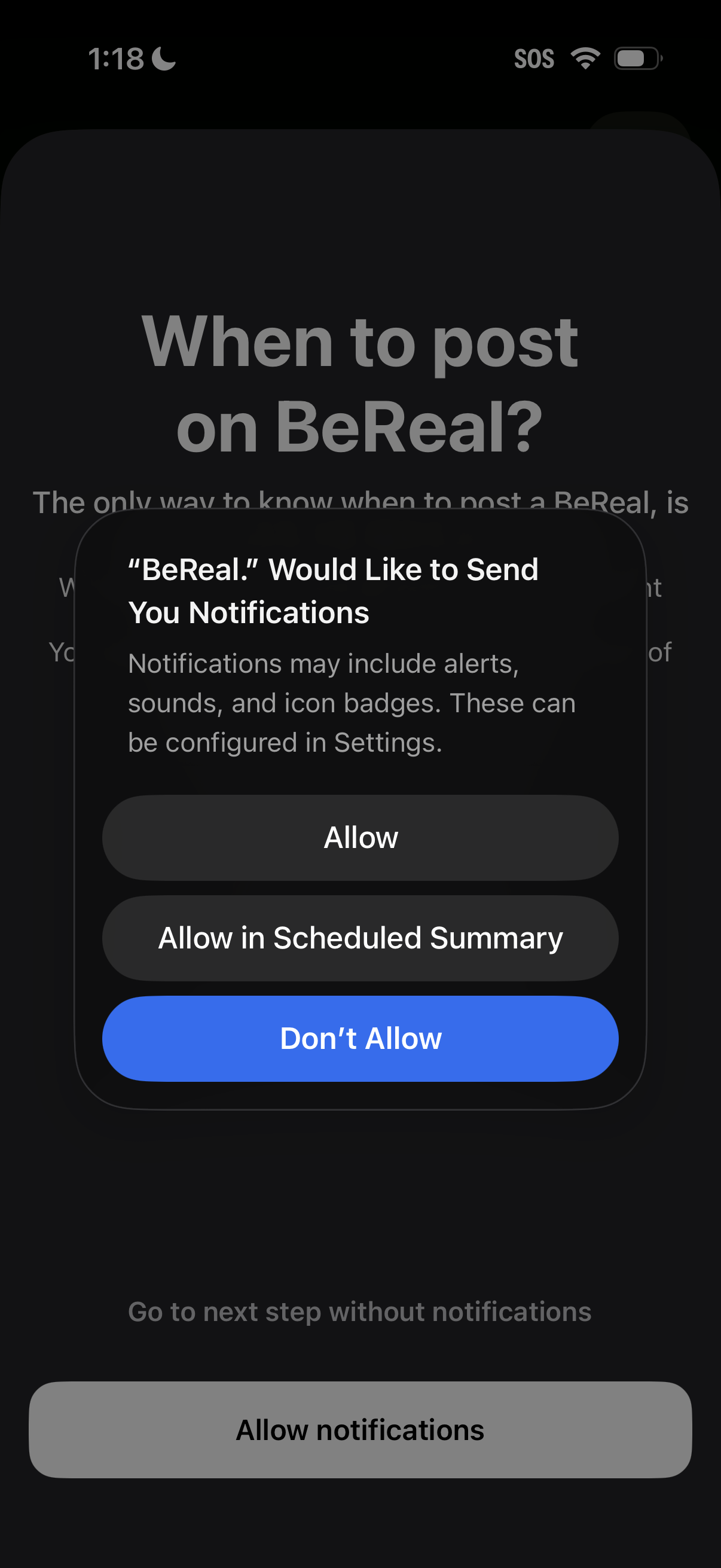
iOS push notification permission prompt during onboarding for a social app, asking to allow alerts, sounds, and badges with options to Allow, Allow in Scheduled Summary, or Don’t Allow. The underlying screen explains when to post and includes an “Allow notifications” CTA with an option to continue without notifications.
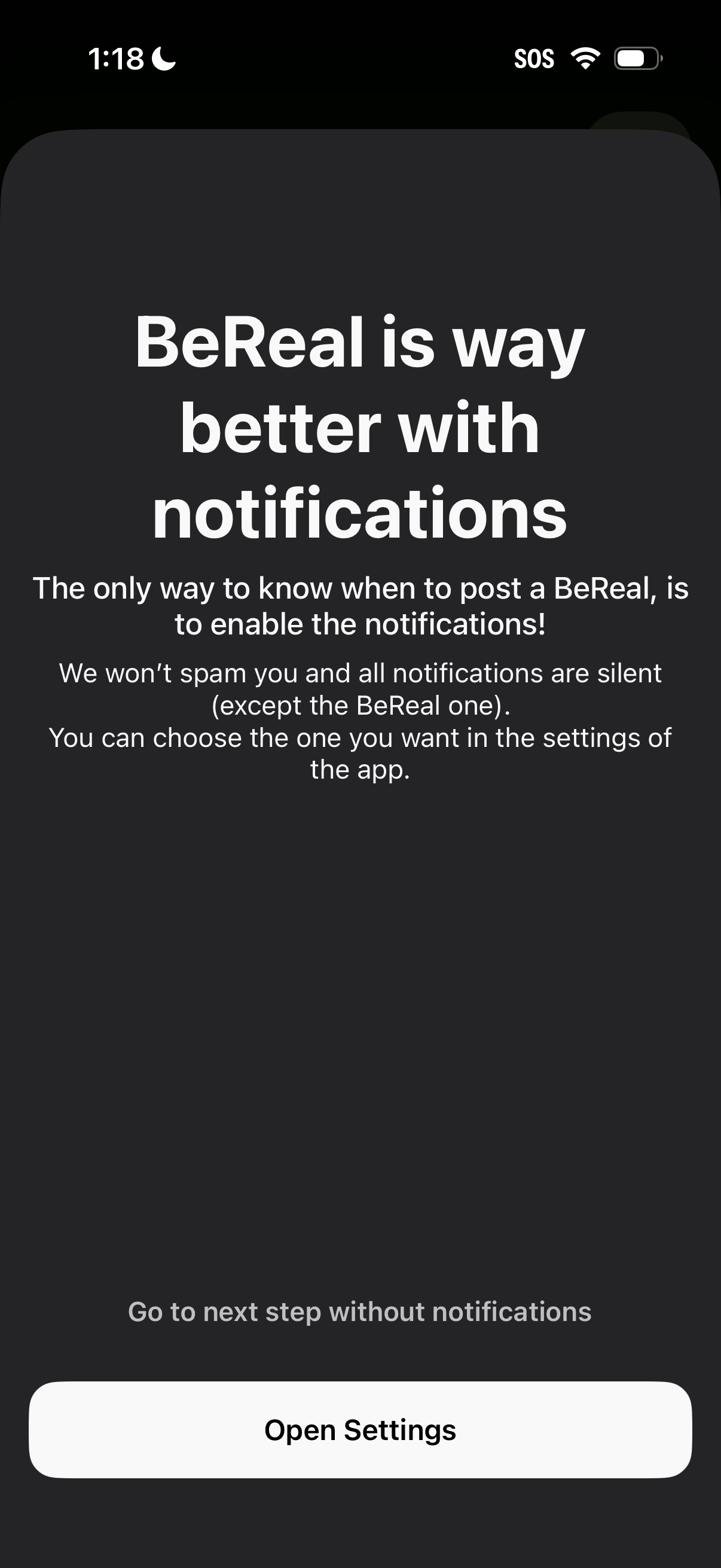
Modal onboarding prompt encouraging users to enable push notifications to know when it’s time to post, explaining notification behavior and settings control. Primary CTA opens device settings to enable notifications, with an option to continue without notifications.