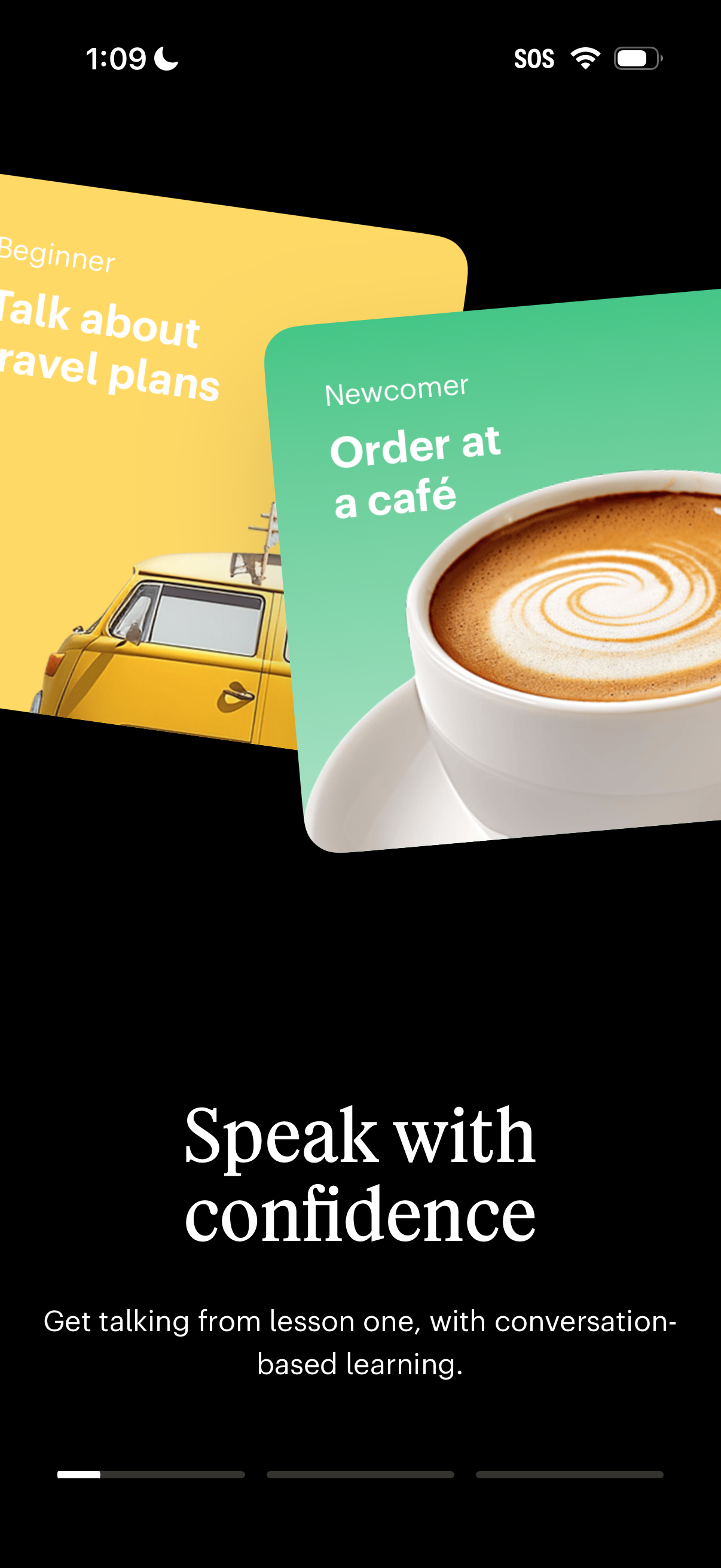
Onboarding carousel screen for a language learning app highlighting conversation-based lessons, with swipeable topic cards (e. g.
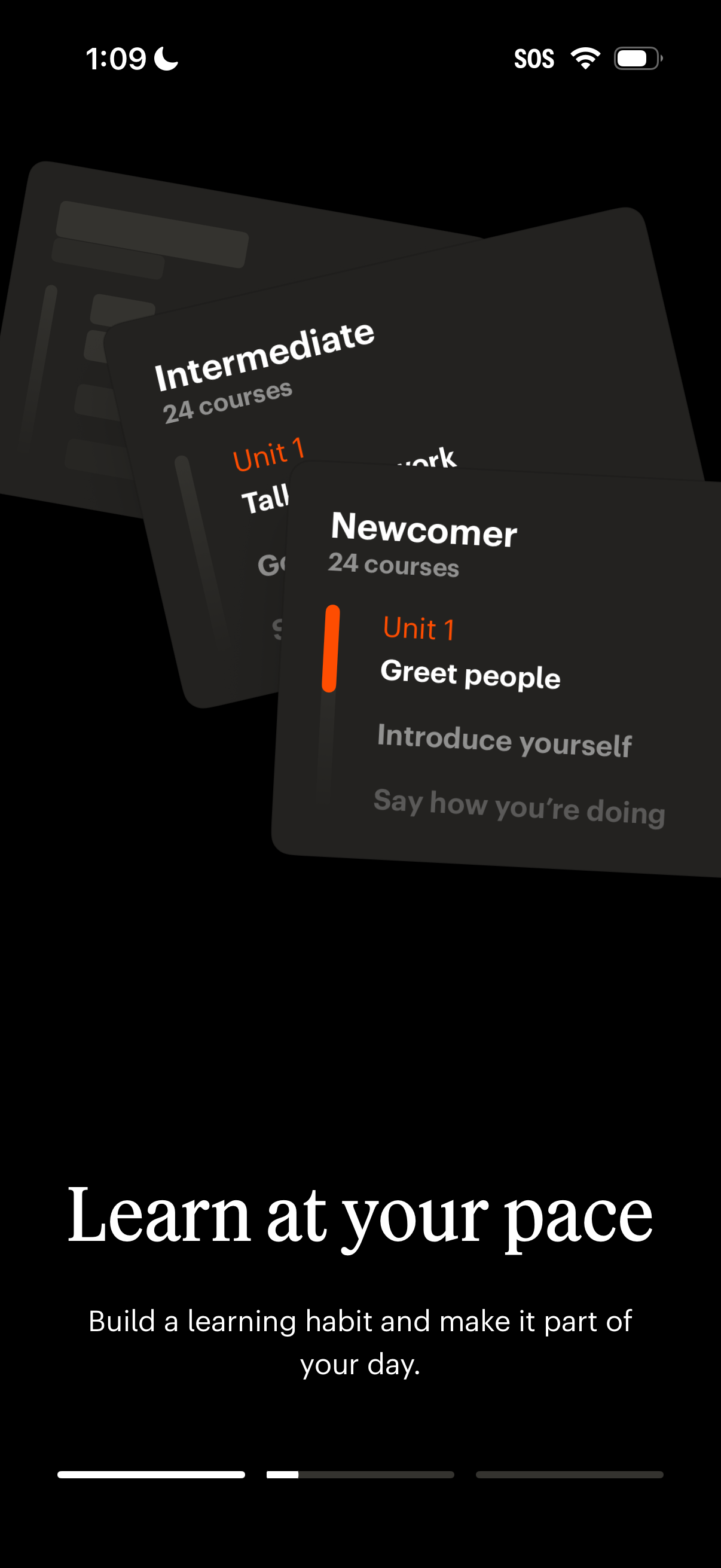
Onboarding carousel screen for a language learning app highlighting “Learn at your pace,” with layered cards previewing course levels (e. g.
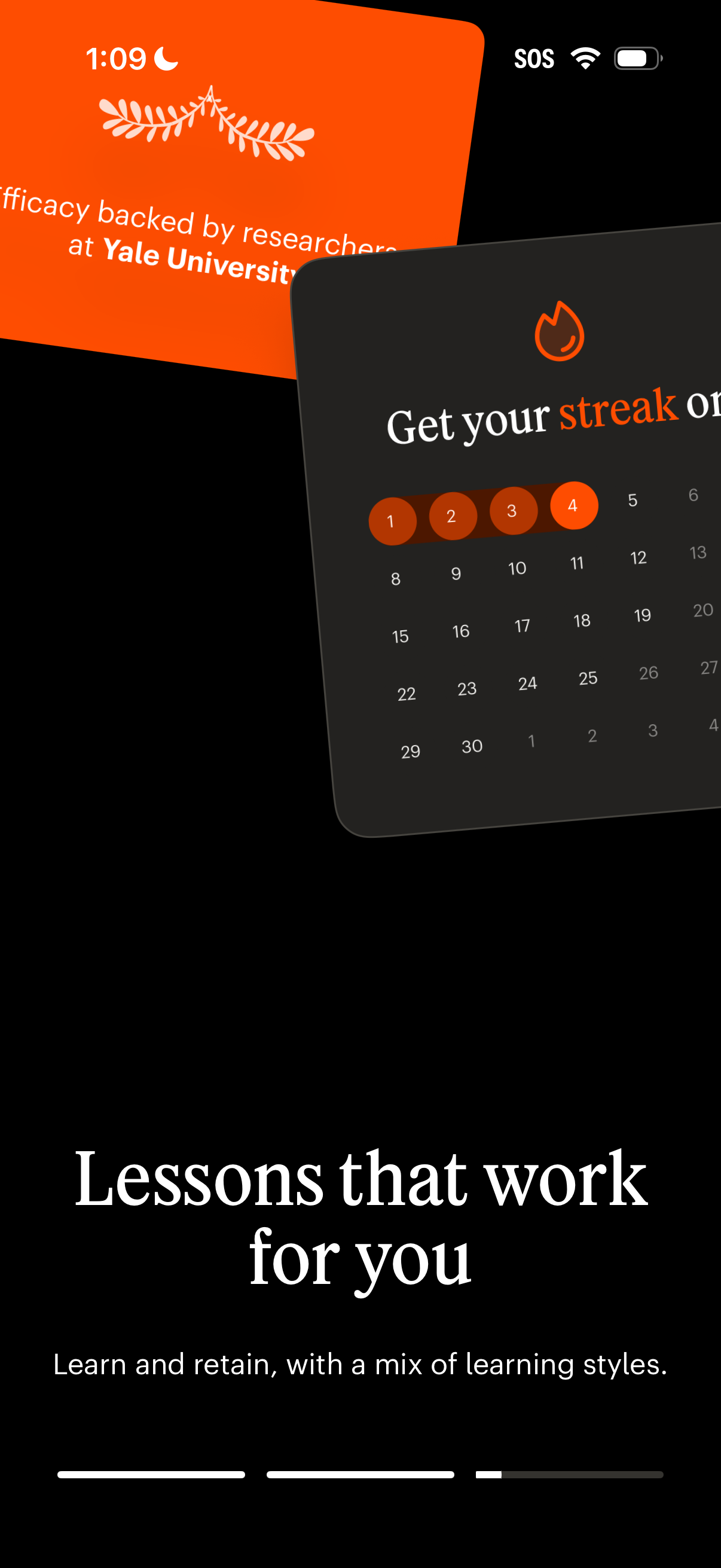
Onboarding carousel screen for a learning app promoting personalized lessons and retention, with marketing messaging and preview cards showing research-backed efficacy and a streak calendar. Includes pagination/progress indicator at the bottom to swipe through intro slides.
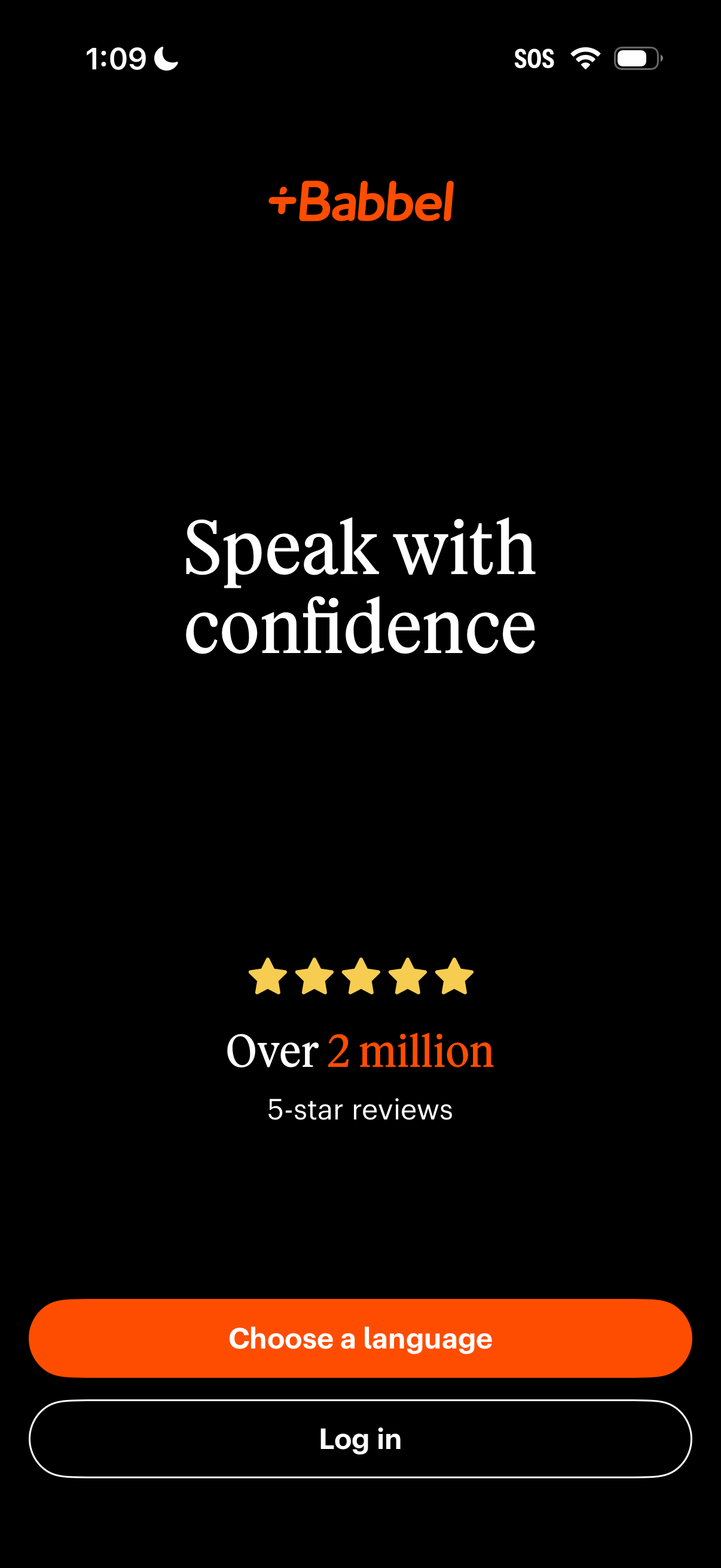
Language-learning app welcome screen highlighting the value proposition “Speak with confidence” and social proof with a 5-star rating and “Over 2 million” reviews. Primary CTA is “Choose a language” with a secondary “Log in” button for returning users.
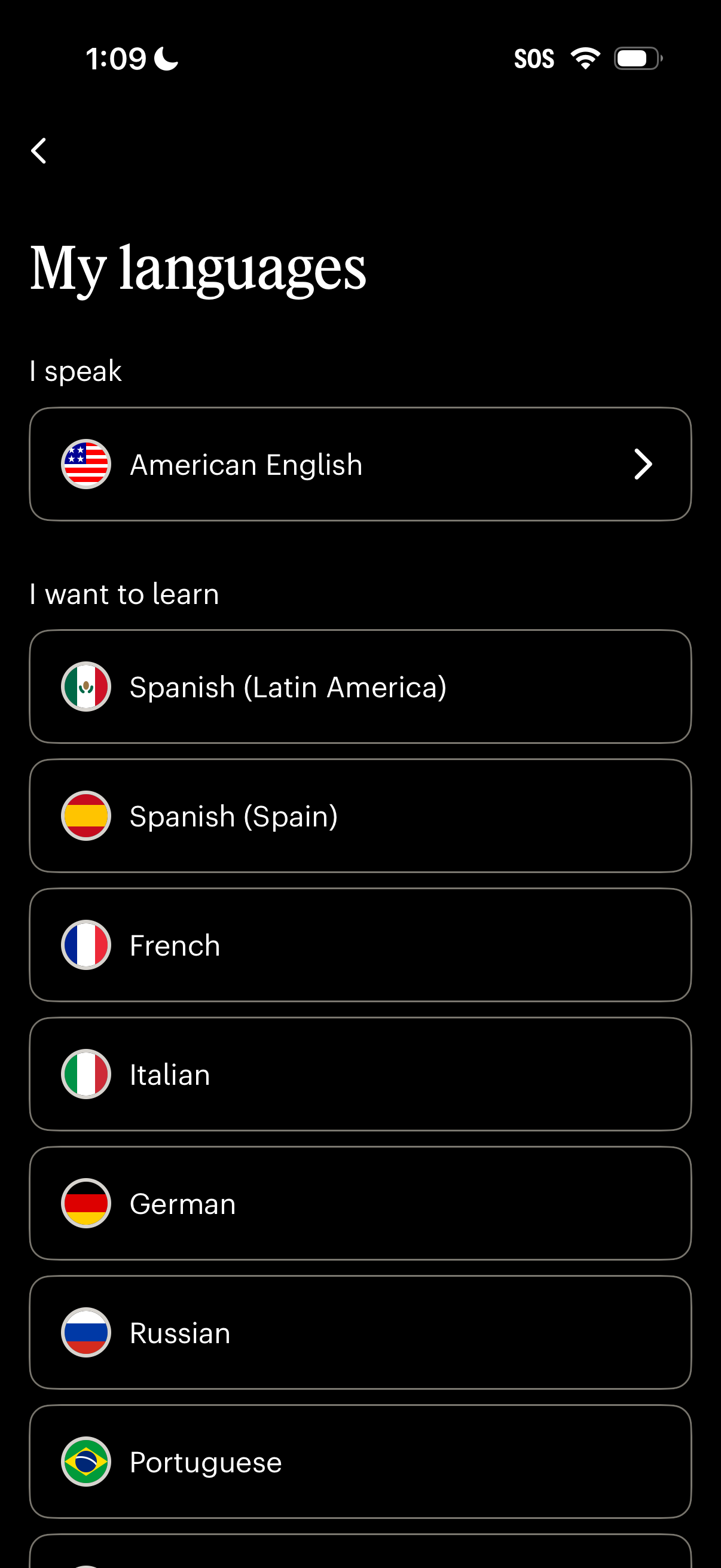
Language preferences settings screen where users manage “My languages,” showing the current spoken language and a selectable list of target languages to learn (including regional variants) with flag icons. Users can tap a language row to change their spoken language or choose a new learning language.
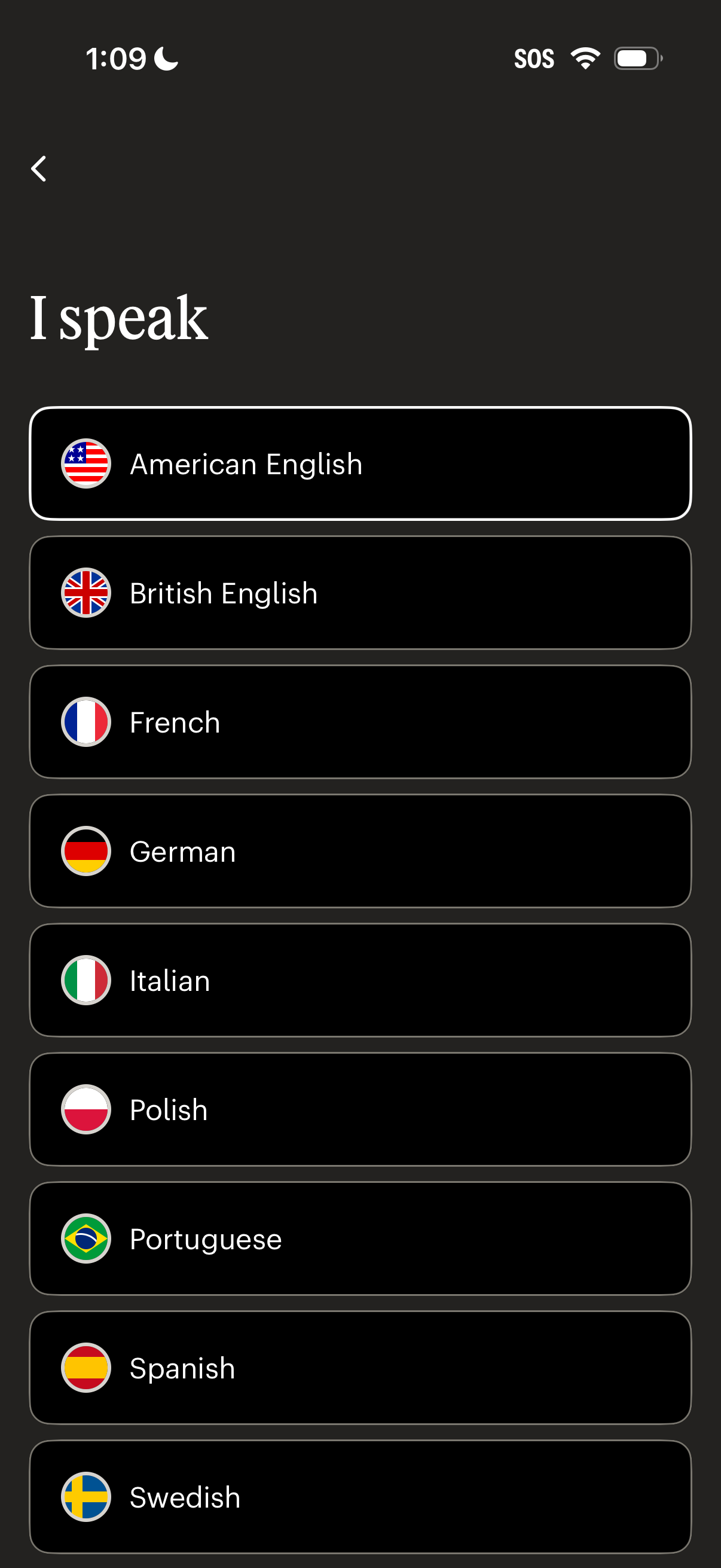
Language selection screen for setting the user’s spoken language, showing a scrollable list of languages with country flag icons (e. g.
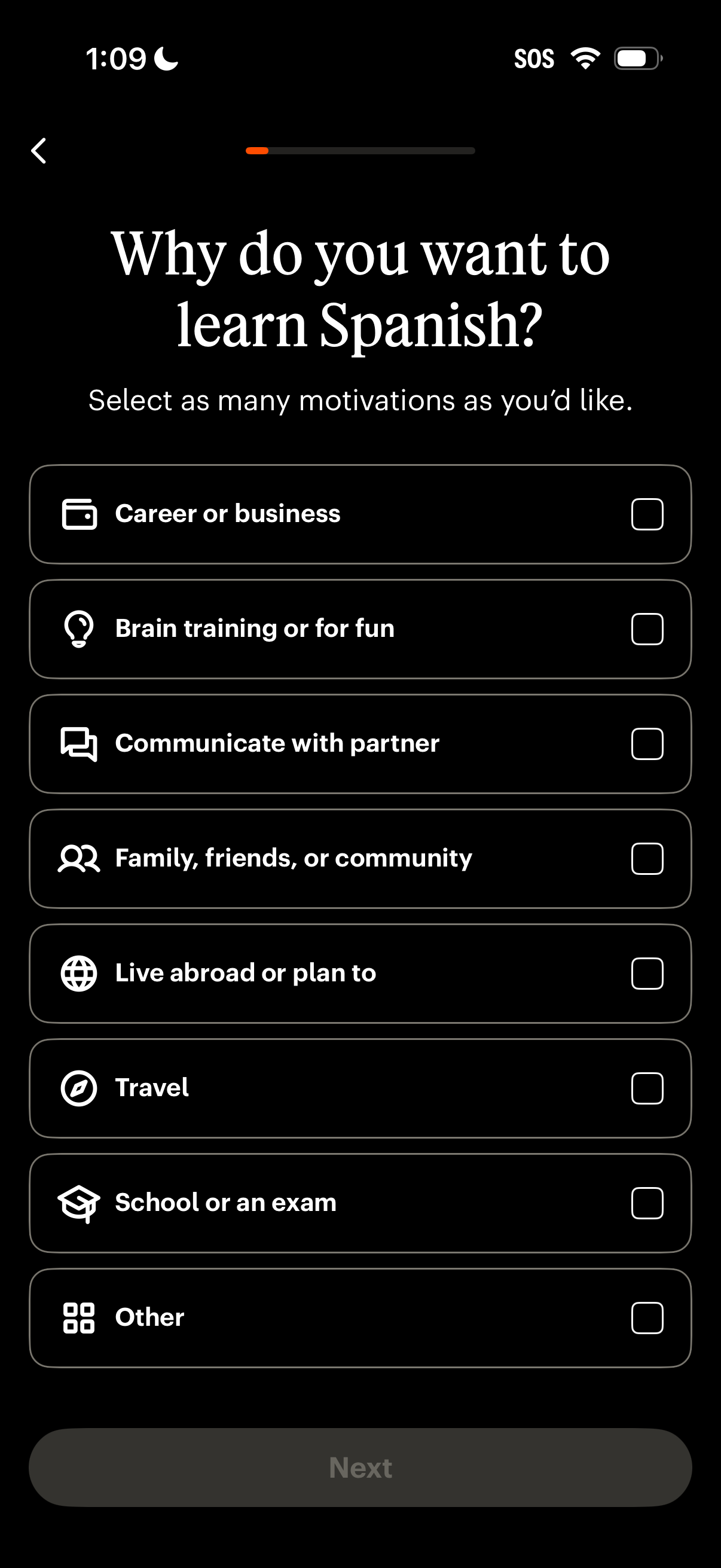
Language learning onboarding survey screen asking why the user wants to learn Spanish, with a multi-select checklist of motivations (career, fun, partner, family/community, living abroad, travel, school/exam, other). Includes a progress indicator, back navigation, and a Next button to continue after selecting reasons.
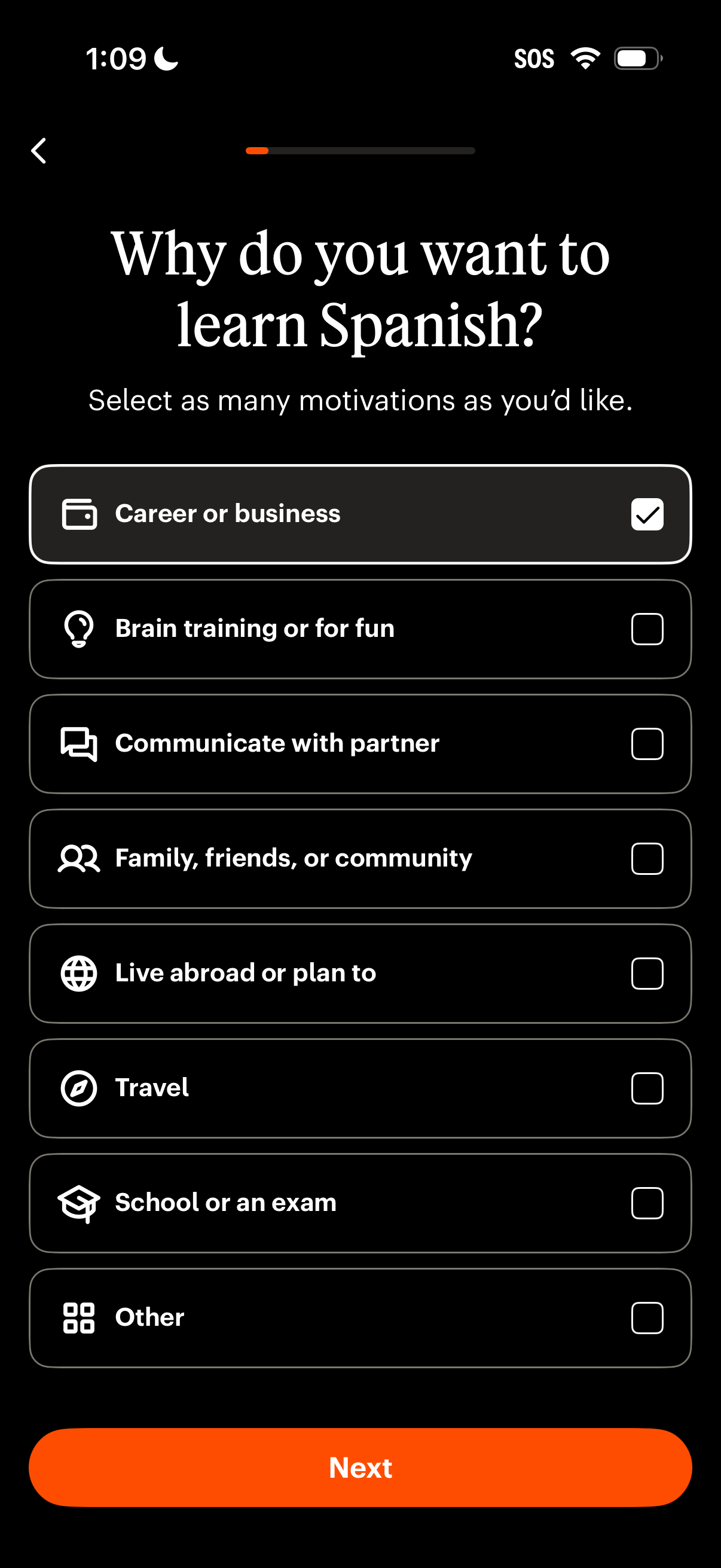
Onboarding survey screen for a language learning app asking why the user wants to learn Spanish, with a multi-select list of motivations (career, fun, partner, family, live abroad, travel, school, other) using checkbox rows. Includes a progress indicator, back navigation, and a prominent “Next” button to continue setup.
Onboarding loading screen showing a spinner and the message “Loading your language preferences” while the app fetches localization settings. Includes a trust signal section with five stars and “Over 2 million 5-star reviews.
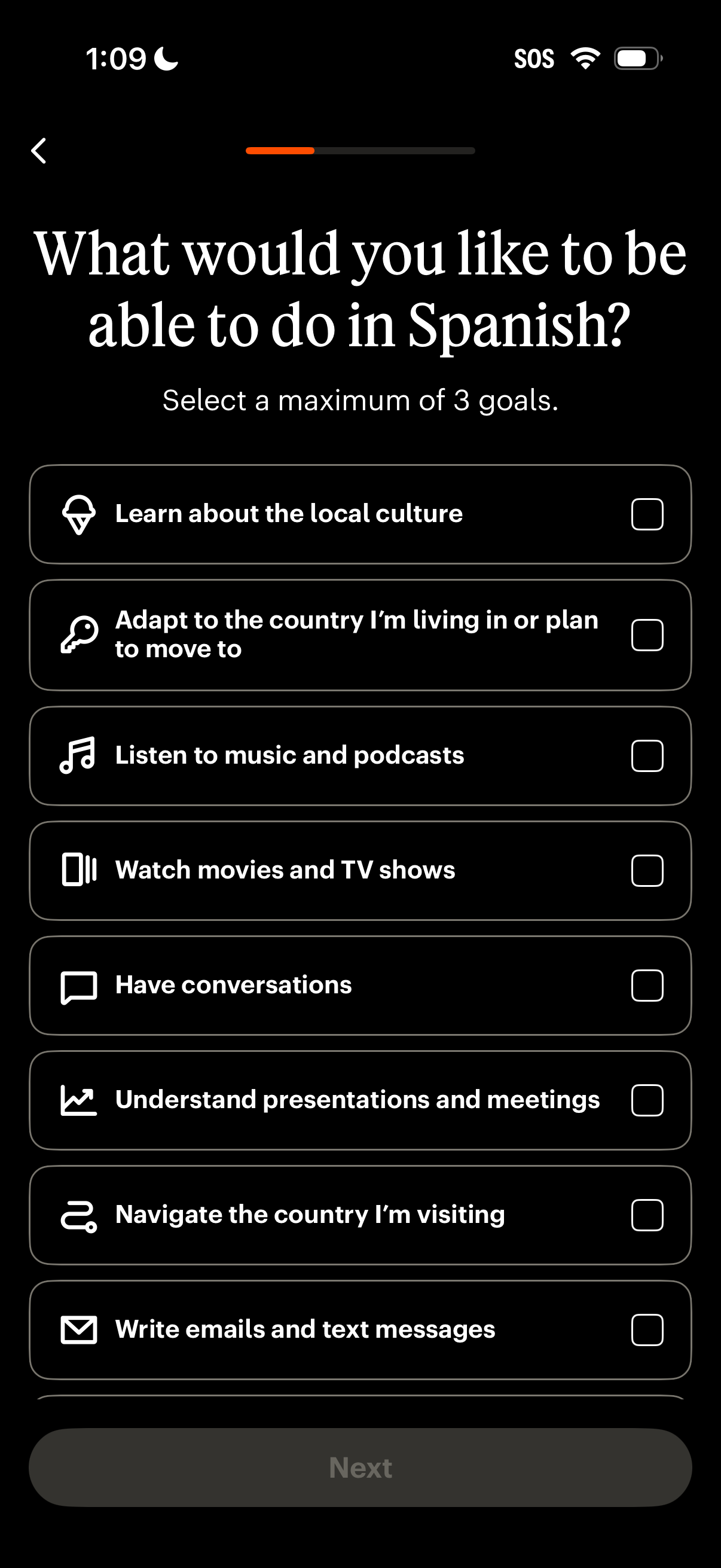
Onboarding goals selection screen for a Spanish language-learning app asking what the user wants to be able to do, with a checklist of goal options (culture, adapting to a country, music/podcasts, movies/TV, conversations, meetings, navigating, writing messages) and a maximum of three selections before continuing with the Next button.
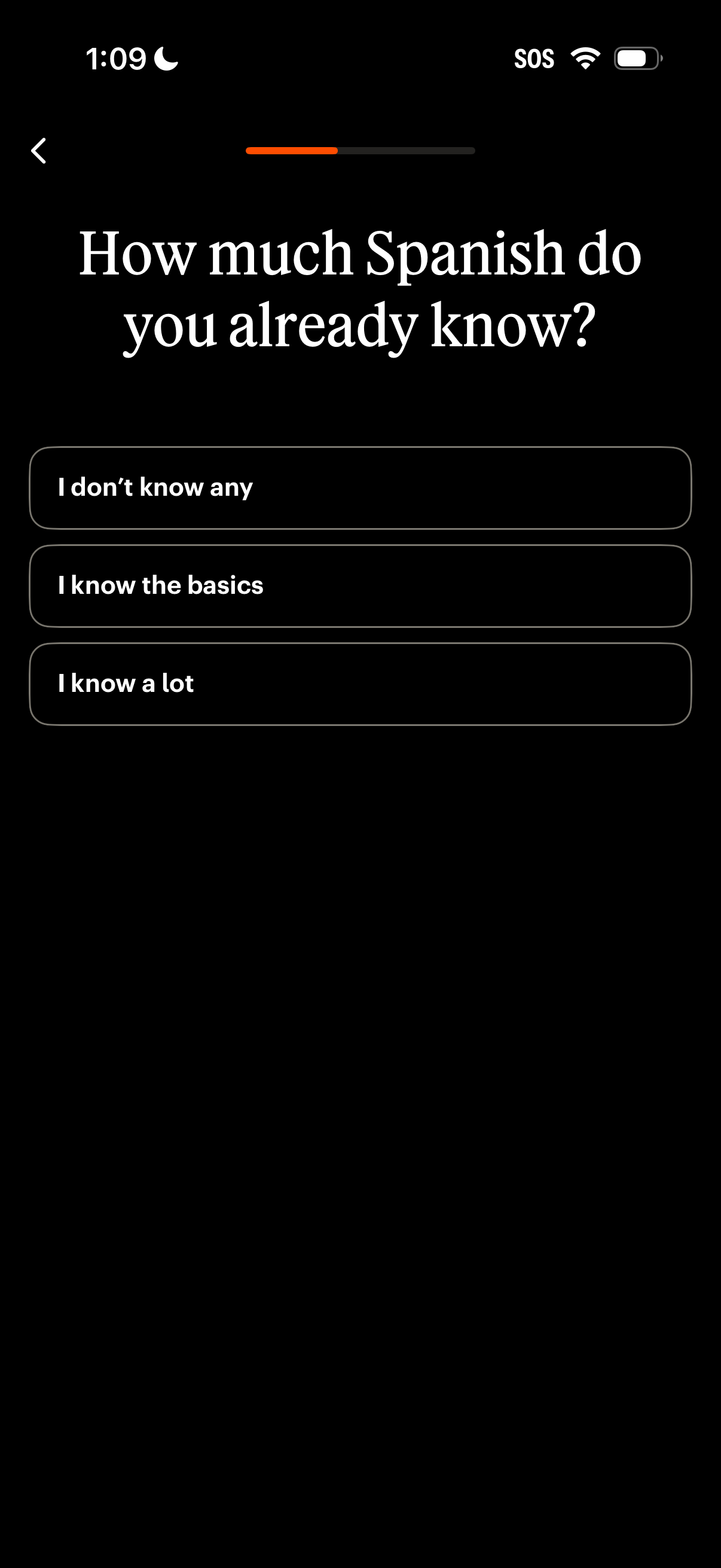
Language learning app onboarding screen asking the user to assess their Spanish proficiency level, with selectable options like “I don’t know any,” “I know the basics,” and “I know a lot,” plus a progress indicator and back navigation.
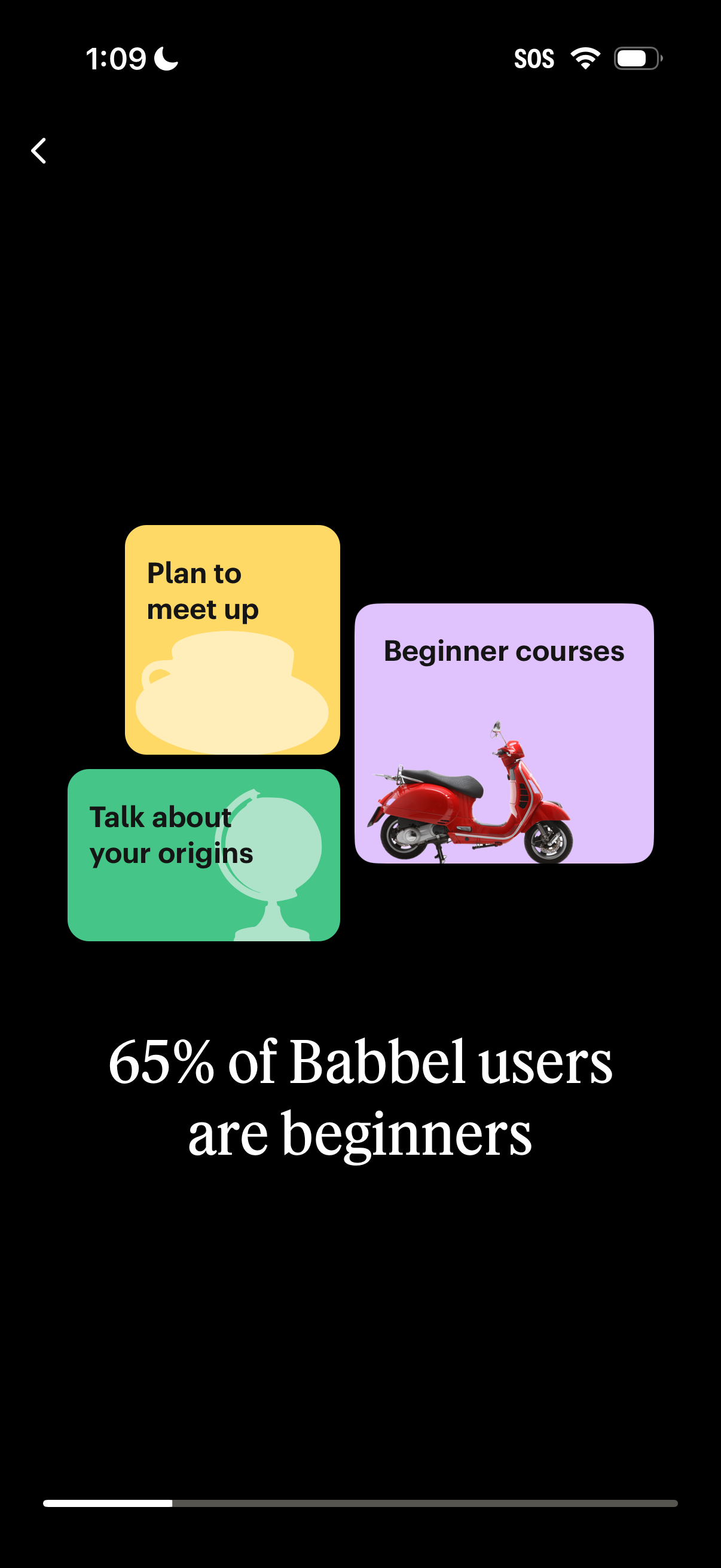
Language learning app onboarding/intro screen highlighting beginner-focused content, showing topic cards like “Beginner courses,” “Plan to meet up,” and “Talk about your origins,” plus a large statistic message that most users are beginners. Includes a back navigation arrow on a dark background with colorful category tiles.
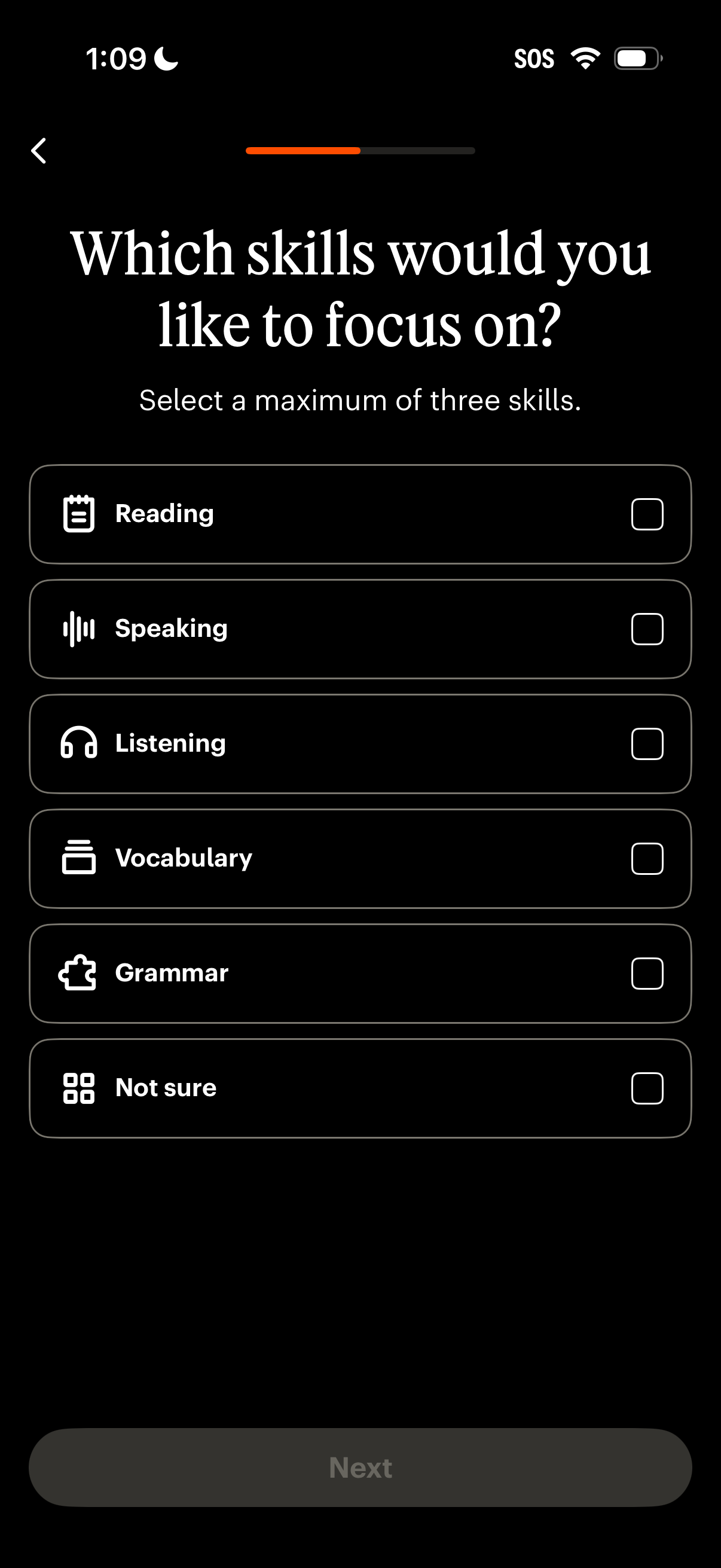
Onboarding preferences screen asking users to choose up to three language-learning skills to focus on, with selectable checkbox list options like Reading, Speaking, Listening, Vocabulary, Grammar, and Not sure. Includes a progress indicator, back navigation, and a disabled Next button that becomes available after selections.
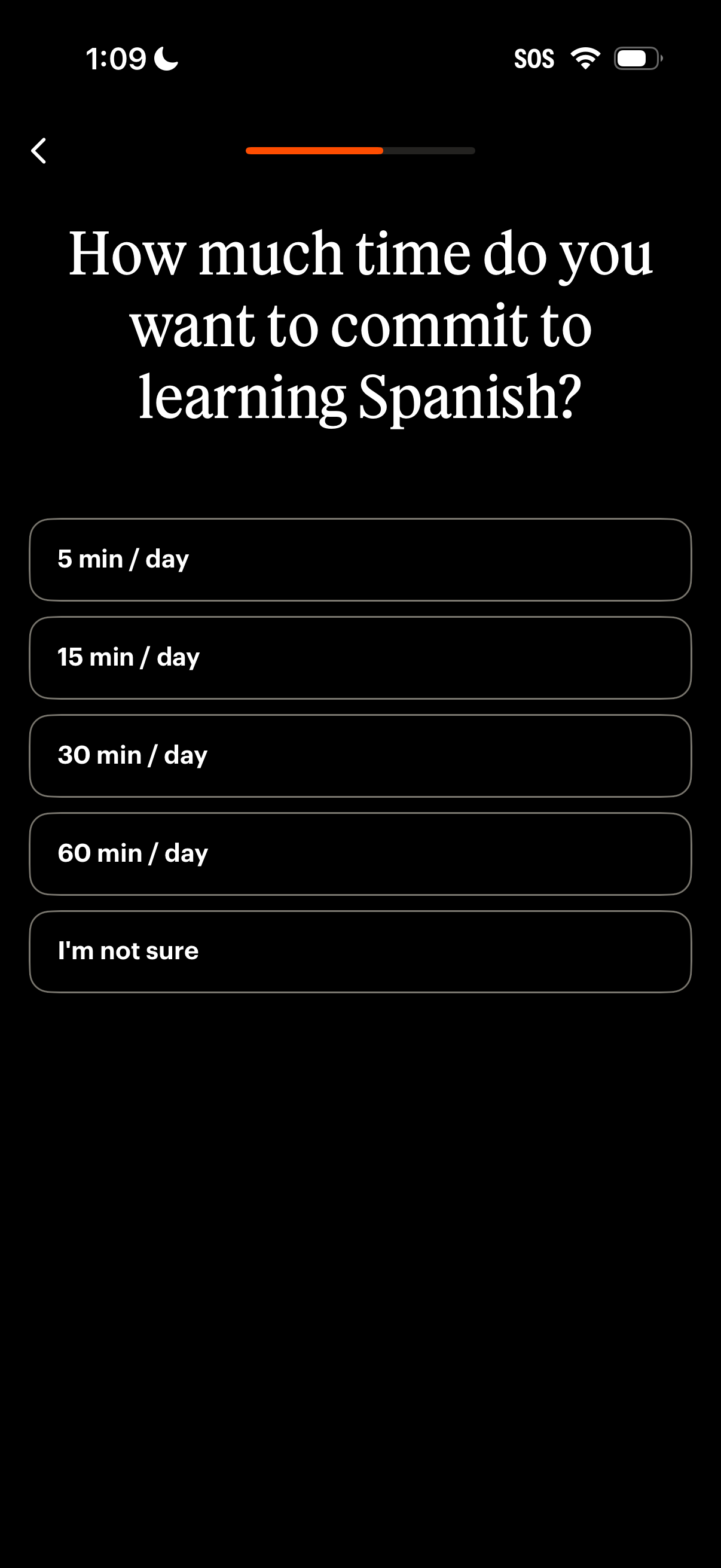
Onboarding goal-setting screen for a language learning app asking users how much time they want to commit to learning Spanish. Users select a daily study duration (5, 15, 30, or 60 minutes) or choose “I’m not sure,” with a progress indicator and back navigation.
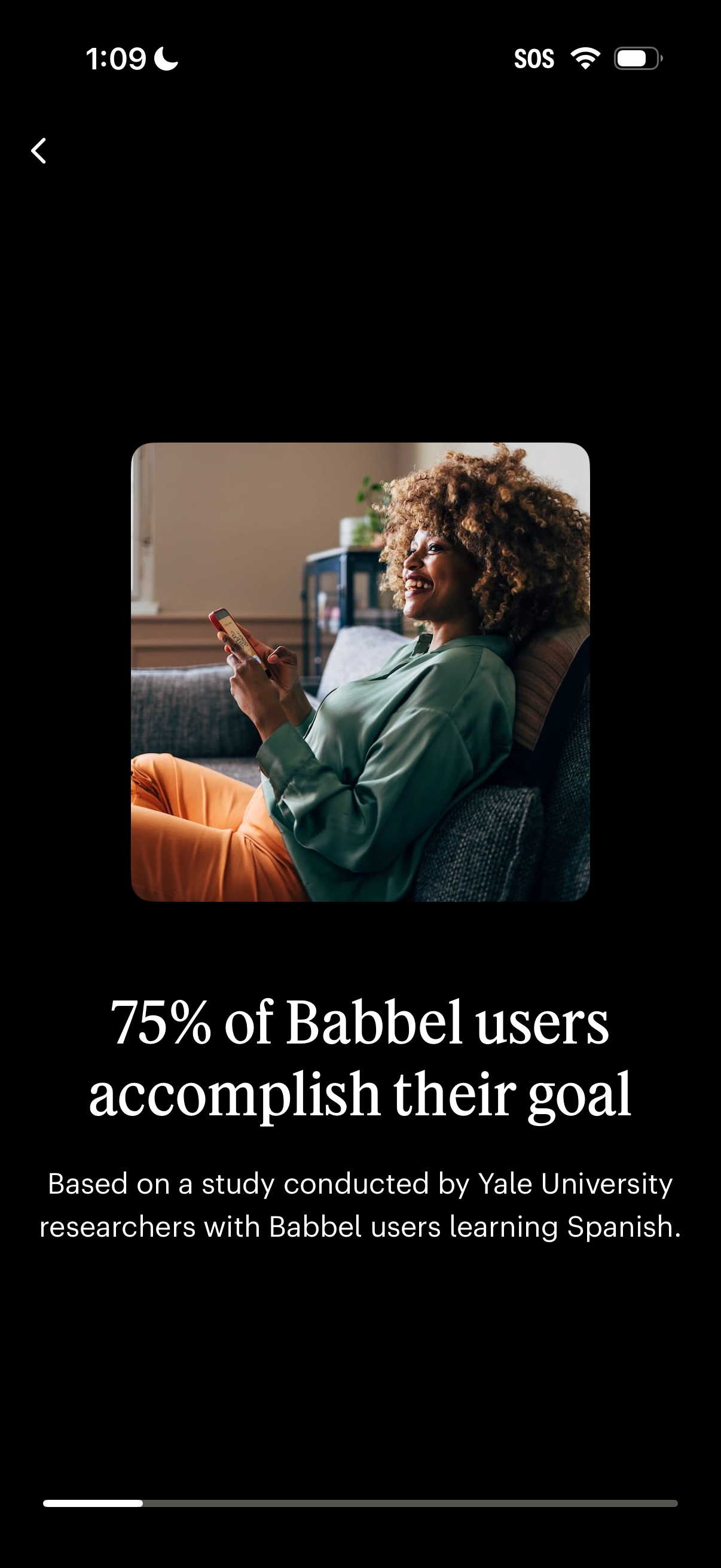
Marketing/education trust-building screen highlighting a statistic (“75% of users accomplish their goal”) with supporting study citation, used as an onboarding or promotional slide for a language-learning app. Includes a large lifestyle image, prominent headline text, and a back navigation control on a dark background.
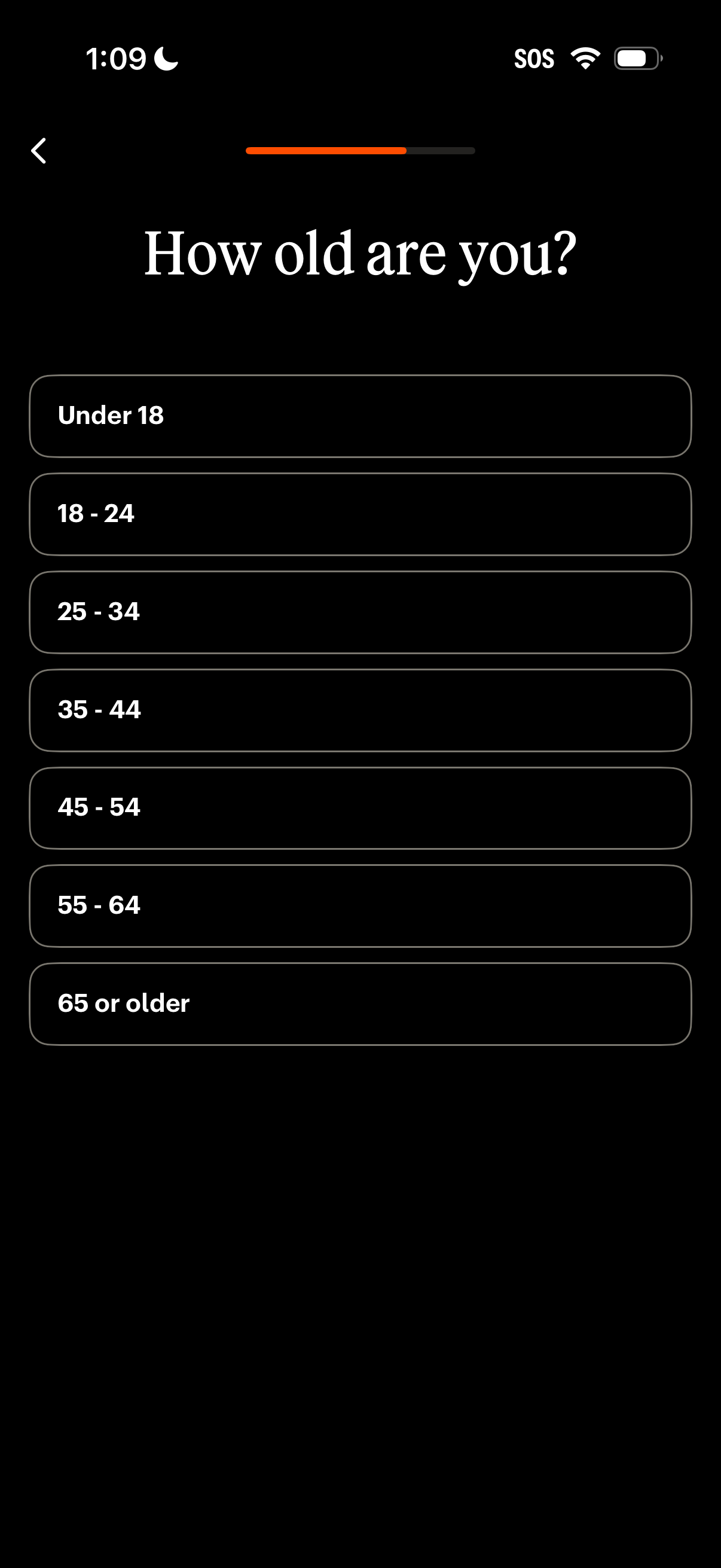
Onboarding demographic question screen asking “How old are you? ” with a progress indicator and back navigation.
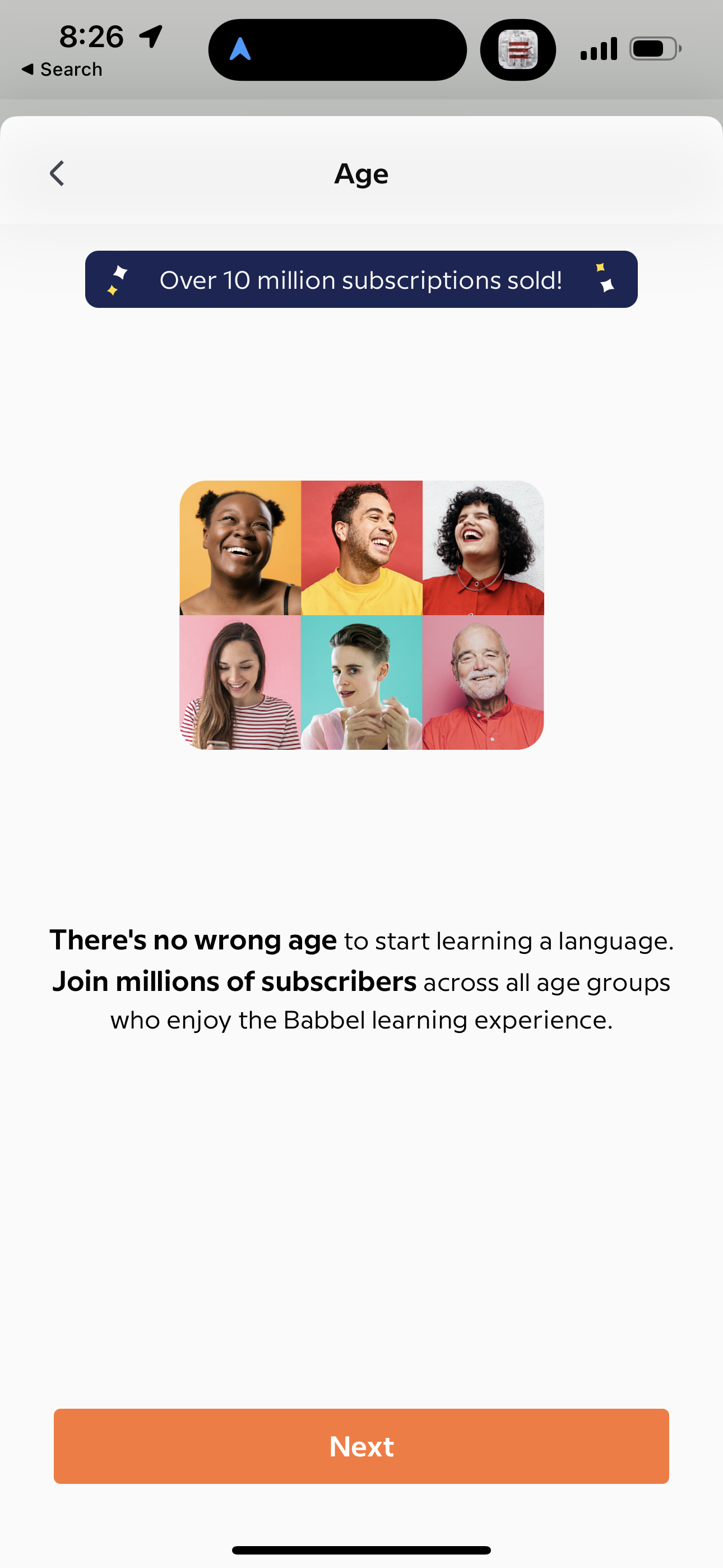
Onboarding screen asking the user’s age for a language-learning app, featuring reassurance copy and a banner highlighting millions of subscriptions. Provides back navigation and a primary “Next” button to continue setup.
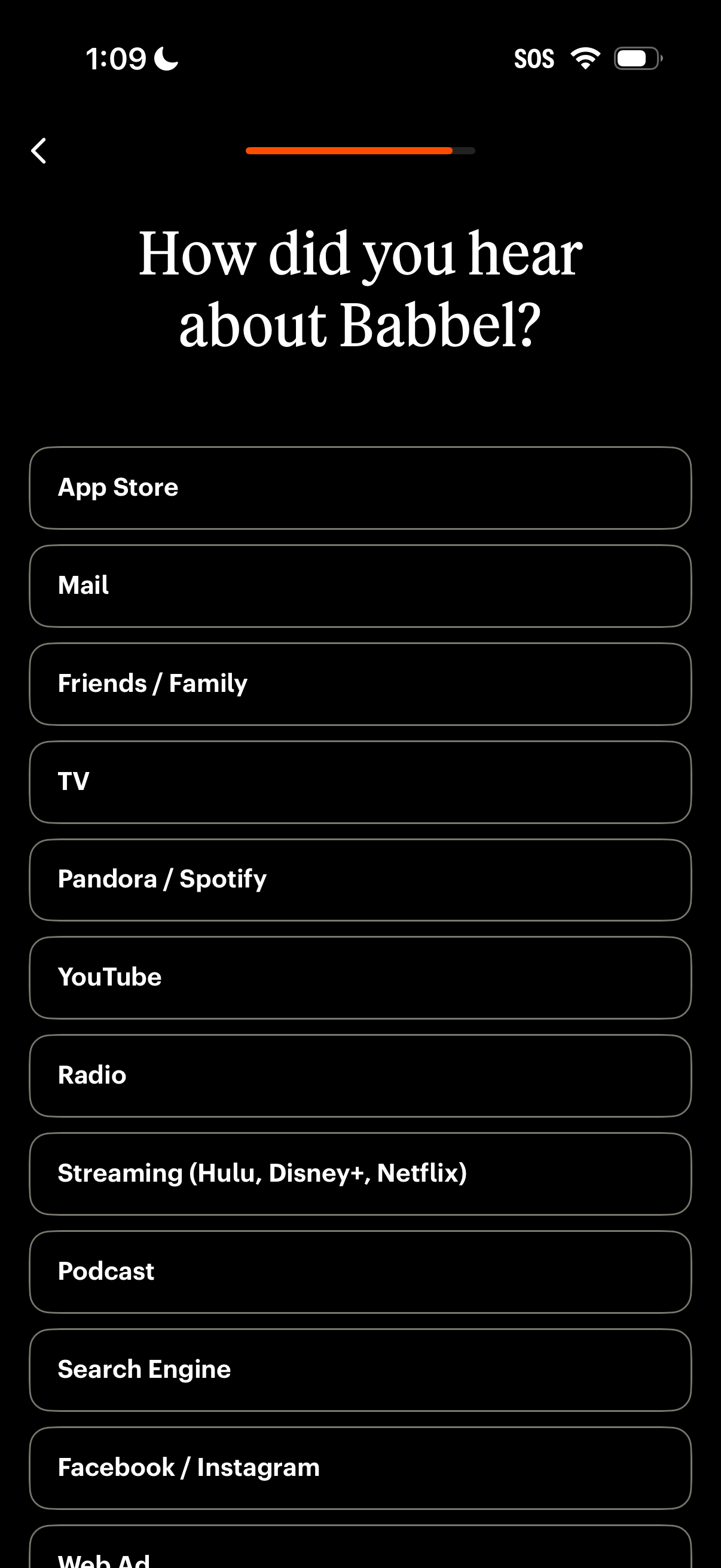
Onboarding survey screen asking “How did you hear about” the app, with a progress indicator and back navigation. Users choose a single acquisition source from a list of large selectable options such as App Store, email, friends/family, TV, streaming, podcast, search engine, and social media.
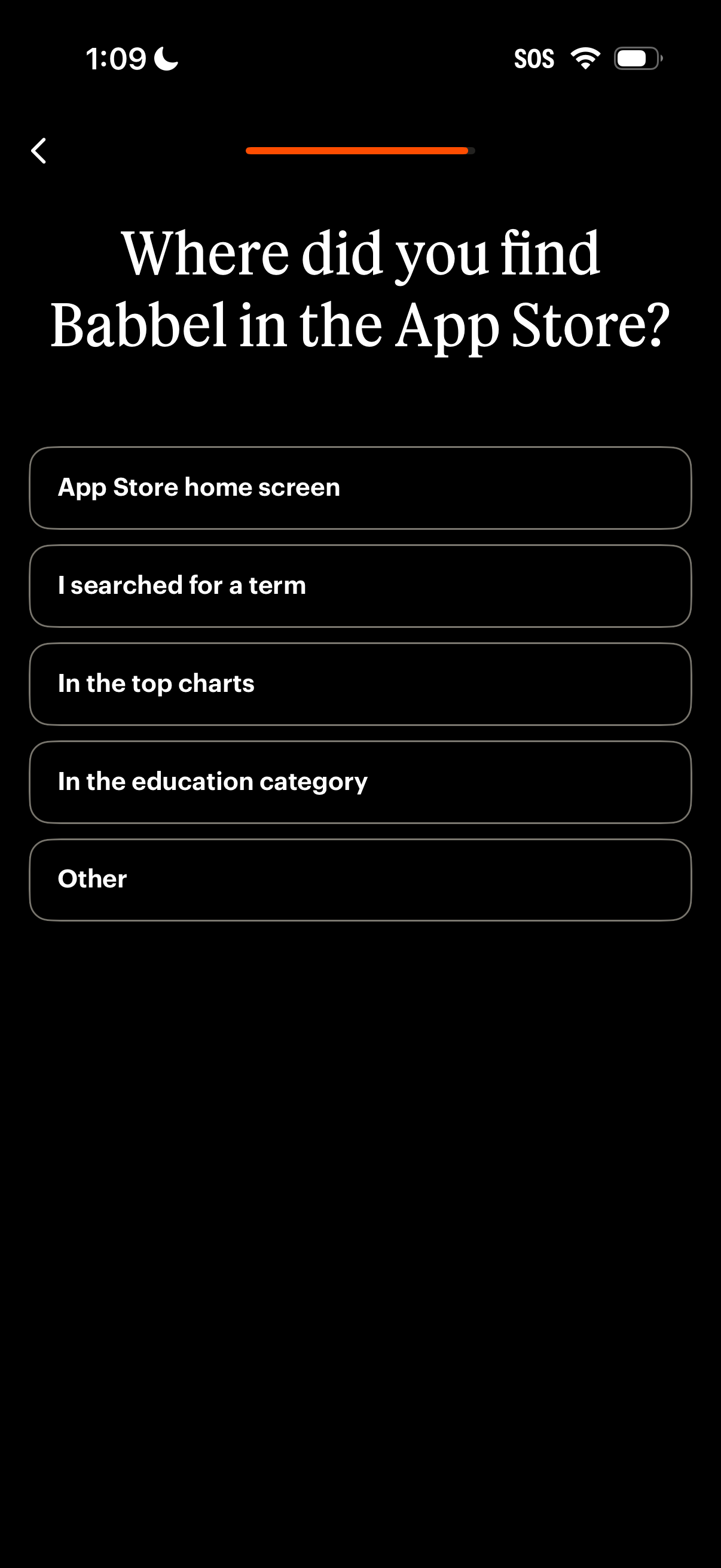
Onboarding survey screen asking how the user discovered the app in the App Store, with multiple-choice options such as home screen, searched term, top charts, education category, or other. Includes a back button and a progress indicator to show signup flow steps.
Loading/progress screen during onboarding for a learning app, showing a spinner and the message “Setting up your learning preferences…” while the system configures personalized settings. No user actions are available besides waiting for setup to complete.
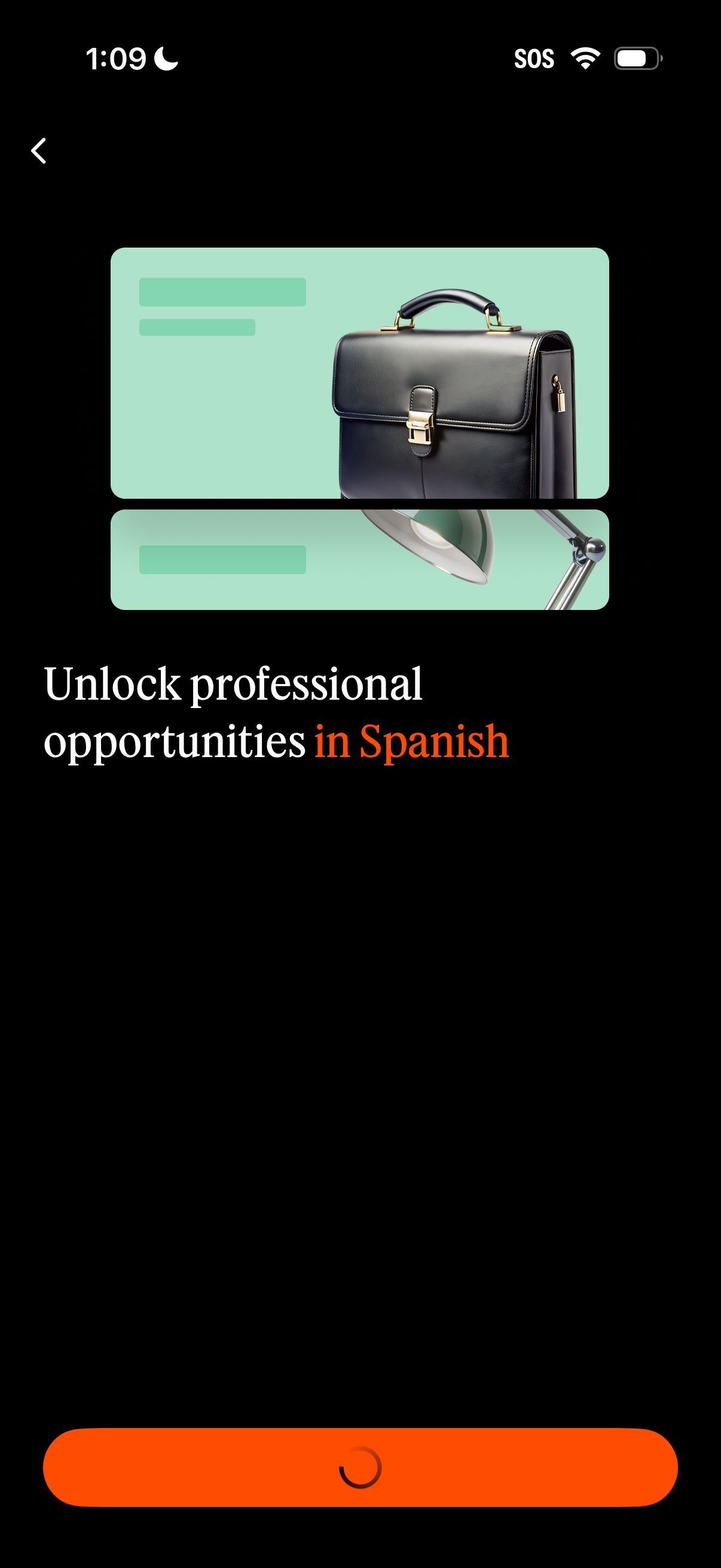
Onboarding or promotional screen encouraging users to learn Spanish to unlock professional opportunities, featuring a hero illustration and a large bottom call-to-action button with a loading state. Includes a back navigation arrow and a dark, minimal layout focused on advancing to the next step.
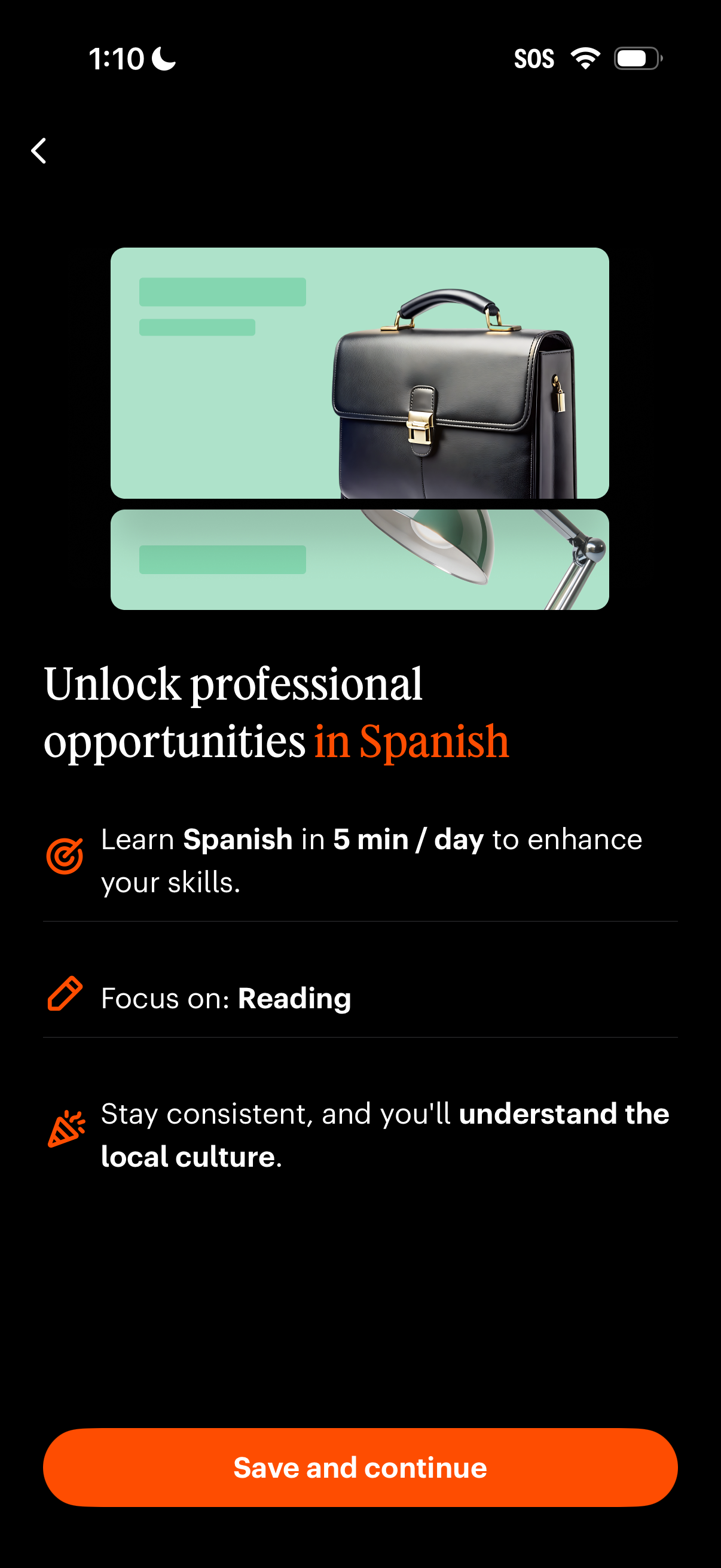
Language learning onboarding preference screen prompting users to “Unlock professional opportunities in Spanish,” highlighting benefits like learning 5 minutes per day, focusing on reading, and understanding local culture. Includes a primary CTA button to “Save and continue” and a back navigation option.
Onboarding sign-up screen asking “What’s your name? ” with a first-name text input field and a disabled Continue button until a name is entered.
Email entry screen in an onboarding/signup flow asking “What’s your email? ” with a single email address input field.
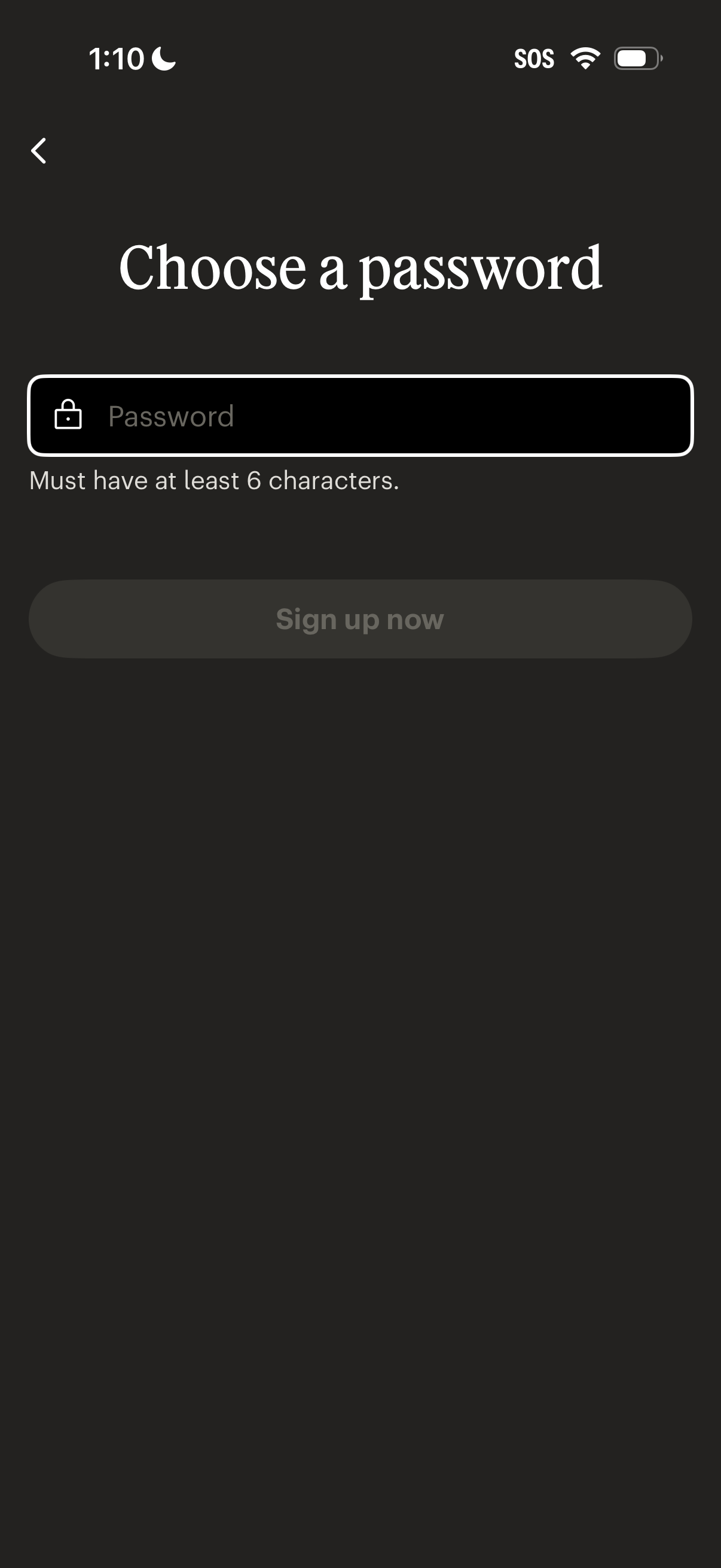
Account sign-up screen prompting the user to choose a password with a single password input field and a requirement note (minimum 6 characters). Includes a back navigation icon and a disabled “Sign up now” button that becomes enabled once a valid password is entered.

Minimal dark loading or splash screen with a centered app icon/graphic and no text or controls, indicating the app is starting or processing. Status bar includes an SOS indicator, suggesting a safety or emergency-focused app context.
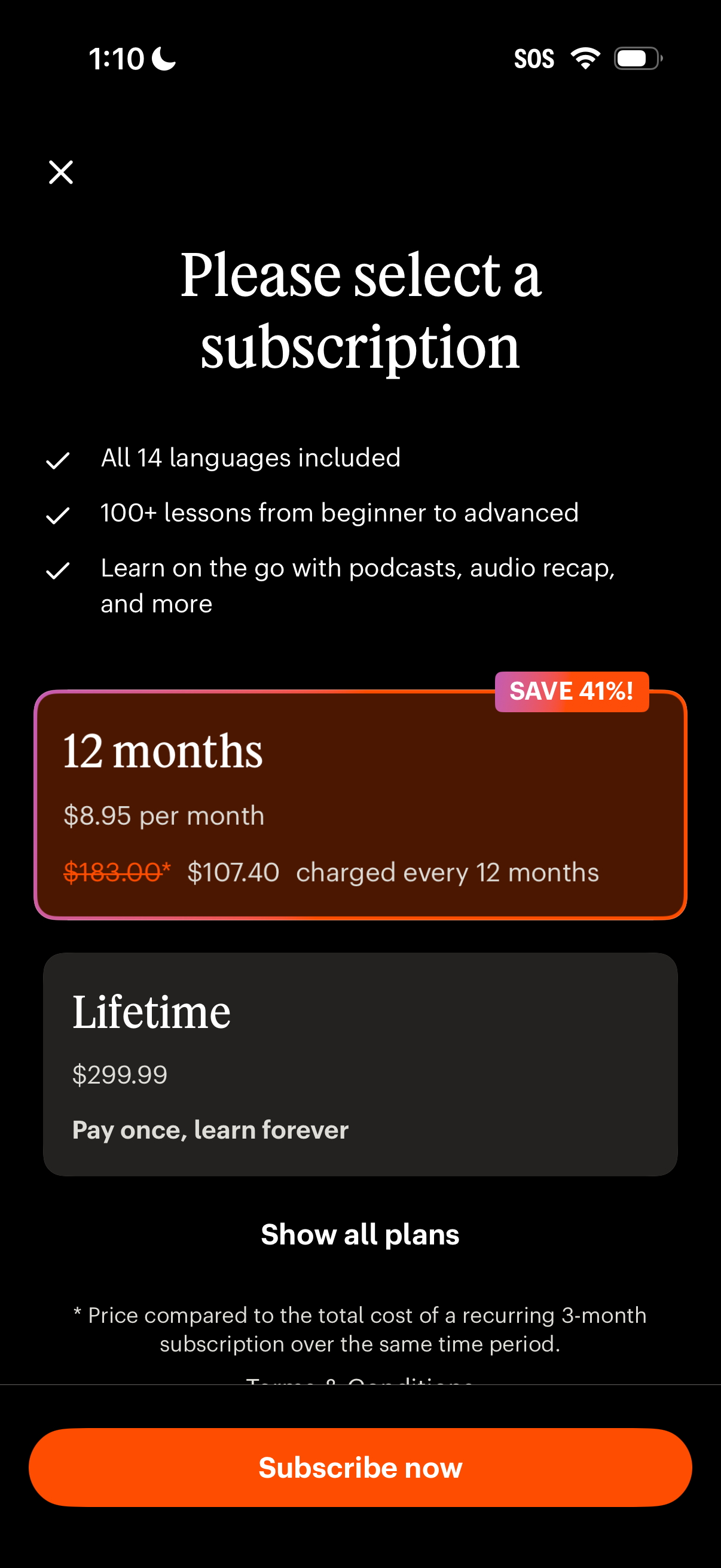
Subscription paywall screen prompting the user to select a plan, highlighting included benefits and showing pricing options like a discounted 12‑month annual plan and a lifetime purchase with a “save” badge. Primary CTA is “Subscribe now,” with options to show all plans and close the modal.
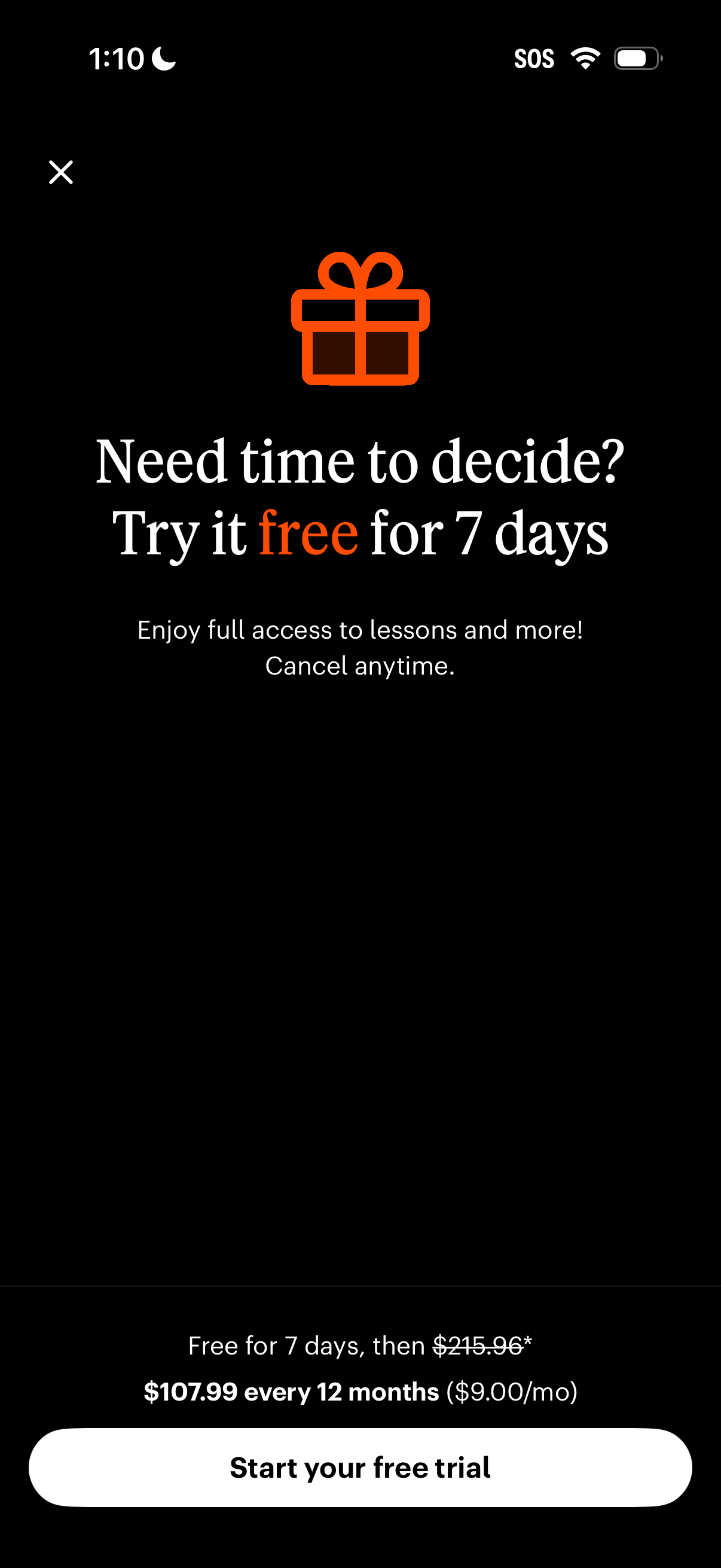
Subscription upsell paywall offering a 7-day free trial with full access and cancel-anytime messaging, showing discounted annual pricing and a primary “Start your free trial” CTA with a close button to dismiss.
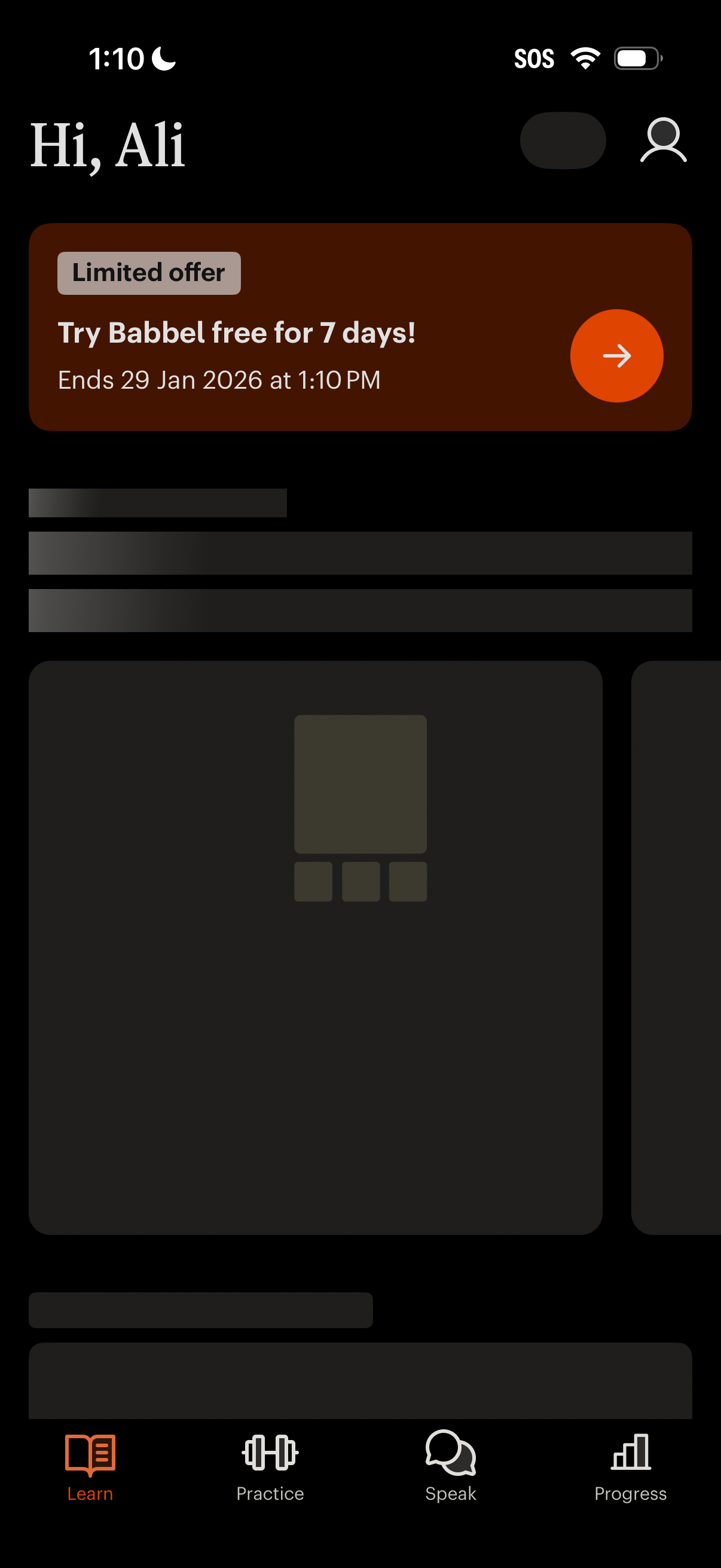
Language learning app home dashboard with a top greeting header and profile access, featuring a prominent limited-time promotional banner to start a 7-day free trial with an arrow CTA. The screen shows lesson/content cards in a feed and a bottom tab bar for navigating between Learn, Practice, Speak, and Progress.
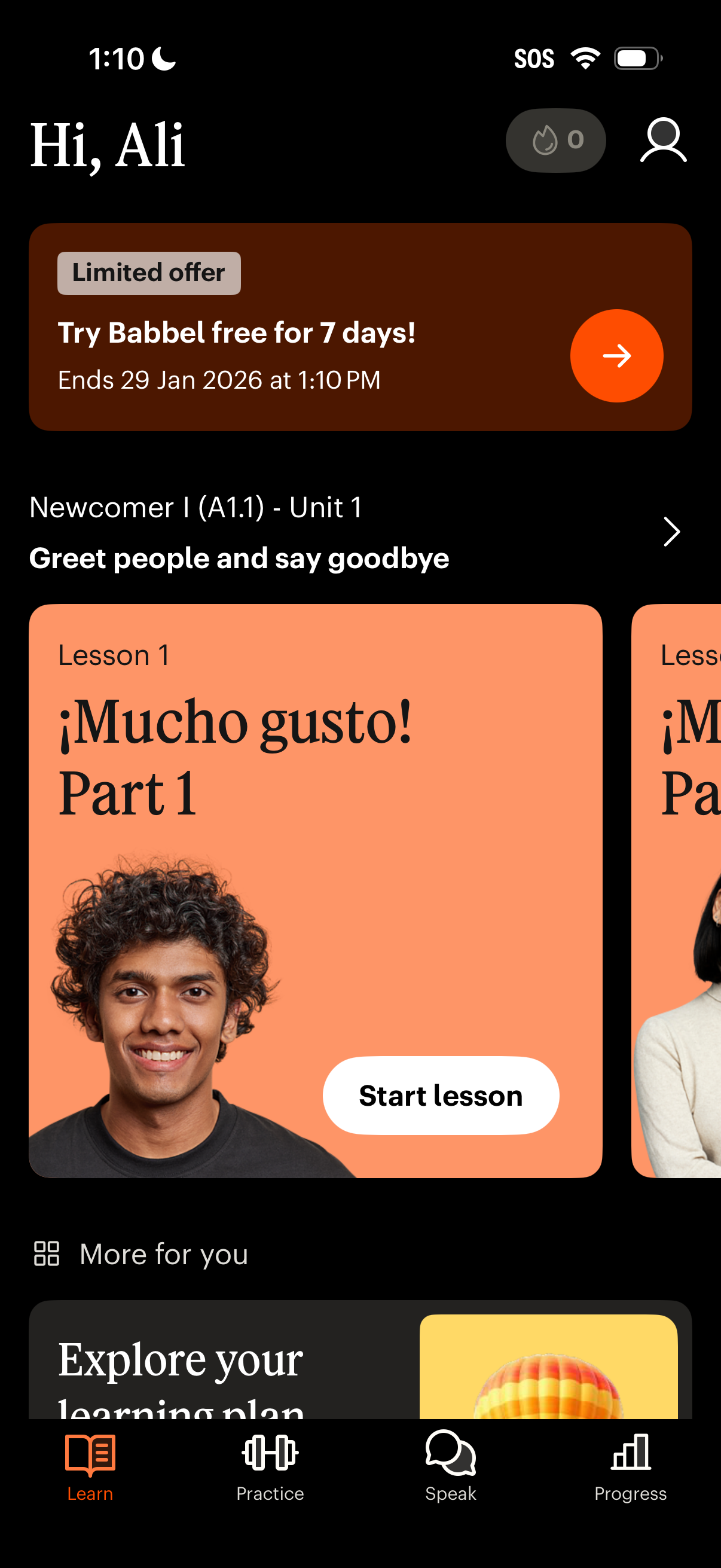
Language learning app home/learn tab showing a personalized greeting, a promotional banner to start a 7‑day free trial offer, and the current course/unit with lesson cards. Users can tap “Start lesson” to begin the next lesson, navigate to their profile, and switch between Learn, Practice, Speak, and Progress in the bottom tab bar.