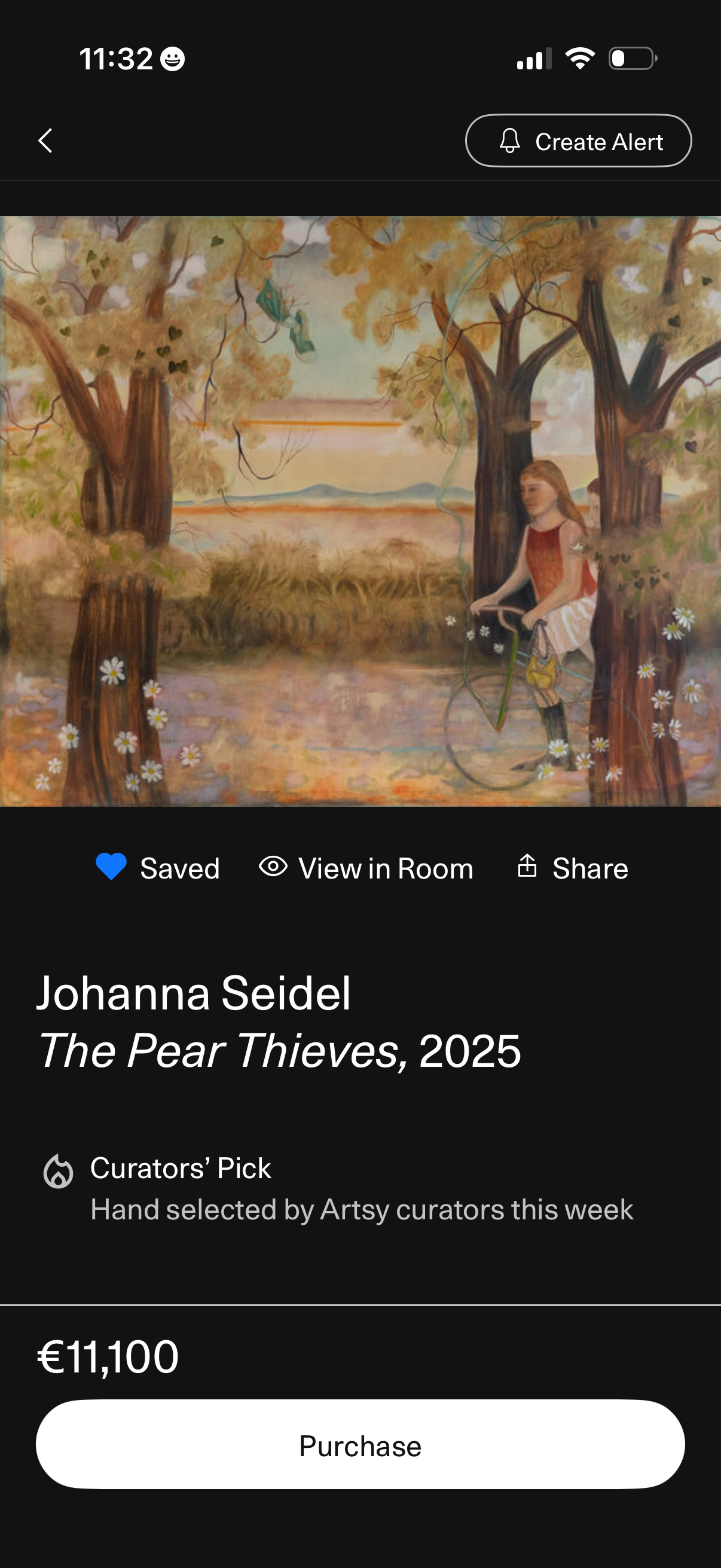
Artwork detail screen in an art marketplace showing a large image preview with artist and title, curator’s pick label, and price. Users can save/favorite, view the art in a room (AR preview), share, create an alert, and purchase via a prominent buy button.
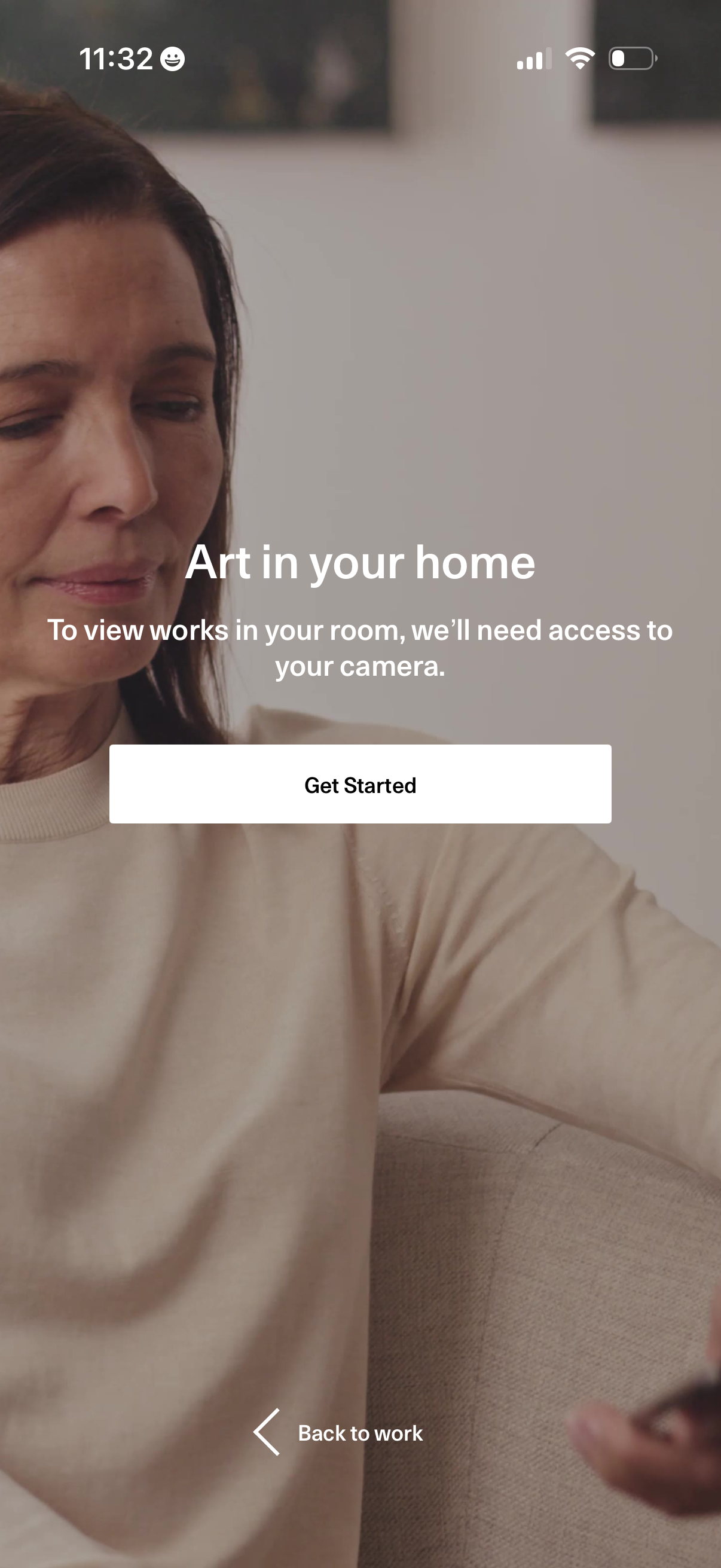
Intro permission screen for an AR “Art in your home” feature explaining that camera access is required to preview artwork in your room. Includes a primary “Get Started” button to begin and a “Back to work” link to return.
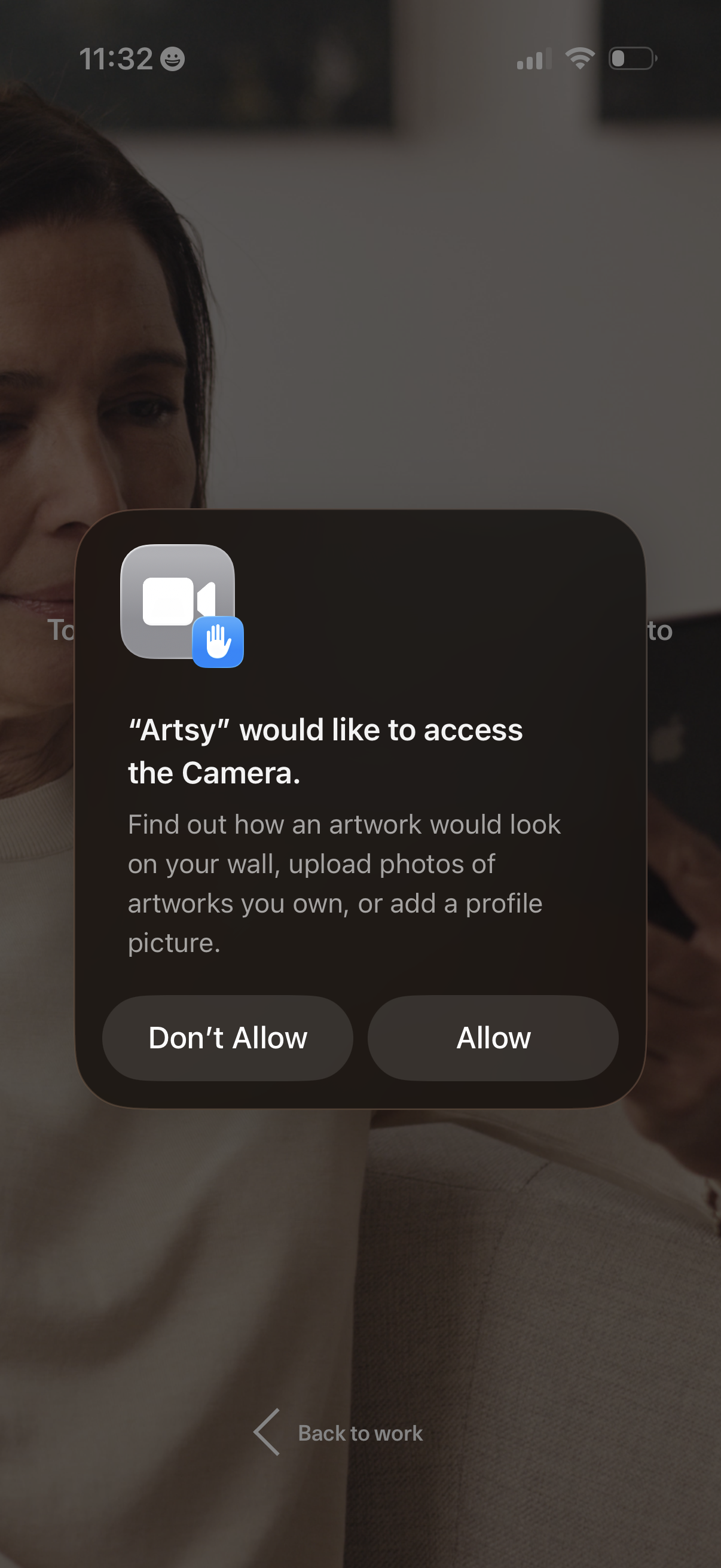
iOS system permission prompt asking the Artsy app to access the device camera, explaining it’s used to preview artwork on a wall, upload photos of owned art, or add a profile picture, with options to Allow or Don’t Allow.
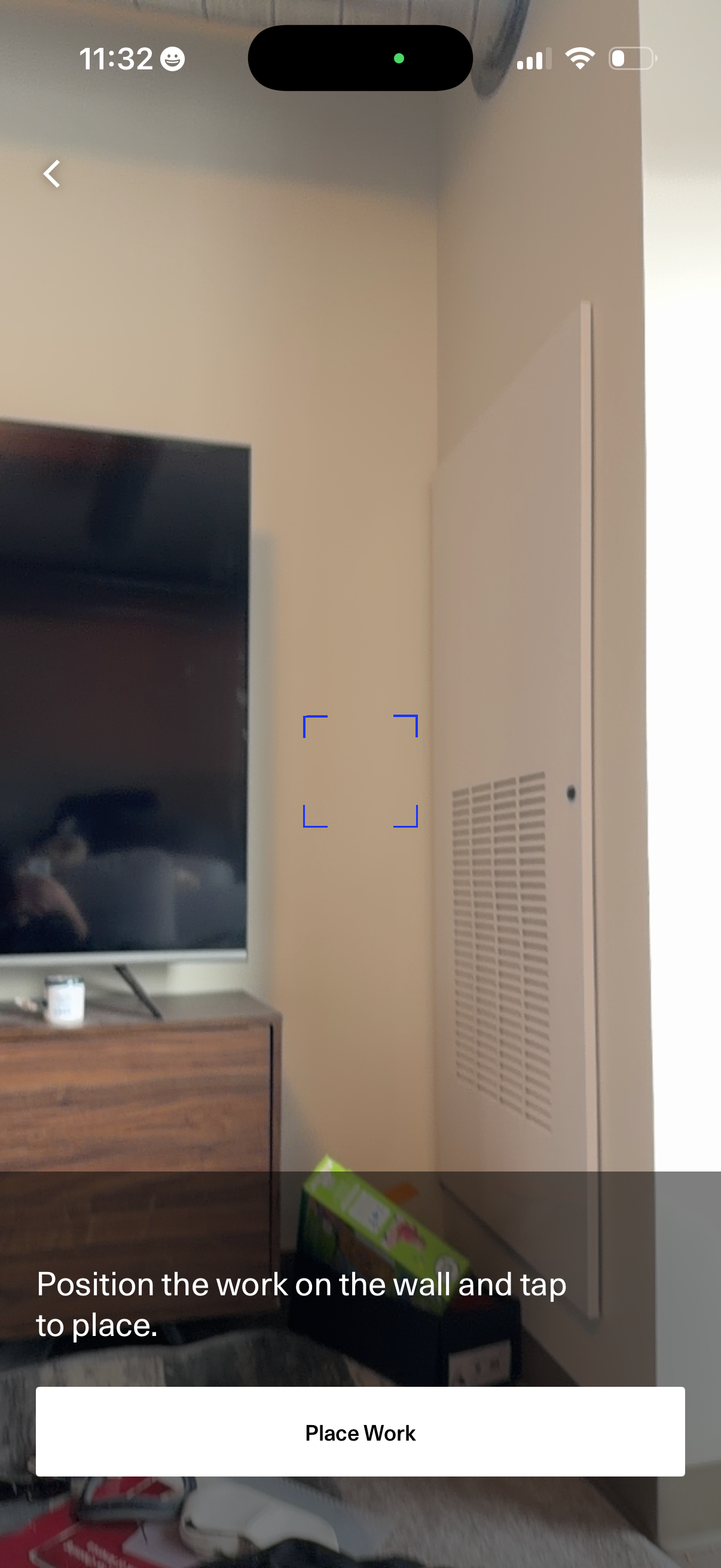
Augmented reality placement screen that uses the camera view with a focus reticle to preview positioning an item on a wall. Includes an instructional prompt and a primary “Place Work” button to confirm and place the object in the scene, with a back navigation control.
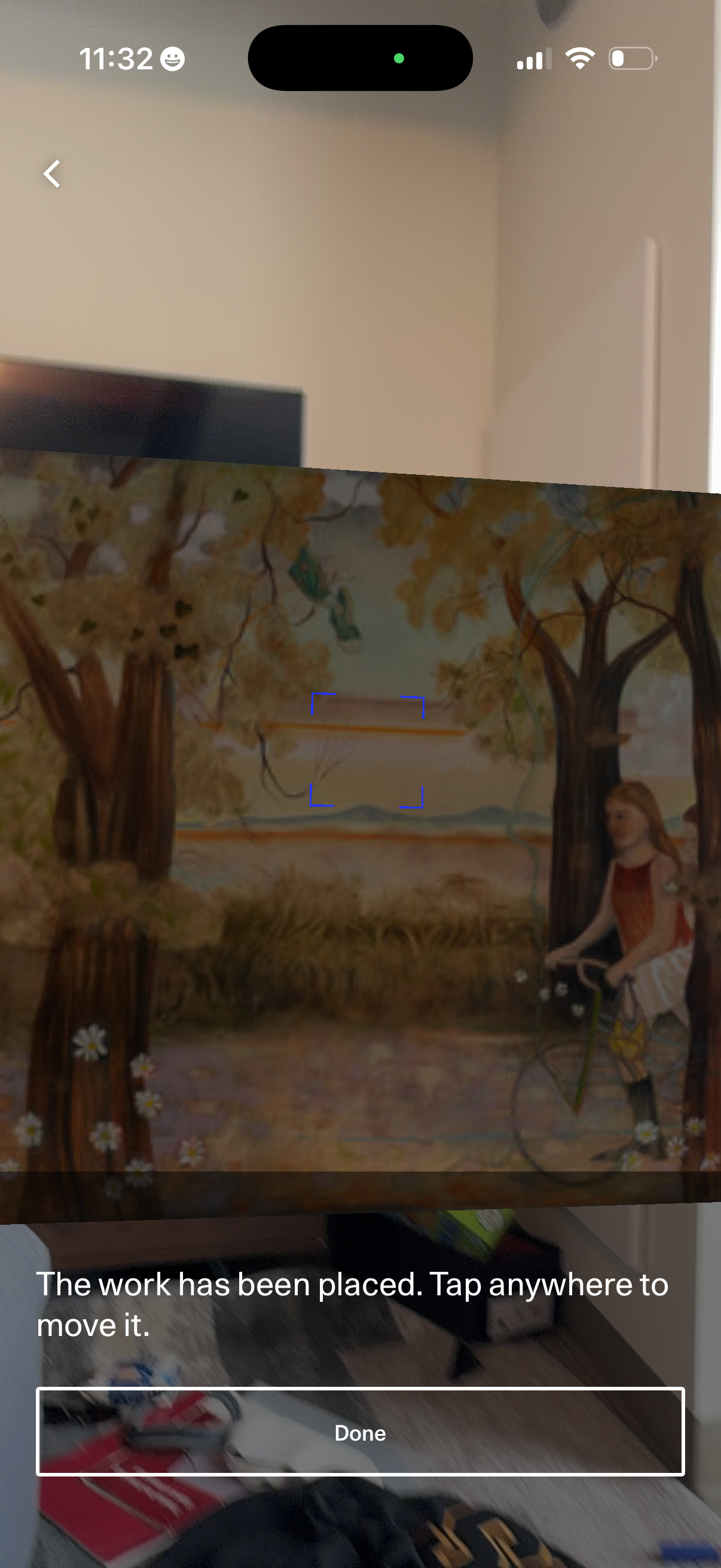
An AR camera view for previewing and placing a virtual artwork in a real room, with a placement guide and confirmation message that the work has been placed. Users can tap anywhere to move the artwork and finalize the placement with a Done button.