Sign up
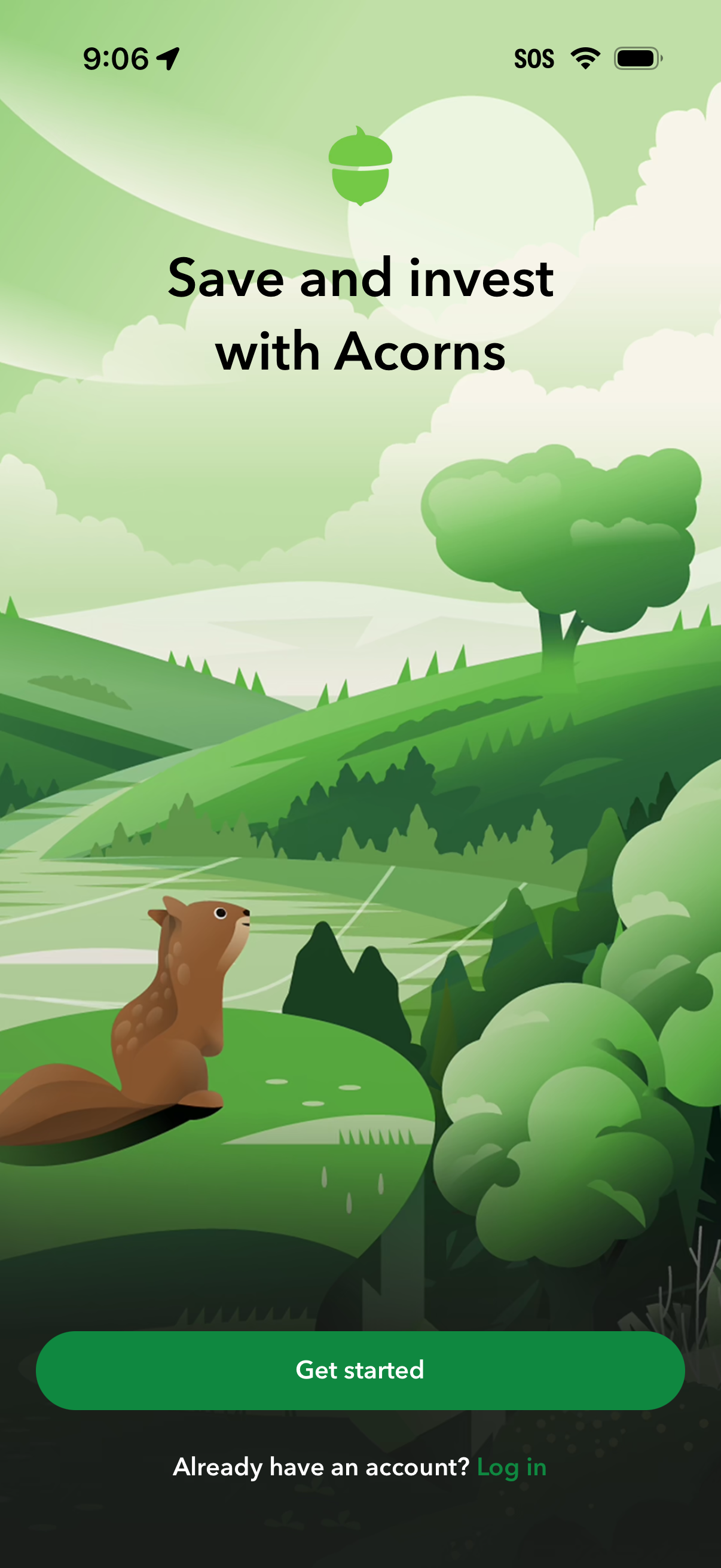
Welcome/onboarding screen for a personal finance investing app promoting saving and investing, featuring a primary “Get started” call-to-action to create an account and a secondary “Log in” link for existing users.
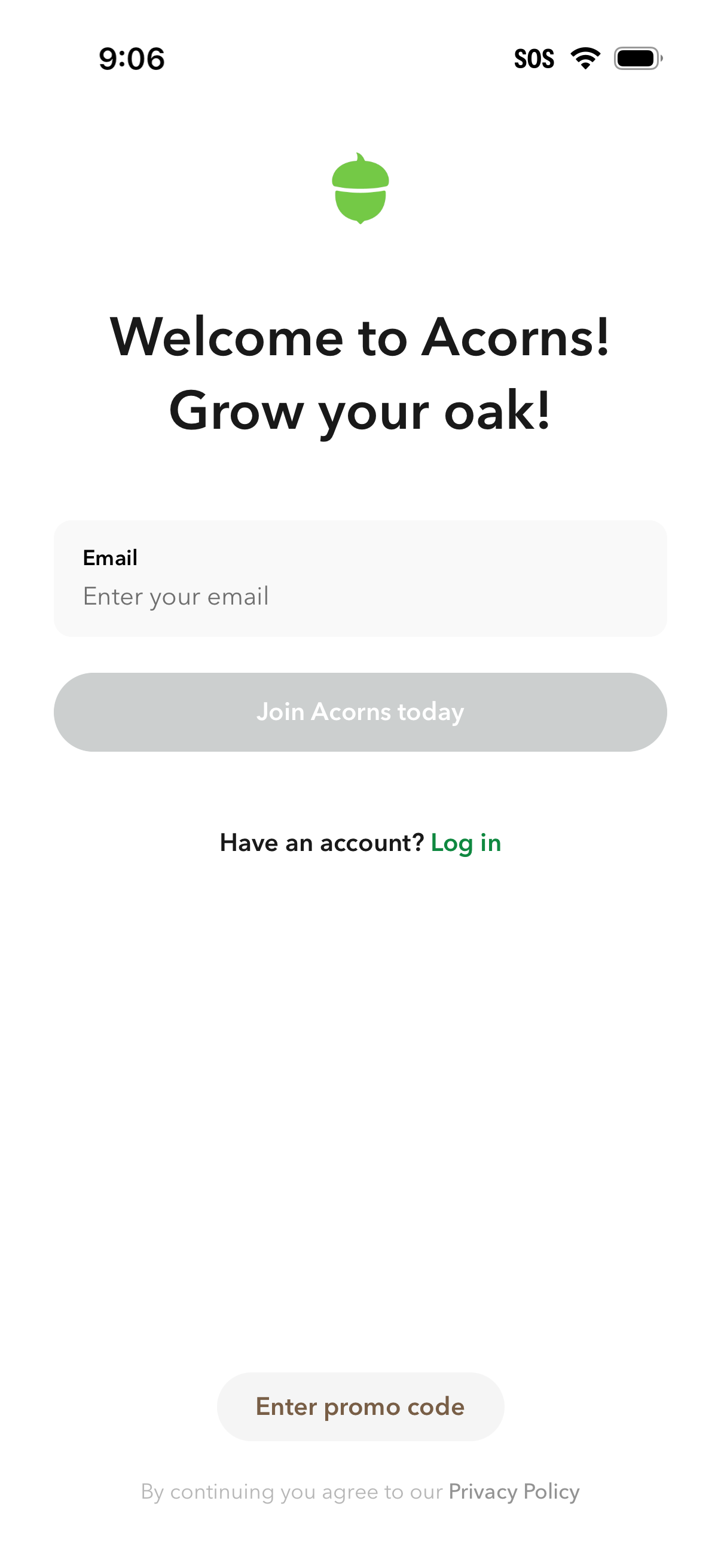
Welcome/sign-up screen for a finance app that lets users create an account by entering an email and tapping “Join today,” with a secondary link to log in for existing users. Includes an option to enter a promo code and a privacy policy notice.
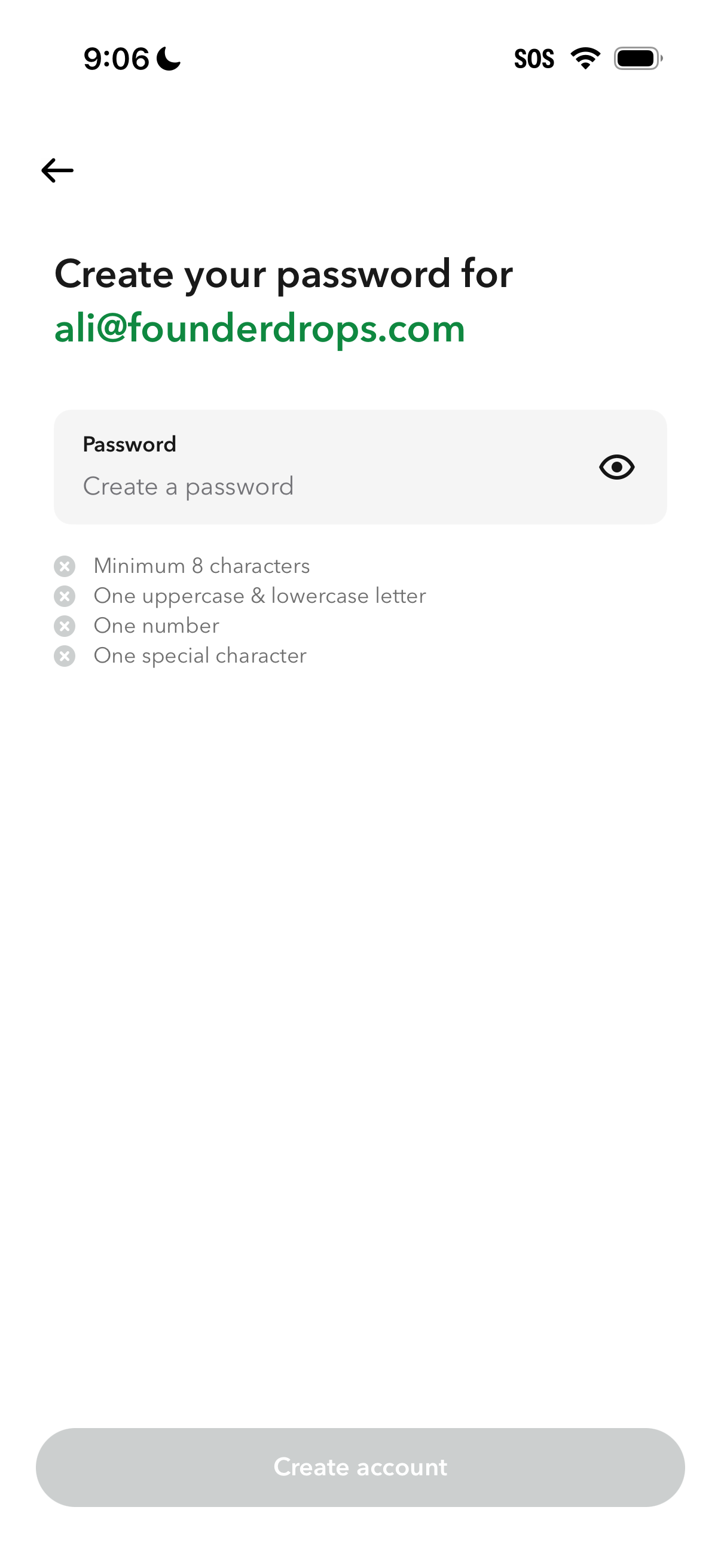
Account sign-up screen prompting the user to create a password for their email, with a password field including a show/hide toggle and real-time validation checklist (minimum length, uppercase/lowercase, number, special character). Includes a back navigation arrow and a disabled “Create account” primary button until requirements are met.
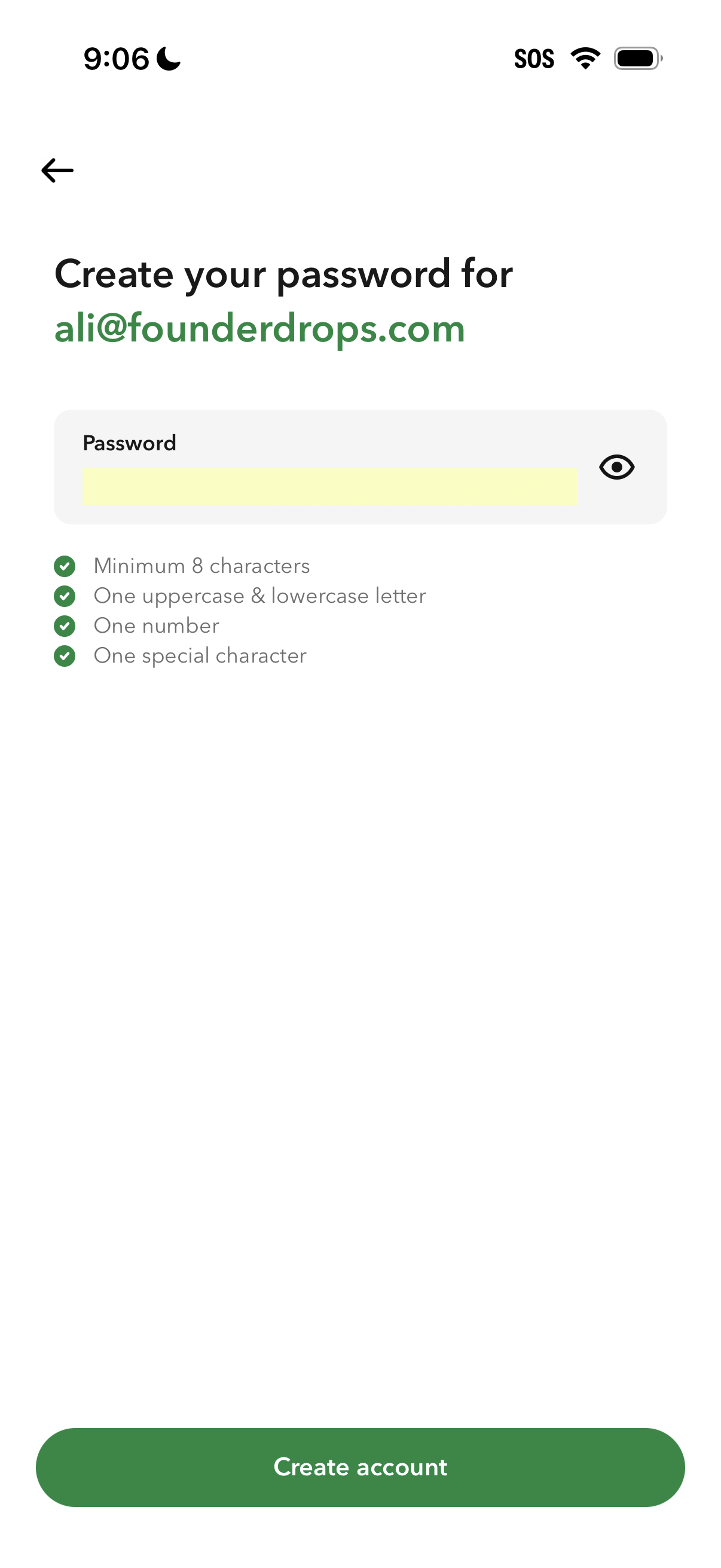
Account signup screen prompting the user to create a password for their email, with a password input field and show/hide toggle. Displays real-time password requirement checklist (minimum characters, uppercase/lowercase, number, special character) and a primary “Create account” button.
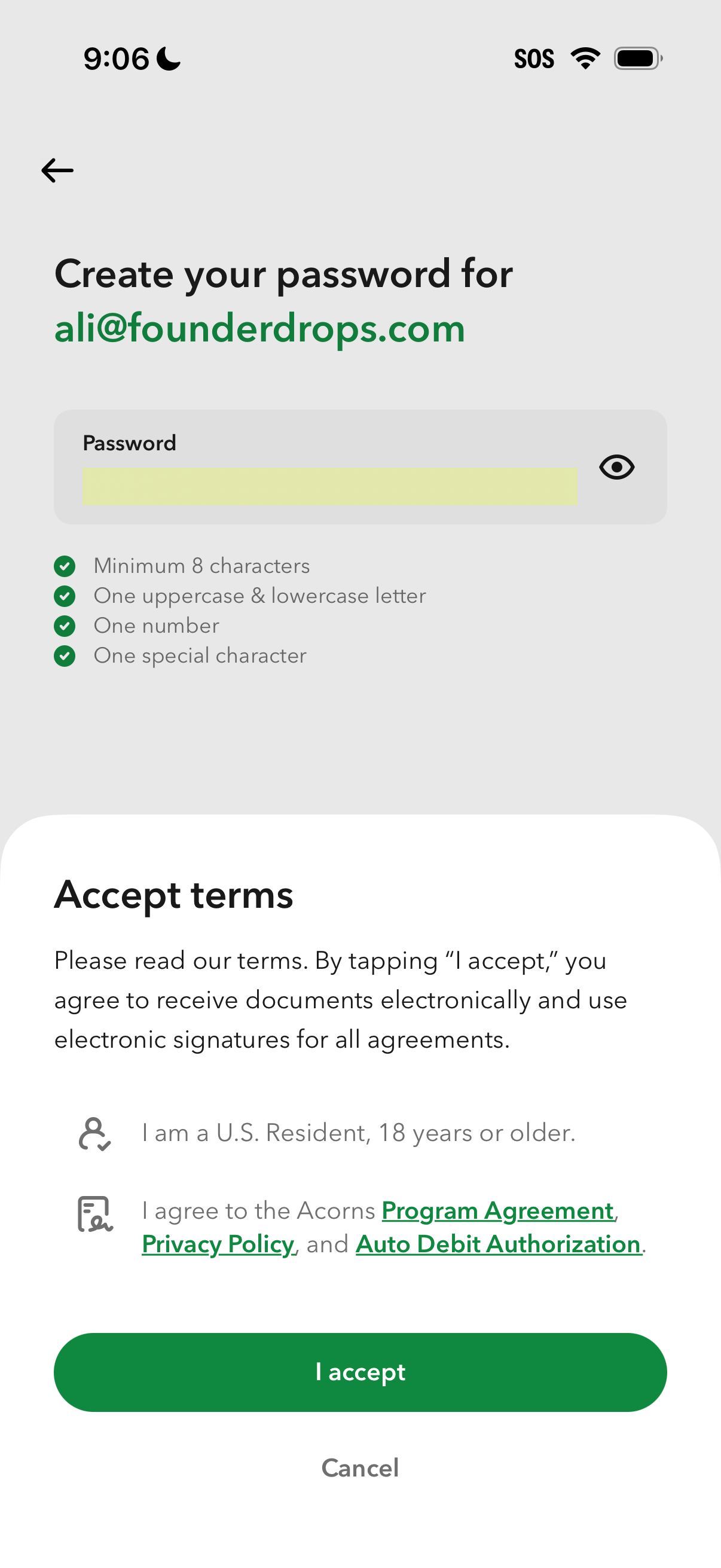
Account signup screen prompting the user to create a password for their email with a password field, show/hide toggle, and live checklist validation requirements (length, uppercase/lowercase, number, special character). Below, an “Accept terms” section summarizes agreements and eligibility with links to legal documents and primary actions to “I accept” or cancel.
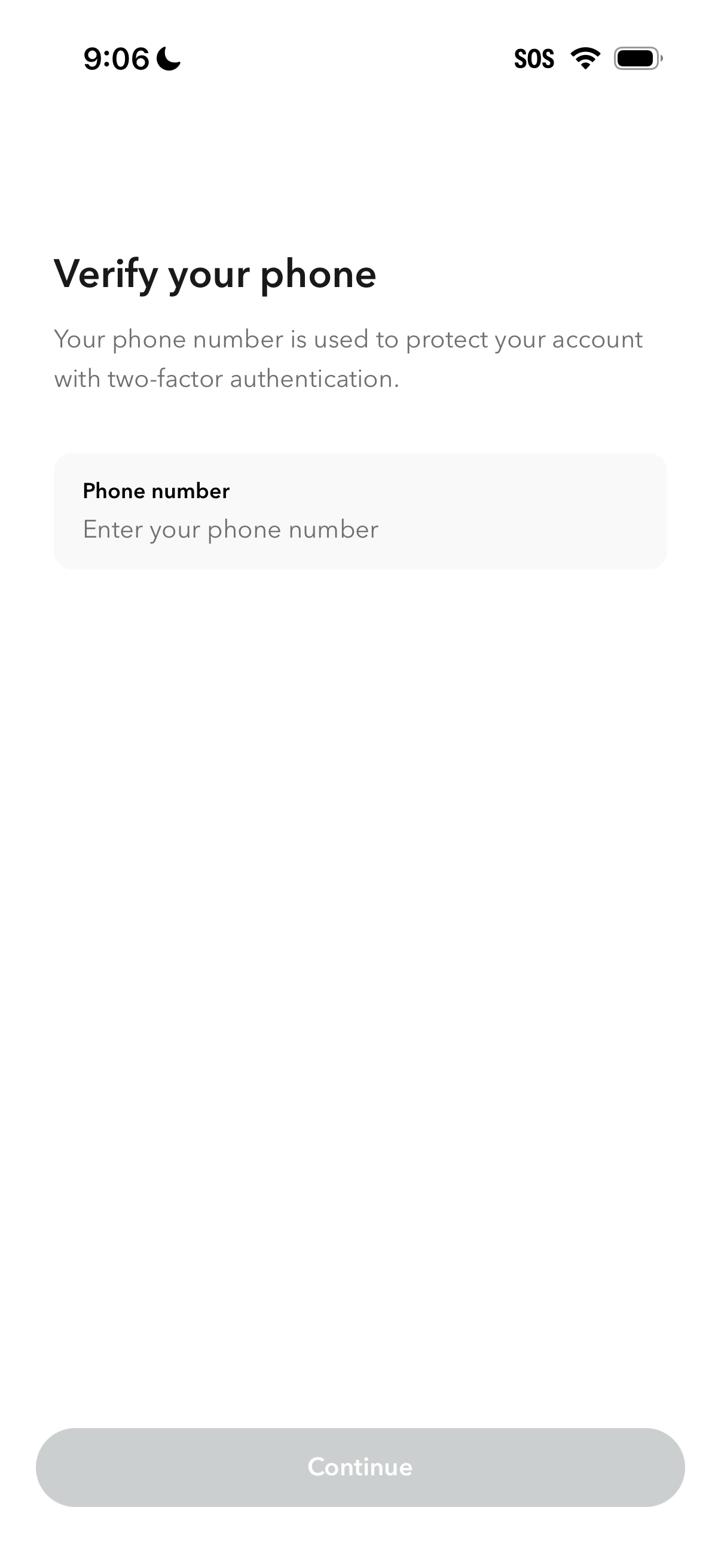
Phone verification screen for account security and two-factor authentication, prompting the user to enter a phone number. Includes a phone number input field and a disabled Continue button until a valid number is provided.
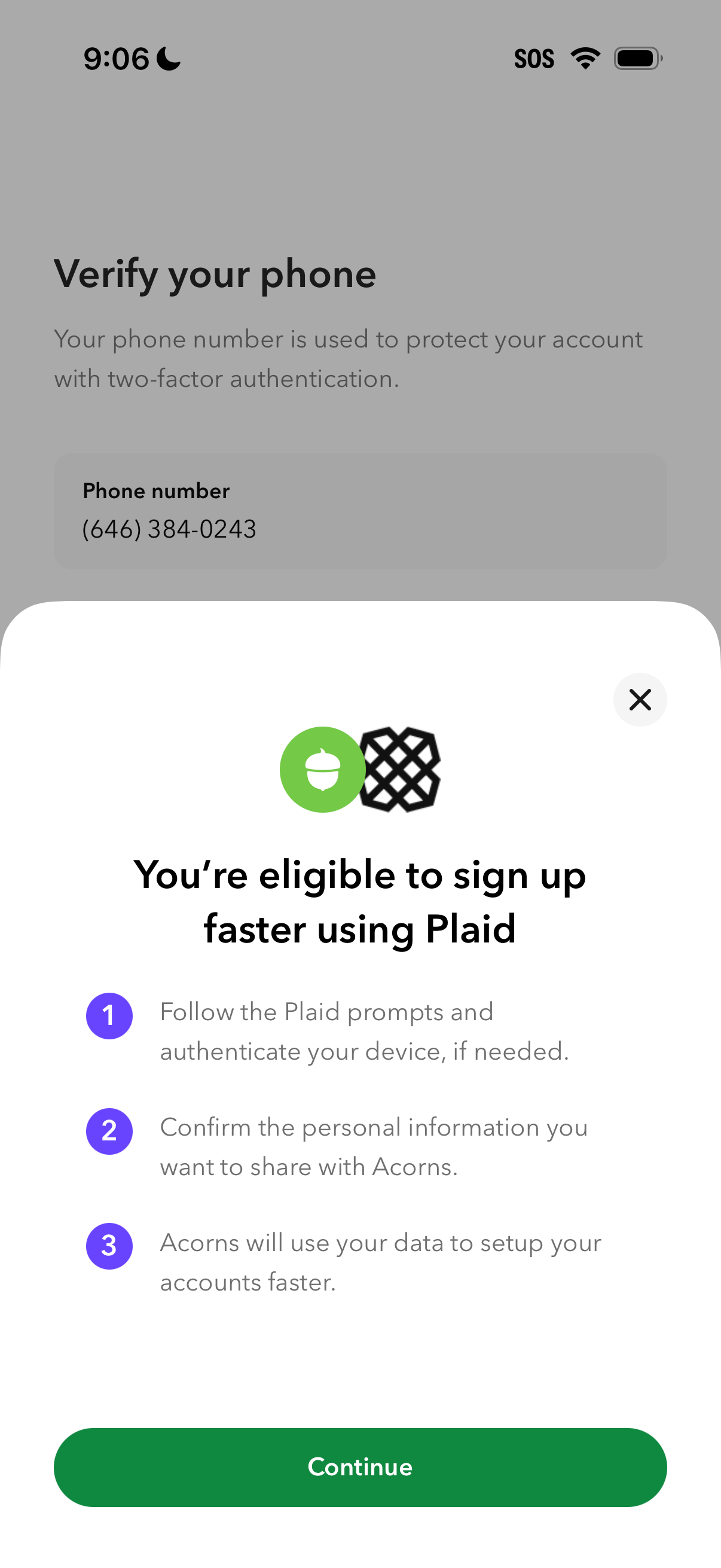
Phone verification screen for two-factor authentication showing the user’s phone number, with a modal explaining faster sign-up using Plaid and steps to authenticate and share personal info. Primary action is a “Continue” button with an option to close the Plaid prompt.
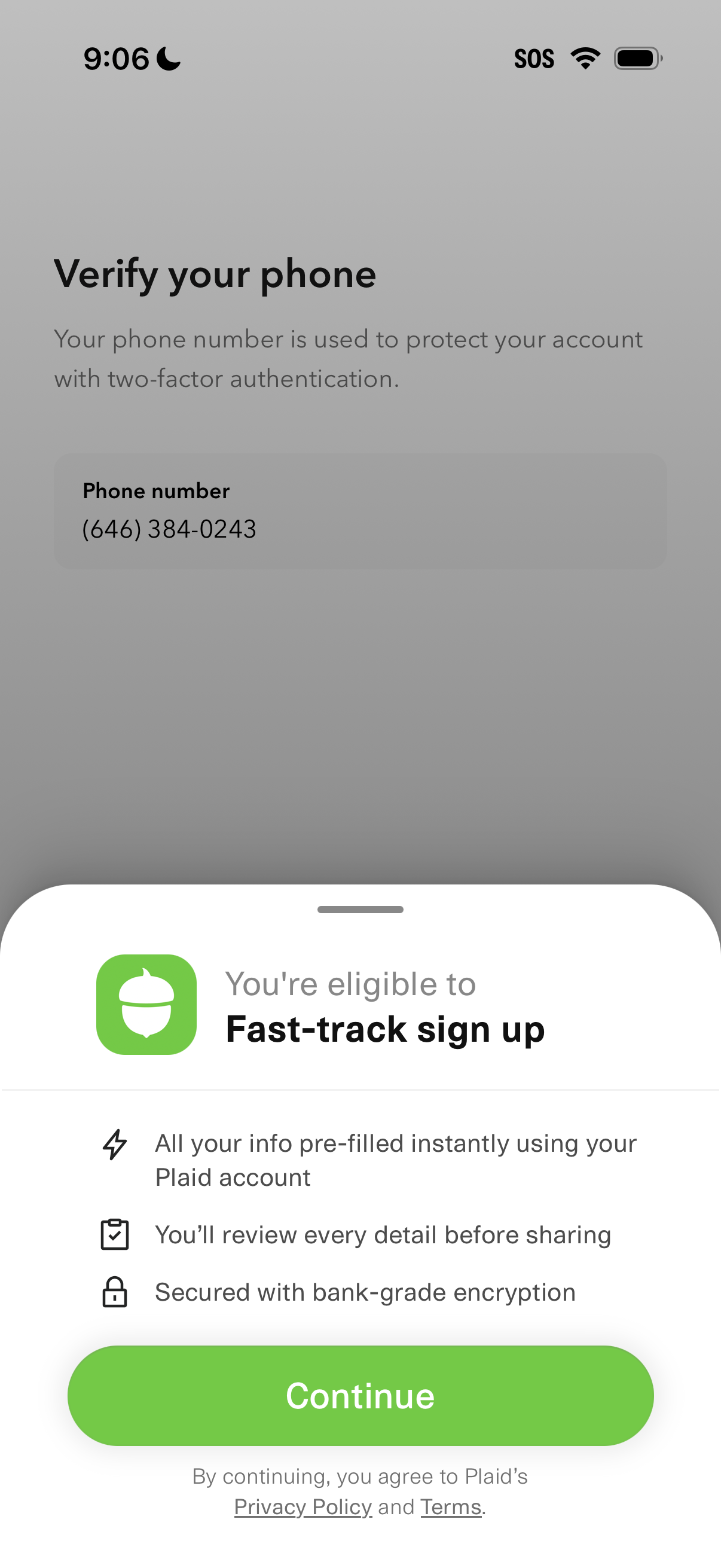
Phone verification screen for two-factor authentication showing a prefilled phone number field, with a bottom sheet promoting fast-track sign up via Plaid that explains pre-filled info, review before sharing, encryption, and provides a primary Continue CTA with privacy/terms links.
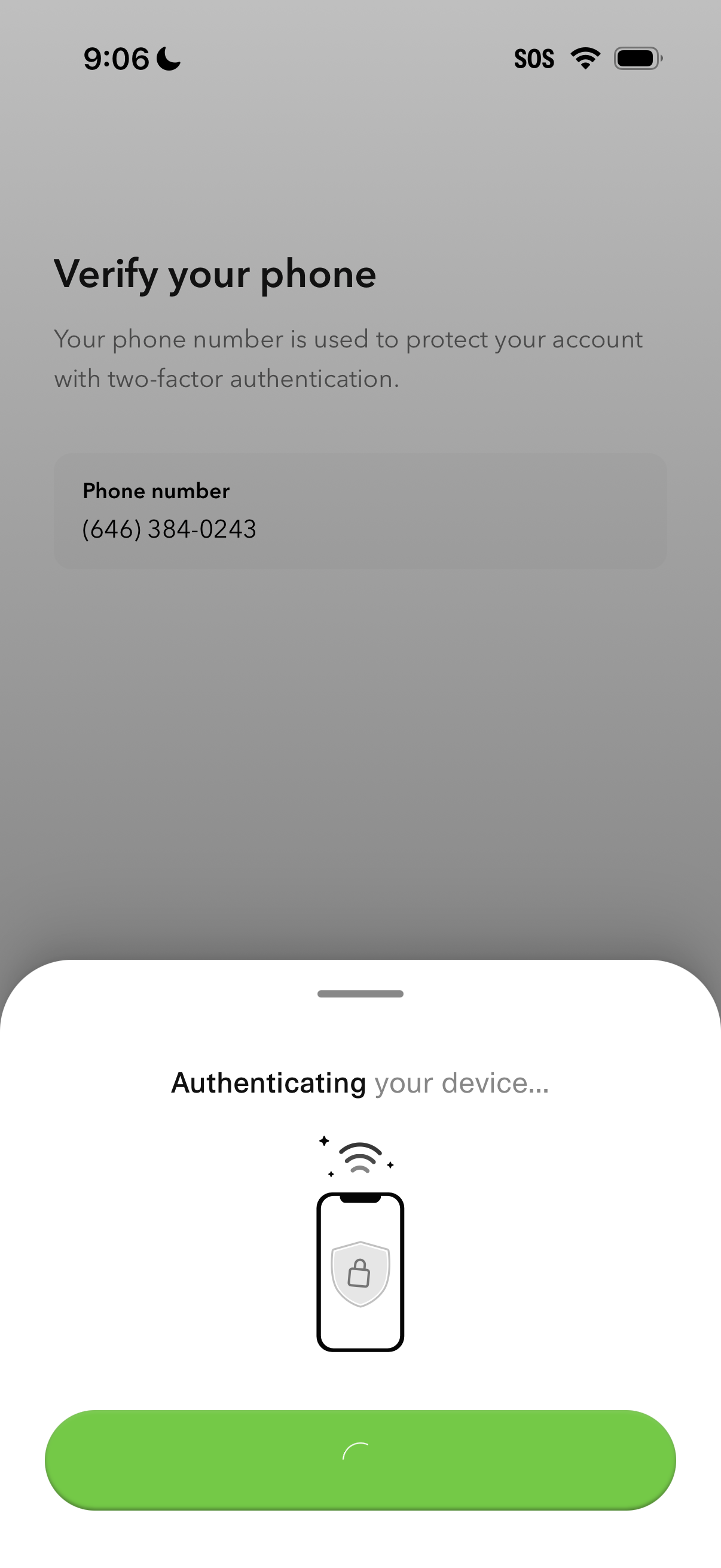
Phone verification screen for enabling two-factor authentication, showing the selected phone number and explaining it’s used to protect the account. A bottom sheet indicates progress with “Authenticating your device…” and a loading state while verifying the device.
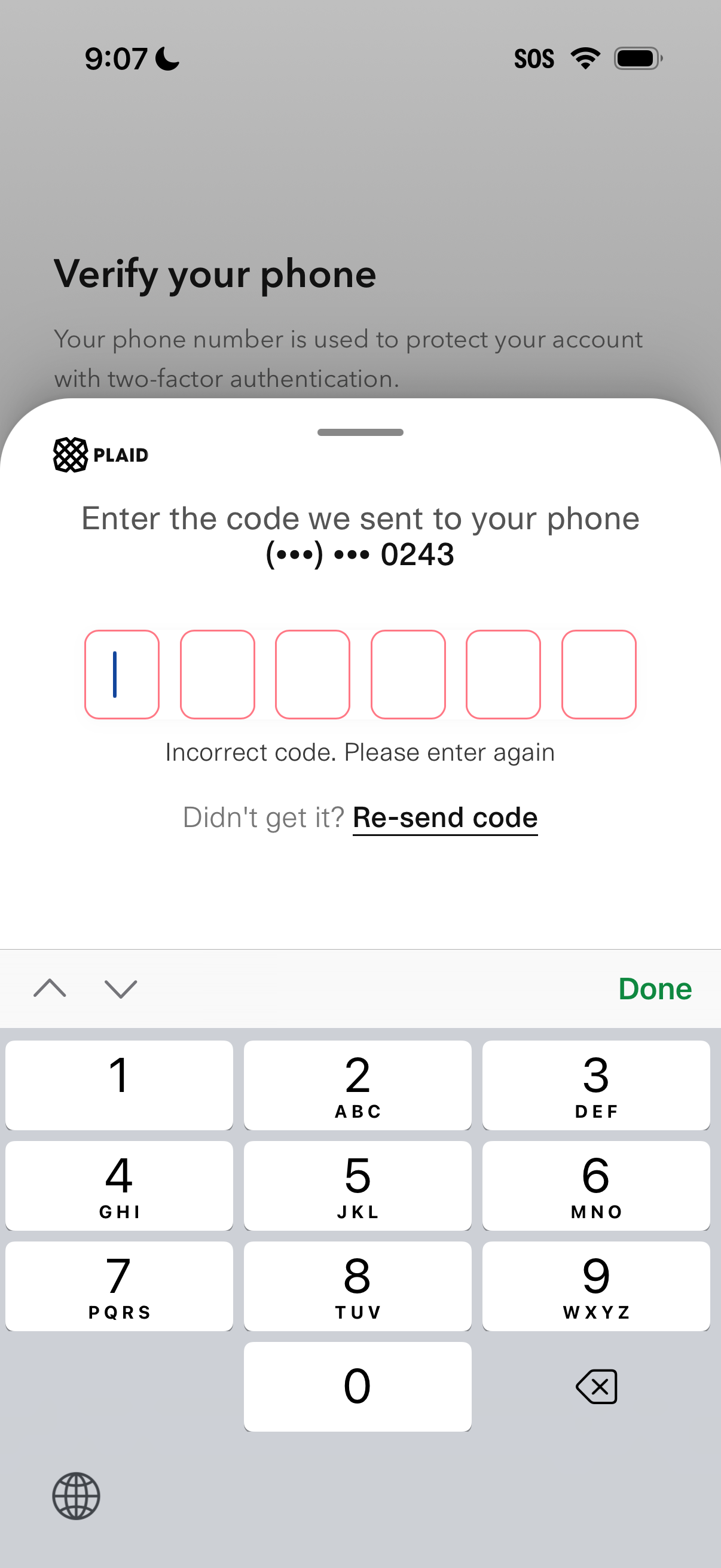
Phone number verification screen for two-factor authentication prompting the user to enter a 6-digit SMS code sent to a masked phone number. Includes inline error state for an incorrect code and a “Re-send code” link to request a new verification code.
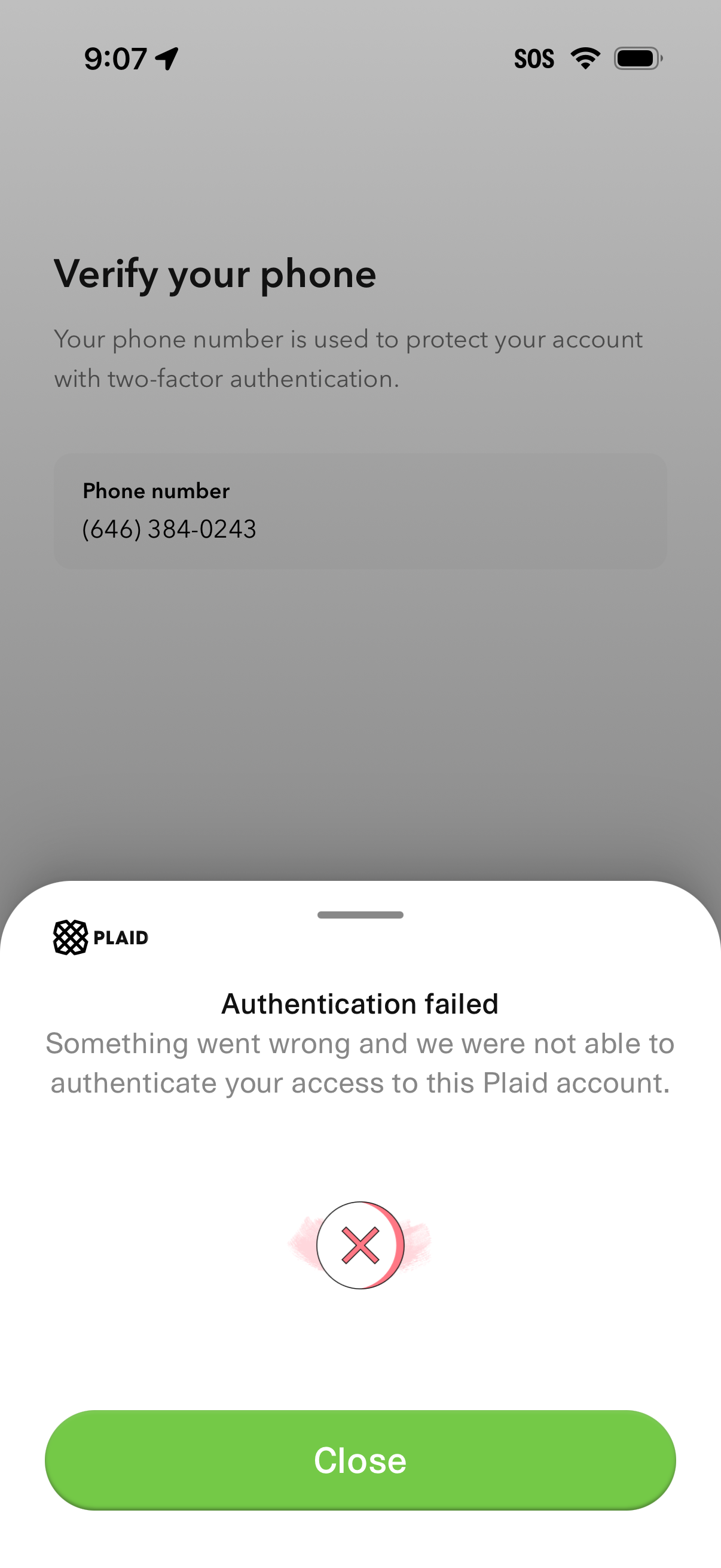
Phone verification screen for two-factor authentication showing a selected phone number, with an error modal stating “Authentication failed” for Plaid account access. The bottom sheet dialog includes a close button to dismiss the authentication failure message.
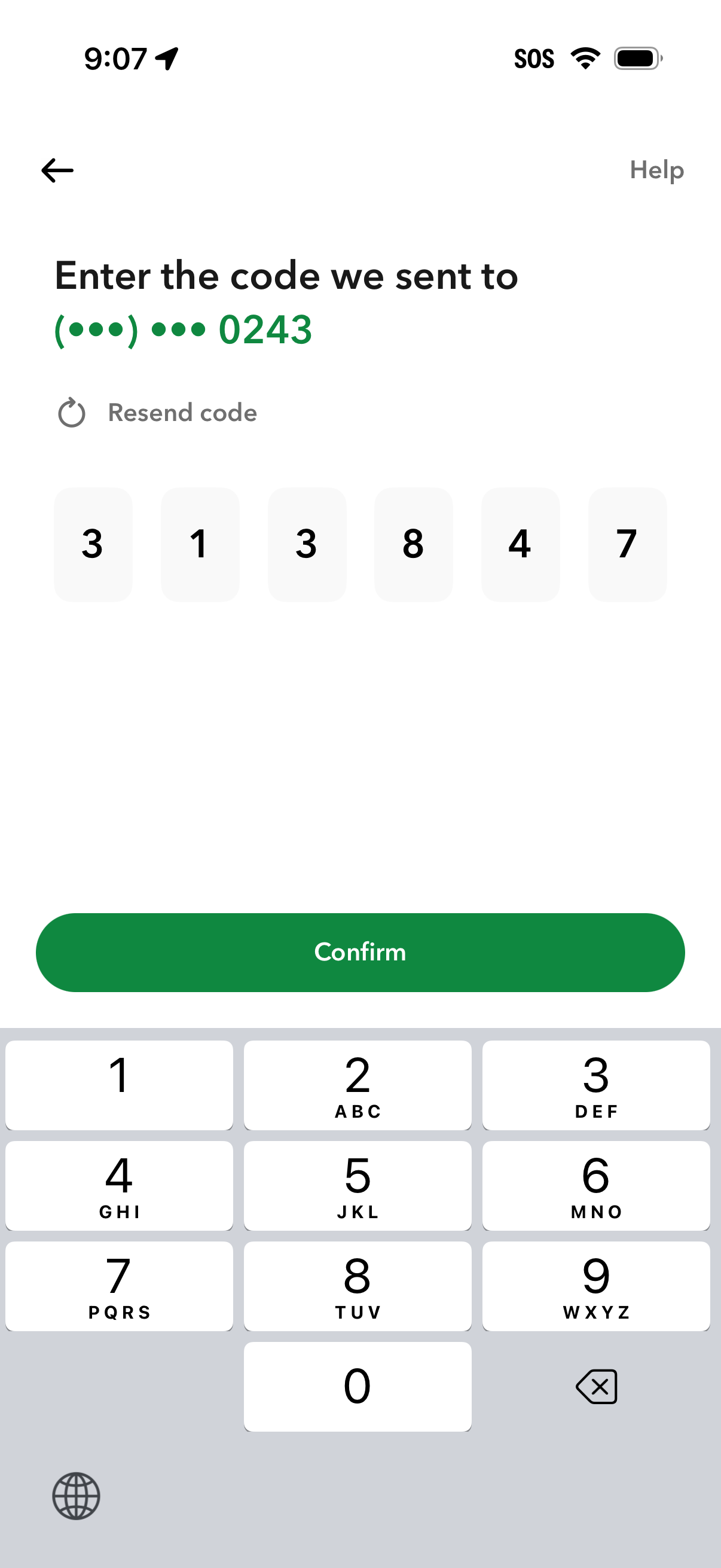
Phone number verification screen prompting the user to enter a 6-digit SMS code sent to a masked number, with an option to resend the code and access Help. Includes OTP input boxes, a numeric keypad, and a primary Confirm button to submit the code.